Introduction
This article shows you how to use the Live Staffing Dashboard to see who is clocked in right now, grouped by role, with each employee’s break status at a glance. You will learn how to read the dashboard, filter by location and role, check break details, and switch between the table and chart views. It helps managers keep the right people on the floor and stay on top of required breaks during a shift.
Version Support
| Product / Module | Supported Version |
|---|---|
| BLogic View — Employees | POS Server v7.2026.07.24 |
Note: If you do not see this option, please contact Support to confirm your store is on a supported version.
Table of Contents
- Open the Live Staffing Dashboard
- Read the Dashboard
- Filter and Search
- Check Break Details
- Switch to Chart View
- FAQ
Open the Live Staffing Dashboard
Step 1: Go to Live Staffing
- Log in to your BLogic View dashboard.
- In the left menu, go to Employees > Live Staffing.
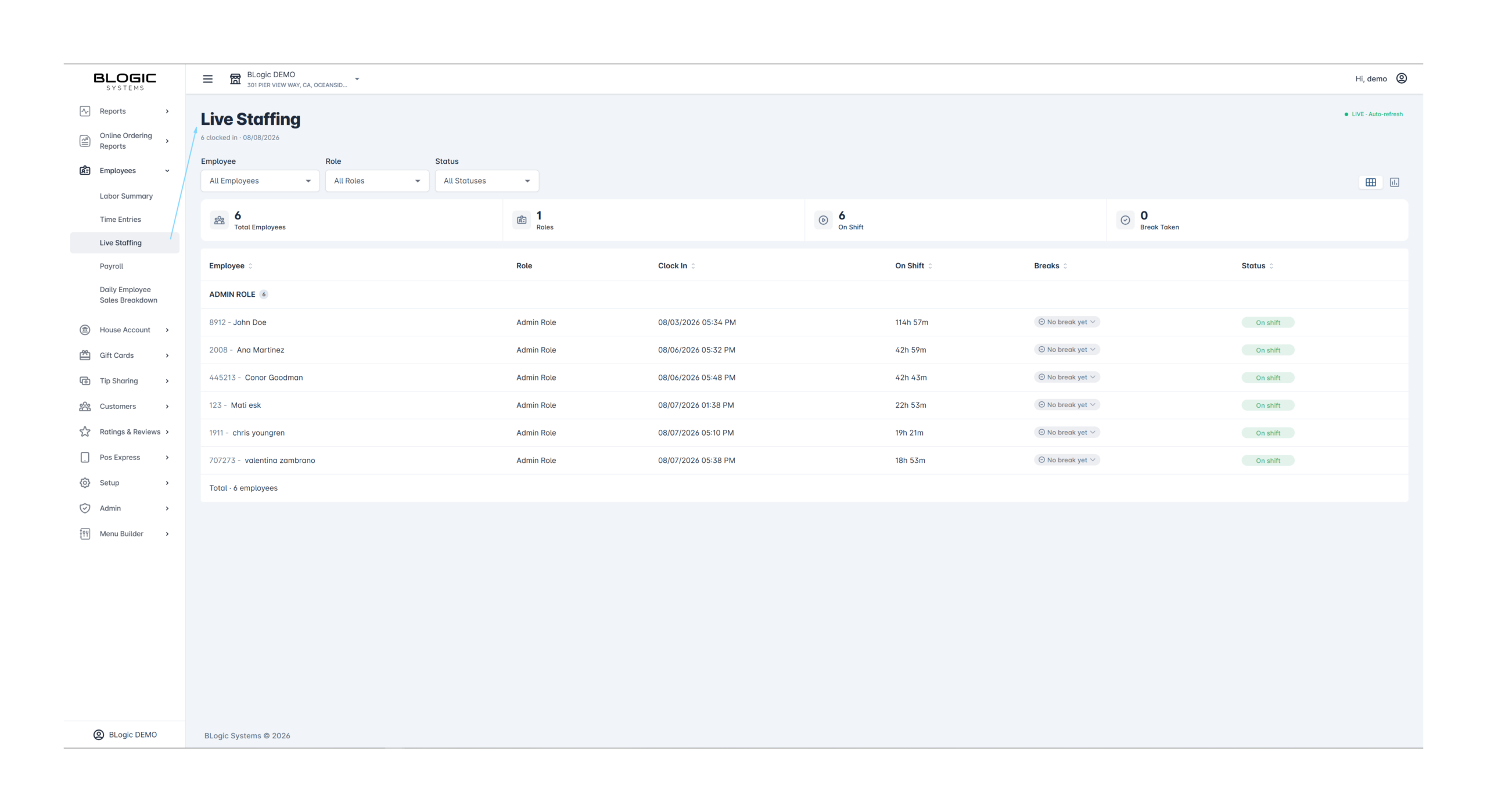
The page opens showing everyone currently clocked in. The header shows the total count and the current time, for example “12 clocked in · 10:30 PM”.
Read the Dashboard
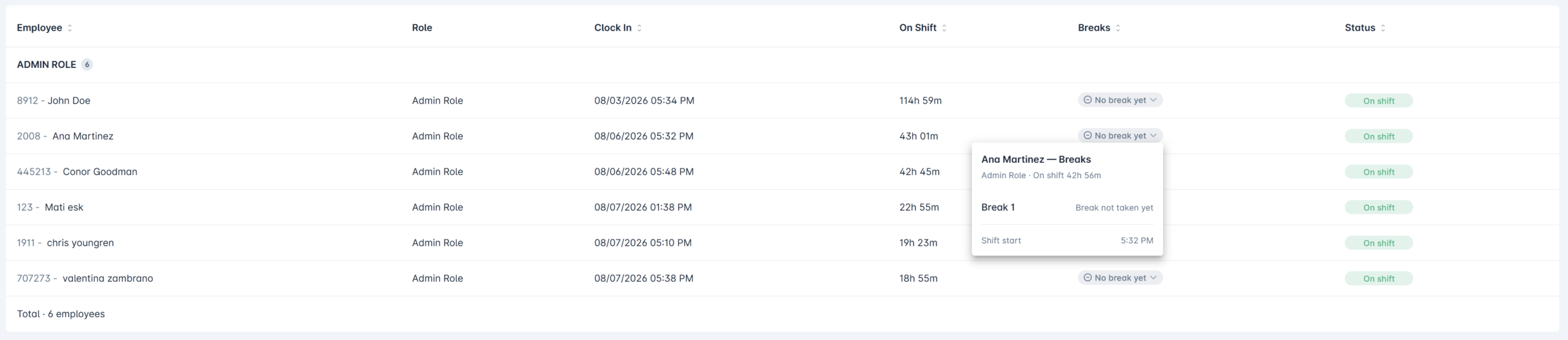
Employees are grouped by role (BOH, Server, Host, Bartender, and so on). Each group header shows how many people are in that role.
Each employee row shows:
- Employee — name and ID
- Role — job role badge
- Clock In — the time they clocked in
- On Shift — how long they have been working (updates live)
- Breaks — break dots (● taken, ○ not taken)
- Break Status — Break taken, On shift, Due soon, or Overdue
- Est. Cost — estimated labor cost so far (shows “—” if wage is not set)
- OT Risk — how close the employee is to overtime
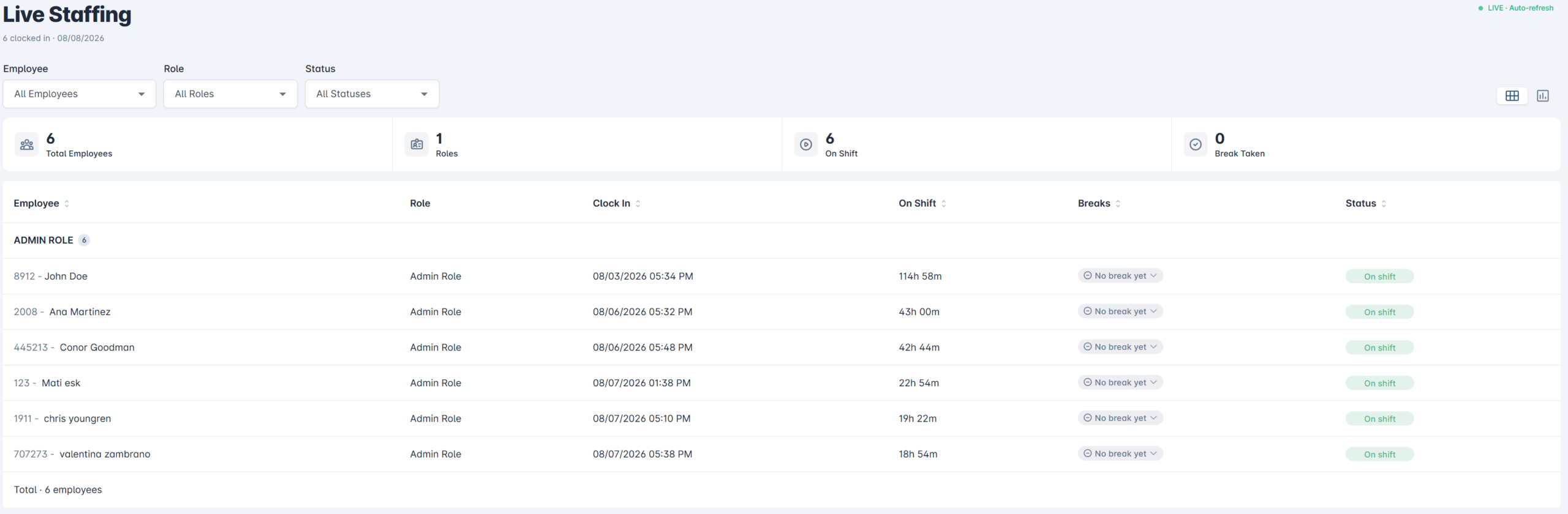
The Break Status colors help you scan quickly:
- 🟢 Break taken — the required break is done
- ⚪ On shift — no break due yet
- 🟡 Due soon — a break is coming up
- 🔴 Overdue — a required break is late
✅ Tip: The alert badge at the top right (for example “4 need attention”) tells you how many employees need a break, so you know where to look first.
Filter and Search
Step 1: Filter by role or status
- Use the Role tabs or dropdown to show only one role.
- Use the Status filter to show only Break taken, On shift, Due soon, or Overdue.
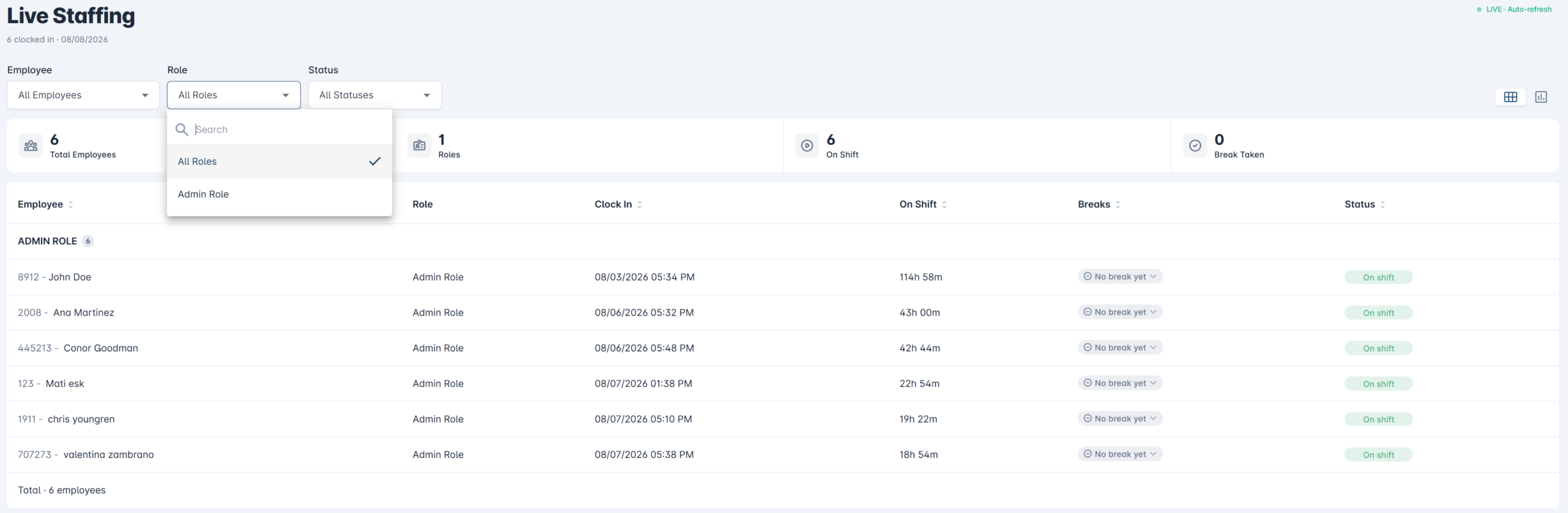
Step 2: Search for a person
- Type a name, role, or ID in the search box.
- The list filters instantly as you type.
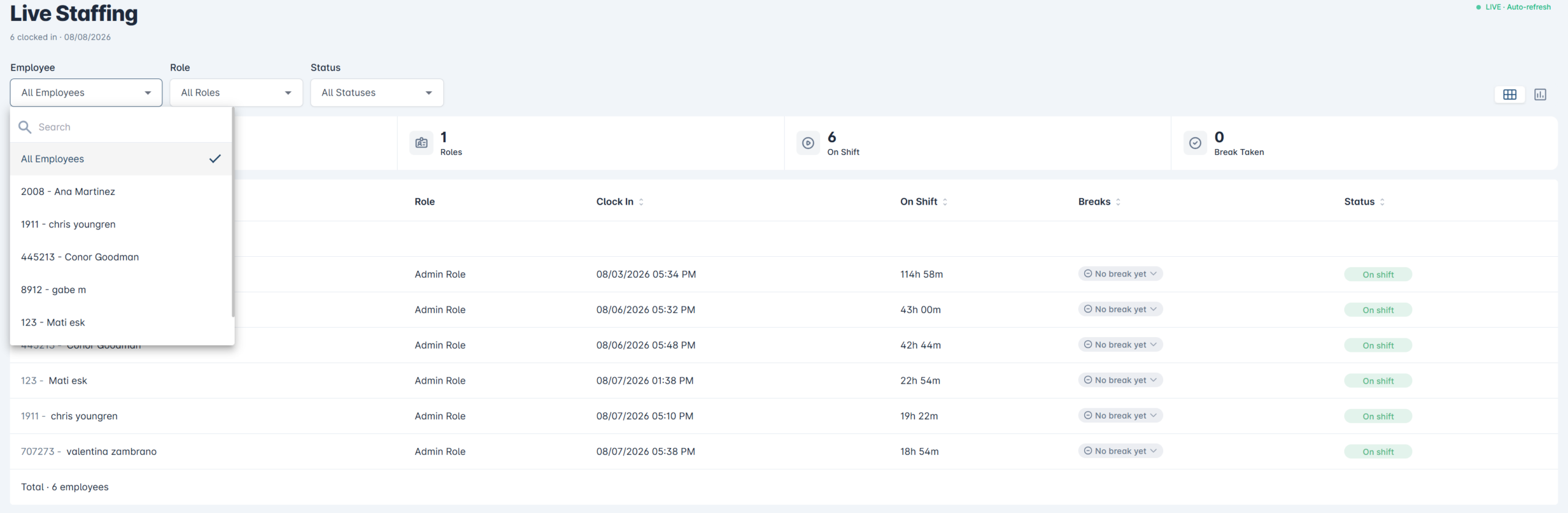
ℹ️ Note: When you filter, sorting only reorders employees inside each role group. The role groups themselves stay in place.
Check Break Details
Step 1: Open the break detail
- Find the employee row you want to check.
- Click the break dots in the Breaks column.
A small popover opens showing that employee’s break detail:
- If the break was taken — the start time, end time, and duration.
- If the break was not taken — when it is required by, and the current status (Due soon or Overdue).
Switch to Chart View
Step 1: Toggle to chart view
- Click the chart icon (📊) at the top right of the list.
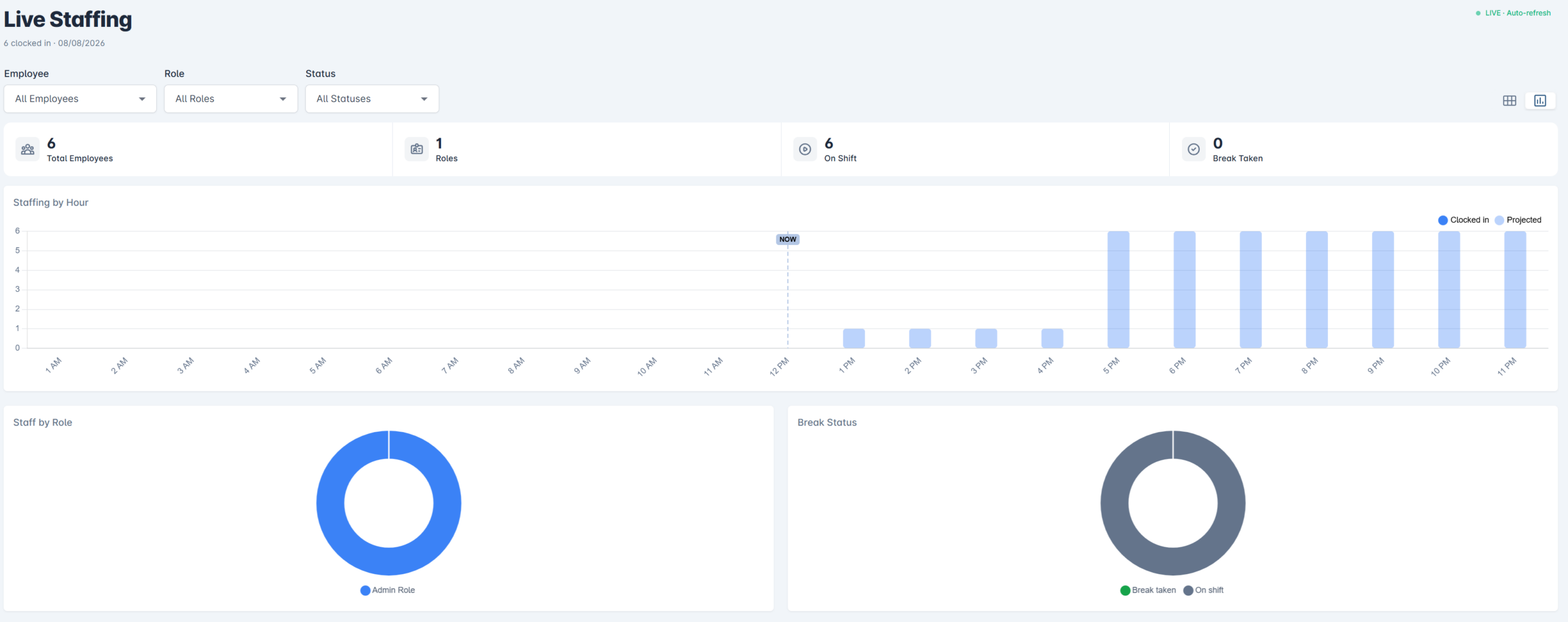
The chart view shows three charts:
- Staffing by Hour — how many people are clocked in each hour of the day, with a “NOW” line marking the current time.
- Staff by Role — a breakdown of current staff by role.
- Break Status — the share of employees by break status.
Click the table icon (▦) to switch back to the list.
FAQ
1. Why can’t I see this option? You may not be on a supported version, or your user role may not have permission to access the Employees section. Please contact Support if the option is not visible.
2. Why does an employee disappear from the list? Once an employee clocks out, they are no longer shown on Live Staffing. The page only shows employees who are currently clocked in. Refresh or reload to see the latest list.
3. Why does Est. Cost show “—” for some employees? Estimated cost needs a wage rate to be configured. If wage is not set, the cost shows a dash instead of an amount.
4. How are the “Due soon” and “Overdue” break statuses decided? Break status is based on your store’s break rules and time thresholds. Please contact Support to confirm how these thresholds are configured for your store.
5. What should I do if the numbers look wrong? Reload the page to refresh the data, confirm your store is on a supported version, and contact Support if the issue continues.
Closing
If you still need help, please contact Support for further assistance.