
Introduction
This article explains how to set up fingerprint login for an employee in the BLogic POS Dashboard. By registering a fingerprint, employees can log in to the POS quickly and securely without needing to enter a PIN or ID manually. Up to two fingerprints can be registered per employee.
Table of Contents
- Open the Employee Profile
- Register the Fingerprint
- Confirm and Save
- FAQ
Open the Employee Profile
Step 1: Navigate to the Employee section
- Log in to BLogic POS Dashboard.
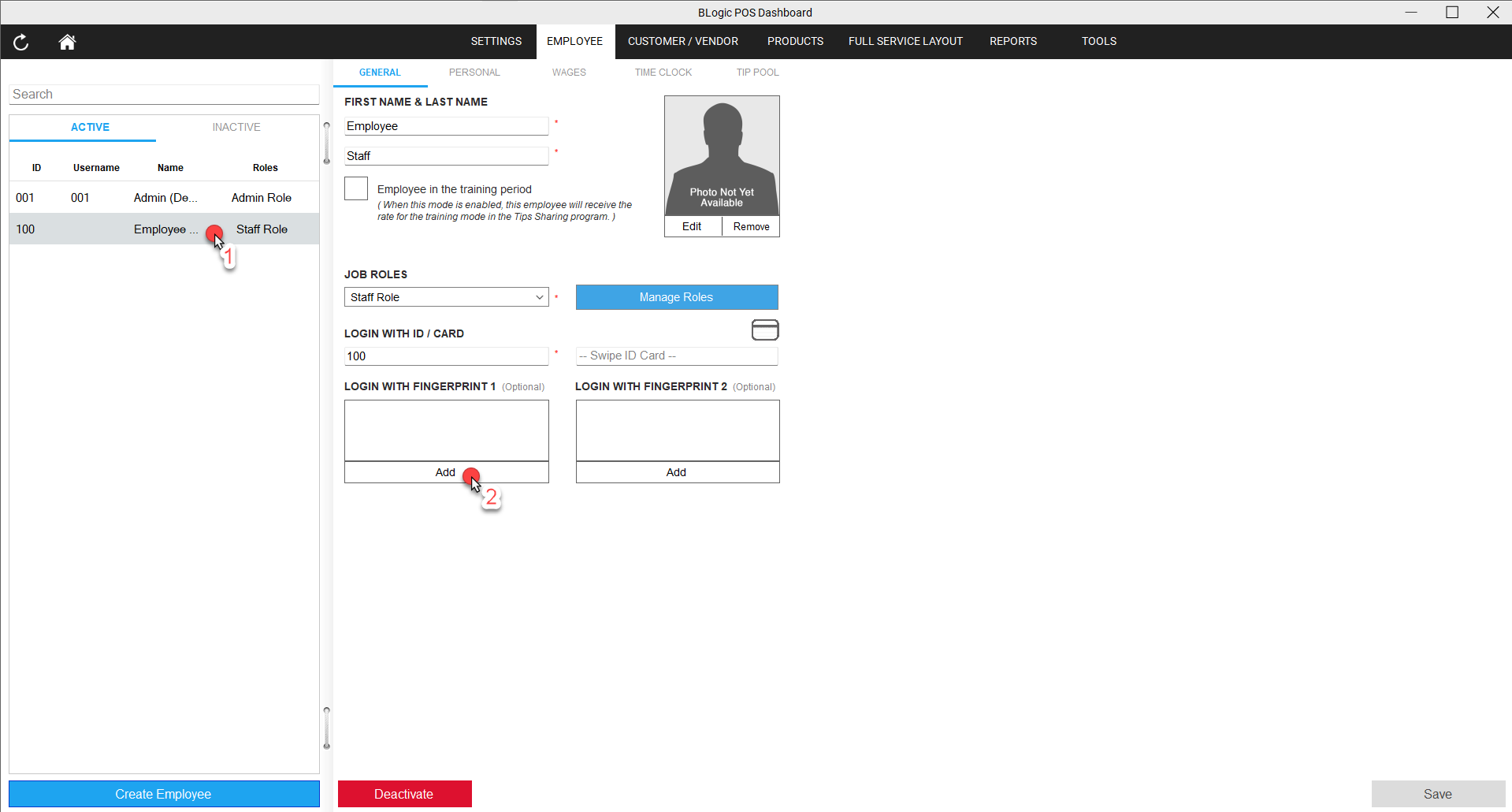
- Click EMPLOYEE in the top navigation bar.
- In the employee list on the left, click on the employee you want to set up.
Register the Fingerprint
Step 2: Start fingerprint registration
- On the employee’s General tab, scroll down to the LOGIN WITH FINGERPRINT 1 section.
- Click the Add button below the fingerprint box.
Step 3: Scan the fingerprint
- The Register Fingerprint dialog will open.
- Place the employee’s finger on the fingerprint sensor.
- Lift the finger, then place it again — repeat this process. The counter on screen (e.g., 1 / 4, 2 / 4) shows your progress.
- Continue until all 4 scans are completed.
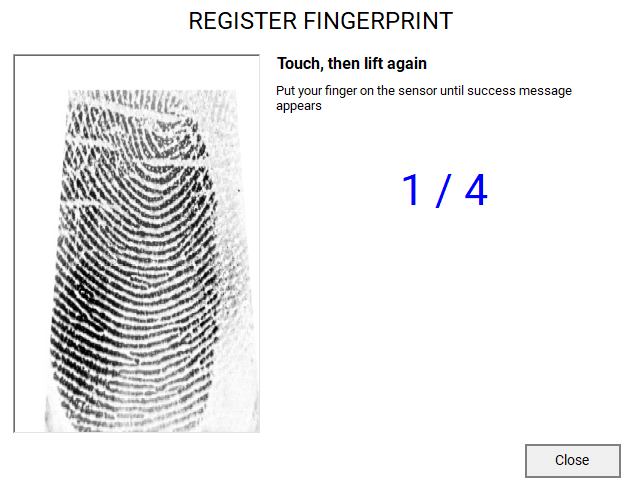
ℹ️ Note: The system requires 4 successful scans to build an accurate fingerprint template. Make sure the finger is placed firmly and flat on the sensor each time.
Step 4: Confirm the success message
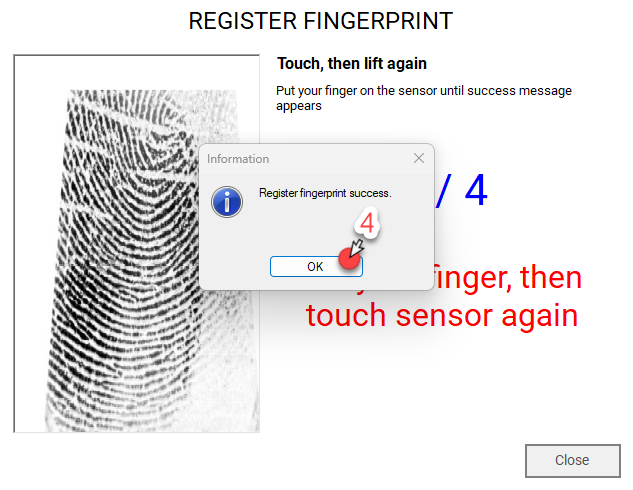
- After the final scan, an Information popup will appear with the message: “Register fingerprint success.”
- Click OK to close the popup.
Confirm and Save
Step 5: Verify and save
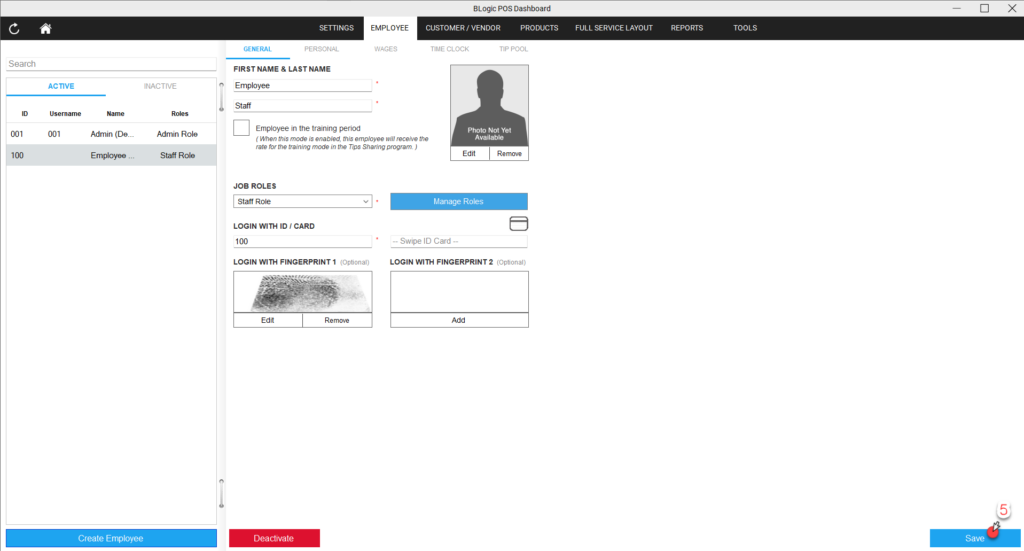
- After closing the popup, the fingerprint preview image will appear in the LOGIN WITH FINGERPRINT 1 box.
- You will see Edit and Remove buttons — this confirms the fingerprint was registered successfully.
- (Optional) Repeat steps 2–4 for LOGIN WITH FINGERPRINT 2 to register a second finger.
- Click Save in the bottom-right corner to save all changes.
✅ Tip: It is recommended to register a second fingerprint (e.g., a different finger) as a backup in case the primary scan fails.
Where to View or Confirm the Result
After saving, the fingerprint thumbnail will remain visible in the LOGIN WITH FINGERPRINT 1 (and/or 2) section on the employee’s General tab. The employee can now use their registered finger to log in at the POS terminal.
FAQ
1. Why is the Add button not showing or the fingerprint scanner not responding? Make sure a compatible fingerprint scanner is plugged in and recognized by the system before opening the Register Fingerprint dialog. If the device is not detected, try reconnecting it and refreshing the page.
2. How many fingerprints can one employee register? Each employee can register up to 2 fingerprints — one in the LOGIN WITH FINGERPRINT 1 slot and one in the LOGIN WITH FINGERPRINT 2 slot.
3. Can I re-register a fingerprint if the scan quality is poor? Yes. Click the Edit button in the fingerprint box to re-scan and replace the existing fingerprint. You can also click Remove to delete it and start fresh.
4. Does the employee need to be present to register their fingerprint? Yes. The fingerprint must be scanned in person using the physical sensor at the time of registration.
5. What happens if the fingerprint scan fails at the POS? The employee can still log in using their ID / Card number. If the fingerprint consistently fails, consider re-registering it from the Dashboard.
Closing
If you still need help with fingerprint setup or encounter any hardware issues, please contact Support for further assistance.