
Introduction
This article shows you how to install and set up the Spin application on a PAX A35 terminal. You will learn how to open the app and grant the “Display over other apps” permission so Spin can launch the payment app correctly after an IP update. This one-time setup keeps your terminal reporting its IP address to the License Server without interruption.
Version Support
| Product / Module | Supported Version |
|---|---|
| Spin App (PAX A35) | 2.1 |
Note: If you do not see this option, please contact Support to confirm your terminal is on a supported version.
Before You Begin
Complete these two items first. Without them, the Spin app cannot report the terminal correctly.
Step 1: Register the terminal
- Add the Serial Number (S/N) of the terminal on the License Dashboard.
Step 2: Install the app
- On the terminal, open the PAXSTORE app.
- Search for and install the Spin application.
Install and Open the Spin App
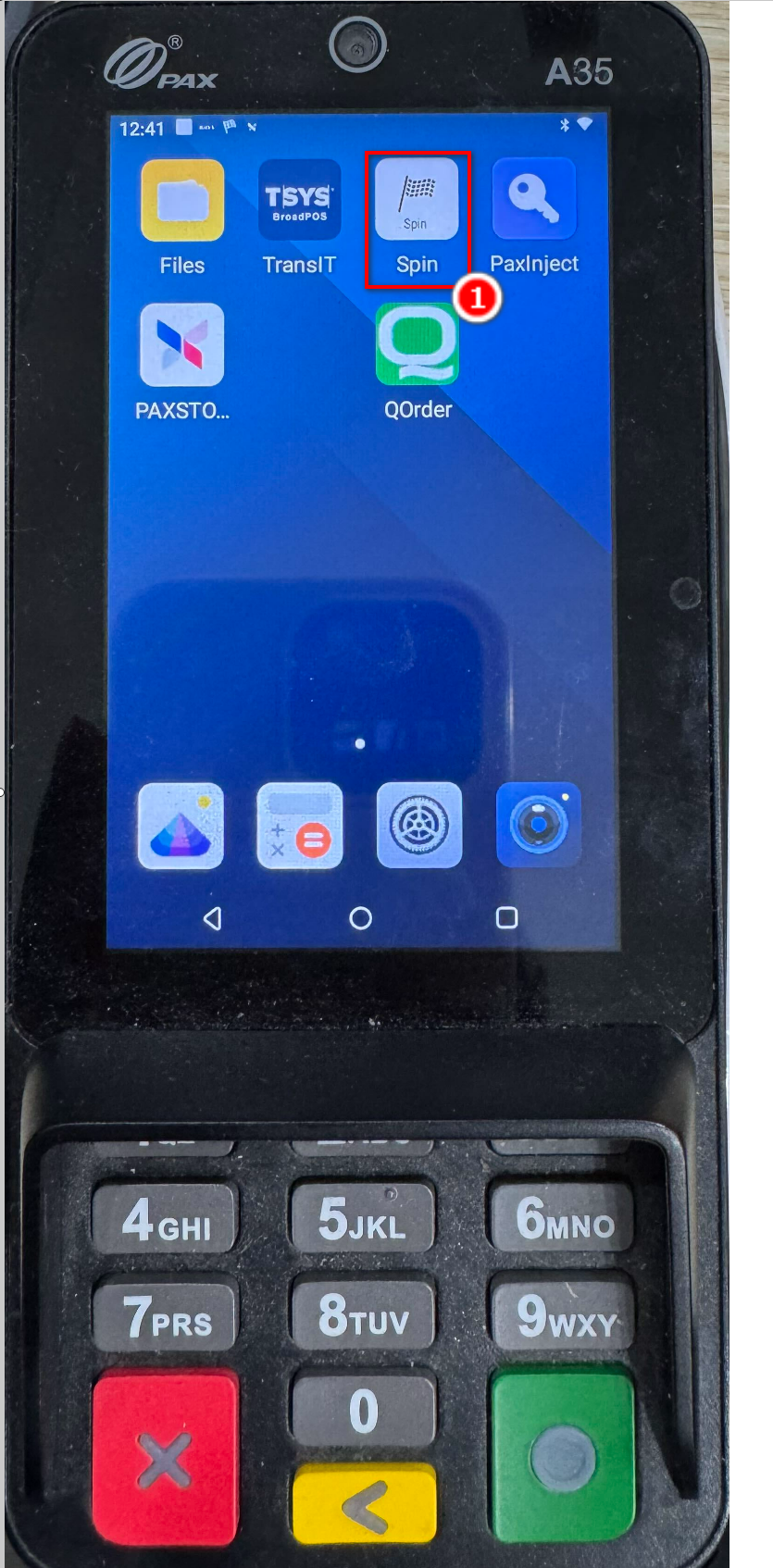
Step 1: Open Spin
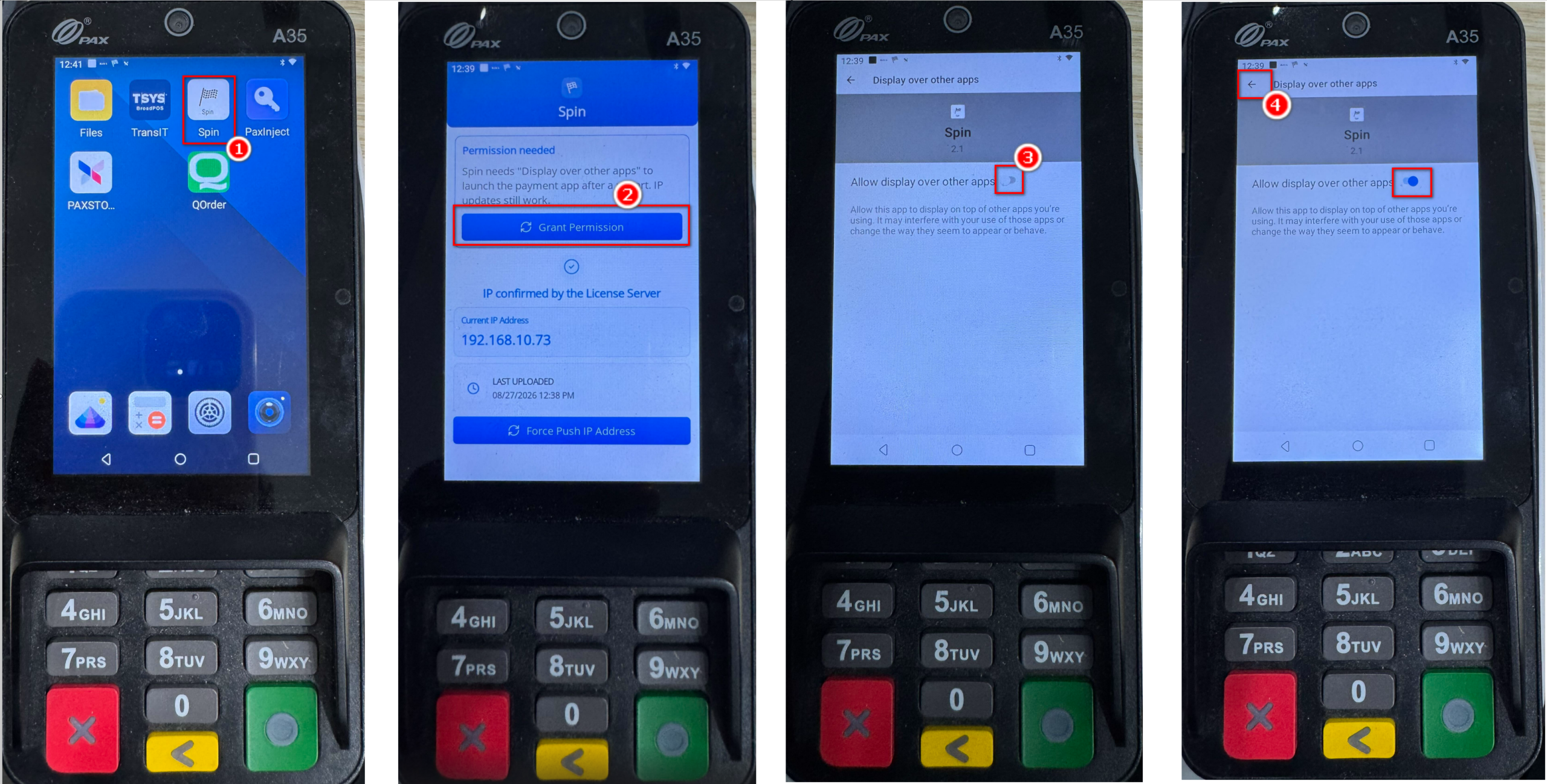
- From the terminal home screen, tap the Spin icon.
Step 2: Check the Spin screen
- When Spin opens, look at the top of the screen.
- Decide which case matches what you see:
- Case A — A Grant Permission button is displayed. Continue to the next section.
- Case B — No Grant Permission button is displayed. Setup is already complete — you can stop here.
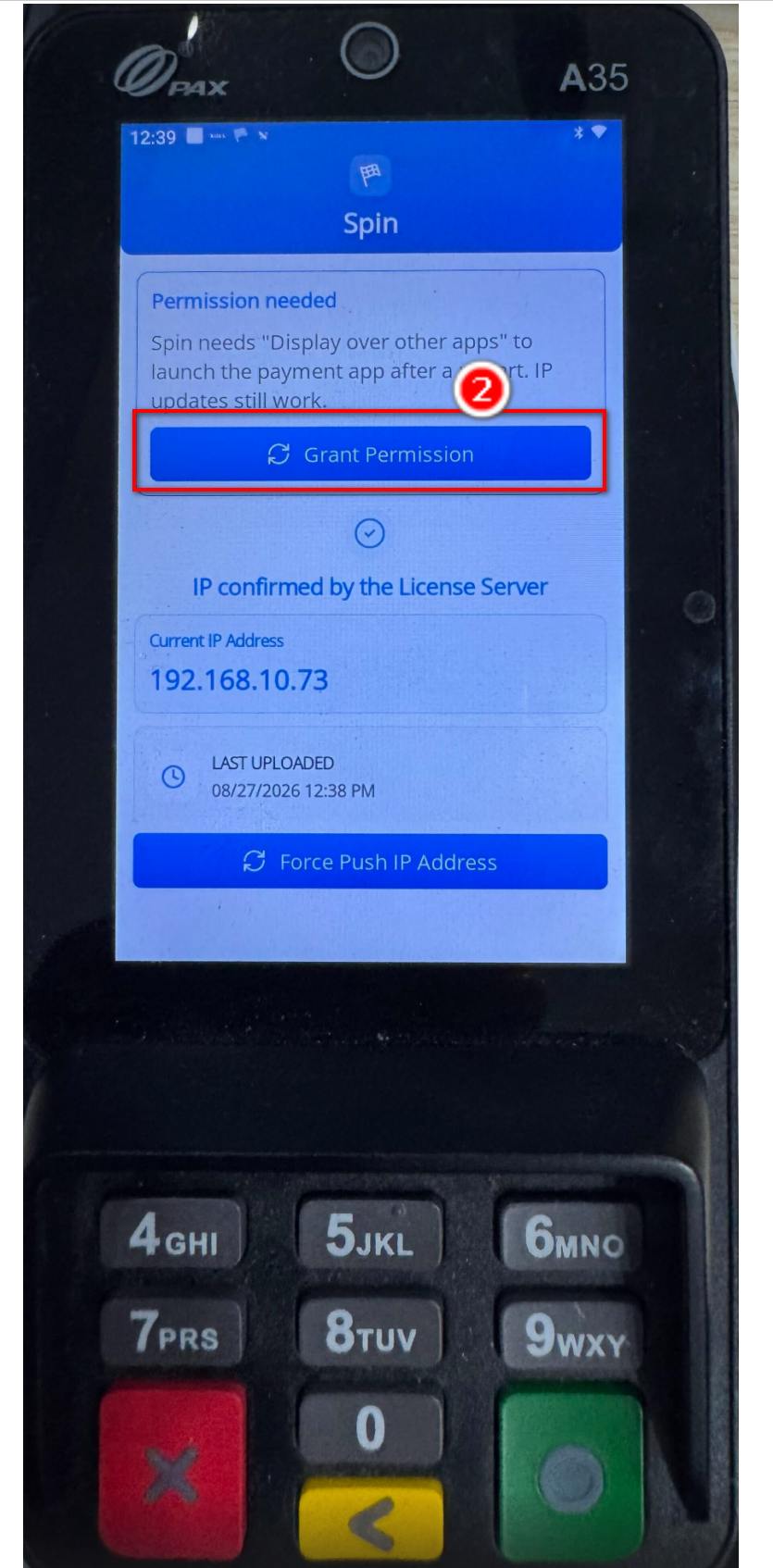
ℹ️ Note: When setup is complete, the Spin screen shows “IP confirmed by the License Server” along with the Current IP Address and the Last Uploaded date and time.
Grant the Display Permission
Follow these steps only if the Grant Permission button is displayed (Case A).
Step 1: Tap Grant Permission
- On the Spin screen, tap the Grant Permission button.
- The terminal opens the Display over other apps settings screen.
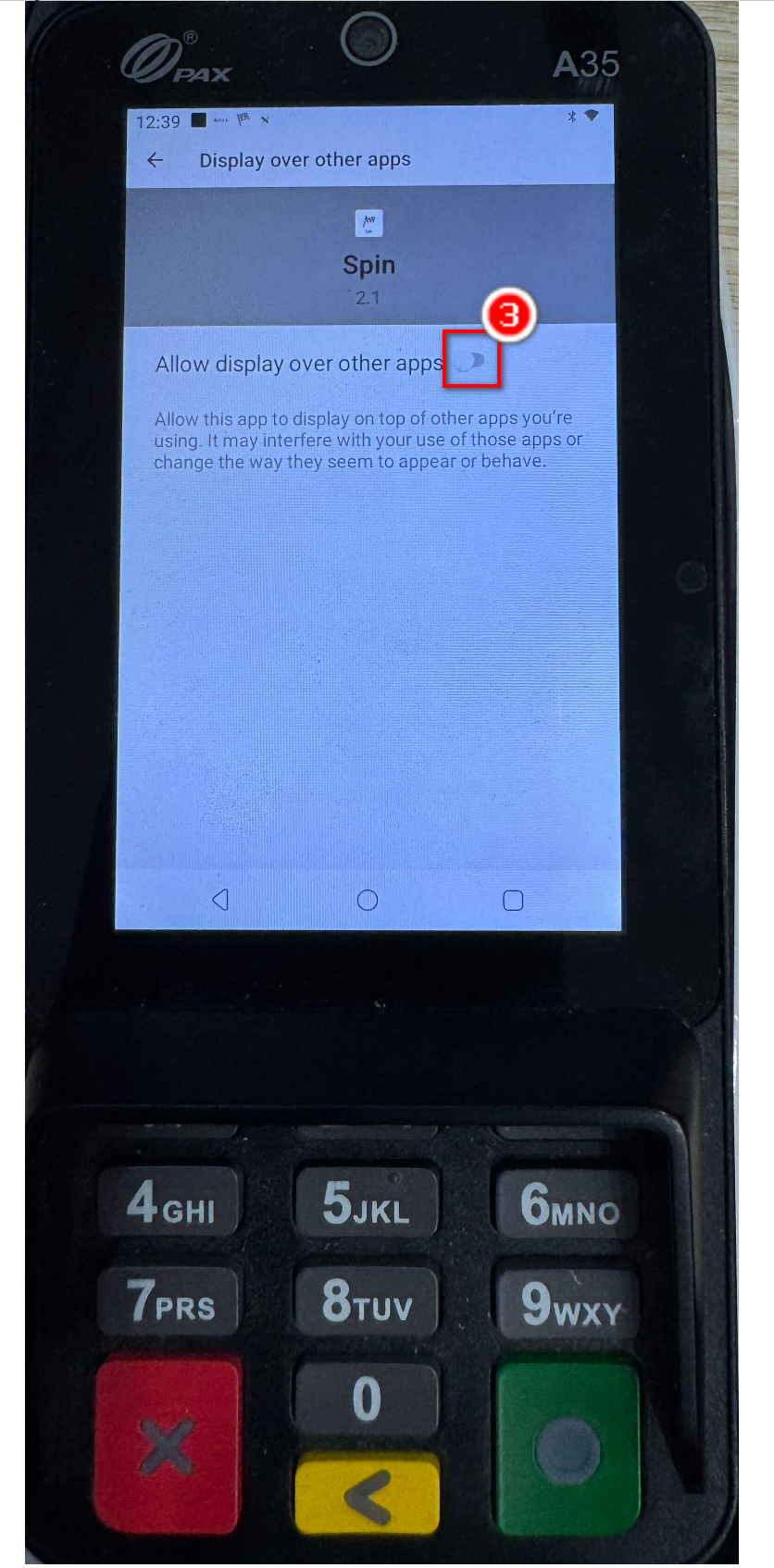
Step 2: Turn on the permission
- On the Display over other apps screen, find Allow display over other apps.
- Tap the toggle to turn it ON. The switch turns blue when enabled.
Step 3: Go back to finish
- Tap the < Back button at the top left.
- Setup is now complete.
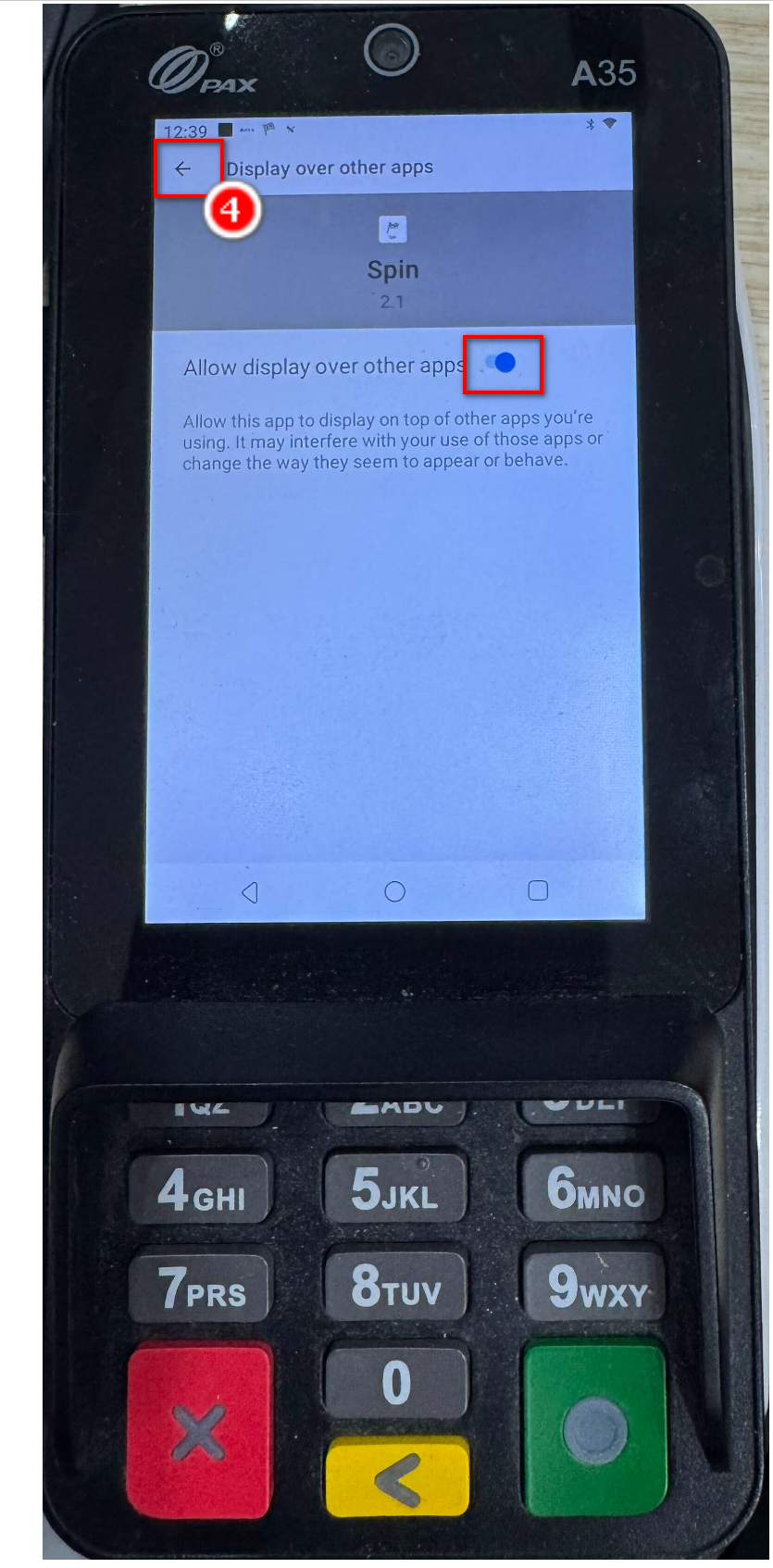
✅ Tip: This permission lets Spin launch the payment app on top of other screens after an IP update. Leaving it ON keeps IP updates working reliably.
Where to Confirm the Result
You can confirm the setup was successful directly in the Spin app.
- Open the Spin app again.
- Confirm the screen shows “IP confirmed by the License Server”.
- Check that a Current IP Address is listed and the Last Uploaded time is recent.
FAQ
1. Why can’t I see the Grant Permission button? This is normal. If the button does not appear, the permission is already granted and setup is complete. No further action is needed.
2. Do I need to grant this permission again later? No. The Display over other apps permission is a one-time setup. Once it is ON, it stays enabled unless someone turns it off manually.
3. What is the “Force Push IP Address” button for? It manually sends the terminal’s current IP address to the License Server. Use it if you need to update the IP immediately instead of waiting for the next automatic update.
4. Will IP updates still work if I skip this permission? IP updates still work, but Spin may not be able to launch the payment app automatically on top of other apps. For the best experience, keep the permission ON.
5. What should I do if the terminal still does not report correctly? Confirm the terminal S/N is added on the License Dashboard, make sure Spin is installed from PAXSTORE, and check that Allow display over other apps is ON. If the problem continues, contact Support.
Closing
If you still need help, please contact Support for further assistance.