Introduction
This article explains how to choose the way your Kitchen Display System creates tickets when a server sends food to the kitchen more than once for the same order. You will learn how to switch between merging later items into the open ticket and creating a separate ticket for each send. Choosing the right option helps your kitchen cook in the order food was actually sent, so no added item is missed.
Version Support
| Product / Module | Supported Version |
|---|---|
| KDS | 2.1.0 |
| POS Server | 2026.09.18 |
Note: If you do not see this option, please contact Support to confirm your store is on a supported version.
Table of Contents
Understand the two options
Your store can choose one of two behaviours.
Merge into existing KDS ticket is the current behaviour and stays selected by default. Items sent later are added to the KDS ticket already on screen. The ticket number stays the same and the timer keeps running from the first send.
Create a new KDS ticket for each send gives every send its own KDS ticket. The timer starts from 0:00 and the ticket goes to the end of the queue, so the kitchen always cooks in the order food was sent.
✅ Tip: Choose Create a new KDS ticket for each send if your kitchen often receives items added after the first order, and you want them treated as new work rather than part of the original ticket.
Configure KDS ticket grouping
Step 1: Open the KDS settings
- Log in to BLogic View.
- Go to Setup > Configurations.
- Select KDS under Operations.
- Stay on the General tab.
Step 2: Choose your option
- Find the KDS Tickets section at the top.
- Under KDS ticket grouping, select either Merge into existing KDS ticket or Create a new KDS ticket for each send.
- Click Save.
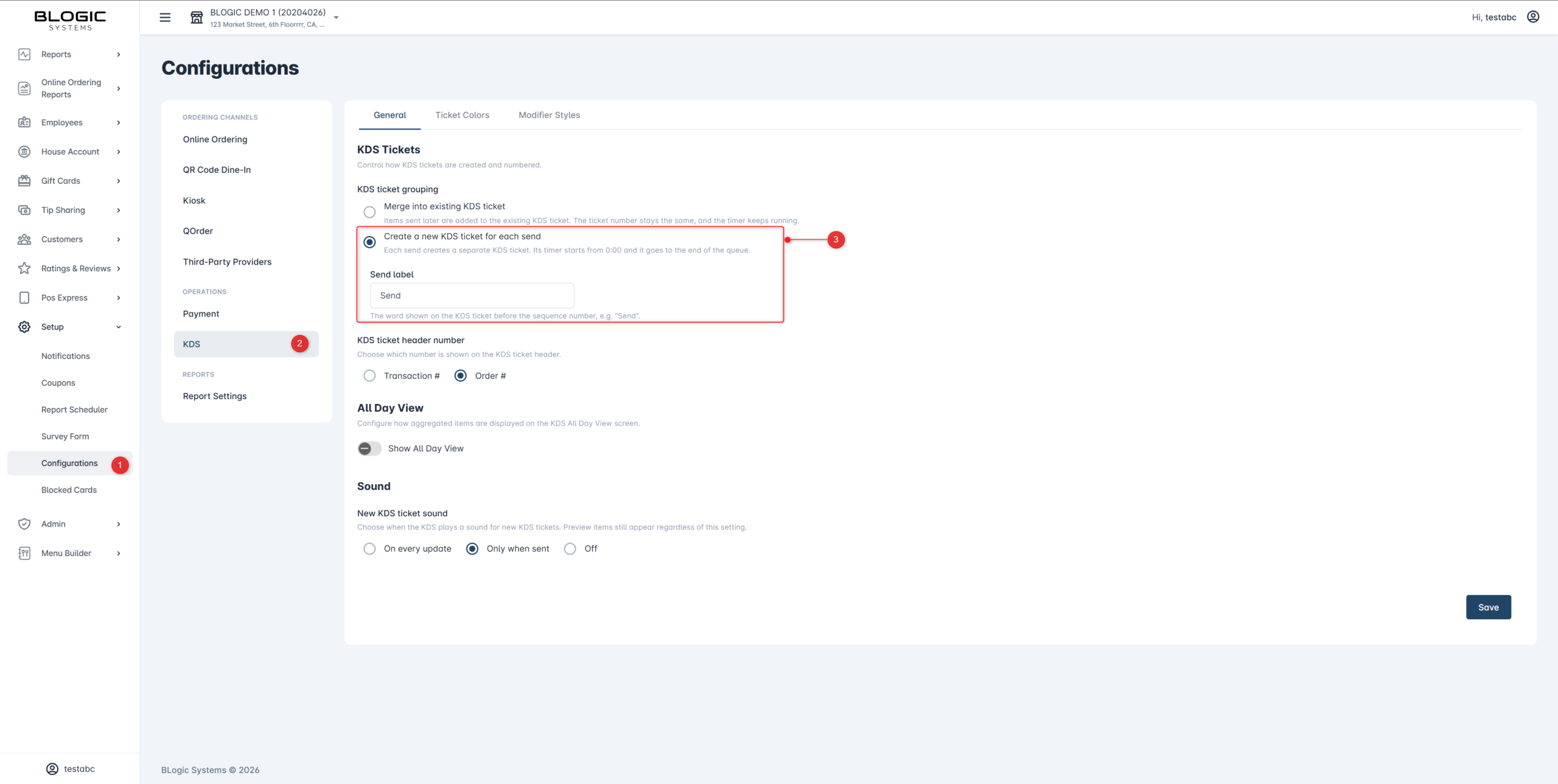
⚠️ Warning: You can only change this setting when there are no open KDS tickets in the kitchen. If tickets are still on screen, the options are greyed out until every ticket has been fulfilled.
ℹ️ Note: The new setting applies only to items sent after you save. KDS tickets already on screen keep their current shape.
Set the send label
When you choose Create a new KDS ticket for each send, each ticket shows a sequence label such as Send #1, Send #2. You can change the word used.
Step 1: Enter your preferred word
- In the same KDS Tickets section, find Send label.
- Enter the word you want, up to 15 characters. You can also pick one of the suggestions: Send, Round, Course, Batch, Fire.
- Click Save.
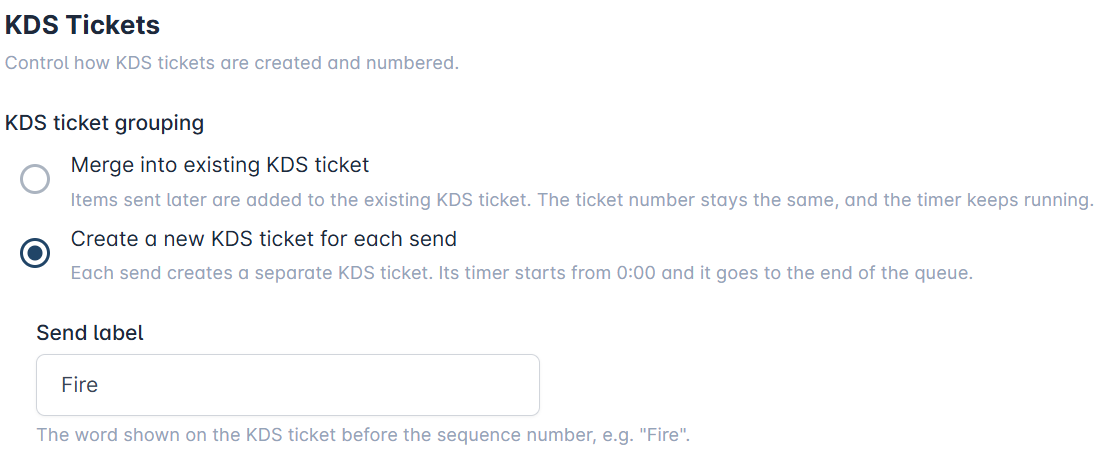
ℹ️ Note: The field is only available when Create a new KDS ticket for each send is selected. If you leave it empty, it returns to Send.
Read a KDS ticket
After the setting is on, each send appears as its own ticket on the KDS screen.
- The order number at the top is the same on every ticket of that order.
- The sequence row shows which send it is, for example Send #1 or Send #2.
- The timer counts from the moment that send was made, not from the first order.
- The item count covers only the items on that ticket, including items already fulfilled.
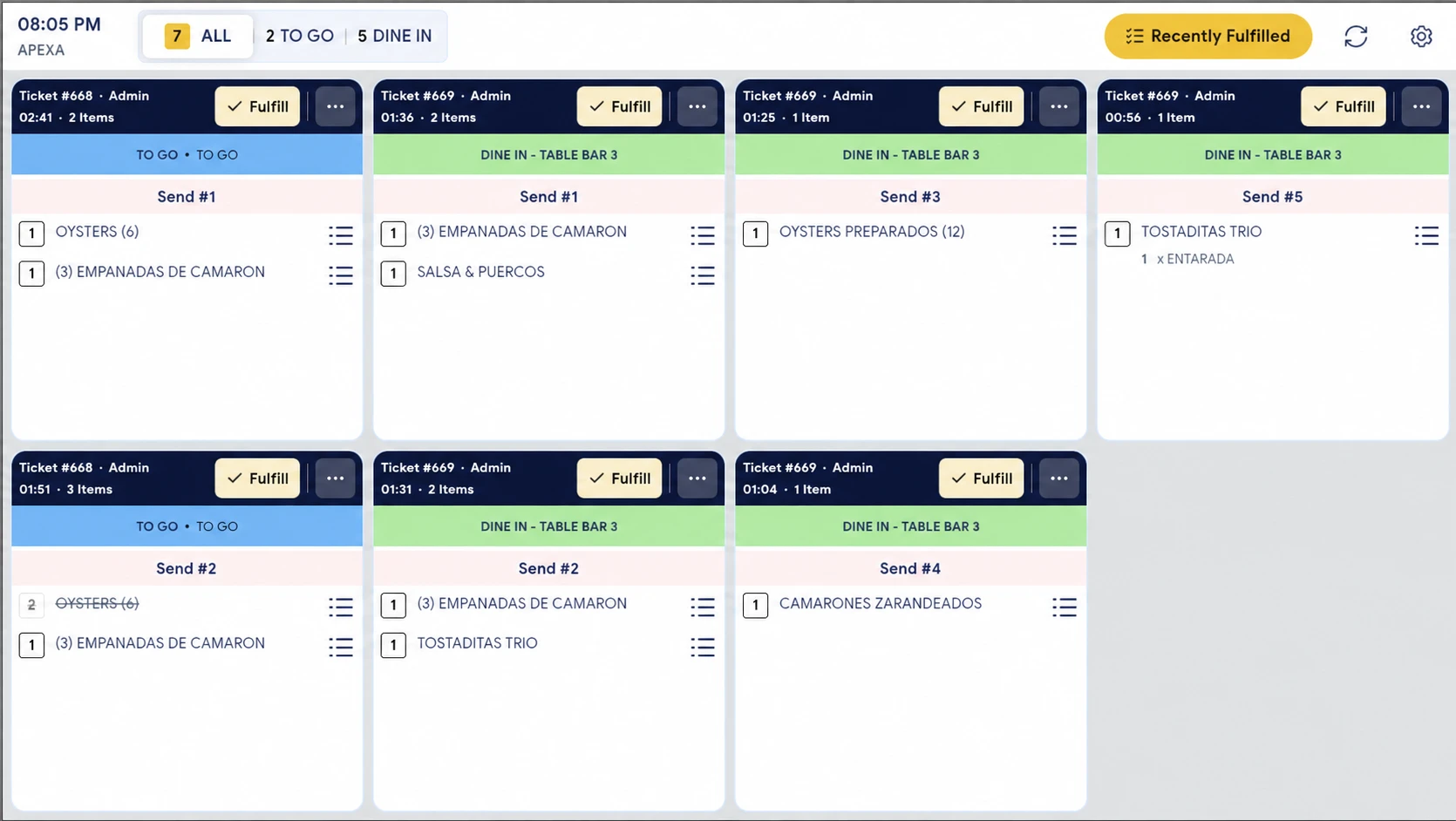
Two tickets showing the same order number and the same table belong to the same guest. The sequence number tells your kitchen which food was sent first.
FAQ
1. Why can’t I see this option?
You may not be on a supported version, or your user role may not have permission to access Setup. Please contact Support if the option is not visible.
2. Why are the grouping options greyed out?
There are still KDS tickets open in the kitchen. Once every ticket has been fulfilled, the options become available again.
3. Does this change my existing tickets?
No. Tickets already on the KDS screen keep their current shape. The new setting applies from the next send onwards.
4. Why do several tickets show the same number?
The order number is shared by every ticket of the same order. The sequence label, such as Send #2, is what tells them apart.
5. What should I do if the feature does not work as expected?
Check that the setting is enabled, confirm your store is on a supported version, and contact Support for further assistance.
Closing
If you still need help, please contact Support for further assistance.