
Introduction
Credit card pre-authorization lets your staff place a temporary hold on a guest’s card when they open a ticket, such as a bar tab. The card is saved to the ticket, so you can close the check later without the guest presenting the card again.
This article shows you how to turn on pre-authorization in POS Dashboard, how to pre-authorize a card on the POS, and how to close or cancel a pre-authorized ticket.
Configure Pre-Authorization in POS Dashboard
Pre-authorization is turned on once per store in POS Dashboard. You need access to the Settings tab to complete these steps.
Step 1: Open the Payment Methods settings
- Open POS Dashboard from your desktop.
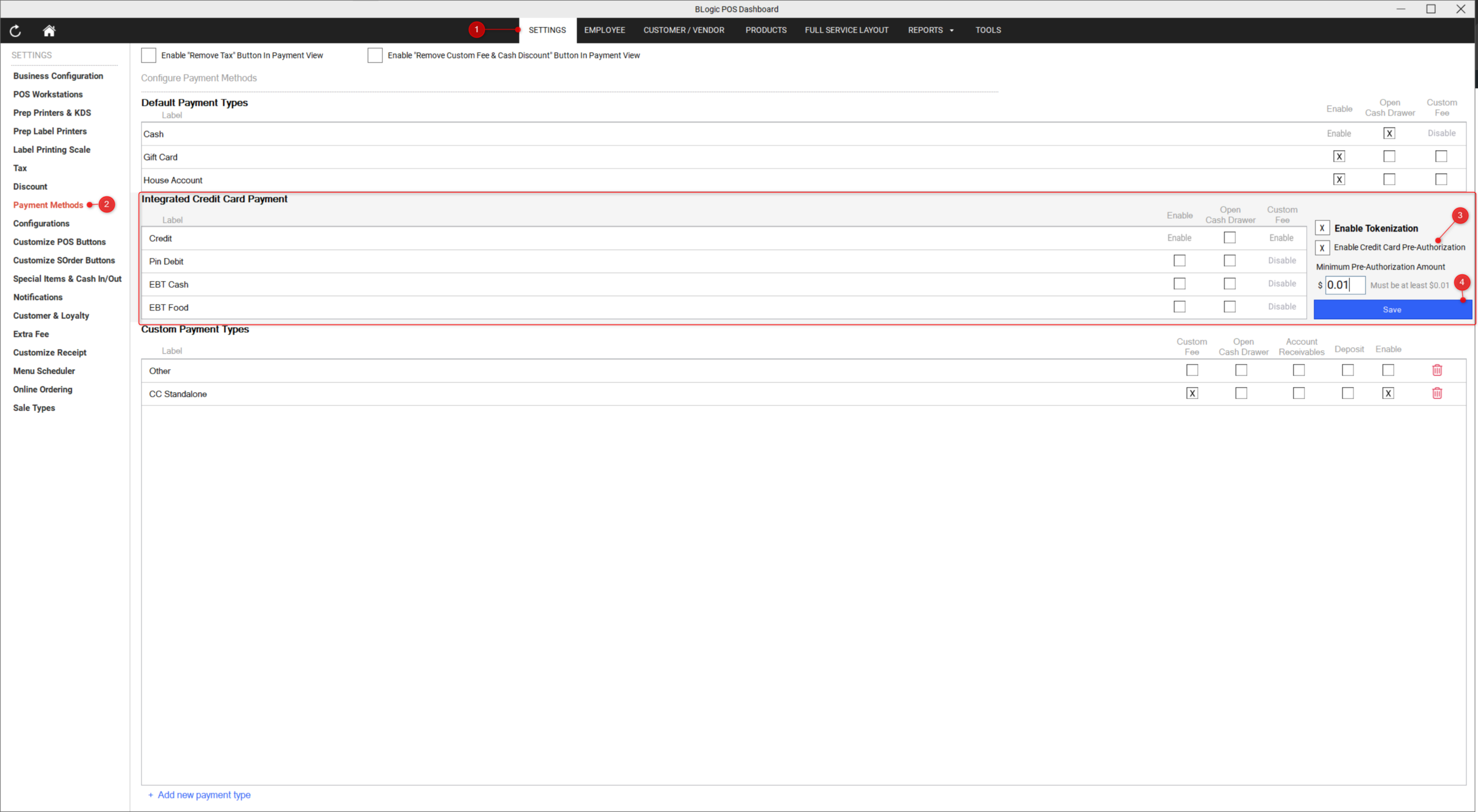
- Go to Settings > Payment Methods.
- Find the Integrated Credit Card Payment section.
Step 2: Turn on pre-authorization
- Make sure Credit is enabled in the Integrated Credit Card Payment list.
- Check the box for Enable Credit Card Pre-Authorization.
- In Minimum Pre-Authorization Amount, enter the lowest amount staff can pre-authorize. The amount must be at least $0.01.
- Select Save.
✅ Tip: Most restaurants set the minimum amount to at least the price of one drink.
ℹ️ Note: The Enable Tokenization option appears next to the pre-authorization setting. Please contact Support to confirm whether it must also be turned on for your store.
Step 3: Restart POS Dashboard and the POS
- Close and reopen POS Dashboard.
- Close and reopen the POS app on every station that will use pre-authorization.
⚠️ Warning: Your changes will not take effect until both POS Dashboard and the POS are restarted.
Pre-Authorize a Card on the POS
After setup, staff can pre-authorize a guest’s card from the payment screen of any ticket.
⚠️ Warning: Pre-authorization only works when the guest inserts or taps a physical card. It does not work with mobile payments such as Apple Pay, Google Pay, or Samsung Pay.
Step 1: Open the payment screen
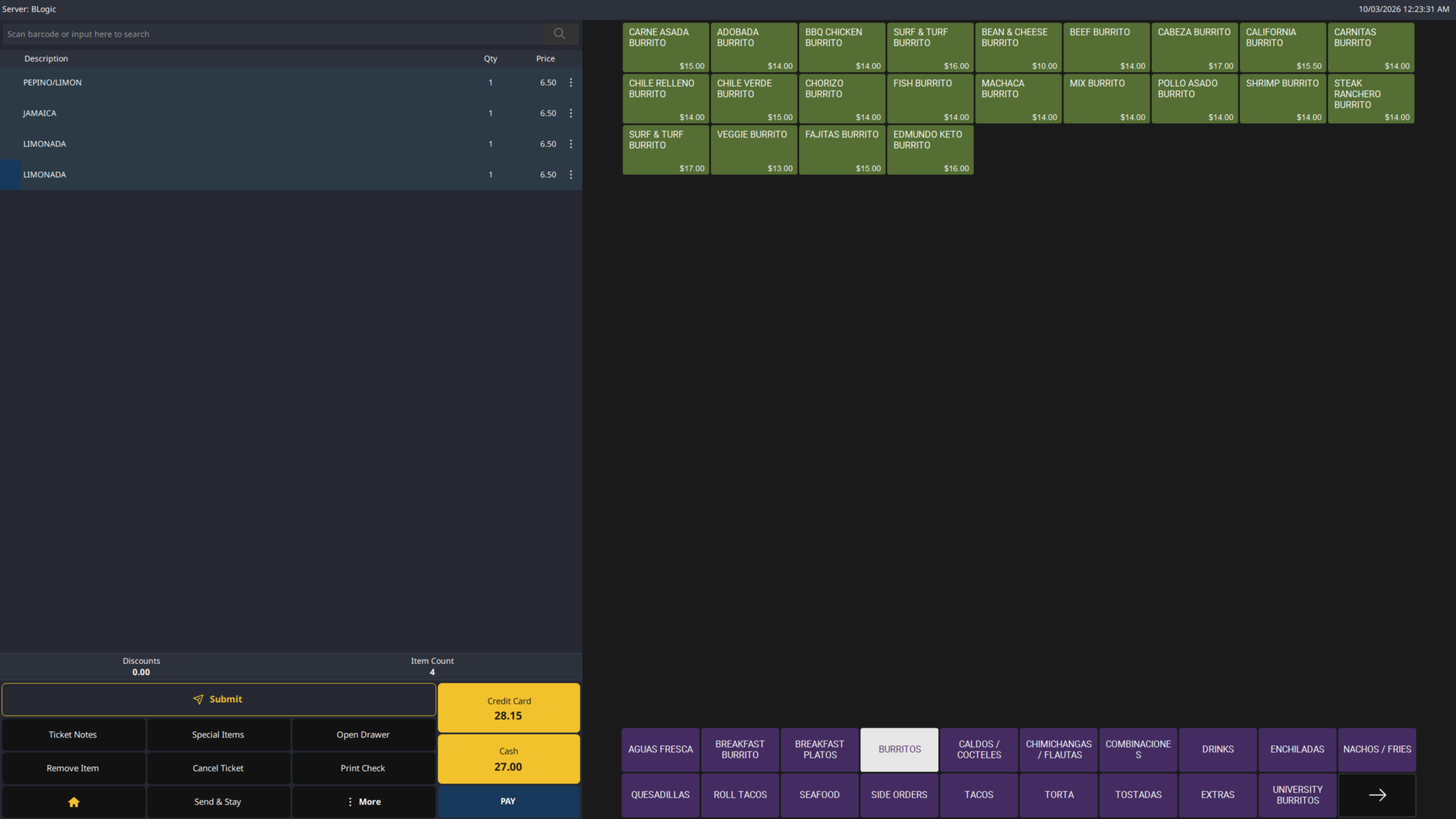
- Open the POS app.
- Add the items to the ticket.
- Select PAY.
Step 2: Select Pre-Auth
- On the payment screen, select Pre-Auth (min amount $X.XX). The button shows the minimum amount set in POS Dashboard.
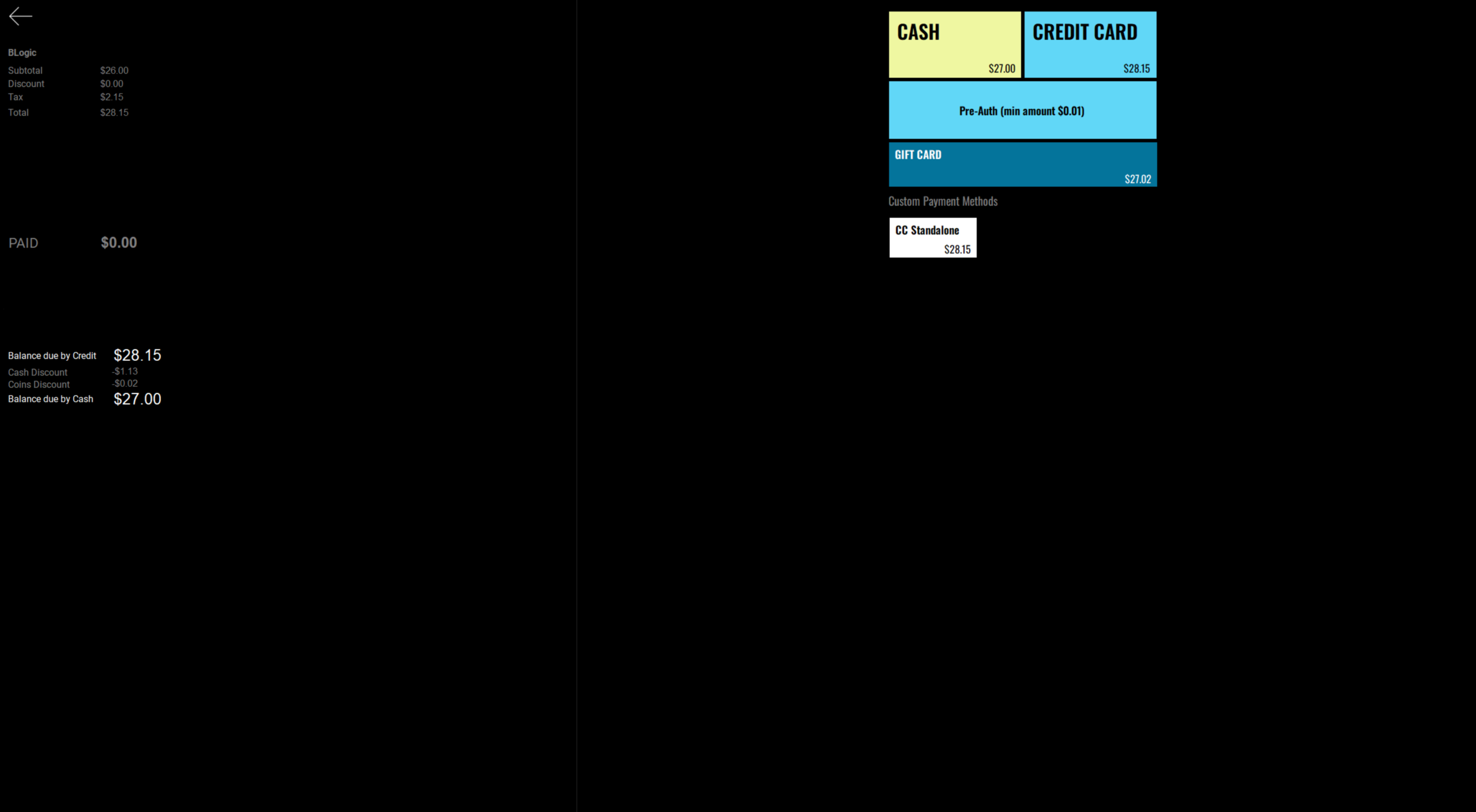
ℹ️ Note: If the Pre-Auth button does not appear, see Troubleshooting.
Step 3: Enter the pre-authorization amount
- On the Pre-Authorization screen, use the keypad to enter the amount to hold on the card.
- Select Pay Amount to pre-authorize the amount you entered.
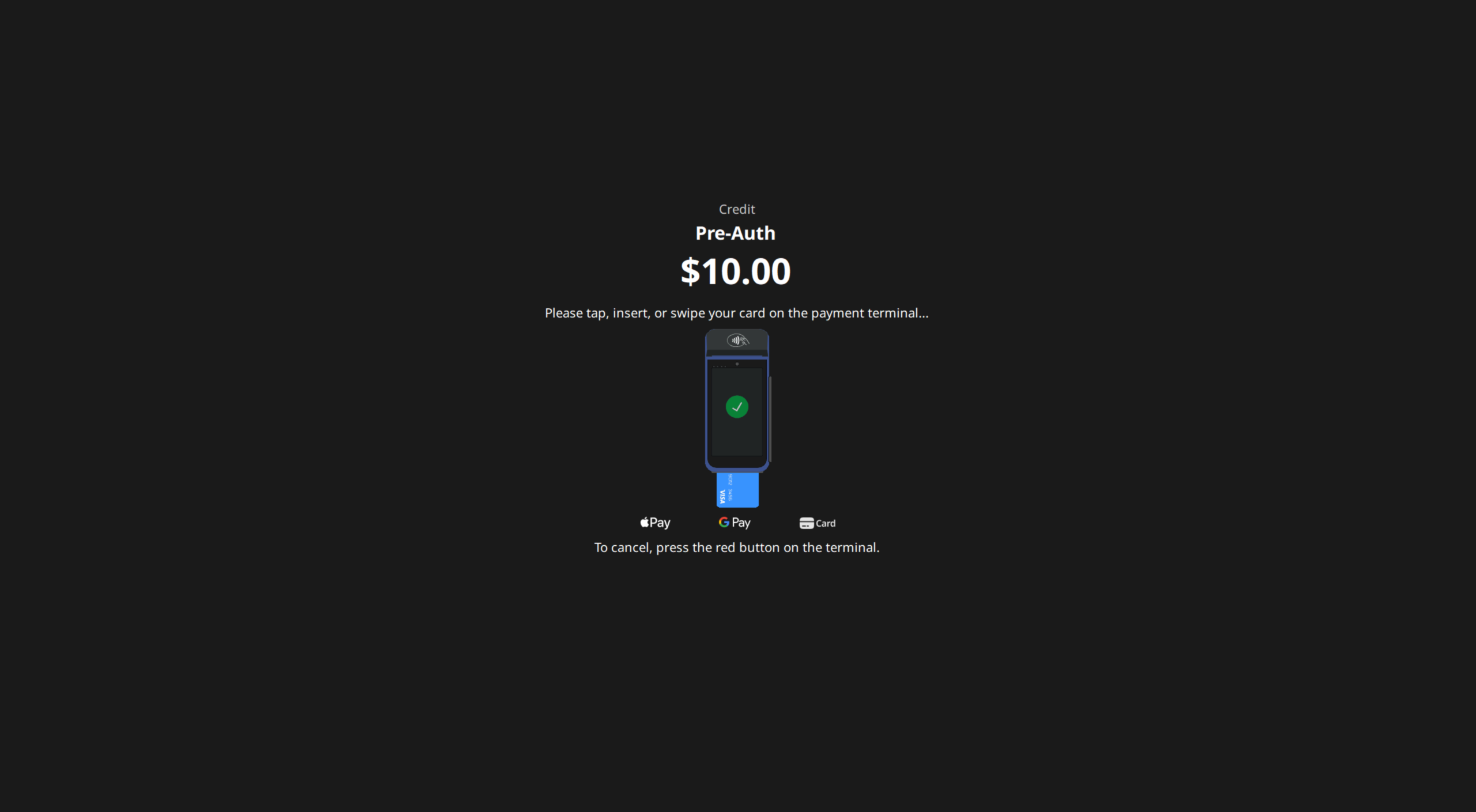
- Ask the guest to insert or tap their card on the payment terminal.
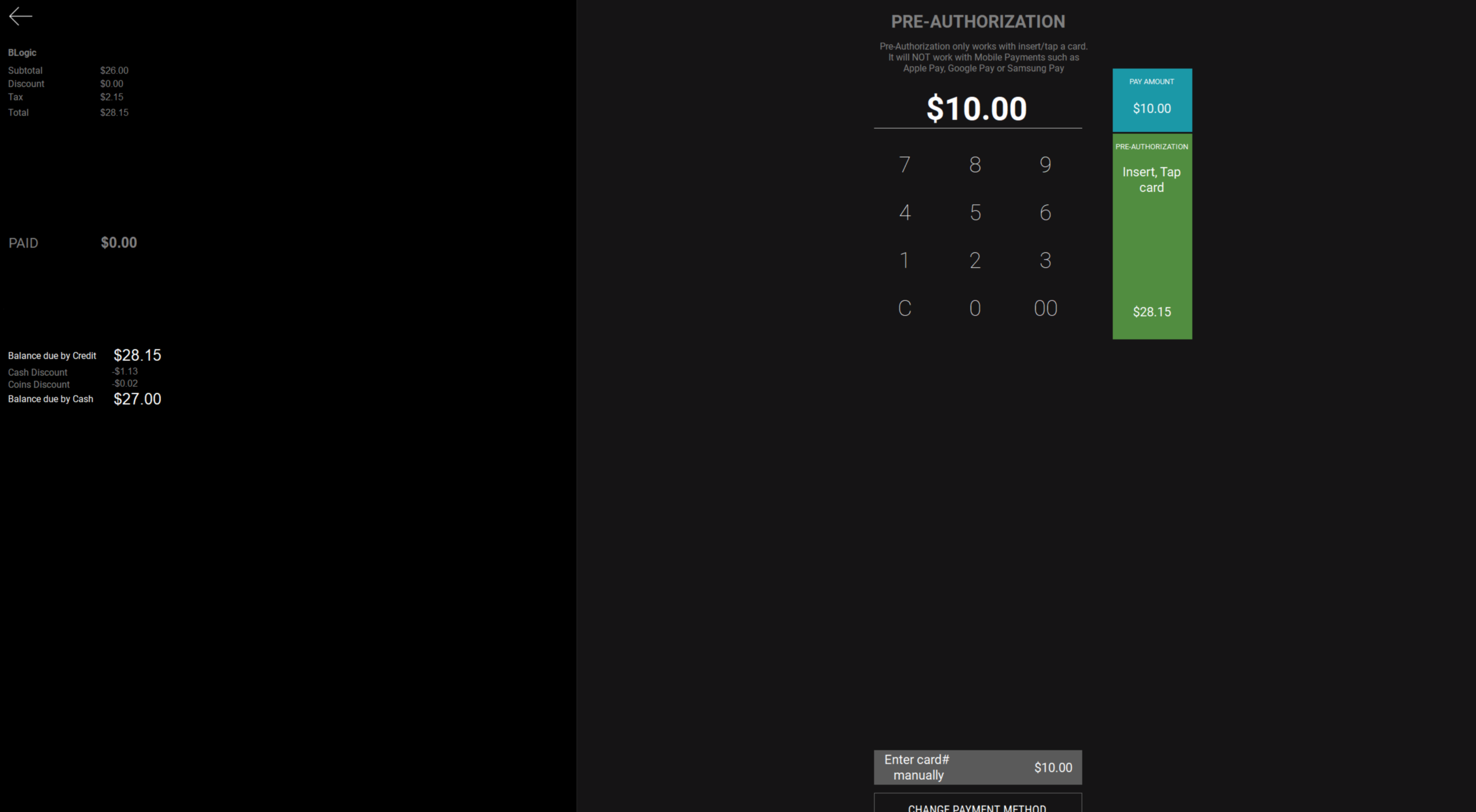
ℹ️ Note: Select Change Payment Method to go back and choose a different payment type. To cancel while the terminal is waiting for the card, press the red button on the terminal.
Step 4: Save the ticket
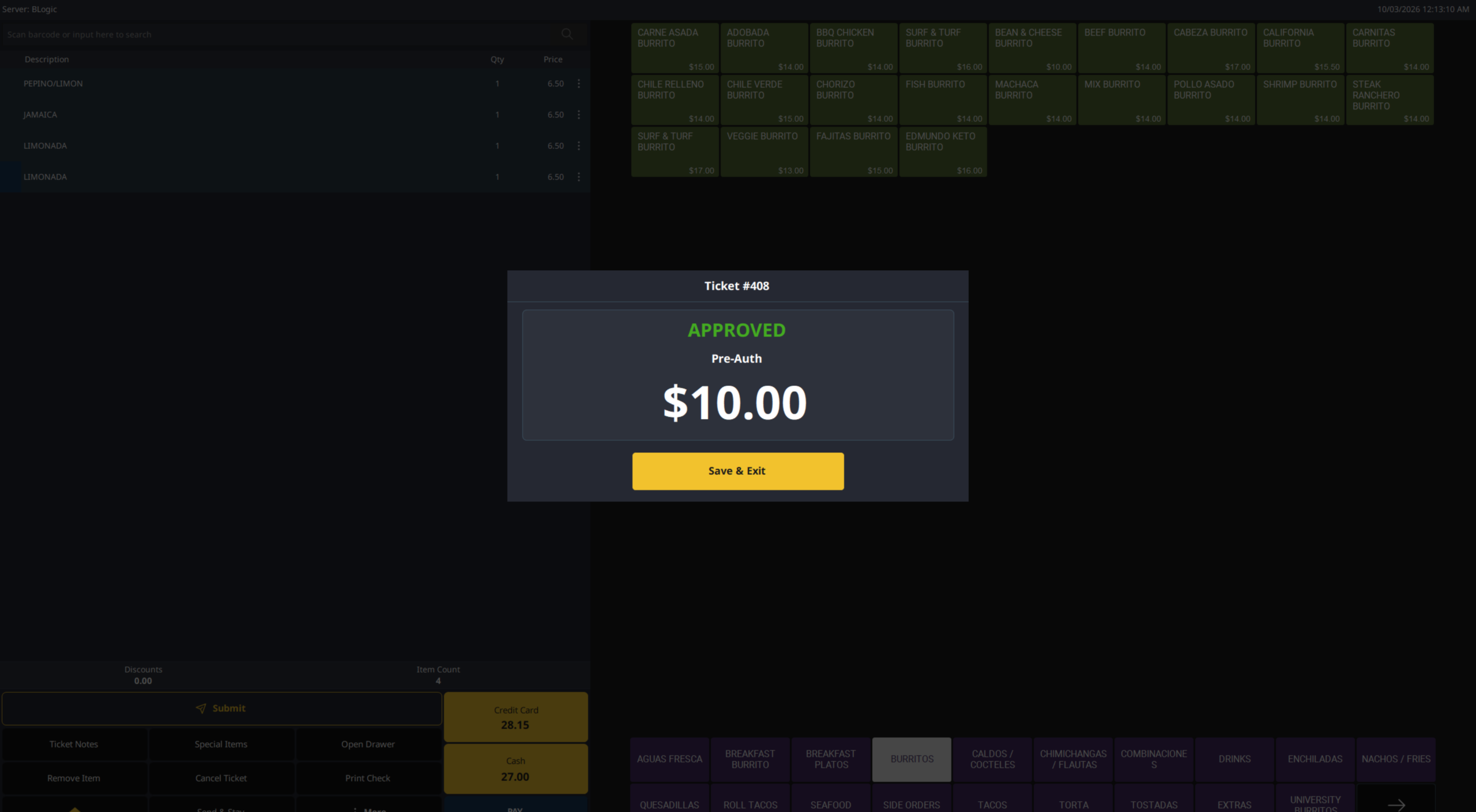
- When the hold is successful, the Approved – Pre-Auth window appears with the pre-authorized amount.
- Select Save & Exit.
The ticket is saved as an open ticket with the guest’s card attached. No payment has been taken yet.
Close or Cancel a Pre-Authorized Ticket
When the guest is ready to pay, you can charge the saved card without the card being present.
Step 1: Find the ticket
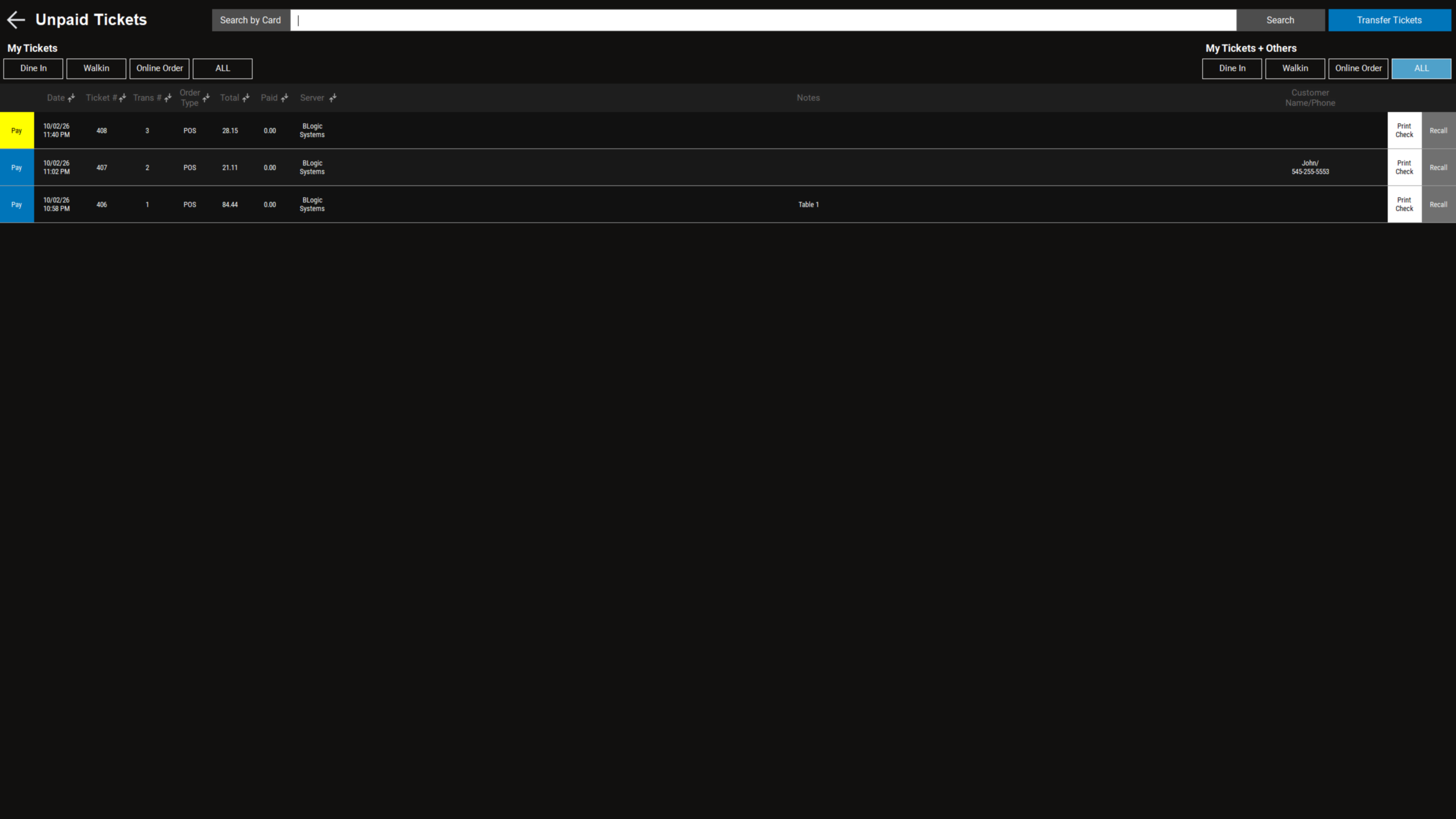
- Go to Unpaid Tickets on the POS.
- Find the ticket in the list, or type in the Search by Card field and select Search to find the ticket by the guest’s card.
- Select Pay on the ticket row.
Step 2: Pay with the saved card
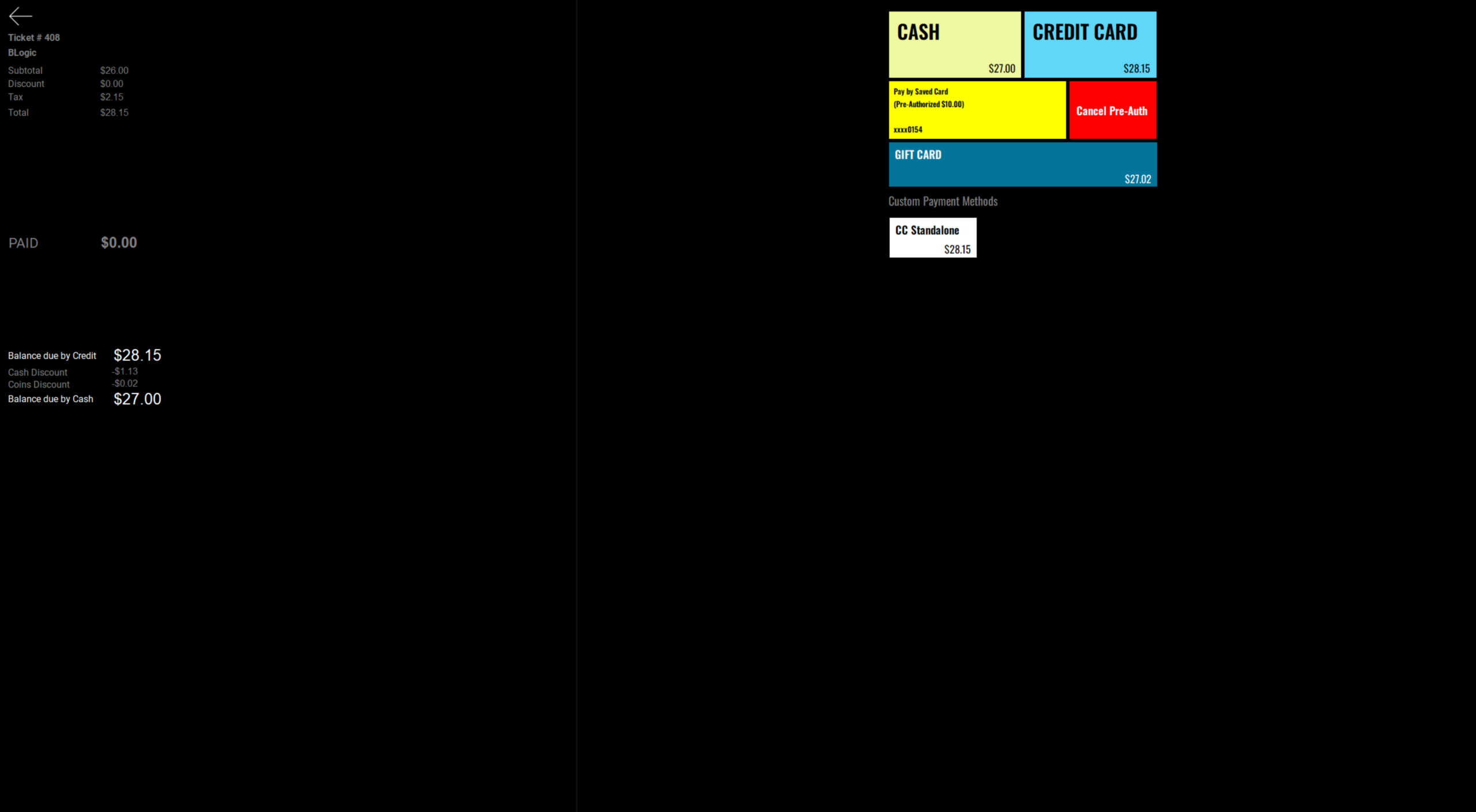
- On the payment screen, select Pay by Saved Card. The button shows the pre-authorized amount and the last four digits of the card (for example, xxxx0154).
- The Payment Completed – Pre-Auth Capture (Credit) window appears with the amount charged.
- Select Done, or open Receipt Options to print or send a receipt.
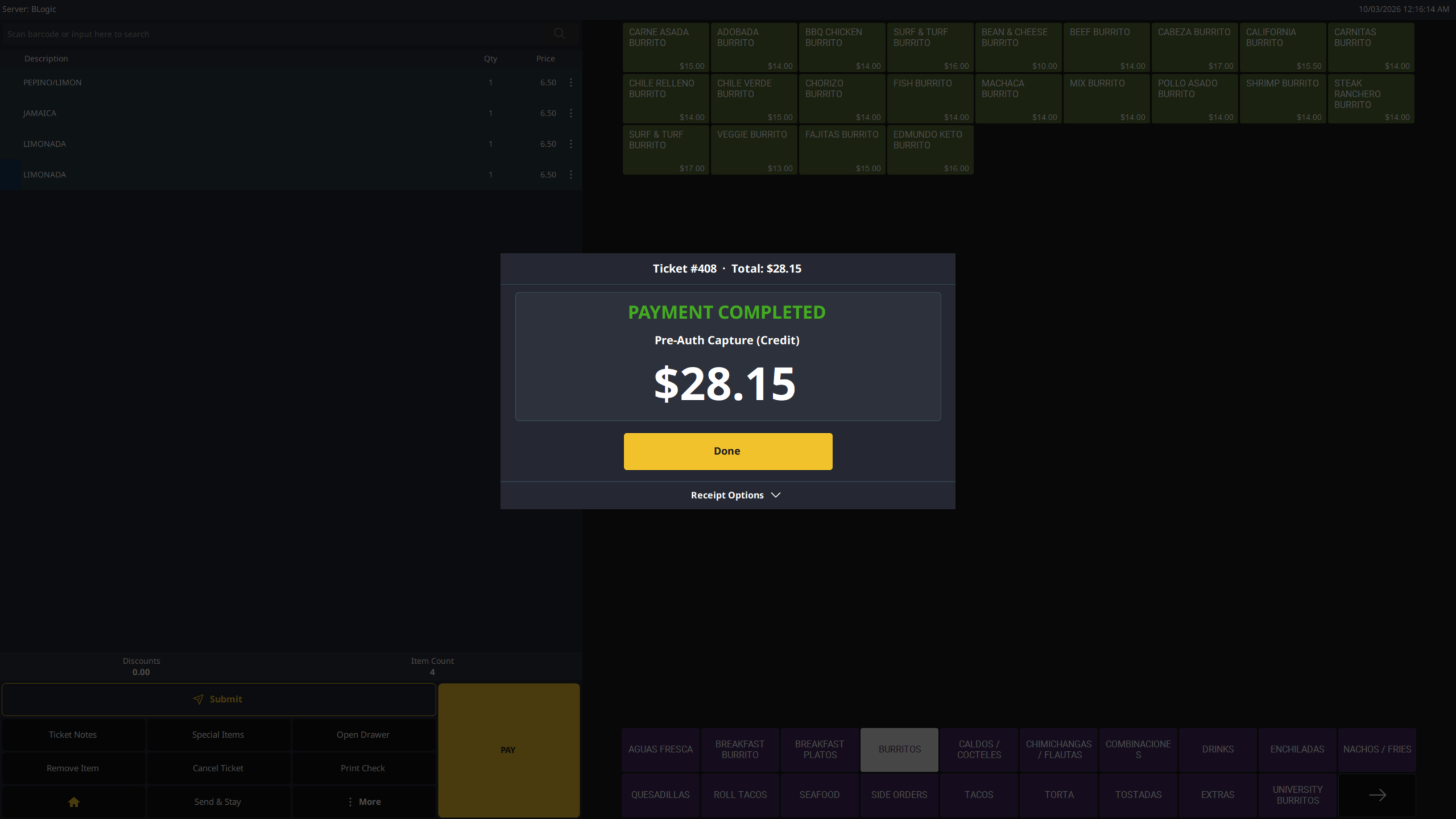
ℹ️ Note: The amount charged is the ticket total, which can be higher than the pre-authorized amount. In the example above, a $10.00 pre-authorization was captured for the full $28.15 total.
Step 3 (optional): Cancel the pre-authorization
If the guest wants to pay another way, or the tab is no longer needed, release the hold on the card.
- Open the ticket’s payment screen.
- Select Cancel Pre-Auth.
You can then pay the ticket with Cash, Credit Card, Gift Card, or another payment method.
Where to View or Confirm the Result
You can check the status of a pre-authorized ticket in these places:
- Unpaid Tickets: A pre-authorized ticket stays in the list with Paid at 0.00 until it is closed. Its Pay button is highlighted in yellow.
- Payment screen: An open pre-authorized ticket shows Pay by Saved Card with the held amount and card’s last four digits, plus Cancel Pre-Auth.
- Payment Completed window: After capture, the window shows Pre-Auth Capture (Credit) and the amount charged.
Troubleshooting
If the Pre-Auth button does not appear on the payment screen, check the following:
- In POS Dashboard, go to Settings > Payment Methods and confirm that Credit and Enable Credit Card Pre-Authorization are both checked, then select Save.
- Confirm that you restarted both POS Dashboard and the POS after saving.
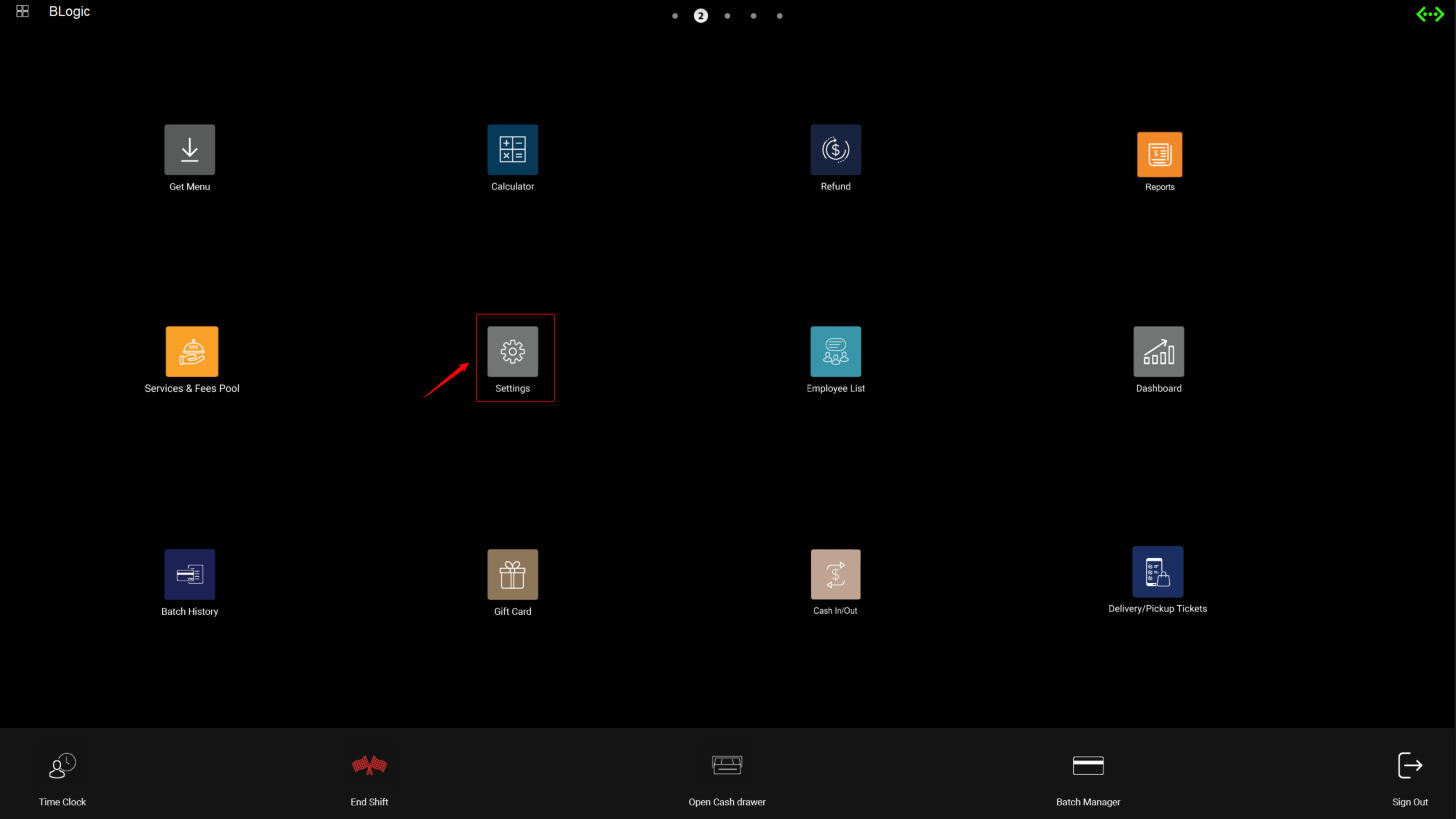
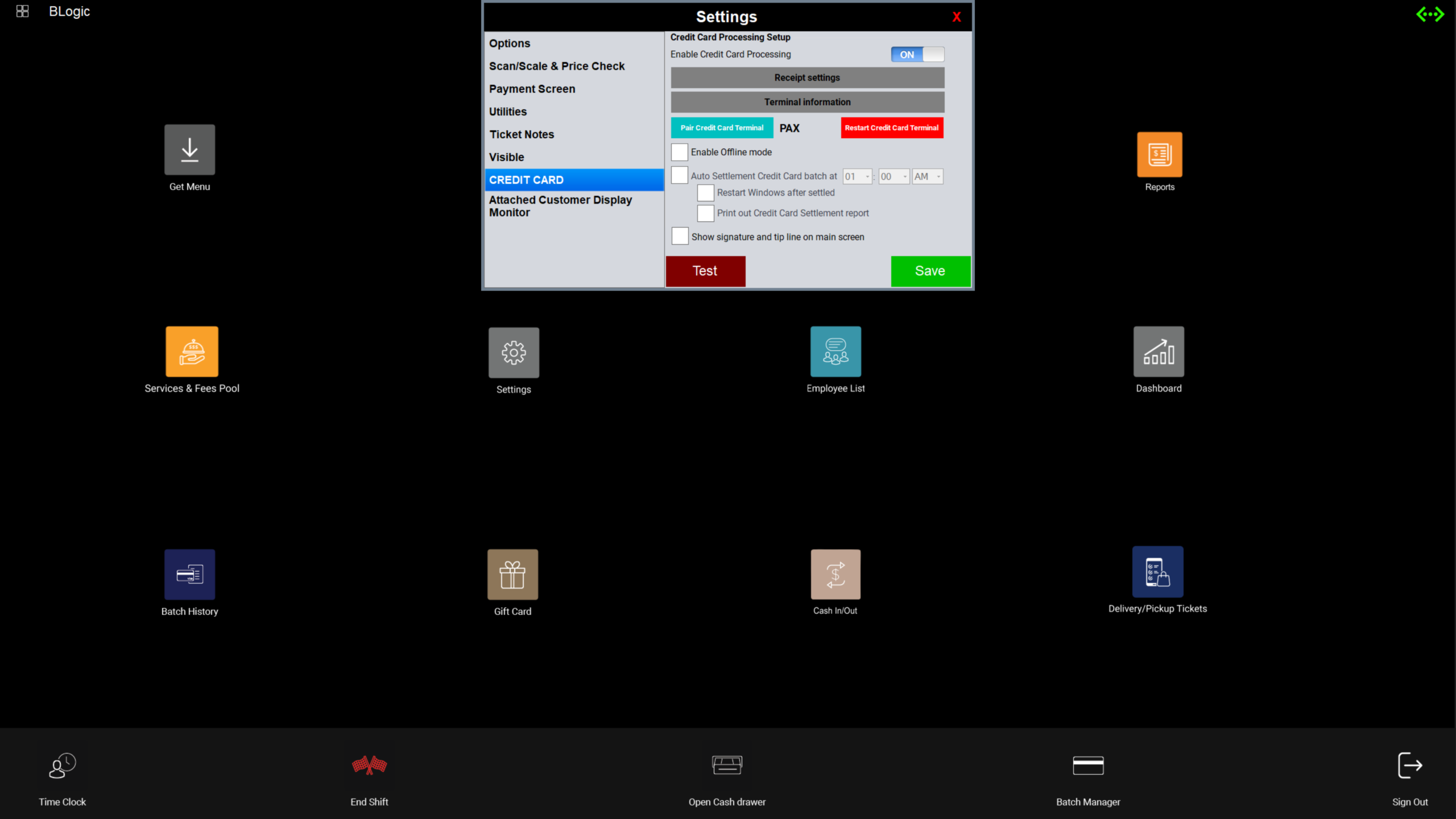
- In the POS app, go to Settings and make sure the Credit Card Processing toggle is ON.
FAQ
1. Why can’t I see the Pre-Auth button? Pre-authorization may be turned off in POS Dashboard, the POS may need a restart, or Credit Card Processing may be off on the POS. Follow the steps in Troubleshooting. If the button still does not appear, please contact Support.
2. Can guests use Apple Pay, Google Pay, or Samsung Pay for a pre-authorization? No. Pre-authorization only works when the guest inserts or taps a physical card.
3. Does the guest need their card again to close the ticket? No. The card is saved to the ticket, so you can close it with Pay by Saved Card without the card being present.
4. Can the final charge be higher than the pre-authorized amount? Yes. The saved card is charged for the ticket total, even if it is higher than the amount held when the ticket was opened.
5. Does pre-authorization protect the store from chargebacks? No. Like any card transaction, a pre-authorized payment can still receive a chargeback.
Closing
If you still need help, please contact Support for further assistance.