
Introduction
This guide explains how to add a new item, create or select a category, and update the item price in POS Dashboard.
Steps
Step 1: Open POS Dashboard
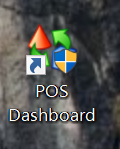
Open POS Dashboard.
Step 2: Log in to POS Dashboard
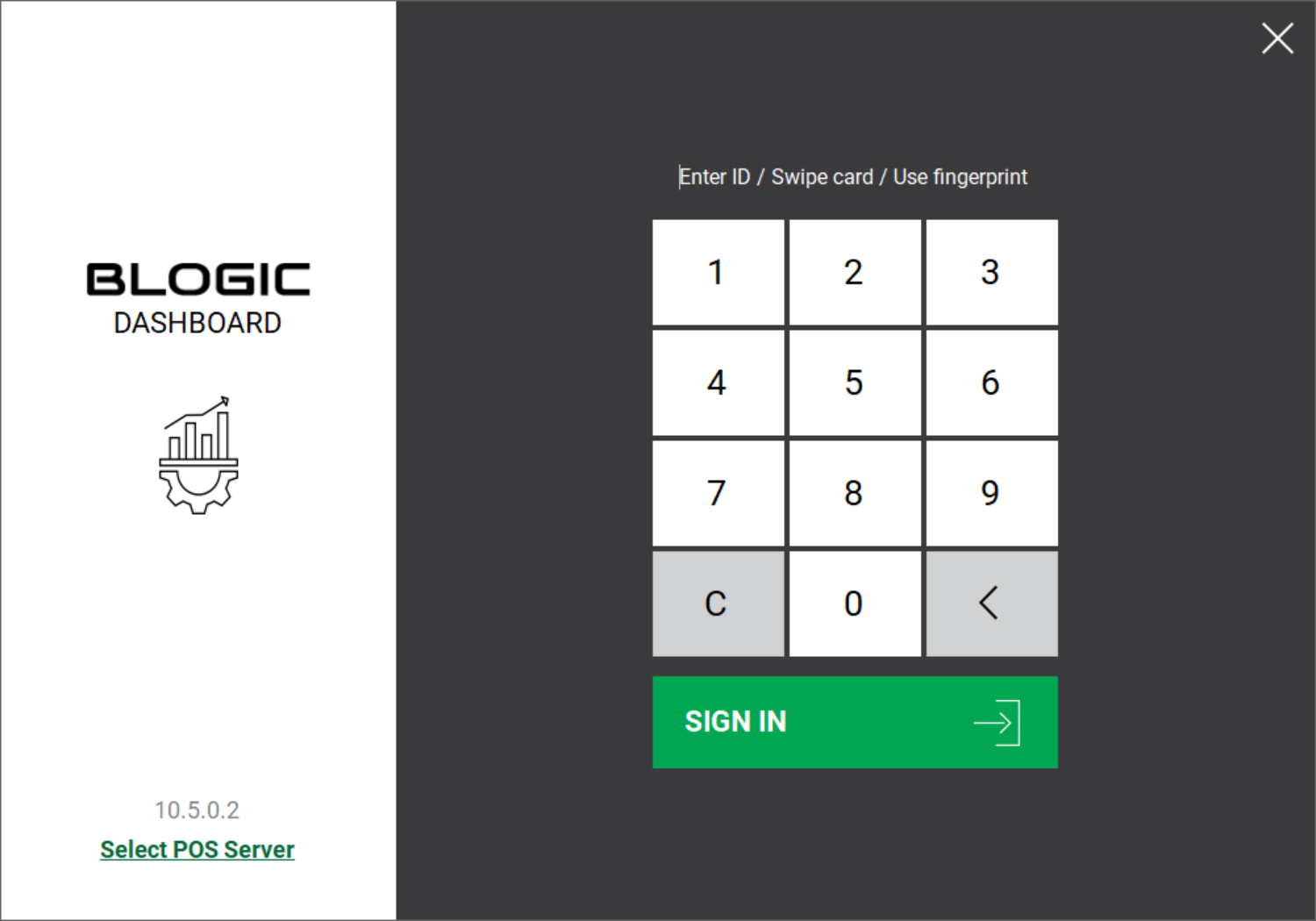
Log in with your username and password.
Step 3: Go to Category Settings
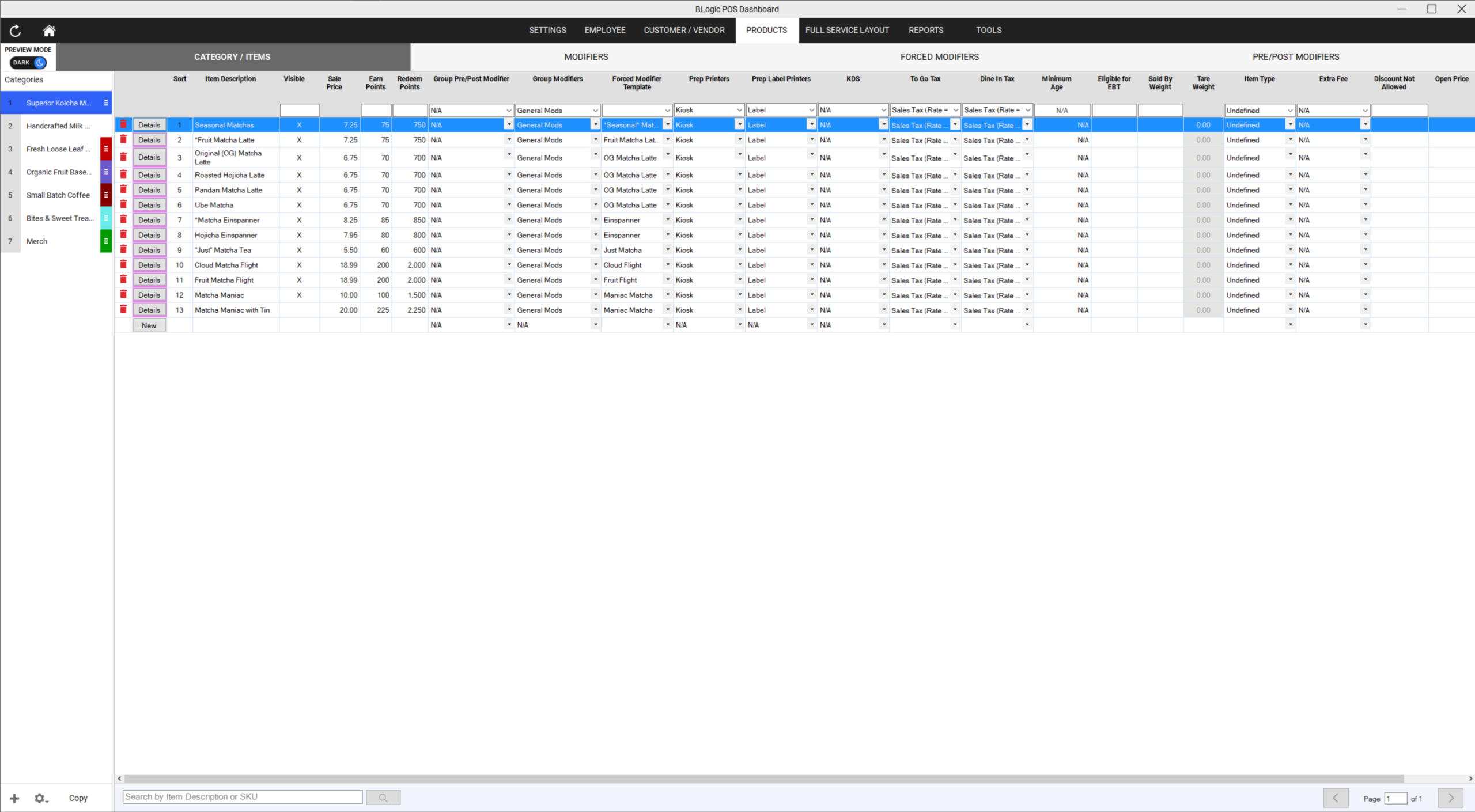
From the left menu, go to:
Settings > Products > Category
Step 4: Add a New Item
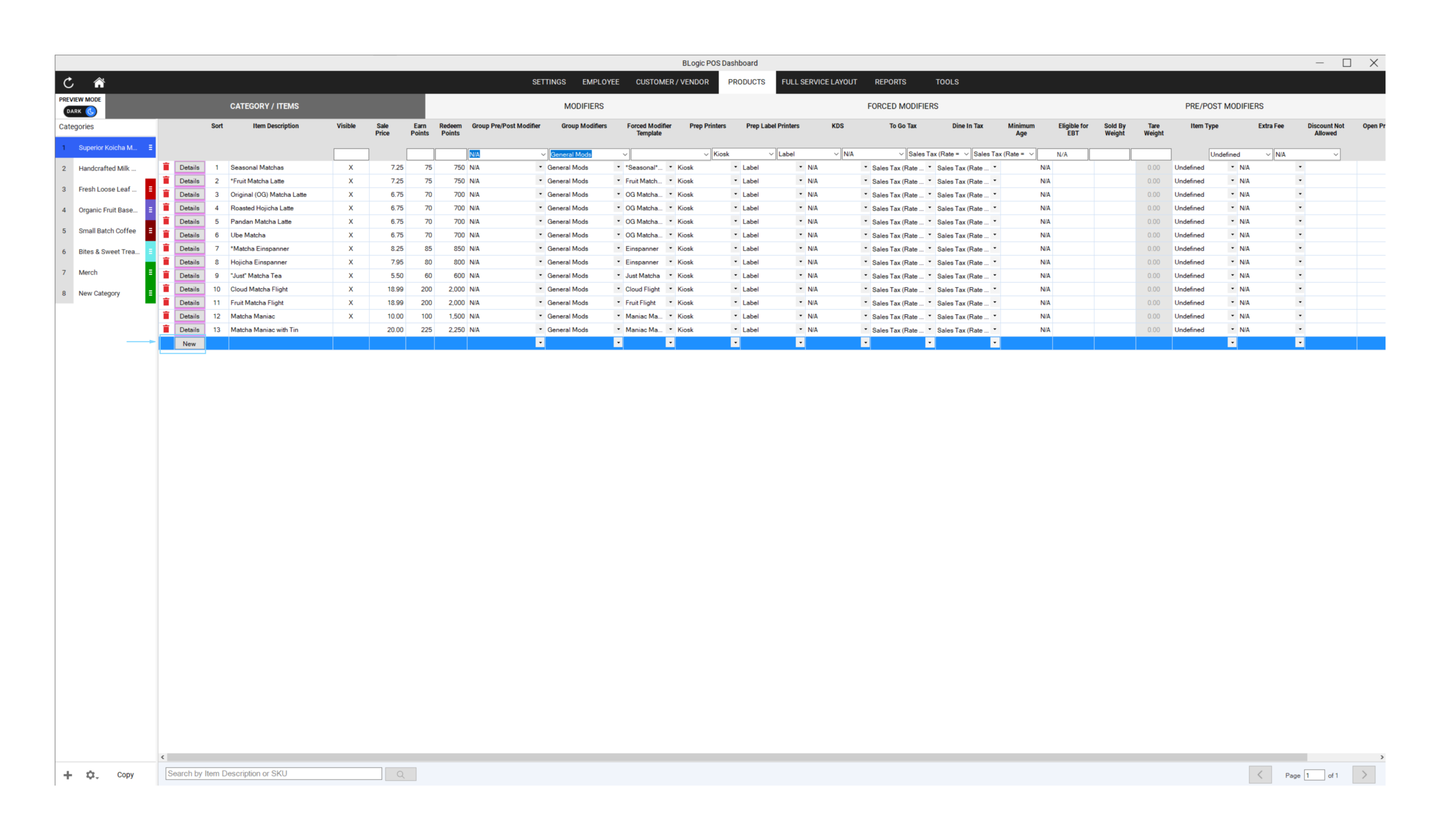
Click New at the bottom of the item list.
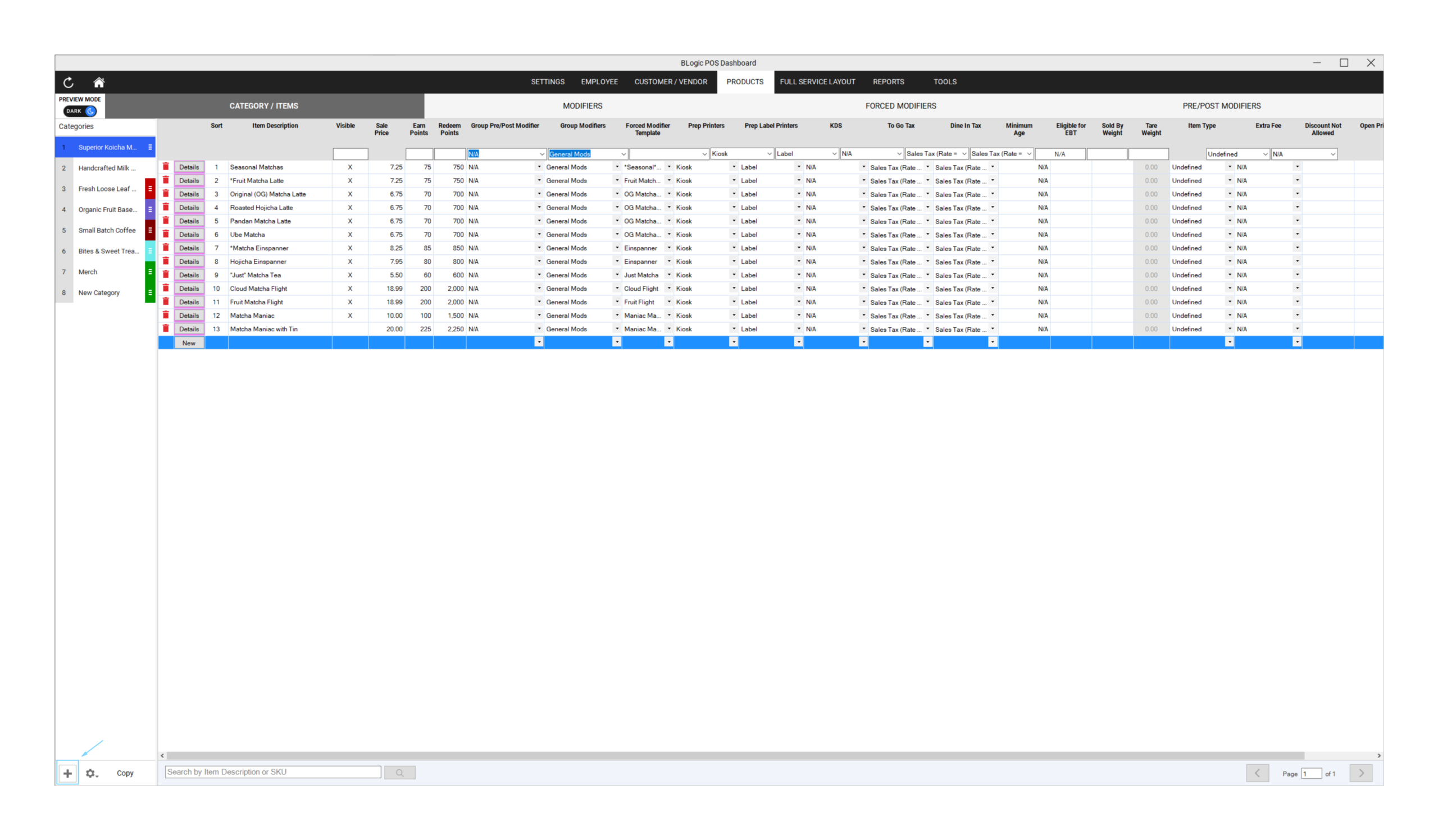
Step 5: Add a New Category
To add a new category, click the + button on the left-hand side.
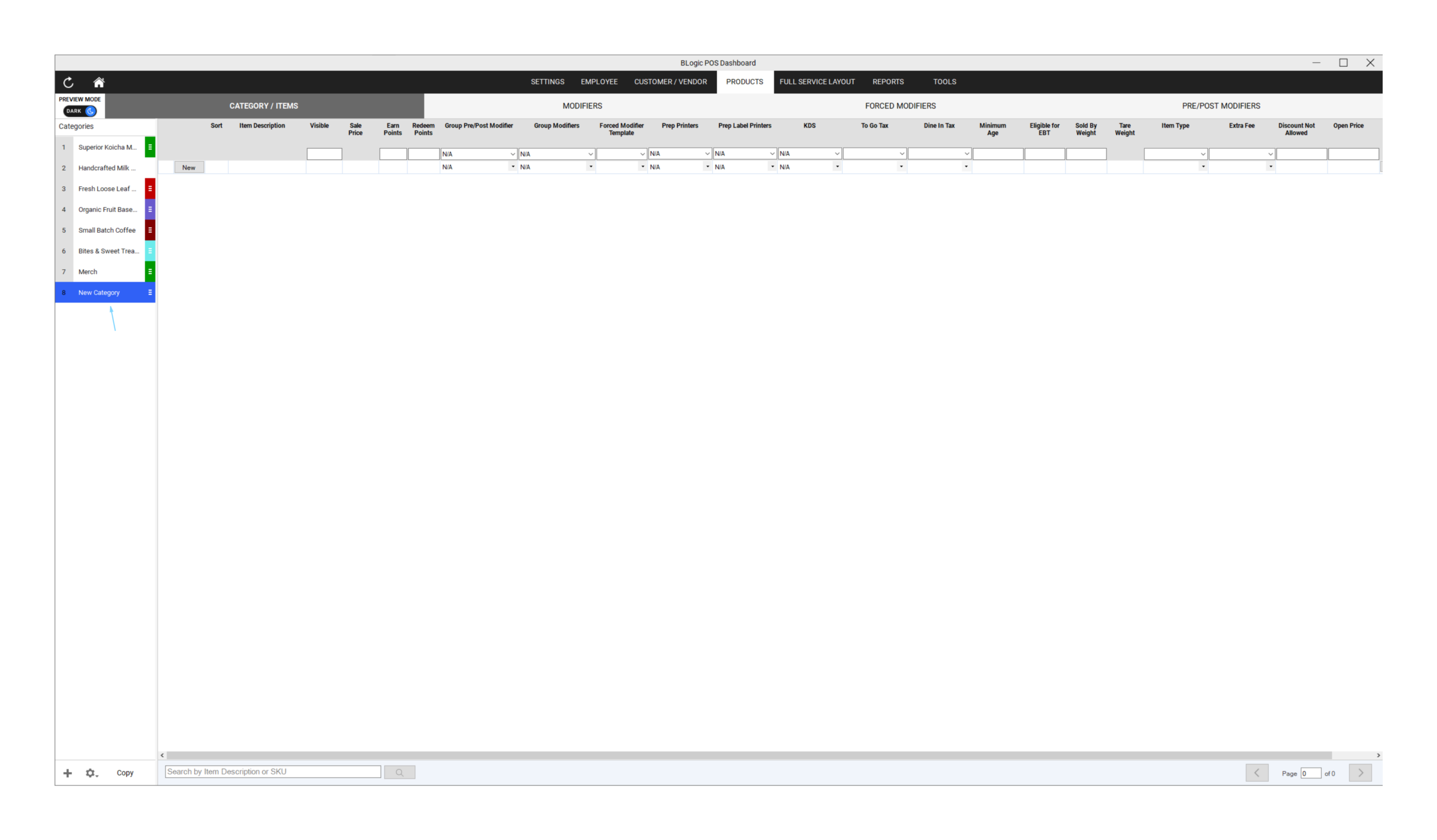
Step 6: Enter the Category Name
Enter the new category name.
Step 7: Set the Item Price
Click the Sale Price field for the item.
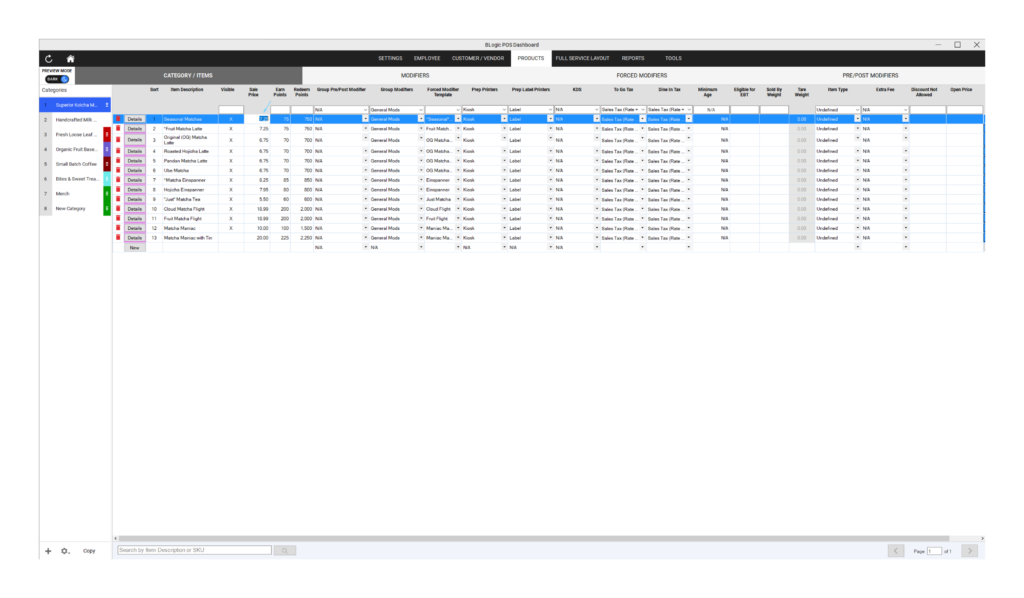
Step 8: Enter the Price
Enter the item price.
Step 9: Save Changes
Save your changes.
Note
Make sure the item is assigned to the correct category before saving.
Refer to the video below for a detailed step-by-step walkthrough of this process.