Introduction
This article shows you how to change the text size on your Kitchen Display System (KDS) and make the item name and quantity bold. Setting a comfortable, readable size helps your kitchen staff read orders quickly and accurately — especially on busy stations or screens viewed from a distance.
Version Support
| Product / Module | Supported Version |
|---|---|
| KDS | 2.1.1 |
Note: If you do not see this option, please contact Support to confirm your store is on a supported version.
Table of Contents
- Open the Font Size Settings
- Adjust Item and Quantity Font Size
- Turn On Bold and Save
- Where to View or Confirm the Result
- FAQ
Open the Font Size Settings
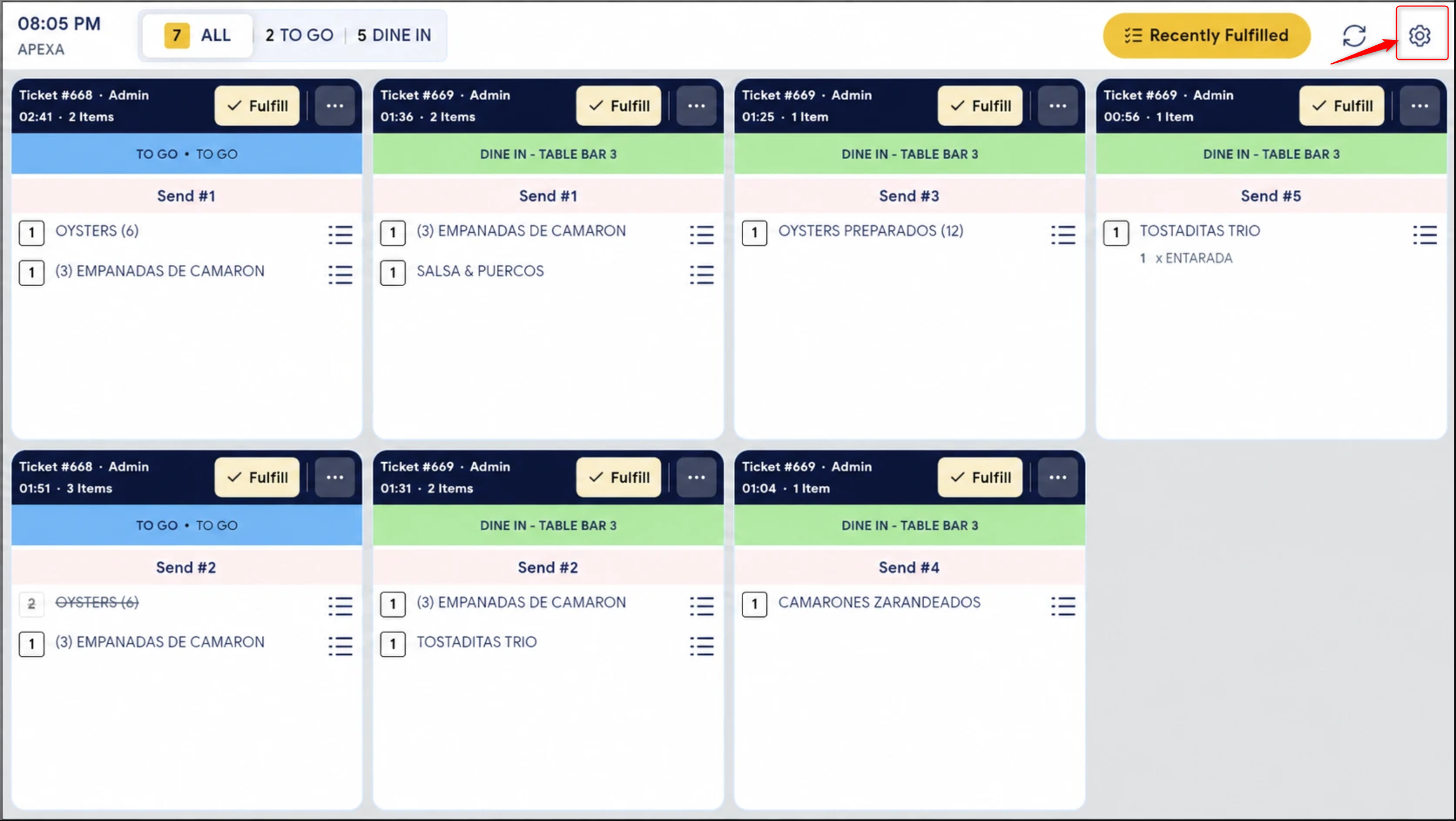
Step 1: Open Settings on your KDS device
- On the KDS order screen, tap the gear (Settings) icon in the top-right corner.
- The SETTINGS screen opens.
- In the right-hand column, scroll to the Font Size section (below Layout & Display).
You will see two controls — Quantity Font Size and Item Font Size — each with its own Bold toggle, plus a Preview box (e.g. 10 Burger) that shows how your changes will look.
Adjust Item and Quantity Font Size
Each slider controls a different part of the order line: the quantity (for example, “10”) and the item name (for example, “Burger”). You can set them independently.
Step 1: Set the Quantity Font Size
- Drag the Quantity Font Size slider between Min and Max.
- The size ranges from 16px (Min) to 40px (Max).
- Watch the Preview update as you drag.
Step 2: Set the Item Font Size
- Drag the Item Font Size slider to your preferred size.
- The same range (16px–40px) applies.
- The small dots under the slider are recommended sizes — you can stop on any of them or anywhere in between.
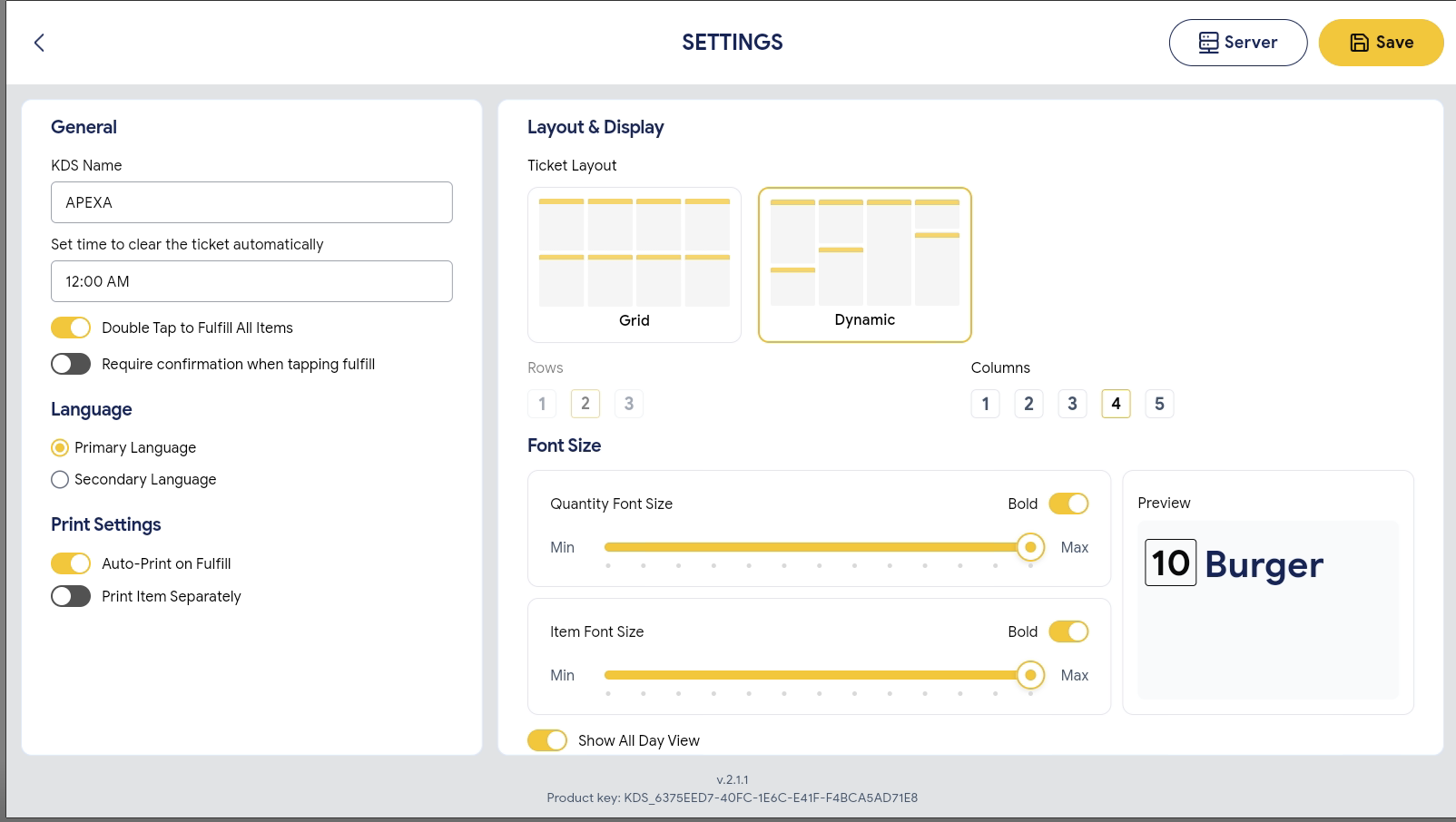
ℹ️ Note: The Preview on the right always reflects your current size and bold choices in real time.
Turn On Bold and Save
Step 1: Turn Bold on or off
- Use the Bold toggle next to Quantity Font Size to bold the quantity.
- Use the Bold toggle next to Item Font Size to bold the item name.
- Each toggle is independent — turning one on or off does not change the other.
ℹ️ Note: The quantity is shown in bold by default. You can turn it off any time using its Bold toggle.
Step 2: Save your changes
- Review the Preview to confirm the size and bold look right.
- Tap Save in the top-right corner to apply your settings.
⚠️ Warning: Your changes only take effect after you tap Save. If you leave the screen without saving, the changes will be discarded.
ℹ️ Note: Font settings are saved on this KDS device only. If you have more than one KDS screen, set each device separately.
Where to View or Confirm the Result
After saving, return to the main KDS order screen. Your new size and bold settings apply to the order tickets across Grid, Dynamic, and All-day views. The item name follows the Item Font Size (and its Bold), and the quantity follows the Quantity Font Size (and its Bold).
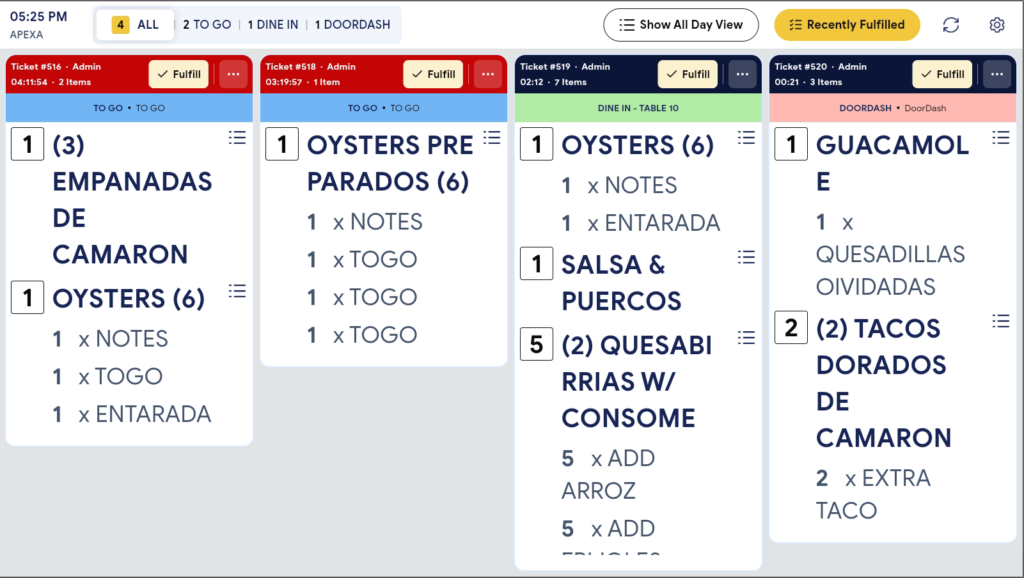
✅ Tip: For busy stations or screens viewed from a distance, try a larger size (such as 28–40px) and keep Bold on for easier reading.
ℹ️ Note: These settings change the on-screen display only. They do not affect printed tickets (Print Settings are managed separately).
FAQ
1. Why can’t I see the Font Size option? Your device may not be on a supported version, or your role may not have access to KDS Settings. Please contact Support if the option is not visible.
2. Does this setting affect my orders or printed tickets? No. It only changes how text appears on the KDS screen. It does not change order data, and it does not affect printed tickets.
3. Will my font settings apply to all my KDS devices? No. Settings are saved per device. If you have several KDS screens, set the font size and bold on each device.
4. Can I set a different size for the item name and the quantity? Yes. The Item Font Size and Quantity Font Size are separate, and each has its own Bold toggle.
5. What should I do if the change does not appear? Confirm you tapped Save, check that your device is on a supported version, and contact Support for further assistance.
Closing
If you still need help, please contact Support for further assistance.