Introduction
This article explains how to show the seat number on tickets that were split by seat.
When a check is split By Seat, every child ticket shows only the table name, which makes it hard to tell one guest’s ticket from another. With this setting turned on, each ticket clearly shows which seat it belongs to: on the Unpaid Tickets screen, on the printed Sales Receipt, and in BLogic View.
This helps your servers pick the right ticket when a guest wants to pay early or add items.
Version Support
| Product / Module | Supported Version |
|---|---|
| POS Dashboard | Release 2026.10.05 |
| POS Server | Release 2026.10.05 |
Note: If you do not see this option, please contact Support to confirm your store is on a supported version.
Table of Contents
- Turn On the Setting in POS Dashboard
- Split a Check By Seat on POS
- Where to View or Confirm the Result
- When the Seat Number Is Not Shown
- FAQ
Turn On the Setting in POS Dashboard
This setting is turned off by default. A manager or owner needs to turn it on once for the store.
Step 1: Open the Advance configurations
- Log in to your BLogic POS Dashboard.
- Go to Settings > Configurations.
- Select the Advance tab.
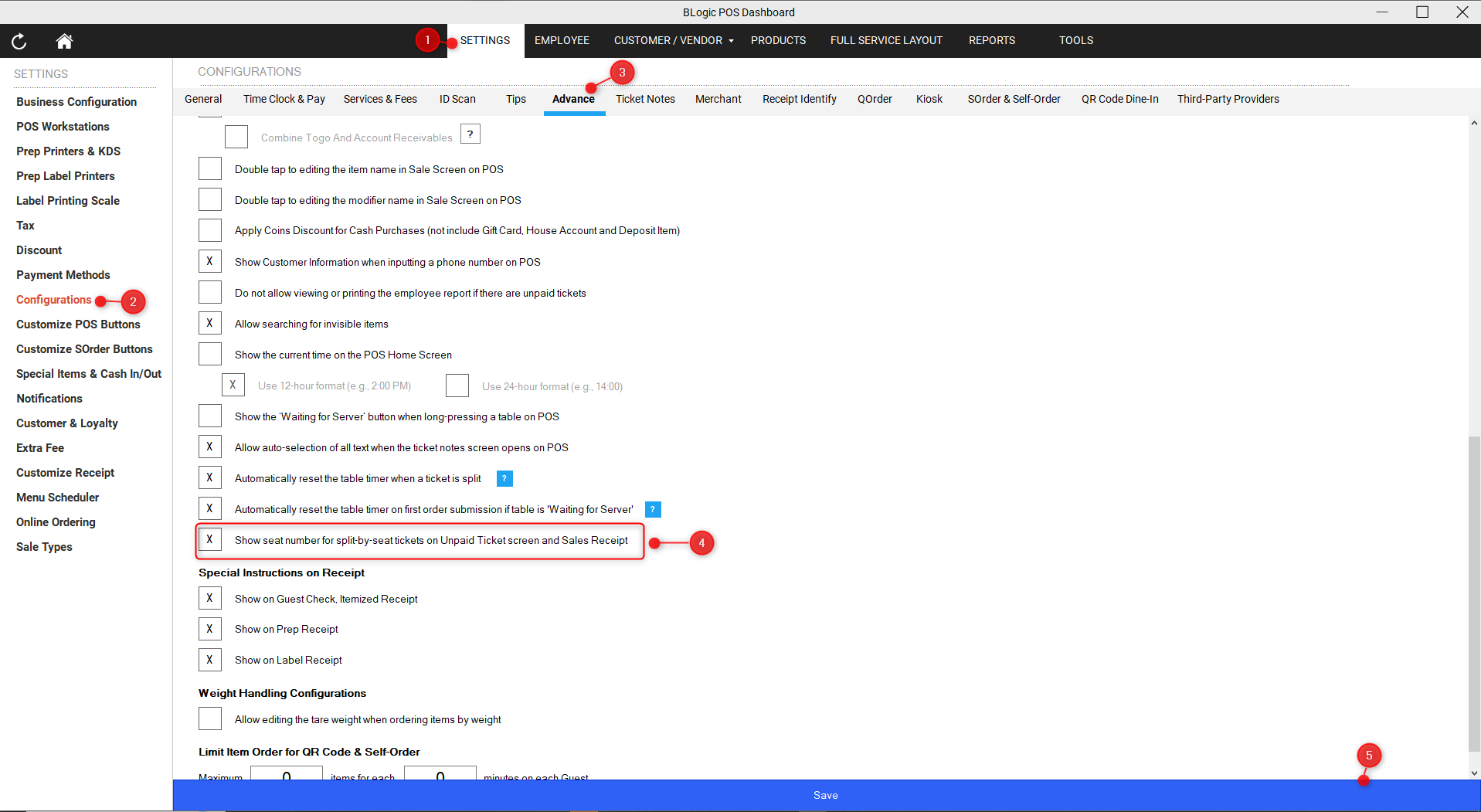
Step 2: Enable the seat number setting
- Scroll down to the checkbox Show seat number for split-by-seat tickets on Unpaid Ticket screen and Sales Receipt.
- Tick the checkbox.
- Click Save at the bottom of the screen.
ℹ️ Note: This is a single store-wide setting. It controls the seat number on POS, QOrder, BLogic View and the printed Sales Receipt at the same time. There is no separate setting inside QOrder or BLogic View.
Split a Check By Seat on POS
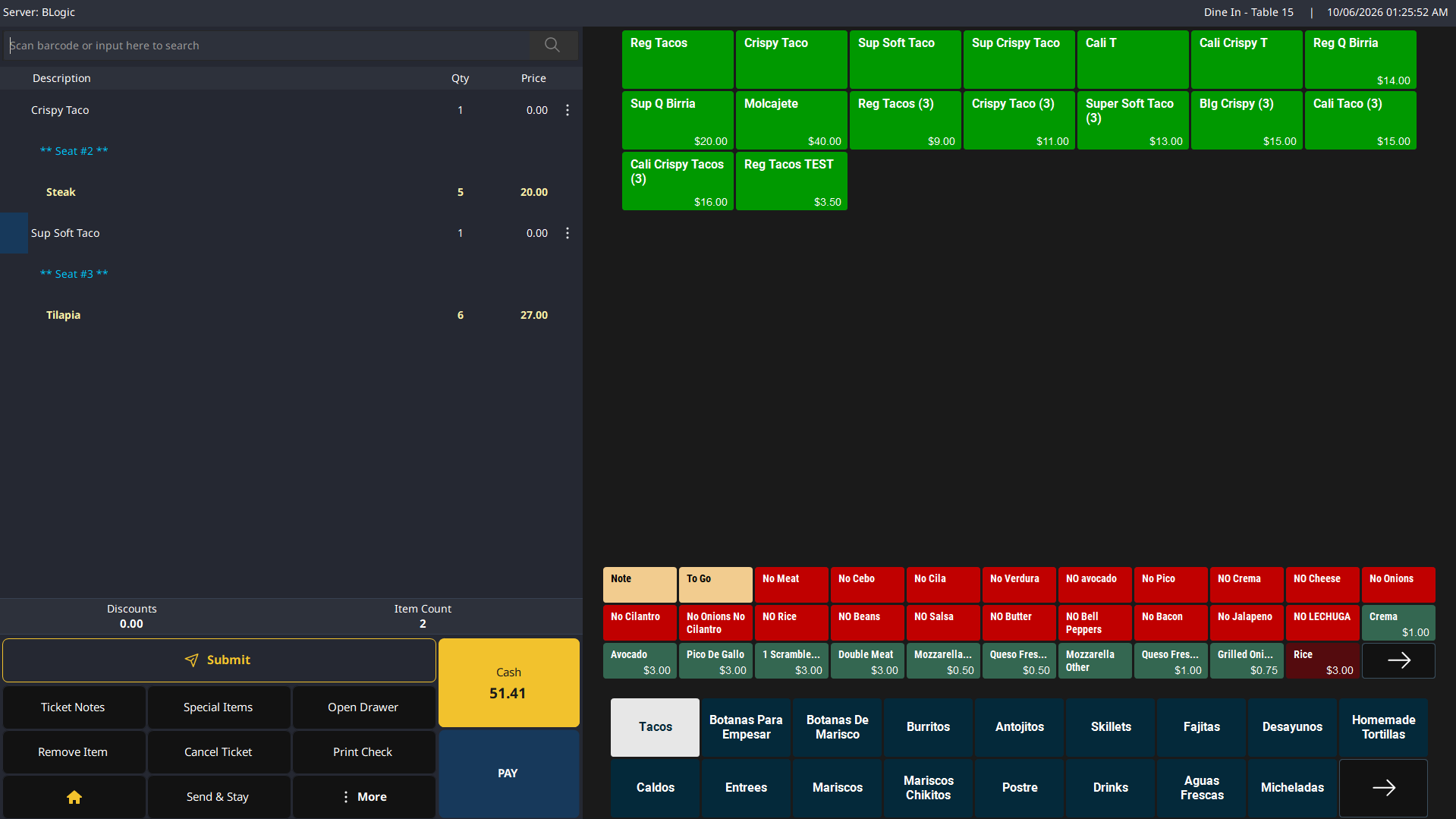
Step 1: Assign each item to a seat
- Open the table on POS and add the items as usual.
- Tap the three-dot icon next to an item.
- Under Seat Assignment, tap the seat number for that guest.
- Repeat for the other items.
Once items are assigned, the sale screen shows a blue label such as ** Seat #2 ** under each item.
Step 2: Split the check by seat
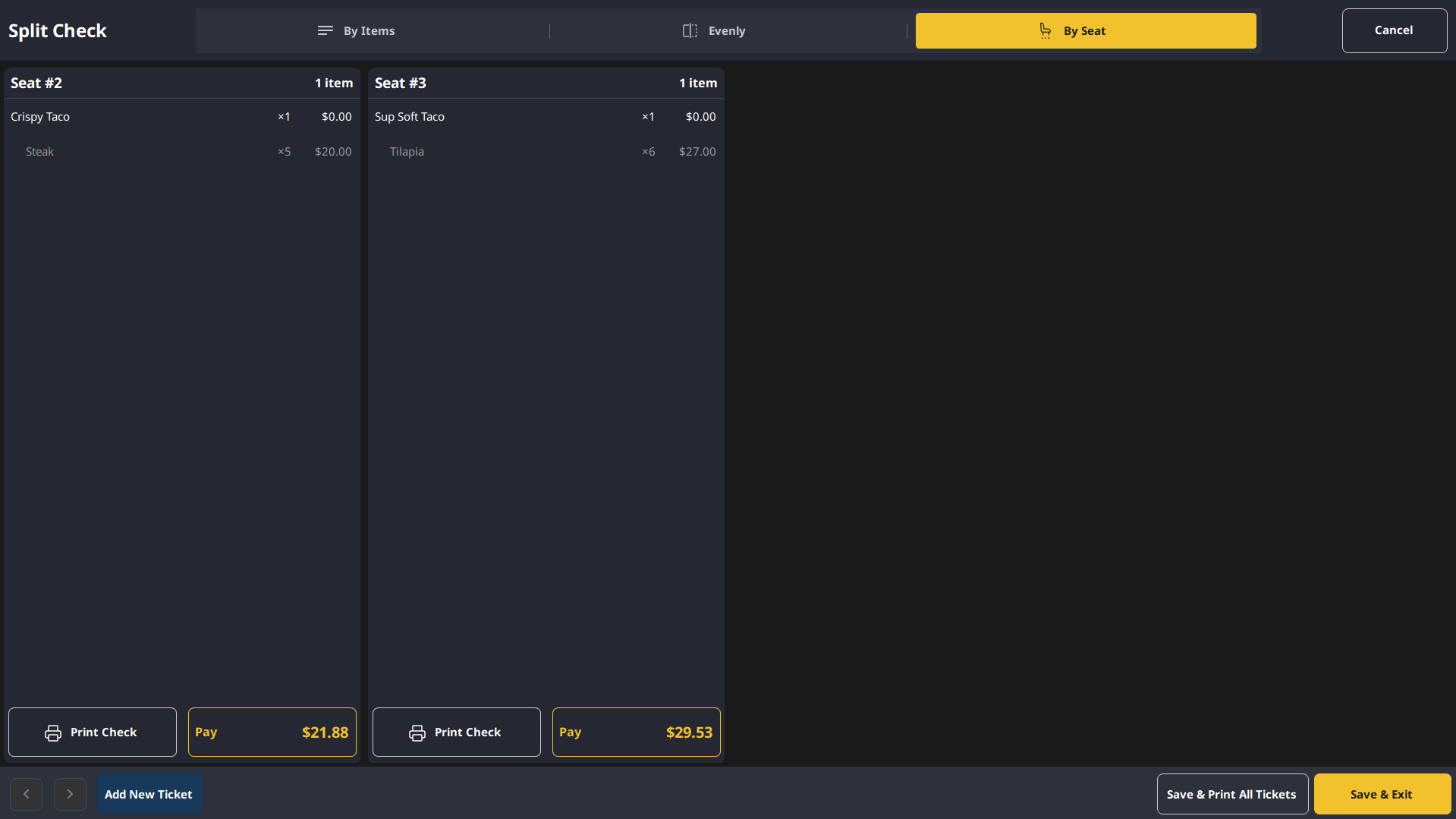
- Tap More > Split Check.
- Select the By Seat tab at the top.
- Review the tickets. Each seat becomes its own ticket, for example Seat #2 and Seat #3.
- Tap Save & Exit, or Save & Print All Tickets if you want to print them now.
✅ Tip: Items that belong to everyone, such as shared appetizers or drinks, can be assigned to Table (Shared Items) instead of a seat.
Where to View or Confirm the Result
After the setting is on and the check is split by seat, the seat number appears in four places.
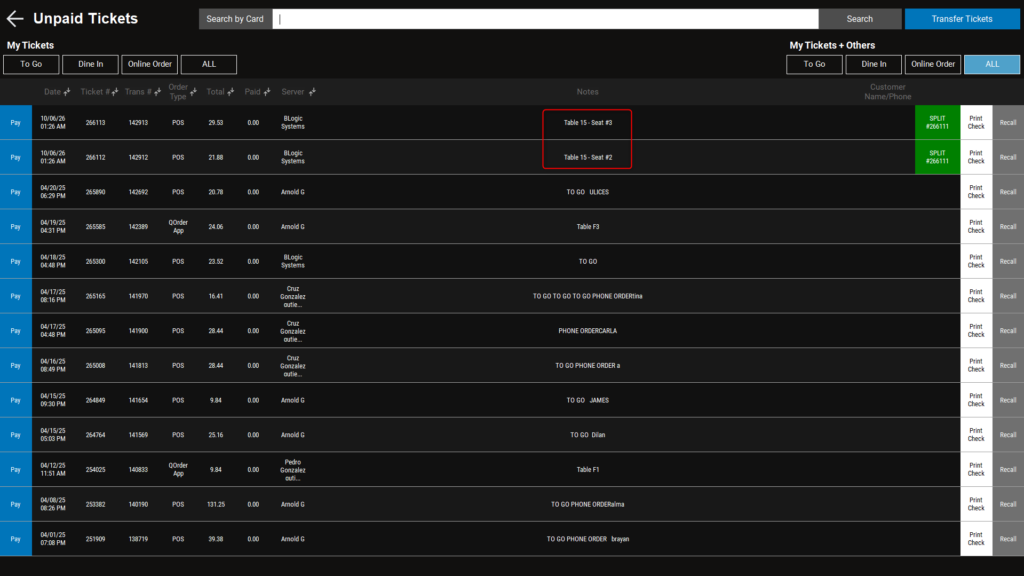
1. Unpaid Tickets screen on POS
Go to Unpaid Tickets. The Notes column now shows the table and the seat, for example Table 15 - Seat #3. Tickets from the same split still share the green SPLIT # badge.
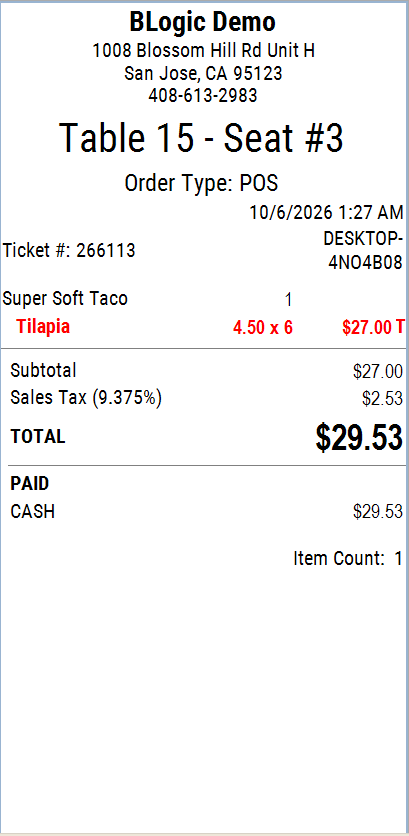
2. Printed Sales Receipt
The receipt header prints Table 15 - Seat #3 in place of the table name alone.
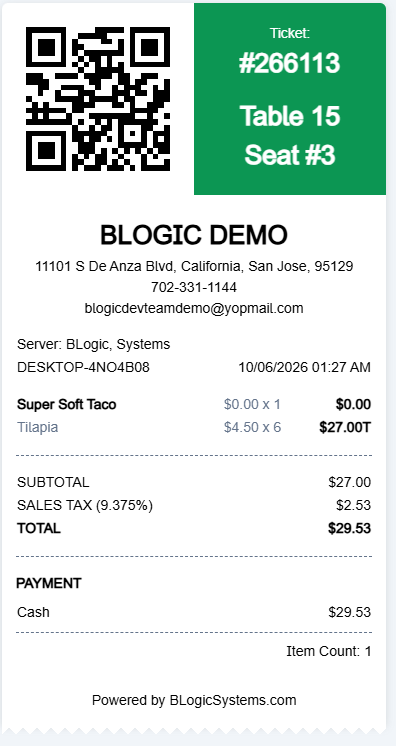
3. BLogic View
Go to Reports > Unpaid Orders and open a ticket with the Receipt button. The green header of the receipt shows the table and the seat.
4. QOrder
On the Unpaid Tickets screen in QOrder, the ticket shows the table and the seat in the same format.
When the Seat Number Is Not Shown
The seat number only appears when every item on the ticket belongs to the same seat. In any other case the ticket shows the table name only, exactly as before.
| Situation | What the ticket shows |
|---|---|
| All items belong to one seat | Table 15 - Seat #3 |
| Items belong to two or more seats | Table 15 |
| No item is assigned to a seat | Table 15 |
| The check was split By Items or Evenly | Table 15 |
| The setting is turned off | Table 15 |
Items assigned to Table (Shared Items) and items with no seat are ignored. A ticket with three items on Seat #3 plus one shared appetizer still shows Table 15 - Seat #3.
⚠️ Warning: The seat number can appear and then disappear while the ticket is still open. This is normal. For example:
- If you remove the seat from the last item that had one, the seat number disappears.
- If you add an item on a different seat, the ticket now covers two seats, so the seat number disappears.
The ticket is still part of the split in both cases, and the green SPLIT # badge stays.
FAQ
1. Why can’t I see this option in POS Dashboard?
You may not be on a supported version, or your user role may not have permission to open Settings > Configurations. Please contact Support if the option is not visible.
2. Does turning this on change my existing tickets?
No. The setting is off by default, and turning it on only changes how tickets are displayed. It does not change prices, totals or how the check was split.
3. Do I need to turn this on separately in QOrder or BLogic View?
No. One setting in POS Dashboard controls all of them, including the printed Sales Receipt.
4. The seat number showed earlier and now it is gone. Is this a bug?
No. This happens when the ticket no longer belongs to a single seat, usually because an item was unassigned or an item from another seat was added. See When the Seat Number Is Not Shown.
5. What should I do if the feature does not work as expected?
Check that the setting is enabled and saved, confirm the check was split By Seat and not By Items or Evenly, confirm your store is on a supported version, and contact Support for further assistance.
Closing
If you still need help, please contact Support for further assistance.