Introduction
You can limit how long guests can order through QR Code Dine-In. The timer starts when the guest submits their first order, and ordering stops when it runs out.
This article shows you how to set the time limit and the last call warning in BLogic View, and what your guests will see on their phone. This helps you manage table turnover and keep orders from arriving late in the meal.
Version Support
| Product / Module | Supported Version |
|---|---|
| POS Server | 2026.10.08 |
Note: If you do not see this option, please contact Support to confirm your store is on a supported version.
Table of Contents
- Set Up the Order Time Limit
- What Guests See on QR Code Dine-In
- Where to View or Confirm the Result
- FAQ
Set Up the Order Time Limit
Step 1: Open the Order Limiter settings
- Log in to BLogic View.
- Go to Setup > Configurations.
- Under Operations, select Advanced.
- Open the Order Limiter tab.
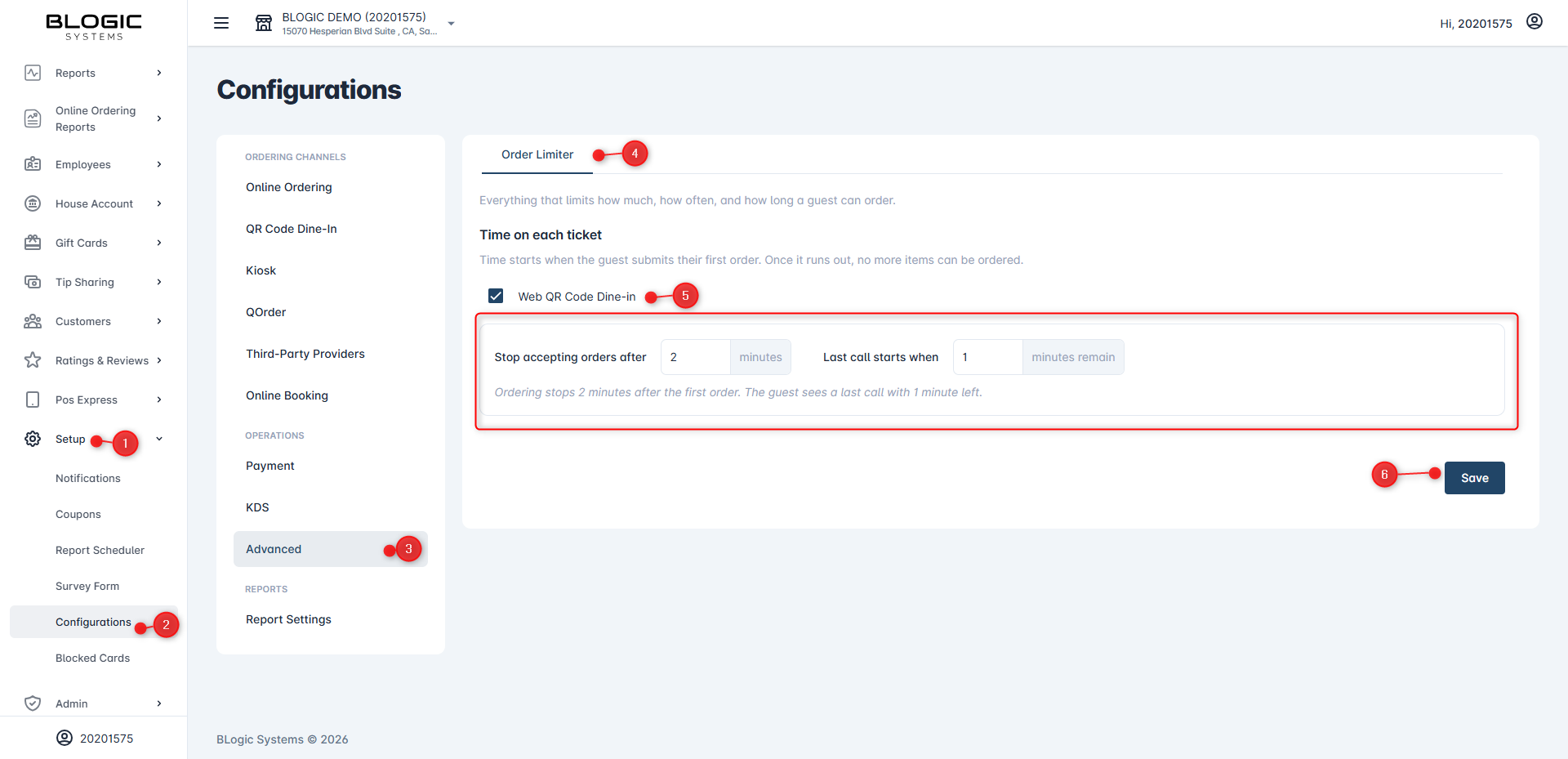
Step 2: Turn on the time limit for QR Code Dine-In
- Find the Time on each ticket section.
- Select the Web QR Code Dine-in checkbox.
Step 3: Set when ordering stops
- In Stop accepting orders after, enter the number of minutes guests can order. The time counts from the guest’s first submitted order.
- Example: enter 90 to stop ordering 90 minutes after the first order.
✅ Tip: Enter 0 if you do not want a time limit. The summary line shows: Customers can order without a time limit.
Step 4: Set when the last call starts
- In Last call starts when, enter how many minutes should remain when guests get the warning.
- Example: enter 30 so guests are warned when 30 minutes are left.
- Check the summary line under the fields. With 90 and 30, it reads: Ordering stops 90 minutes after the first order. The guest sees a last call with 30 minutes left.
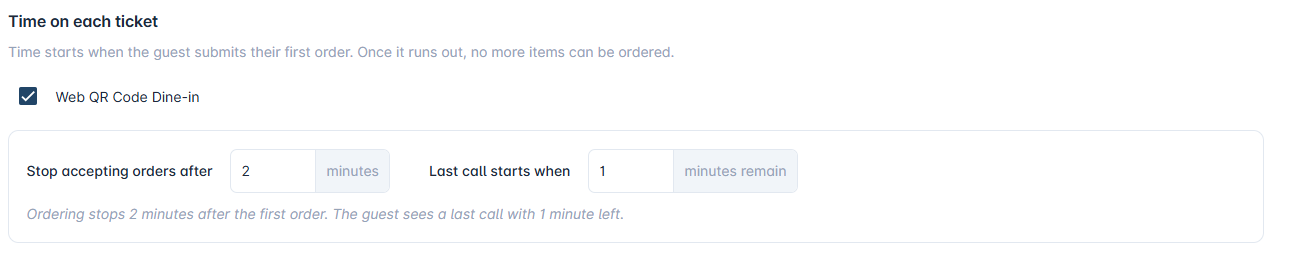
⚠️ Warning: The last call value must be a whole number smaller than the time limit. For a 90-minute limit, enter a number between 0 and 89. Enter 0 to turn off the last call warning.
Step 5: Save your changes
- Select Save.
What Guests See on QR Code Dine-In
Once the time limit is on, guests see a banner at the top of the menu and the cart. The banner changes as time passes. The examples below use a 90-minute limit and a 30-minute last call.
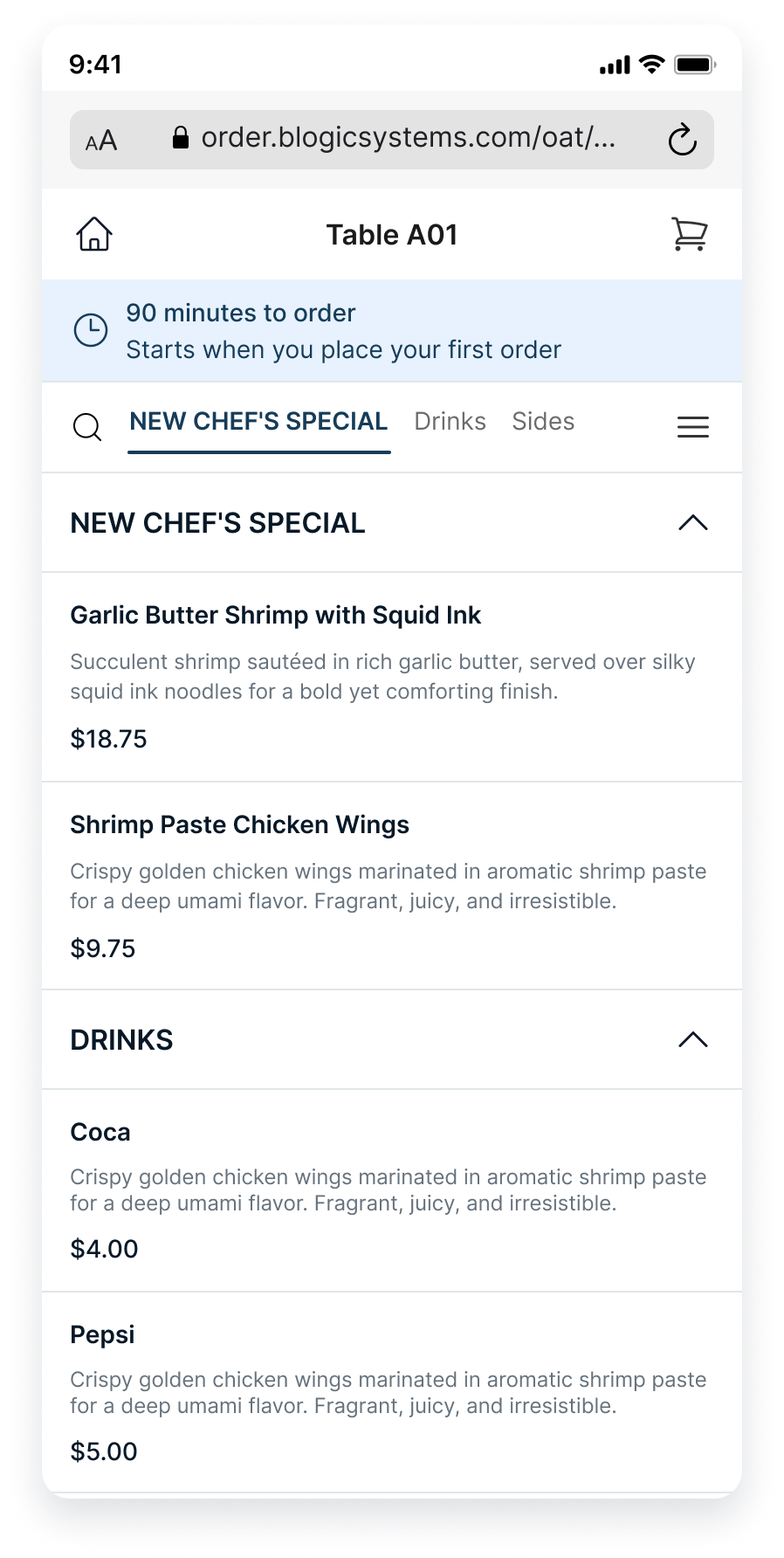
Stage 1: Before the first order
- The guest scans the QR code and opens the menu.
- The banner shows 90 minutes to order with the line Starts when you place your first order.
- The timer does not start until the guest submits their first order.
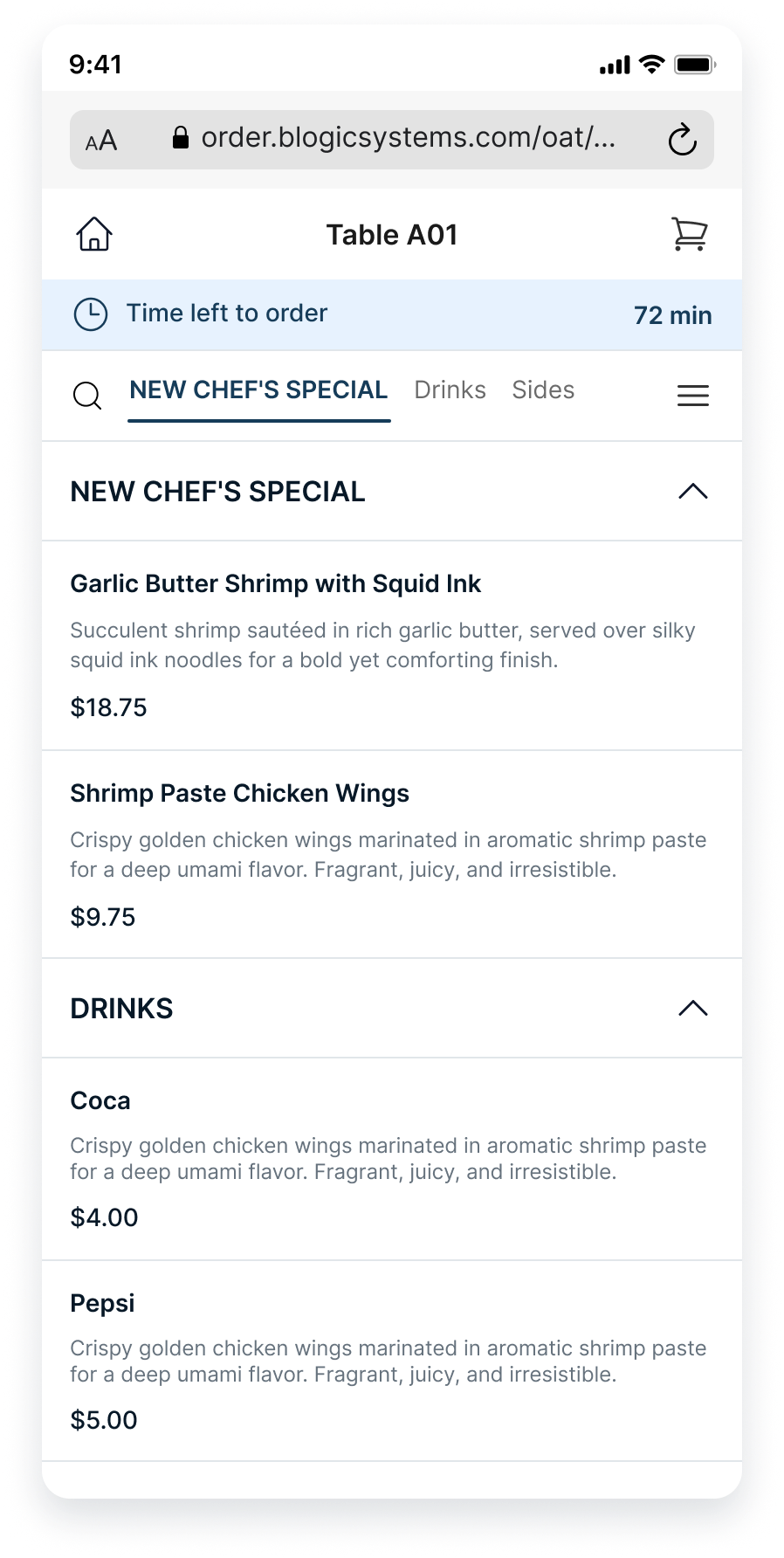
Stage 2: Timer running
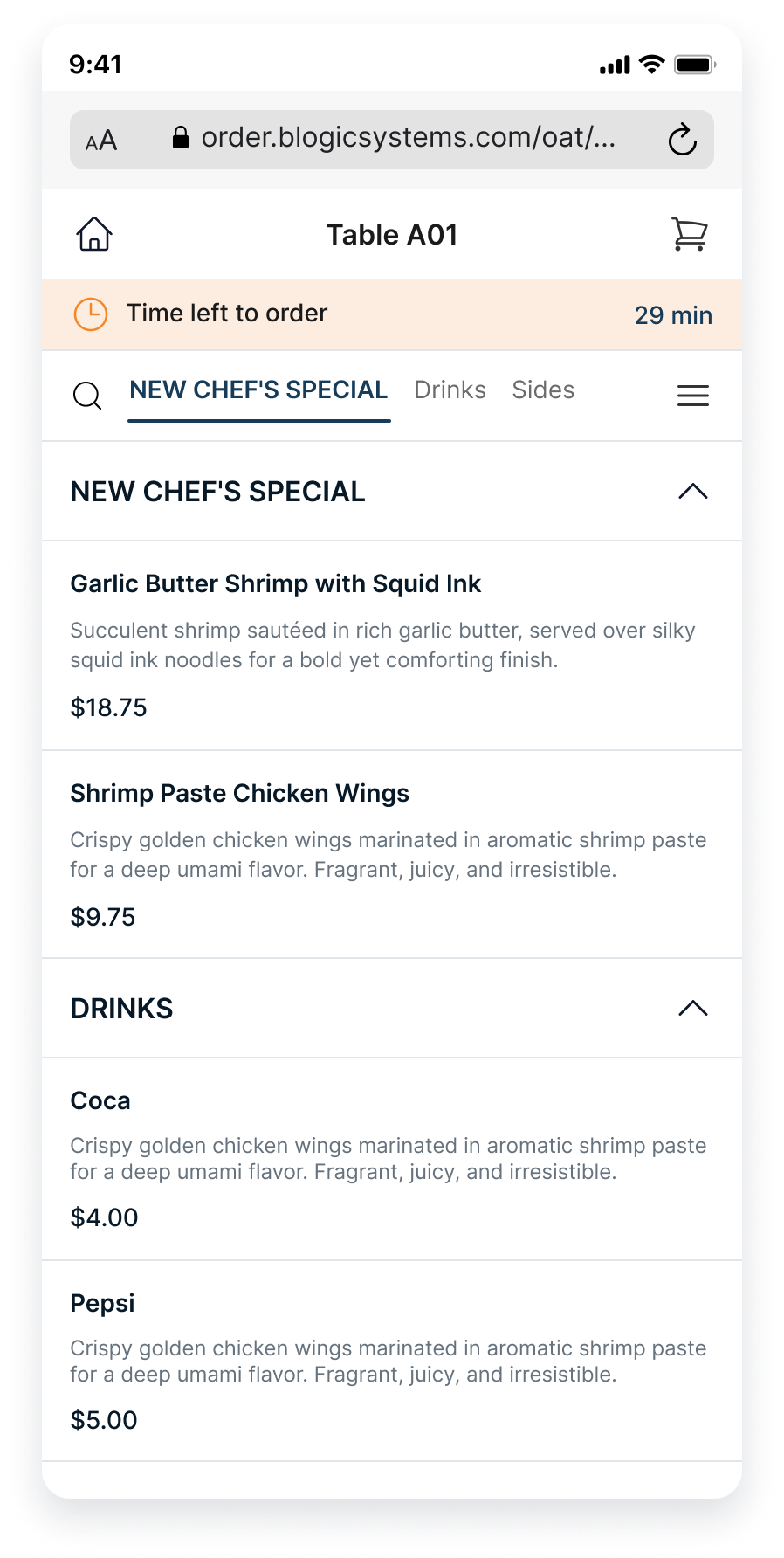
- After the first order is submitted, the banner shows Time left to order with the minutes remaining, for example 72 min.
- Guests can keep adding and submitting items as usual.
Stage 3: Last call
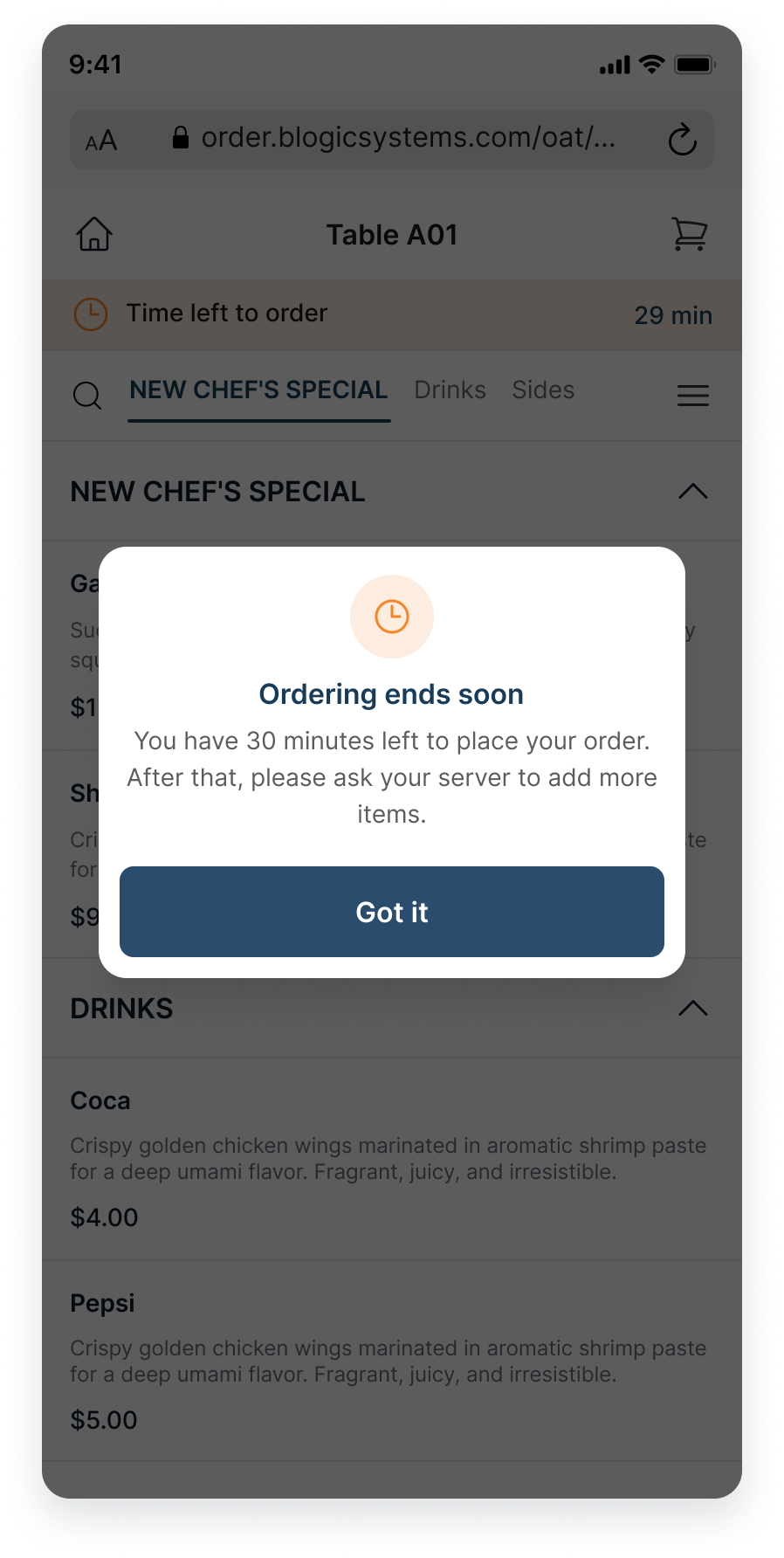
- When the remaining time reaches the last call value, a pop-up appears: Ordering ends soon. You have 30 minutes left to place your order. After that, please ask your server to add more items.
- The guest selects Got it to close the pop-up.
- The banner turns orange and keeps counting down, for example Time left to order · 29 min.
Stage 4: Ordering time has ended
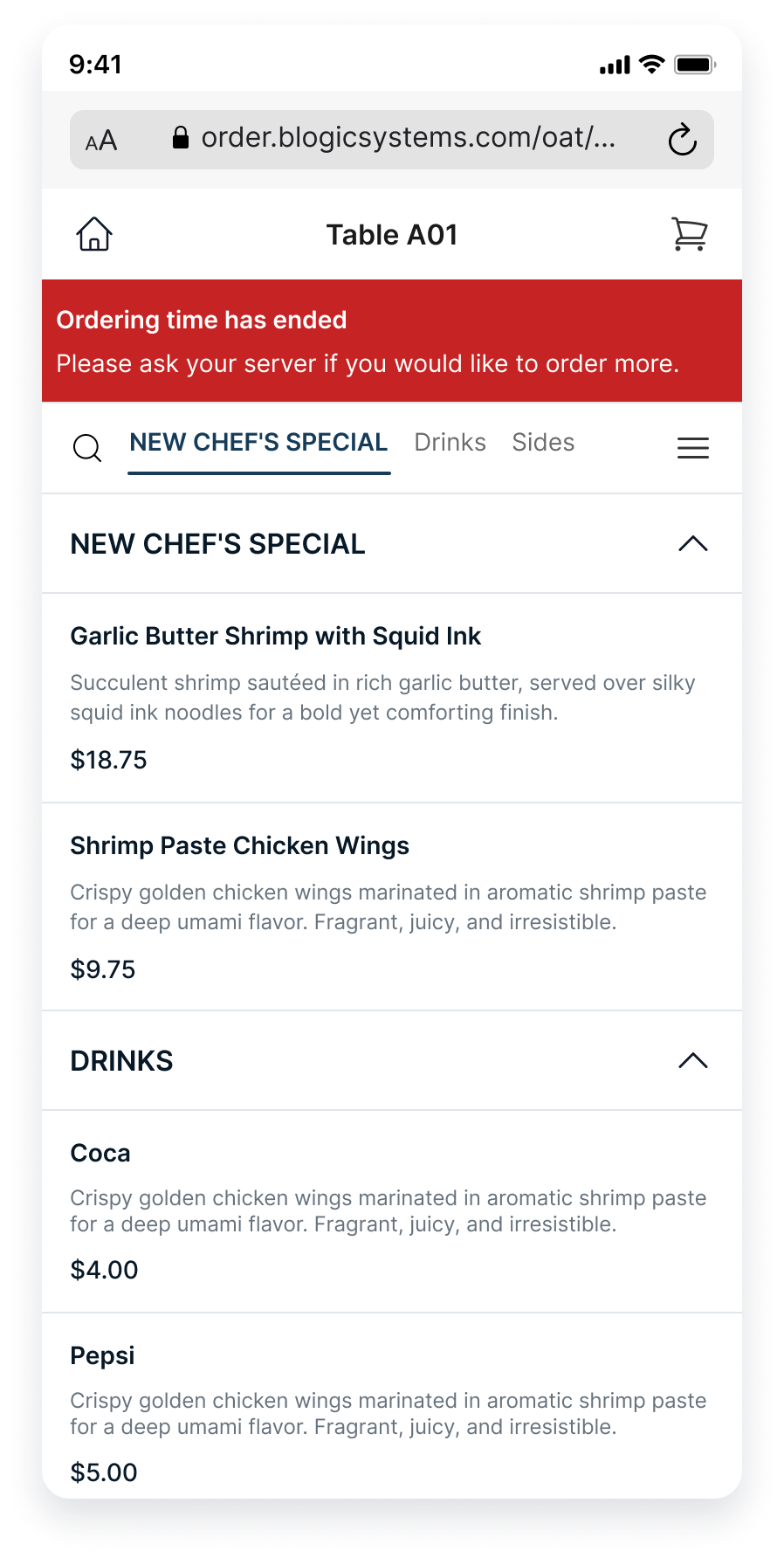
- When the timer runs out, the banner shows Ordering time has ended with Please ask your server if you would like to order more.
- If the guest still has new items in the cart, the cart shows: New items in your order haven’t been submitted. Please show your order to your server for assistance.
- Items already ordered are not affected. Only new items can no longer be submitted.
ℹ️ Note: Banner times are shown in short form, for example 1 min or 29 min.
Where to View or Confirm the Result
- In BLogic View > Setup > Configurations > Advanced > Order Limiter, check that Web QR Code Dine-in is selected and the summary line shows the times you set.
- Scan a table QR code and open the menu. The banner should show the full time limit, for example 90 minutes to order.
- Submit a test order. The banner should change to Time left to order with the minutes remaining.
FAQ
1. Why can’t I see the Order Limiter tab? You may not be on a supported version, or your user role may not have permission to access this setting. Please contact Support if the option is not visible.
2. When does the timer start? The timer starts when the guest submits their first order. Opening the menu or adding items to the cart does not start it.
3. How do I turn off the time limit or the last call? Enter 0 in Stop accepting orders after to remove the time limit. Enter 0 in Last call starts when to keep the time limit but skip the last call warning.
4. What happens to items already ordered when time runs out? Items already submitted are not affected. Only new items can no longer be submitted. The guest is asked to show their order to the server.
5. What should I do if the feature does not work as expected? Check that Web QR Code Dine-in is selected and your changes were saved, confirm your store is on a supported version, and contact Support for further assistance.
Closing
If you still need help, please contact Support for further assistance.