Introduction
When a guest pays by credit card, you can choose whether the guest may type card details by hand on the payment terminal or on the POS. This article shows you how to set Allow Manual Card Entry On Terminal and Allow Manual Card Entry On POS.
Version Support
| Product / Module | Supported Version |
|---|---|
| POS | POS Server 2026.10.14 |
Note: If you do not see these options, contact Support to confirm your store is on a supported version.
Table of Contents
- Understand the Two Settings
- Set Manual Card Entry on the Terminal
- Set Manual Card Entry on the POS
- Where to View or Confirm the Result
- FAQ
- Closing
Understand the Two Settings
| Setting | What it controls |
|---|---|
| Allow Manual Card Entry On Terminal | Whether a guest can type card details by hand on the terminal. |
| Allow Manual Card Entry On POS | Whether card details can be typed by hand on the POS. |
Set Manual Card Entry on the Terminal
Step 1: Open the setting
- Log in to POS Dashboard.
- Find Allow Manual Card Entry On Terminal in your payment settings.
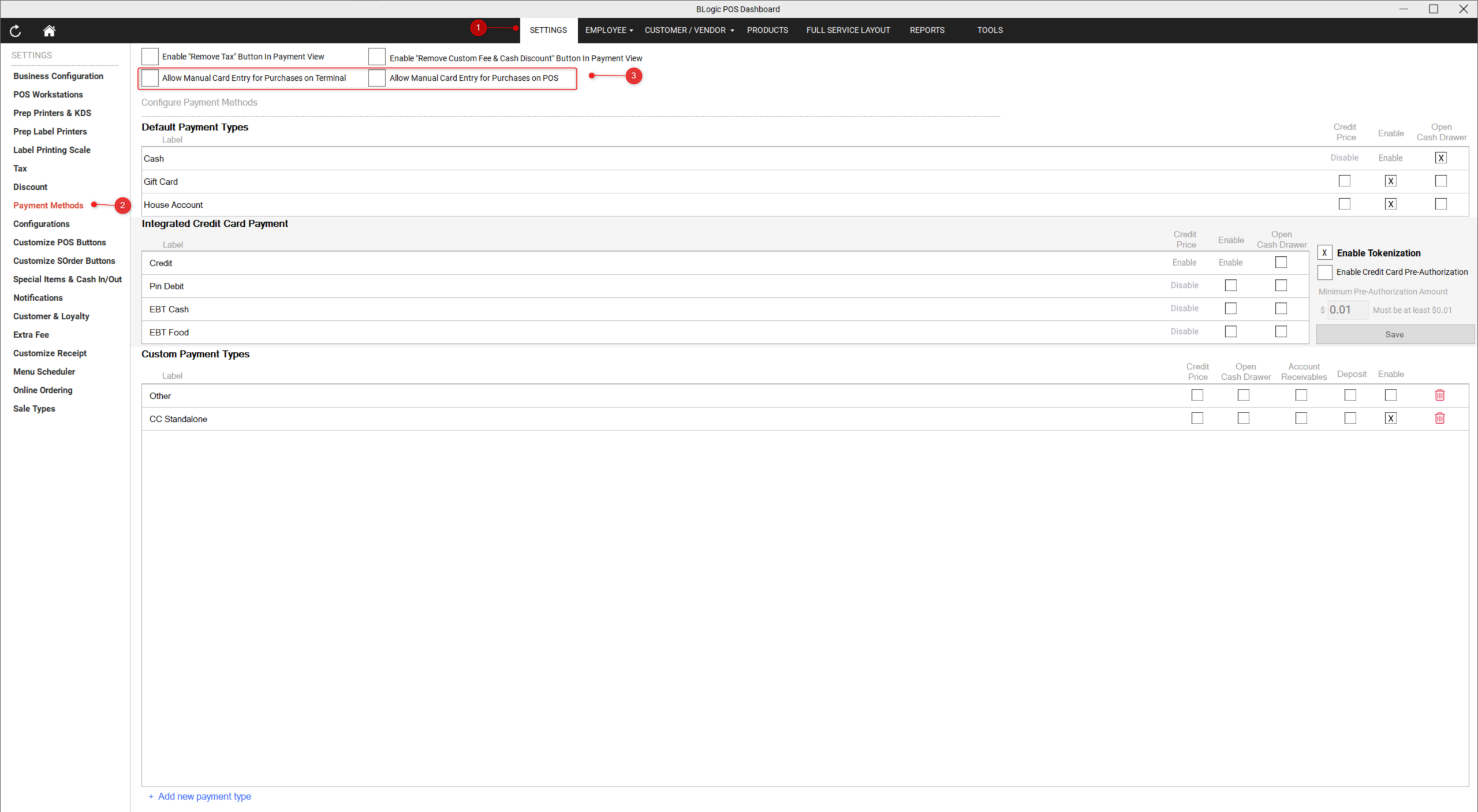
Step 2: Turn the option on or off
- Turn the option on to allow guests to type card details on the terminal.
- Turn the option off to block manual card entry on the terminal.
- Save your changes.
Turn the option off
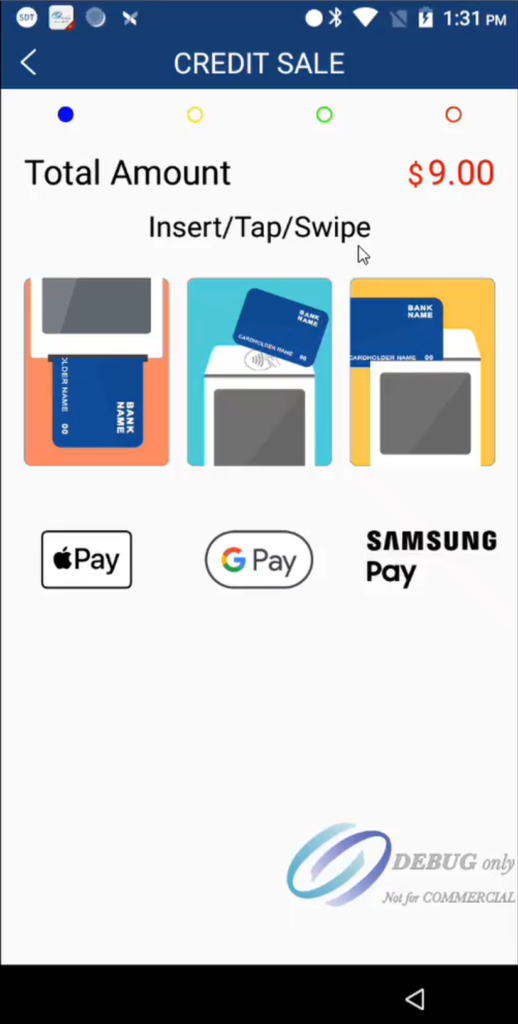
Warning: When the option is off, guests must tap, insert or swipe their card. Tell your staff before you turn it off.
Set Manual Card Entry on the POS
Step 1: Open the setting
- Log in to POS.
- Find Allow Manual Card Entry On POS in your payment settings.
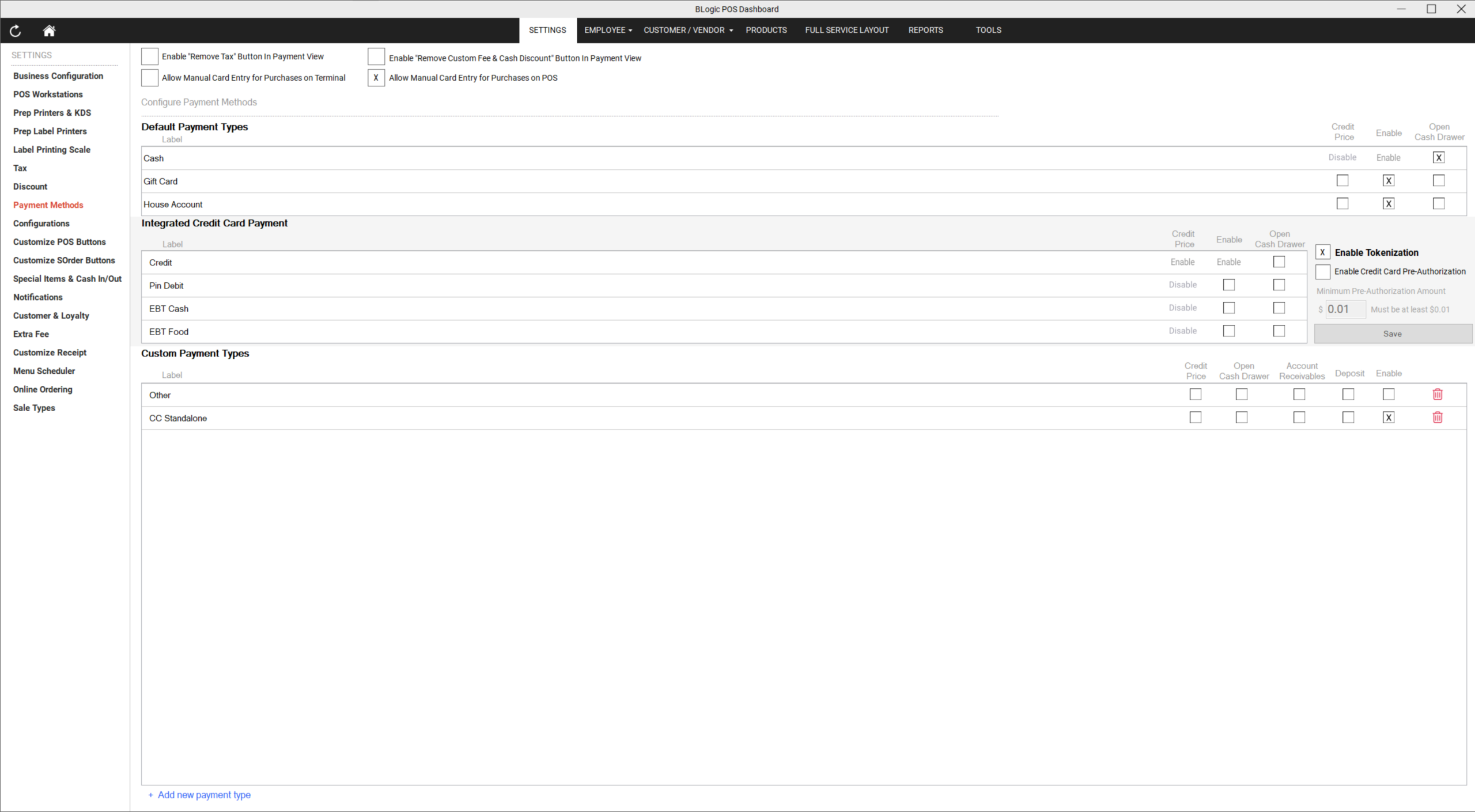
Step 2: Turn the option on or off
- Turn the option on to allow manual card entry on the POS.
- Turn the option off to block it.
- Save your changes.
On
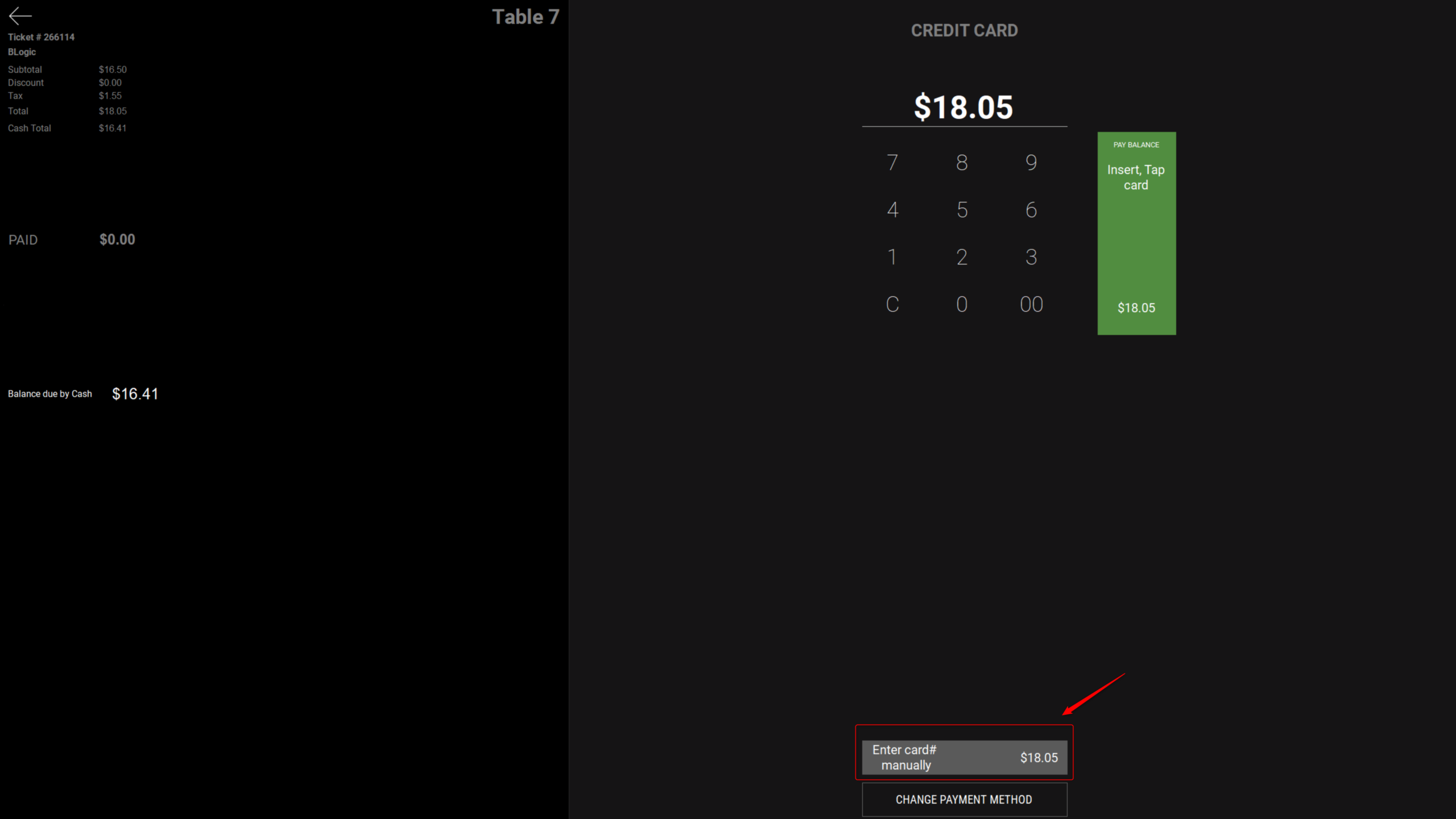
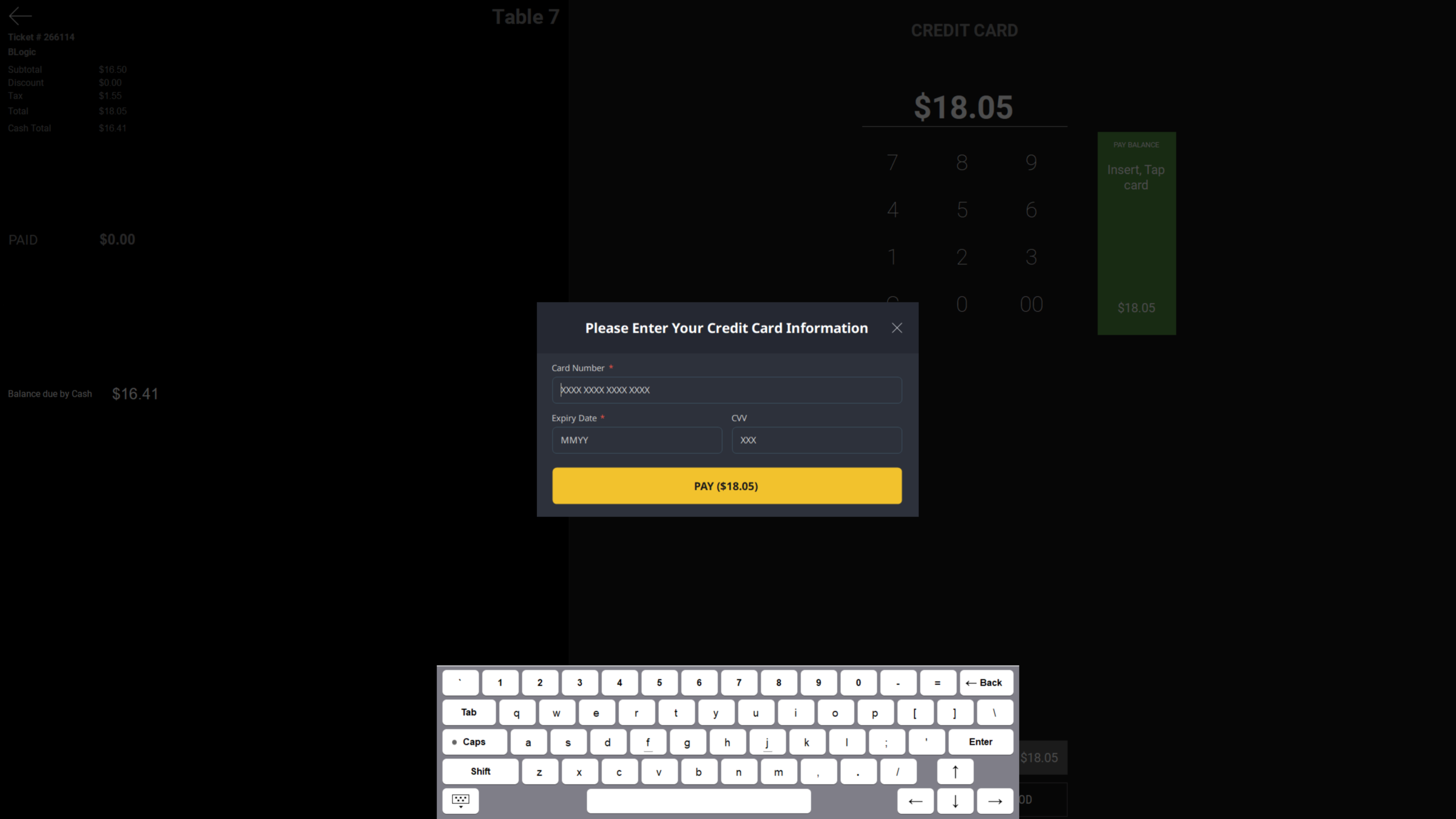
Off
Where to View or Confirm the Result
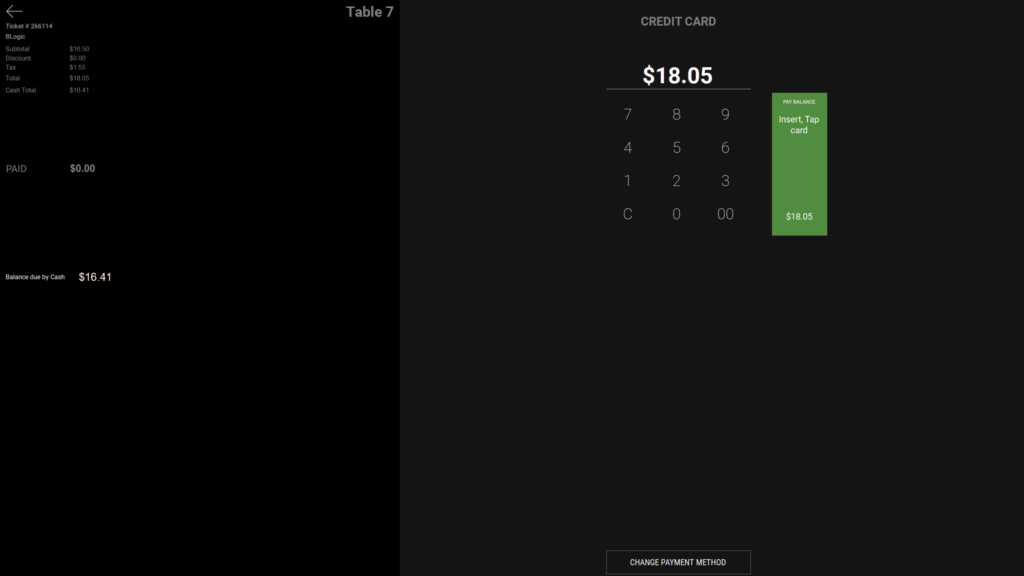
Make a test purchase with a credit card. If manual entry is blocked, the manual entry option does not appear on the terminal or the POS payment screen.
FAQ
1. Why can’t I see these options? Your store may not be on a supported version, or your user role may not have permission to change payment settings. Contact Support if the options are not visible.
2. Does this setting affect existing data? The setting applies to new card payments. Contact Support to confirm any other effect.
3. Can staff use this feature without manager permission? Access depends on your user role. Contact Support to confirm which roles can change payment settings.
4. Will this sync to other modules? The POS-Team noted that QOrder may release at the same time, or POS may release first. Contact Support to confirm the release status.
5. What should I do if the feature does not work as expected? Check that the setting is saved. If the issue continues, contact Support for further assistance.
Closing
If you still need help, please contact Support for further assistance.