Introduction
If your store uses Dual Pricing, the Guest Check prints the Credit Card price. This article shows you how to use the Do not print option, which keeps the Cash amount off the Guest Check.
Version Support
| Product / Module | Supported Version |
|---|---|
| POS Dashboard | POS Server 2026.10.14 |
| POS | POS Server 2026.10.14 |
Note: If you do not see this option, contact Support to confirm your store is on a supported version.
Table of Contents
Set the Guest Check Option
Step 1: Open the receipt settings
- Log in to POS Dashboard.
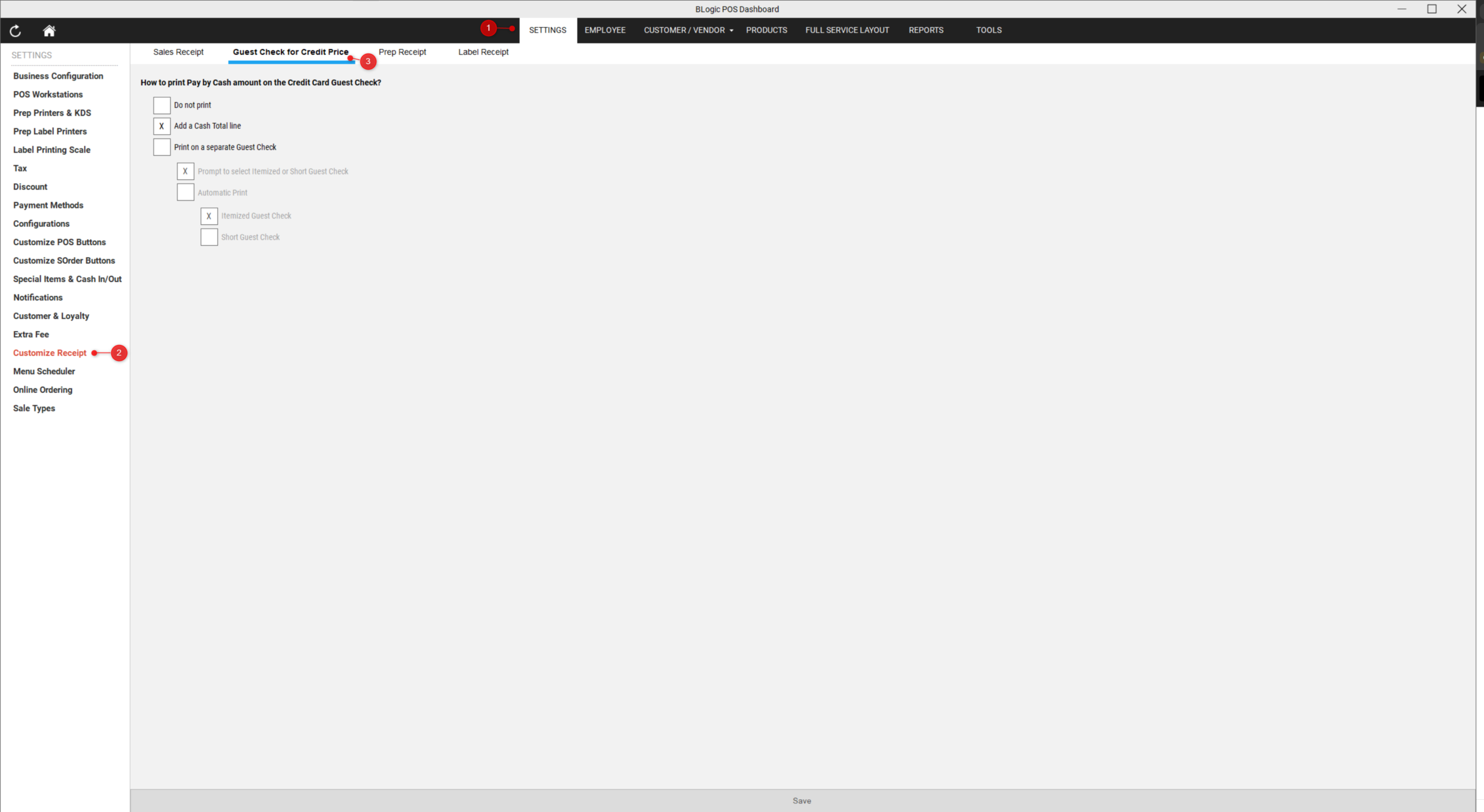
- Go to Settings > Customize Receipt.
- Select Guest Check for Credit Price.
Step 2: Choose an option
- Select one of the following options:
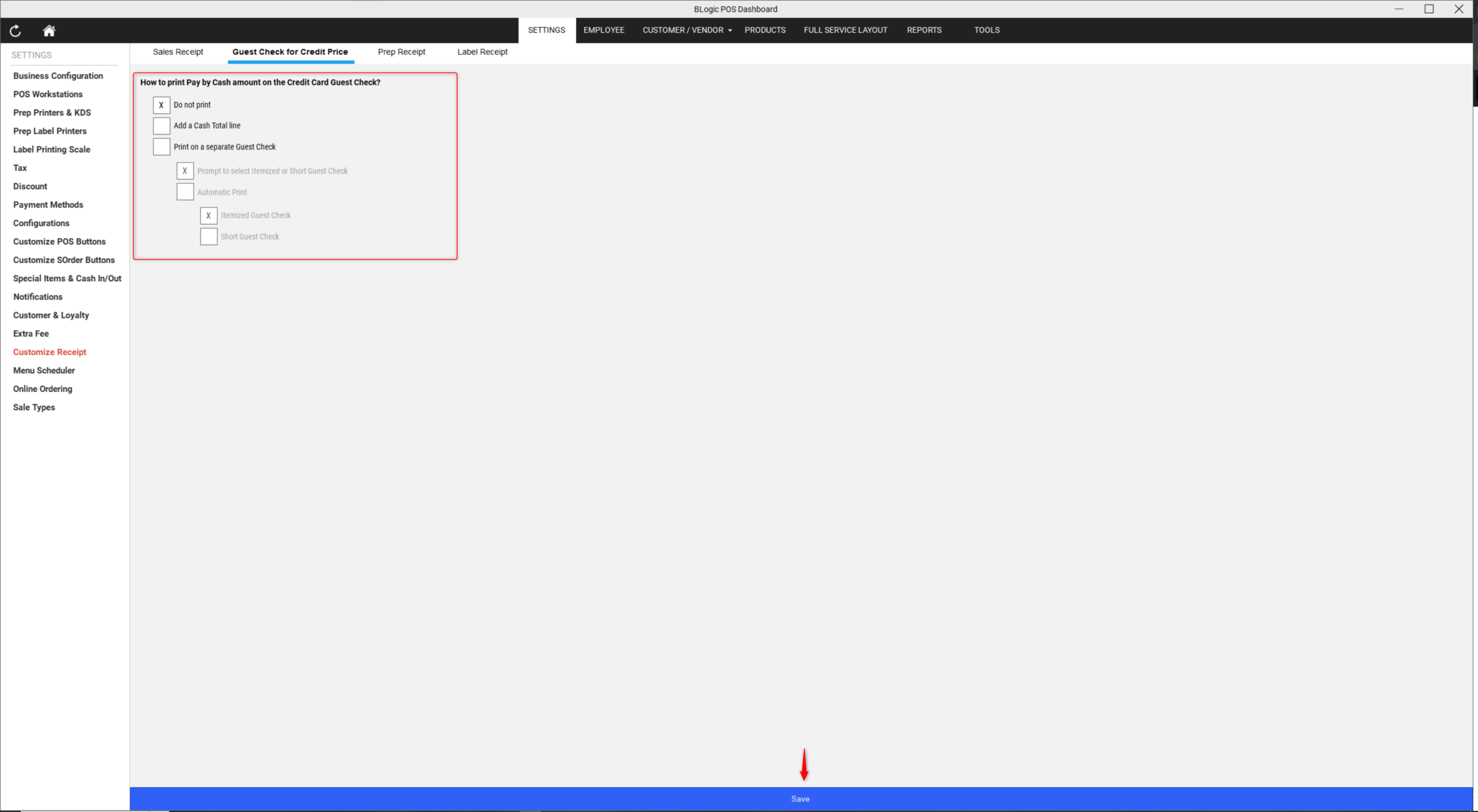
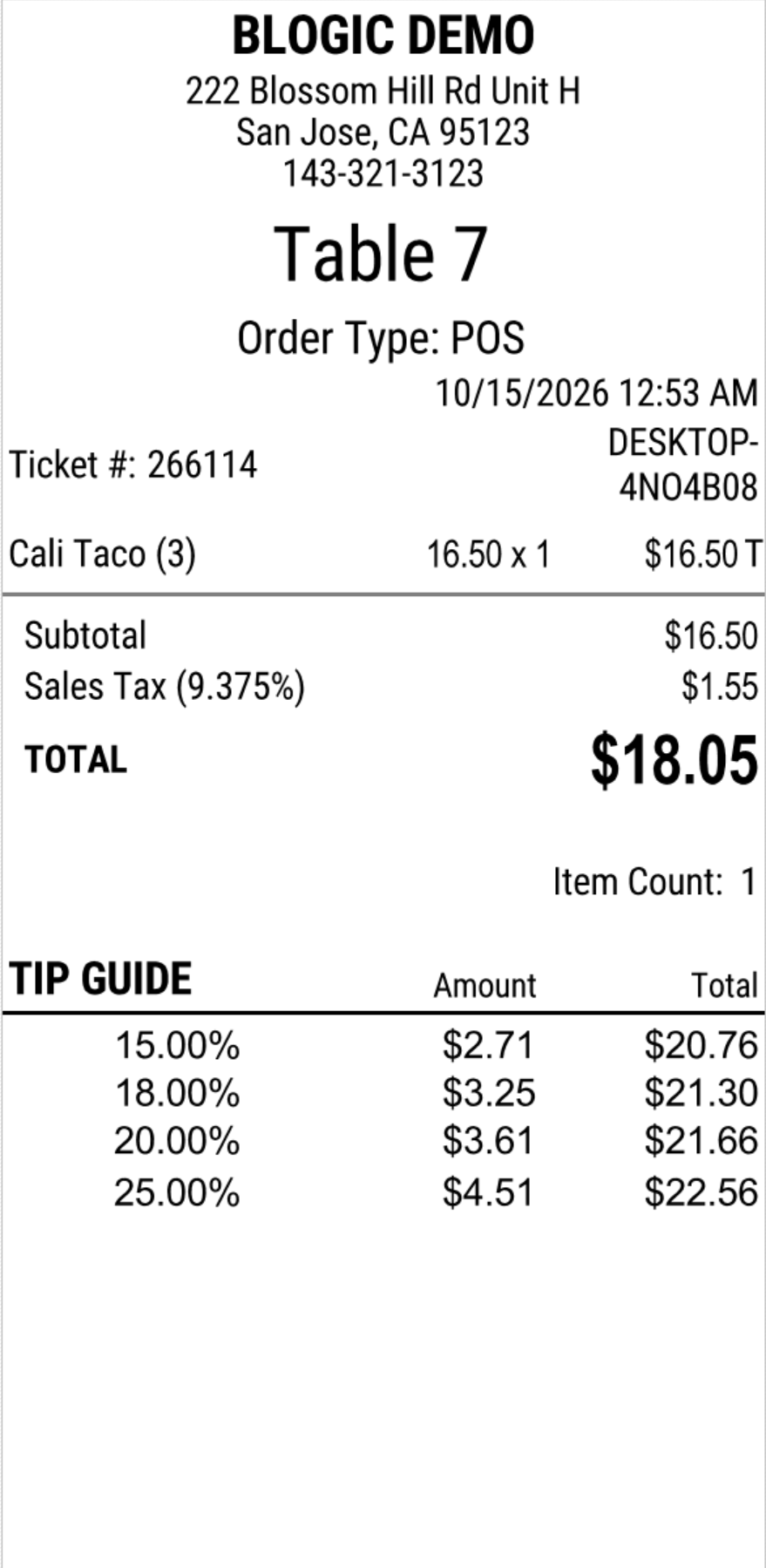
- Do not print: The Guest Check shows only the Credit total. No Cash amount is printed.
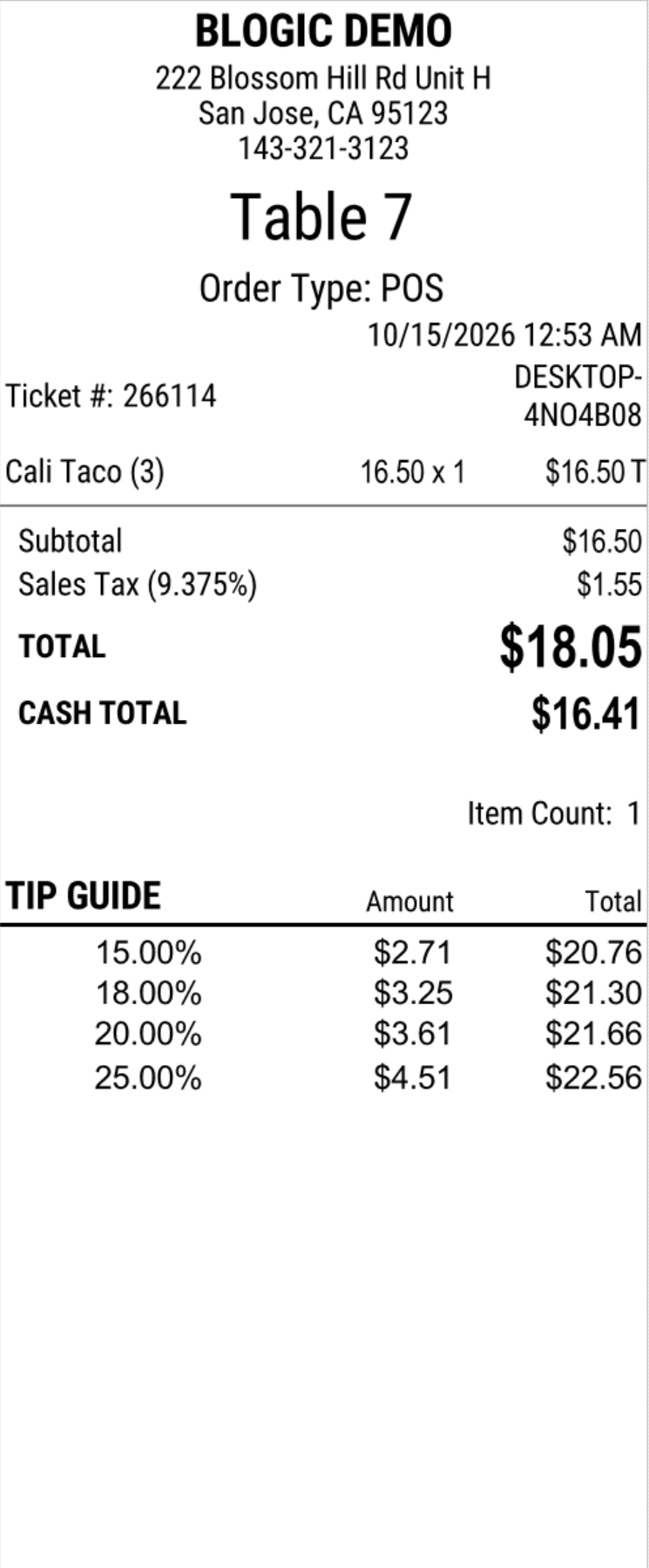
- Add a Cash Total line: A CASH TOTAL line is printed directly below TOTAL.
- Print on a separate Guest Check: A second Guest Check with the Cash price is printed.
- Select Save.
Tip: The default does not change. A saved option stays the same after the update.
Print a Guest Check
Step 1: Print the Guest Check
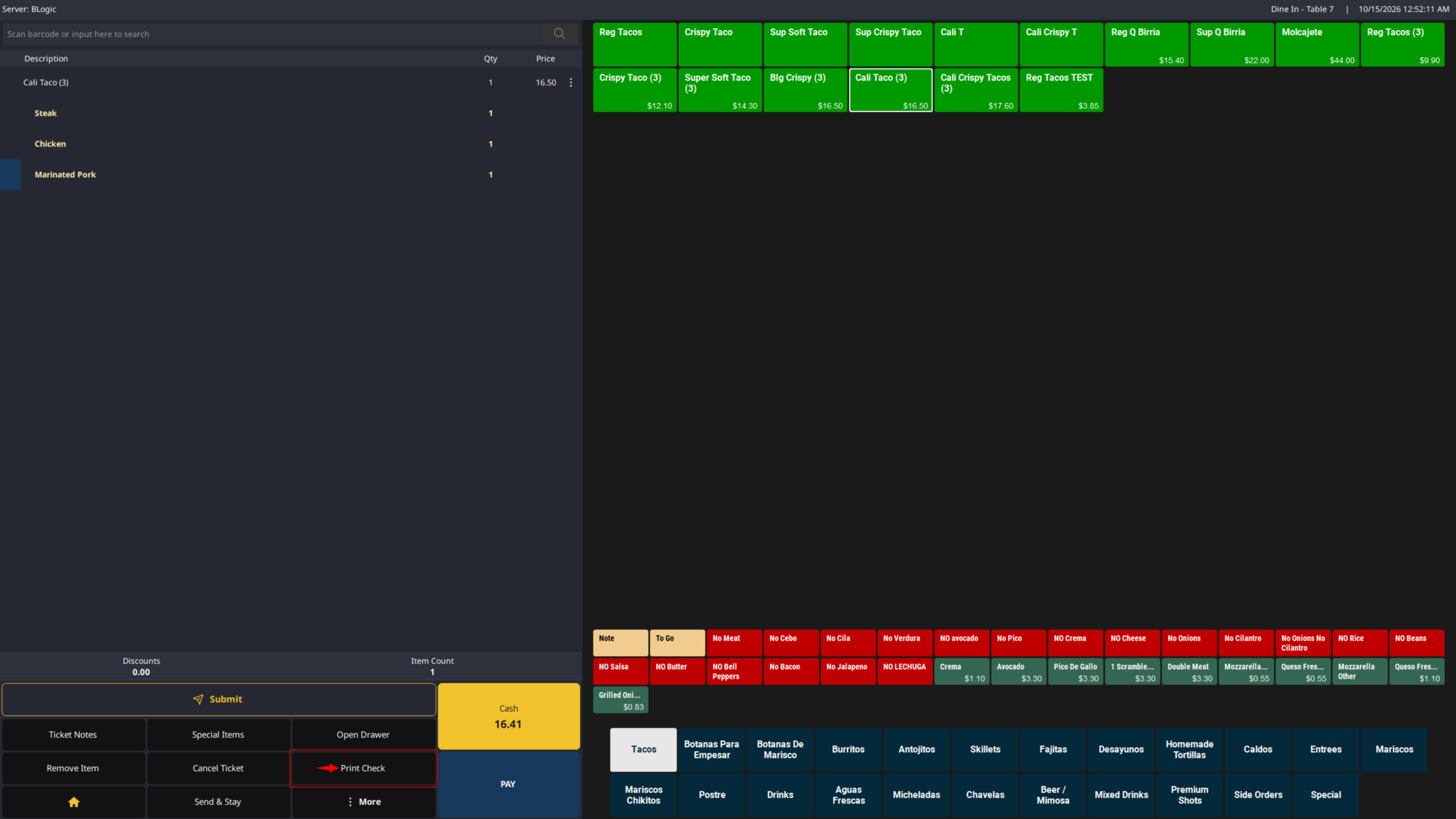
- Open the ticket on the Order screen or in Split Ticket.
- Print the Guest Check.
Warning: The new setting applies to the next Guest Check printed after you select Save, including reprints of an open ticket.
Where to View or Confirm the Result
Check the printed Guest Check for each case below.
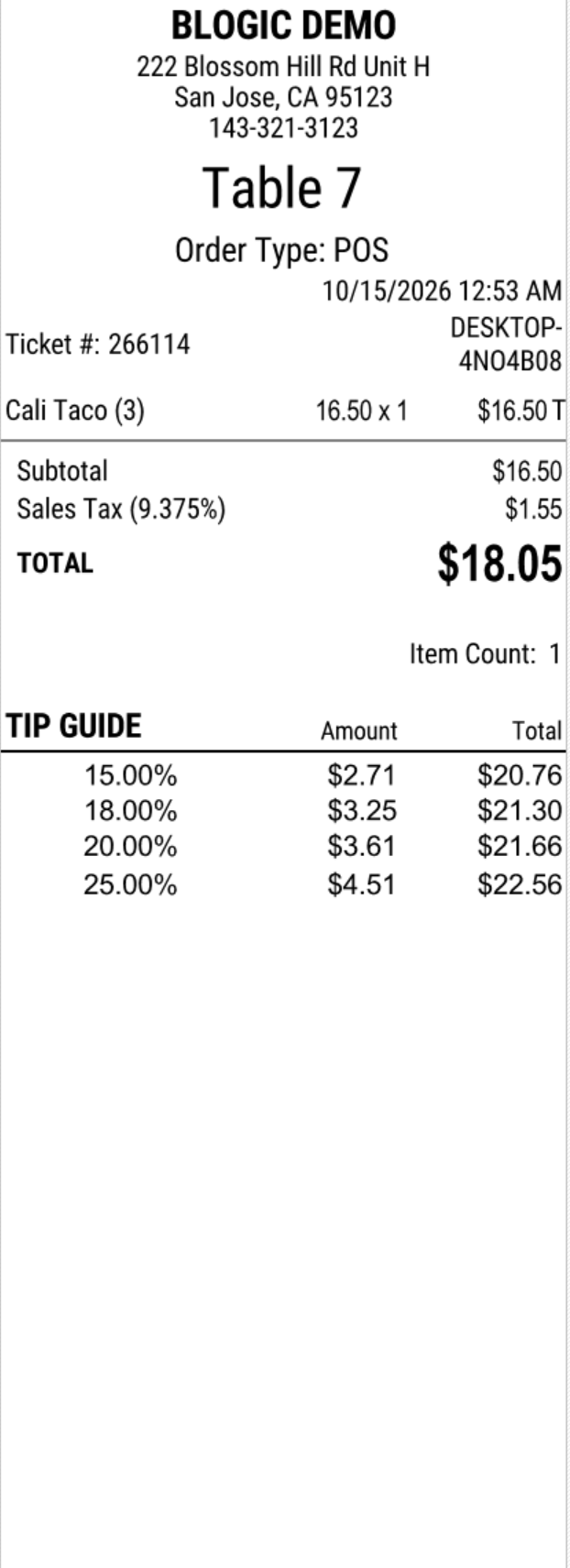
Case 1: Store displays Credit prices
- Open Guest Check for Credit Price and enable Add a Cash Total line or Print on a separate Guest Check, depending on how you want the Cash price shown.
- Print the Guest Check. Confirm the printout matches the option you enabled.
Print on a separate Guest Check – Cash
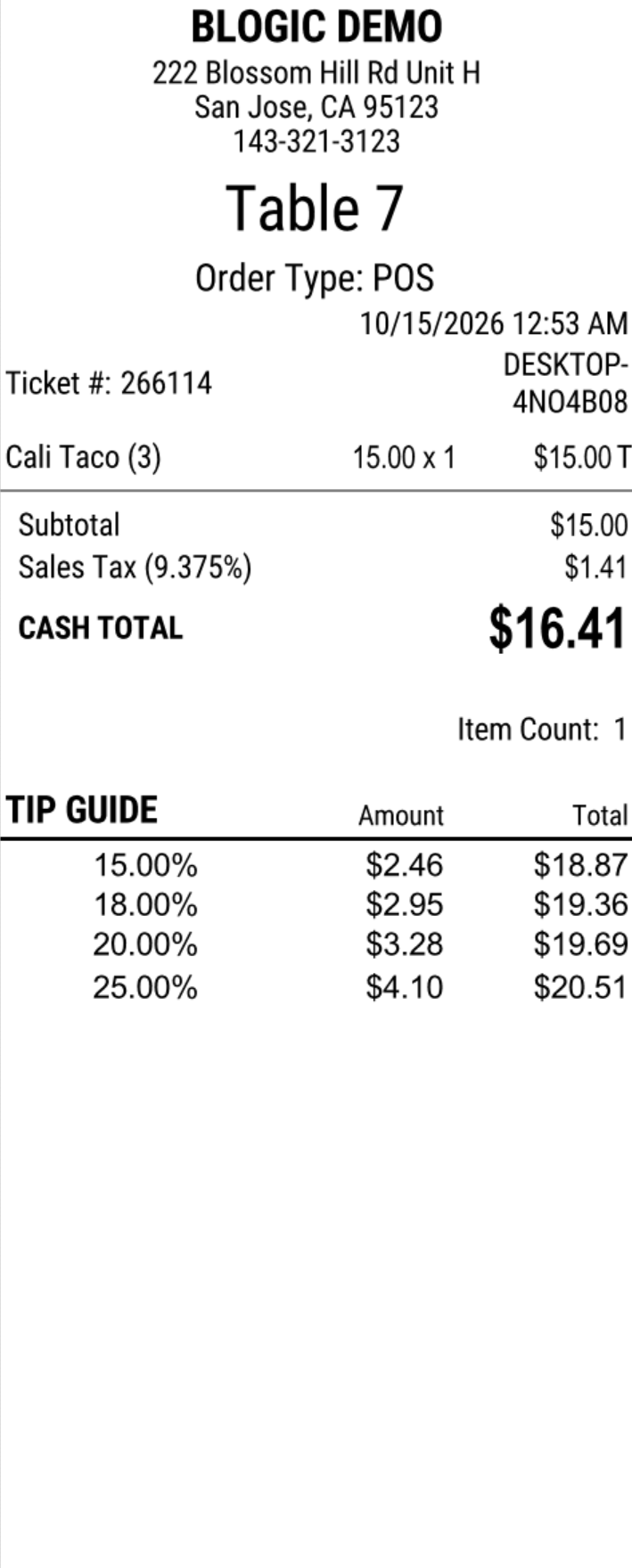
Print on a separate Guest Check – Credit
Case 2: Store displays Cash prices
- Open Guest Check for Credit Price and enable Add a Cash Total line or Print on a separate Guest Check, depending on how you want the Cash price shown.
- Print the Guest Check. Confirm the printout matches the option you enabled.
Case 3: Do not print selected
- Open Guest Check for Credit Price and enable Do not print, then select Save.
- Print the Guest Check. Confirm only the TOTAL line prints. The Cash Guest Check does not print, and the Print Guest Check for Cash dialog does not appear.
The Sales Receipt is not affected in any case.
FAQ
1. Why can’t I see the Do not print option? Your store may not be on a supported version, or your user role may not have permission. Contact Support if the option is not visible.
2. Does this setting affect existing data? The setting applies to the next Guest Check printed after you select Save. Sales Receipts, Prep Receipts and Label Receipts do not change.
3. Can staff use this feature without manager permission? Access depends on your user role. Contact Support to confirm which roles can change receipt settings.
4. Will this sync to other modules? The option applies to Guest Checks printed from the Order screen and Split Ticket. Contact Support to confirm any other module that is affected.
5. What should I do if the feature does not work as expected? Check that you selected Do not print and then selected Save. If the issue continues, contact Support.
Closing
If you still need help, please contact Support for further assistance.