Introduction
Sometimes a prep ticket is lost after a guest has already ordered and paid. This article shows you how to resend the paid items to the prep printers or KDS, so the kitchen can prepare them again.
Version Support
| Product / Module | Supported Version |
|---|---|
| POS (Ticket Details) | POS Server 2026.10.14 |
Note: If you do not see this option, contact Support to confirm your store is on a supported version.
Table of Contents
Resend Items to Prep Printers
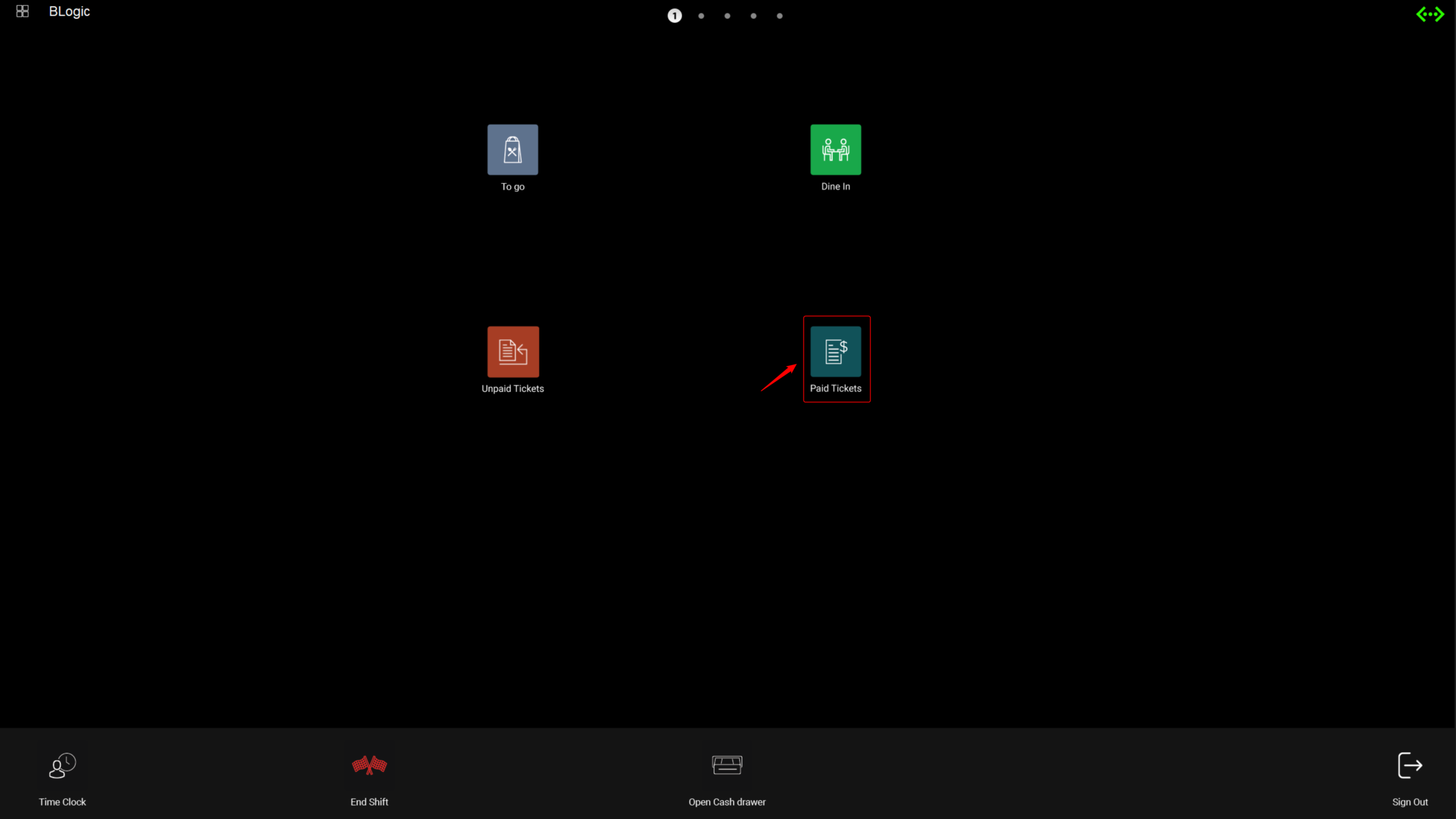
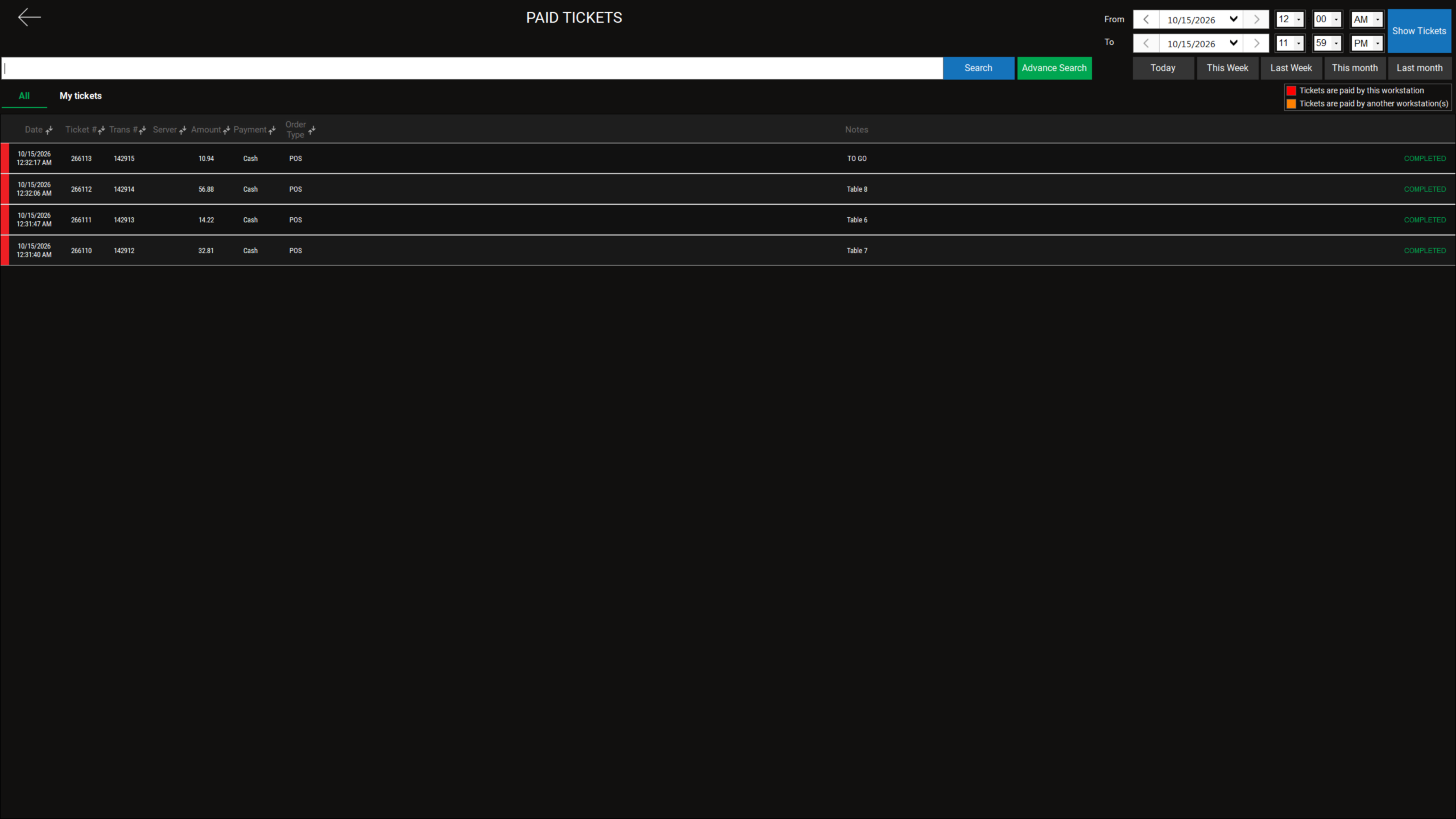
Step 1: Open the ticket
- Log in to your POS.
- Open the paid ticket from the Ticket Details screen.
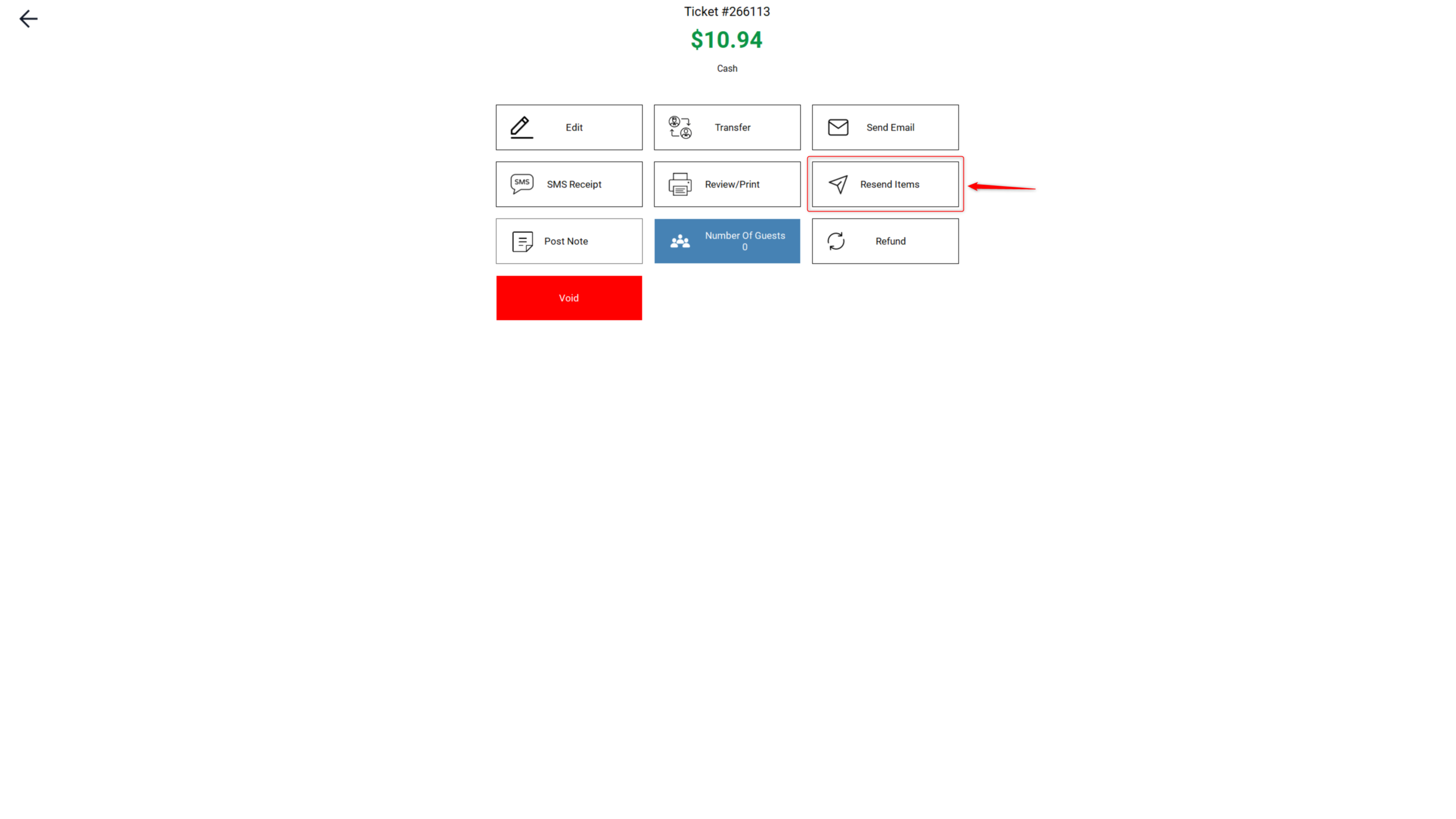
Step 2: Resend to Prep Printers
Select Resend to Prep Printers.
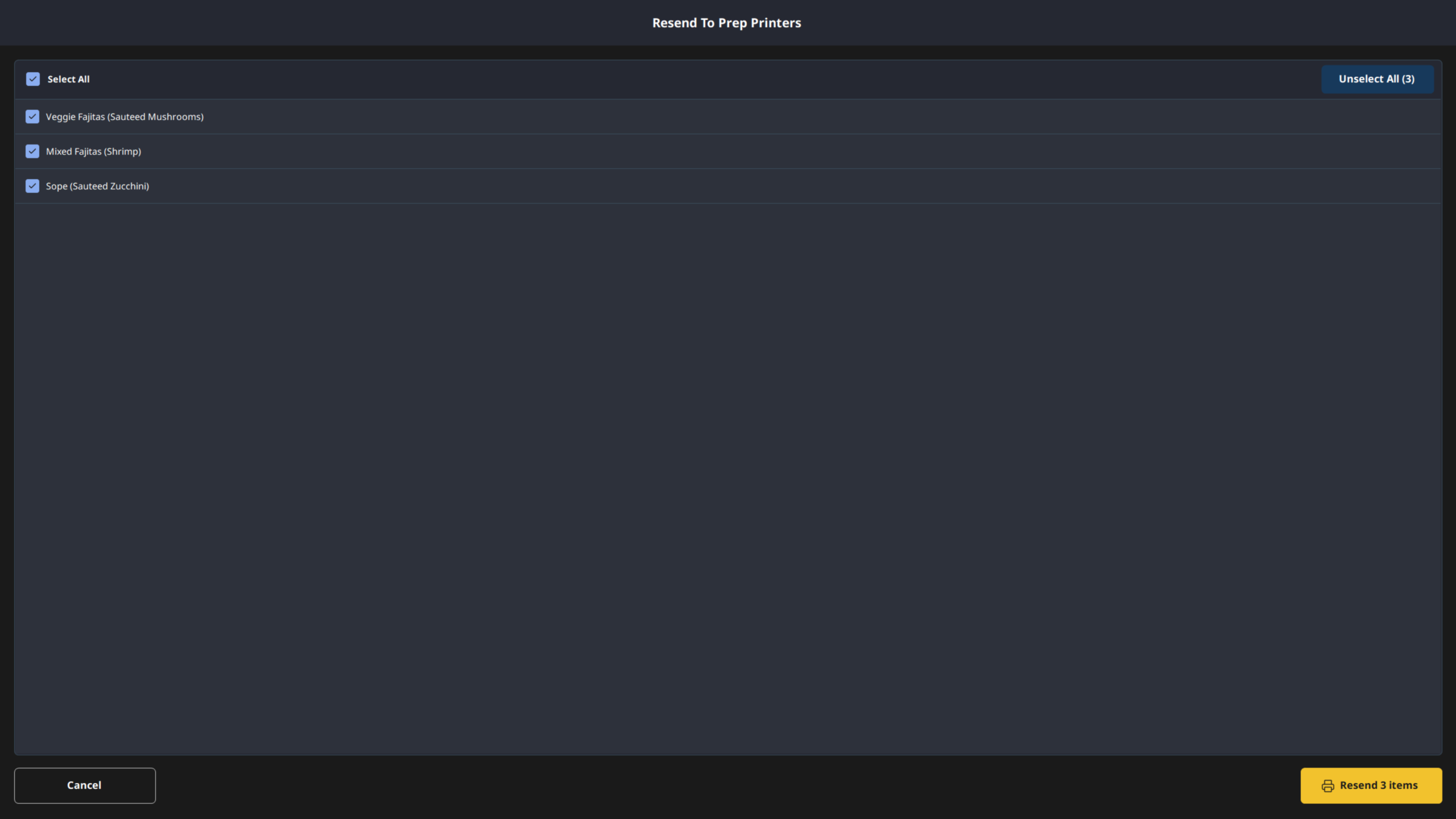
Step 3: Choose the items to resend
- On the item selection screen, select the items you want to send again.
- Confirm your selection. The selection screen closes after the items are resent.
Note: Held and refunded items do not appear on this screen, so they cannot be resent.
Where to View or Confirm the Result
Check the prep printer to confirm the kitchen received the items.
FAQ
1. Why can’t I see the Resend to Prep Printers button? Your store may not be on a supported version, or your user role may not have permission. Contact Support if the option is not visible.
2. Does this setting affect existing data? This article covers resending kitchen items only. Contact Support to confirm any other effect on the ticket.
3. Can staff use this feature without manager permission? Access depends on your user role. Contact Support to confirm which roles can resend items.
4. Will this sync to other modules? Items are sent to the prep printers or KDS, as they were before payment. Contact Support to confirm any other module that is affected.
5. What should I do if the feature does not work as expected? Check that the printer is online and connected, then contact Support for further assistance.
Closing
If you still need help, please contact Support for further assistance.