1. Introduction
This article explains how to use Gift Cards in the POS system. You will learn how to issue a new gift card, redeem a gift card for payment, and review gift card activity in BLogic View.
For best results, use the Scan method first when reading a gift card. Manual entry should only be used when scanning is not available or the card cannot be scanned.
2. Version Support
| Platform | Support |
|---|---|
| POS | Gift Card issuing and redeeming |
| BLogic View | Gift Card balances, transactions, and reports |
Note: The Gift Card feature must be enabled for your store. If you do not see the Gift Card option, please contact Support.
3. Table of Contents
- Gift Card Input Methods
- How to Issue a Gift Card
- How to Redeem a Gift Card
- Gift Card Global Usage
- How to View Gift Card Usage in BLogic View
- FAQ
4. Gift Card Input Methods
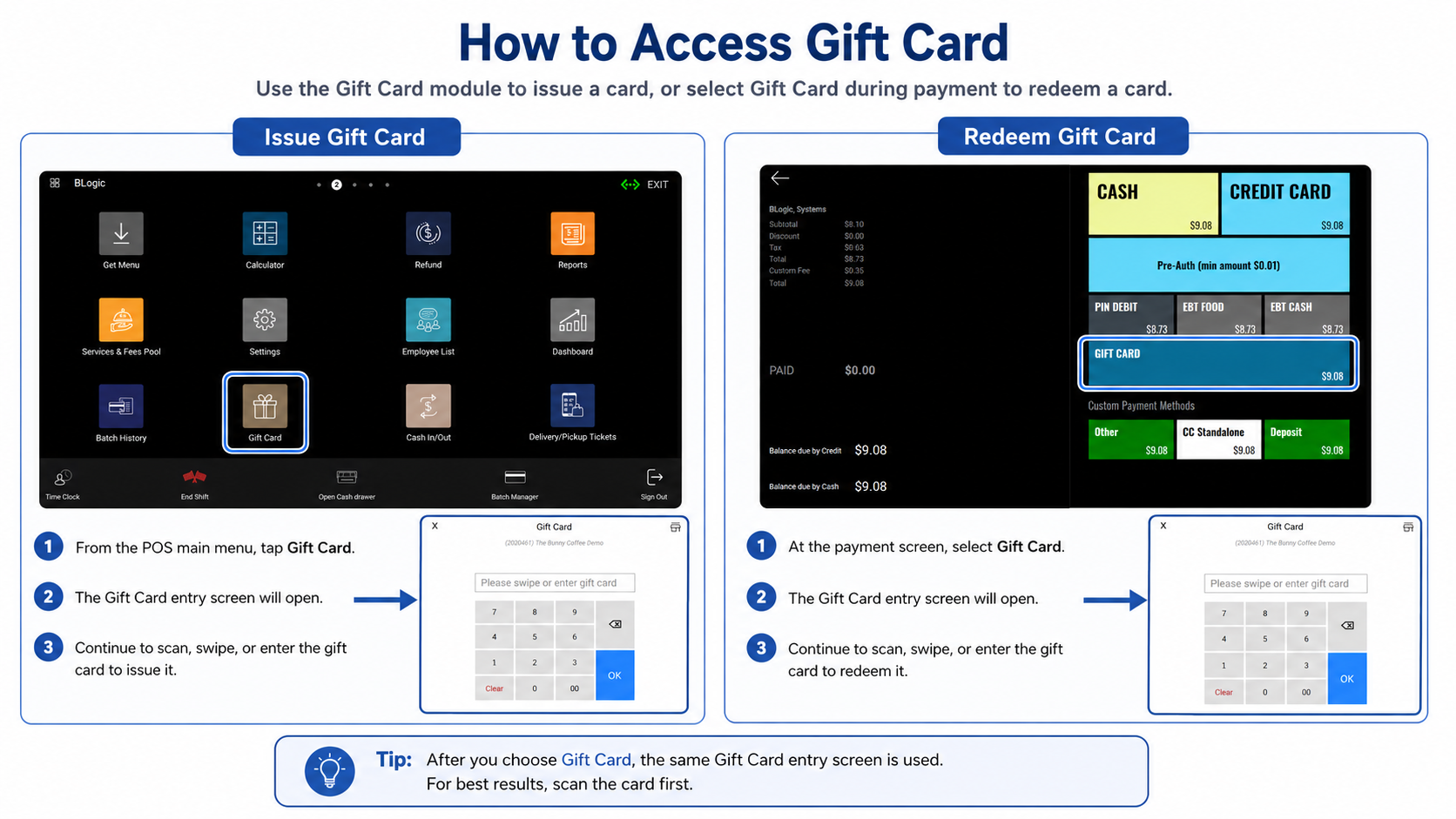
When the system asks for gift card information, you can use one of the following methods:
1. Scan Gift Card — Recommended
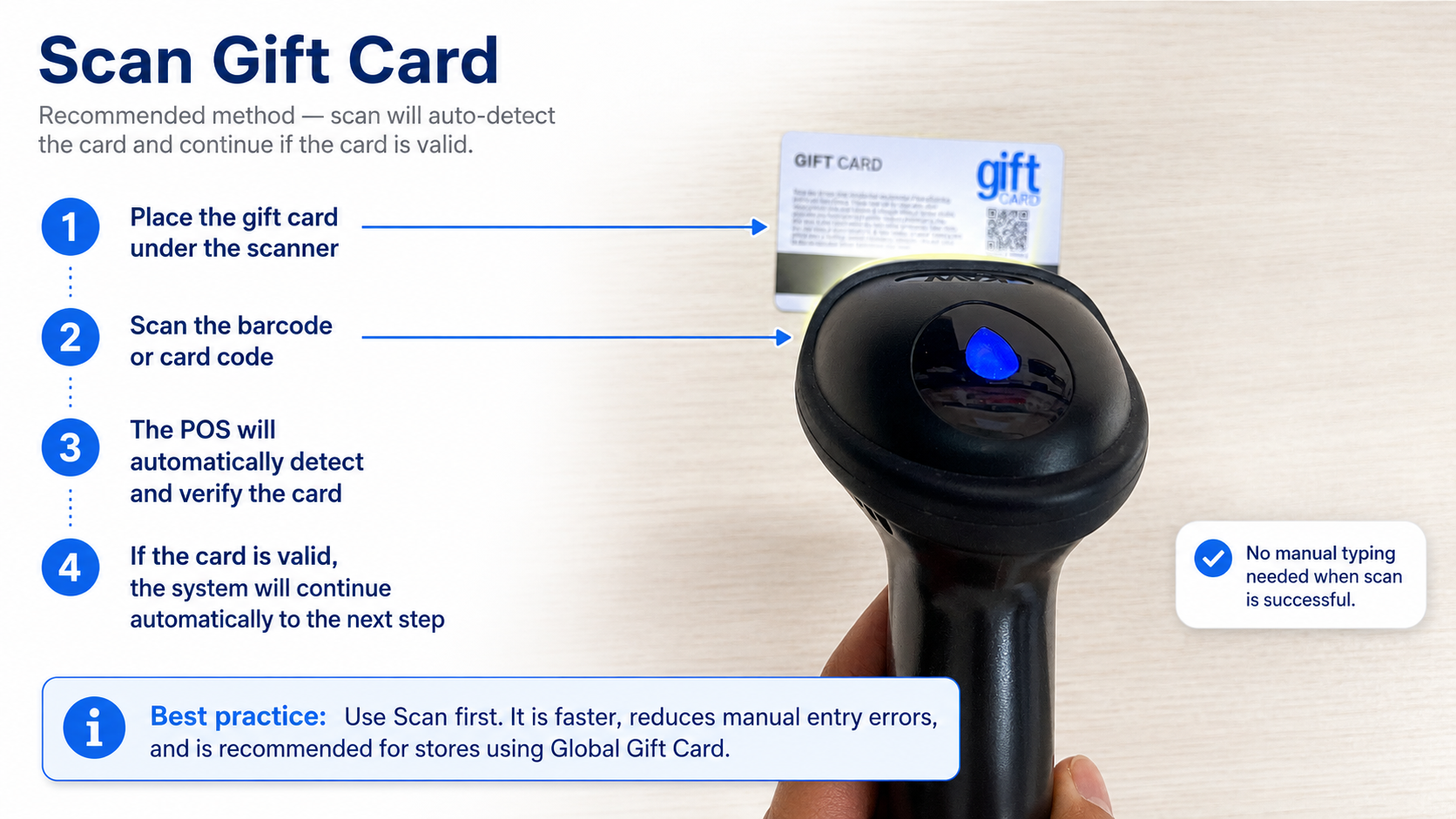
Use a gift card scanner to scan the gift card barcode or card code.
After the card is scanned, the POS will automatically read and verify the gift card information. If the gift card is valid, the system will continue to the next step automatically, similar to using Swipe or Manual Entry.
✅ Recommended: Always use the Scan Gift Card method first.
This method is faster, reduces manual entry mistakes, and is especially recommended for stores using Global Gift Card, because the system can identify the card correctly across stores that are included in the global setup.
2. Swipe Gift Card
Use this method if the gift card supports magnetic swipe.
After the card is swiped, the system will verify the gift card information. If the card is valid, you can continue with issuing or redeeming the gift card.
3. Manual Entry
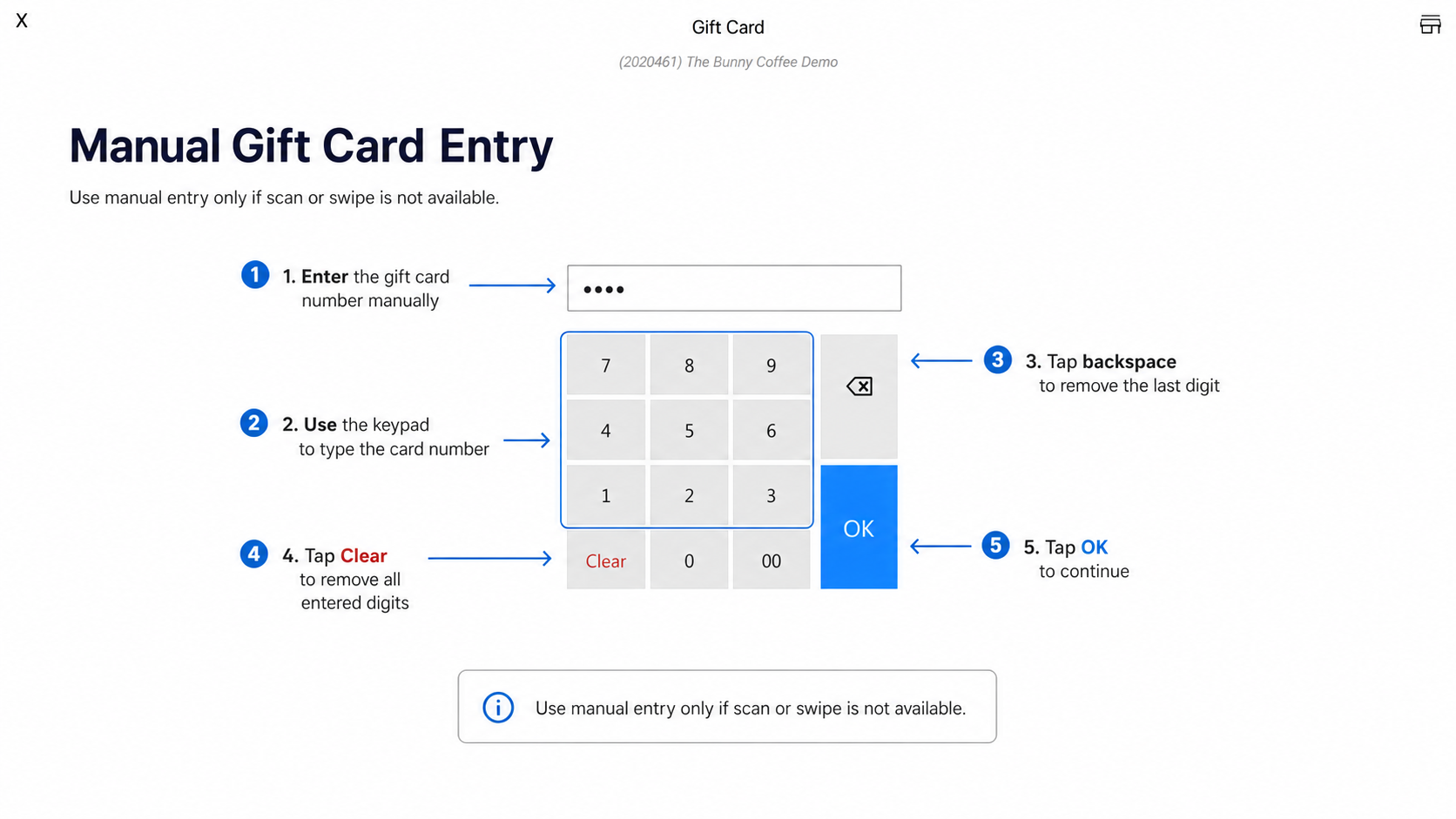
Use this method only when scanning or swiping is not available.
Enter the gift card number manually, then confirm the information. If the gift card is valid, the system will continue to the next step.
⚠️ Warning: Manual entry may cause errors if the card number is typed incorrectly.
5. How to Issue a Gift Card
Step 1: Open the POS System
- Log in to the POS.
- Go to the Gift Card section.
Step 2: Enter or Scan the Gift Card
- The system will ask you to enter the gift card information.
- Scan the gift card using the scanner.
You may also swipe the card or manually enter the card number if needed.
✅ Recommended: Use Scan Gift Card as the primary method.
Step 3: Enter the Amount to Load
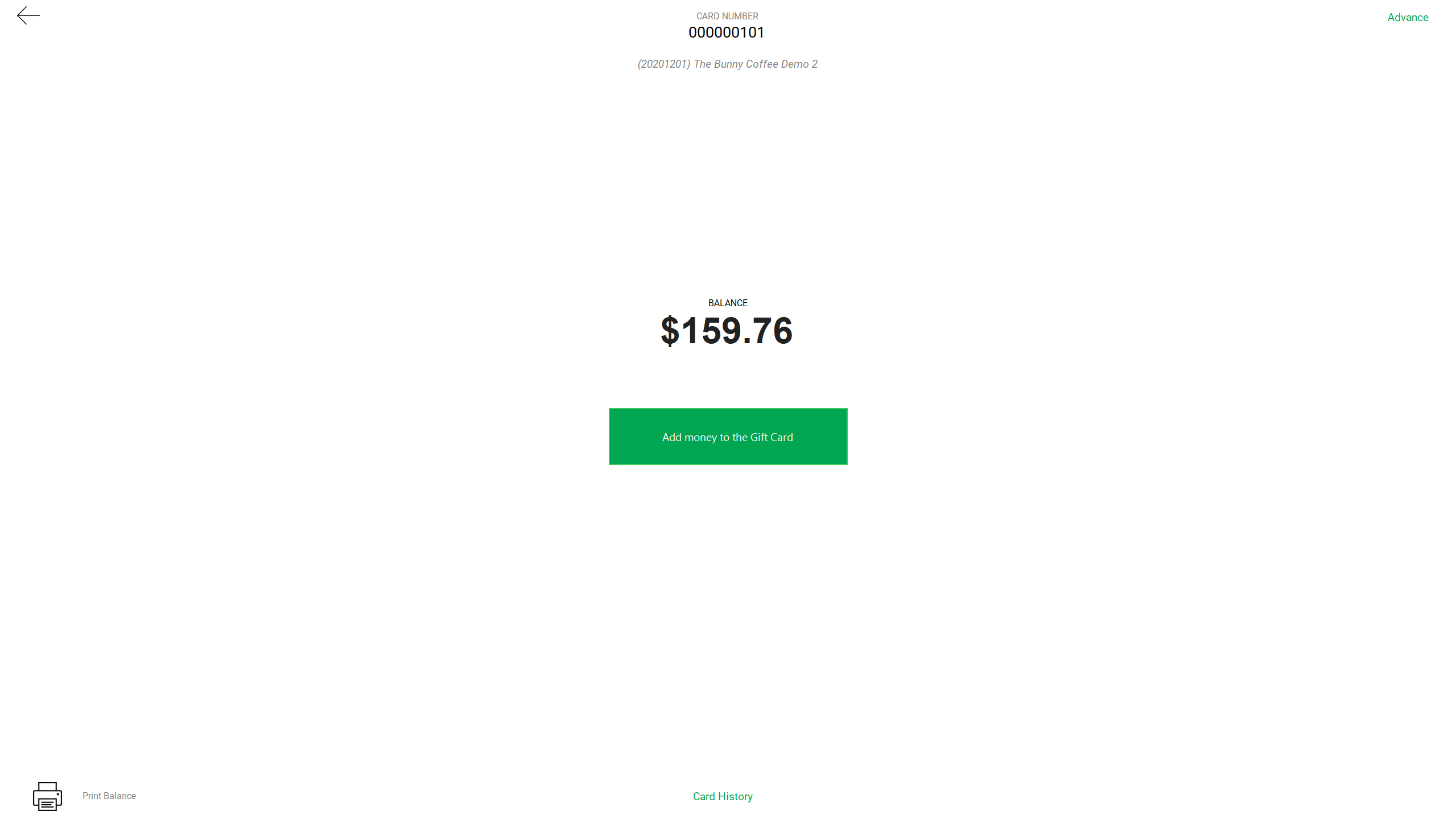
After the gift card is detected, the system will show the issuing screen.
Review or enter the following information:
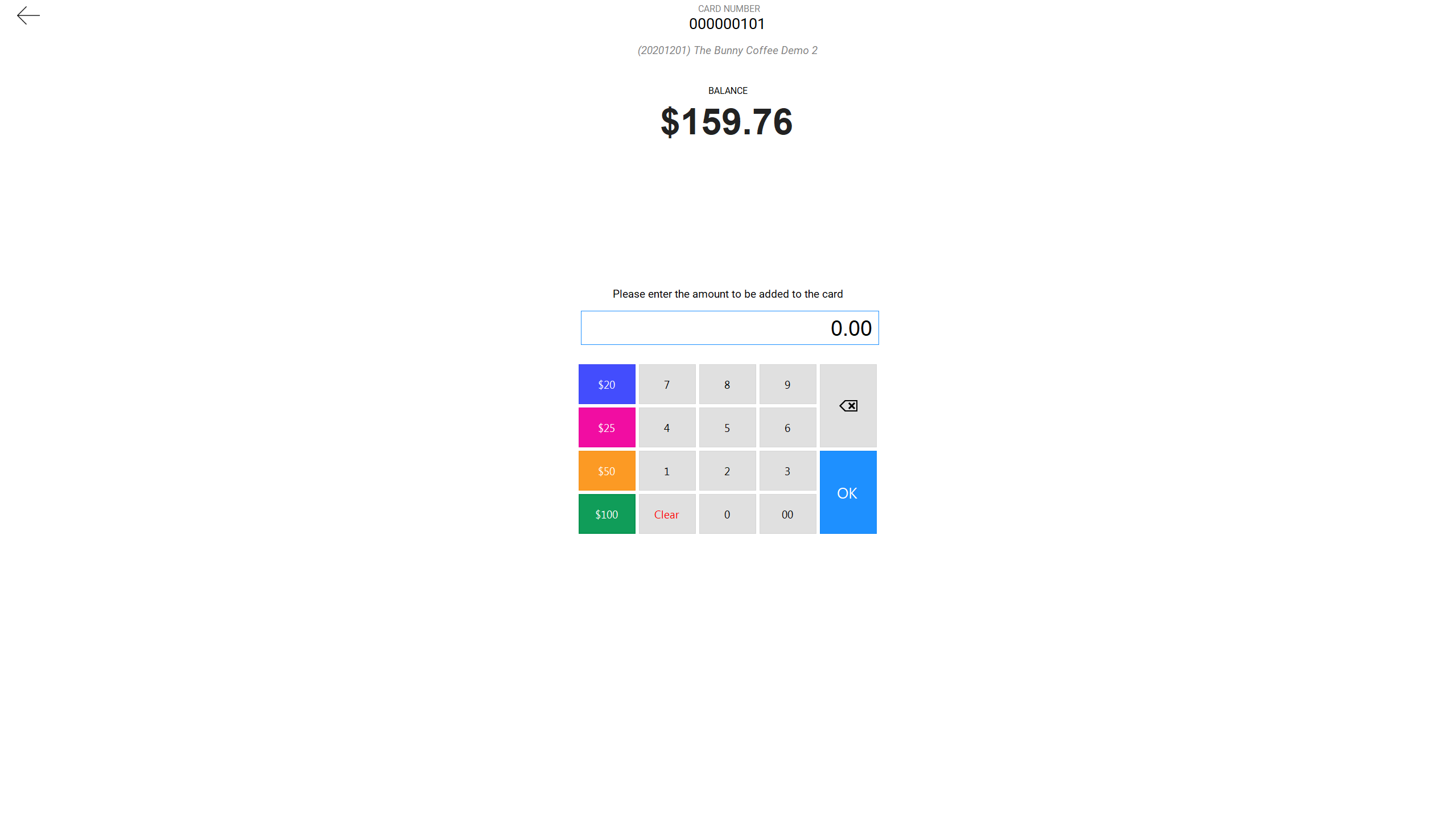
| Field | Meaning |
|---|---|
| Balance | Current balance on the gift card |
| Amount to Load | Amount you want to add to the gift card |
- Enter the amount to load.
- Continue to the payment screen.
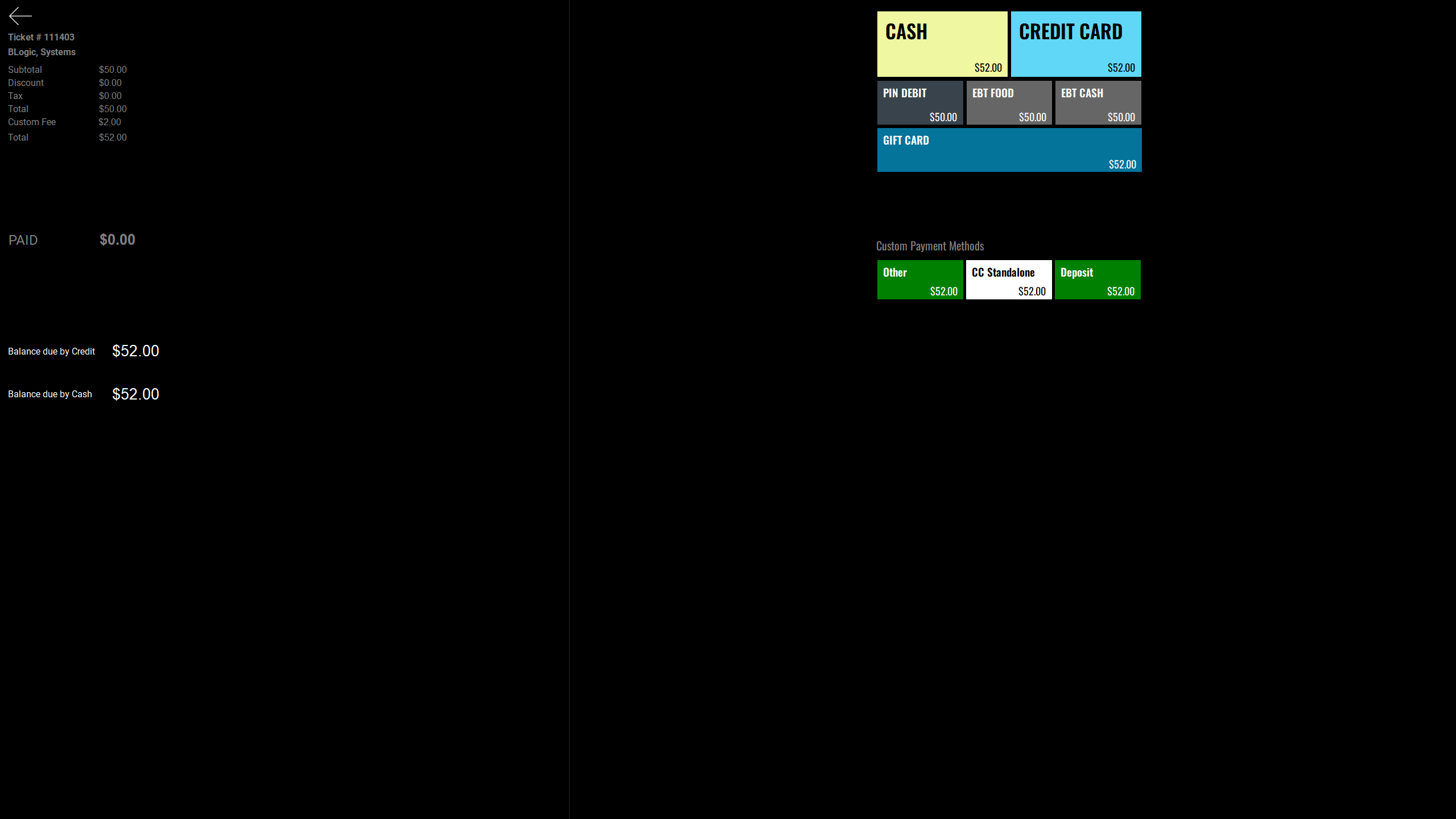
Step 4: Process Payment
Select the payment method used by the customer.
Available payment methods may include:
- Cash
- Credit
- Other
Complete the payment as usual.
Step 5: Confirm Issue Successful
After payment is completed, the system will show the Issue Successful screen.
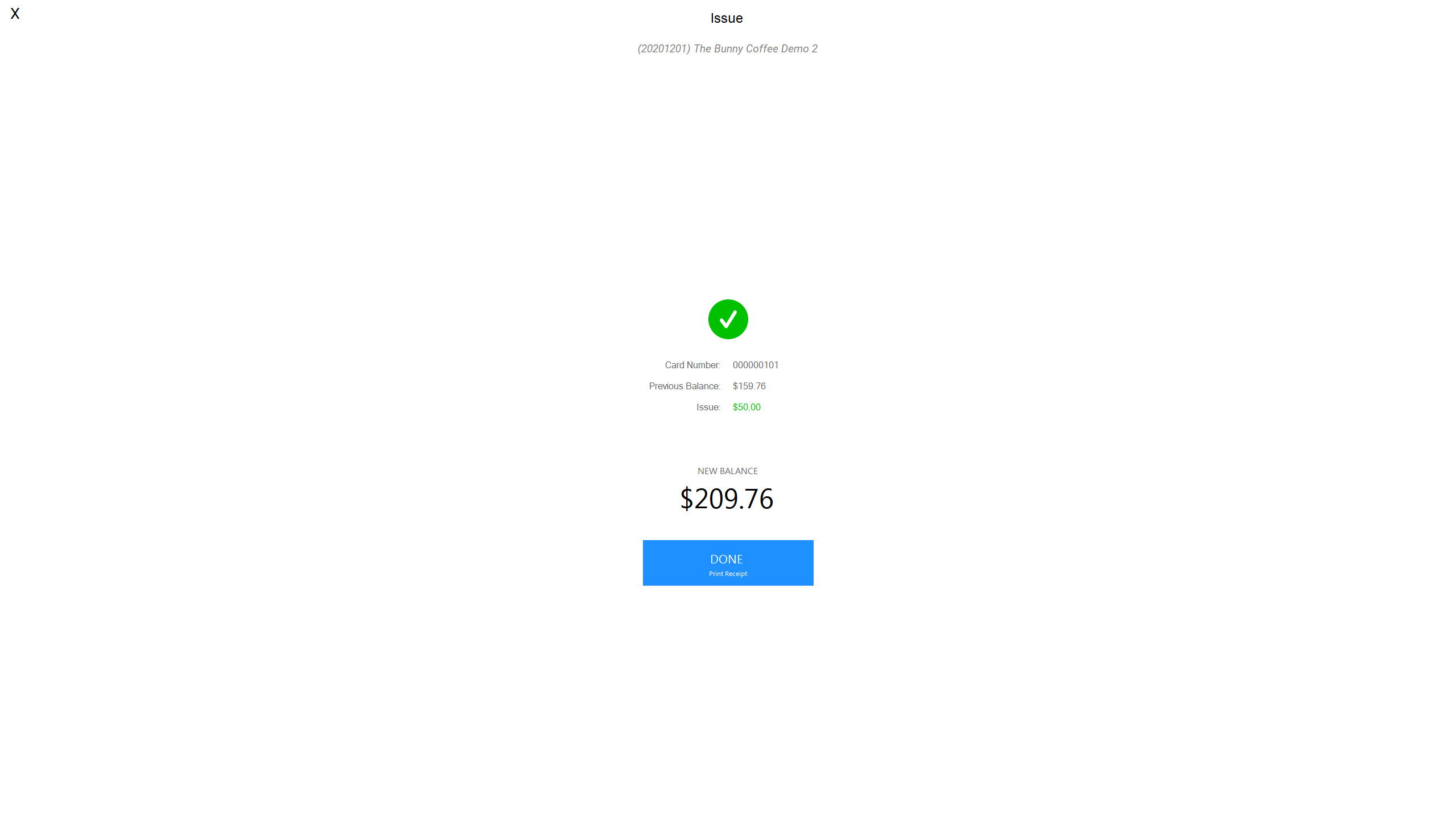
The screen may display:
| Field | Meaning |
|---|---|
| Card Number | Gift card number |
| Previous Balance | Balance before issuing |
| Issued Amount | Amount added to the card |
| New Balance | Updated gift card balance |
Select Done to finish the process.
6. How to Redeem a Gift Card
Step 1: Create the Customer Order
- Add items to the ticket as usual.
- When the customer is ready to pay, go to the payment screen.
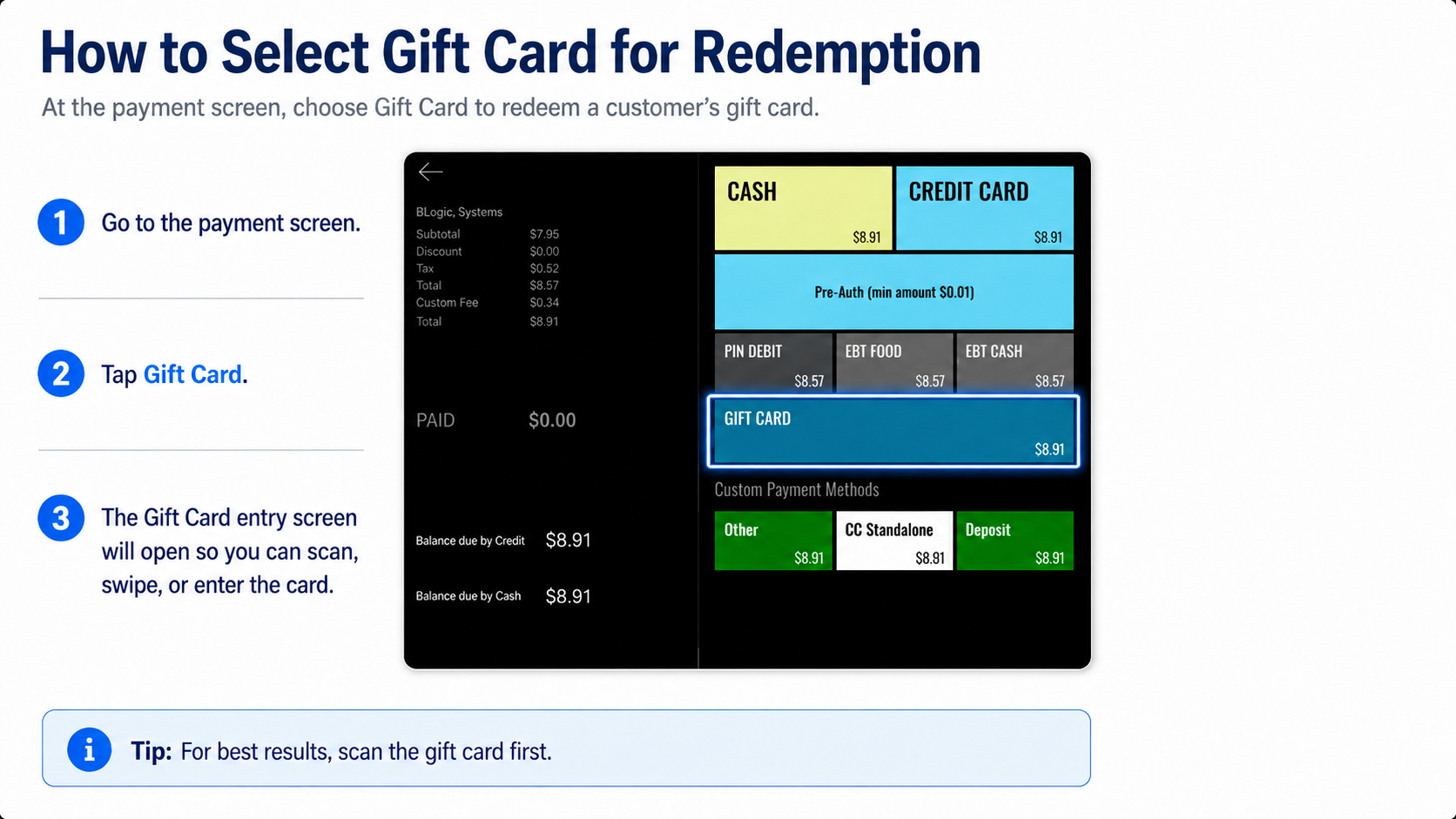
Step 2: Select Gift Card Payment
- On the payment screen, select Gift Card as the payment method.
- The system will ask for gift card information.
Step 3: Scan the Gift Card
- Scan the customer’s gift card.
- The system will verify the gift card.
You may also swipe or manually enter the card number if scanning is not available.
✅ Recommended: Scan the gift card whenever possible.
Step 4: Complete Redemption
After the gift card is accepted, the system will apply the payment.
The system may display:
| Field | Meaning |
|---|---|
| Card Number | Gift card number |
| Previous Balance | Balance before redemption |
| Redeemed Amount | Amount used for payment |
| New Balance | Remaining balance after payment |
Once the payment is completed, continue the normal checkout process.
7. Gift Card Global Usage
Some stores may use Global Gift Card setup.
If Gift Card Global is enabled, one gift card can be used across all stores included in the global setup.
Example:
- Store A issues the gift card.
- The same gift card can be redeemed at Store B, Store C, or other stores configured under the same global gift card setup.
ℹ️ Note: If Global Gift Card is not enabled, the gift card may only work for the store where it was issued.
⚠️ Important: Global usage depends on store configuration. Contact Support if you are not sure whether your stores are set up for Global Gift Card.
8. How to View Gift Card Usage in BLogic View
Step 1: Log in to BLogic View
- Open BLogic View.
- Log in with your account.
Step 2: Open the Gift Card Menu
- From the main navigation, select Gift Card.
- Review the available Gift Card sections.
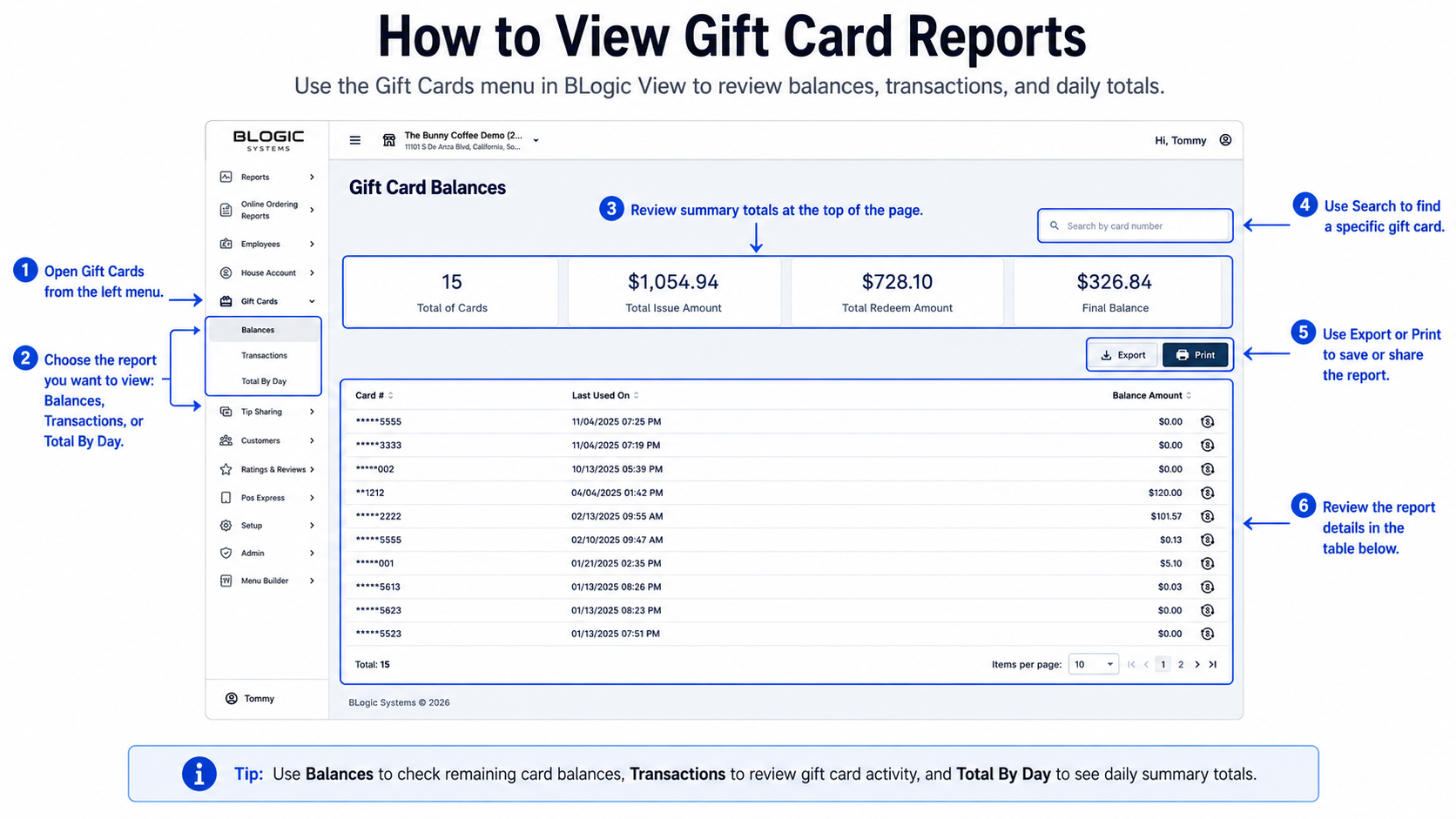
Step 3: Review Gift Card Sections
The Gift Card menu includes the following sections:
| Section | Purpose |
|---|---|
| Balances | View current gift card balances |
| Transactions | Track gift card activity, including issued, redeemed, and adjusted amounts |
| Total by Day | Review daily gift card totals |
Use filters or report options to review gift card activity by date, store, or transaction type if available.
9. FAQ
Q1: What is the best way to enter a gift card?
Use Scan Gift Card first. It is faster and helps prevent card number entry mistakes.
Q2: Can I manually enter a gift card number?
Yes. Manual entry can be used when the scanner or swipe method is not available.
Q3: Can one gift card be used at multiple stores?
Yes, but only if Gift Card Global is enabled and those stores are included in the same global setup.
Q4: Where can I check the remaining gift card balance?
You can check gift card balances in the POS during gift card use, or in BLogic View > Gift Card > Balances.
Q5: Why can’t I see the Gift Card menu?
Your account may not have permission, or the Gift Card feature may not be enabled for your store. Please contact Support for assistance.