Introduction
The Sales by Category report now shows Merchant Fee, Cost, and Profit for every category and item type. This article explains how to choose whether the Merchant Fee (also called the Dual Pricing Fee) is included in your Net Sales figures or shown as its own column. Understanding this setting helps you read true product profitability with a consistent view of card-processing fees across the report, export, and print.
Version Support
| Product / Module | Supported Version |
|---|---|
| BLogic View – Reports (Sales by Category) | POS build 07.24.2026 and later |
| BLogic View – Setup > Configurations > Report Settings | POS build 07.24.2026 and later |
Note: If you do not see this option, please contact Support to confirm your store is on a supported version.
Table of Contents
- Configure Merchant Fee / Dual Pricing Fee Handling
- View the Sales by Category Report
- Where to View or Confirm the Result
- FAQ
Configure Merchant Fee / Dual Pricing Fee Handling
This setting decides how the Merchant Fee / Dual Pricing Fee appears across the entire Sales by Category report — both the Category and Item Types tabs, and their Export and Print outputs.
Step 1: Open Report Settings
- Log in to your BLogic View account.
- In the left menu, select Setup > Configurations.
- On the Configurations page, select Report Settings from the left panel.
- Make sure the General tab is selected.
- Find the “Sales by Category Report” card.
Step 2: Choose how the fee is handled
- Read the helper text: “Choose how Merchant Fee / Dual Pricing Fee is handled in item sales for the Sales by Category report.”
- Select one option:
- Include Merchant Fee / Dual Pricing Fee in item sales (default) — Net Sales includes the allocated Merchant Fee, and the Merchant Fee column is hidden.
- Exclude Merchant Fee / Dual Pricing Fee from item sales and show the fee separately— Net Sales excludes the fee, and a separate Merchant Fee column is shown.
- Click Save.
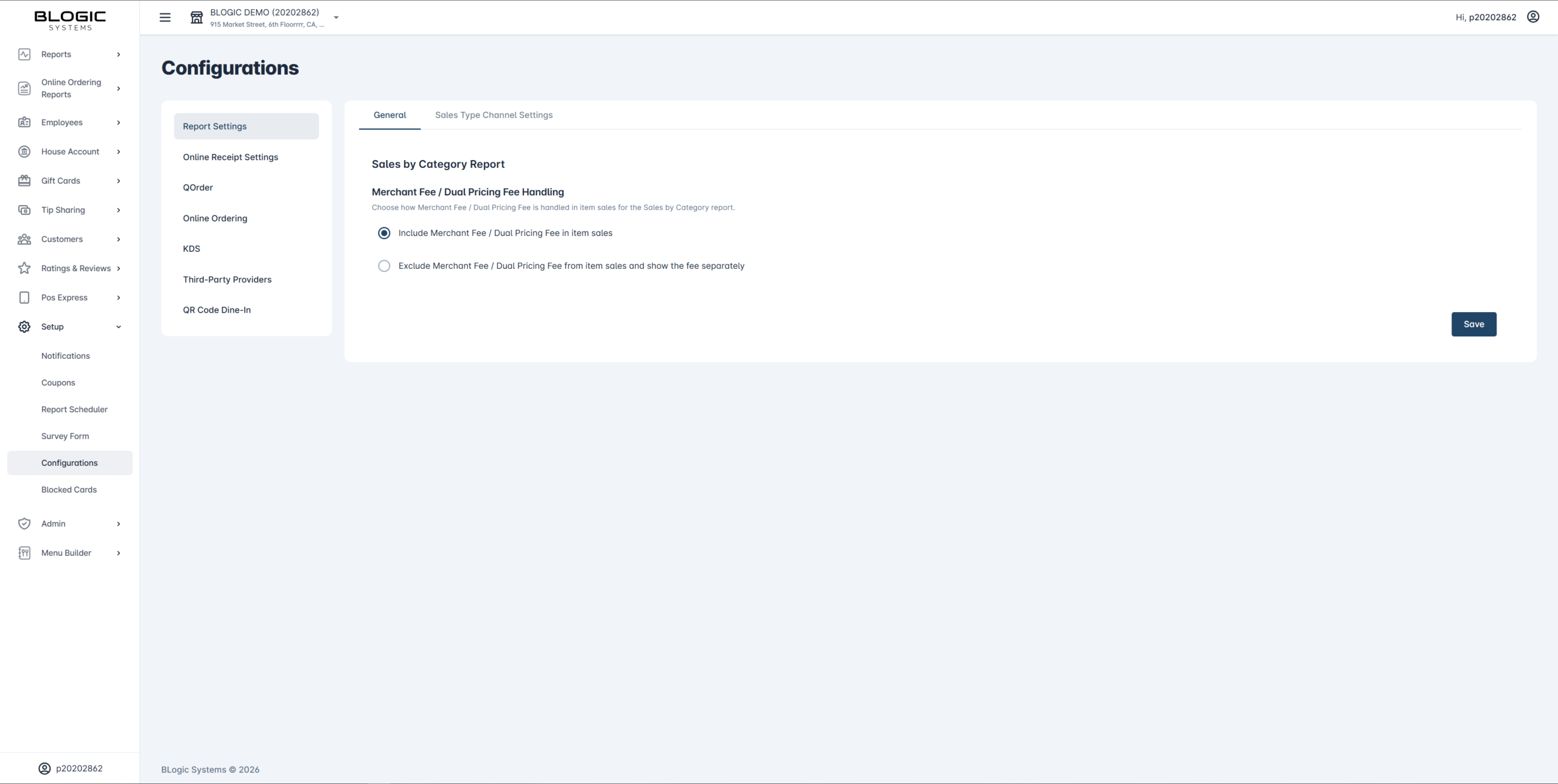
ℹ️ Note: This setting is only changeable here, in Setup. There is no toggle, dropdown, or switch for it on the report screen itself.
✅ Tip: The Category tab and the Item Types tab share this same setting — you only need to configure it once.
View the Sales by Category Report
Once the setting is saved, the report reflects your choice the next time it loads.
Step 1: Open the report
- Go to Reports > Sales by Category.
- Choose the Category tab or the Item Types tab.
- Set your Date, Day Part, From, and To filters, then click Update.
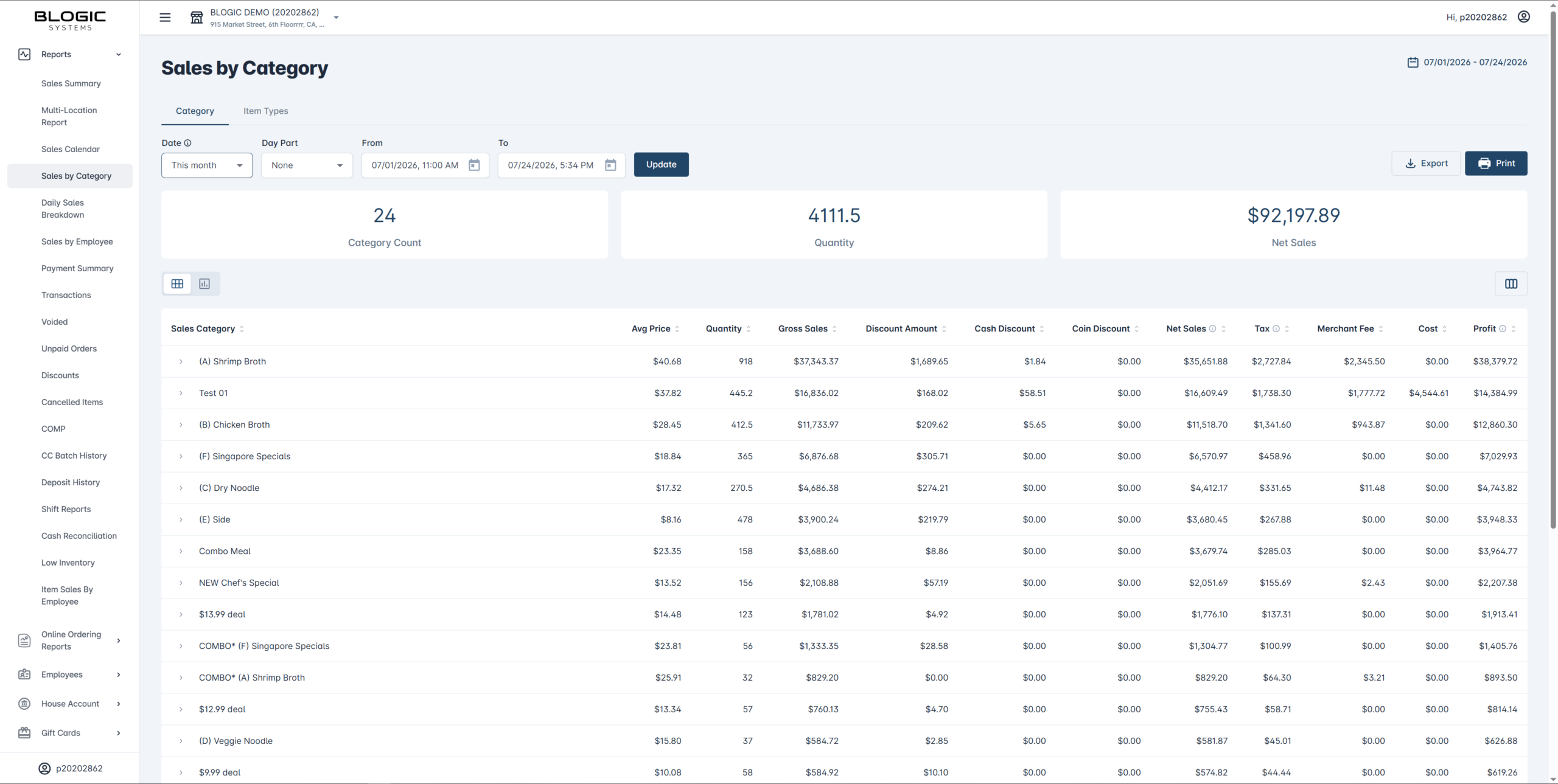
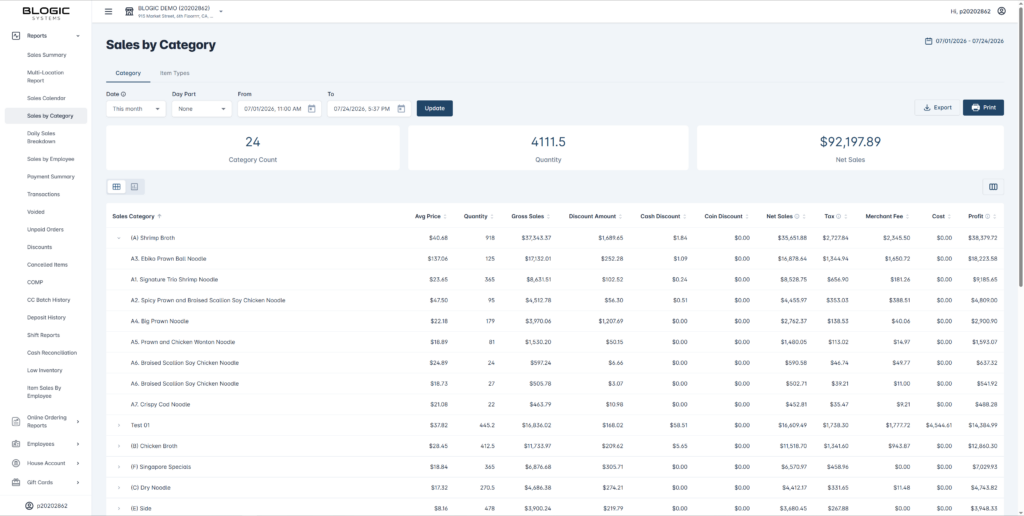
Step 2: Read the new columns Both tabs now show these columns in this order:
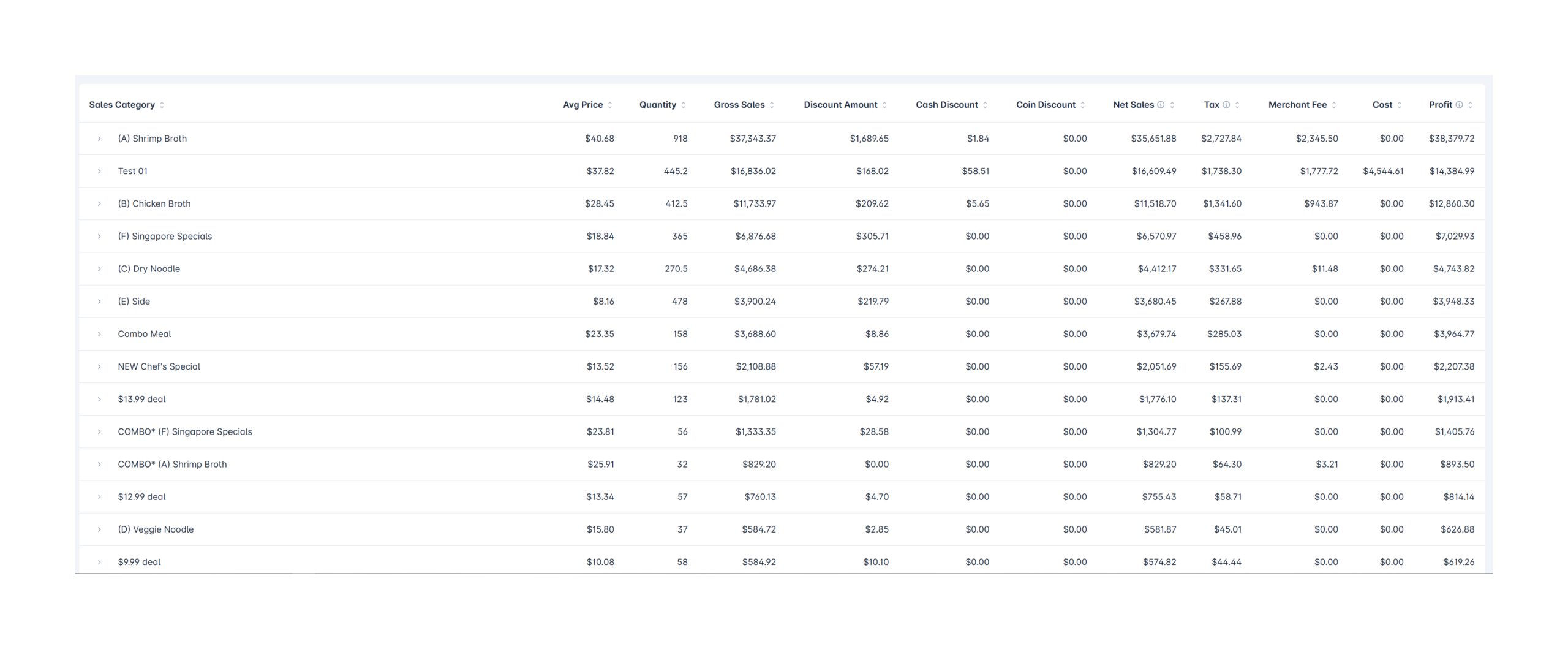
Sales Category / Item Type → Avg Price → Quantity → Gross Sales → Discount Amount → Cash Discount → Coin Discount → Net Sales → Tax → Merchant Fee (hidden if Include mode) → Cost → Profit
For example, in Exclude/Separate mode (default), the Category tab looks like this:
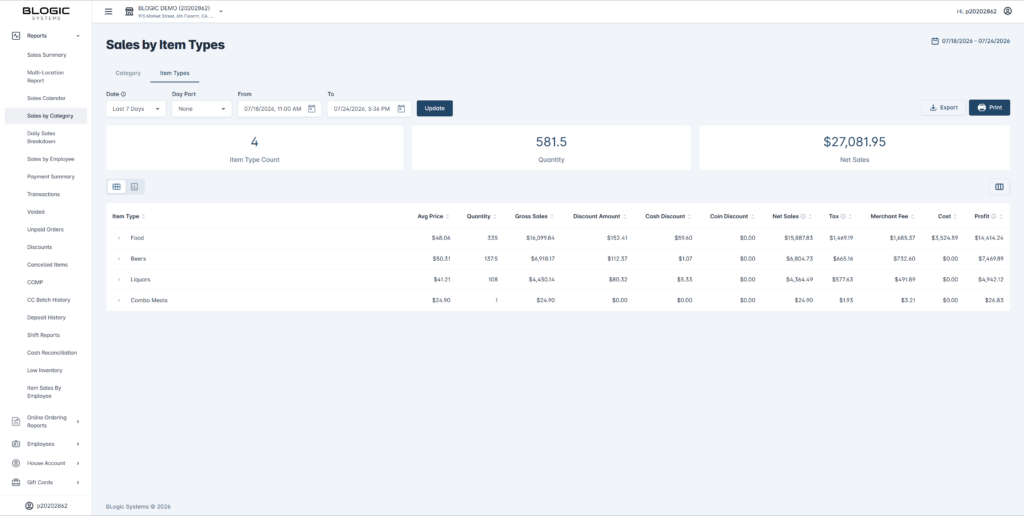
And the Item Types tab shows the same set of columns:
Step 3: Hover for tooltips
- Hover over the Net Sales header — you’ll see: “Merchant Fee / Dual Pricing Fee is excluded.”
- Hover over the Tax header — same tooltip: “Merchant Fee / Dual Pricing Fee is excluded.”
- Hover over the Profit header — same tooltip: “Merchant Fee / Dual Pricing Fee is excluded.”
- The Merchant Fee and Cost headers do not show a tooltip.
Step 4: Expand a category or item type
- Click the arrow next to any row (for example, “(A) Shrimp Broth”) to expand it.
- The child items underneath show Net Sales and Profit calculated using the same mode you selected in Setup.
Where to View or Confirm the Result
- Reports > Sales by Category (Category tab and Item Types tab) — check the Net Sales, Merchant Fee, Cost, and Profit columns match your selected mode.
- Export (Excel/PDF) and Print — the output matches what you see on screen:
- Include mode → Net Sales includes the fee, no separate Merchant Fee column.
- Exclude/Separate mode → Net Sales excludes the fee, Merchant Fee column is present.
FAQ
1. Why can’t I see the Merchant Fee, Cost, or Profit columns? You may not be on a supported version, or your user role may not have permission to access Report Settings. Please contact Support if the option is not visible.
2. Where do I change how the Merchant Fee is handled? Go to Setup > Configurations > Report Settings > General > Sales by Category Report. There is no control for this on the report screen itself.
3. Does the Merchant Fee affect Tax or Profit calculations? Tax always excludes the Merchant Fee, regardless of the mode you select. Profit is calculated based on the mode you choose (Include or Exclude/Separate).
4. Does this setting apply to both the Category tab and the Item Types tab? Yes. It is a single, shared setting that applies to both tabs, as well as their Export and Print outputs.
5. What should I do if the numbers don’t look right after I change the setting? Make sure you clicked Save in Report Settings, then refresh the report. If figures still look incorrect, contact Support for further assistance.
Closing
If you still need help, please contact Support for further assistance.