Introduction
All Day View is a screen on your Kitchen Display Screen (KDS) that combines every open ticket into simple totals per menu item. Instead of reading each ticket one by one, your kitchen staff can see at a glance how many of each item — and each topping or option — still need to be prepared. This is especially useful during busy hours when many tickets are open at the same time.
Version Support
| Product / Module | Supported Version |
|---|---|
| KDS (device) | v2.0.3 (All Day View) |
| POS | Build 07.29.2026 |
| BLogic View (Setup > Configurations > KDS) | Released 07.29.2026 |
Note: If you do not see this option, please contact Support to confirm your store is on a supported version.
Table of Contents
Turn On All Day View
Step 1: Open KDS Configuration
- Log in to your BLogic View dashboard.
- Go to Setup > Configurations.
- Select KDS from the left menu.
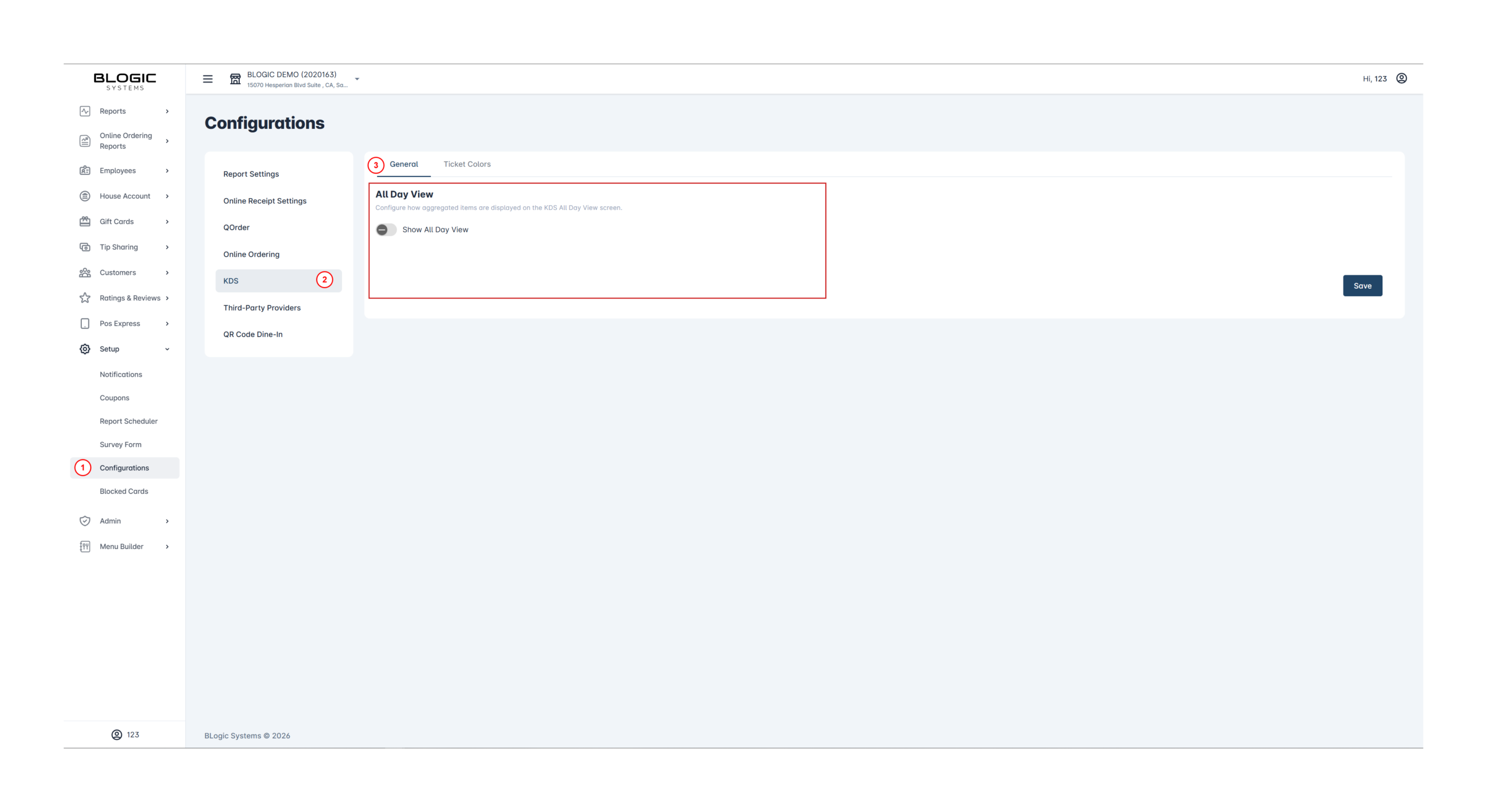
Step 2: Configure All Day View
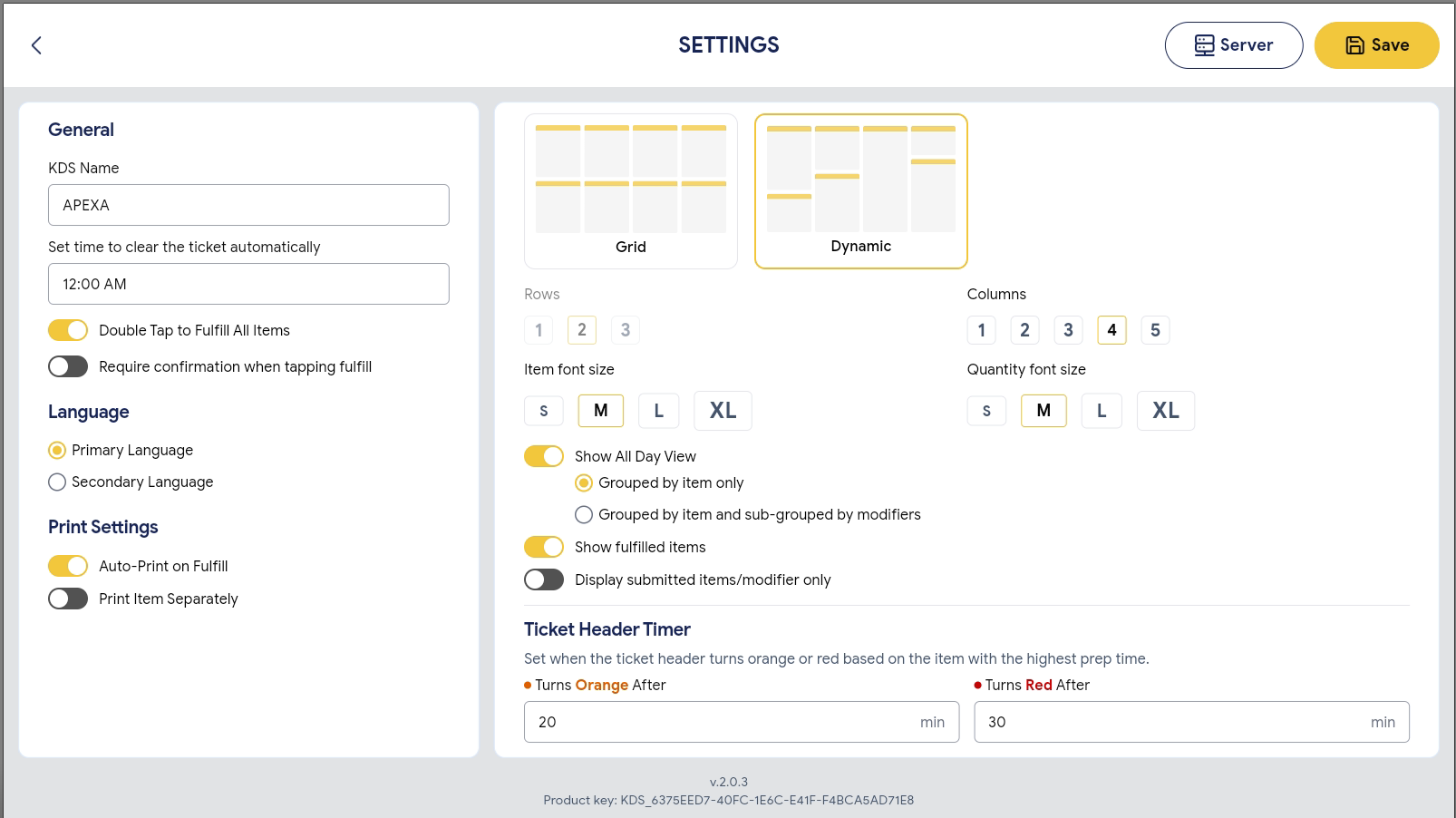
- On the General tab (this is the default tab), find the All Day View section.
- Turn on the Show All Day View toggle.
- Choose one display mode:
- Grouped by item only — shows a single total for each menu item.
- Grouped by item and sub-grouped by modifiers — shows a total for each menu item, plus a breakdown by topping/option (modifier).
- Select Save.
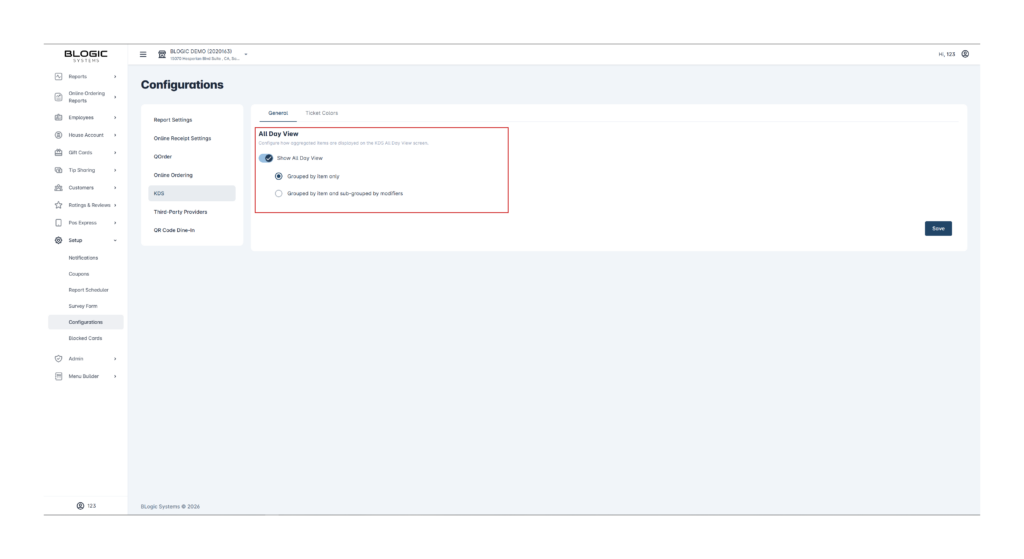
ℹ️ Note: If you turn off the Show All Day View toggle, the All Day View button will not appear on your KDS device at all.
Use All Day View on the KDS
Step 1: Open All Day View
- On your KDS device, look at the top header next to the Recently Fulfilled button.
- Tap Show All Day View.
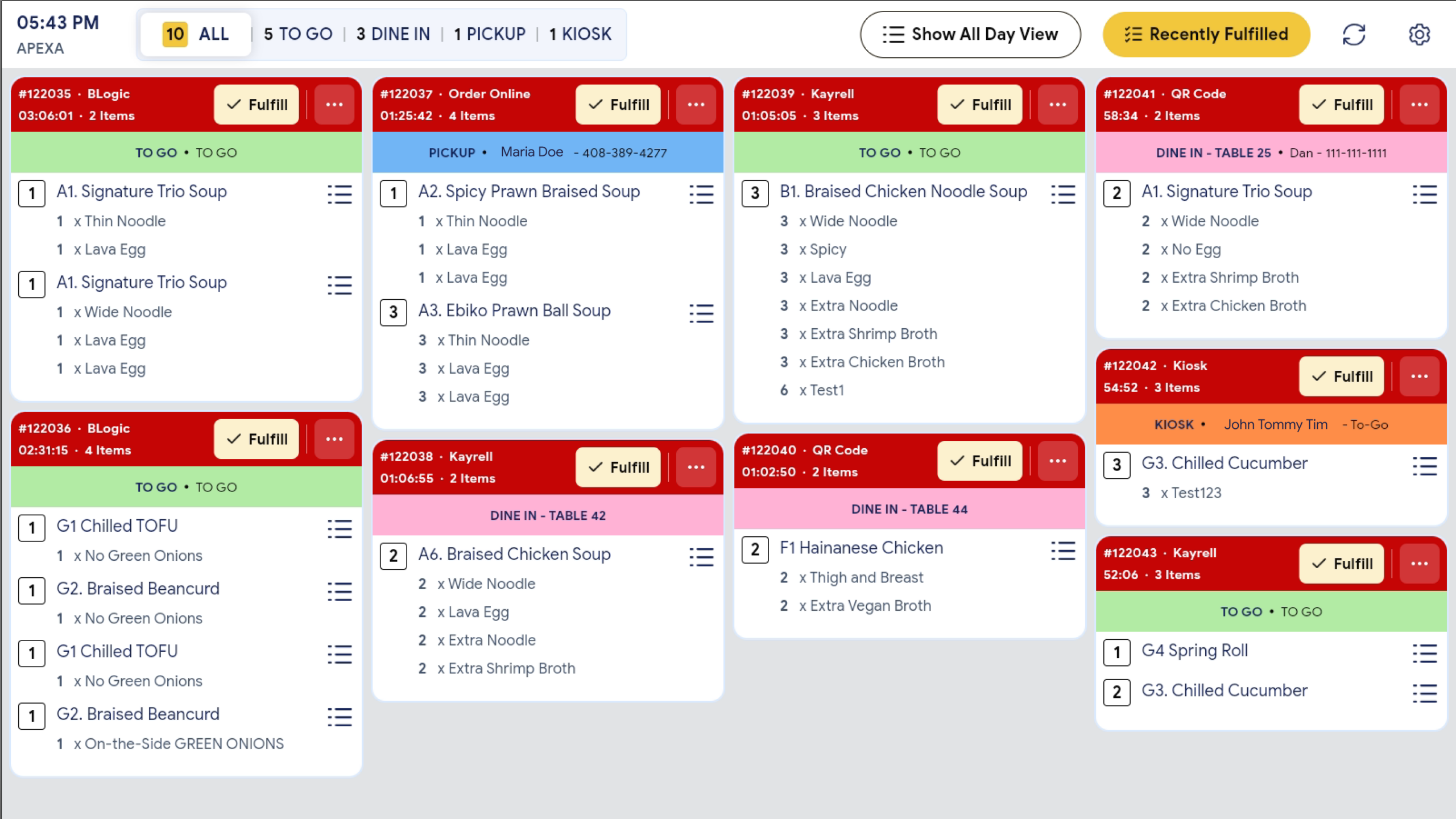
Step 2: Read the aggregated totals
- Each card shows the total quantity still needed for one menu item.
- If your store uses the “sub-grouped by modifiers” mode, each card also lists the toppings/options and how many of each are still needed.
- Cards update automatically as new tickets come in or items are prepared — you do not need to refresh manually.
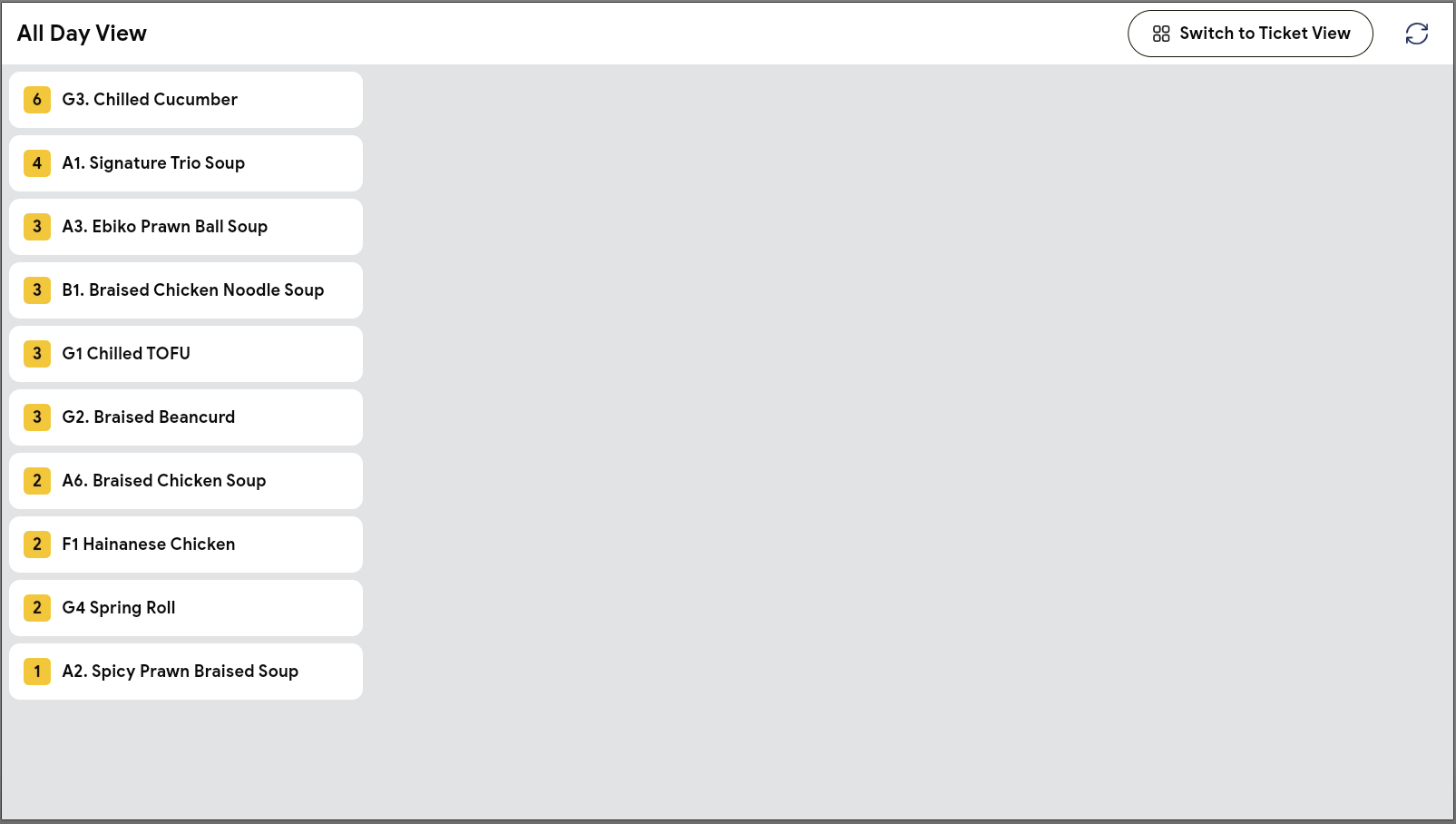
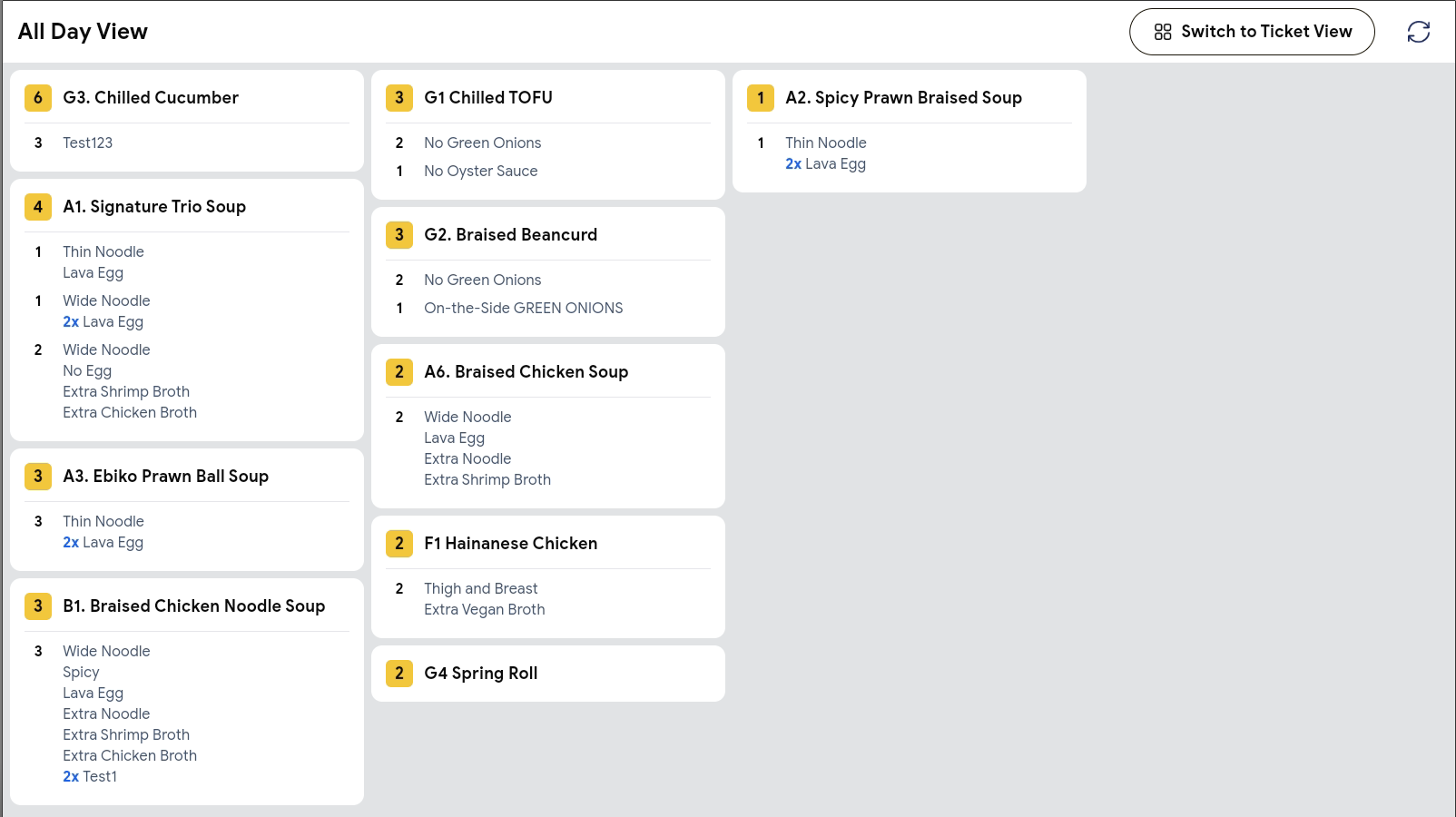
Step 3: Return to the normal ticket view
- Tap the same button again (now labeled Switch to Ticket View, or Hide All Day View on older KDS versions).
⚠️ Warning: All Day View is for viewing totals only. You cannot mark items as fulfilled from this screen — go back to the normal ticket view to fulfill orders.
Understand How Items Are Grouped
This section explains what you will see on All Day View so your team can read it correctly.
- Same item, same options are combined into one card with the total quantity.
- Same item, different options (for example, one drink with 1 topping and another with 2 toppings) are shown as separate lines under the same item, so your kitchen knows exactly how many of each combination to prepare.
- An item with no toppings selected does not show an extra “no topping” line — it is simply counted in the item’s total.
- A topping ordered more than once on the same item (for example, double boba) is shown with a small 2x label in front of the topping name.
- If a topping can be added more than once per item, All Day View shows the total amount still needed for that topping — not a per-order breakdown. Always check the individual ticket if you need to confirm exactly which order a topping belongs to.
ℹ️ Note: Items are sorted with the highest quantity needed at the top, so your kitchen can prioritize what to prepare first.
⚠️ Warning: If an item’s name was changed or customized when it was ordered (for example, a special request typed directly into the item name), it will appear as its own separate card and will not be combined with the regular version of that item. This is expected and helps avoid mixing up special requests with standard orders.
Where to View or Confirm the Result
You can confirm your All Day View settings anytime by returning to BLogic View > Setup > Configurations > KDS > General. The toggle and selected mode will reflect your last saved choice.
On the KDS device itself, the Show All Day View button will only be visible if the setting is turned on for your store.
FAQ
1. Why can’t I see the Show All Day View button on my KDS? The Show All Day View toggle may be turned off in BLogic View under Setup > Configurations > KDS > General. Turn it on and save. If it still does not appear, confirm your KDS device is on a supported version or contact Support.
2. Does turning on All Day View affect my existing tickets? No. All Day View only changes how open tickets are displayed and grouped on the KDS screen. It does not change ticket data, pricing, or order history.
3. Can staff switch between All Day View and Ticket View without manager permission? Yes, any staff member using the KDS can tap the button to switch between All Day View and the normal ticket view.
4. Will changing the All Day View mode sync to other KDS devices? This setting is saved per store configuration in BLogic View. Please contact Support to confirm whether it applies to all KDS devices at your location or must be set individually.
5. What should I do if the totals on All Day View look incorrect? Double-check the individual tickets in the normal ticket view to confirm the actual order details. If the totals still do not match, contact Support for further assistance.
Closing
If you still need help, please contact Support for further assistance.