Introduction
This article shows you how to highlight important modifiers on your KDS (Kitchen Display System) using Modifier Styles. You will learn how to turn the feature on, create color-and-text styles based on keywords, and see them applied on the kitchen screen. This helps your kitchen staff quickly spot key details like “No sugar”, “Extra ice”, allergens, or milk options, so orders are prepared correctly.
Version Support
| Product / Module | Supported Version |
|---|---|
| BLogic View (Back Office) — POS build | v7.2026.08.04 |
| KDS | 2.0.4 |
Note: If you do not see this option, please contact Support to confirm your store is on a supported version.
Table of Contents
Turn On Modifier Styles
Step 1: Open the Modifier Styles settings
- Log in to your BLogic View back office.
- Go to Setup > Configurations.
- In the list on the left, select KDS.
- Open the Modifier Styles tab.
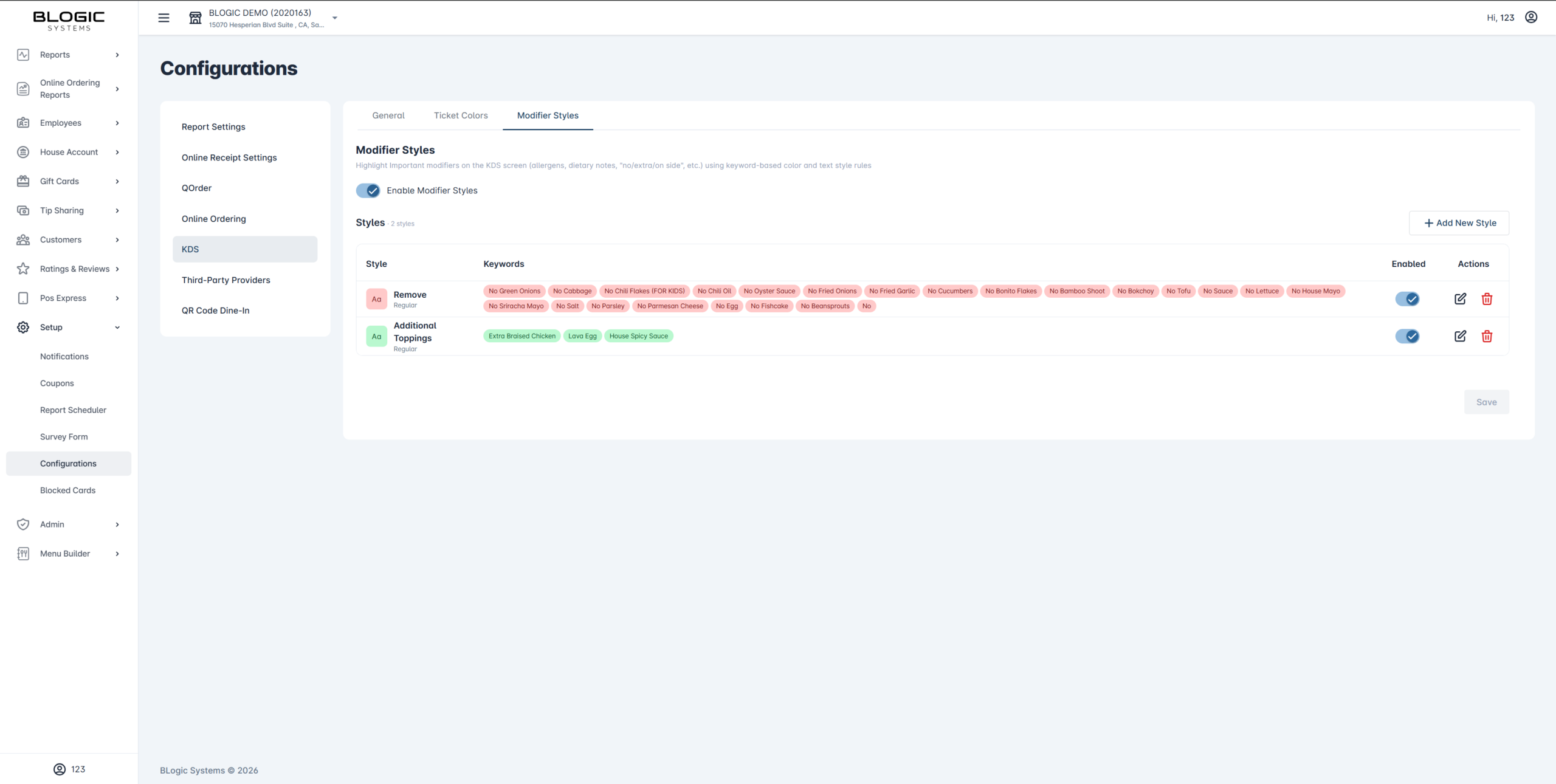
Step 2: Enable the feature
- Turn on the Enable Modifier Styles toggle.
- The styles area appears so you can start adding styles.

ℹ️ Note: When the toggle is off, the KDS shows all modifiers in the default style.
Create a Modifier Style
A style is a color + text style (bold/italic) that is applied to any modifier matching the keywords you add.
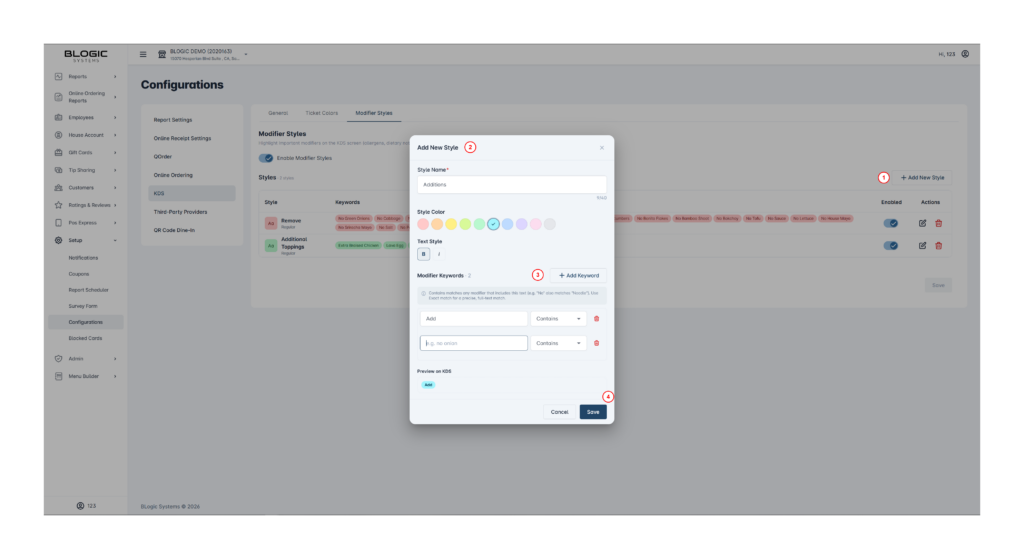
Step 1: Add a new style
- Click + Add New Style.
- Enter a Style Name (for example, “No/Remove” or “Allergens”).
- Pick one color from the palette.
- Choose a text style: B (bold), I (italic), or both.
Step 2: Add keywords
- Click + Add Keyword.
- Type the keyword (for example,
No sugar). - Choose a match mode:
- Contains — matches any modifier that includes this text.
- Exact match — matches only when the modifier text is exactly the keyword.
- Add more keywords if needed.
- Click Save on the dialog.
Step 3: Save your changes
- Click the Save button on the page to apply all changes.
- Your styles are synced to the KDS.
✅ Tip: “Contains” matches any modifier that includes your text (for example,
Noalso matchesNoodle). If you want to match a modifier precisely, use Exact match or type a more specific phrase likeNo sugar.
⚠️ Warning: A style with no keywords will not be applied. You will see a note that says “This style has no keywords, so it won’t be applied.”
See Styles on the KDS
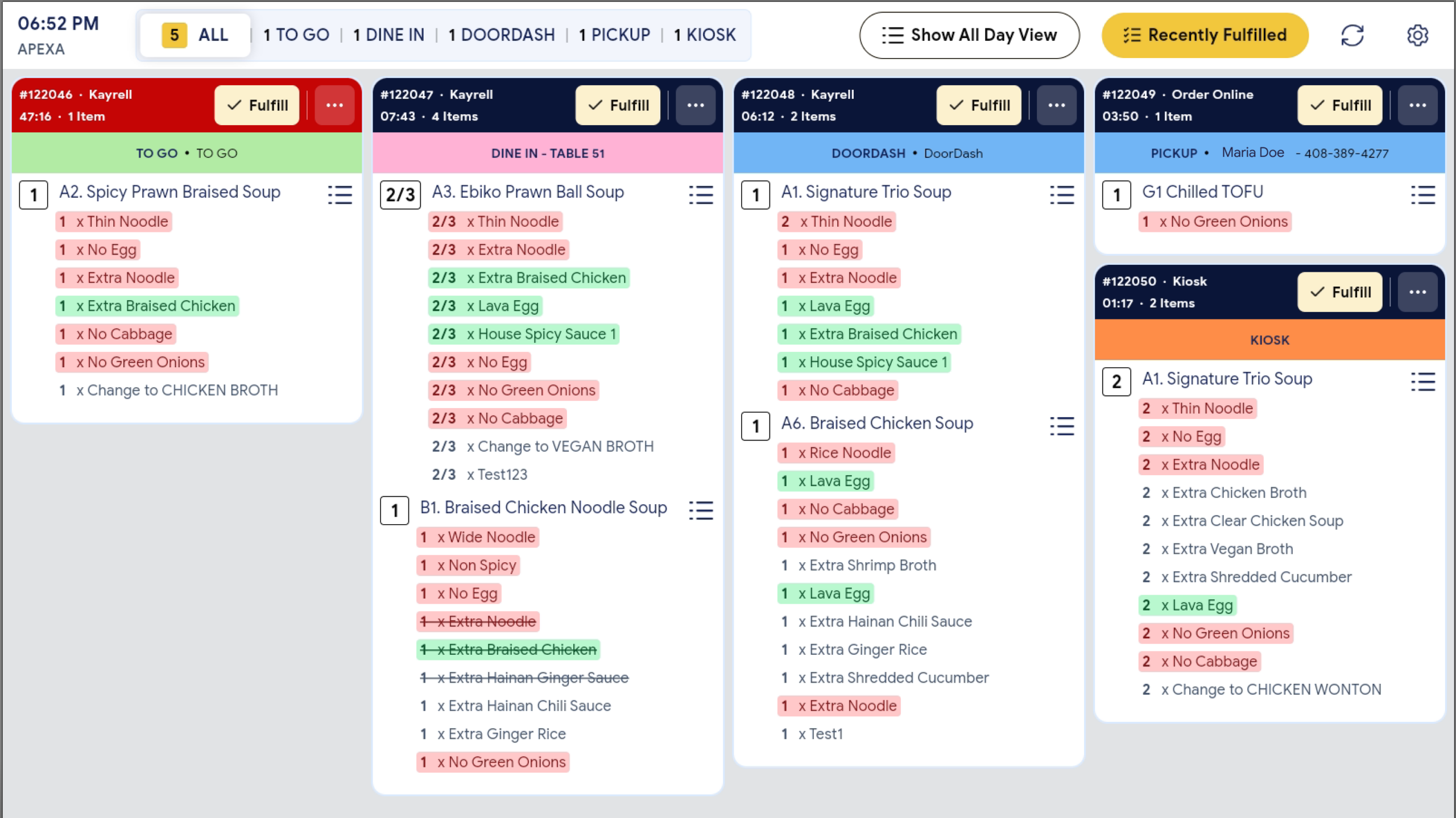
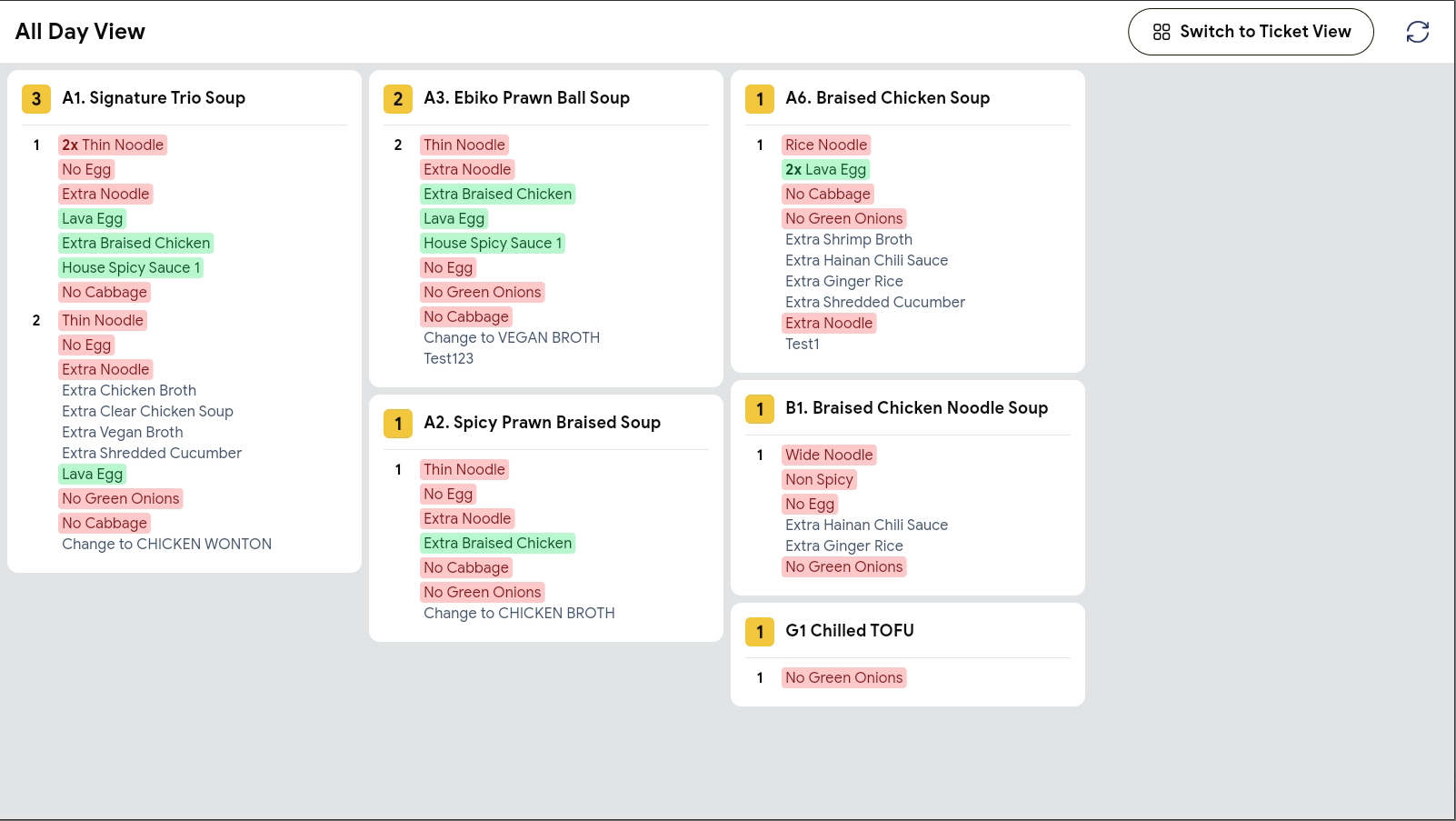
After setup, matching modifiers are highlighted automatically on the kitchen screen.
- Open the KDS.
- On an order, any modifier that matches a keyword shows in the style’s color and text style.
- In Ticket View, the quantity number and the modifier text are highlighted together (for example, “1 x No sugar”).
- In All Day View, only the modifier text is highlighted; the running count number stays normal.
- Item names and modifiers that do not match any keyword stay in the default style.
FAQ
1. Why can’t I see this option? You may not be on a supported version, or your user role may not have permission to open Configurations. Please contact Support if the option is not visible.
2. Why is a modifier like “Noodle” getting highlighted? This happens when a keyword uses Contains and the text appears inside another word (for example, No is inside Noodle). To fix it, use Exact match, or use a more specific phrase such as No sugar.
3. What is the difference between Contains and Exact match? Contains highlights any modifier that includes your text. Exact match highlights only when the modifier text is exactly the same as your keyword.
4. Will this affect item names or other screens? No. Styles apply only to modifier lines — never to item names or headers. The same styles appear in both Ticket View and All Day View; only the highlighted area differs.
5. What should I do if the feature does not work as expected? Check that Enable Modifier Styles is on, that the style has at least one keyword, and that your store is on a supported version. Refresh the KDS, and contact Support if you still need help.
Closing
If you still need help, please contact Support for further assistance.