Introduction
This article shows you how to control when your store accepts Online Orders. You will learn how to set weekly opening hours, pre-configure holiday closures, and temporarily pause new orders when your kitchen is too busy. This helps prevent orders from arriving outside business hours and keeps your customers informed about when the store will reopen.
Version Support
| Product / Module | Supported Version |
|---|---|
| BLogic View — Dashboard (Online Ordering) | POS v7.08.18.2026 or later |
| Online Ordering (Customer Web) | POS v7.08.18.2026 or later |
Note: If you do not see the new tab layout described below, please contact Support to confirm your store is on a supported version.
Table of Contents
- Open the Online Ordering Settings
- Set Your Weekly Open Hours
- Add a Time Off (Holiday Closure)
- Temporarily Pause New Orders
- How the Closed Message Appears to Customers
- Priority Order When Multiple Settings Are Active
- FAQ
Open the Online Ordering Settings
Step 1: Log in to the Dashboard
- Log in to your BLogic View Dashboard as a Store Owner or Manager.
- Go to Setup → Configurations → Online Ordering.
- You will see four tabs at the top: General, Pickup Time, Open Hours, and Time Off.
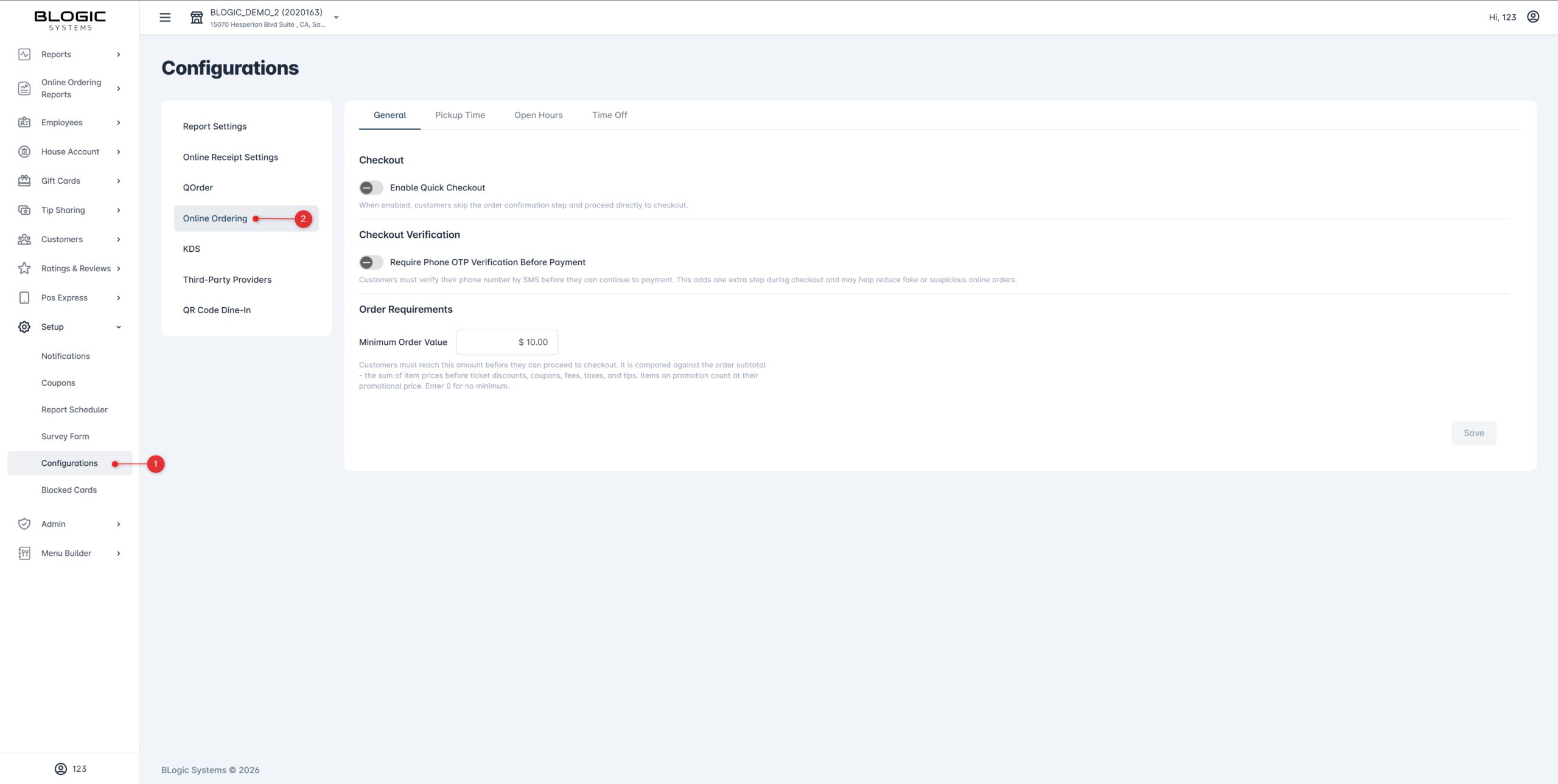
ℹ️ Note: All existing settings from the previous single-panel layout are automatically preserved and grouped under the correct tab.
Set Your Weekly Open Hours
Use this tab to define which days and hours your store accepts Online Orders each week.
Step 1: Open the Open Hours tab
- Click the Open Hours tab.
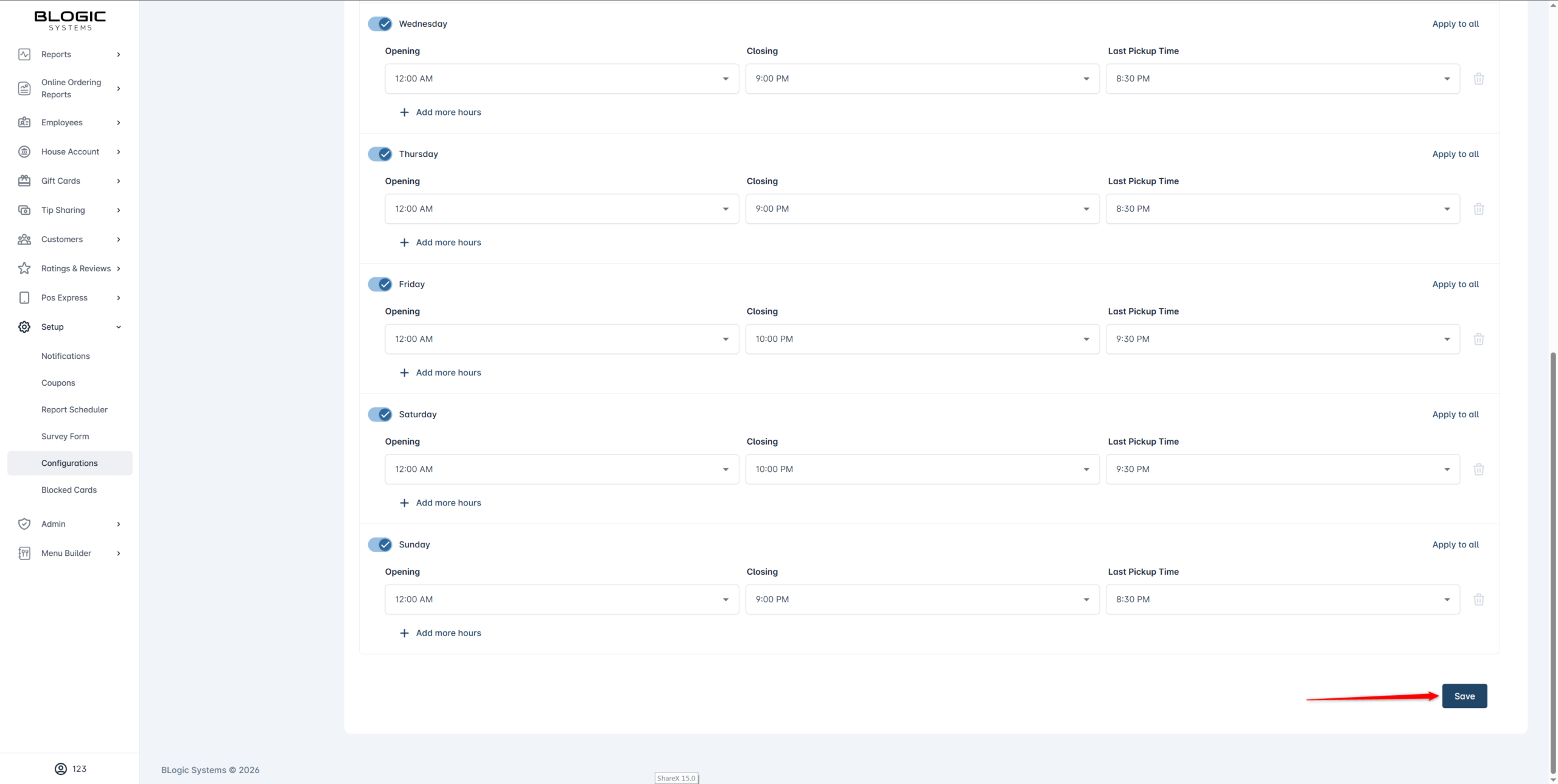
- You will see all 7 days of the week listed with a toggle for each day.
Step 2: Enable a day and add time ranges
- Turn the toggle ON for the day you want to accept orders.
- Click Add time range and enter an Opening time and a Closing time.
- To add multiple ranges in one day (for example, a lunch shift and a dinner shift), click Add time range again.
Step 3: Save your changes
- Review your ranges to make sure they do not overlap.
- Click Save.
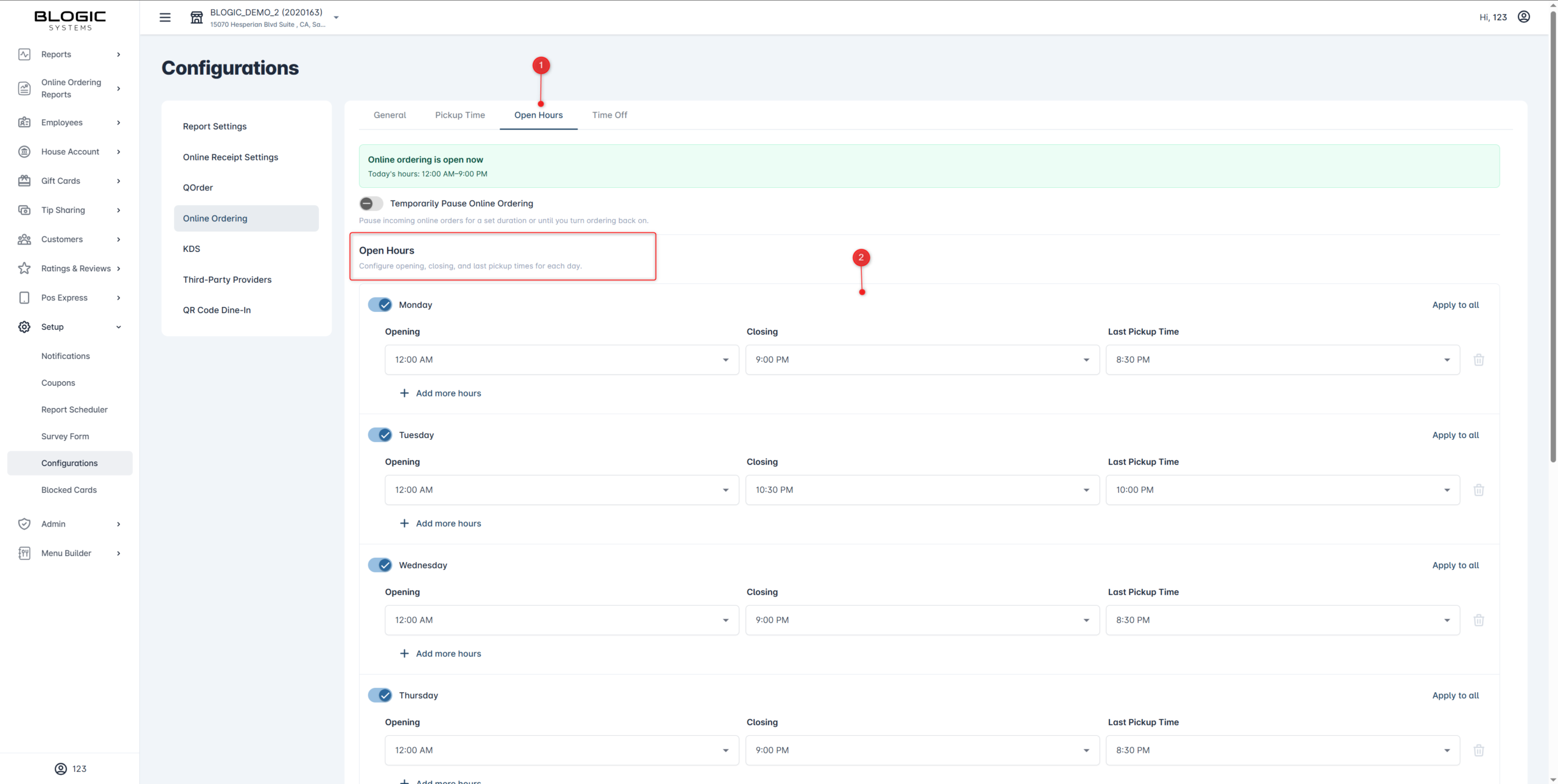
⚠️ Warning: If two time ranges on the same day overlap, the system will show this error: “Time ranges overlap. Please make sure each range starts after the previous one ends.” Adjust the ranges before saving.
✅ Tip: For overnight hours (e.g., 8:00 PM to 2:00 AM), set the closing time earlier than the opening time. The system automatically treats this as an overnight range.
Add a Time Off (Holiday Closure)
Use this tab to pre-configure closures for holidays, staff training days, or any planned days off. During a Time Off, the store will not accept Online Orders regardless of your weekly Open Hours.
Step 1: Open the Time Off tab
- Click the Time Off tab.
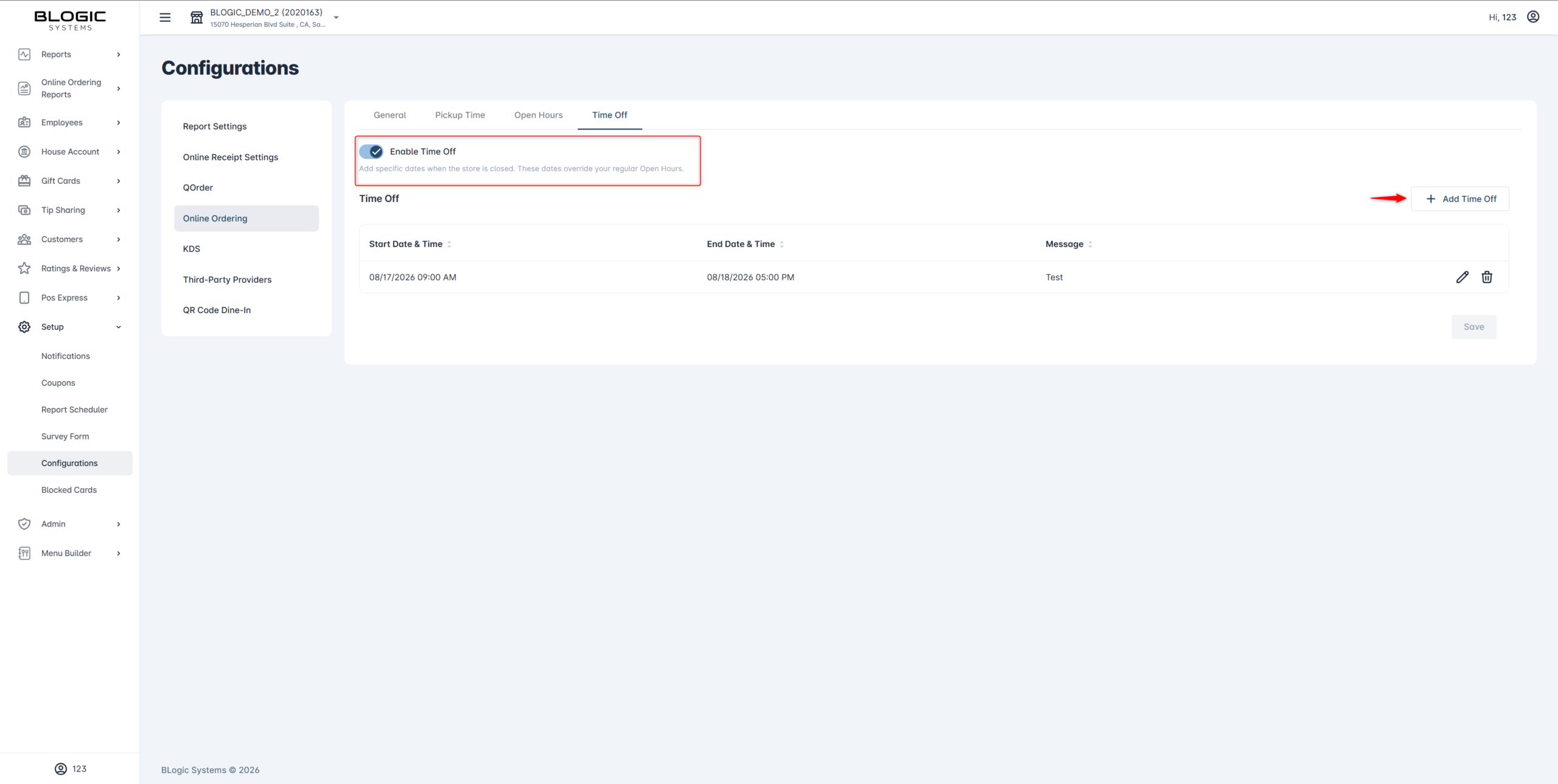
- You will see a list of all upcoming Time Off entries (past entries are hidden automatically).
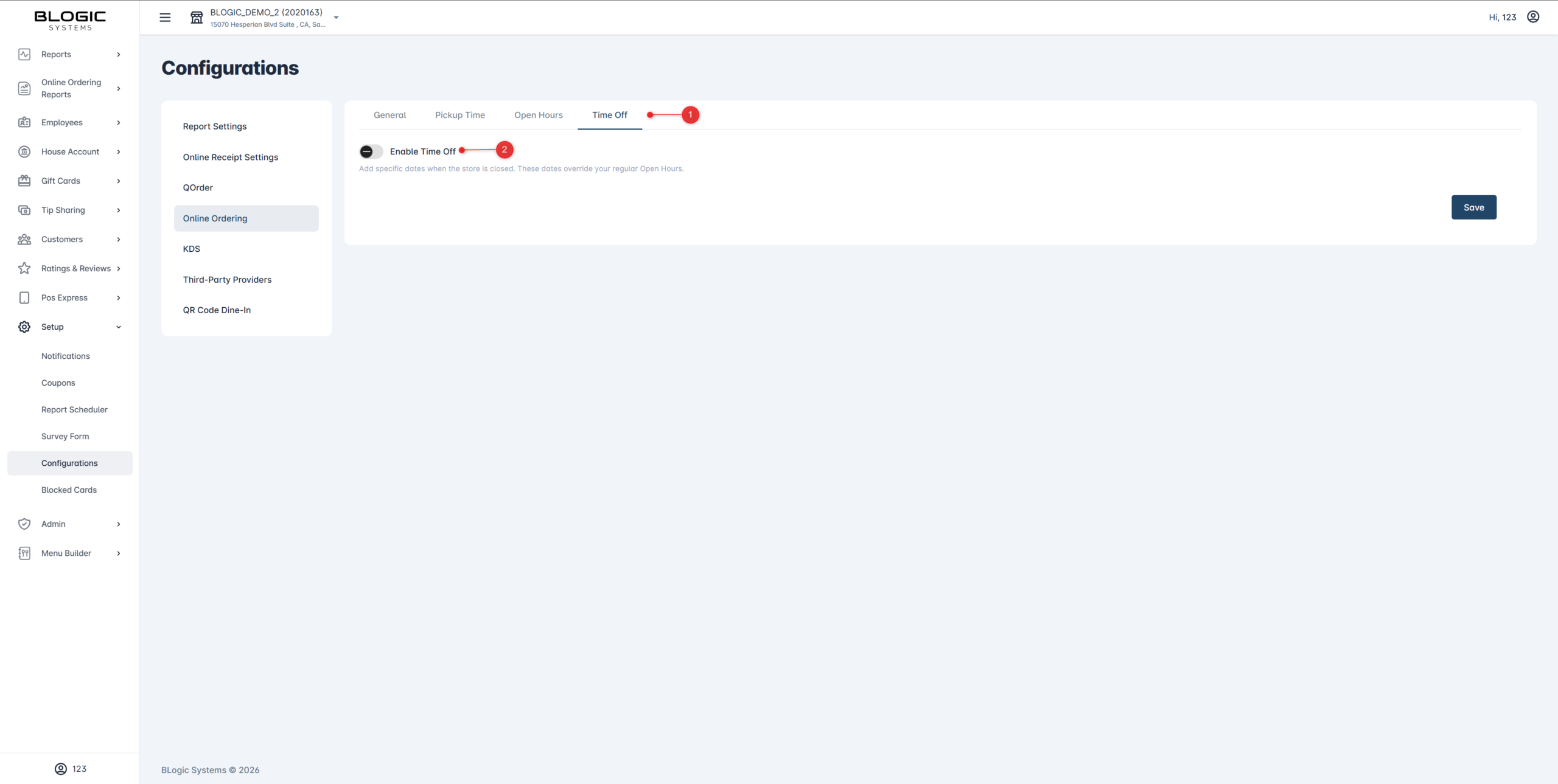
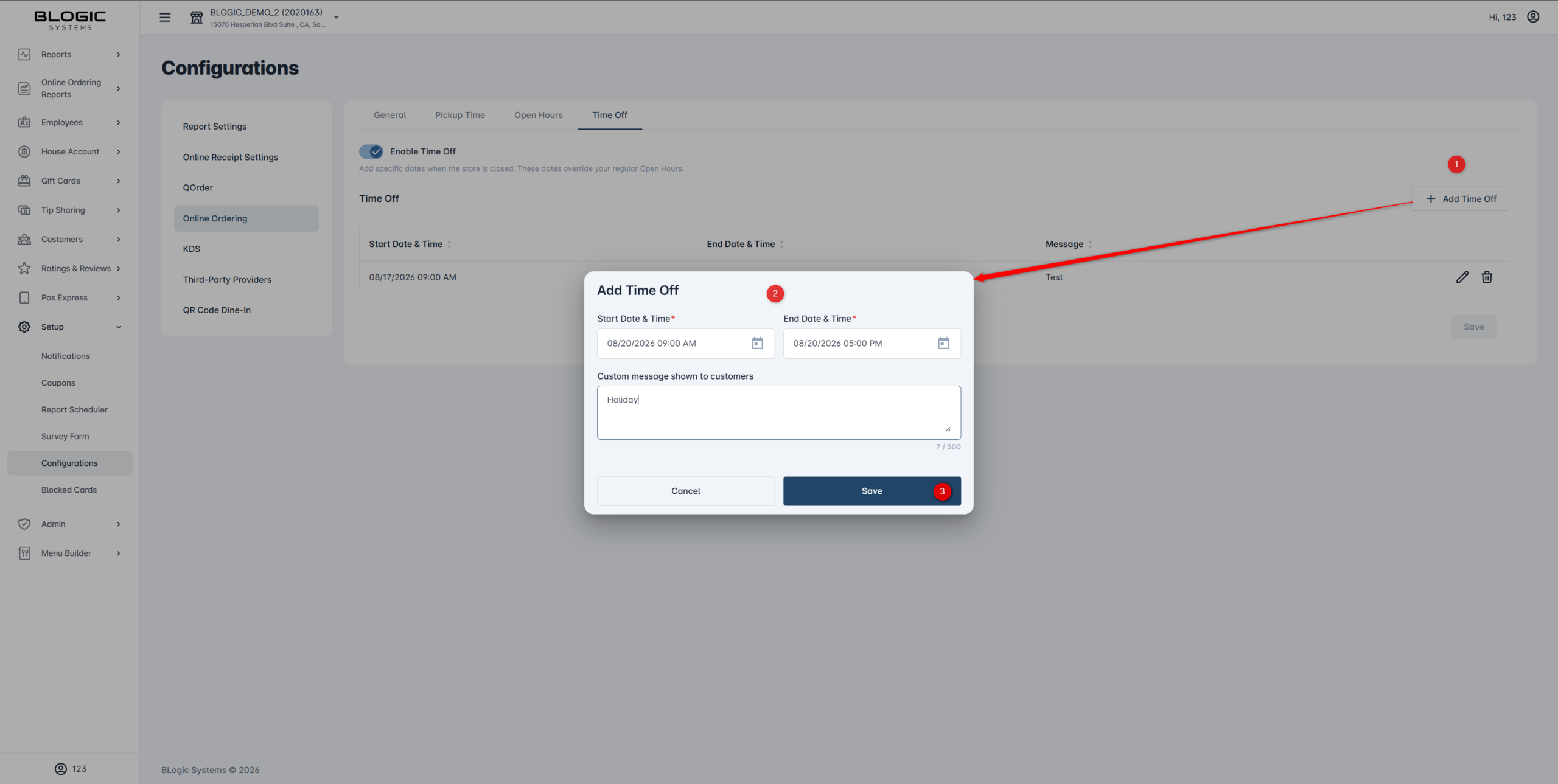
Step 2: Add a new Time Off
- Click Add Time Off.
- Enter a Start date & time and an End date & time.
- (Optional) Add a Custom message to explain the closure to customers, for example: “Closed for Lunar New Year. We reopen on Feb 5.” Maximum 500 characters.
- Click Save.
Step 3: Edit or delete a Time Off
- To edit, click the entry from the list and change the values.
- To delete, click the Delete icon next to the entry.
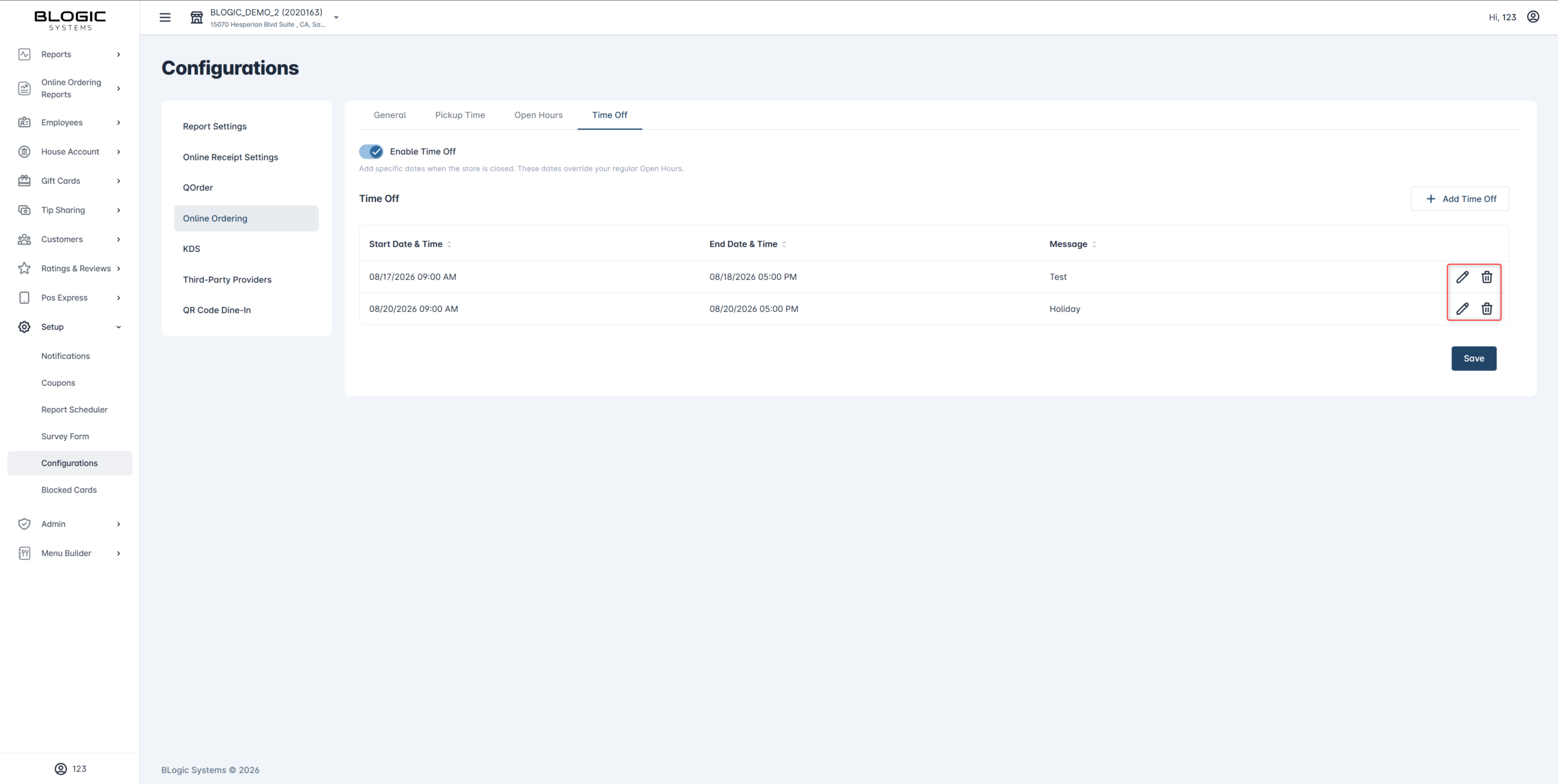
ℹ️ Note: You can create multiple Time Off entries even if their date ranges overlap. The system will always show the customer the entry that ends latest.
⚠️ Warning: If the end date & time is earlier than the start date & time, you will see: “End date & time must be after start date & time.”
Temporarily Pause New Orders
Use this feature when you need to stop accepting orders right now — for example, when your kitchen is overloaded, you are short-staffed, or there is an equipment issue.
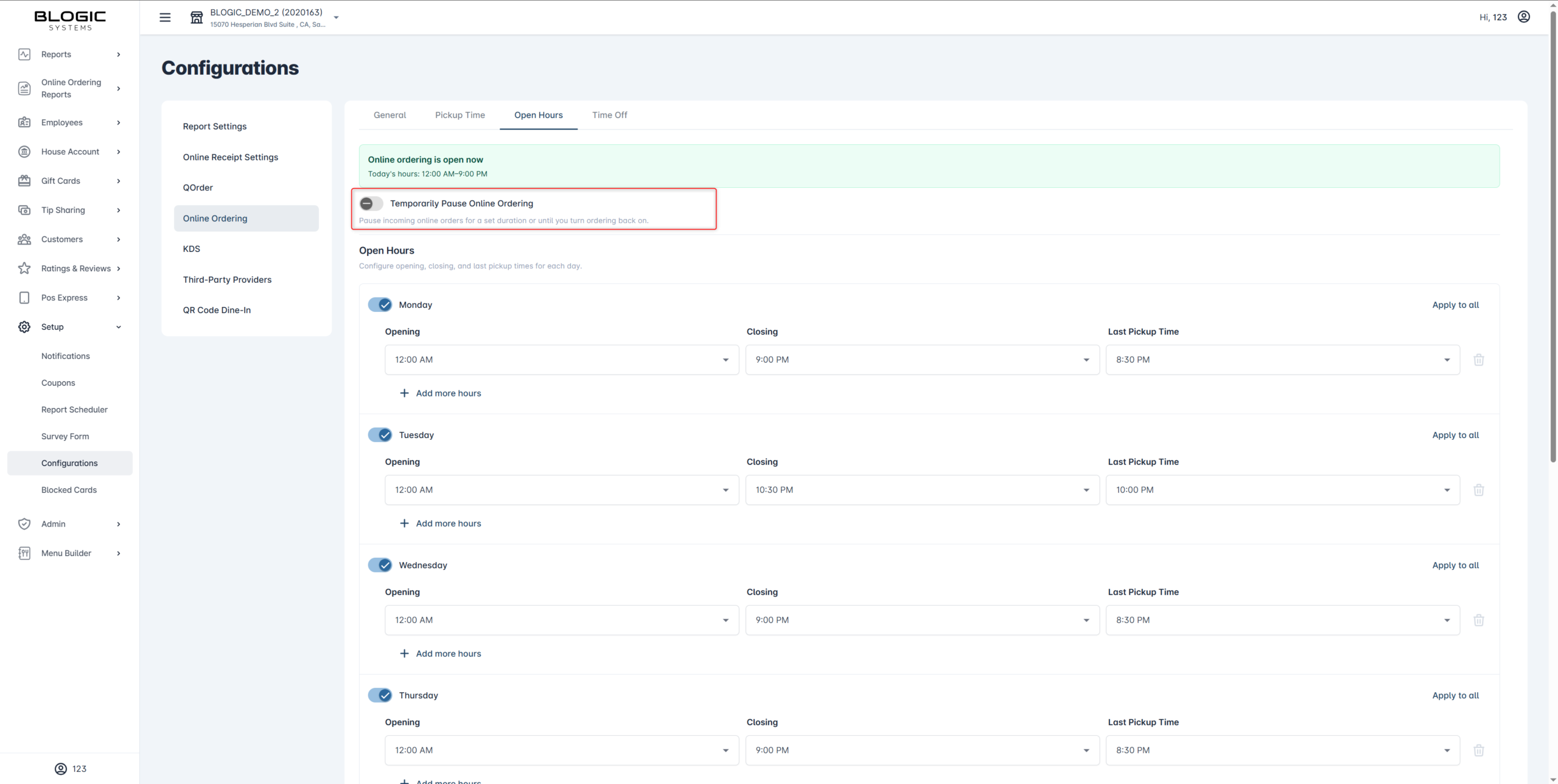
Step 1: Open the Open Hours tab
- Click the Open Hours tab.
- Find the Temporary Pause section at the top of the tab.
Step 2: Choose a pause mode
You have two options:
- Pause until I turn it back on — Stops orders indefinitely. You must manually turn it off later. Use this when you do not know when you will be ready again.
- Pause for [duration] — Stops orders for a set duration (e.g., 30 minutes, 1 hour, 2 hours). The pause ends automatically.
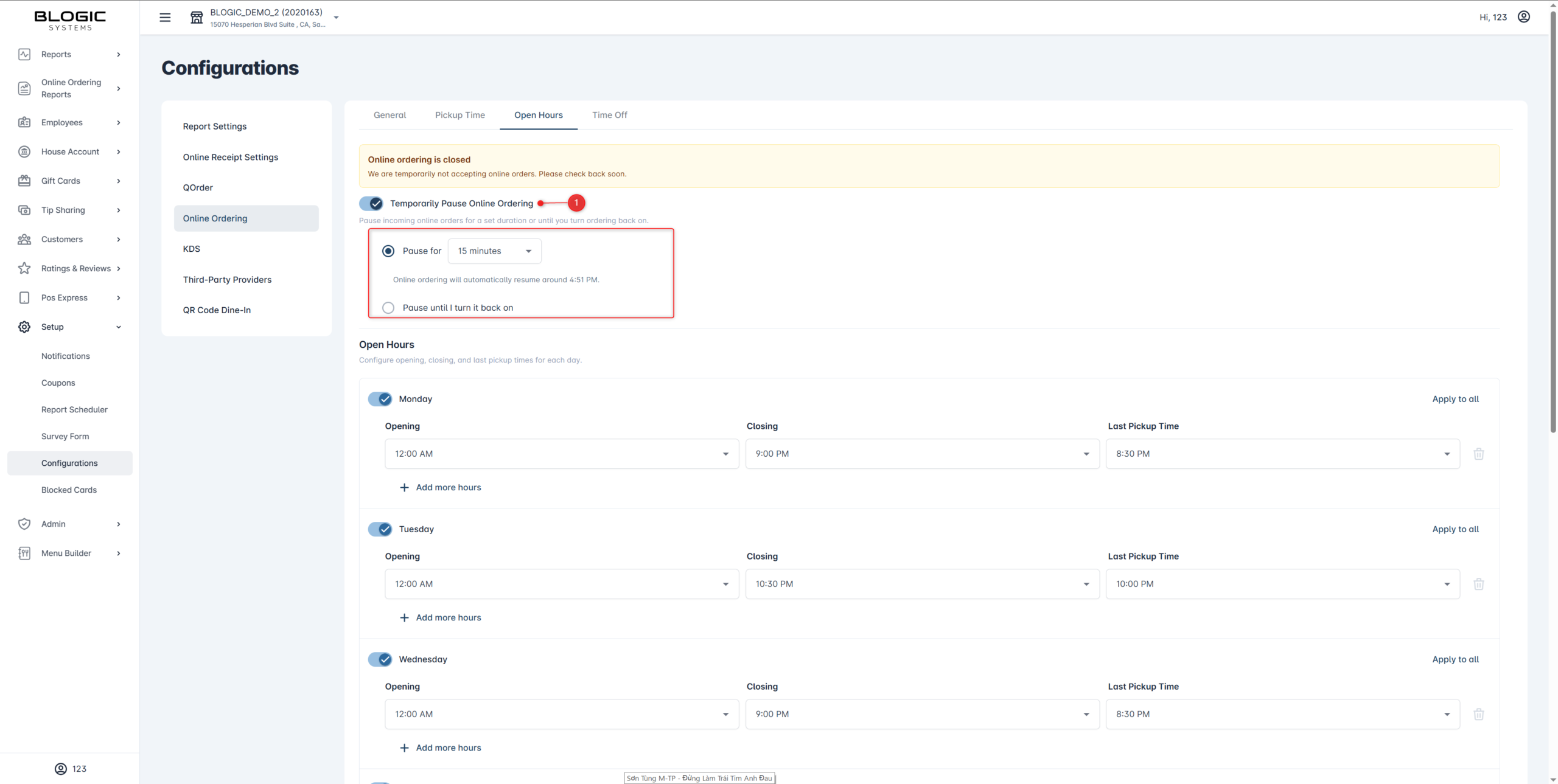
Step 3: Confirm the pause
- Select your mode.
- Click Save.
- The store will immediately stop accepting new Online Orders.
Step 4: Resume orders
- To end a pause early, go back to the Open Hours tab.
- Disable Temporarily Pause Online Ordering Toggle.
- Yes
ℹ️ Note: When a timed pause ends, if you are still outside your weekly Open Hours, ordering will resume at the next scheduled open time — not immediately.
How the Closed Message Appears to Customers
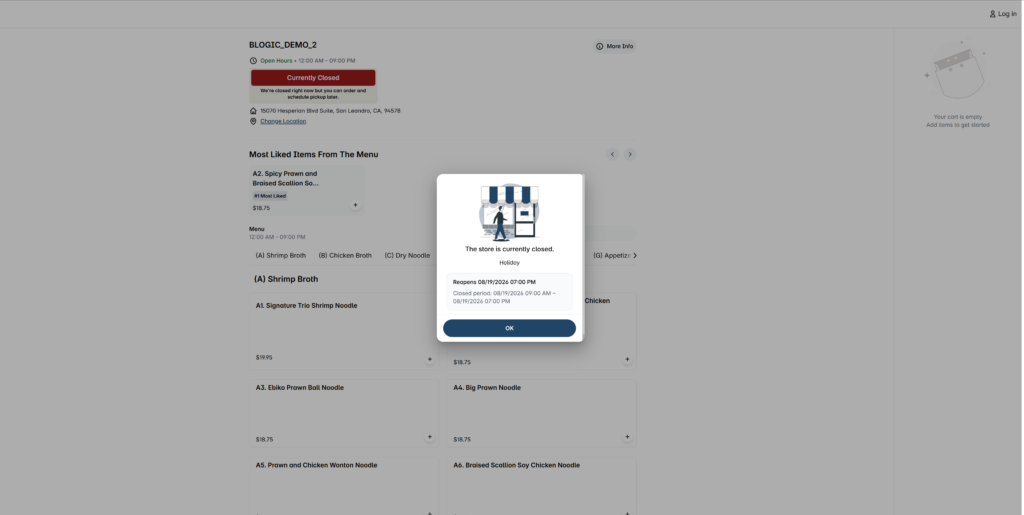
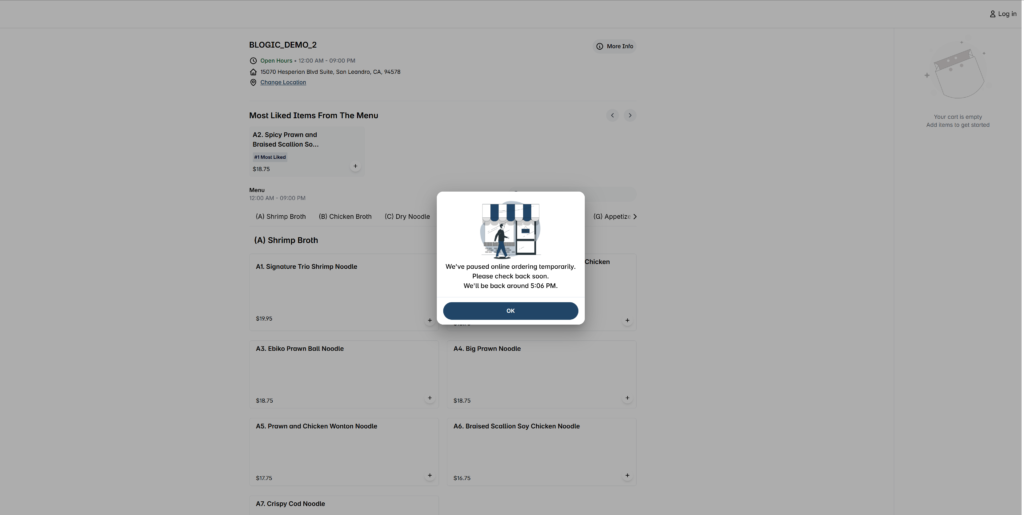
When a customer opens your Online Ordering page while the store is closed, they will see a message explaining why the store is closed and when it will reopen. The message changes automatically depending on which setting is active.
| Situation | What the customer sees |
|---|---|
| Store is paused (manual) | “We’ve paused online ordering temporarily. Please check back soon.” |
| Store is paused (timed) | “We’ve paused online ordering temporarily. We’ll be back around [time].” |
| Store is on Time Off | “The store is currently closed. Reopens 2026. Closed period: [start] – [end].” + your custom message |
| Store is outside weekly Open Hours | “The store is currently closed. We reopen at [time].” |
ℹ️ Note: The customer message is available in English, Spanish, and Chinese, based on their browser language.
Priority Order When Multiple Settings Are Active
If more than one setting is active at the same time, the system decides which message to show based on this priority:
- Temporary Pause (highest priority)
- Time Off
- Allow ordering when store is closed (from the Pickup Time tab)
- Weekly Open Hours (default)
What this means in practice:
- If Temporary Pause is ON, customers always see the pause message — even if a Time Off is scheduled for the same day, or if “Allow ordering when store is closed” is enabled.
- If Time Off is active, customers see the holiday message — even if “Allow ordering when store is closed” is enabled.
- If neither Pause nor Time Off is active, customers can place future orders if “Allow ordering when store is closed” is ON, or see the “closed” message if it is OFF.
✅ Tip: If you want the store to keep accepting future orders during normal closed hours, turn ON “Allow ordering when store is closed” in the Pickup Time tab. Remember: Pause and Time Off will still block orders when they are active.
Where to View or Confirm the Result
- BLogic View Dashboard banner — Shows the current store status (Open, Paused, Time Off, or Closed) in real time.
- Online Ordering page (customer view) — Open your store’s Online Ordering link in a browser to see exactly what customers see.
- Order history — Confirm that no new Online Orders arrived during a Pause or Time Off period.
FAQ
1. Why can’t I see the new tabs (General, Pickup Time, Open Hours, Time Off)? Your store may not be on a supported version yet. Please contact Support to confirm your build number.
2. What happens to orders that were already placed before I turn on Pause or Time Off? Orders that were accepted before the pause or holiday remain valid. Pause and Time Off only prevent new orders from being placed. Existing orders are not cancelled.
3. Can a Manager change these settings, or only the Owner? This depends on your permission setup. By default, Owners have full access. Manager access to Online Ordering settings may vary — please contact Support to confirm your store’s role configuration.
4. If I set overlapping Time Off entries, which one is shown to customers? The system will show the entry that ends the latest, so customers always see the longest closure period.
5. What happens if a timed pause ends outside my weekly Open Hours? The store will not resume ordering immediately. Instead, it will wait until the next scheduled Open Hours slot to accept new orders again.
6. Does turning off “Allow ordering when store is closed” also affect Pause or Time Off? No. Pause and Time Off always take priority and are not affected by that setting.
Closing
If you still need help, please contact Support for further assistance.