Introduction
This article explains how to view Live Staffing directly on your POS, without opening a browser or logging in to Blogic View. You will learn how to turn on the permission that controls access, how to open the feature from the POS main screen, and what to do if you see a permission warning. This lets your team check who is currently on duty quickly, right from the register.
Version Support
| Product / Module | Supported Version |
|---|---|
| POS | 09.09.2026 or later |
Note: If you do not see this option, please contact Support to confirm your store is on a supported version.
Table of Contents
- Enable the “Allow to view Live Staffing” Permission
- Open Live Staffing from the POS Main Screen
- Handle the Permission Warning
- Where to View or Confirm the Result
- FAQ
Enable the “Allow to view Live Staffing” Permission
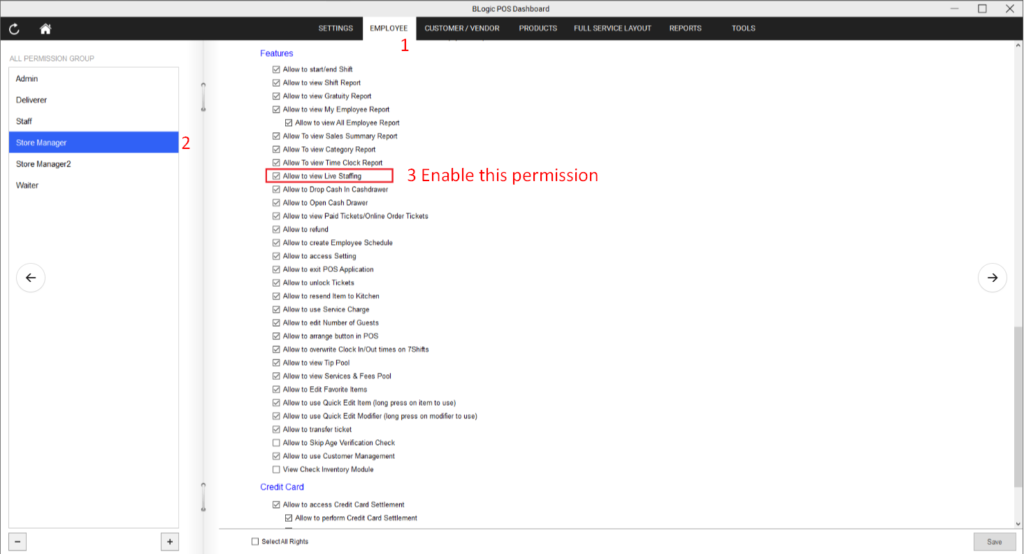
This permission controls which staff roles are allowed to view Live Staffing on the POS. By default it is ON for the Admin role and OFF for all other roles, so you may need to turn it on for the roles that should have access.
Step 1: Open the Permission settings
- Log in to Back Office (BO).
- Go to Permission Group > Point Of Sale > Features.
- Find the permission named Allow to view Live Staffing.
Step 2: Turn on the permission for a role
- Select the role (permission group) you want to update.
- Switch Allow to view Live Staffing to ON.
- Save your changes.
✅ Tip: Only turn this on for roles that should be allowed to view staffing information, such as Managers and Admins.
Open Live Staffing from the POS Main Screen
Once the permission is set, staff can open Live Staffing directly on the POS.
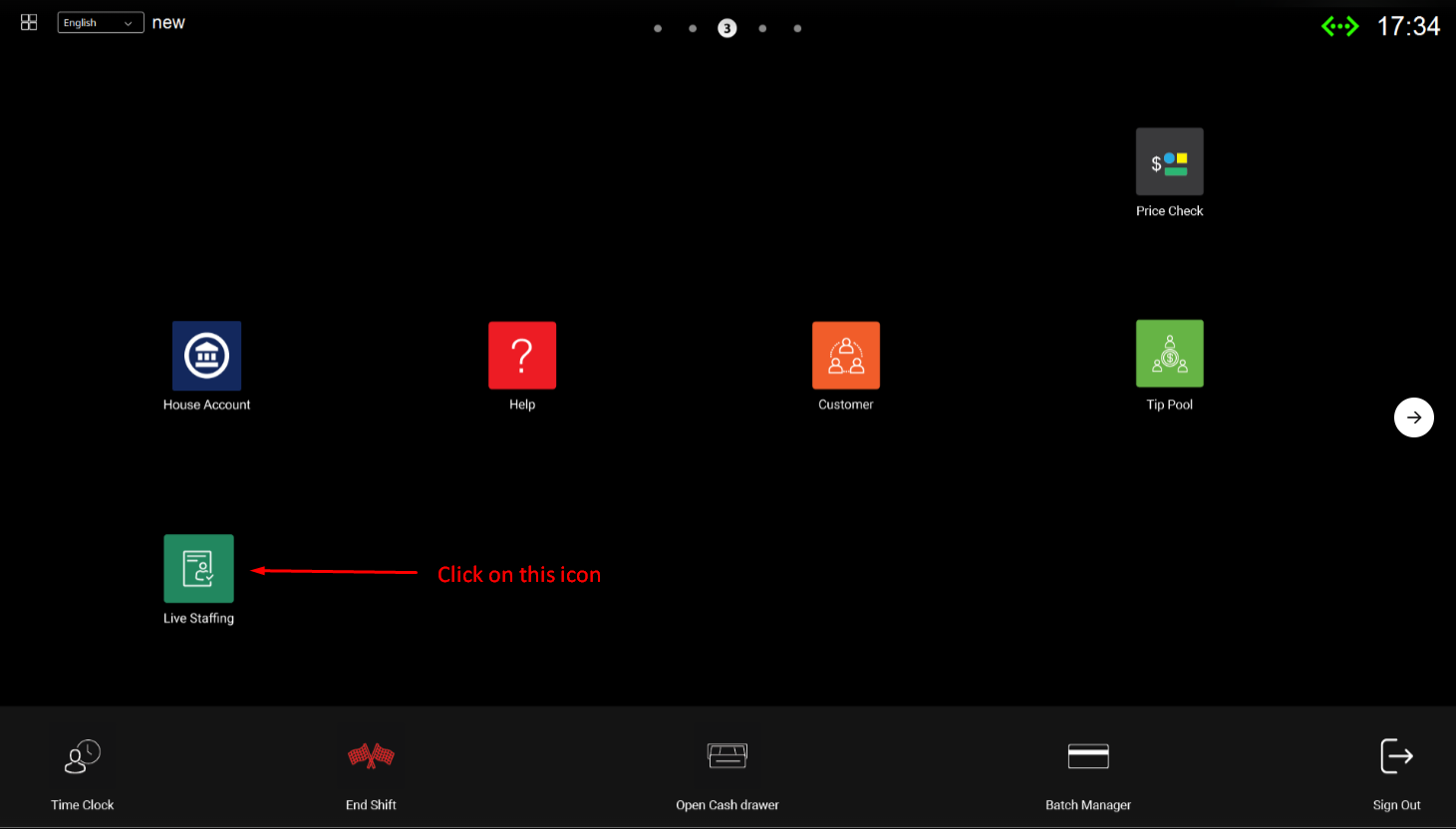
Step 1: Find the Live Staffing icon
- On the POS, go to the third main screen.
- Locate the Live Staffing icon (it appears there by default).
ℹ️ Note: The Live Staffing icon is shown on the third main screen automatically — no setup is needed to place it.
Step 2: Open Live Staffing
- Tap the Live Staffing icon.
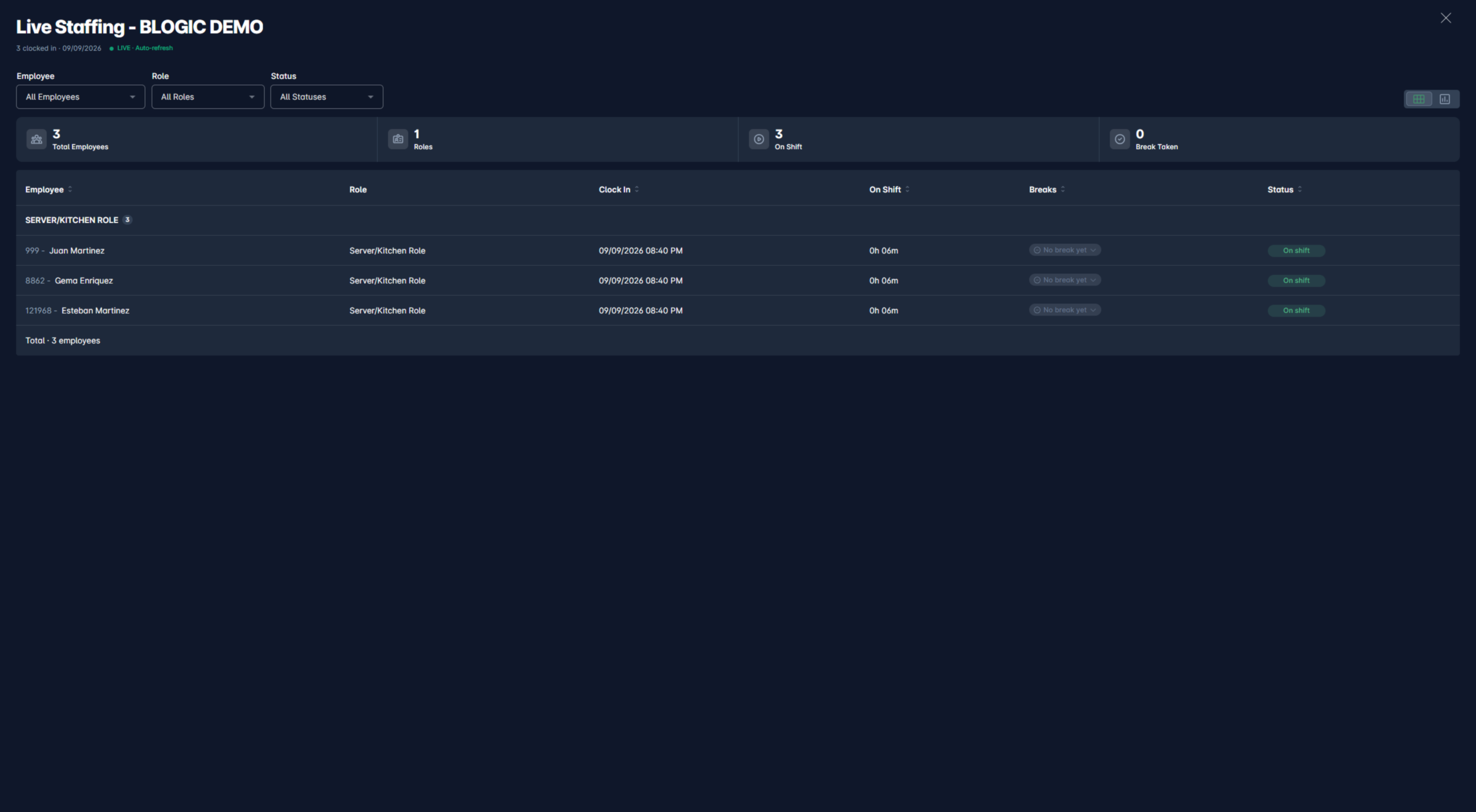
- If you have permission, the POS opens the Live Staffing view showing the staff currently on duty.
Handle the Permission Warning
If a staff member taps the Live Staffing icon but does not have permission, POS shows a warning message and offers an option to continue (override).
What you will see:
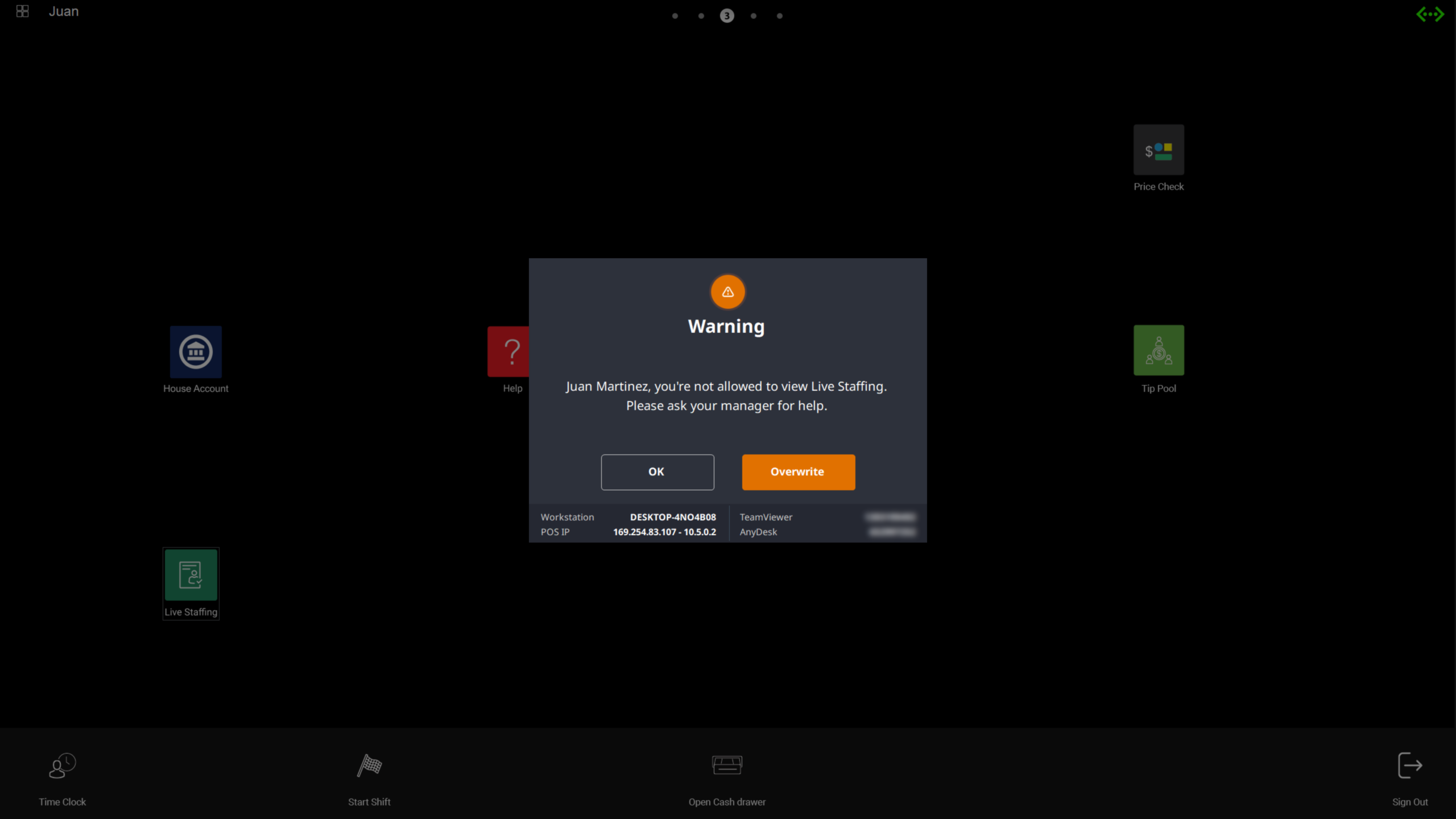
What to do:
- Ask a manager or an authorized user for help.
- If your store allows it, an authorized user can override the warning to continue and open the view.
⚠️ Warning: The override is meant for authorized staff only. If you keep seeing this warning, ask your manager to enable the Allow to view Live Staffing permission for your role in Back Office.
Where to View or Confirm the Result
After tapping the Live Staffing icon (and passing the permission check), you can confirm it is working here:
- POS third main screen — the Live Staffing icon is visible.
- Live Staffing view on POS — opens and lists the staff currently on duty.
FAQ
1. Why can’t I see the Live Staffing icon or open the feature? You may not be on a supported version, or your role may not have the Allow to view Live Staffing permission. Please contact Support or ask your manager if the option is not available.
2. Where does the Live Staffing information come from? Live Staffing is the same feature available in Blogic View. The POS opens it in a built-in view so you don’t have to open a browser or log in to Blogic View separately.
3. Can staff use this feature without manager permission? By default, only the Admin role can view Live Staffing. Other roles are OFF until a manager or admin turns on the permission in Back Office. Staff without permission will see a warning and can only continue if an authorized user overrides it.
4. Why does the Live Staffing view look dark or light? The view automatically matches your POS theme. If your POS is in Dark mode, Live Staffing opens in Dark mode; if it is in Light mode, it opens in Light mode.
5. What should I do if the feature does not work as expected? Confirm the Allow to view Live Staffing permission is enabled for your role, check that your store is on a supported version, and try closing and reopening the view. If the problem continues, contact Support for further assistance.
Closing
If you still need help, please contact Support for further assistance.