Introduction
This article shows you how to use the new Removed Before Submit tab in the Cancelled & Removed Items report. You will learn how to read items and modifiers that were added to an order and then removed before the order was submitted, and how to review the details by server. This helps you monitor activity and spot unusual removal patterns for auditing.
Version Support
| Product / Module | Supported Version |
|---|---|
| POS | 2026.09.17 |
Note: If you do not see this tab, please contact Support to confirm your store is on a supported version. The tab relies on POS 2026.09.17 to record removed-before-submit activity.
Table of Contents
- Open the Cancelled & Removed Items Report
- Read the Removed Before Submit Tab
- View Removed Item Details
- FAQ
Open the Cancelled & Removed Items Report
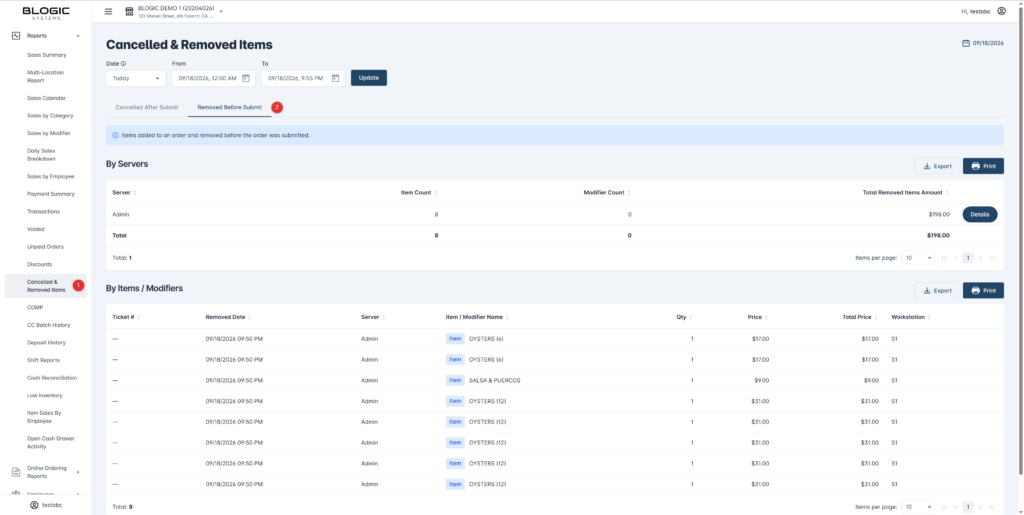
Step 1: Go to the report
- Log in to BLogic View.
- In the left menu, go to Reports > Cancelled & Removed Items.
- At the top of the page, select the Removed Before Submit tab (next to Cancelled After Submit).
Step 2: Set the date range
- Choose a preset in the Date field (for example, Today), or set the From and To date and time.
- Select Update to load the results.
ℹ️ Note: This tab only shows items and modifiers that were added to an order and then removed before the order was submitted. Items cancelled after an order was submitted appear on the Cancelled After Submit tab instead.
Read the Removed Before Submit Tab
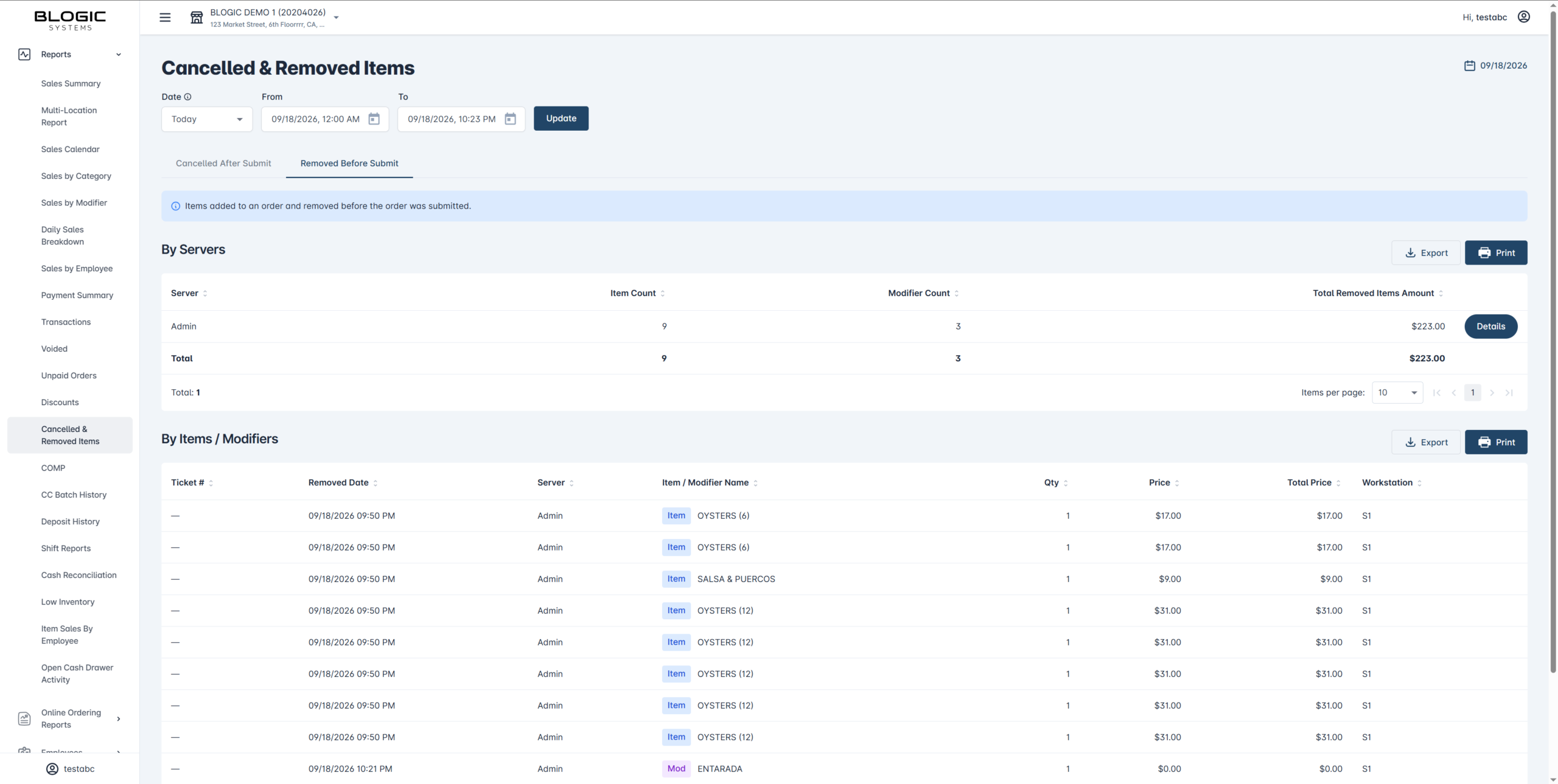
The tab is divided into two sections: By Servers and By Items / Modifiers.
Step 1: Review the By Servers summary
- Look at the By Servers section for a per-server summary.
- For each server you can see Item Count, Modifier Count, and Total Removed Items Amount.
- Use the Total row to see the combined amount for the selected date range.

Step 2: Review the By Items / Modifiers list
- Scroll to the By Items / Modifiers section to see each removed line.
- Each row shows a badge to tell you what was removed:
- Item badge = a menu item was removed.
- Mod badge = a modifier was removed.
- Each row also shows Ticket #, Removed Date, Server, Item / Modifier Name, Qty, Price, Total Price, and Workstation.
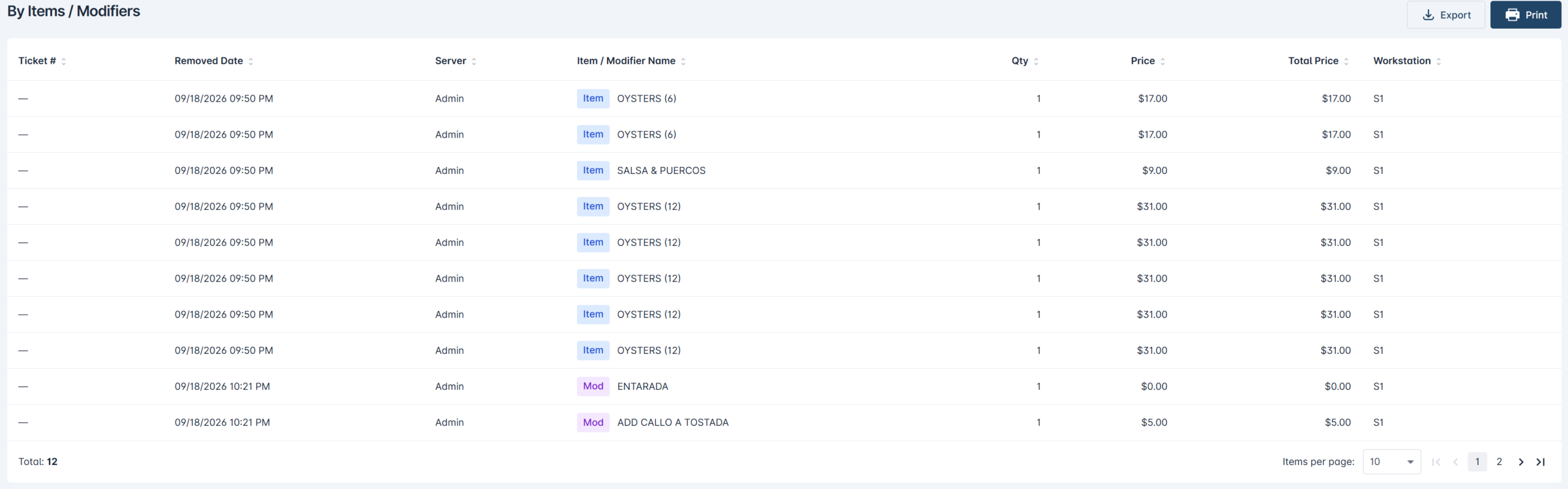
✅ Tip: The Item / Mod badge lets you quickly tell items and modifiers apart at a glance, which is useful when reviewing a server’s activity for auditing.
ℹ️ Note: The Price column shows the item’s base price and does not include modifier prices.
View Removed Item Details
Step 1: Open the details
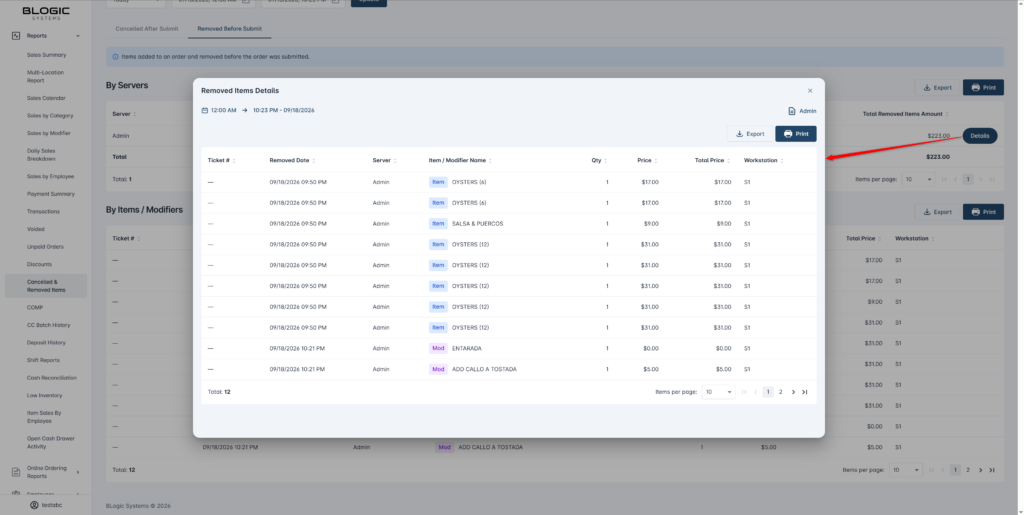
- In the By Servers section, select Details on a server’s row.
- The Removed Items Details window opens, showing every removed line for that server within the selected date range.
Step 2: Read and export the details
- Review each line: Ticket #, Removed Date, Server, Item / Modifier Name (with the Item / Mod badge), Qty, Price, Total Price, and Workstation.
- The Workstation column shows the workstation name so you can see which terminal the removal happened on.
- Select Export to download the list, or Print to print it.
Where to View or Confirm the Result
You can view and confirm this information in:
- BLogic View > Reports > Cancelled & Removed Items > Removed Before Submit tab — the By Servers summary and the By Items / Modifiers list.
- The Removed Items Details window — line-by-line detail per server.
- An exported or printed copy from either section, using the Export or Print buttons.
FAQ
1. Why can’t I see the Removed Before Submit tab? You may not be on a supported version, or your user role may not have permission to access this report. The tab also needs POS 2026.09.17 to record the data. Please contact Support if the tab is not visible.
2. What is the difference between “Removed Before Submit” and “Cancelled After Submit”? Removed Before Submit shows items and modifiers taken off an order before it was submitted. Cancelled After Submit shows items cancelled after the order was already submitted. They are separate tabs so the two situations do not mix.
3. Does the Price column include modifier prices? No. The Price column shows the item’s base price only. Modifier prices are not included in that column.
4. Why does a removed line show no ticket number? Some items are removed before they are tied to a ticket, so the Ticket # may be blank. This is expected for items removed early in the ordering process.
5. What should I do if the report does not show data I expect? Confirm your store is on a supported version, check that the date range is correct, and select Update to reload. If data is still missing, contact Support for further assistance.
Closing
If you still need help, please contact Support for further assistance.