Introduction
This article shows you how to set up Spanish for your POS. You will learn how to assign a default language to each employee and how staff can switch the POS display language while working. This is useful for stores with Spanish-speaking staff, because each employee sees the POS in their own language as soon as they sign in.
Version Support
| Product / Module | Supported Version |
|---|---|
| POS | 2026.09.21 |
Note: If you do not see this option, please contact Support to confirm your store is on a supported version.
Table of Contents
- Enable Multiple Languages for Your Store
- Set a Default Language for an Employee
- Switch the Language on the POS
- Where to View or Confirm the Result
- FAQ
Enable Multiple Languages for Your Store
Step 1: Open the Configurations settings
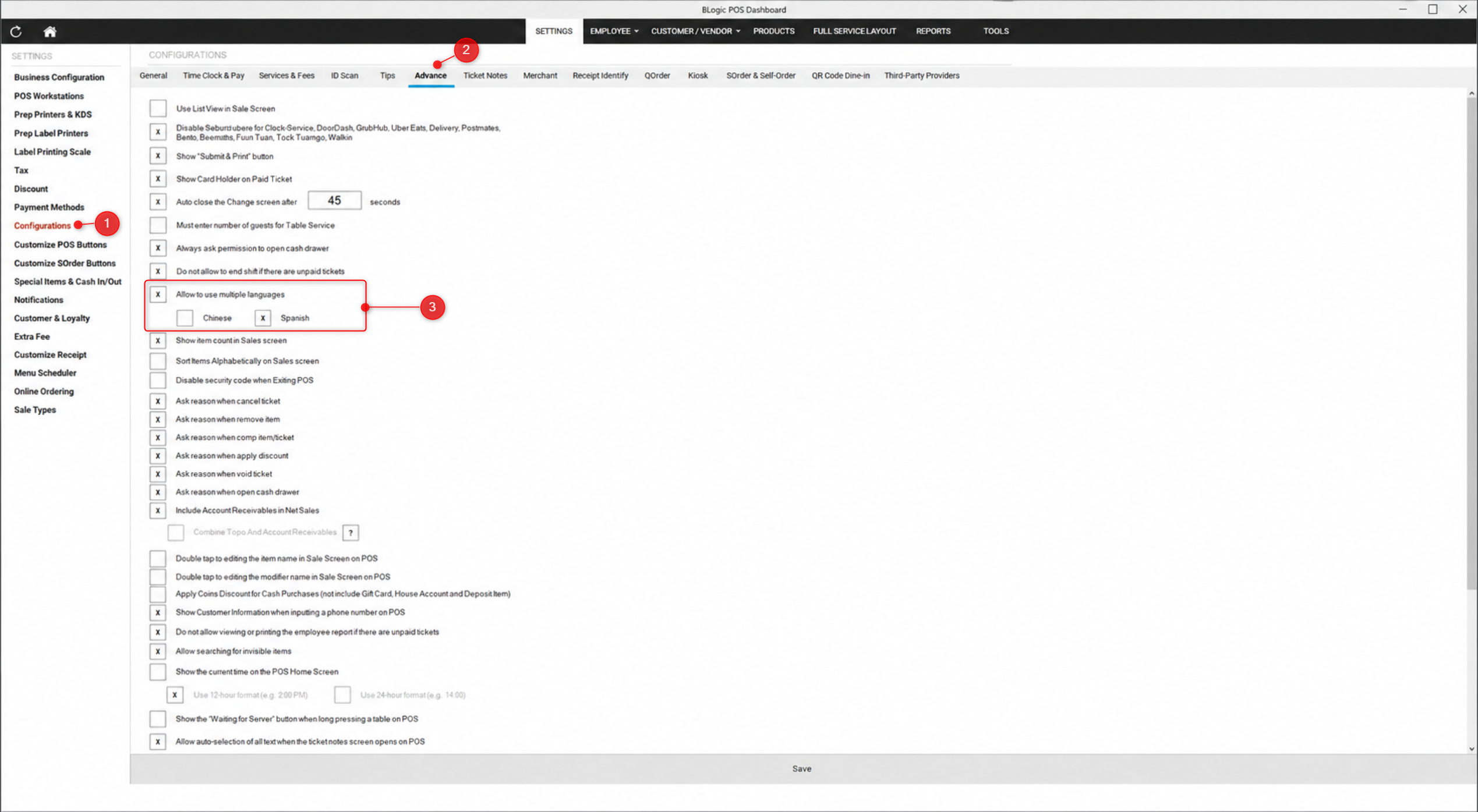
- Log in to your BLogic POS Dashboard.
- Go to SETTINGS > Configurations.
- Open the Advance tab.
Step 2: Turn on the language option
- Find Allow to use multiple languages.
- Tick the checkbox.
- Click Save.
⚠️ Warning: If this option is turned off, the POS runs in English only and the language dropdown does not appear.
Set a Default Language for an Employee
Each employee has their own default language. When that employee signs in, the POS automatically opens in the language you assigned to them.
Step 1: Open the employee profile
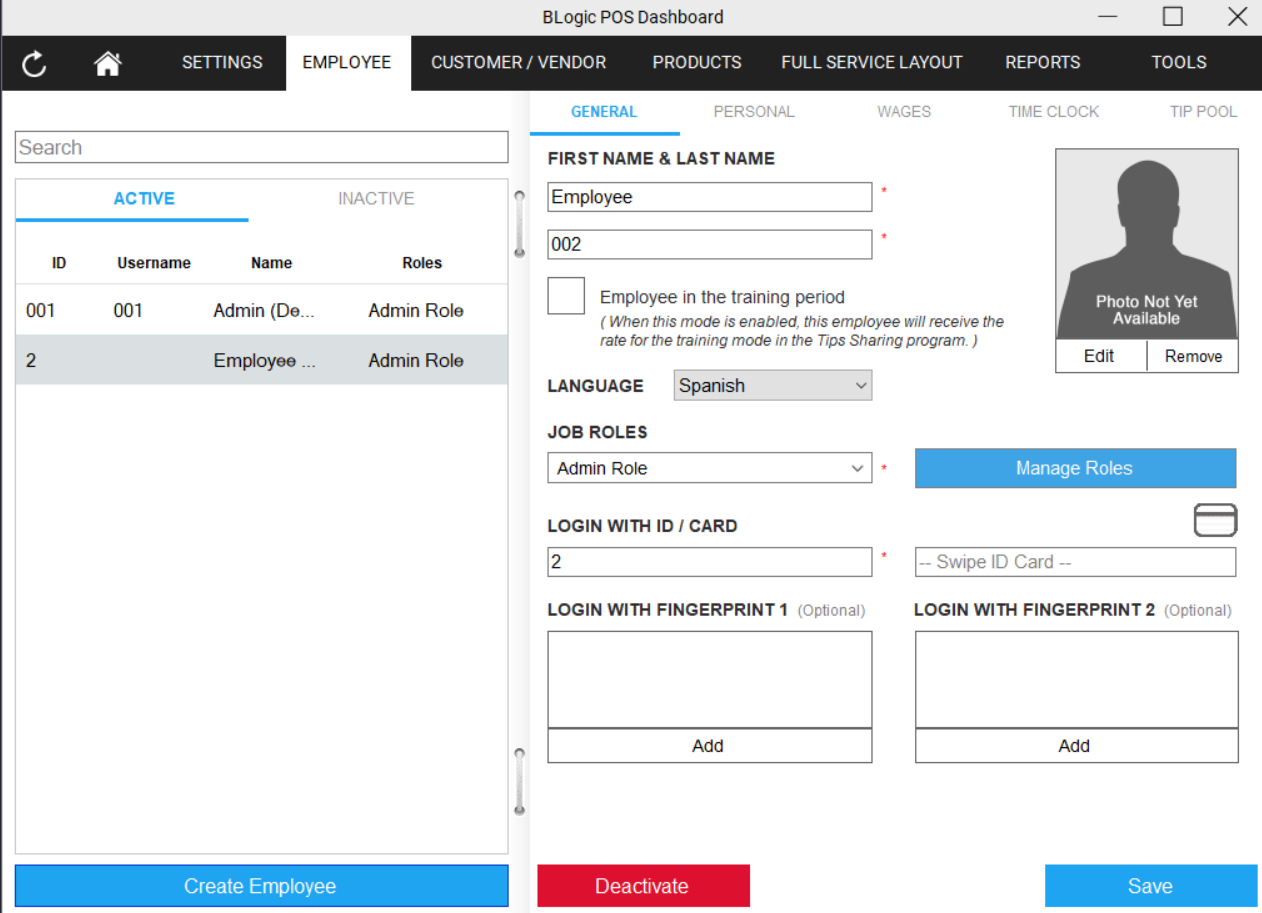
- In the POS Dashboard, go to the EMPLOYEE tab.
- Select the employee from the ACTIVE list on the left.
- Stay on the GENERAL tab.
Step 2: Select the language
- Find the LANGUAGE field.
- Open the dropdown and select Spanish.
- Click Save.
Step 3: Sign in to apply the language
- Ask the employee to sign in to the POS.
- The POS opens in the language assigned to that employee.
✅ Tip: Set the language for each employee individually. A Spanish-speaking cashier and an English-speaking manager can share the same workstation, and each one sees their own language when they sign in.
ℹ️ Note: Employees you do not change keep their current language. There is no need to change any workstation setting.
Switch the Language on the POS
Staff can also change the language directly on the POS while working, without going back to the Dashboard.
Step 1: Open the language dropdown
- On the POS home screen, look at the top left corner.
- Tap the language dropdown.
Step 2: Select Spanish
- Select Spanish from the list.
- The screen updates immediately.
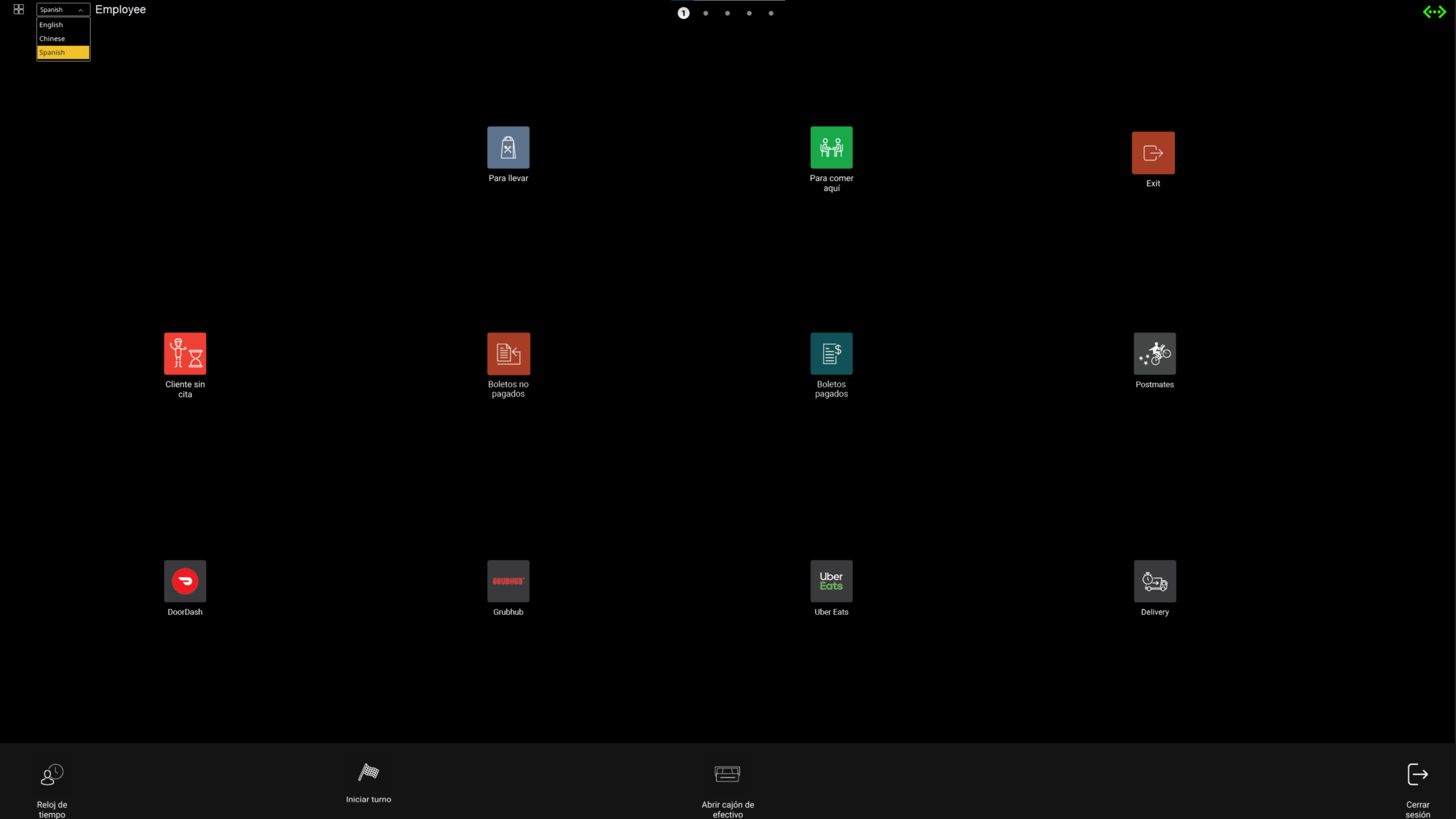
ℹ️ Note: The dropdown also lets staff switch to English or Chinese at any time. The next time the employee signs in, the POS returns to the language set in their employee profile.
Where to View or Confirm the Result
After selecting Spanish, check these screens to confirm the change:
Home screen
Buttons such as Para llevar, Para comer aquí, Cliente sin cita, Boletos no pagados and Boletos pagados now display in Spanish. The bottom bar shows Reloj de tiempo, Iniciar turno, Abrir cajón de efectivo and Cerrar sesión.
Sale screen
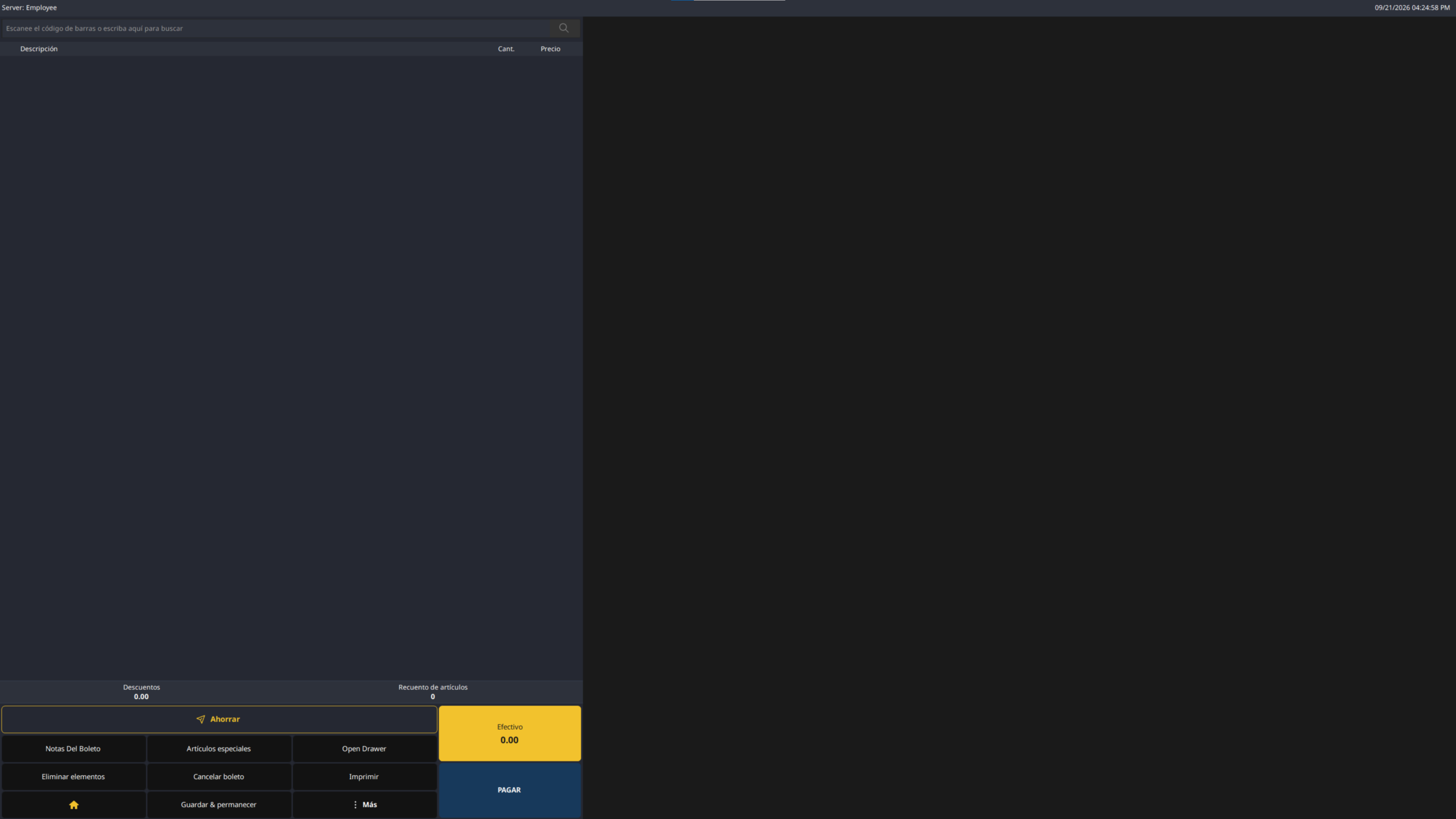
The item list header shows Descripción, Cant. and Precio. The action buttons show Notas Del Boleto, Artículos especiales, Eliminar elementos, Cancelar boleto, Imprimir, Guardar & permanecer and Más. The payment area shows Efectivo and PAGAR.
More menu on the sale screen
Tap Más to see Cargos por servicio, Cambiar ubicación, Combinar, Mantener, Dividir, Numero de invitados, Verificar edad, Transferir boleto, Descuento, Reenviar artículos, Cliente and Artículos de pago.
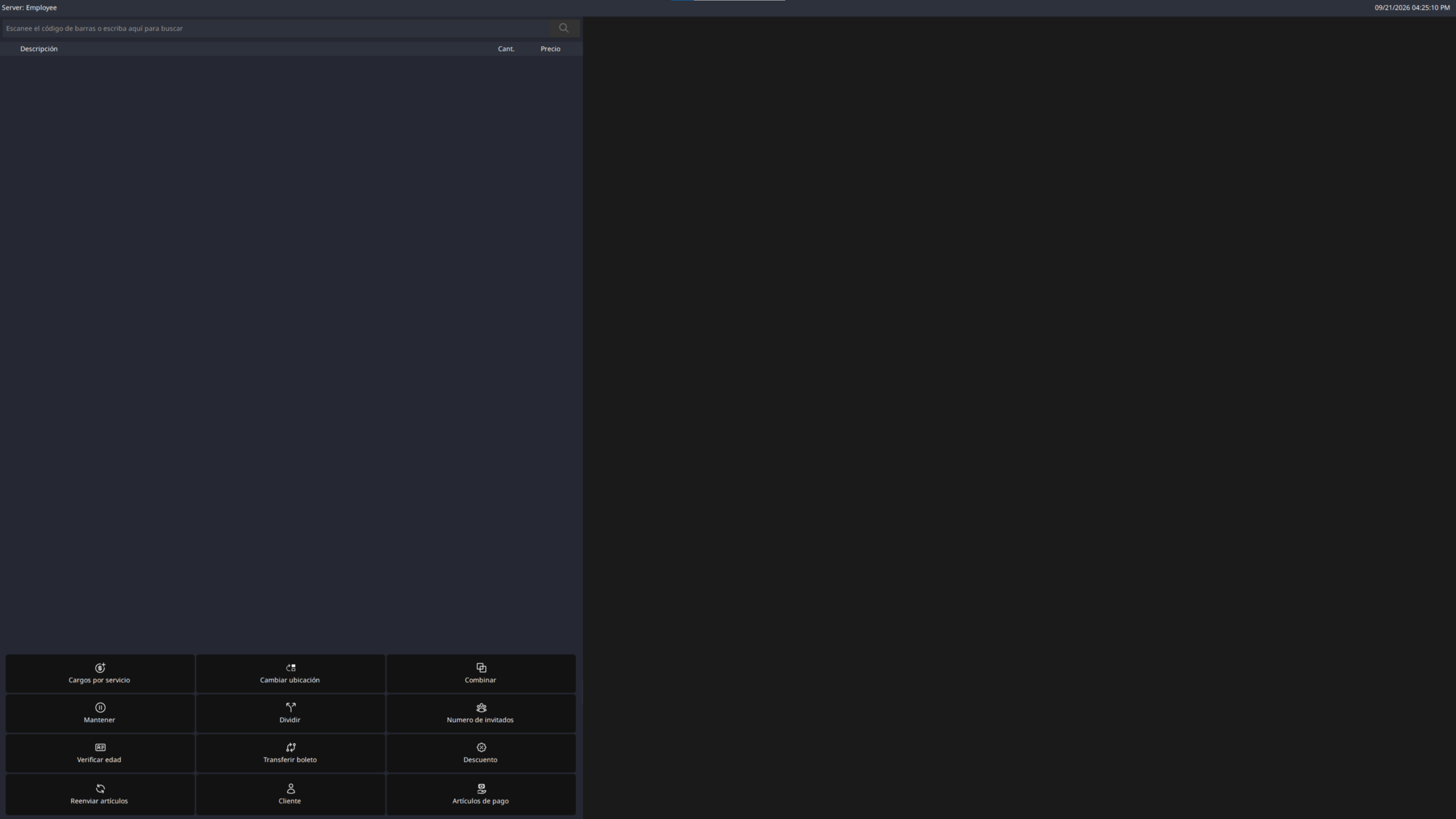
ℹ️ Note: A few labels stay in English by design, including Exit, Open Drawer, and delivery provider names such as DoorDash, Grubhub, Uber Eats, Postmates and Delivery.
FAQ
1. Why can’t I see the language dropdown on the POS?
The Allow to use multiple languages option may be turned off in SETTINGS > Configurations > Advance. Turn it on and save, then sign in to the POS again.
2. I set Spanish for an employee but the POS still shows English. What happened?
The language is applied when the employee signs in. Sign out and sign in again with that employee account.
3. Does one employee’s language affect the other staff?
No. The language belongs to each employee account. When a different employee signs in, the POS switches to that person’s own language.
4. Are my custom button names translated too?
No. Button names you created yourself stay exactly as you typed them. If you want them in Spanish, edit them in SETTINGS > Customize POS Buttons.
5. Does this change my receipts or reports?
No. This setting changes the POS screen only. Receipts and reports are not affected.
Closing
If you still need help, please contact Support for further assistance.