Introduction
This article explains how to turn on the Combine same items setting for your Kitchen Display System (KDS). When enabled, identical items on a ticket are shown as a single line with a total quantity, so your kitchen staff can read orders faster during busy service. You will learn how to enable the setting and how combined items behave on the KDS screen.
Version Support
| Product / Module | Supported Version |
|---|---|
| KDS | v2.1.2 |
| POS Server | Release 2026.09.29 |
Note: If you do not see this option, please contact Support to confirm your store is on a supported version.
Table of Contents
- Turn on Combine same items
- How combined items appear on KDS
- Fulfilling a combined item
- Where to view or confirm the result
- FAQ
Turn on Combine same items
You can enable this setting per KDS device — either from the POS Dashboard or on the KDS device itself. The two stay in sync.
Step 1: Enable it from the POS Dashboard
- Log in to your POS Dashboard.
- Go to Settings > Prep Printers & KDS > KDS.
- Find the KDS device in the table.
- Tick the Combine same items checkbox for that device.
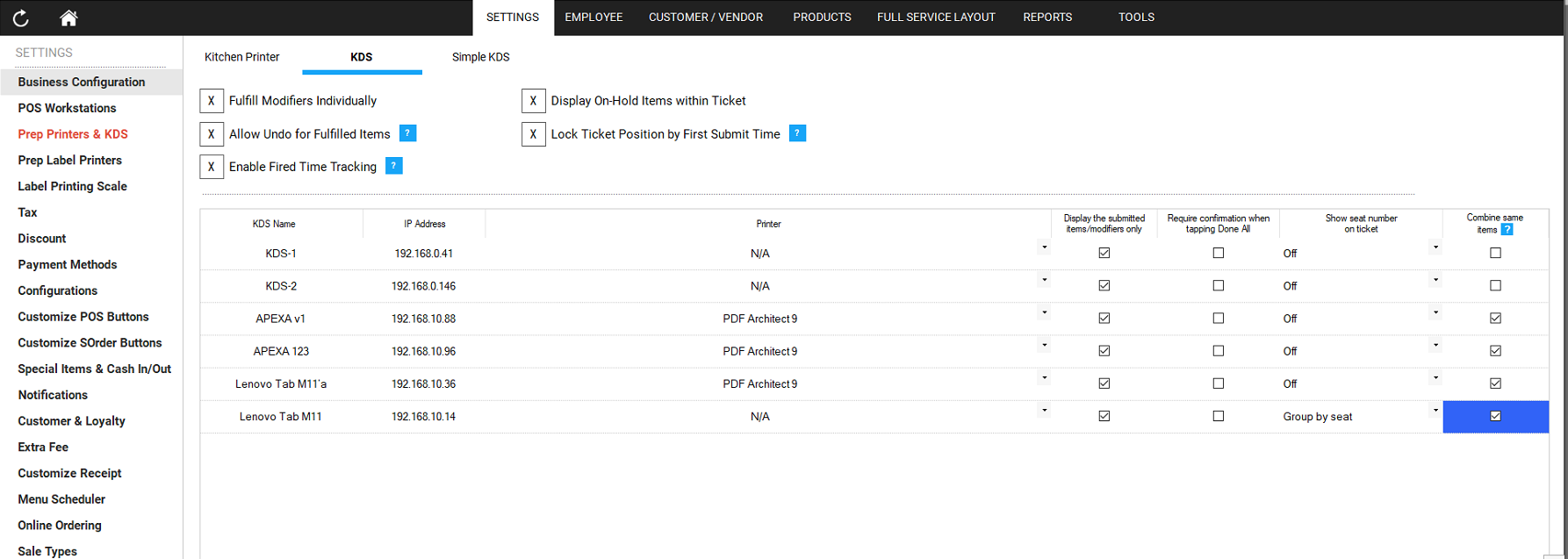
Step 2: Or enable it on the KDS device
- On the KDS device, open Settings.
- Go to Layout & Display.
- Turn on Combine same items into one line.
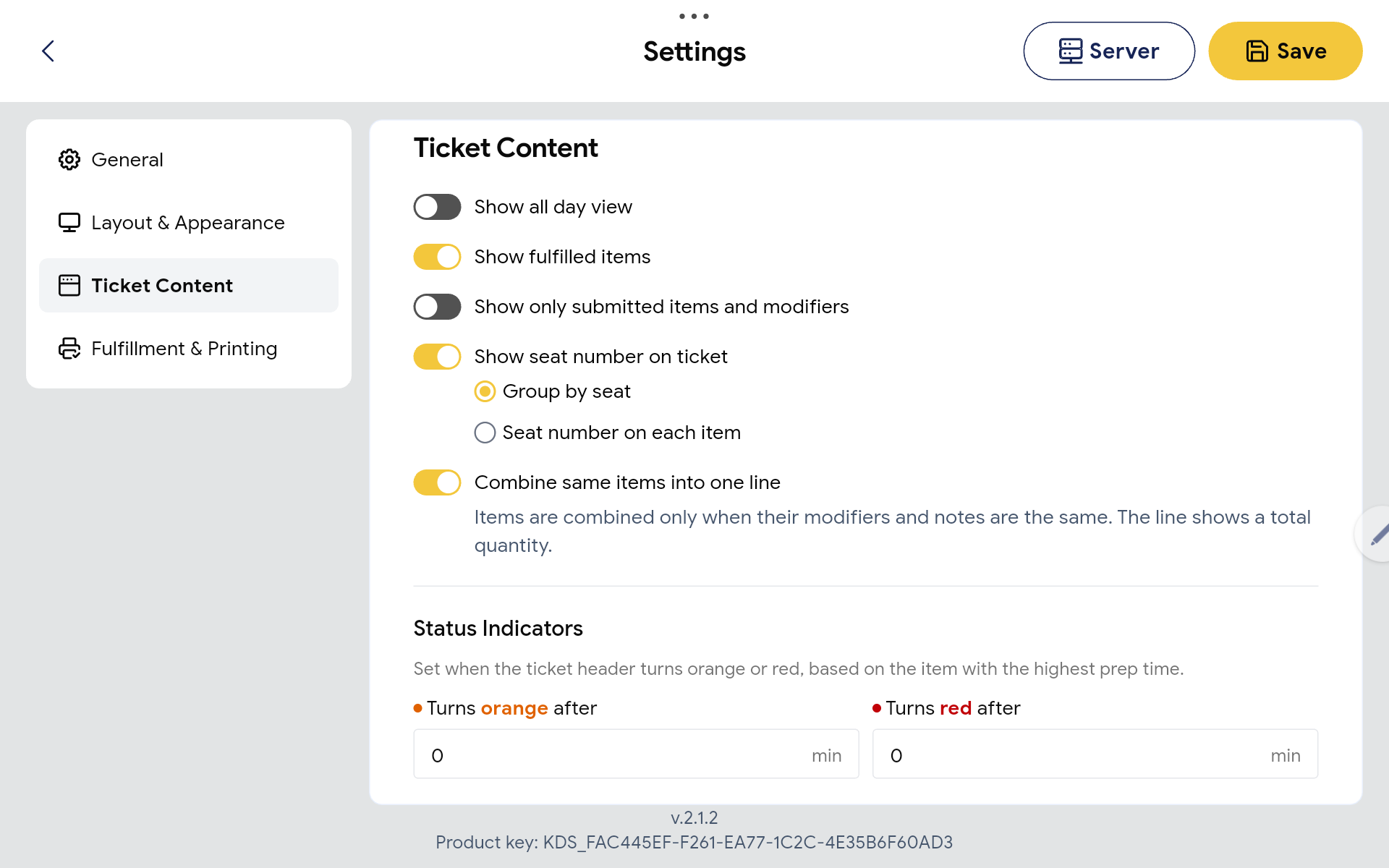
ℹ️ Note: This setting is off by default and is set per KDS device, so you can turn it on for one screen (for example a sushi station) while leaving others unchanged.
How combined items appear on KDS
Once enabled, items on a ticket are combined into one line only when they are exactly the same — same item, same modifiers, and same note. The line shows the total quantity.
For example, four orders of the same nigiri with the same modifiers appear as one line, 4 Salmon Nigiri, instead of four separate lines.
A combined line is marked with a combine icon on its quantity badge, so staff can tell it apart from an item a guest simply ordered in quantity.
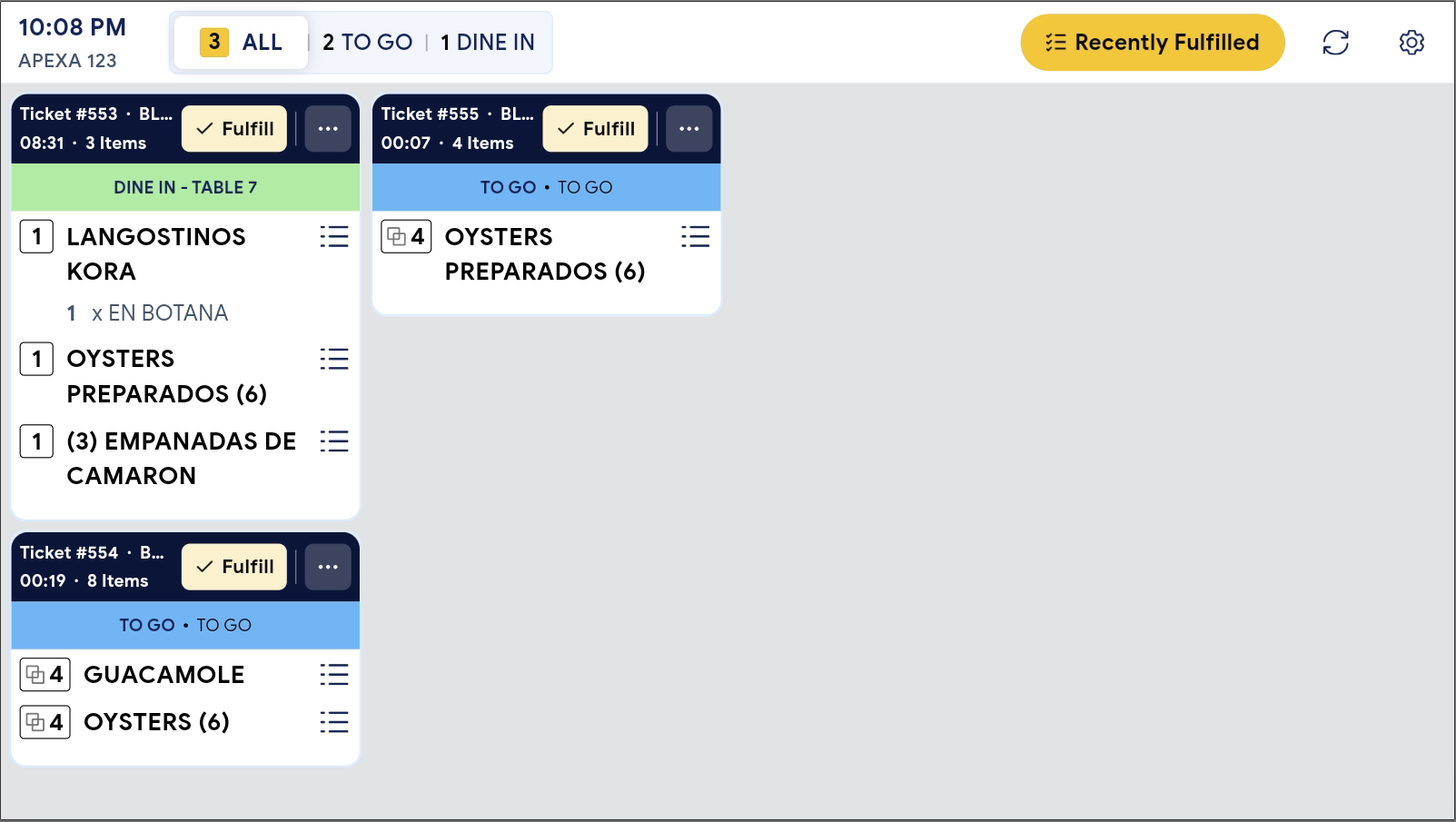
Items are not combined when any of the following differ: the modifiers, the note, the seat, or whether the item has already been fulfilled.
- ✅ Tip: If a line does not combine when you expect it to, check whether the items have different modifiers or notes — even a small difference keeps them on separate lines.
Fulfilling a combined item
When you tap Fulfill on a combined line, the whole group is fulfilled at once. A combined item cannot be fulfilled one part at a time.
The confirm dialog shows a short helper line — “Combined items are fulfilled all at once.” — so you know the full quantity will be marked done.
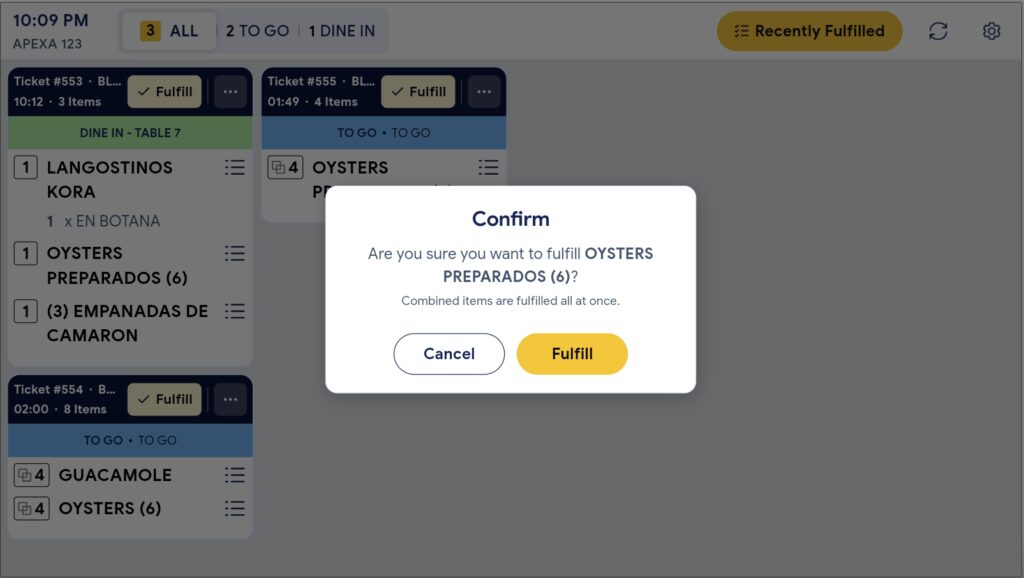
ℹ️ Note: An item that a guest ordered directly in quantity (not combined) still supports partial fulfill as before. The combine icon is how you tell the two apart.
Where to view or confirm the result
You can confirm the setting is working on the KDS Ticket View: identical items appear as one line with a total quantity and a combine icon. The ticket header still shows the true number of items, counted by physical units — not by the number of lines after combining.
FAQ
1. Why can’t I see this option?
You may not be on a supported version, or your user role may not have permission to access KDS settings. Please contact Support if the option is not visible.
2. Does turning this on change how existing orders work?
No. This setting only changes how items are displayed on the KDS screen. It does not change your order data or how items are sent to the kitchen.
3. Why are two identical items still showing on separate lines?
Items combine only when their item, modifiers, and note all match, and when they are in the same seat and the same fulfill state. If any of these differ, they stay on separate lines.
4. Does this affect the All Day View or printed kitchen tickets?
No. This setting applies to the KDS Ticket View only. All Day View and kitchen printing are not changed.
5. What should I do if the feature does not work as expected?
Check that the setting is enabled for the correct KDS device, confirm your store is on a supported version, and contact Support for further assistance.
Closing
If you still need help, please contact Support for further assistance.