Introduction
This article explains how to turn on Split long tickets across columns on your KDS and how to read a ticket after it has been split. When this option is on, a long ticket continues in the next column, so kitchen staff can see every item without scrolling inside the ticket.
Version Support
| Product / Module | Supported Version |
|---|---|
| KDS | v2.1.2 |
| POS | Release 2026.09.29 |
Note: If you do not see this option, please contact Support to confirm your store is on a supported version.
Table of Contents
- Turn On Split Long Tickets
- Read a Split Ticket on the KDS Screen
- Where to View or Confirm the Result
- FAQ
Turn On Split Long Tickets
Step 1: Open KDS Settings
- On the KDS main screen, tap the Settings (gear) icon in the top-right corner.
- Select Layout & Appearance.
Step 2: Select the Dynamic layout
- Under Ticket Layout, select Dynamic.
- Choose the number of Columns you want to use.
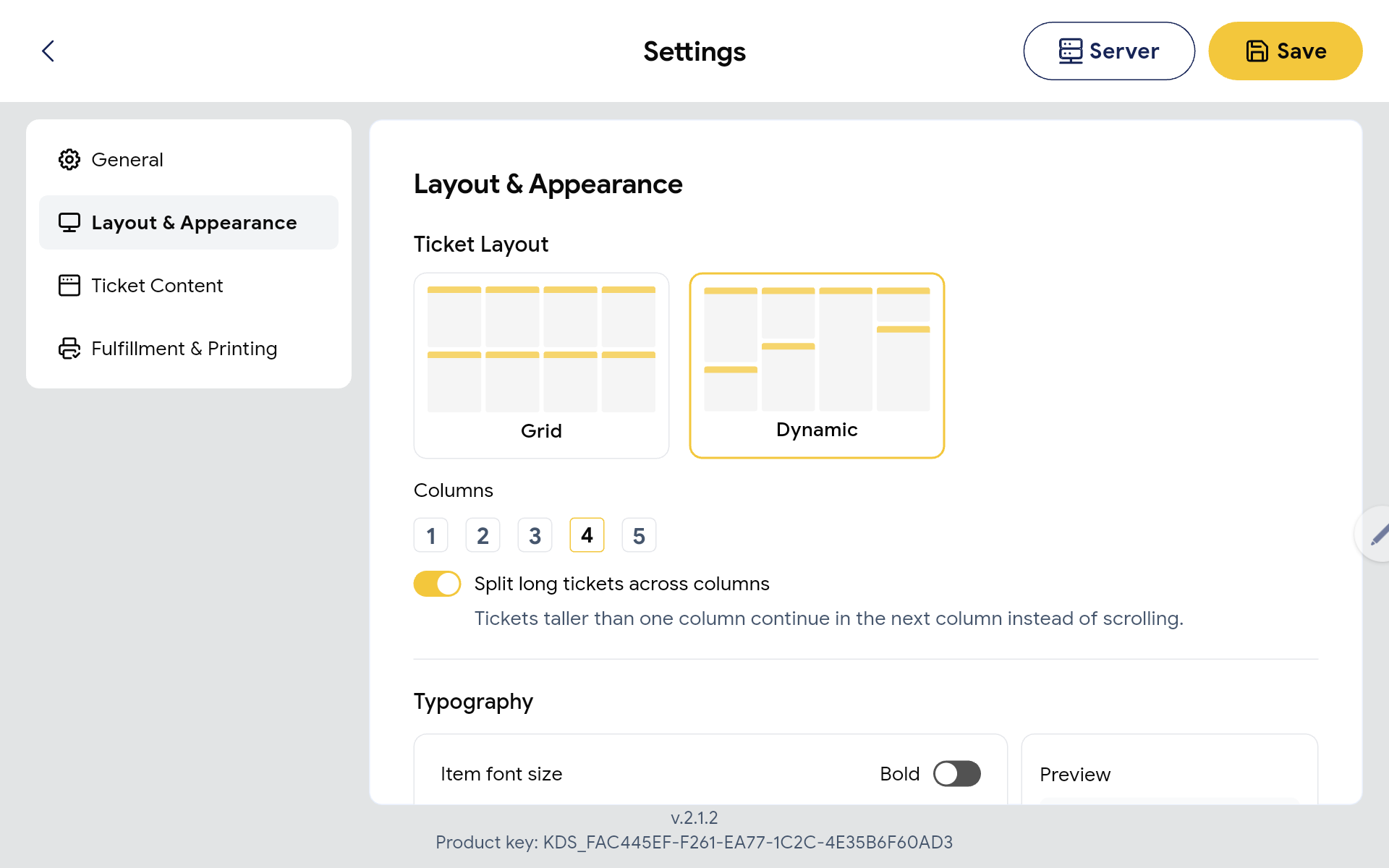
ℹ️ Note: The Split long tickets across columns option only appears when Dynamic is selected. It is hidden when Grid is selected.
Step 3: Turn on the option
- Turn on Split long tickets across columns.
- Tap Save.
ℹ️ Note: This option is off by default. The setting is saved on each KDS device, so you need to turn it on separately on every KDS device where you want to use it.
Read a Split Ticket on the KDS Screen
When a ticket is too long for one column, the KDS shows it in parts:
- First part: shows the normal ticket header with the ticket number, timer, Fulfill button, and order type. The bottom of this part shows Continued….
- Next part: appears at the top of the next column and starts with …Continued. Read it as the rest of the ticket from the previous column.
- Last column on the page: if there is no more space on the current page, the ticket continues on the next page.
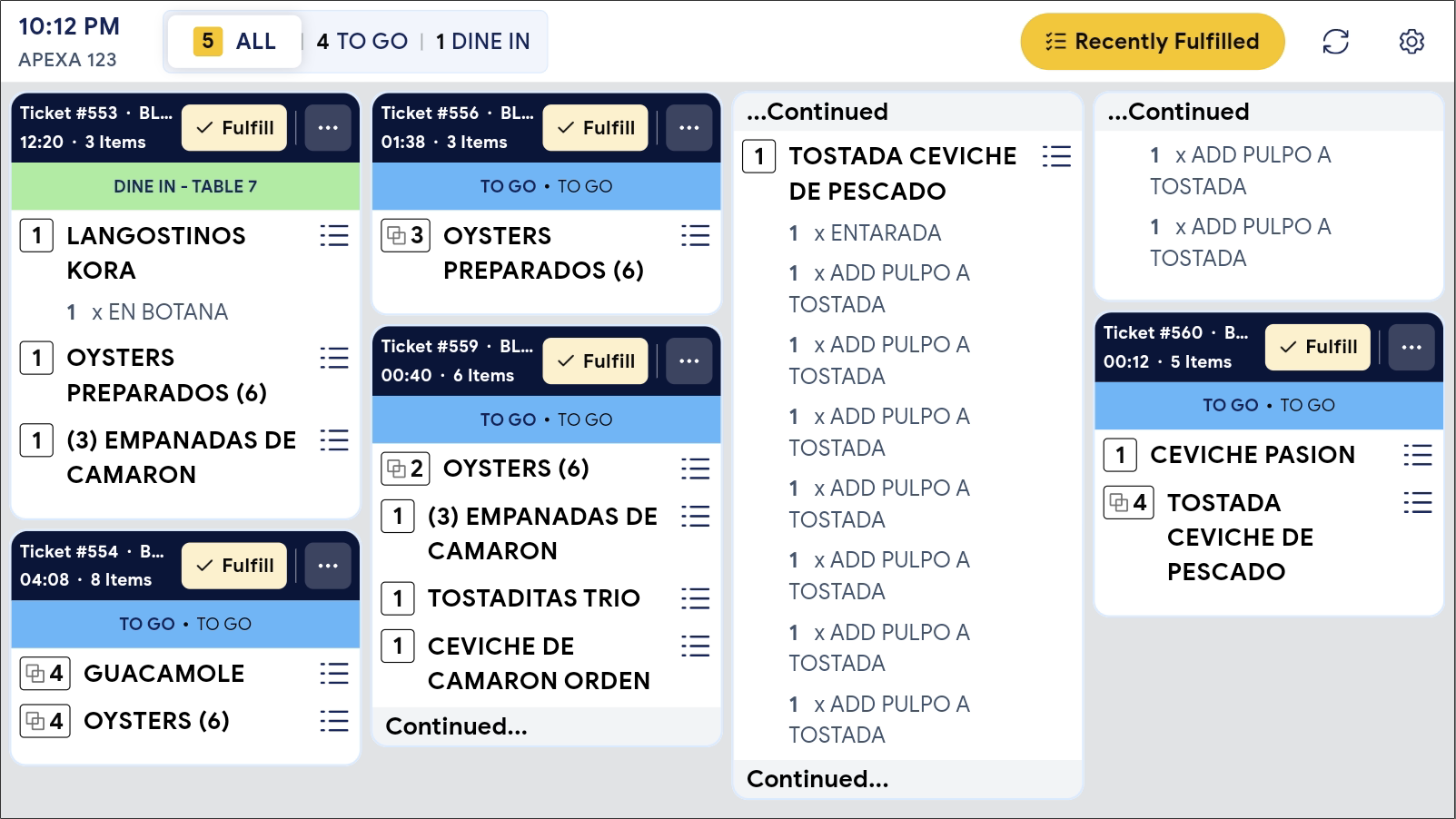
✅ Tip: Read split tickets from top to bottom, then left to right. Each …Continued part always belongs to the ticket that ends with Continued… just before it.
Fulfill a split ticket
- Tap Fulfill on the first part of the ticket.
- All parts of the ticket are removed from the screen at the same time.
ℹ️ Note: Fulfill and Recall work the same way as before. You do not need to fulfill each part separately.
Where to View or Confirm the Result
You can check the result on the KDS main screen:
- Long tickets show Continued… at the bottom of the first part.
- The rest of the ticket starts with …Continued at the top of the next column.
- If the option is off, long tickets stay in one card and you scroll inside the card, as before.
FAQ
1. Why can’t I see the Split long tickets across columns option?
This option only appears when Ticket Layout is set to Dynamic. If you still cannot see it, your KDS may not be on a supported version. Please contact Support.
2. What happens if I switch to Grid layout?
The option is hidden and tickets are not split. Your saved choice is kept, so when you switch back to Dynamic, the option shows the same setting as before.
3. Do I need to turn this on for every KDS device?
Yes. The setting is saved on each device and does not sync to other KDS devices.
4. Does this change how Fulfill or Recall works?
No. Tap Fulfill on the first part of the ticket and the whole ticket is fulfilled. Recall also works as before.
5. What should I do if tickets are not splitting as expected?
Check that Ticket Layout is set to Dynamic, that Split long tickets across columns is on, and that you tapped Save. If the issue continues, please contact Support.
Closing
If you still need help, please contact Support for further assistance.