Introduction
DAVO by Avalara sets aside, files and pays your sales tax automatically, using your BLogic POS sales data. This guide shows you how to sign up for DAVO, request your connection details from BLogic, and finish onboarding with DAVO.
Version Support
| Product / Module | Supported Version |
|---|---|
| BLogic POS – DAVO Sales Tax integration | Contact BLogic Support to confirm |
Note: If you are not sure your store can use DAVO, contact BLogic Support before you sign up.
Table of Contents
- Before You Start
- Fill Out the DAVO Sign-Up Form
- Request Your Connection Details from BLogic
- Finish Onboarding with DAVO
- FAQ
1. Before You Start
Have this information ready:
- Your first and last name
- Your business name and phone number
- The email address linked to your BLogic account
- Your business city and state
Tip: Check that your sales tax rates are set up correctly in BLogic POS. DAVO uses your POS sales data to calculate the tax it sets aside.
Note: Use a valid business email. Temporary or disposable email addresses (for example, yopmail) are not accepted by the form.
2. Fill Out the DAVO Sign-Up Form
Step 1: Open the DAVO for BLogic page
- Open your web browser.
- Go to https://www.davosalestax.com/integrations/blogic/.
- Find the section Get started with a free* trial on your Blogic POS platform.
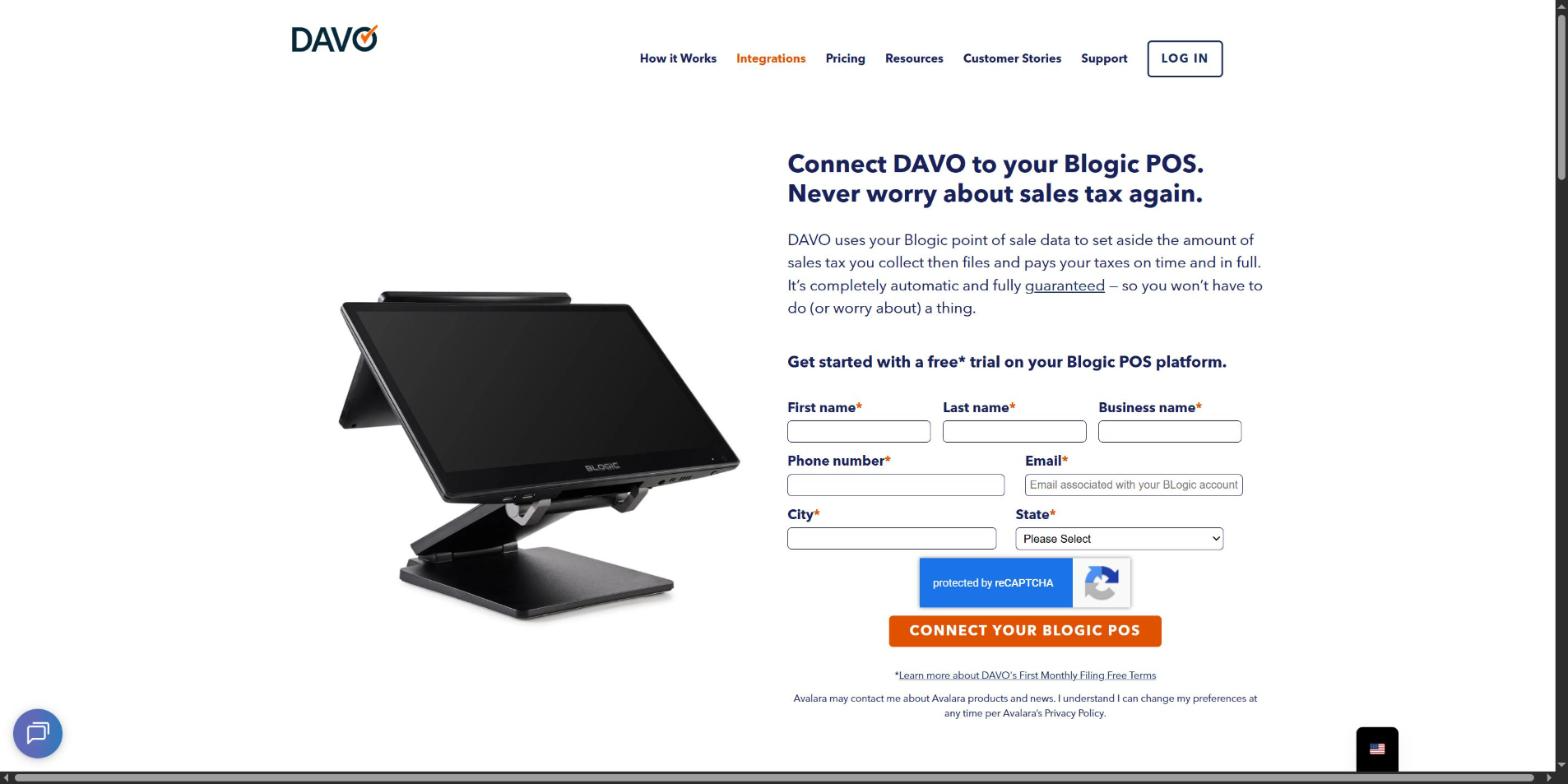
The DAVO for BLogic page with the sign-up form.
Step 2: Enter your details
- Enter your First name and Last name.
- Enter your Business name.
- Enter your Phone number.
- Enter your Email — use the email associated with your BLogic account.
- Enter your City and select your State.
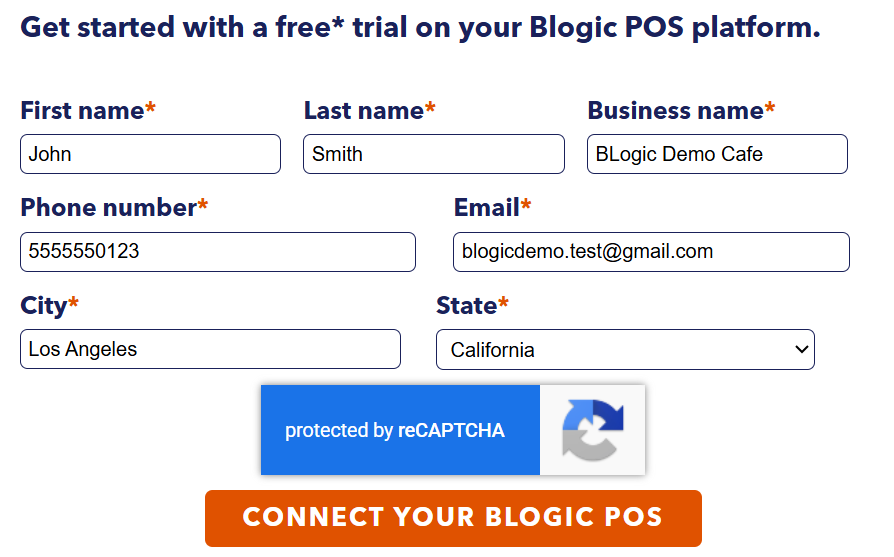
The sign-up form filled in with sample data.
Example with sample data:
| Field | Example |
|---|---|
| First name | John |
| Last name | Smith |
| Business name | BLogic Demo Cafe |
| Phone number | 5555550123 |
| blogicdemo.test@gmail.com | |
| City | Los Angeles |
| State | California |
Step 3: Submit the form
- Complete the security check (reCAPTCHA) if it appears.
- Click CONNECT YOUR BLOGIC POS.
Note: The free trial is subject to DAVO’s terms. Click Learn more about DAVO’s First Monthly Filing Free Terms under the button to read them.
3. Request Your Connection Details from BLogic
After you submit the form, DAVO shows a confirmation message asking you to contact BLogic for your connection details.
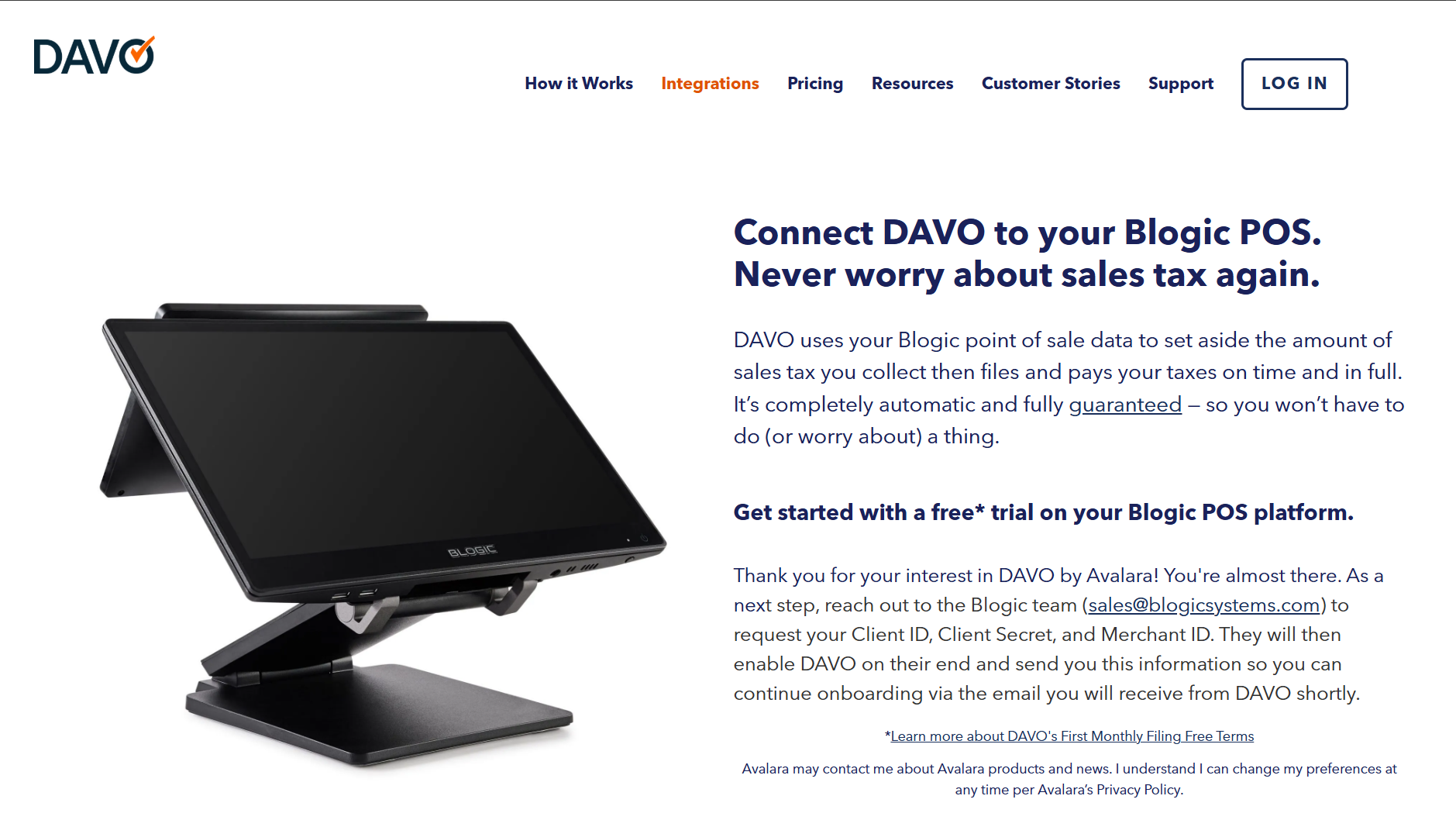
DAVO confirmation message after you submit the form.
Step 4: Email the BLogic team
- Send an email to sales@blogicsystems.com.
- Ask for your Client ID, Client Secret and Merchant ID for DAVO.
- Include your business name, store address and the email you used on the DAVO form.
BLogic will enable DAVO for your store and send you these three details.
Warning: Your Client Secret works like a password. Do not share it with anyone except DAVO, and do not post it in public places.
4. Finish Onboarding with DAVO
Step 5: Complete DAVO onboarding
- Check your inbox for the onboarding email from DAVO.
- Follow the steps in the email and enter the Client ID, Client Secret and Merchant ID you received from BLogic.
- Complete any other details DAVO asks for to finish setup.
Once connected, DAVO works in the background:
- Keep entering sales in BLogic POS as usual. No extra buttons or steps.
- DAVO sets aside sales tax daily in a secure tax holding account.
- DAVO files your sales tax with the state when it is due.
- DAVO pays your sales tax using the money it set aside.
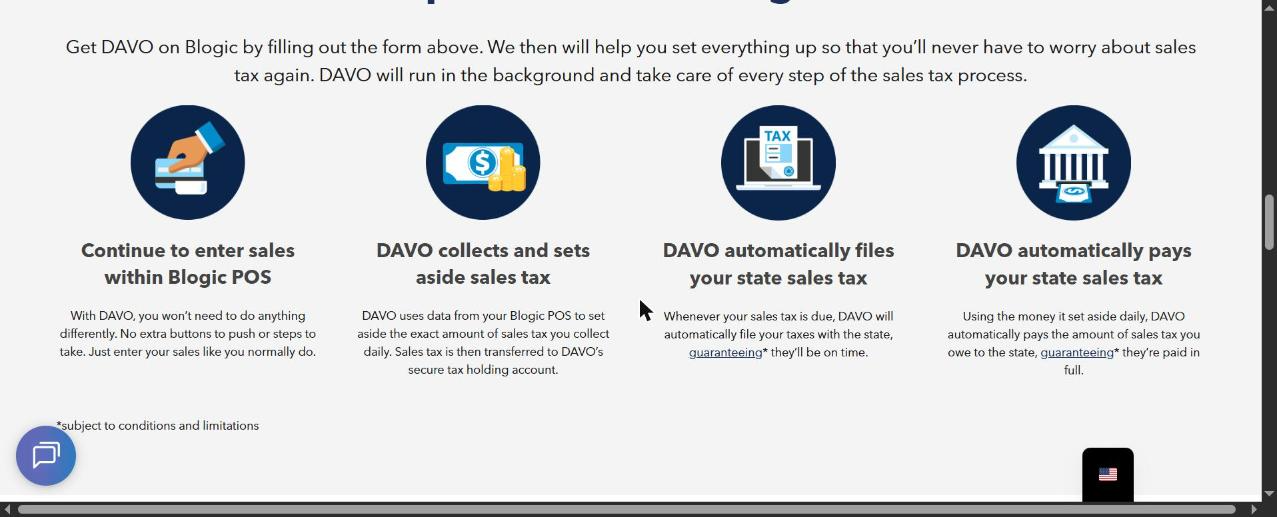
How DAVO works after your POS is connected.
Note: DAVO’s website lists $57.99/month per location (checked on Nov 5, 2026). Prices are set by DAVO and may change — check the DAVO website for current pricing.
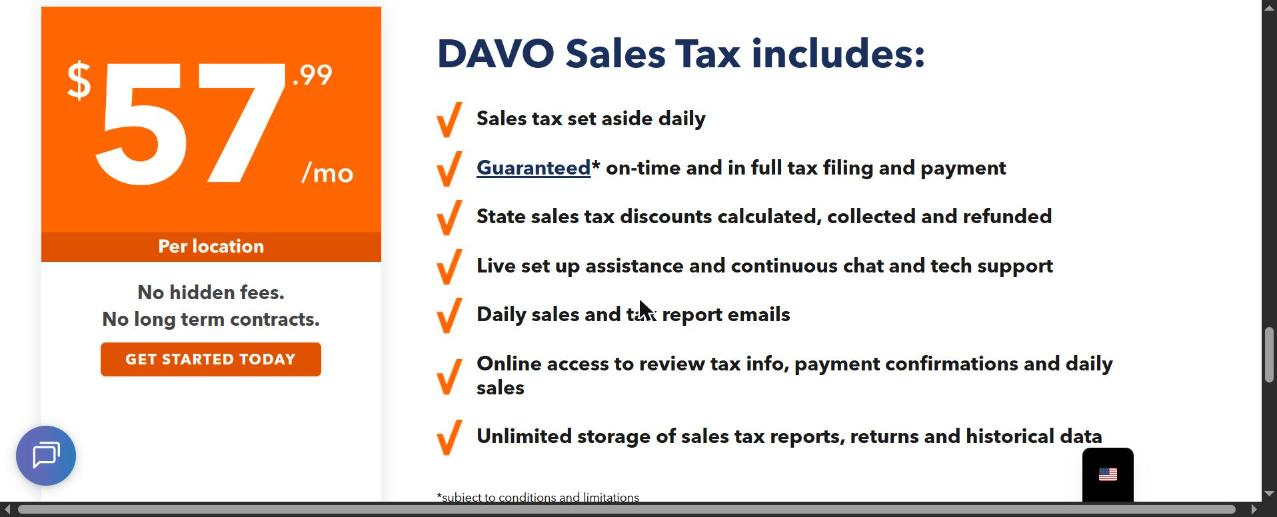
DAVO pricing and features, as shown on the DAVO website.
5. FAQ
1. Do I need to change how I use my POS? No. Keep entering sales in BLogic POS as usual. DAVO works in the background.
2. Which email should I use on the form? Use the email linked to your BLogic account. Temporary email addresses are not accepted.
3. Where do I get my Client ID, Client Secret and Merchant ID? Email sales@blogicsystems.com. BLogic enables DAVO for your store and sends you these details.
4. I have more than one store. What should I do? DAVO pricing is per location. Tell BLogic and DAVO about each store so every location is connected.
5. Who do I contact about tax filings or payments? Contact DAVO Support through the chat on the DAVO website.
If you still need help, please contact BLogic Support for further assistance.