Introduction
This article explains how to use the Tables screen in POS full-service mode, including the new Table Service panel. You will learn how to read the screen, view only your own tickets, search for a table, zoom the floor plan, and hide or show the panel. The panel helps servers see their busiest tables at a glance, starting with the guests who have been seated the longest.
Version Support
| Product / Module | Supported Version |
|---|---|
| POS – Tables screen (Full Service) | v7.2026.11.05 |
Note: If you do not see this option, please contact Support to confirm your store is on a supported version.
Table of Contents
- Get to Know the Tables Screen
- View Only Your Tickets
- Search for a Table
- Zoom the Floor Plan
- Hide or Show the Table Service Panel
- FAQ
Get to Know the Tables Screen
Open Tables on the POS. The screen shows the Table Service panel on the left and the floor plan (table map) on the right. By default, All Tickets is selected, so you see every open ticket in the store.
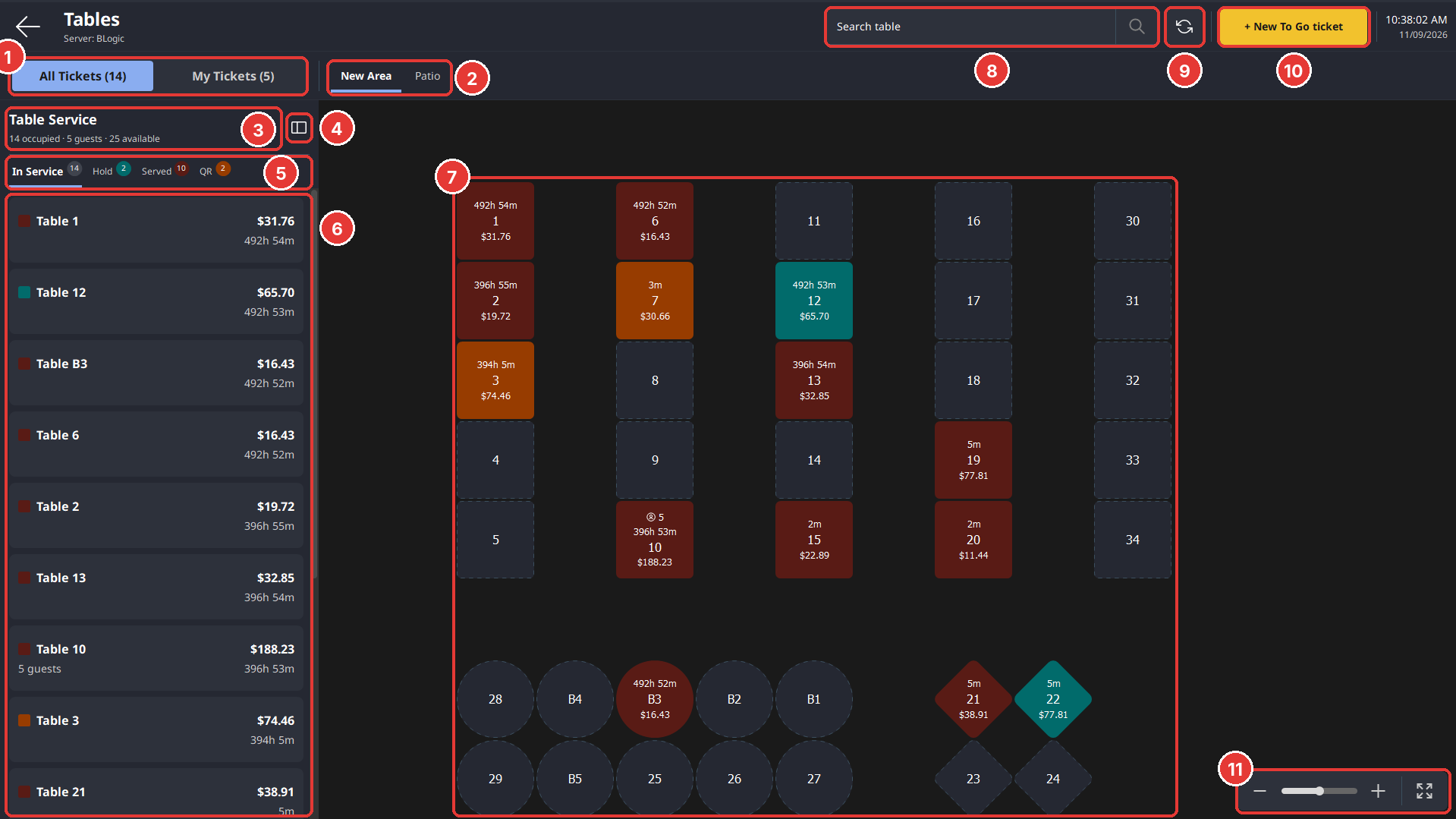
| # | Area | What it does |
|---|---|---|
| 1 | All Tickets / My Tickets | Switch between every open ticket in the store and only the tickets assigned to you. The number shows how many tickets are in each view. |
| 2 | Area tabs | Tap an area (e.g., New Area, Patio) to see its tables. |
| 3 | Table Service summary | Shows occupied tables, guests seated, and available tables. |
| 4 | Panel button | Hides the Table Service panel. |
| 5 | Status tabs | Tap a tab to filter the ticket list. The number shows how many tickets are in that status. |
| 6 | Ticket list | Shows open tickets, with the longest-seated table at the top. |
| 7 | Table map | Shows every table in the selected area, colored by status. |
| 8 | Search table | Find a table by its number or name. |
| 9 | Refresh | Reloads the latest table and ticket information. |
| 10 | + New To Go ticket | Starts a new To Go ticket. |
| 11 | Zoom controls | Zoom the table map in or out, or fit it to the screen. |
Status tabs (5)
| Tab | Shows |
|---|---|
| In Service | All open tickets |
| Hold | Tickets with items on hold |
| Served | Tickets that have been served |
| QR | Tickets ordered through in-house QR |
Ticket cards (6) and table tiles (7)
| Ticket card (panel) | Table tile (map) |
|---|---|
| Status color square | Tile color = status |
| Table name | Table number |
| Guest count (if entered) | Guest count (if entered) |
| Ticket total | Ticket total |
| Time since seated | Time since seated |
Status colors
| Color | Status |
|---|---|
| Dark tile with dashed border | Vacant – no open ticket |
| Teal | Items on hold |
| Dark red | Served |
| Orange | Served for in-house QR |
✅ Tip: Time is counted from when the guests were seated, so the tables that have waited the longest are always at the top of the list.
ℹ️ Note: Your store may also show Waiting for server (grey) and Printed guest check (gold), depending on your setup.
View Only Your Tickets
- Tap My Tickets (1).
- The status tabs (2) update to count only your tickets.
- The ticket list (3) shows only the tables assigned to you, longest-seated first.
- To see every ticket again, tap All Tickets.
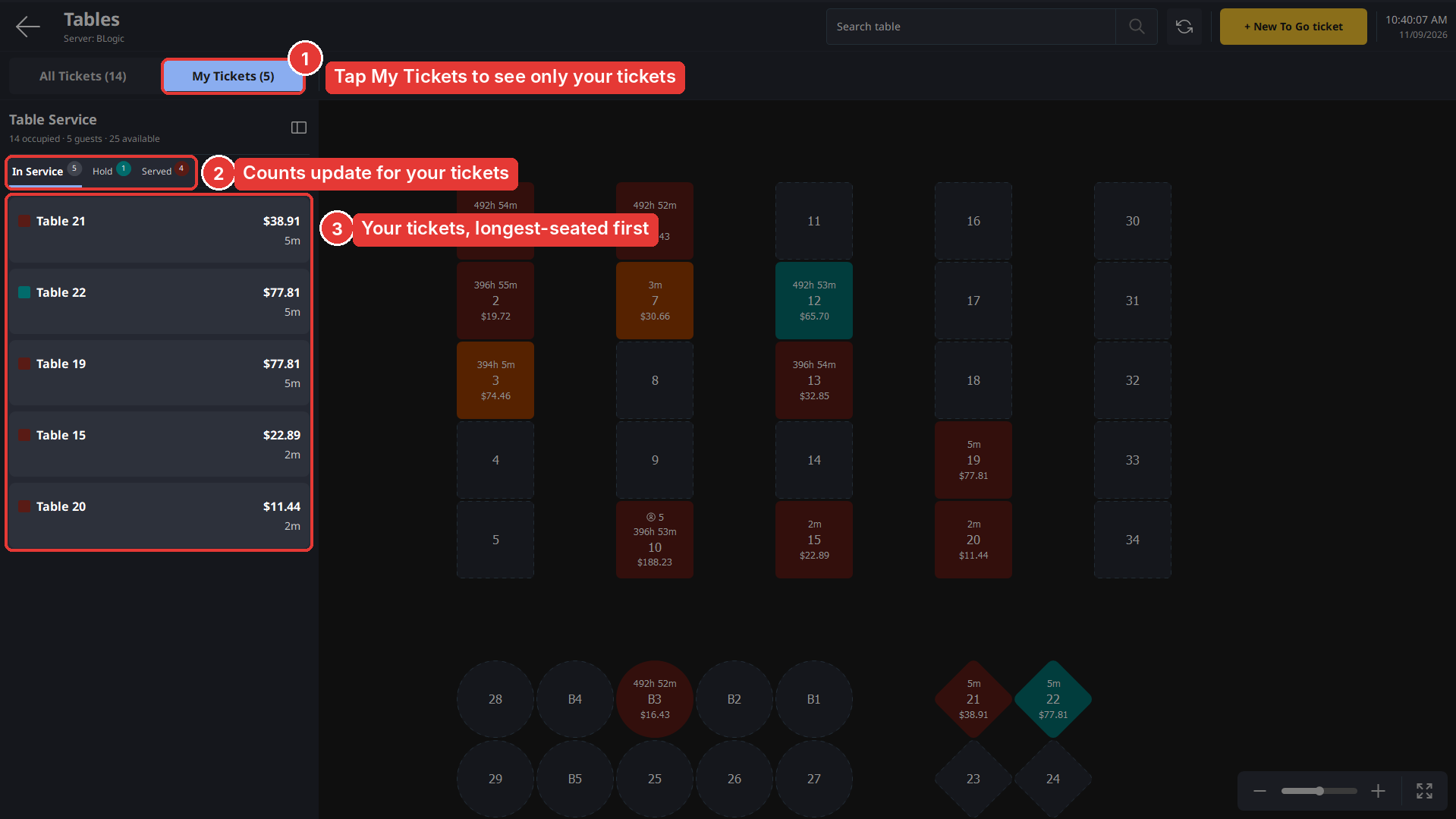
ℹ️ Note: The table map still shows all tables, so you can see the whole floor while working on your own tickets. A status tab with no tickets may be hidden (for example, QR when you have no QR tickets).
Search for a Table
- Tap Search table (1) and type the table number or name, for example 2.
- Tables that match stay highlighted on the map (2). All other tables are dimmed.
- The ticket list (3) shows only the matching tickets in your current view.
- To clear the search, delete the text in the search field.
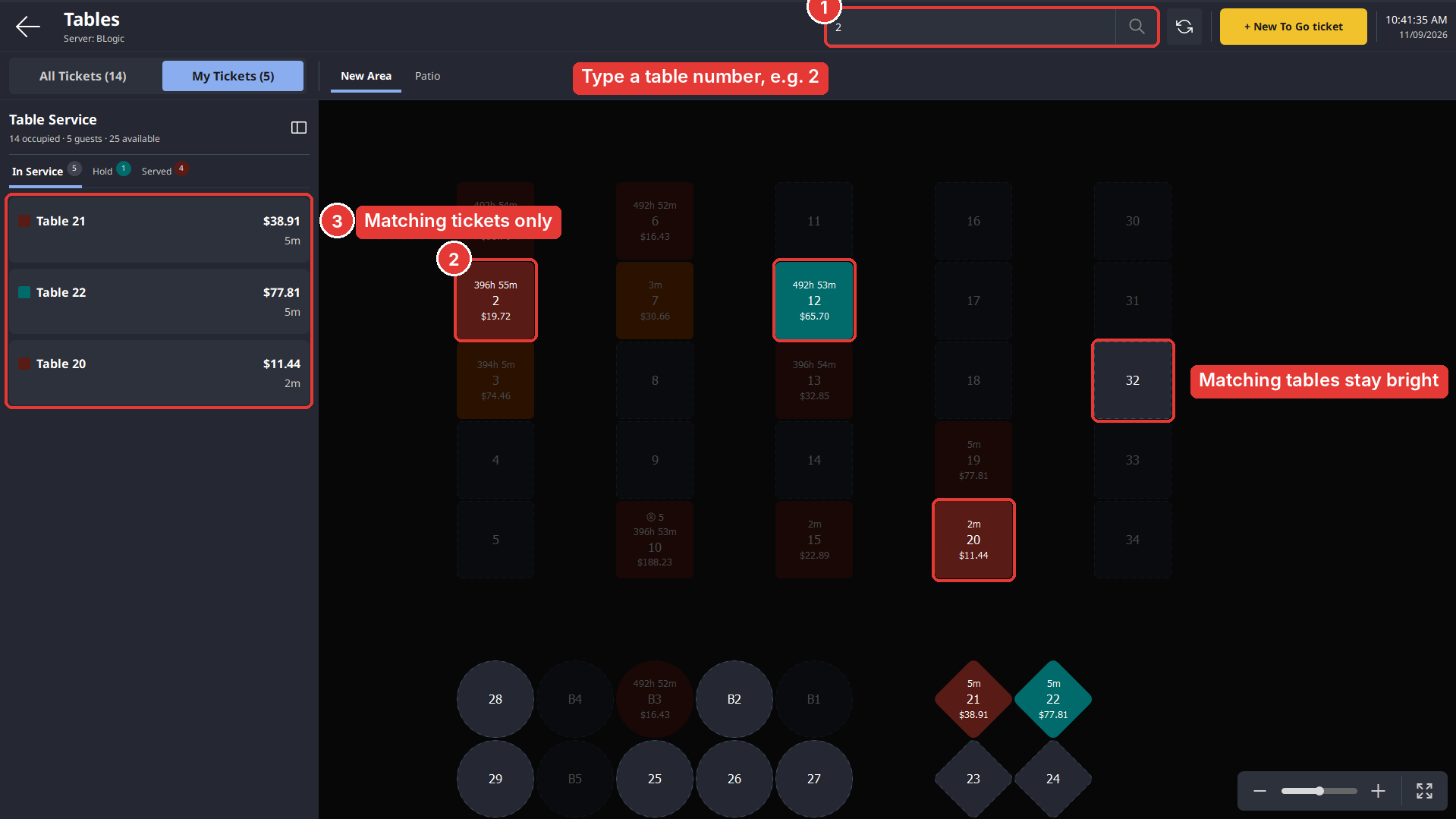
✅ Tip: The search matches any table whose number or name contains what you type. Typing 2 finds tables 2, 12, 20, 21, 22, 32, B2, and more.
Zoom the Floor Plan
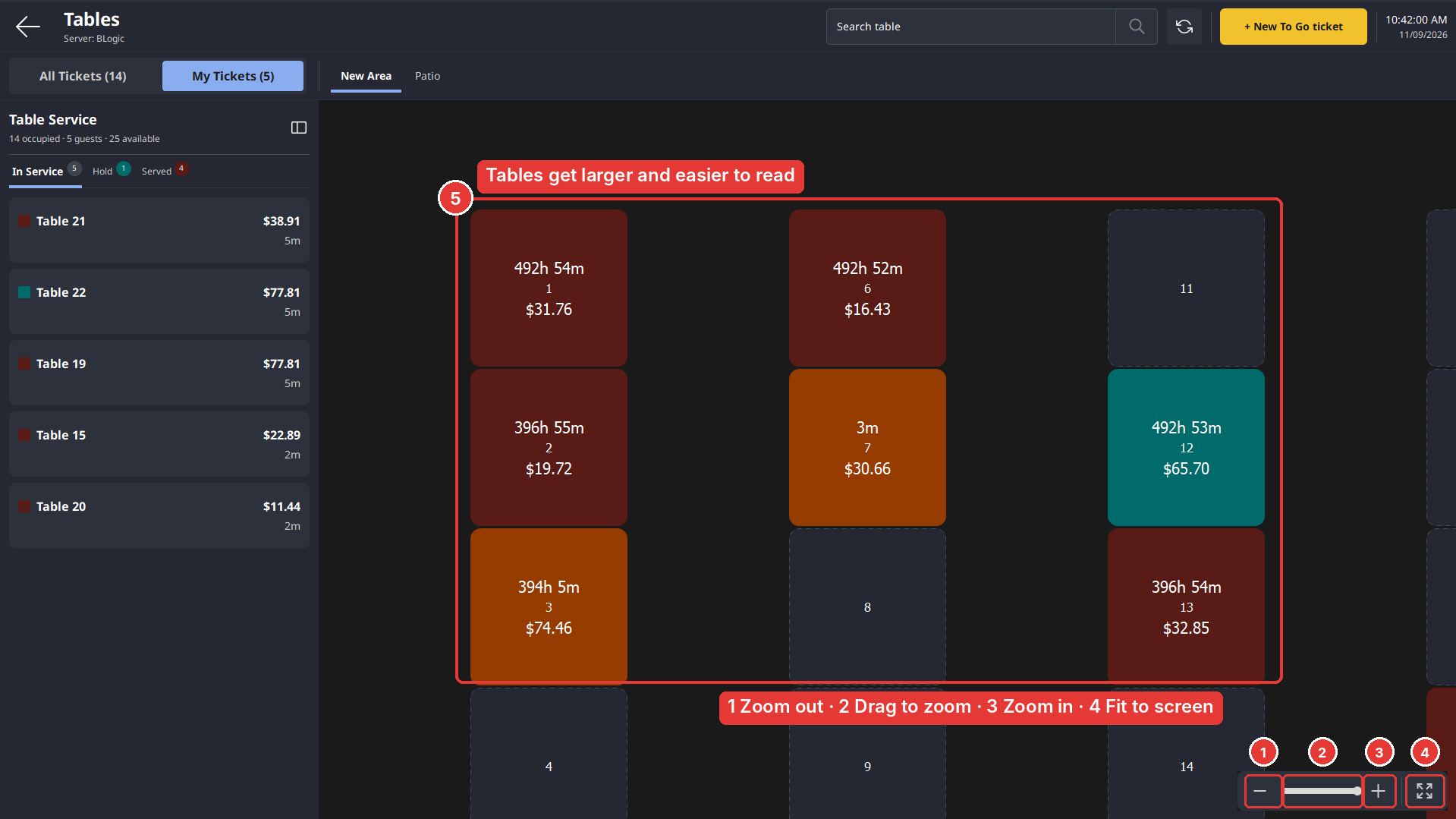
- Use the zoom controls in the bottom-right corner of the table map:
- Tap – (1) to zoom out.
- Drag the slider (2) to zoom smoothly.
- Tap + (3) to zoom in.
- Tap the Fit to screen icon (4) to show the whole floor plan again.
- When you zoom in, table tiles get larger and easier to read (5). Scroll the map to see other tables.
Hide or Show the Table Service Panel
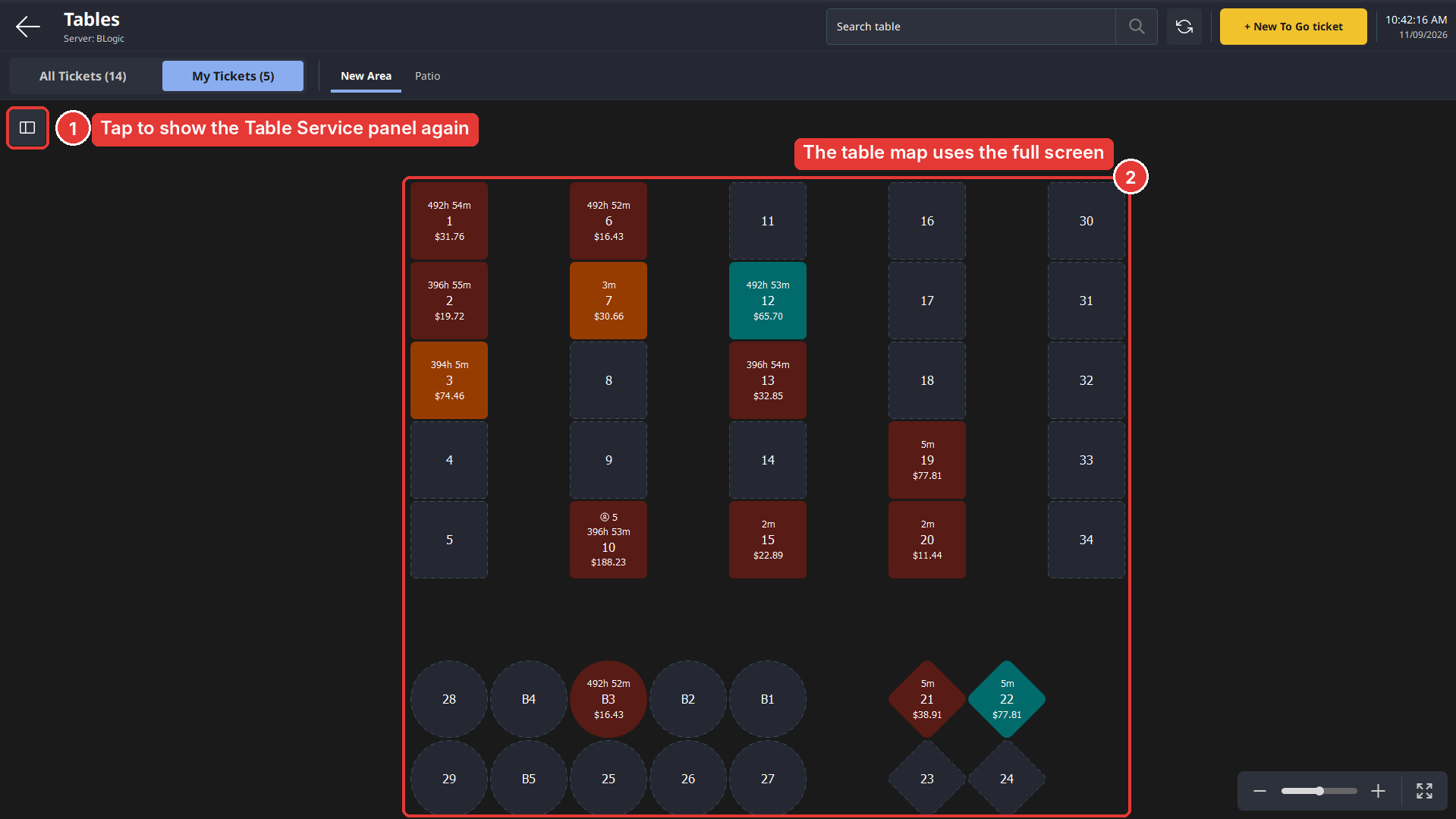
- To hide the panel, tap the panel button in the top-right corner of the Table Service panel
- The table map uses the full width of the screen (2).
- To show the panel again, tap the panel button in the top-left corner of the table map (1).
FAQ
1. Why can’t I see the Table Service panel? The panel may be hidden. Tap the panel button in the top-left corner of the table map to show it. If you still do not see it, your store may not be on a supported version. Please contact Support.
2. In what order are tickets shown in the list? Tickets are sorted by how long the guests have been seated, with the longest at the top.
3. What is the difference between All Tickets and My Tickets? All Tickets shows every open ticket in the store. My Tickets shows only the tickets assigned to you. The table map always shows all tables.
4. Why are some tables dimmed on the map? A search is active. Only tables that match your search stay highlighted. Clear the search field to show all tables normally.
5. What should I do if the table information looks out of date? Tap the Refresh button at the top of the screen. If the information is still incorrect, please contact Support.
Closing
If you still need help, please contact Support for further assistance.