Introduction
Expo tracking shows the Expo KDS which items the kitchen has finished. By default, Expo staff can fulfill individual items as soon as they are ready. To fulfill or print the whole ticket, wait until every item that is not on hold is ready.
Version Support
| Product / Module | Supported Version |
|---|---|
| KDS app | v2.1.8 or later |
| POS | Build 11.20.2026 or later |
Expo tracking is available in KDS v2.1.8. If you do not see this option, please contact Support to confirm your store is on a supported version.
Table of Contents
- Set up Expo tracking in BLogic View
- Read item status on the Expo KDS
- Fulfill a ready item
- Fulfill or print the whole ticket
- FAQ
Set up Expo tracking in BLogic View
Expo tracking is off by default. You set it up once for the store, and the settings apply to every KDS in the store. You need access to Configurations in BLogic View.
Step 1: Open the Stations tab
- Sign in to BLogic View.
- Click Setup > Configurations.
- Under Operations, click KDS.
- Click the Stations tab.
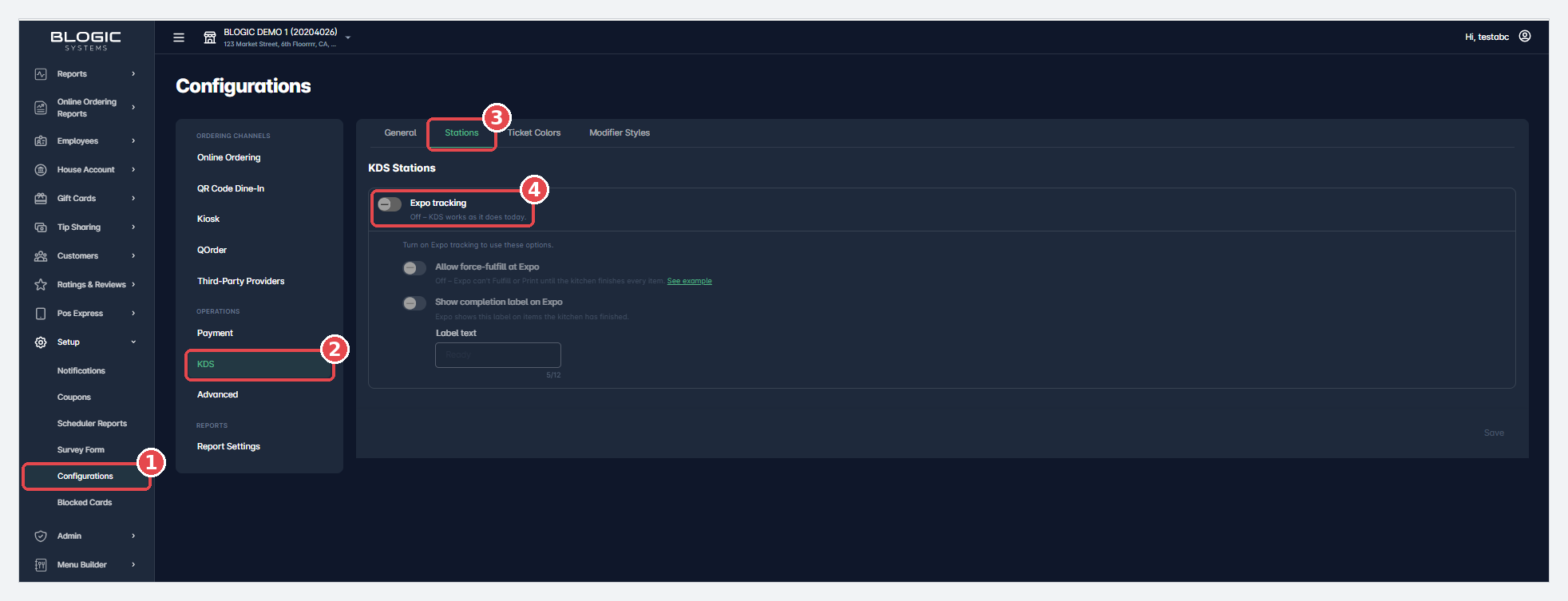
Step 2: Turn on Expo tracking
- Click the Expo tracking switch to turn it on.
- Review the station list that appears below the options.
The first time you set up Expo tracking, every station is set to Kitchen. If you set up Expo tracking before and turned it off, your saved station types and options are restored when you turn it back on.
Note: Save is disabled and the message “Set one station to Expo.” appears under the list until at least one station is set to Expo.
Step 3: Set the Expo station
- In the station list, find the KDS that your Expo staff use.
- In the Type column, click the dropdown and select Expo.
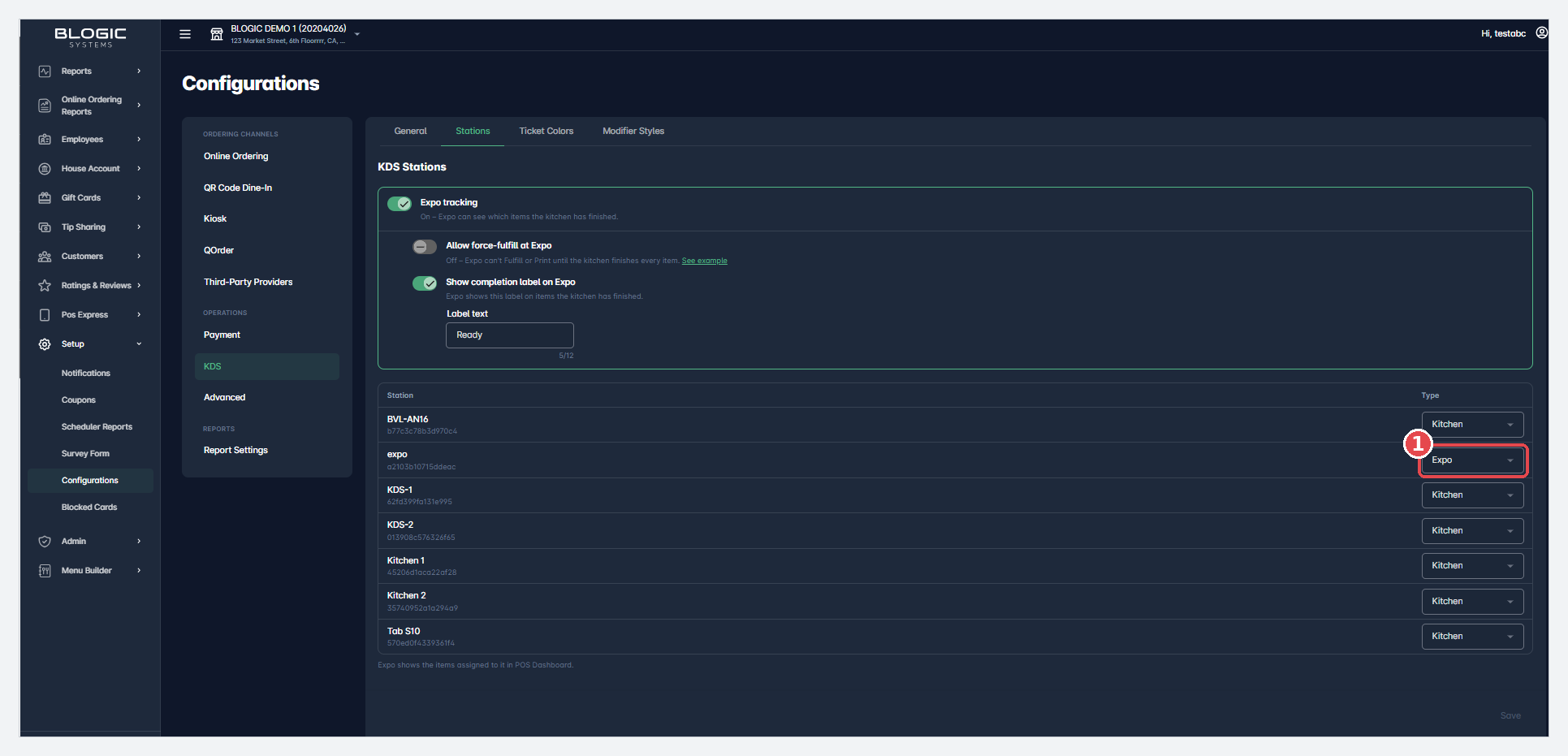
Note: You can set more than one station to Expo, but keep at least one station set to Kitchen. Each Expo station shows the items assigned to it in POS Dashboard.
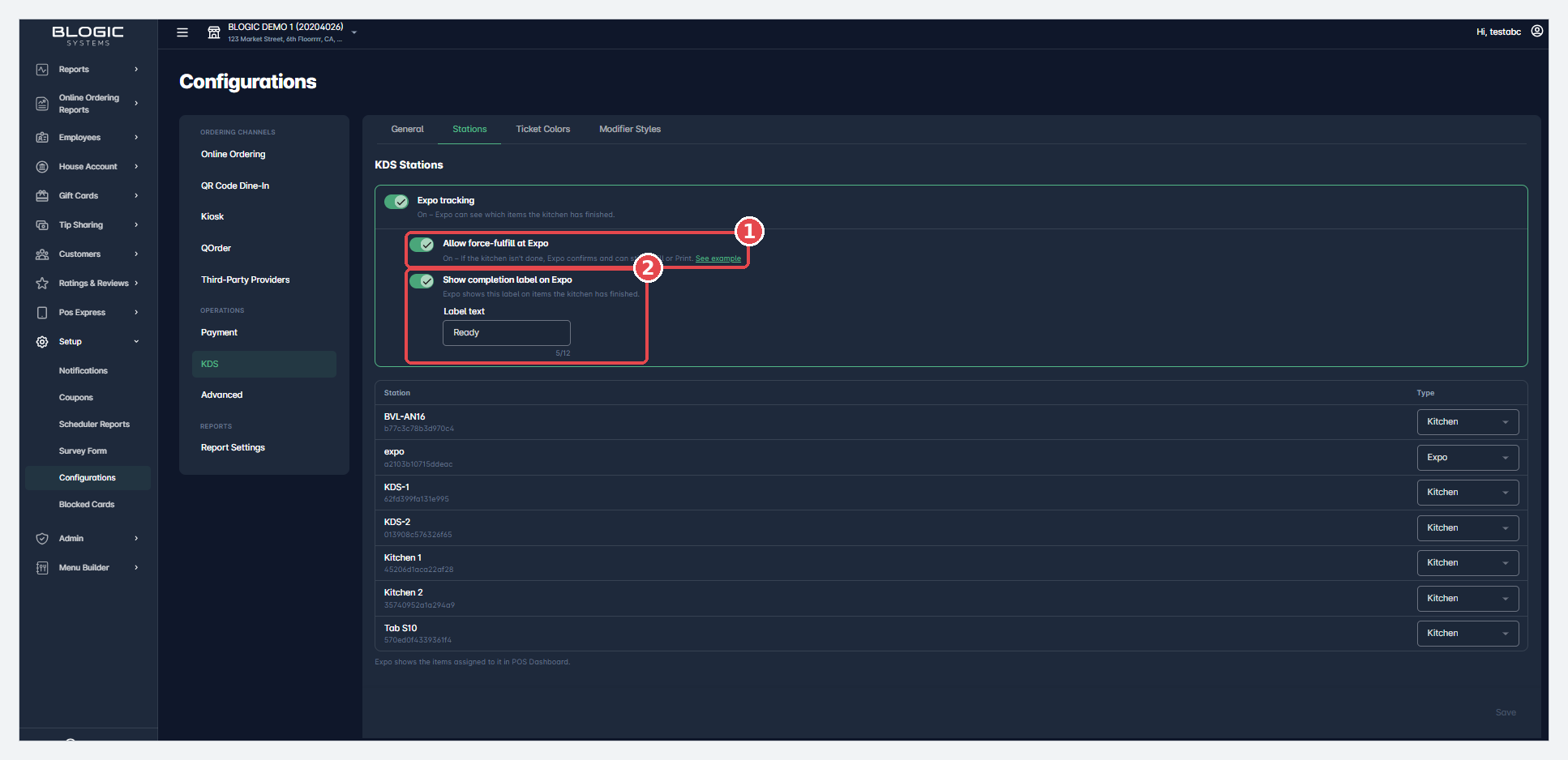
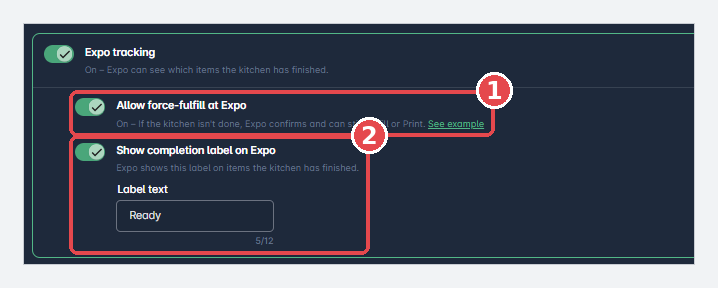
Step 4: Choose the Expo options
- Allow force-fulfill at Expo (default: Off). With force-fulfill off, Expo staff can fulfill selected Ready items. Print All and the ticket’s Fulfill button stay disabled while any item that is not on hold is still waiting for the kitchen. When On, Expo staff can fulfill or print the whole ticket early after they confirm.
- Show completion label on Expo (default: On). Ready items show ✓ with the Label text. The default label is “Ready”, and the label must be 1 to 12 characters. When Off, Ready items show the ✓ icon only.
Step 5: Save your settings
- Click Save at the bottom right of the page.
- Confirm that the message “Saved. KDS screens update within a minute.” appears.
KDS screens apply the new settings at their next sync, usually within a minute. Open tickets update too.
Tip: To stop using Expo tracking, turn off Expo tracking and click Save. The KDS then works as it did before, and your station types and options are kept for next time.
Read item status on the Expo KDS
When Expo tracking is on, the Expo KDS updates each item as the kitchen works. You do not need to refresh the screen.
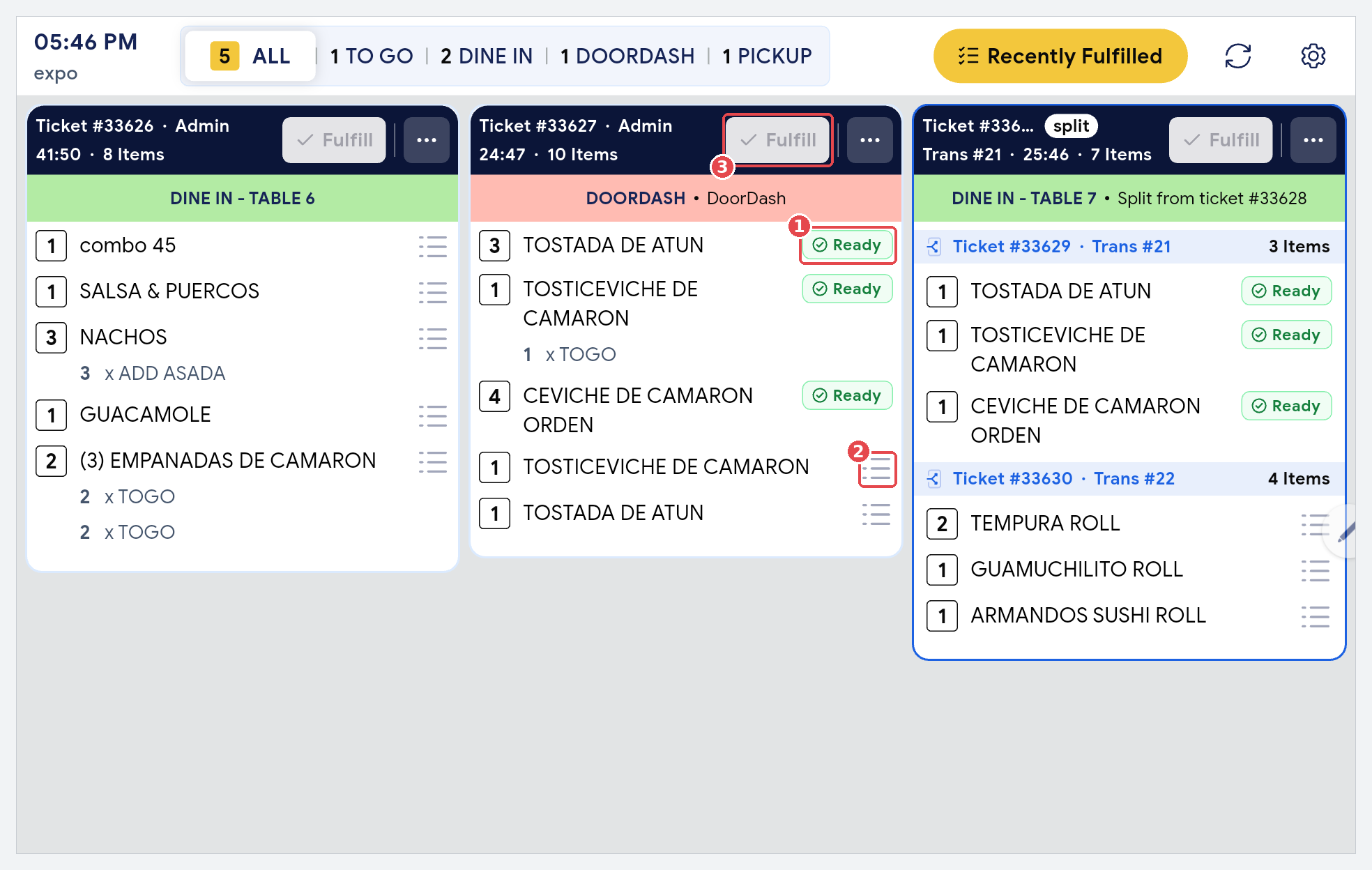
- ✓ Ready (or the store’s custom label): the item is finished. Every Kitchen KDS that the item was sent to has fulfilled it. You can fulfill this item now.
- List icon: the kitchen is still working on the item. You cannot fulfill it yet.
- Hold (pink row): the item is on hold. Held items do not block the ticket’s Fulfill or Print All buttons.
- Ticket Fulfill button disabled (force-fulfill off): at least one item that is not on hold is not ready yet. You can still fulfill the Ready items.
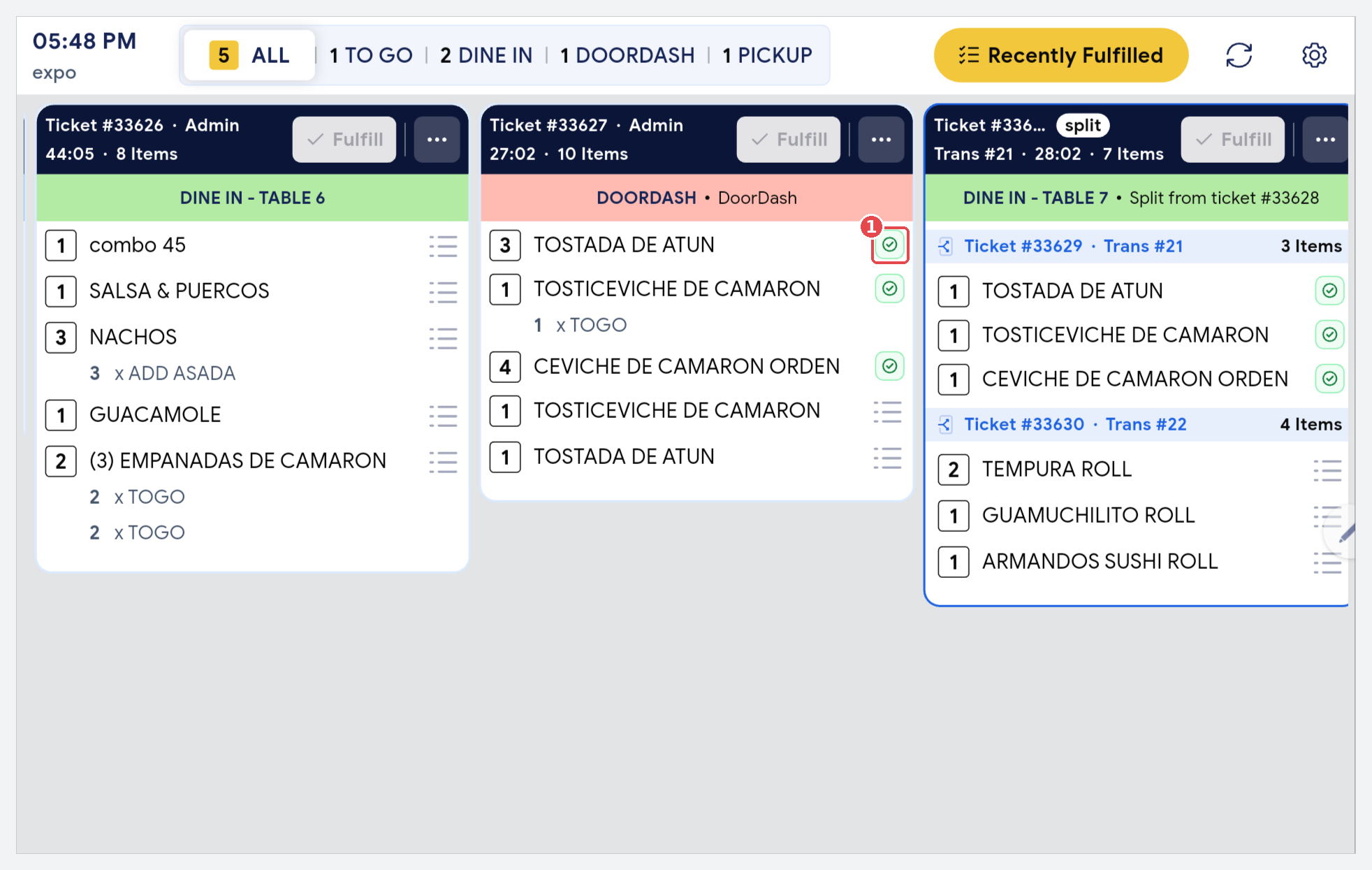
If the store turned off the completion label, Ready items show only the ✓ icon, with no text.
Note: An item sent to more than one Kitchen KDS shows as ready only after every one of those kitchens fulfills it. If a kitchen recalls an item, the ready badge disappears. If an item is voided on the POS, it is removed from the Expo ticket. Kitchen KDS screens work the same as before.
Fulfill a ready item
You do not need to wait for the whole ticket to send out items that are Ready. For example, the burger is ready, but the fries are still cooking. To fulfill just the burger, tap it, select the quantity, and tap Fulfill. The fries stay on the ticket.
- On the Expo KDS, tap an item that shows ✓ Ready.
- Select the quantity to fulfill. Tap − or + to change it.
- Tap Fulfill.
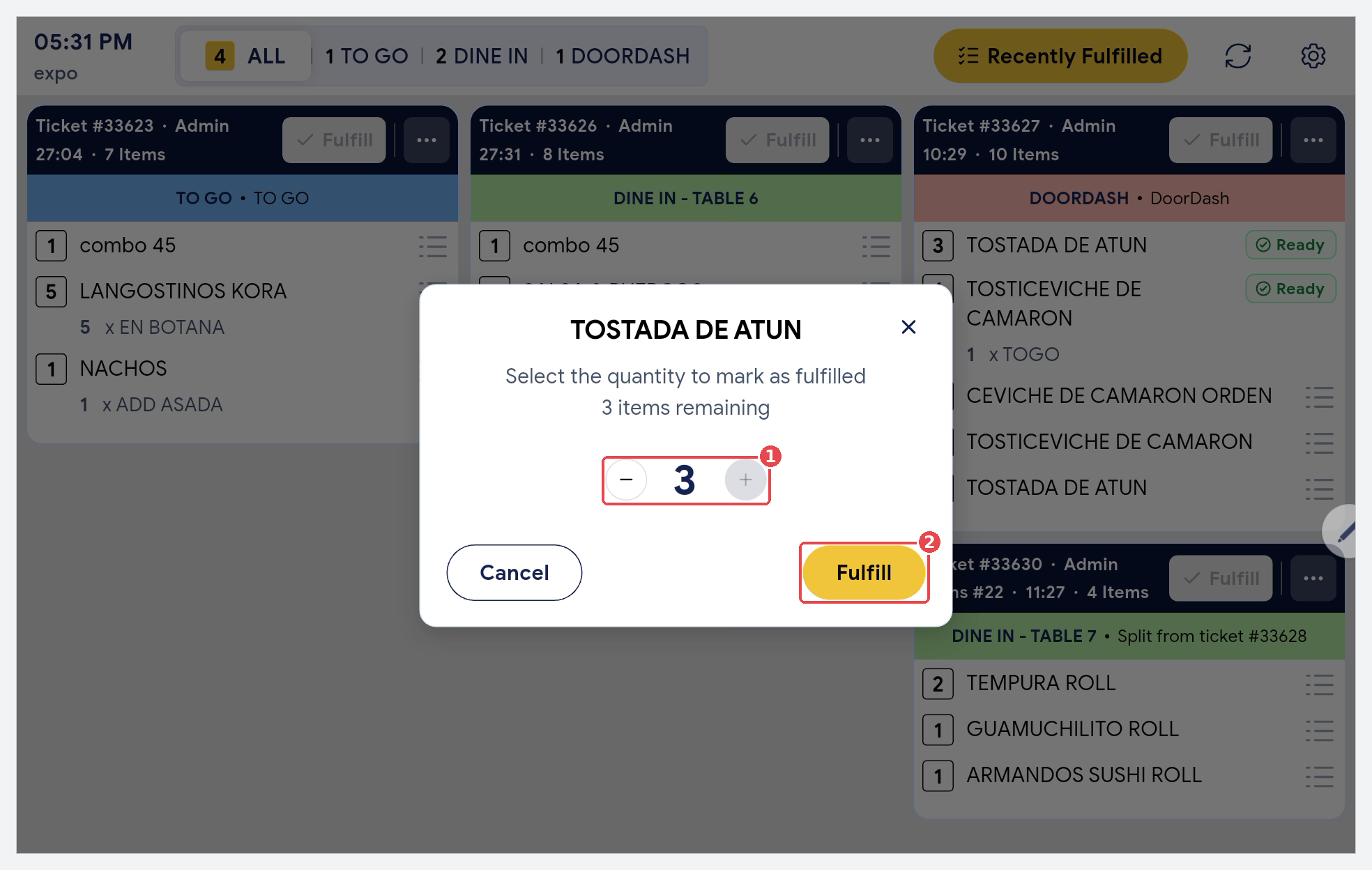
Only items that show ✓ Ready can be fulfilled this way. Items the kitchen is still working on stay on the ticket until they are ready.
Tip: To fulfill several Ready items at once, tap ••• on the ticket to open the ticket details, select the Ready items, and tap Fulfill.
Fulfill or print the whole ticket
Fulfilling the whole ticket marks the ticket as complete and removes it from the Expo board. Printing does not fulfill anything. When every item that is not on hold is ready, both actions work right away, with no confirmation.
- To print the ticket: tap ••• on the ticket to open the ticket details, then tap Print All.
- To complete the whole ticket: tap Fulfill on the ticket.
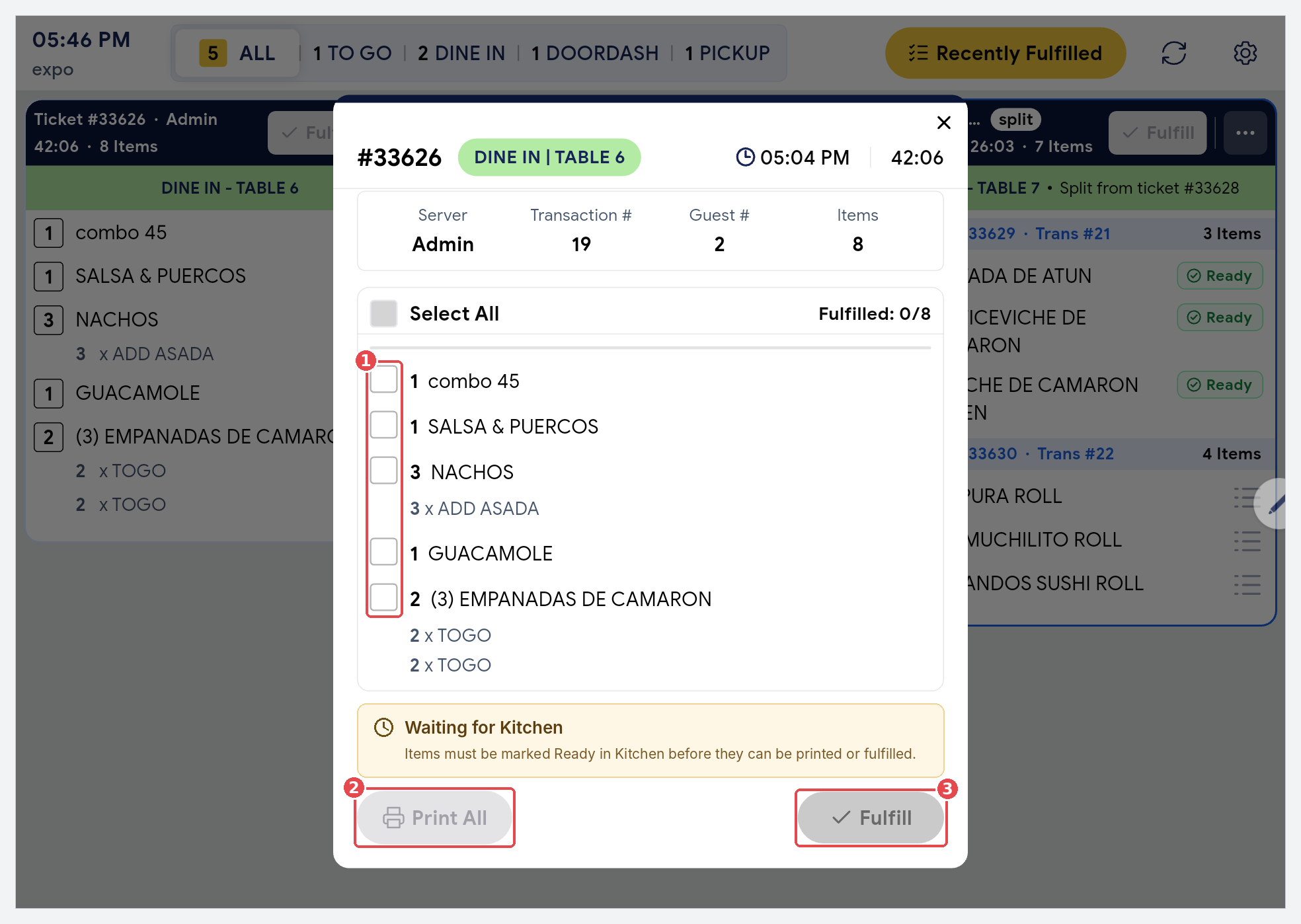
If some items are not ready yet, what you see depends on the store’s Allow force-fulfill at Expo setting.
| Allow force-fulfill at Expo | What Expo staff see |
|---|---|
| Off (default) | You can fulfill selected Ready items. Print All and the ticket’s Fulfill button stay disabled while any item that is not on hold is still waiting for the kitchen. They become available within about 2 seconds after the last item is ready. |
| On | The ticket’s Fulfill button and Print All are available. A confirmation lists the items that are not ready before anything is fulfilled or printed. |
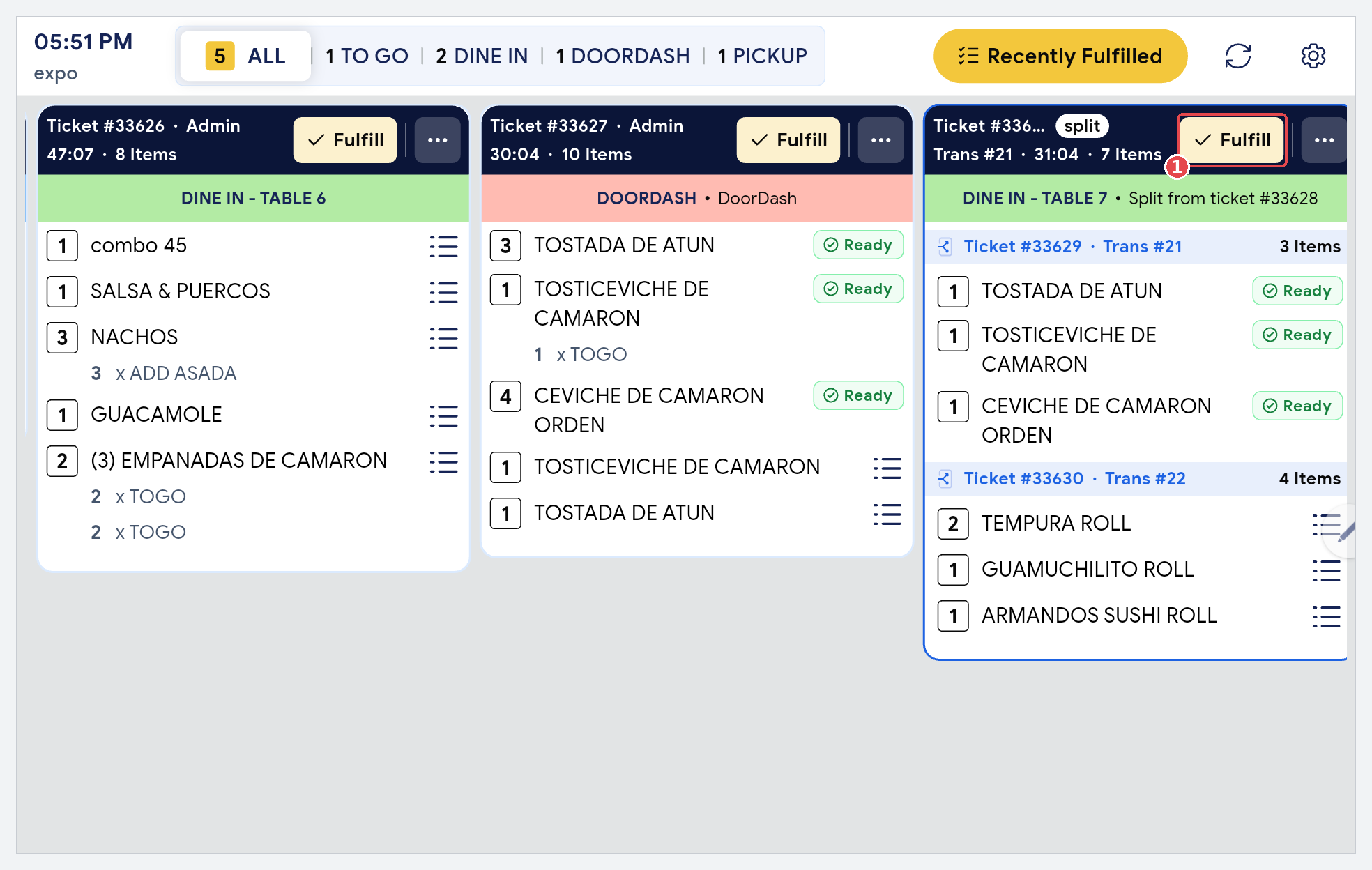
When the confirmation appears
When you tap Fulfill, the confirmation title is Fulfill ticket #…?. When you tap Print All, the title is Print order #…?. Both list each item that is not ready yet and its quantity. Choose one of these options:
- Cancel: closes the confirmation. Nothing is fulfilled or printed, and the ticket stays on the board.
- Fulfill anyway: fulfills the whole ticket, including the items that are not ready, and removes it from the board.
- Print anyway: prints the ticket. Nothing is fulfilled, and the ticket stays on the board.
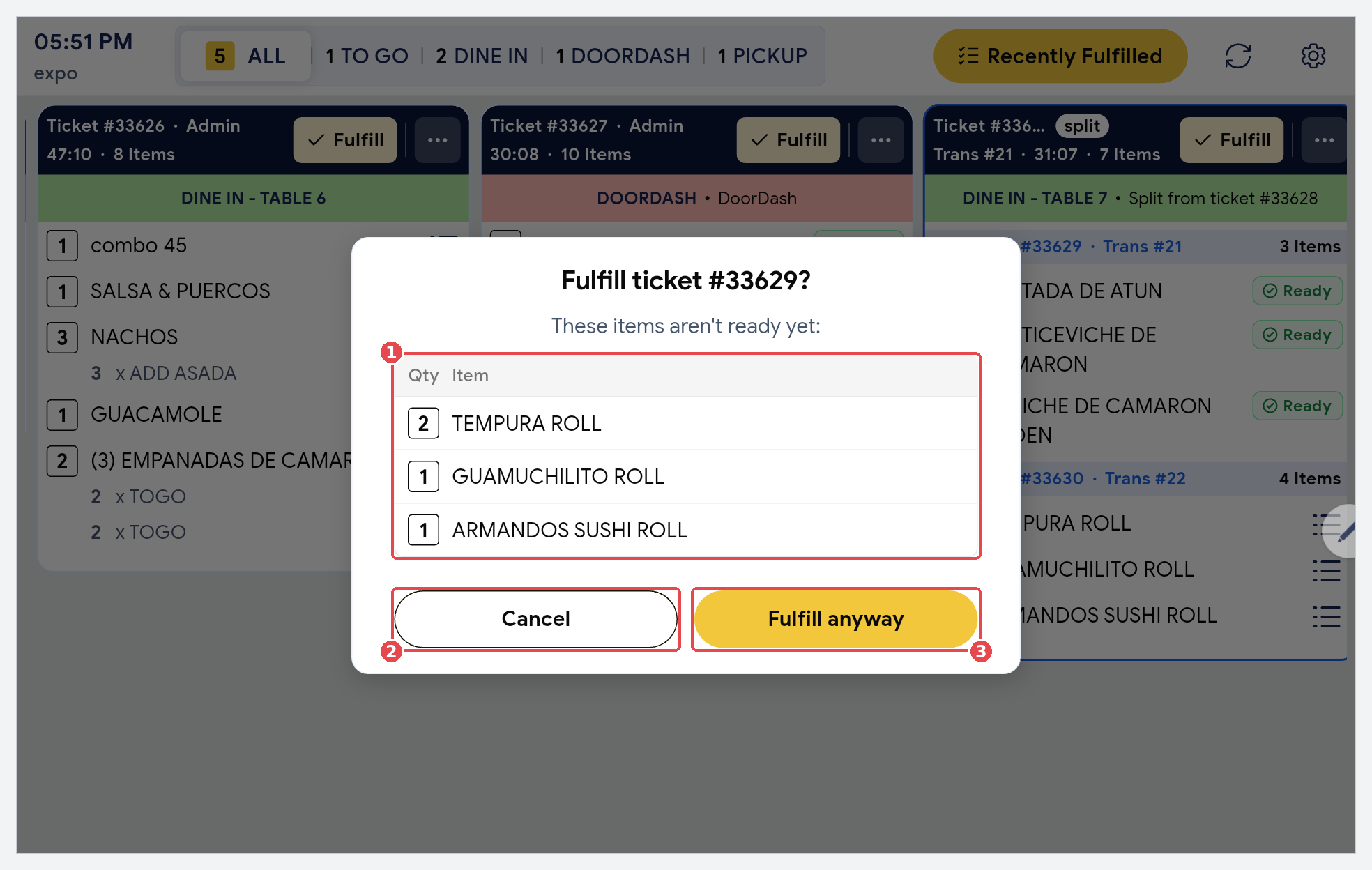
Note: If the kitchen finishes the listed items while the confirmation is open, it closes without fulfilling or printing. Tap Fulfill or Print All again. Every Fulfill anyway and Print anyway is logged with the time, device, employee (if signed in), ticket, and the items that were not ready.
FAQ
1. Why can’t I save my Expo tracking settings? Check the Stations tab for these three things: at least one station is set to Expo, at least one station is set to Kitchen, and, if Show completion label on Expo is on, the Label text is 1 to 12 characters long.
2. Do I have to set the station types every time I turn on Expo tracking? No. Only the first setup starts with every station set to Kitchen. When you turn Expo tracking back on, your saved station types and options are restored.
3. The ticket’s Fulfill button is disabled, but some items are Ready. Can I send them out? Yes. Tap each Ready item, select the quantity, and tap Fulfill. See Fulfill a ready item.
4. Why is Print All disabled when I selected only Ready items? Print All checks the whole ticket, not just the items you selected. With force-fulfill off, it stays disabled while any item that is not on hold is still waiting for the kitchen. You can still tap Fulfill to fulfill the selected Ready items.
5. A Kitchen KDS went offline. Why can’t Expo fulfill the whole ticket? The Expo KDS keeps the last status it received. If Allow force-fulfill at Expo is off, the ticket’s Fulfill button and Print All stay disabled. A manager can turn on Allow force-fulfill at Expo in BLogic View. After the next sync, Expo staff can use Fulfill anyway.
6. Can I change the word “Ready”? Yes. In BLogic View, type a new label in Label text (1 to 12 characters), for example “Done”, and click Save. To show only the ✓ icon, turn off Show completion label on Expo.
Closing
If you still need help, please contact Support for further assistance.