Introduction
You can now add an image to a modifier in BLogic View, so customers see a picture on the modifier button instead of text only. Modifier images are currently supported on BLogic Kiosk only. Other channels keep showing the text button.
Version Support
| Product / Module | Supported Version |
|---|---|
| BLogic View | Release 11.20.2026 or later |
| Kiosk | Release 11.20.2026 or later |
Note: If you do not see this option, please contact Support to confirm your store is on a supported version.
Table of Contents
Add an image to a modifier
Anyone with access to Menu Builder can add modifier images. No extra permission is needed.
Step 1: Open the modifier
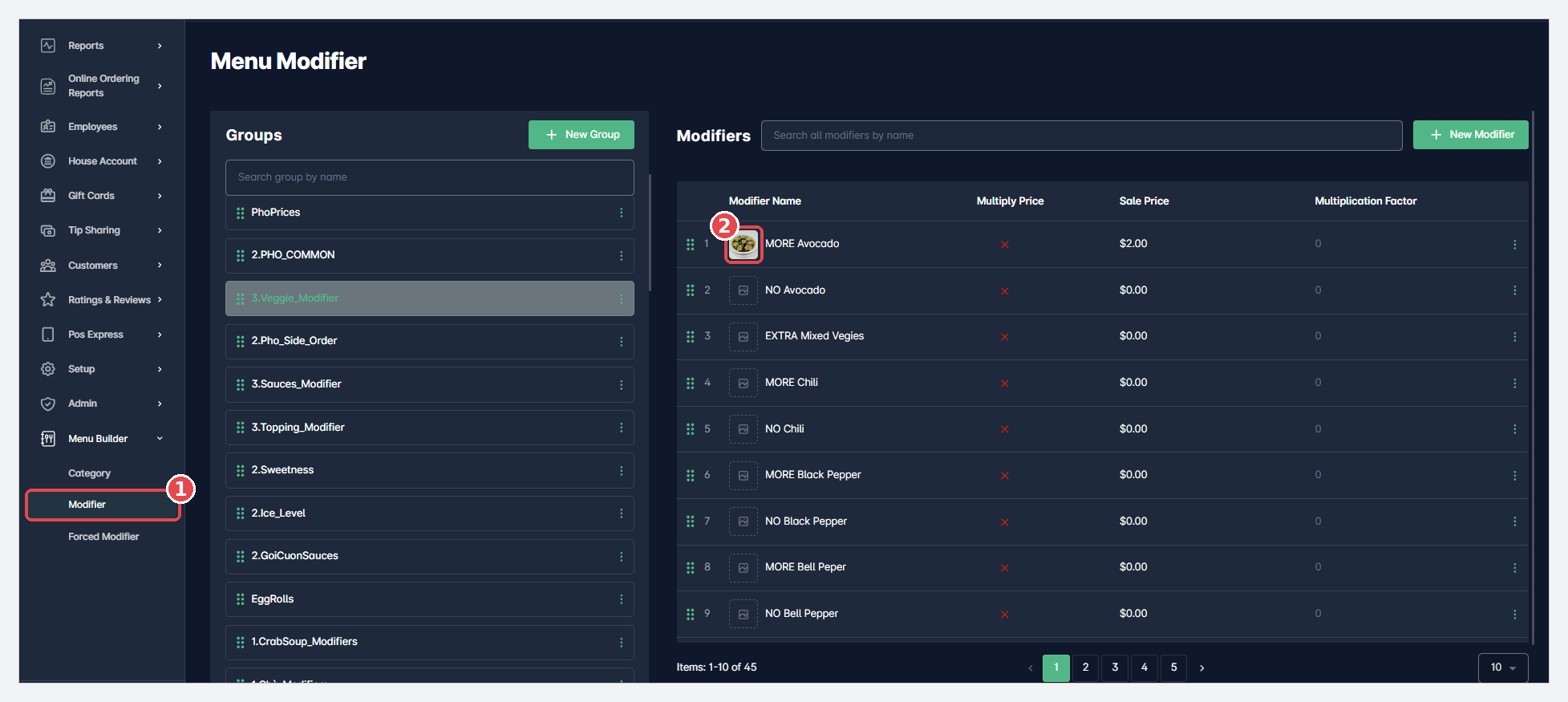
- In BLogic View, click Menu Builder > Modifier.
- Select the modifier group.
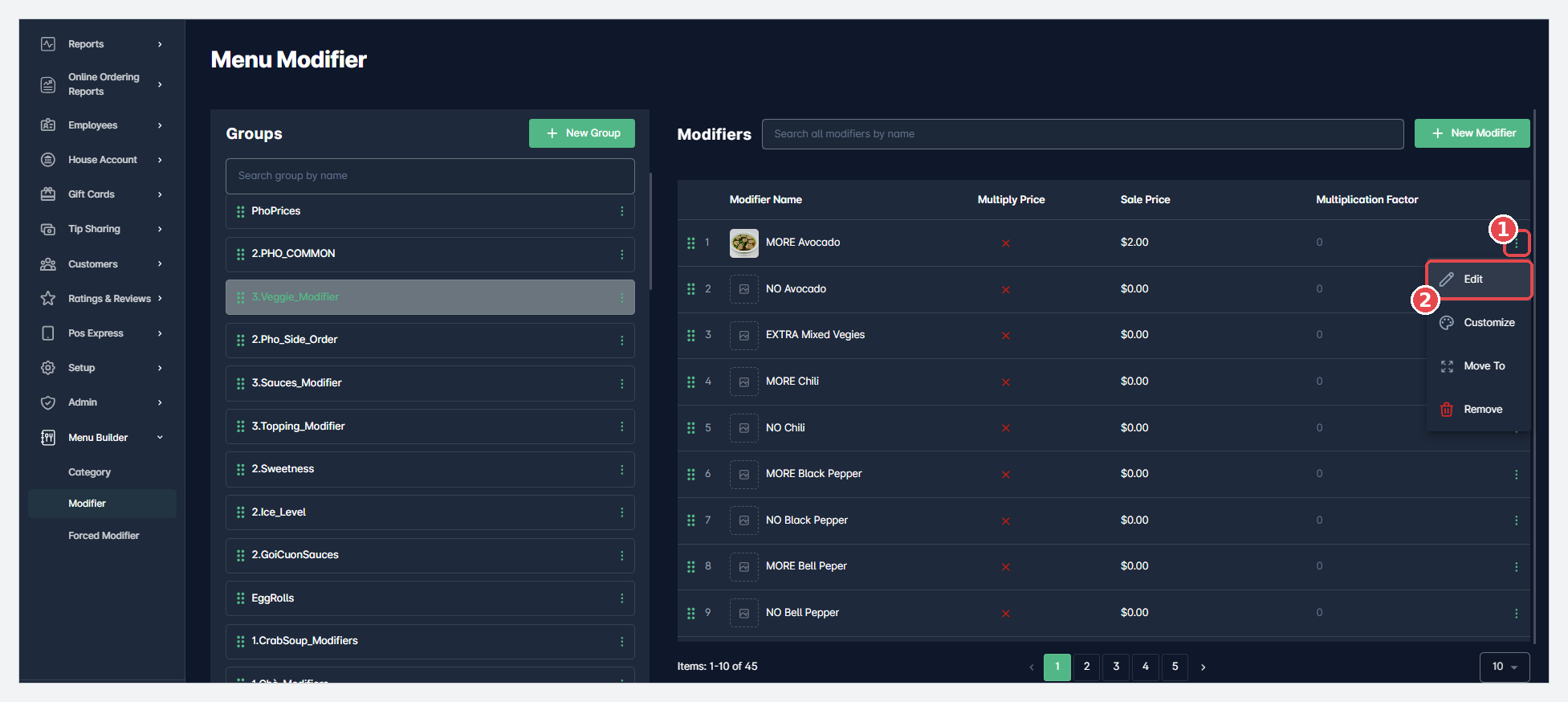
- Click ⋮ next to the modifier and click Edit. To create a new modifier with an image, click New Modifier.
Step 2: Upload the image and choose where it shows
- Scroll to the Modifier Image section at the bottom of the dialog.
- Upload the image. Use an SVG, PNG, JPG or GIF file of 200 KB or less. For the best fit, use 430 × 350 px.
- Under Show image on, make sure Kiosk is checked.
- Click Save.
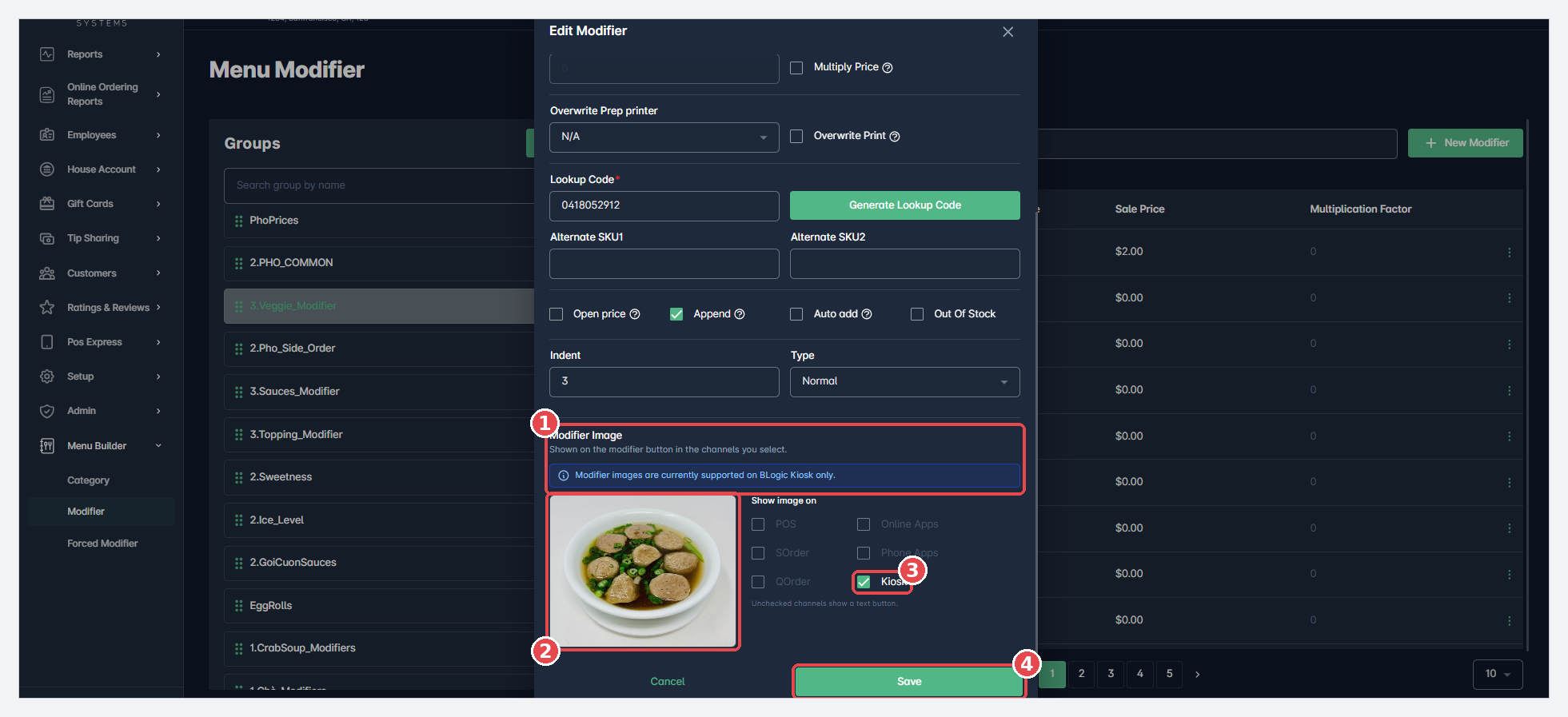
Note: Images are cropped to fit a 430:350 frame. An image with a different size is not blocked, but its edges may be cut off. Changes to the image or channels apply only when you click Save. Cancel discards them.
Replace or remove a modifier image
- Open the modifier as in Step 1.
- In Modifier Image, click Replace to upload a different image, or click Remove and confirm Remove image?.
- Click Save.
When you remove an image, the Show image on options are cleared and the modifier shows a text button again.
Where to view the result
- BLogic View: the modifier list shows a small thumbnail before the modifier name. Modifiers without an image show a placeholder icon.
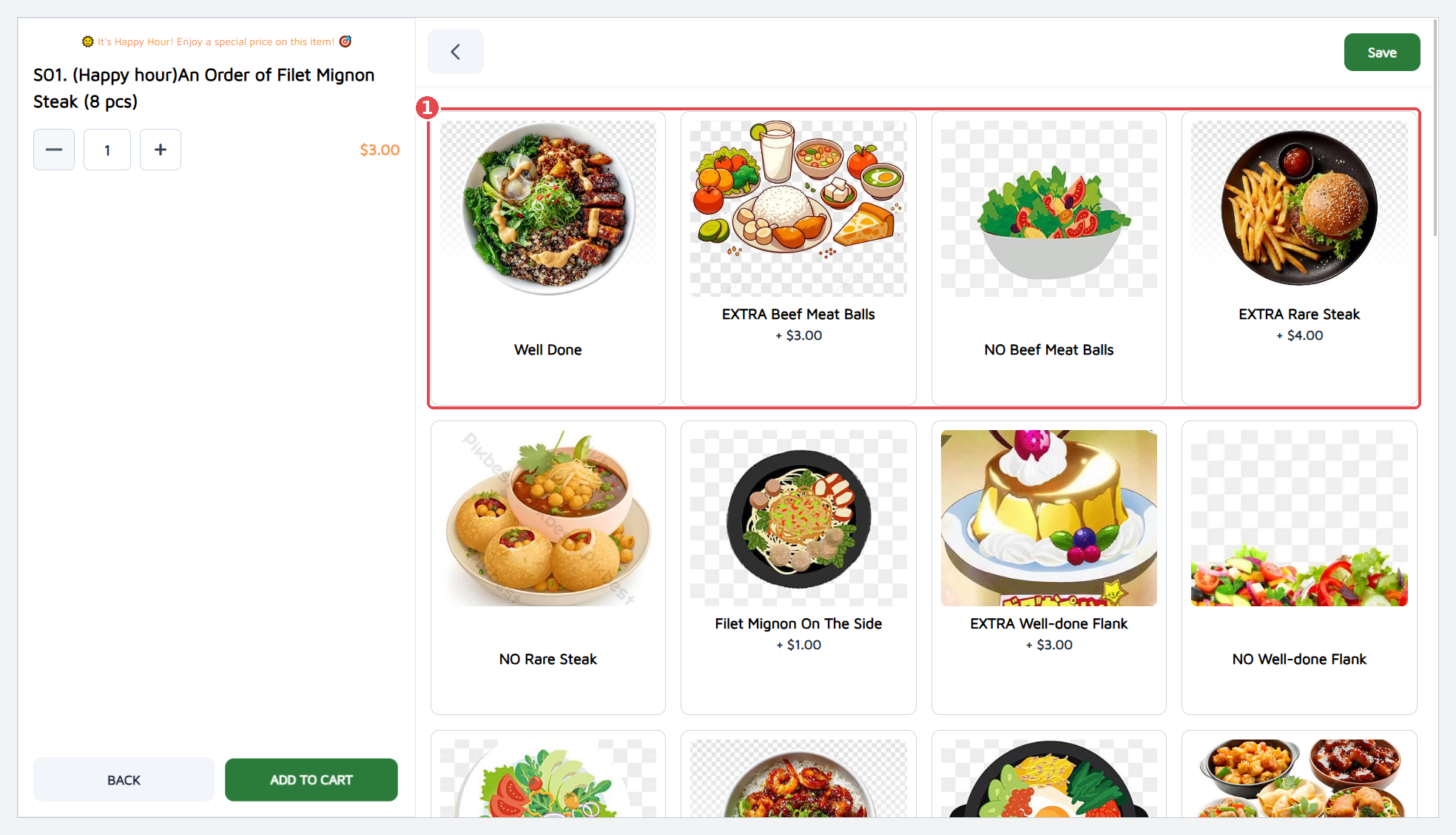
- Kiosk: when a customer customizes an item, the modifier buttons show the images.
FAQ
1. Why can’t I upload my image? The file must be SVG, PNG, JPG or GIF and 200 KB or less. A message under the upload area tells you which rule the file broke. Your previous image is kept.
2. Why can’t I check POS, SOrder, QOrder, Online Apps or Phone Apps? Modifier images are currently supported on Kiosk only. The other channels show the text button.
3. Do I have to add an image to every modifier? No. The image is optional. Modifiers without an image keep the text button.
Closing
If you still need help, please contact Support for further assistance.