Introduction
This article explains how to set up Pay Every Week and 7 Consecutive Days OT in Back Office.
You will learn where to enable these options, how payroll hours are calculated, and where to review the results in Manage Payroll and related reports.
Version Support
| Item | Details |
|---|---|
| Feature | Pay Every Week and 7 Consecutive Days OT |
| Platform / Module | BLogic POS Dashboard, Manage Pay Date, Manage Payroll, Payroll Summary Report, Payroll Detail Report, Time Clock / Time Clock Detail Report |
| Software Version | 2026.05.11 |
| Note | If you do not see these options, please contact Support for version confirmation and enablement assistance. |
Table of Contents
- Before you begin
- Turn on Pay Every Week
- Turn on overtime settings
- Set up employee wage and OT rate
- Review weekly payroll periods
- Review results in Manage Payroll
- Review related payroll reports
- FAQ
1. Before you begin
Before using these options, make sure:
- You have access to Settings and payroll-related screens.
- Your store is using Time Clock & Pay features.
- Employee wage and OT settings are already configured or ready to be reviewed.
ℹ️ Important:
The 7 Consecutive Days OT option depends on the store’s OT setup.
To use it, the store must enable overtime settings and also enable the 7 Consecutive Days OT option.
2. Turn on Pay Every Week
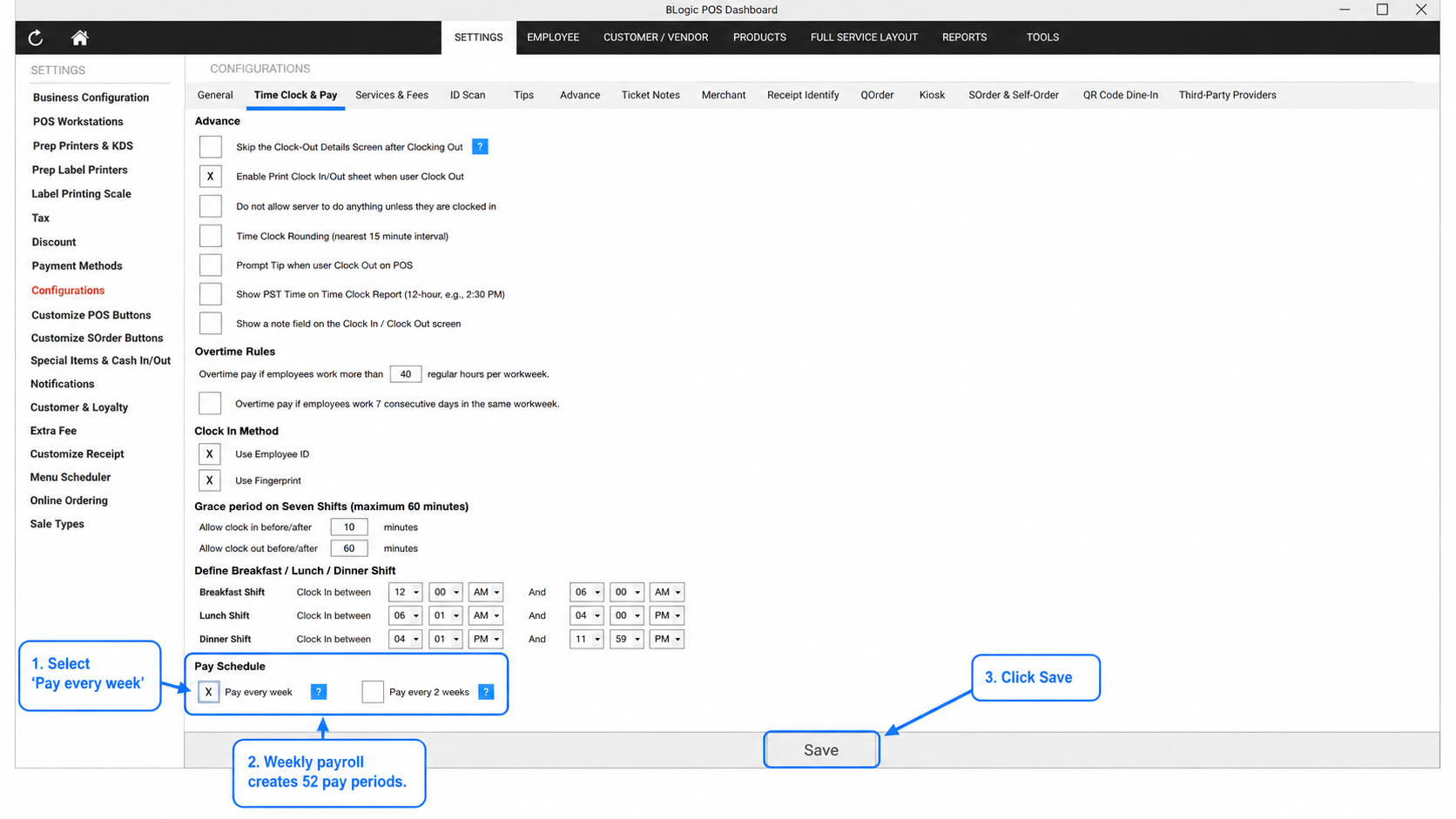
To use weekly payroll, you must enable Pay Every Week in Time Clock & Pay.
Steps
- Go to BO → Settings → Configurations → Time Clock & Pay.
- Scroll to the Pay Schedule section.
- Select Pay every week.
- Click Save.
What happens after you enable it
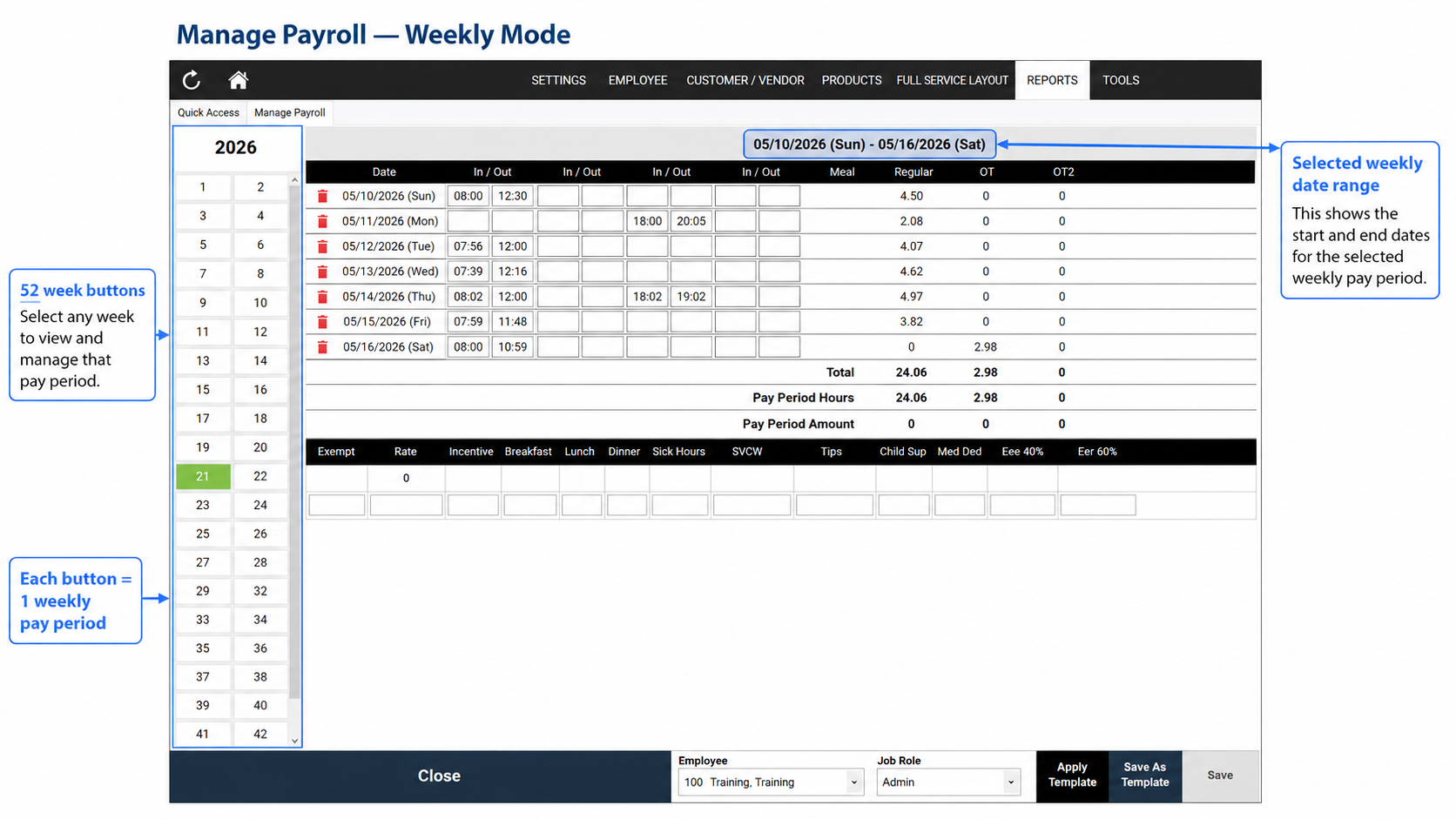
- The system creates 52 weekly pay periods.
- Each pay period contains 7 days.
- Related payroll screens and reports use the weekly period structure.
✅ Tip:
Use Pay Every Week when your store pays employees every week and wants OT calculated by weekly periods.
3. Turn on overtime settings
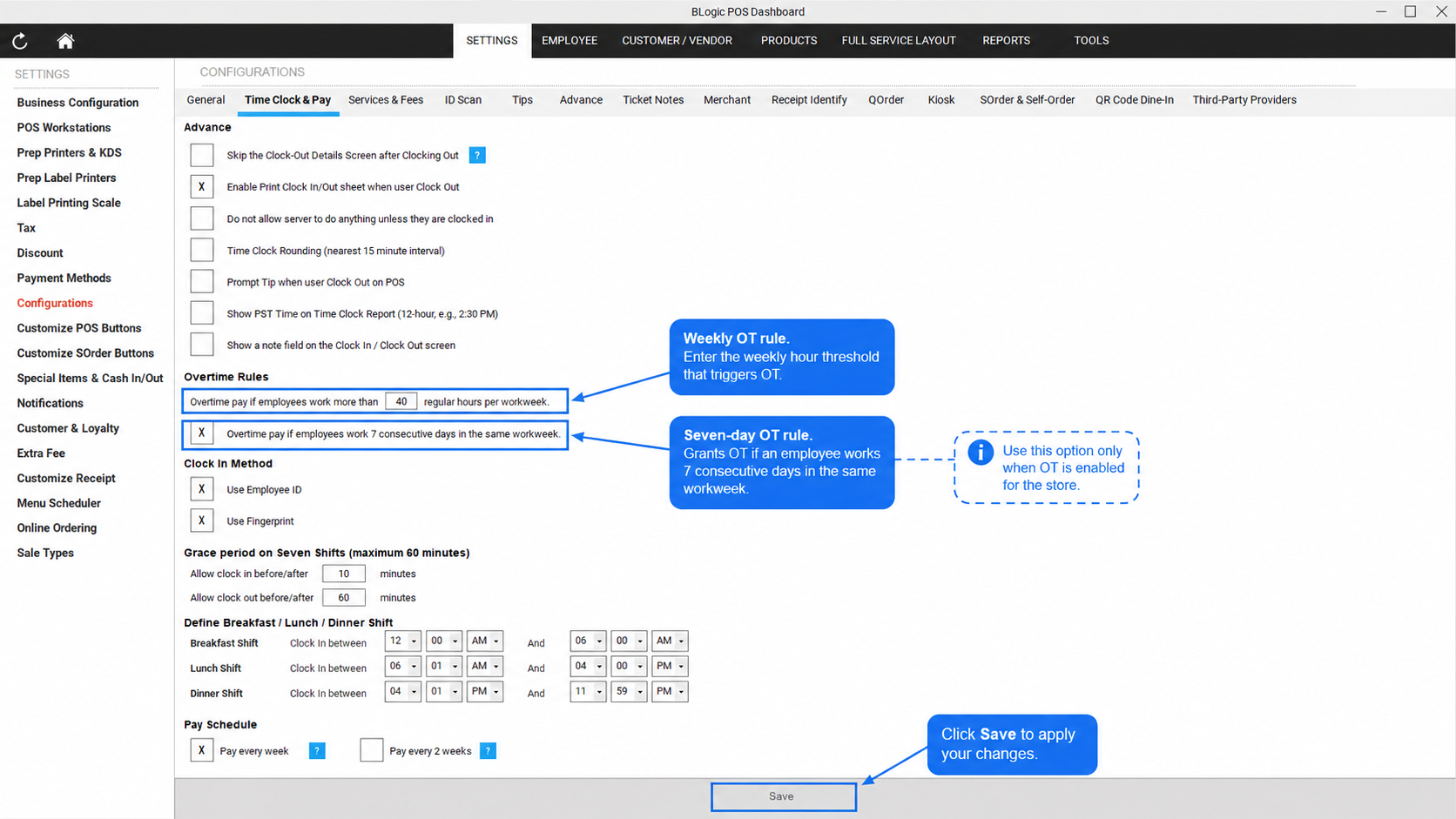
To calculate weekly OT and 7th day OT correctly, review the Overtime Rules section.
Steps
- In BO → Settings → Configurations → Time Clock & Pay, go to Advance.
- In Overtime Rules, review these options:
- Overtime pay if employees work more than 40 regular hours per workweek
- Overtime pay if employees work 7 consecutive days in the same workweek
- Enable the options your store needs.
- Click Save.
How the rules work
- Weekly OT
If an employee works more than 40 regular hours in the same workweek, the extra hours are counted as OT. - 7 Consecutive Days OT
If an employee works all 7 days in the same workweek and this option is enabled:- the first 8 hours on the 7th day are counted as OT
- the hours over 8 on the 7th day follow the store’s OT setup
ℹ️ Important:
The 7 Consecutive Days OT option is not used by itself.
It works only when the store also has the related OT setup enabled.
⚠️ Warning:
If the store does not enable the needed OT setup, the 7 Consecutive Days OT option may not produce OT results.
4. Set up employee wage and OT rate
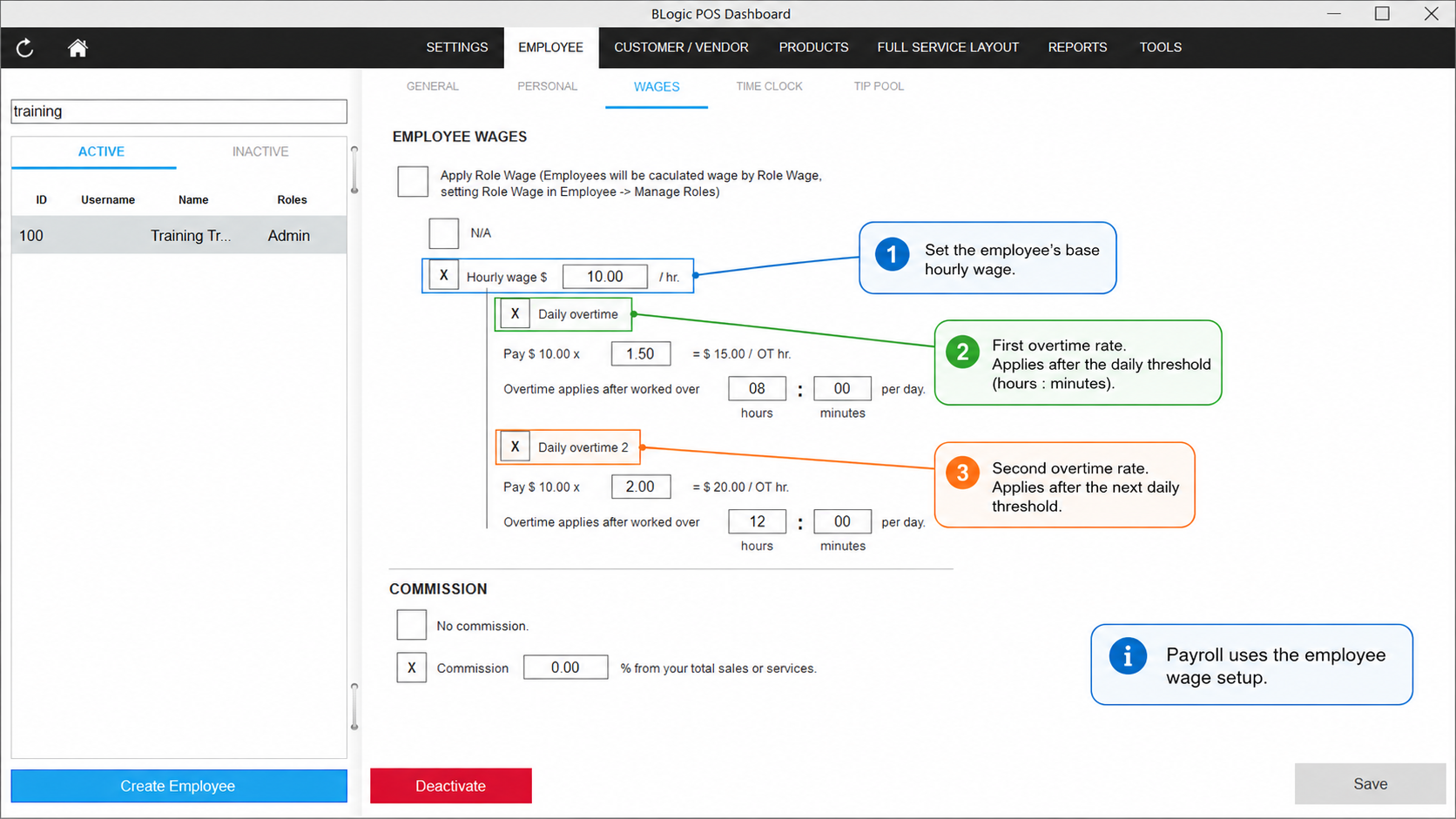
Payroll calculations use the employee’s wage and overtime setup.
Steps
- Go to Employee → Wages.
- Select the employee.
- Review:
- Hourly wage
- Daily overtime
- Daily overtime 2
- Save any updates if needed.
What to check
- Hourly wage should be correct.
- Daily overtime and Daily overtime 2 should match the store’s payroll policy.
- Payroll calculations use the employee wage source from the employee wage setup screen.
ℹ️ Note:
Payroll Detail Report should always use the employee wage source configured in Employee Wages, not a manual rate entered elsewhere.
5. Review weekly payroll periods
After Pay Every Week is enabled, the payroll calendar changes to weekly periods.
Manage Pay Date
- The system creates 52 rows
- Each row represents 1 weekly pay period
- Each pay period contains 7 days
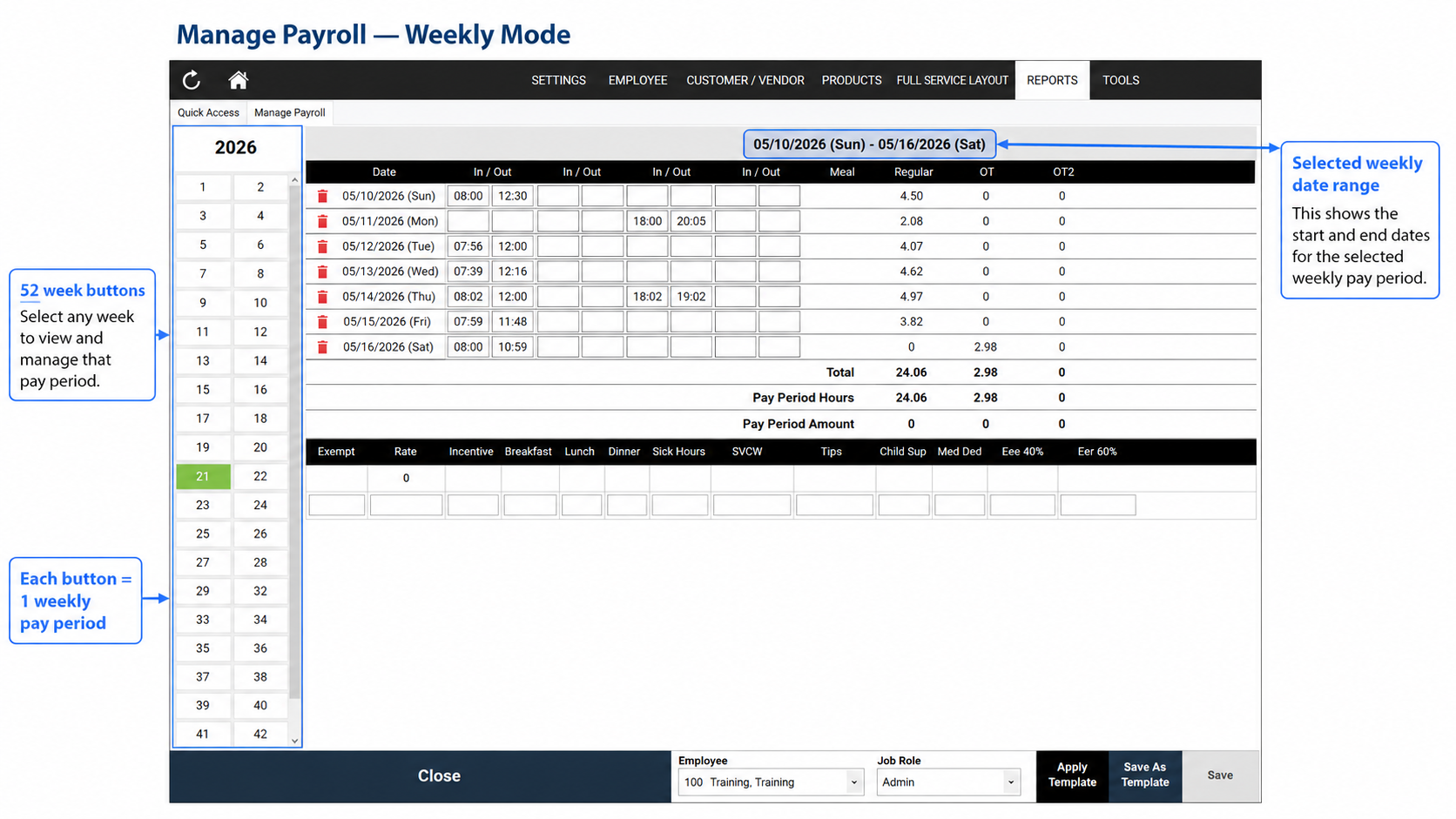
Manage Payroll
- The system shows period buttons from 1 to 52
- You can move through the year by weekly payroll period
✅ Tip:
Use Manage Pay Date to confirm your weekly period boundaries before processing payroll.
6. Review results in Manage Payroll
After time entries are recorded, review the weekly result in Manage Payroll.
What the screen shows
- Regular hours
- OT hours
- OT2 hours
- Total hours and pay-period totals
Example behavior
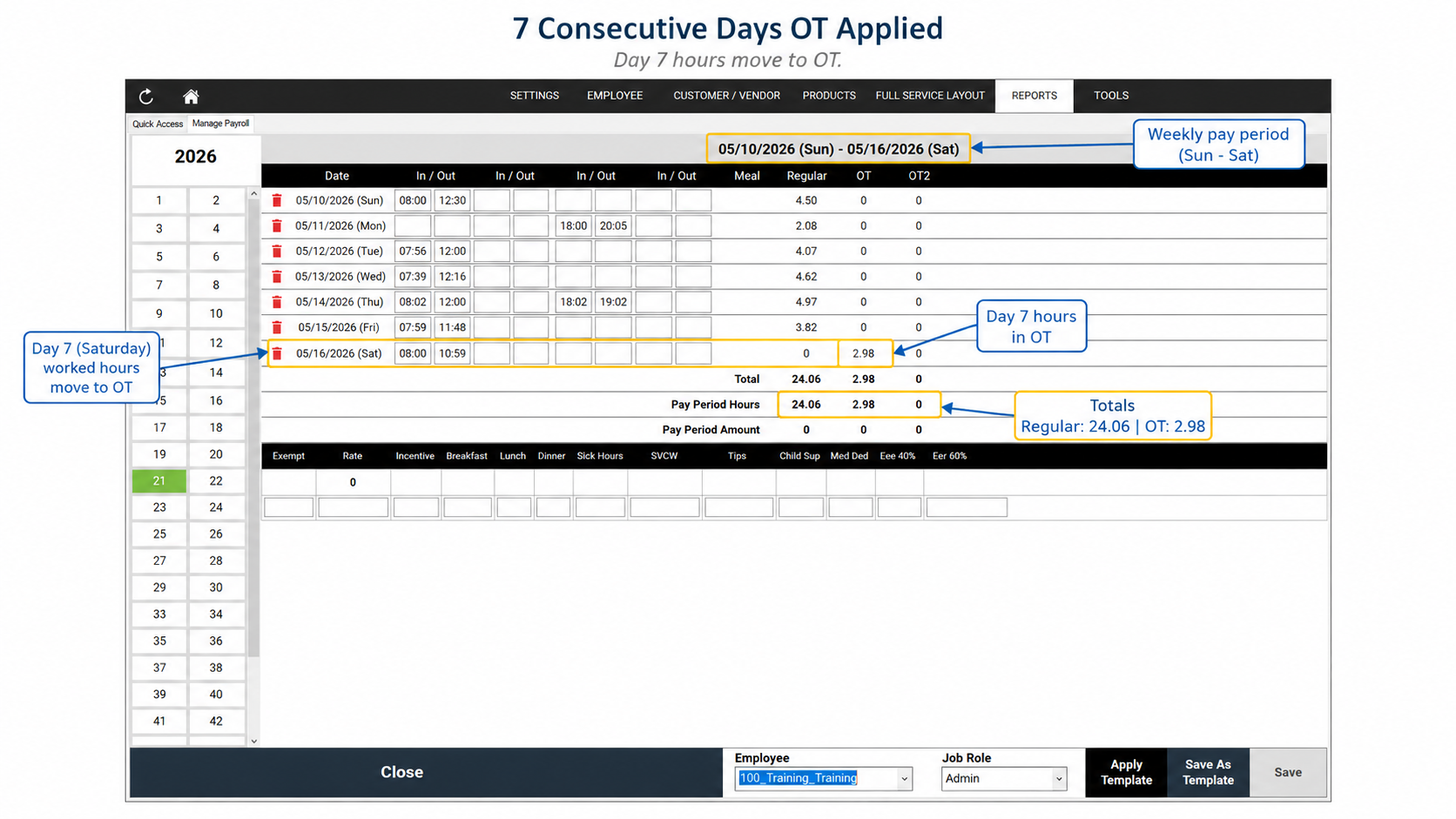
When 7 Consecutive Days OT is applied
If the employee works all 7 days in the same workweek and the option is enabled, part of the 7th day hours will move into the OT column.
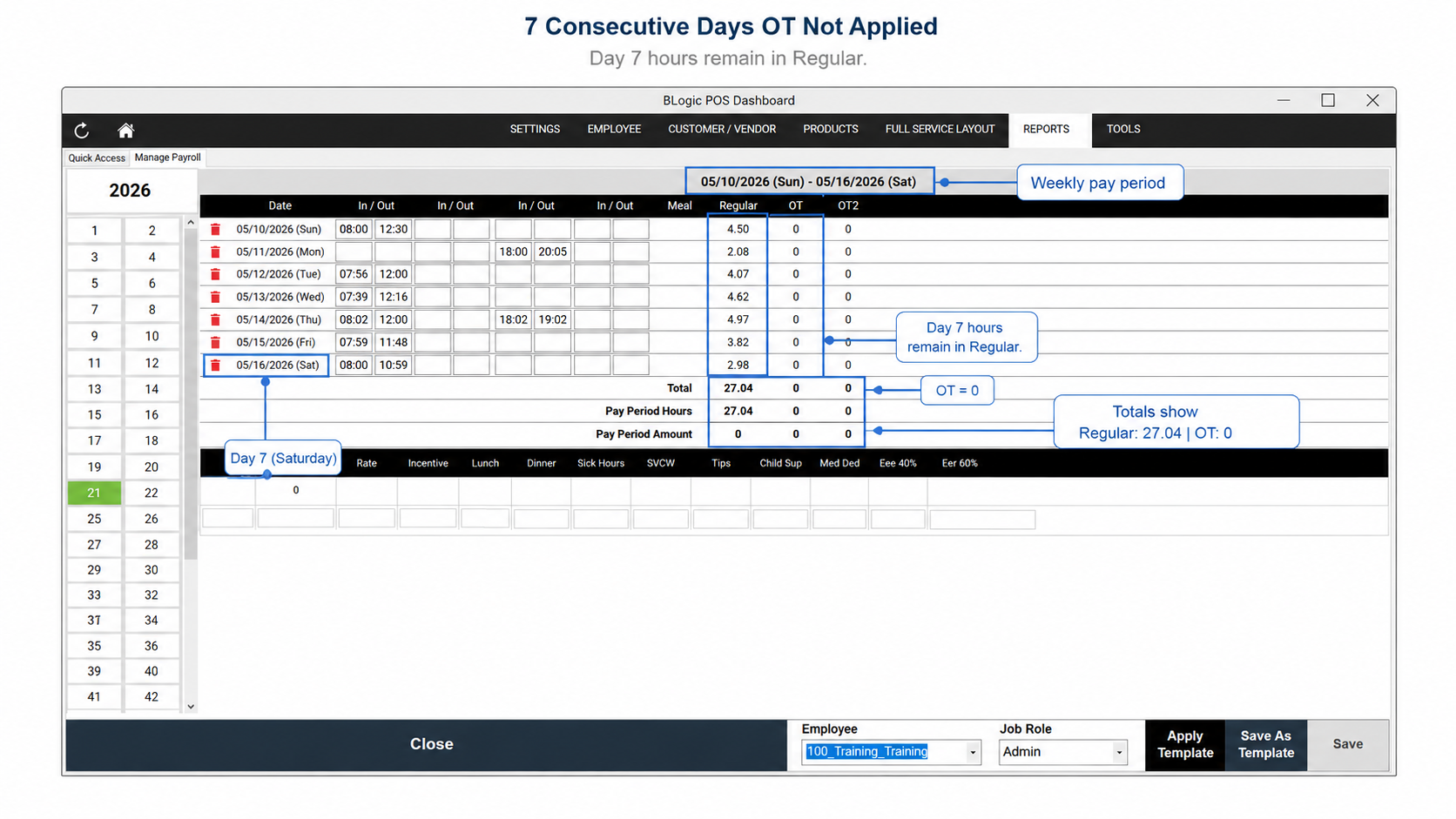
When 7 Consecutive Days OT is not applied
If the option is not enabled, or the employee does not meet the 7-day condition, those hours remain in Regular hours based on the store’s setup.
Editing in Manage Payroll
If you edit and save data in Manage Payroll:
- the system overwrites Role
- the system overwrites Rate
- the overwrite applies to all records in the same pay period
⚠️ Warning:
Before saving changes in Manage Payroll, review the entire pay period carefully.
7. Review related payroll reports
These features also affect payroll and time clock reports.
Affected reports
- Payroll Summary Report
- Payroll Detail Report
- Time Clock Report
- Time Clock Detail Report
Expected result
Reports should correctly reflect:
- weekly pay periods
- Regular hours
- OT hours
- wages based on the employee wage source
- weekly overtime logic when Regular > 40 hours per workweek
Time Clock Rounding
If Time Clock Rounding (nearest 15 minutes) is enabled:
- clock-in and clock-out times are rounded first
- rounded time is then used to calculate payroll hours
ℹ️ Note:
Rounded time can affect the final Regular and OT totals in weekly payroll.
FAQ
1. Why do I not see the Pay Every Week option?
Your version may not include this feature, or your account may not have access to the required settings. Please contact Support.
2. Why is the 7 Consecutive Days OT option enabled, but I still do not see OT on the 7th day?
Check whether the store also enabled the required OT setup. The 7th day option depends on the store’s OT configuration.
3. Does 7 Consecutive Days OT work across two different workweeks?
No. The employee must work all 7 days in the same workweek.
4. Why did the Rate change after I saved Manage Payroll?
When you edit and save Manage Payroll, the system overwrites Role and Rate for all records in the same pay period.
5. Which wage source is used in Payroll Detail Report?
The report uses the employee wage source from the employee wage setup, not a manual value entered outside that source.