Introduction
This article shows you how to set a Minimum Order Value for orders placed through your Online Ordering website. When this is turned on, customers must reach the amount you set before they can check out.
This helps you avoid very small orders (for example, a single side item) that are not worth the preparation and delivery cost.
Version Support
| Product / Module | Supported Version |
|---|---|
| POS | 08.05.2026 or later |
Table of Contents
- Set the Minimum Order Value
- What Customers See on the Website
- How the Minimum Amount Is Calculated
- Where to View or Confirm the Result
- FAQ
Set the Minimum Order Value
Step 1: Open the Online Ordering configuration
- Log in to BLogic View.
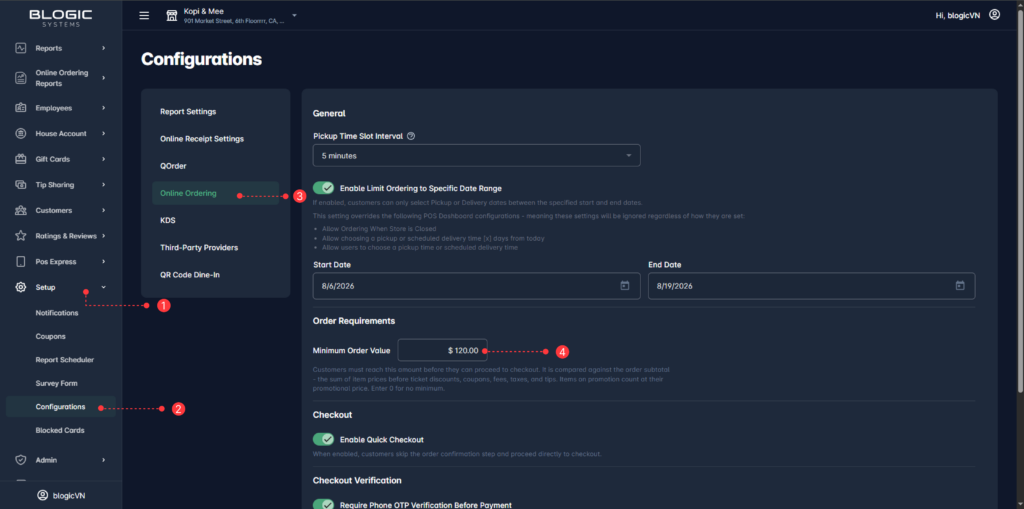
- Go to Setup > Configurations.
- Select Online Ordering.
Step 2: Enter your minimum amount
- Scroll to the Order Requirements section.
- In the Minimum Order Value field, enter the amount you want to require (for example,
120.00). - Save the configuration.
ℹ️ Note: The default value is $0, which means no minimum is applied and customers can check out with any order amount.
✅ Tip: Start with a small amount and adjust later. A minimum that is too high may cause customers to abandon their cart.
What Customers See on the Website
Once the minimum is set, your Online Ordering website checks the cart automatically.
Step 1: The customer adds items to the cart
- The customer builds their order as usual.
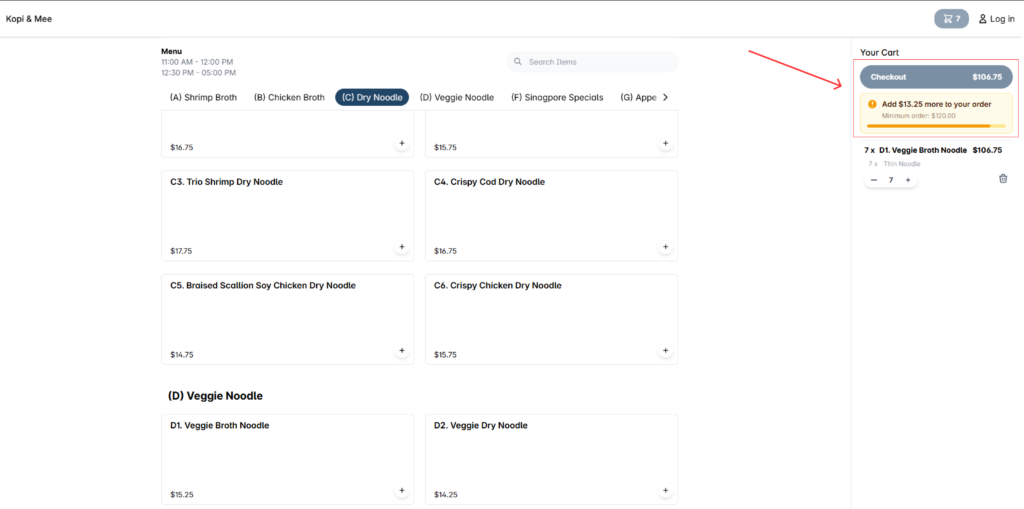
- If the cart total is still below your minimum, a warning banner appears showing how much more they need to add.
- The Checkout button stays disabled.
Step 2: The customer reaches the minimum
- The customer adds more items.
- The banner and the Checkout button update in real time as the cart changes.
- Once the minimum is reached, the Checkout button becomes active and the customer can continue to payment.
How the Minimum Amount Is Calculated
The system compares your Minimum Order Value against the amount shown on the Checkout button in the cart.
That amount:
- Includes discounts already applied to items, such as Mix & Match and Happy Hour.
- Excludes Coupons.
- Excludes Fees and Taxes.
The same minimum applies to both Pickup and Delivery orders — there is no separate setting for each order type.
ℹ️ Note: Because coupons are not counted, a customer cannot use a coupon to bring their order below your minimum.
Where to View or Confirm the Result
You can confirm the setting is working in two places:
- BLogic View — go back to Setup > Configurations > Online Ordering > Order Requirements and check that the Minimum Order Value shows the amount you saved.
- Online Ordering website — open your store page, add an item below the minimum, and confirm the warning banner appears and the Checkout button is disabled.
FAQ
1. Why can’t I see the Minimum Order Value option? Your store may not be on a supported version, or your user role may not have permission to open Setup configurations in BLogic View. Please contact Support if the option is not visible.
2. Does this affect orders that are already placed? No. The minimum is checked at the moment a customer checks out on the Online Ordering website. Orders already submitted are not changed.
3. Does the minimum apply to both Pickup and Delivery? Yes. The same minimum applies to all Online Ordering orders, regardless of order type.
4. Do coupons count toward the minimum? No. The check uses the cart amount before coupons, fees, and taxes. Item-level promotions such as Mix & Match and Happy Hour are included.
5. Can a customer bypass the check by opening the payment page directly? No. The system blocks access to the payment step until the cart meets the minimum, even if the payment link is opened directly.
Closing
If you still need help, please contact Support for further assistance.