Introduction
This article shows you how to choose which number — the Transaction # or the Ticket # — appears on the ticket header of your KDS screen. You set this once in BLogic View, and every KDS device updates to match. This helps your kitchen and floor staff read and track orders using the number your store prefers.
Version Support
| Product / Module | Supported Version |
|---|---|
| BLogic View (Dashboard) | Build POS 08.18.2026 |
| KDS | 2.0.5 |
Note: If you do not see this option, please contact Support to confirm your store is on a supported version.
Table of Contents
- Configure the Ticket Header Number
- How the Number Appears on KDS
- Where to View or Confirm the Result
- FAQ
Configure the Ticket Header Number
Step 1: Open the KDS configuration
- Log in to BLogic View.
- Go to Setup > Configurations.
- In the left panel, select KDS.
- Open the General tab.
Step 2: Choose the number to display
- Under Ticket Display, find Ticket Header Number.
- Select one option:
- Transaction # — shows the transaction number
- Ticket # — shows the ticket number (this is the default).
- Click Save.
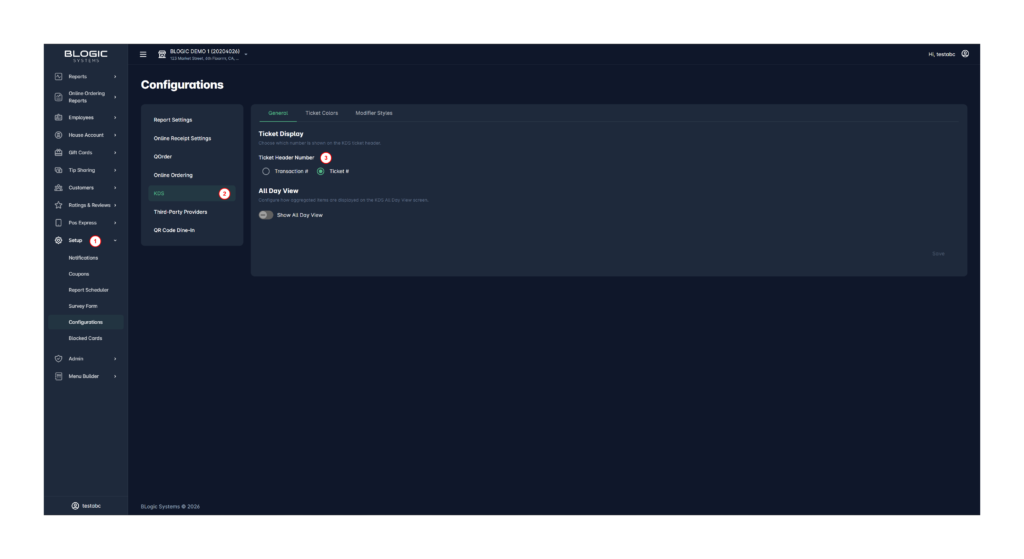
ℹ️ Note: This setting applies to all KDS devices in the store. If a KDS is already open, it updates to the new setting after the screen refreshes.
How the Number Appears on KDS
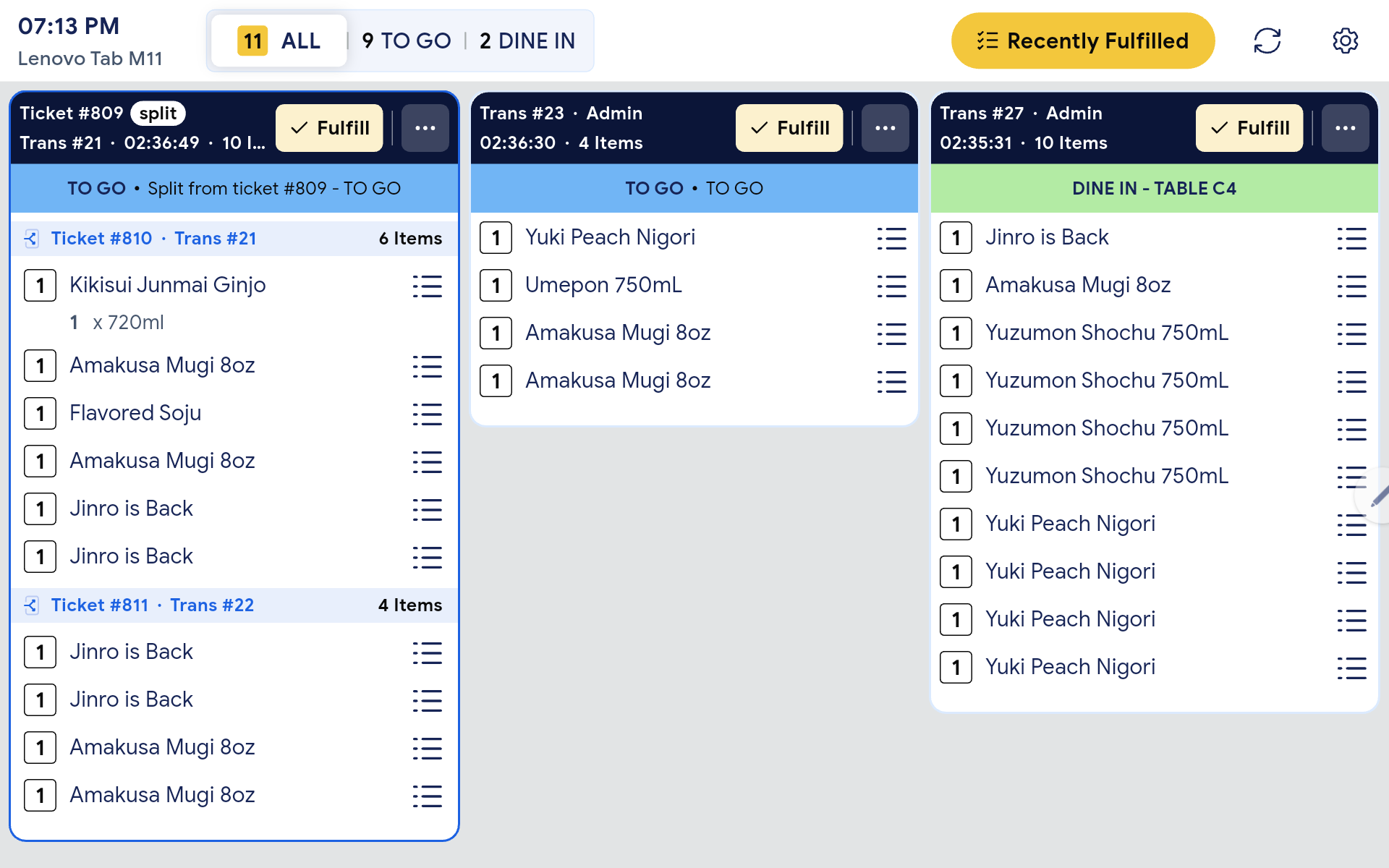
After saving, your KDS ticket headers display the number you selected.
Regular (non-split) tickets
- When set to Transaction #, the header shows the transaction number (for example,
Trans #23). - When set to Ticket #, the header shows the ticket number (for example,
Ticket #812).
Split tickets
- Split tickets always show both the Ticket # and the Transaction # (for example,
Ticket #810 · Trans #21), no matter which option you selected. - This makes it easy to recognize and track the parent order and each split part together.
✅ Tip: Use Transaction # if your team calls out the shorter daily transaction number, or Ticket # if you track orders by the full ticket number.
Where to View or Confirm the Result
You can confirm the change directly on any KDS screen:
- Open the KDS device.
- Check the number shown at the top of each ticket header.
- Confirm split tickets show both numbers.
FAQ
1. Why can’t I see this option? You may not be on a supported version, or your user role may not have permission to access this setting. Please contact Support if the option is not visible.
2. Does this setting affect existing data? No. It only changes which number is displayed on the KDS ticket header. It does not change the order, items, or any transaction data.
3. Do I need to set this on each KDS device? No. You set it once in BLogic View and it applies to all KDS devices in the store.
4. Why does my split ticket still show both numbers? This is expected. Split tickets always display both the Ticket # and Transaction # so staff can track the parent order and its split parts, regardless of the selected option.
5. What should I do if the KDS still shows the old number? Confirm you clicked Save in BLogic View, then refresh the KDS screen. If it still does not update, contact Support for further assistance.
Closing
If you still need help, please contact Support for further assistance.