Introduction
This article explains how to control which staff can process token sale and token refund transactions in your POS and QOrder apps. You will learn how to turn these two permissions on or off for each permission group from the POS Dashboard. Using these permissions helps you limit sensitive credit card actions to trusted employees only.
Version Support
| Product / Module | Supported Version |
|---|---|
| POS Dashboard | 2026.08.26 |
| POS | 2026.08.26 |
| QOrder | 2026.08.26 |
Note: If you do not see these options, please contact Support to confirm your store is on a supported version.
Table of Contents
- What Token Sale and Token Refund Permissions Do
- Set the Permissions in POS Dashboard
- How the Permissions Work in POS and QOrder
- Where to View or Confirm the Result
- FAQ
What Token Sale and Token Refund Permissions Do
Two permissions are available under the Credit Card section of each permission group:
- Allow to process token sale transaction — lets the employee run a token sale on the Additional Transaction screen.
- Allow to process token refund transaction — lets the employee run a token refund on the Additional Transaction screen.
These permissions are set per permission group (for example, Admin, Cashier, Store Manager). Any employee assigned to that group inherits whatever you set here.
ℹ️ Note: These are separate permissions. You can allow token sales while blocking token refunds, or the reverse, depending on how much control you want over each action.
Set the Permissions in POS Dashboard
Step 1: Open the Employee permission settings
- Log in to your POS Dashboard.
- Go to the EMPLOYEE tab.
- In the ALL PERMISSION GROUP list on the left, select the group you want to edit (for example, Cashier).
Step 2: Find the Credit Card section
- Scroll down the permission list until you reach the Credit Card heading.
- Locate Allow to access Credit Card Settlement.
Step 3: Turn the token permissions on or off
- Check Allow to process token sale transaction to let this group run token sales.
- Check Allow to process token refund transaction to let this group run token refunds.
- Uncheck either box to block that action for the group.
Step 4: Save your changes
- Click Save at the bottom right of the screen.
- Repeat these steps for any other permission group you want to update.
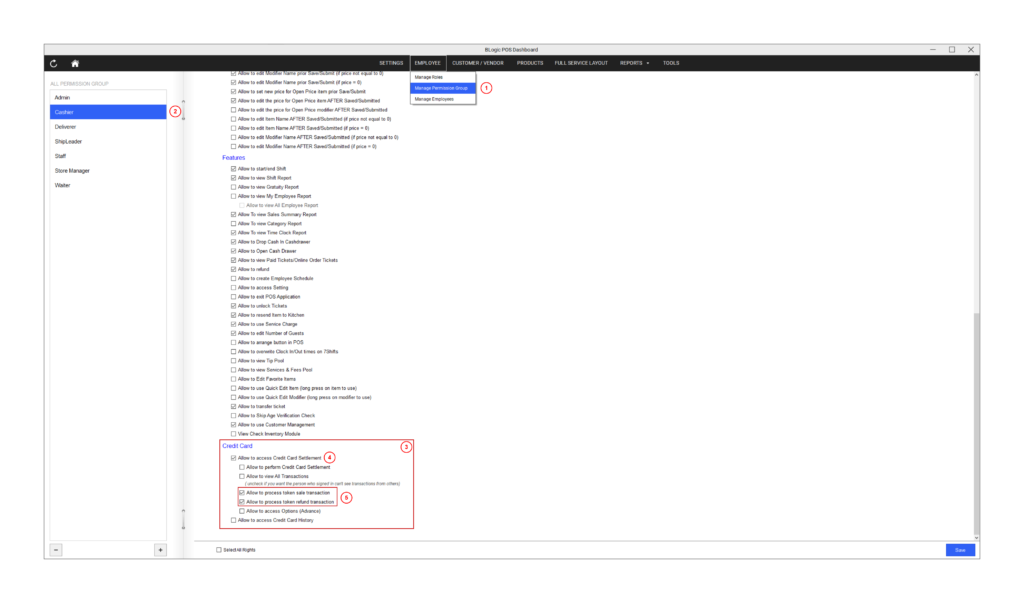
✅ Tip: Review each group one at a time. It is easy to leave a permission enabled on a group you did not mean to change.
How the Permissions Work in POS and QOrder
After you save, the permissions are enforced on the Additional Transaction screen in both the POS app and the QOrder app.
- If an employee has the token sale permission, they can process a token sale.
- If an employee does not have the token sale permission, the token sale action is blocked for them.
- The same rule applies to token refunds using the token refund permission.
ℹ️ Note: Changes may only take effect after the employee signs out and back in, or after the app syncs with the Dashboard. If a change does not appear right away, have the employee log out and log in again.
Where to View or Confirm the Result
You can confirm the settings in two places:
- POS Dashboard → EMPLOYEE tab — reopen the permission group and check that the two token boxes show the state you saved.
- POS or QOrder → Additional Transaction screen — sign in as an employee from that group and confirm they can (or cannot) process a token sale or token refund as expected.
FAQ
1. Why can’t I see the token sale or token refund options? You may not be on a supported version, or your user role may not have permission to access the Employee permission settings. Please contact Support if the options are not visible.
2. Do I need Credit Card Settlement access turned on to use these permissions? The token permissions appear under Allow to access Credit Card Settlement in the Credit Card section. If a group cannot access Credit Card Settlement, please contact Support to confirm how the token permissions behave for that group.
3. Can staff process token transactions without these permissions enabled? No. If the permission is unchecked for their group, that employee is blocked from the matching token action on the Additional Transaction screen in POS and QOrder.
4. Does this permission apply to both POS and QOrder? Yes. The same permission is enforced on the Additional Transaction screen in both the POS app and the QOrder app.
5. What should I do if the permission does not work as expected? Confirm the correct permission group is set and saved, have the employee sign out and back in so the change syncs, verify your store is on a supported version, and contact Support if the issue continues.
Closing
If you still need help, please contact Support for further assistance.