Introduction
This article shows you how to see which modifiers were sold with each item, directly inside the Sales by Category report. You will learn how to expand an item to view its modifiers, filter the report by modifier group or modifier, and include a modifier table when you export, print, or schedule the report.
Before this update, you had to open the Sales by Modifier report separately and match the numbers by hand. Now everything is available in one place.
Version Support
| Product / Module | Supported Version |
|---|---|
| POS | 09.14.2026 or later |
Note: If you do not see this option, please contact Support to confirm your store is on a supported version.
Table of Contents
- View Modifiers Under an Item
- Filter the Report by Modifier
- Include Modifier Details When You Export or Print
- Add Modifier Details to a Scheduled Report
- Where to View or Confirm the Result
- FAQ
View Modifiers Under an Item
Modifiers are hidden by default. You open them item by item, so the report looks the same as before until you ask for the detail.
Step 1: Open the report
- Log in to BLogic View.
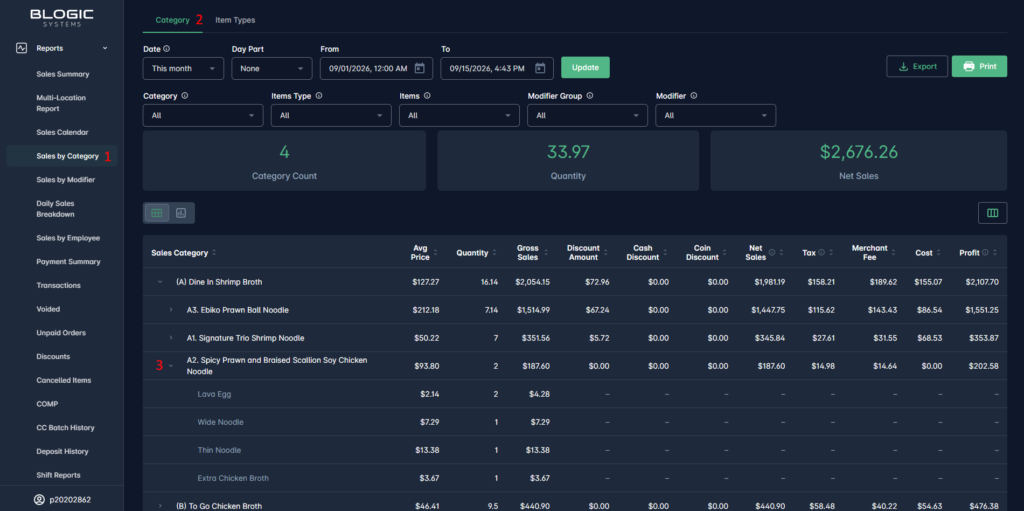
- Go to Reports > Sales by Category.
- Select the Category tab or the Item Types tab. Modifiers are available on both.
Step 2: Expand an item
- Set the date range you want, then select Update.
- Expand a category to see the items inside it.
- Select the breakdown icon next to an item to show its modifiers.
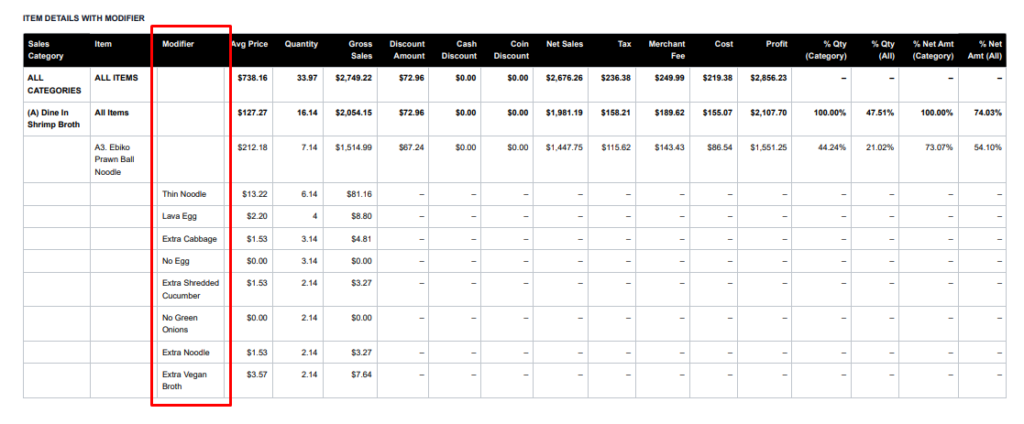
The modifiers appear as indented rows under the item, showing the quantity and amount sold for each one.
Filter the Report by Modifier
Two filters let you narrow the report to the modifiers you care about.
Step 1: Set the modifier filters
- In the filter area, find Modifier Group and Modifier.
- Select one or more values in either filter. Both are set to All by default.
Step 2: Read the filtered result
The report now shows only the items that were sold with the modifiers you selected. The summary figures at the top of the page are recalculated to match.
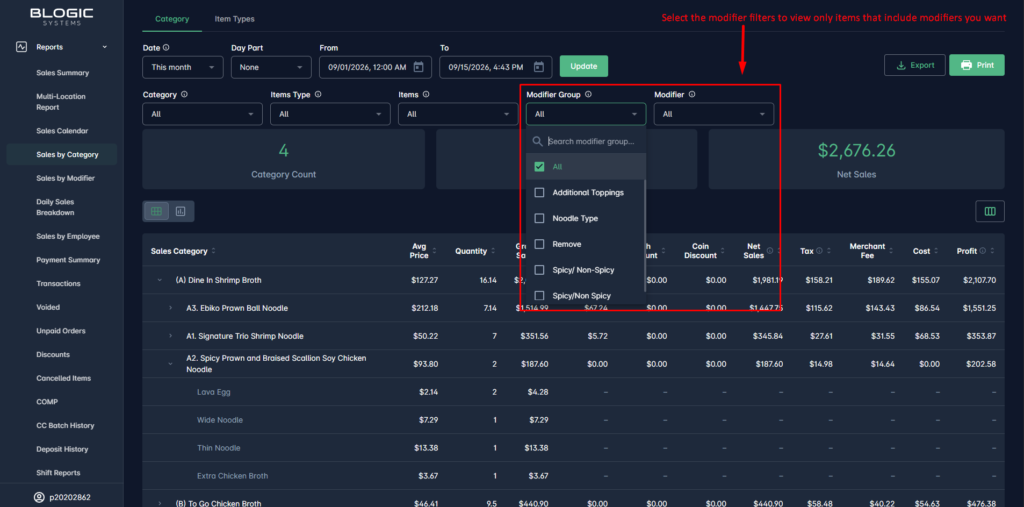
⚠️ Warning: Because the figures are recalculated, the totals shown while a modifier filter is applied will be lower than the totals of the unfiltered report. Set both filters back to All to see the full figures again.
Include Modifier Details When You Export or Print
You can add a modifier table to the file you download or print.
Step 1: Open the export or print options
- Set your filters and date range in the report.
- Select Export or Print.
Step 2: Select the modifier section
- In the options window, select Item Details with Modifier.
- For Export, choose Excel file or PDF file.
- Select Download, Send Email, or Print.
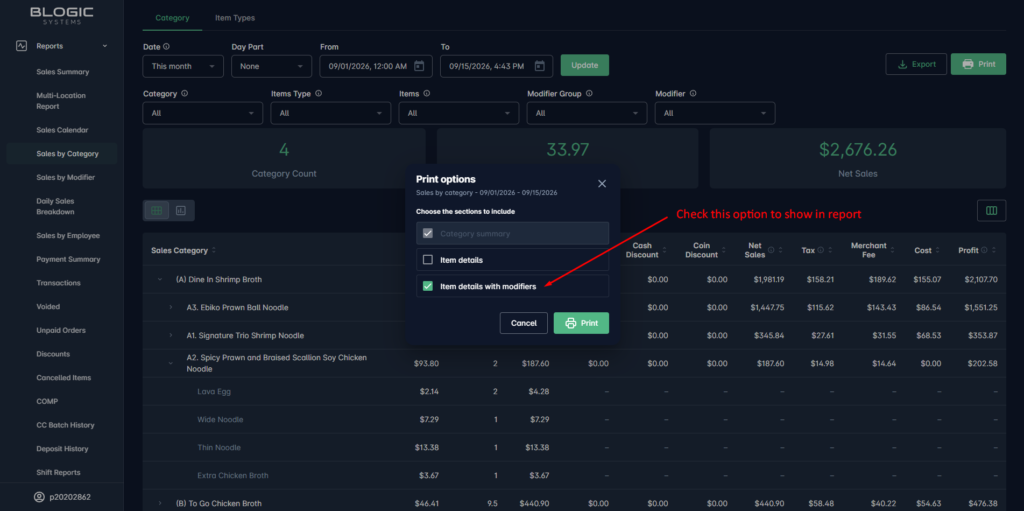
ℹ️ Note: Item Details with Modifier is unchecked by default. Once you select it, your choice is saved and applied the next time you export or print, in the same way as the Item Details option.
What you get in the file
| File type | Where to find it |
|---|---|
| Excel | A new tab named Item Details with Modifier |
| A new table at the bottom of the file, named Item Details with Modifier |
Add Modifier Details to a Scheduled Report
Scheduled reports can include the modifier table as well, so you receive it by email automatically.
Step 1: Open the schedule
- Go to Setup > Scheduler Reports.
- Select an existing schedule, or select New Schedule.
Step 2: Configure the Sales by Category report
- In Reports Included, make sure Sales by Category is selected, then expand it.
- Set Modifier Group and Modifier if you want the scheduled file to cover only certain modifiers.
- Under the report content options, select Item Details with Modifier.
- Select Save changes.
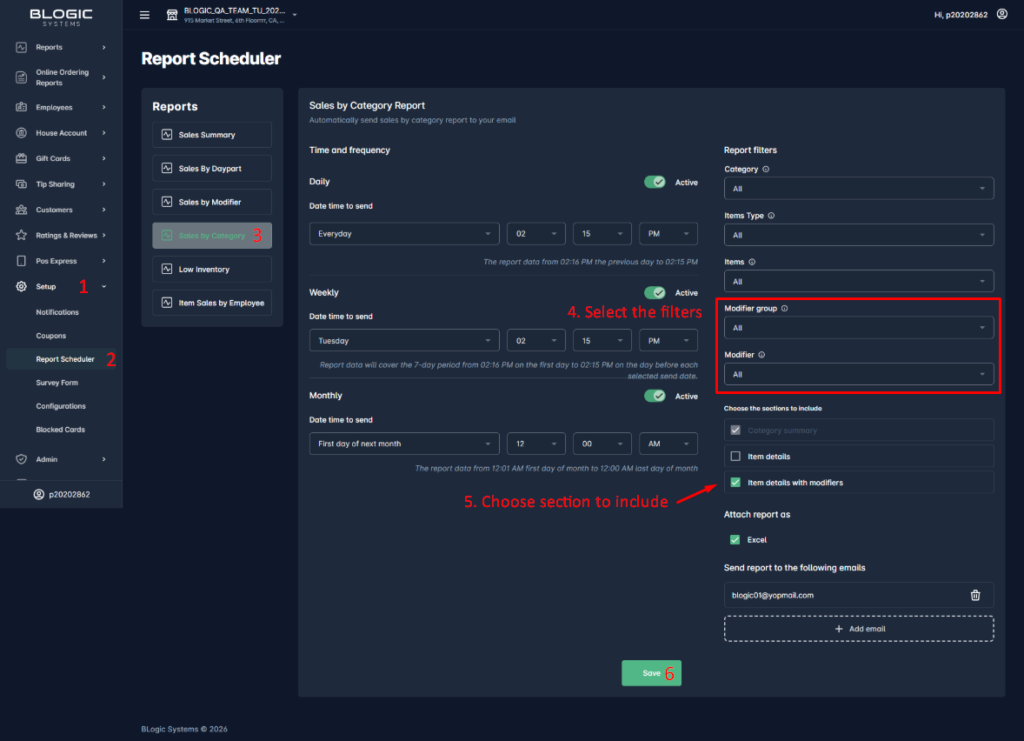
ℹ️ Note: Each report inside a schedule has its own filters, so the modifier filters you set here apply only to the Sales by Category report in that schedule.
Where to View or Confirm the Result
You can confirm the result in three places:
- On screen — expand an item in Reports > Sales by Category and check that the modifier rows appear underneath it.
- In the exported or printed file — look for the Item Details with Modifier tab in Excel, or the table at the bottom of the PDF.
- In your email — open the file attached to the scheduled report and check the same tab or table.
FAQ
1. Why can’t I see the Modifier Group and Modifier filters? You may not be on a supported version, or your user role may not have permission to access this report. Please contact Support if the filters are not visible.
2. Why did my totals go down after I selected a modifier? This is expected. When a modifier filter is applied, the report keeps only the sales that included that modifier, and all figures including the summary at the top are recalculated. Set the filters back to All to see the full figures.
3. Why can’t I expand some items? Only items that were sold with at least one modifier during the selected period can be expanded. If an item has no modifiers in that period, there is nothing to show.
4. Do I have to select the modifier option every time I export? No. Your selection is saved and applied the next time you export or print.
5. What should I do if the feature does not work as expected? Check that your filters and date range are correct, confirm your store is on a supported version, and contact Support for further assistance.
Closing
If you still need help, please contact Support for further assistance.