Introduction
This article explains how to stop employees from ending a meal break or rest break too early. You will learn how to turn on the Break Rules setting in POS Dashboard, choose how many minutes each break must last, and what employees see on POS and QOrder when they try to return too soon. This helps your store keep accurate break records without editing timesheets by hand.
Version Support
| Product / Module | Supported Version |
|---|---|
| POS | Build 09.24.2026 |
| POS Dashboard | Build 09.24.2026 |
| QOrder | Version 15.5 |
Note: If you do not see this option, please contact Support to confirm your store is on a supported version.
Table of Contents
Turn On Break Rules
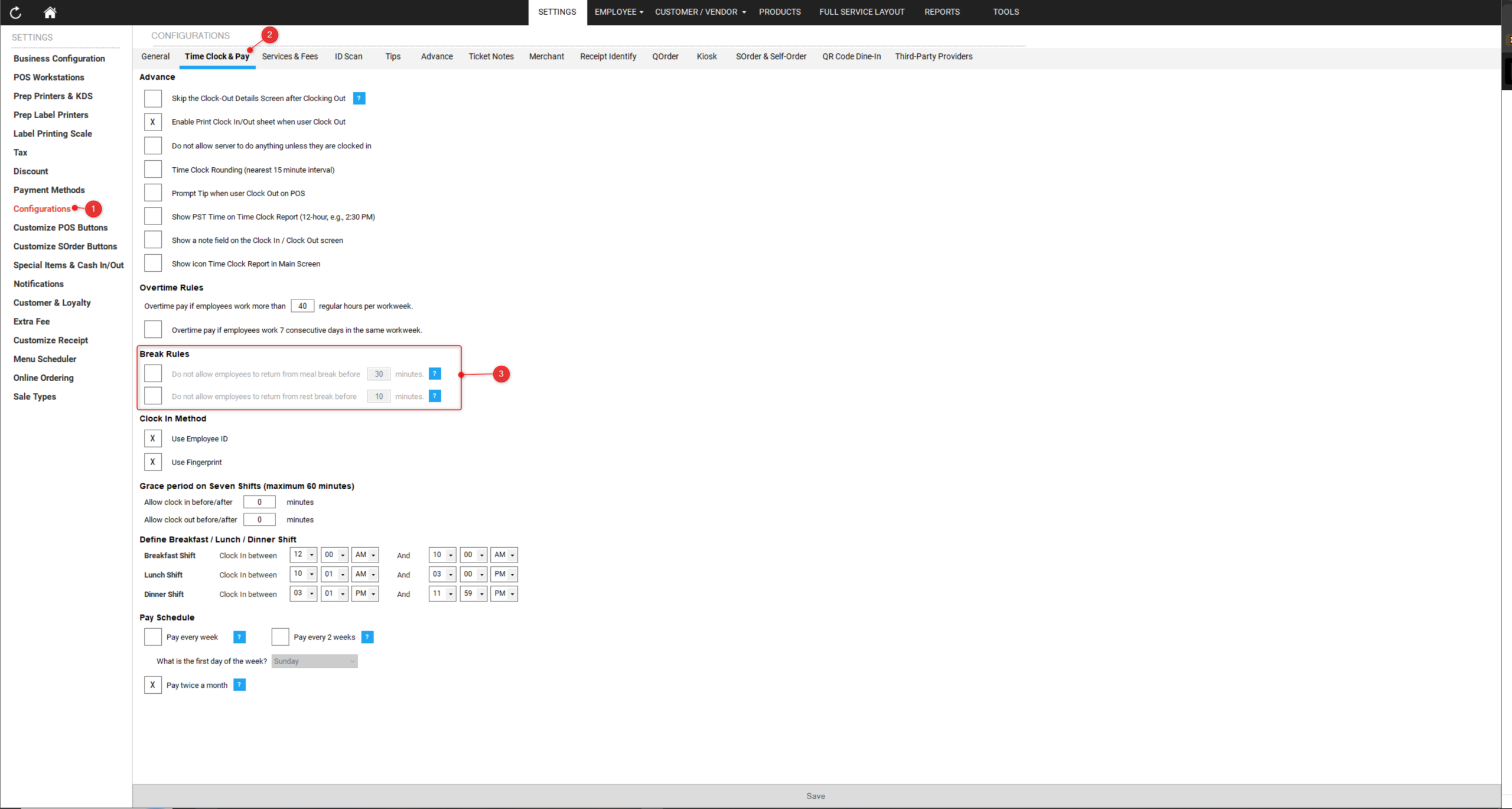
Step 1: Open the Time Clock settings
- Log in to your POS Dashboard.
- Go to Settings > Configurations.
- Select the Time Clock & Pay tab.
- Scroll down to the Break Rules section, located between Overtime Rules and Clock In Method.
Step 2: Set the minimum duration for each break type
- Tick Do not allow employees to return from meal break before ___ minutes. and enter the number of minutes.
- Tick Do not allow employees to return from rest break before ___ minutes. and enter the number of minutes.
- Click Save.
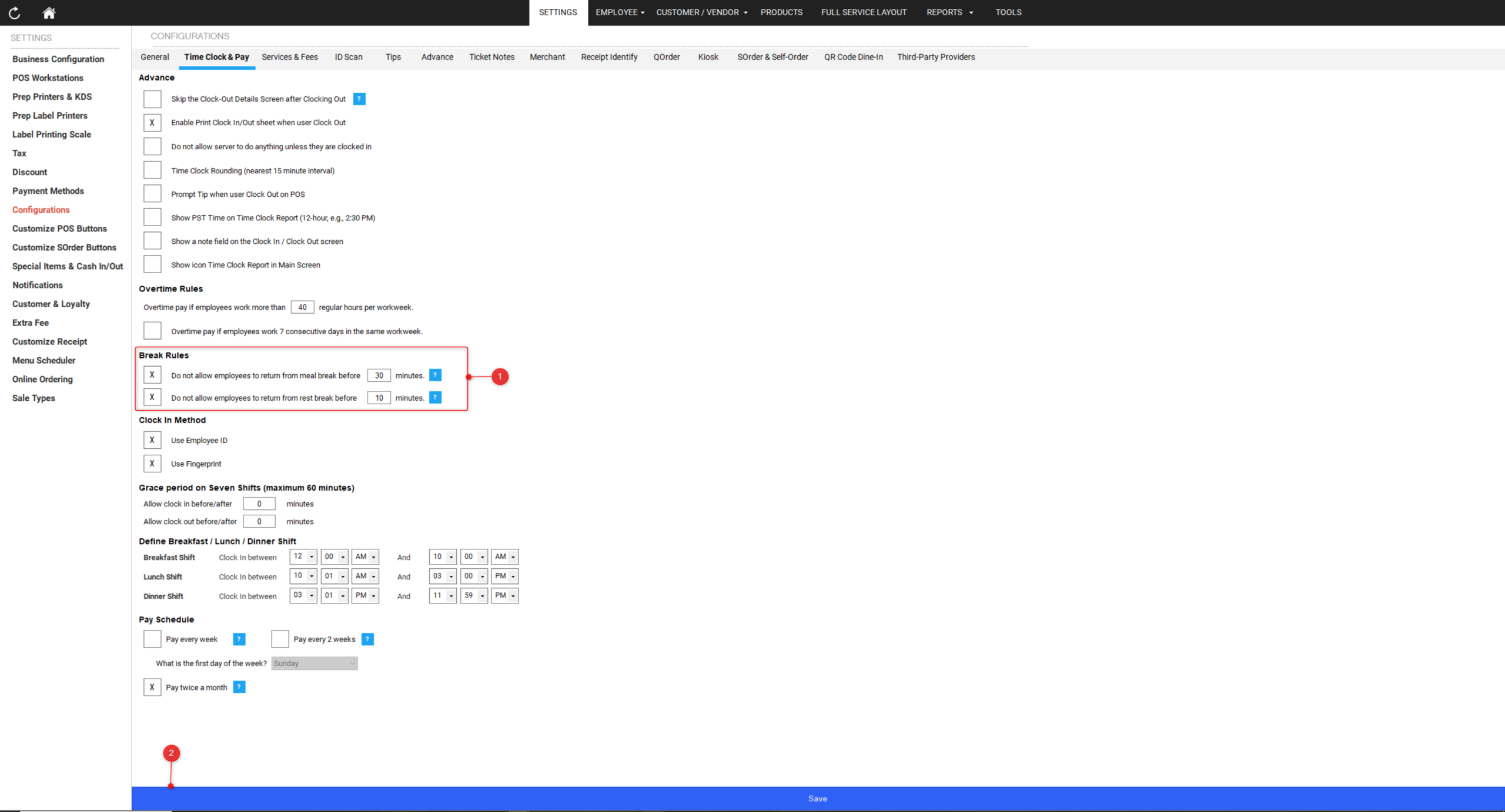
The default values are 30 minutes for meal break and 10 minutes for rest break. You can change these to match your store policy. Any whole number from 1 to 480 is accepted.
ℹ️ Note: Meal break and rest break use two separate values. Changing one does not change the other. You can also turn on only one of them and leave the other off.
✅ Tip: Both options are turned off by default. Your store keeps working exactly as before until you turn them on.
What Employees See on POS and QOrder
After you turn on Break Rules, no change appears until an employee tries to end a break too early.
Step 1: The employee starts a break
- The employee taps Go for Meal Break or Go for Rest Break on the clock-in screen.
- The break screen appears as usual.
Step 2: The employee tries to return too early
- The employee taps Back from Meal or Back from Break.
- If not enough time has passed, the break does not end and a Warning message appears.
- The message shows the required number of minutes and the exact time the employee can return.
- The employee taps OK to close the message and stays on the break screen.
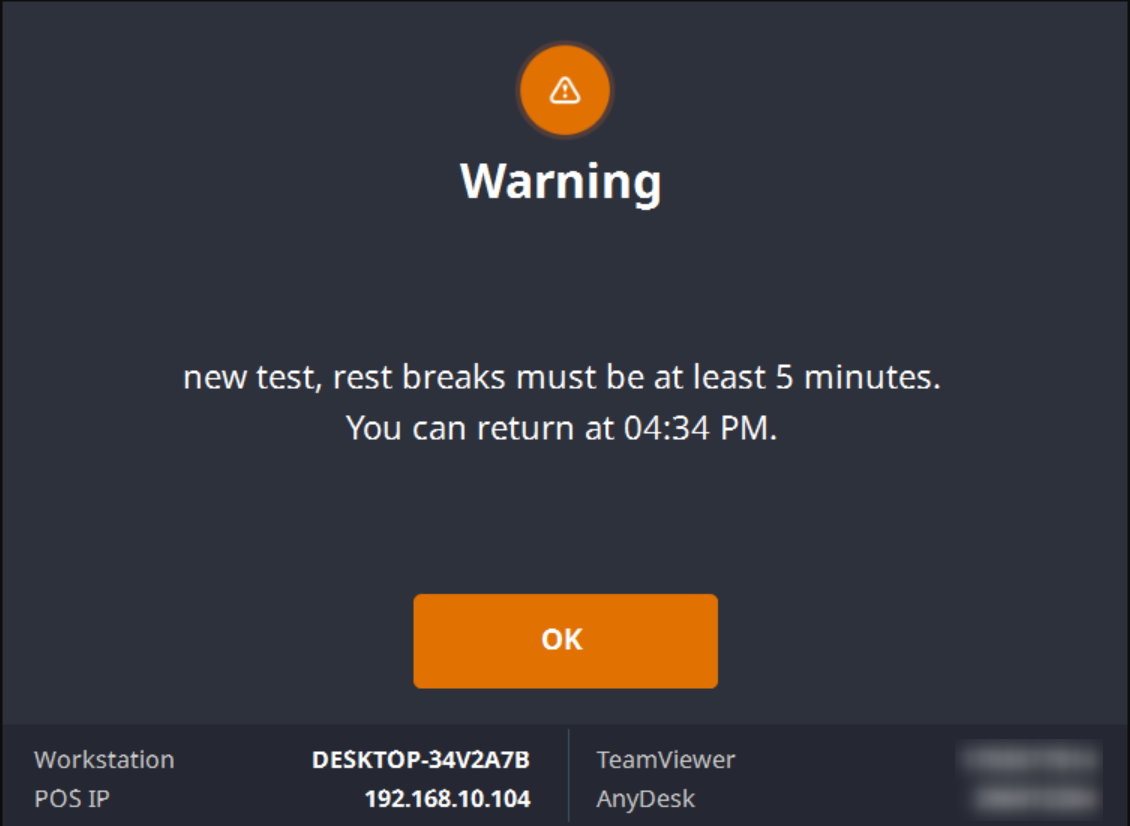
For example, if rest break is set to 5 minutes, the message reads:
Warning
Tho, rest breaks must be at least 5 minutes.
You can return at 04:34 PM.
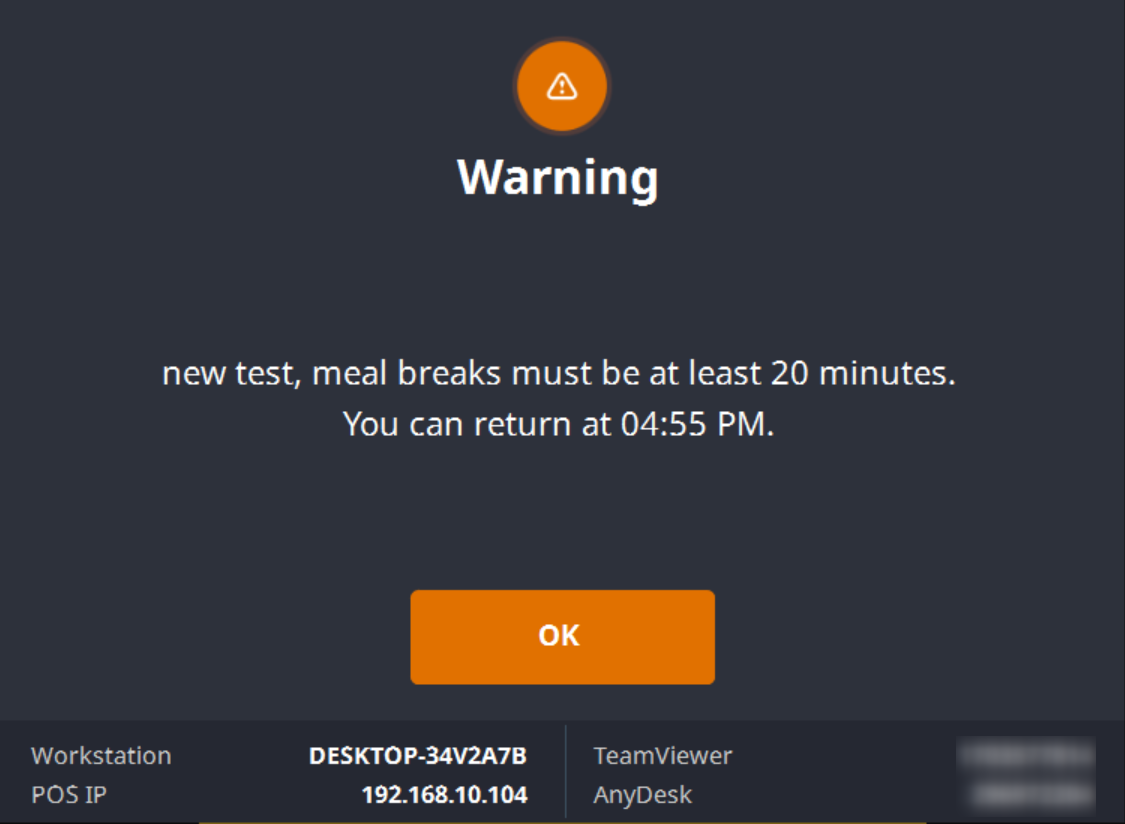
And if meal break is set to 20 minutes:
Warning
Tho, meal breaks must be at least 20 minutes.
You can return at 04:55 PM.
Step 3: The employee returns after the required time
- Once the required time has passed, the employee taps the same button again.
- The break ends and the employee returns to the clocked-in screen. No message appears.
⚠️ Warning: There is no way for an employee or a manager to skip this message on POS or QOrder. If an employee needs to return early, a manager must adjust the break time afterwards in POS Dashboard or BLogic View.
Where to View or Confirm the Result
You can check the setting and the recorded break times in these places:
- POS Dashboard > Settings > Configurations > Time Clock & Pay > Break Rules — confirm the options are ticked and the minute values are correct.
- POS Dashboard > Reports > Manage Time Clock — review the actual break times recorded for each employee.
- BLogic View > Time Entries — review or adjust break times if needed.
FAQ
1. Why can’t I see this option?
You may not be on a supported version. Check that your POS and POS Dashboard are on build 09.24.2026 or later, and your QOrder is on version 15.5 or later. Please contact Support if the option is still not visible.
2. If rest break is set to 10 minutes and the break starts at 10:00, can the employee return at 10:10 or 10:11?
At 10:10. The employee can return as soon as the full number of minutes has passed. The time shown in the warning message is the exact time the employee is allowed to return, so employees can simply follow that time.
3. Does this setting change how break time is deducted from the timesheet?
No. This setting only controls when an employee is allowed to end a break on POS or QOrder. The automatic break deduction configured under Employee > Time Clock is not affected, and the number of minutes deducted from the timesheet does not change.
4. Can a manager still fix a break time that was recorded incorrectly?
Yes. This rule only applies when an employee taps the button on POS or QOrder. Managers can still edit break times freely in BLogic View > Time Entries and POS Dashboard > Manage Time Clock. No warning or block appears there.
5. Does this setting apply to QOrder as well?
Yes. QOrder reads the same setting from POS Dashboard and shows the same message. There is no separate setting inside QOrder. The setting also applies to every POS workstation in the store.
6. What should I do if the feature does not work as expected?
Check that the option is ticked and saved, confirm your store is on a supported version, and contact Support for further assistance.
Closing
If you still need help, please contact Support for further assistance.