Introduction
This article shows you how to customize how the Customer Name looks on the Prep Receipt and how to show or hide the Server Name. You will learn where to find these settings in POS Dashboard and how they affect tickets printed in the kitchen.
These options help your kitchen staff read customer names more easily and let you keep the Prep Receipt clean if your store does not need the Server Name.
Version Support
| Product / Module | Supported Version |
|---|---|
| POS | 2026.10.01 |
| POS Dashboard | Customize Receipt > Prep Receipt (new settings) |
Note: If you do not see these options, please contact Support to confirm your store is on a supported version.
Table of Contents
- Customize the Customer Name Font
- Show or Hide the Server Name
- How the Server Name Prints for Orders from Kiosk and Other Apps
- Where to View or Confirm the Result
- FAQ
Customize the Customer Name Font
You can now set the Font, Bold style, and Size of the Customer Name printed on the Prep Receipt.
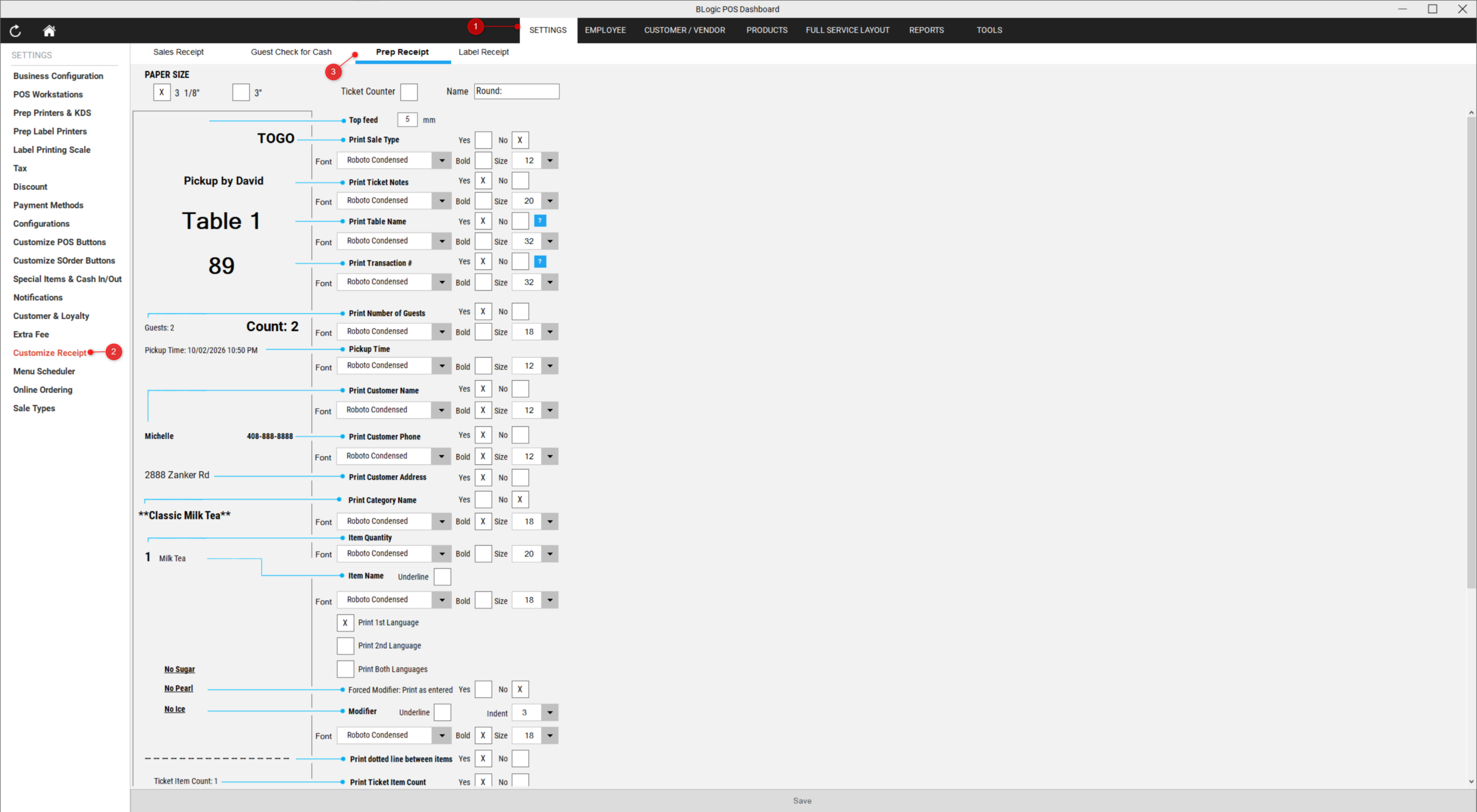
Step 1: Open the Prep Receipt settings
- Log in to POS Dashboard.
- Go to Setting > Customize Receipt.
- Select Prep Receipt.
Step 2: Set the Customer Name font
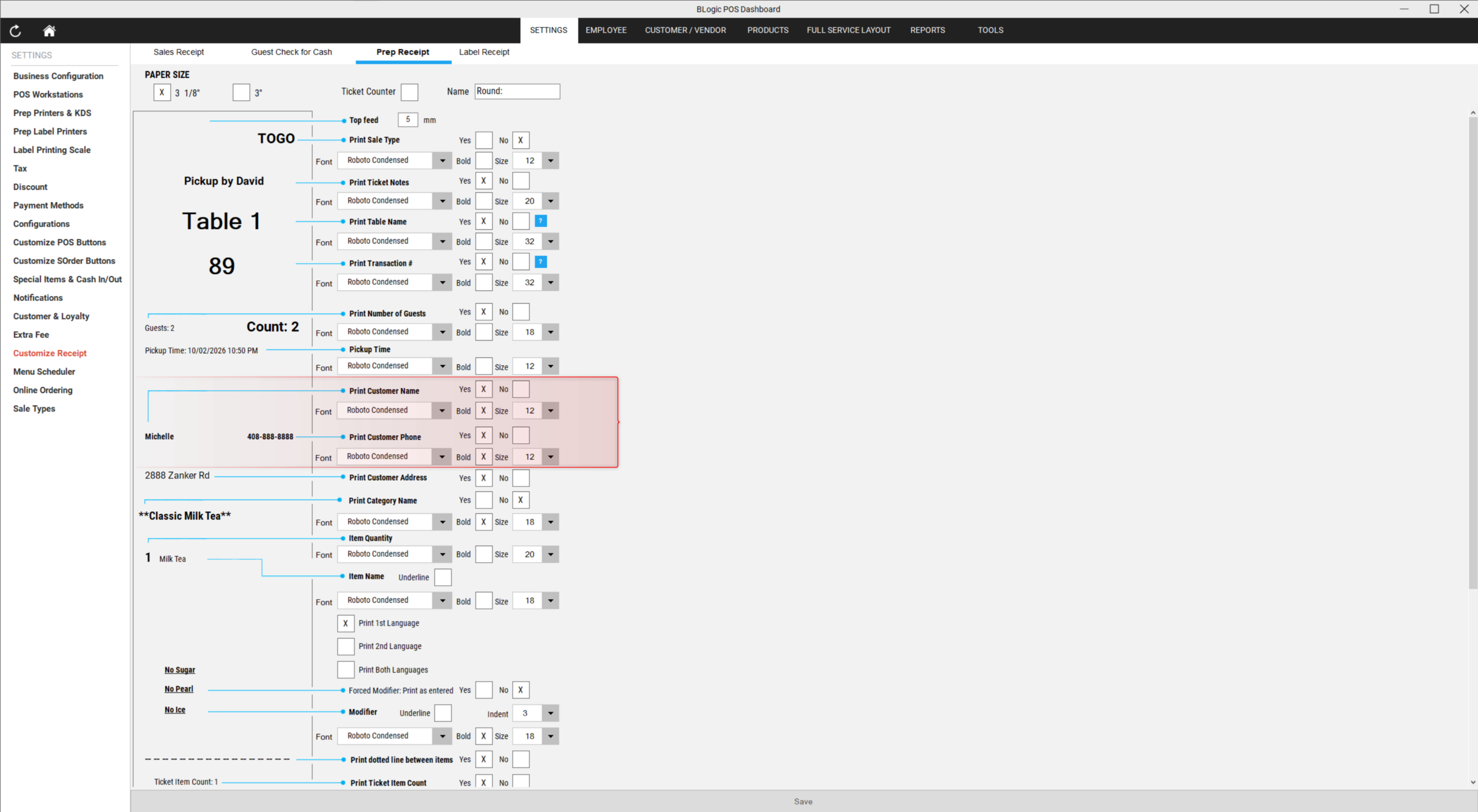
- Find the Print Customer Name setting.
- Below it, set the following options:
| Setting | Options | Default |
|---|---|---|
| Font | Same font list as other receipt settings | Roboto Condensed |
| Bold | Yes / No | Yes |
| Size | Same size list as other receipt settings | 12 |
- Save your changes.
✅ Tip: A larger, bold font helps kitchen staff find the customer name quickly during busy hours.
ℹ️ Note: The Sale Receipt already has its own Customer Name font settings. This update applies to the Prep Receipt only.
Show or Hide the Server Name
The new Print Server Name setting lets you choose whether the Server Name appears on the Prep Receipt. It is turned ON by default, so your Prep Receipt keeps printing the Server Name until you change it.
Step 1: Open the Prep Receipt settings
- Log in to POS Dashboard.
- Go to Setting > Customize Receipt > Prep Receipt.
Step 2: Turn Print Server Name on or off
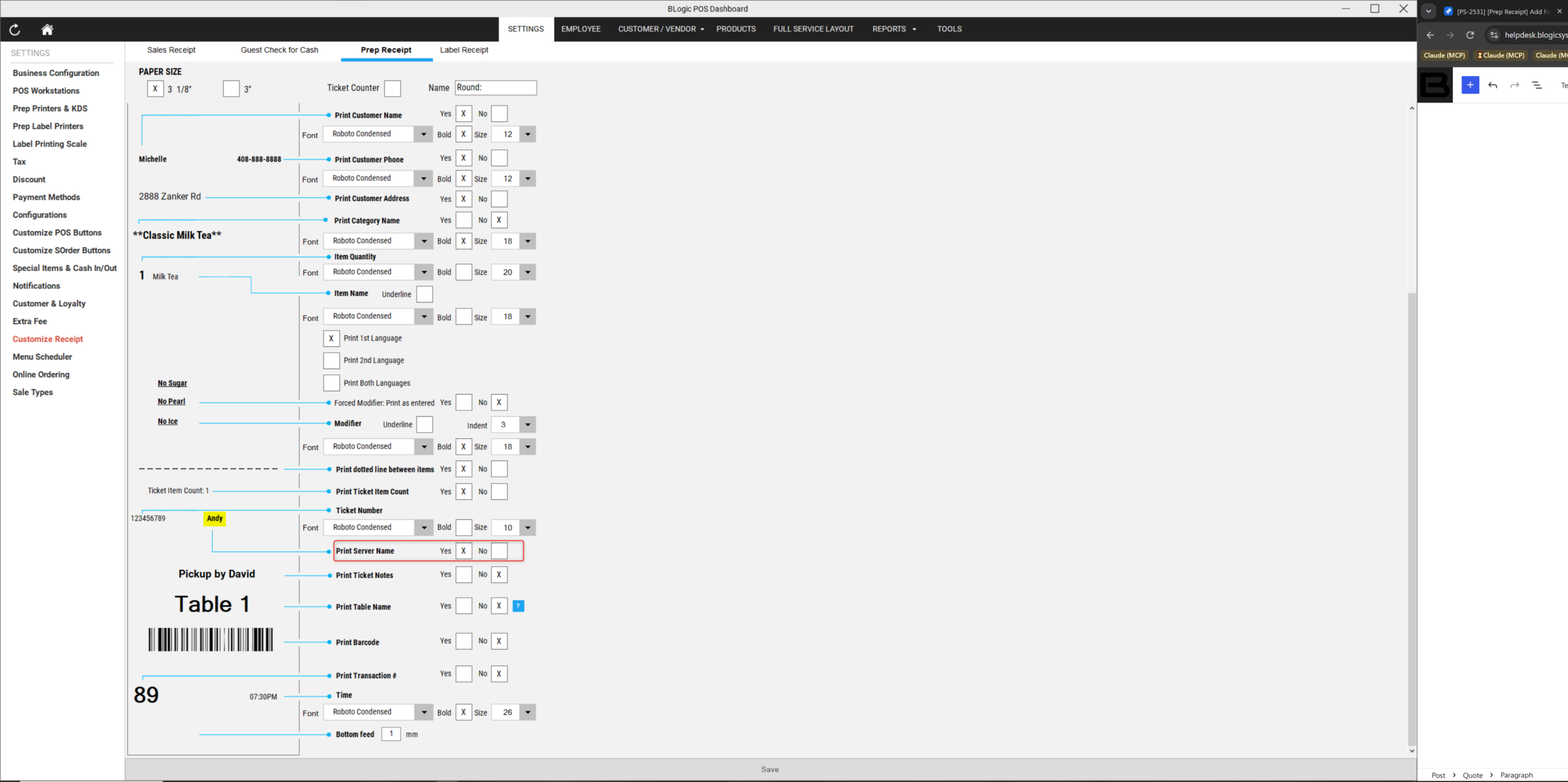
- Find the Ticket Number setting.
- Below it, find Print Server Name.
- Turn it ON to print the Server Name, or OFF to hide it.
- Save your changes.
⚠️ Warning: For special sale types such as Web and Phone App orders, the Server Name is always hidden, even when Print Server Name is ON. These orders use a default server, so it is not useful to print. Any Server Name that did not print before this update will still not print.
How the Server Name Prints for Orders from Kiosk and Other Apps
The Server Name now prints based on each item, not on the app that created the order. If a staff member adds an item on POS, their name prints with that item. If no staff member added the item, the Server Name stays blank.
This matters when an order starts on Kiosk, Phone, Web, or Stream and is later updated on POS:
- A customer submits an order from Kiosk or another app.
- A staff member recalls the order on POS and adds or updates items.
- The staff member submits the new items to the kitchen.
| Before this update | After this update | |
|---|---|---|
| Prep Receipt for the new items | Server Name is not printed | Server Name of the staff member who updated the order is printed |
ℹ️ Note: This behavior follows the Print Server Name setting. If Print Server Name is OFF, no Server Name prints.
Where to View or Confirm the Result
Check the printed Prep Receipt at your kitchen printer after you save the settings.
- On POS, create a test order with a customer name and send it to the kitchen.
- Check that the Customer Name prints with the Font, Bold style, and Size you selected.
- Check that the Server Name prints or is hidden based on your Print Server Name setting.
- To test the Kiosk flow, recall a Kiosk order on POS, add an item, and send it to the kitchen. The new Prep Receipt should show your name as the Server Name.
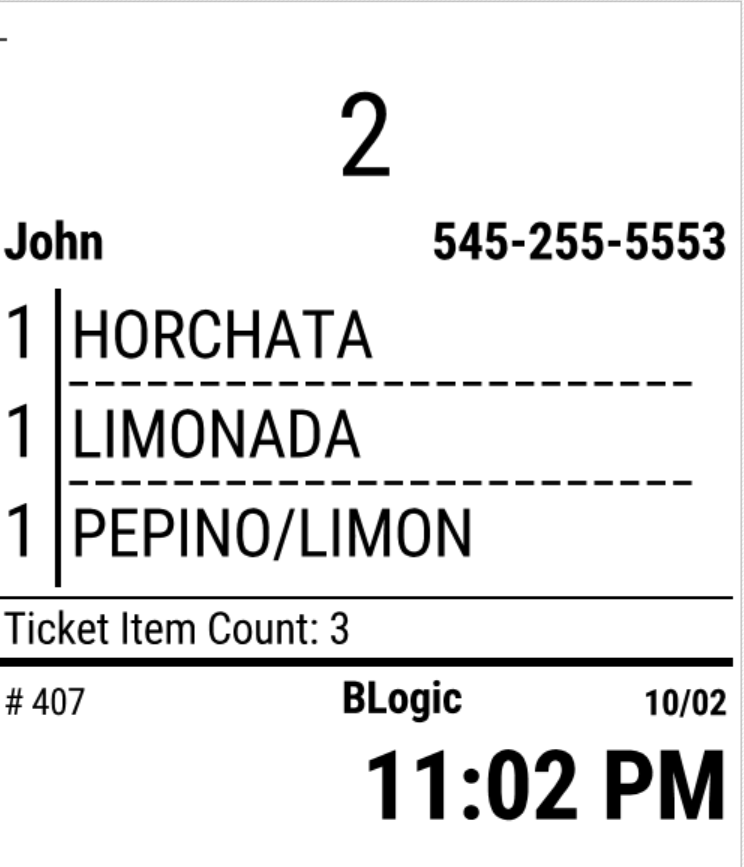
Prep Receipts are printed for orders from POS, QOrder, SOrder, Kiosk, Online Ordering, and QR Code Dine-in, so you can check the result with orders from any of these channels.
FAQ
1. Why can’t I see these options? You may not be on a supported version, or your user role may not have permission to access Customize Receipt. Please contact Support if the options are not visible.
2. Will the Server Name stop printing after the update? No. Print Server Name is ON by default, so the Prep Receipt keeps printing the Server Name until you turn it off.
3. Why is the Server Name missing on Web or Phone App orders even though Print Server Name is ON? These special sale types always hide the Server Name because they use a default server. This does not follow the setting.
4. A Kiosk order was updated on POS. Whose name prints? The new items print the name of the staff member who added them on POS. Items submitted from Kiosk without a staff member keep the Server Name blank.
5. Does this change the Customer Name font on the Sale Receipt? No. The Sale Receipt has its own settings. These new settings affect the Prep Receipt only.
Closing
If you still need help, please contact Support for further assistance.