Introduction
This article shows you how to turn on the Surcharge Program and set up the surcharge notes your customers see on POS, QOrder, and Kiosk. You will learn where to configure the surcharge, how to customize the notice shown before payment, and how to control the note printed on receipts. A clear surcharge notice helps your store stay transparent with customers and reduces questions at checkout.
Version Support
| Product / Module | Supported Version |
|---|---|
| POS | 2026.10.01 |
| QOrder | 15.6 |
Note: If you do not see this option, please contact Support to confirm your store is on a supported version.
Table of Contents
- Enable the Surcharge Program
- Set Up Surcharge Notes in BLogic View
- Take Payments with Surcharge on POS, QOrder, and Kiosk
- Where to View or Confirm the Result
- Important Notes and Limitations
- FAQ
Enable the Surcharge Program
To use surcharge, the Surcharge Program must first be enabled for your store. Please contact your Agent or IT Support to enable the Surcharge Program before you set up the surcharge notes below.
Set Up Surcharge Notes in BLogic View
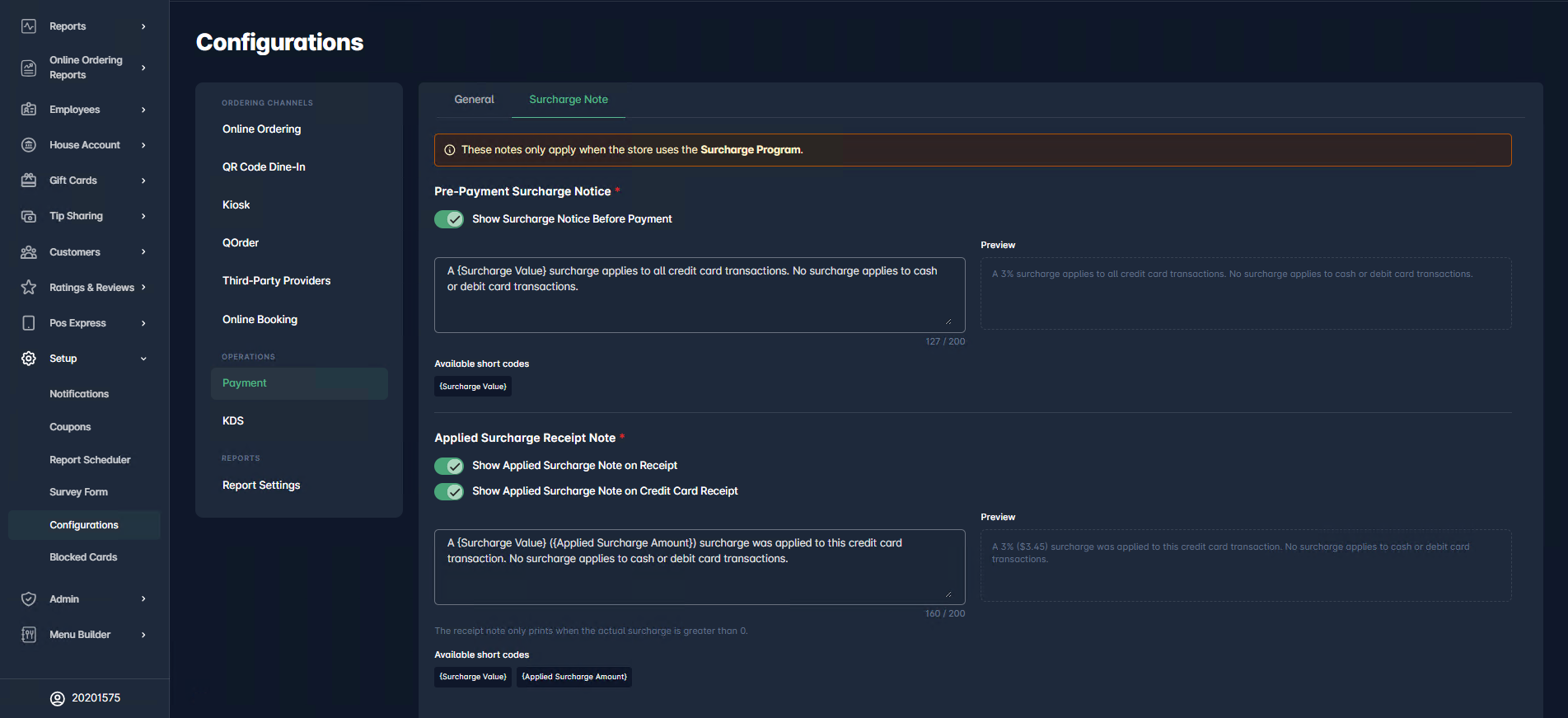
Surcharge notes are managed by the store in BLogic View. There are two notes: one shown before payment, and one printed on the receipt after a surcharge is applied.
ℹ️ Note: These notes only apply when the store uses the Surcharge Program. The surcharge percentage itself is still set in License.
Step 1: Open the Surcharge Note tab
- Log in to BLogic View.
- Go to Setup > Configurations.
- Under Operations, select Payment.
- Open the Surcharge Note tab.
Step 2: Set up the Pre-Payment Surcharge Notice
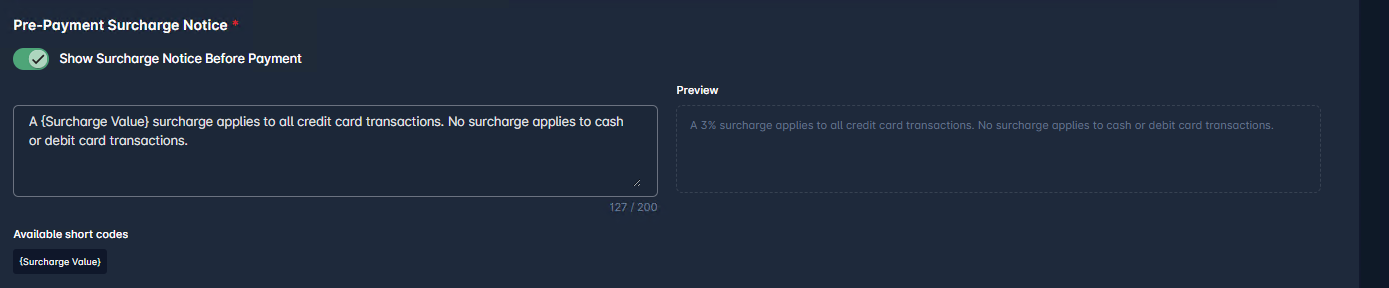
This notice tells customers about the surcharge before they pay.
- Turn on Show Surcharge Notice Before Payment.
- Enter your message in the text box (up to 200 characters).
- Click the {Surcharge Value} short code to add the surcharge rate to your message.
- Check the Preview on the right to see how the message will look.
Example: A {Surcharge Value} surcharge applies to all credit card transactions. No surcharge applies to cash or debit card transactions.
Step 3: Set up the Applied Surcharge Receipt Note
This note prints on the receipt and shows the surcharge that was actually charged.
- Turn on Show Applied Surcharge Note on Receipt to print the note on the Sale Receipt.
- Turn on Show Applied Surcharge Note on Credit Card Receipt to print the note on the Credit Card Receipt.
- Enter your message in the text box (up to 200 characters).
- Use the short codes {Surcharge Value} and {Applied Surcharge Amount} to add the rate and the dollar amount.
- Check the Preview.
Example: A {Surcharge Value} ({Applied Surcharge Amount}) surcharge was applied to this credit card transaction. No surcharge applies to cash or debit card transactions.
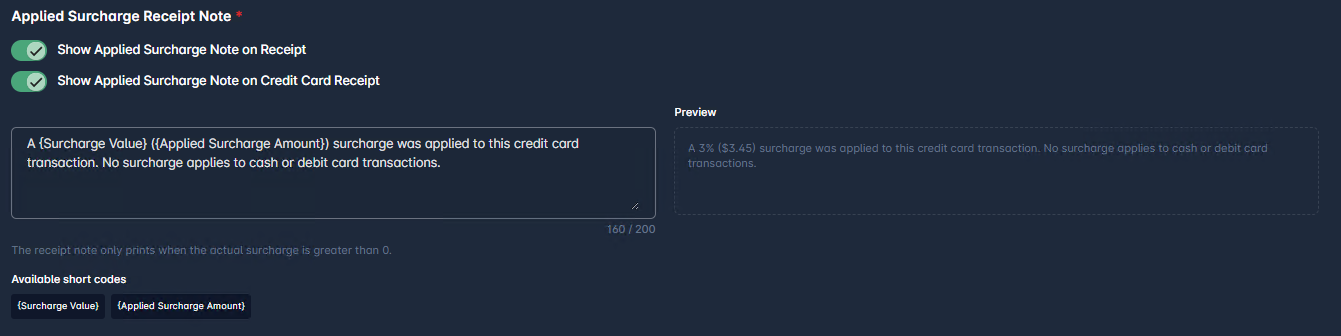
ℹ️ Note: The Preview uses sample values (3% and $3.45). The real rate and amount are filled in for each transaction.
✅ Tip: The two receipt toggles work independently. You can show the note on the Sale Receipt and hide it on the Credit Card Receipt, or the other way around.
Step 4: Save your changes
- Make sure neither text box is empty. Both notes are required.
- Click Save.
⚠️ Warning: Save is blocked if a note is empty. If saving fails, none of the changes are saved, so try again.
Take Payments with Surcharge on POS, QOrder, and Kiosk
Once setup is saved, the surcharge works automatically. Staff do not need to add it by hand. The surcharge is added only when the customer pays by credit card.
ℹ️ Note: The steps below use POS as the example. QOrder and Kiosk work the same way: the surcharge notice shows before payment, and the surcharge is added only for credit card payments.
Step 1: Create the order
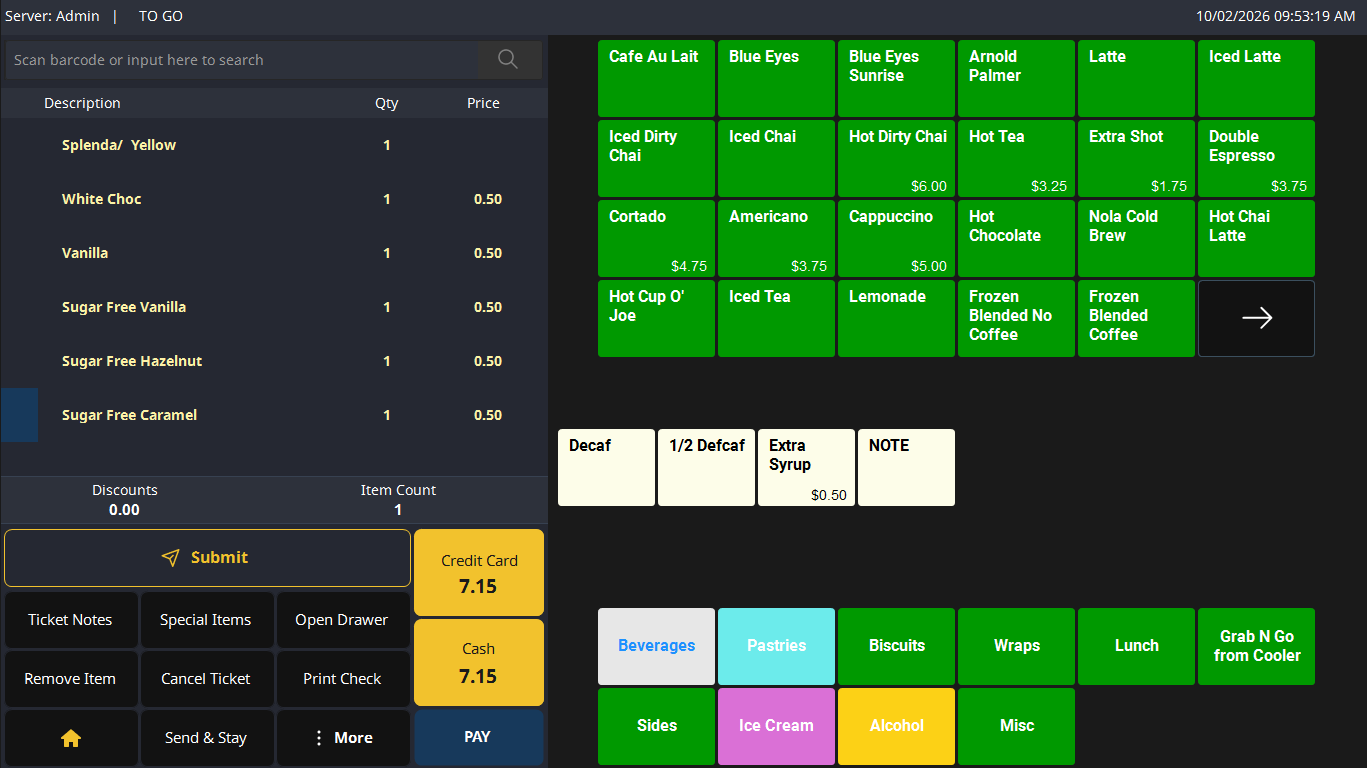
- Add items to the ticket as usual.
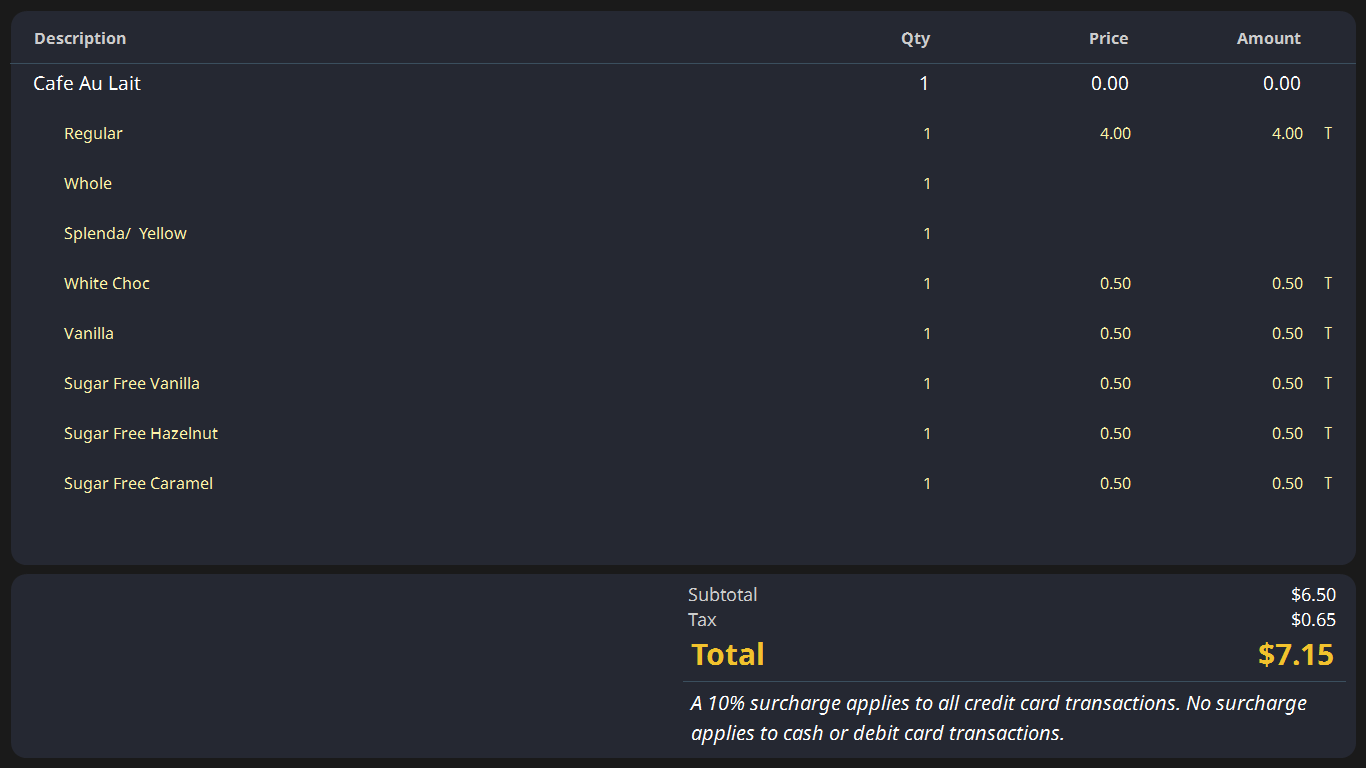
- The order screen shows the total before surcharge. The Pre-Payment Surcharge Notice appears under the total.
CFD
Step 2: Print the Guest Check (optional)
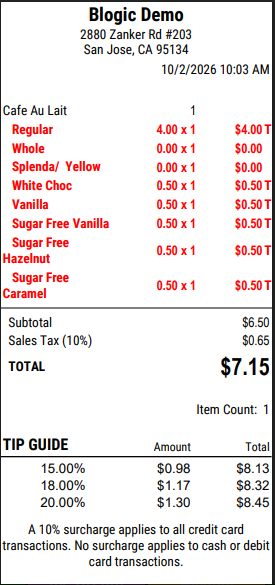
- Tap Print Check.
- The Pre-Payment Surcharge Notice prints at the bottom of the guest check, below the Tip Guide.
Step 3: Take the card payment
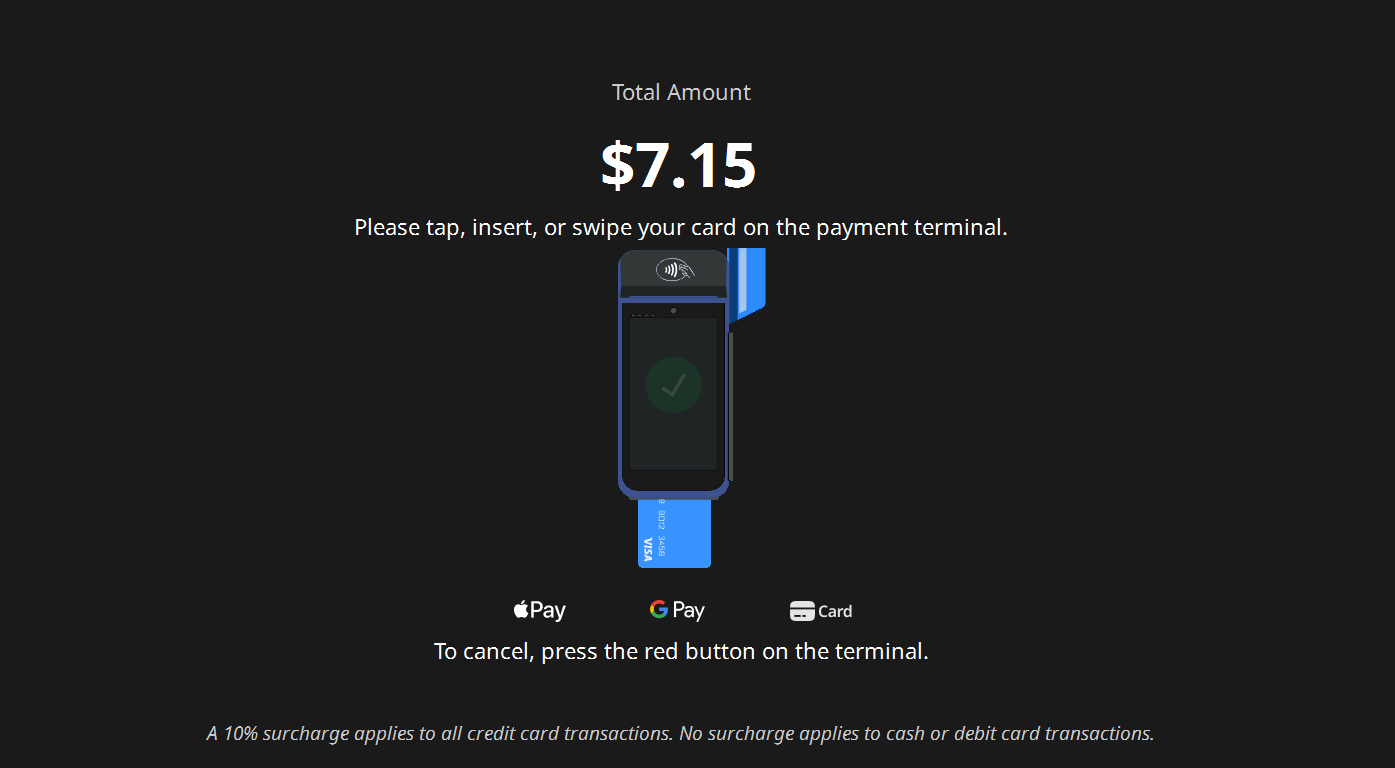
- Tap Credit Card or PAY.
- The customer screen shows the total and the Pre-Payment Surcharge Notice while the customer taps, inserts, or swipes the card.
- The terminal detects the card type:
- Credit card: the surcharge is added to the total.
- Debit card, cash, or EBT: no surcharge is added.
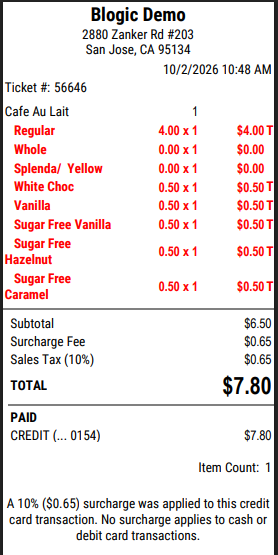
Example: a ticket of $7.15 paid by credit card with a 10% surcharge becomes $7.80, with a $0.65 Surcharge Fee.
Where to View or Confirm the Result
You can confirm the surcharge in these places after a credit card payment.
| Where | What you see |
|---|---|
| POS order screen | Total before surcharge, with the Pre-Payment Surcharge Notice under it |
| Customer screen / payment terminal | Pre-Payment Surcharge Notice while the customer pays |
| Guest Check | Pre-Payment Surcharge Notice at the bottom |
| Sale Receipt | Surcharge Fee line and the Applied Surcharge Receipt Note at the bottom |
| Credit Card Receipt | Based Amount, Surcharge Fee, Total, and the Applied Surcharge Receipt Note |
| Email and SMS receipts | The Applied Surcharge Receipt Note |
| Kiosk Thank You screen and receipt | The Applied Surcharge Receipt Note with the Kiosk surcharge rate |
| BLogic View reports | The surcharge appears under the Surcharge label set in License, not “Custom Fee” |
Sale Receipt
Credit Card Receipt
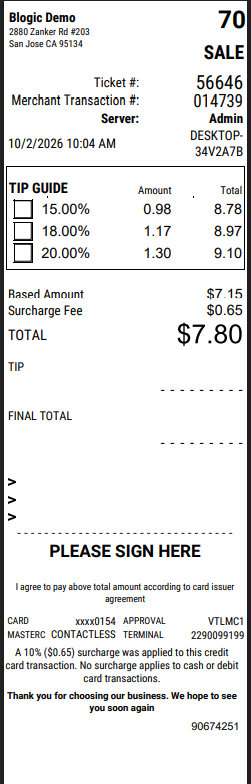
ℹ️ Note: The Applied Surcharge Receipt Note prints only when the actual surcharge is greater than $0.00. If a customer pays by debit, the note is hidden.
Important Notes and Limitations
- The surcharge applies only to credit card payments. Debit, cash, and EBT are never charged.
- Each platform (POS/SOrder/QOrder, Kiosk App) uses its own surcharge rate and name. To change them, contact your Agent or IT Support.
- These channels do not support surcharge yet, so no surcharge note is shown on their receipts: Web Online Ordering, QR Code Dine-In, SOrder, and Phone App.
- Refunds do not include a surcharge.
- Surcharge notes are managed only in BLogic View.
FAQ
1. Why can’t I see the Payment or Surcharge Note tab in BLogic View? Your store may not be on a supported version, or your user role may not have access to Setup. Please contact Support if the option is not visible.
2. Why does my receipt not show the surcharge note? Check that the receipt toggle is ON and that the customer paid by credit card. The note prints only when the actual surcharge is greater than $0.00.
3. Can Kiosk use a different surcharge rate than POS? Yes. Each platform can have its own surcharge rate. Contact your Agent or IT Support to set or change the Kiosk rate. The Kiosk note and receipt use the Kiosk rate, not the POS rate.
4. Does changing the note affect past receipts? This behavior may depend on your store setup. Please contact Support to confirm.
5. What should I do if the surcharge does not work as expected? Check that the surcharge note toggles are ON in BLogic View and that your store is on a supported version. If the issue continues, contact your Agent or IT Support to check the Surcharge Program setup.
Closing
If you still need help, please contact Support for further assistance.