This article shows you how to group and filter tickets by table when you combine tickets in POS. You will learn how to find tables with open tickets, select all tickets for one table at once, and understand the messages that appear when a ticket cannot be combined. These tools help Dine In staff find the right tickets faster.
Version Support
| Product / Module | Supported Version |
|---|---|
| POS – Combine Tickets (Dine In) | 2026.10.22 |
Note: If you do not see this option, please contact Support to confirm your store is on a supported version.
Table of Contents
- Version Support
- Group and Filter Tickets by Table
- Select and Combine Tickets
- Warning Messages
- Where to Confirm the Result
- FAQ
Group and Filter Tickets by Table
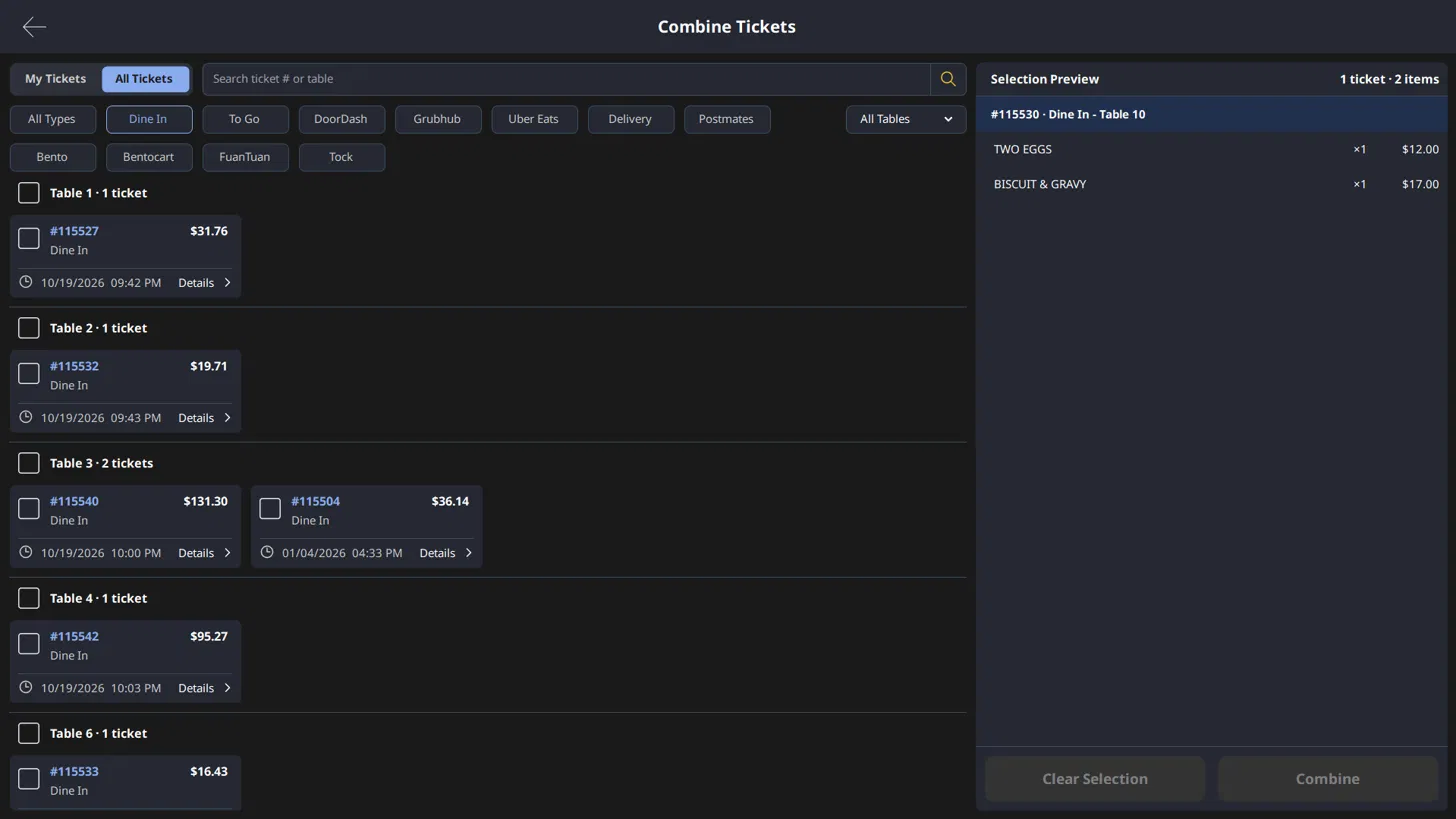
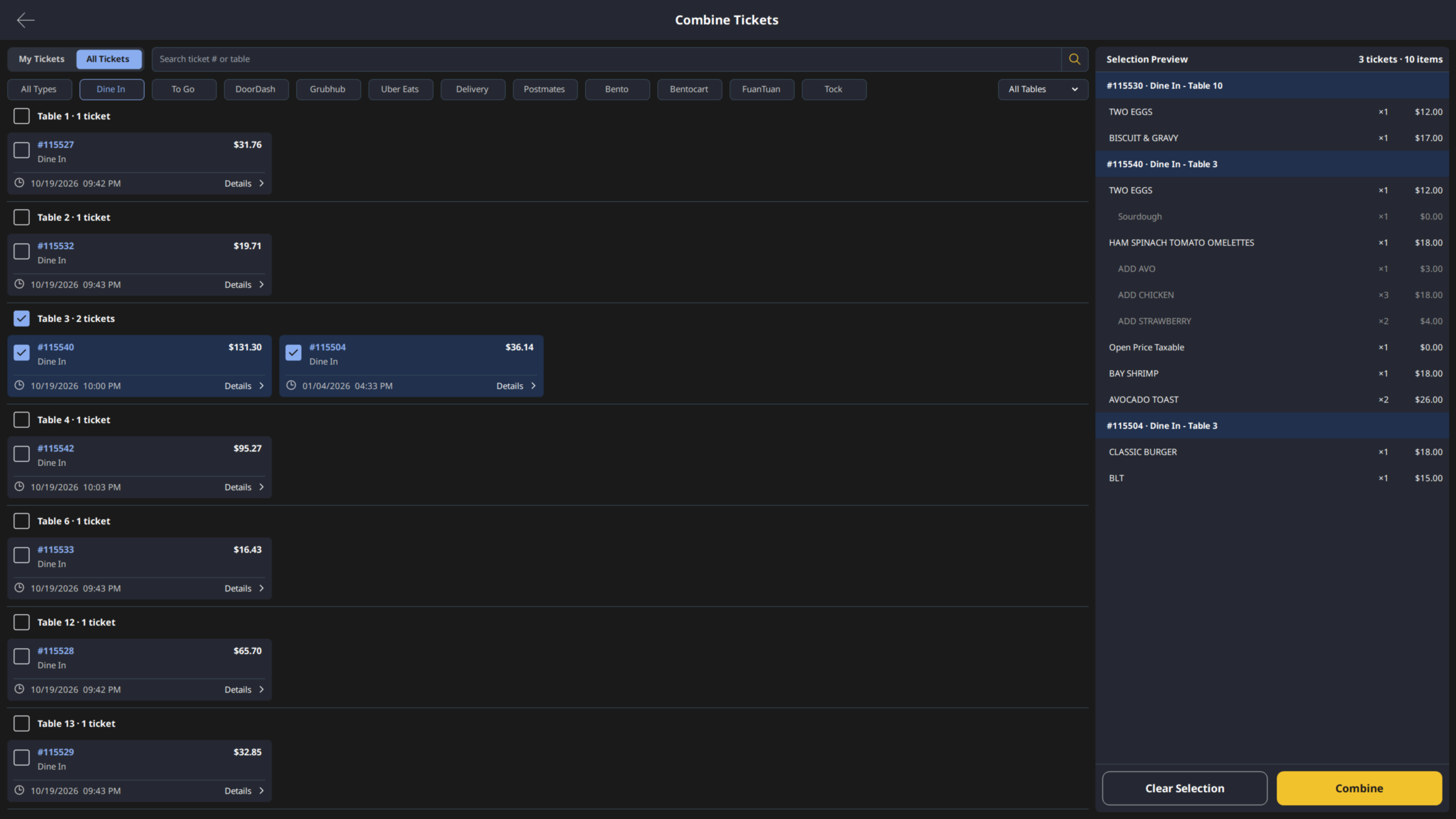
Grouping shows the open tickets for each table together. It works only for Dine In sales. Grouping is on by default.
Step 1: Turn grouping on or off
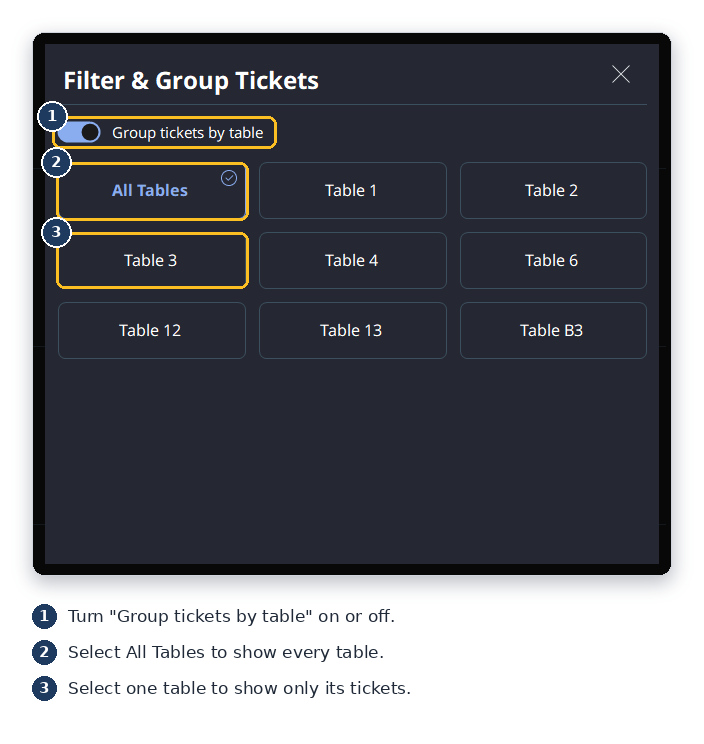
- On the Select Tickets to Combine screen, open Filter & Group Tickets.
- Turn Group tickets by table on or off.
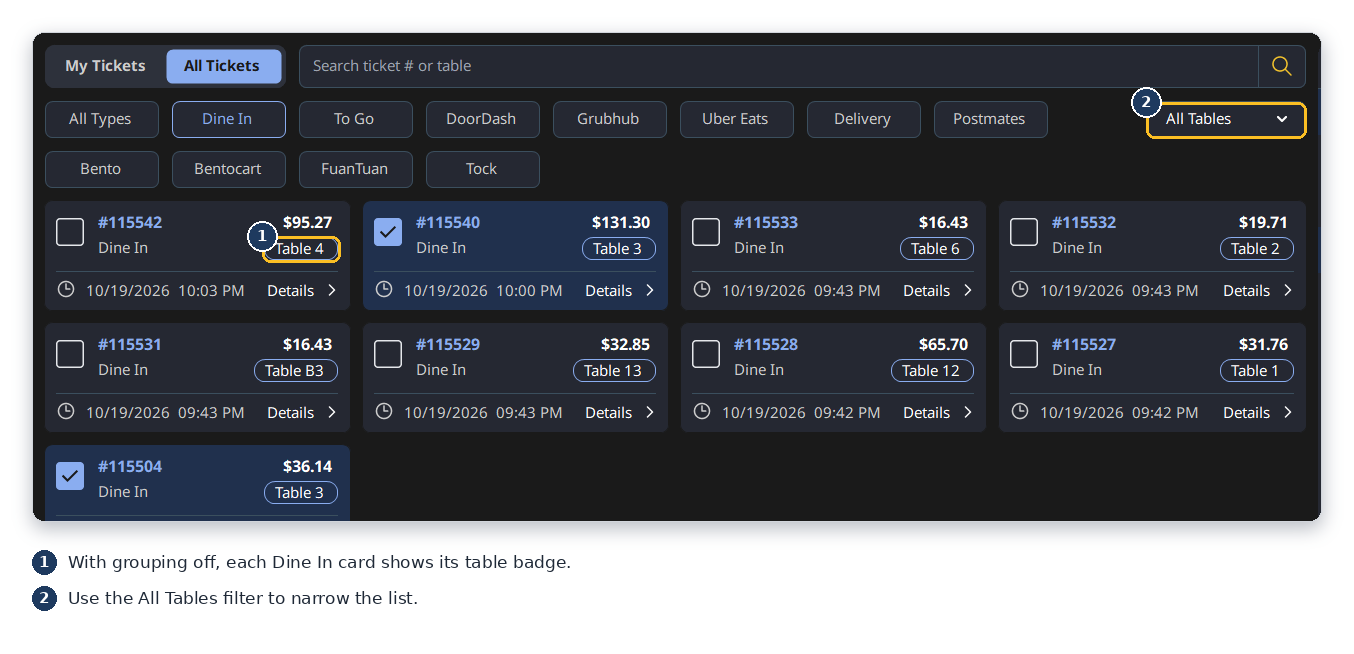
When grouping is on, each table has a header such as Table 5 · 3 tickets. When grouping is off, you see a flat list. On Dine In cards in the flat list, a table badge shows the table number.
Step 2: Show the tickets for one table
- Select All Tables.
- Select a table from the list.
Only that table’s tickets appear. The table list shows only tables that have open tickets.
Step 3: Select all tickets for a table
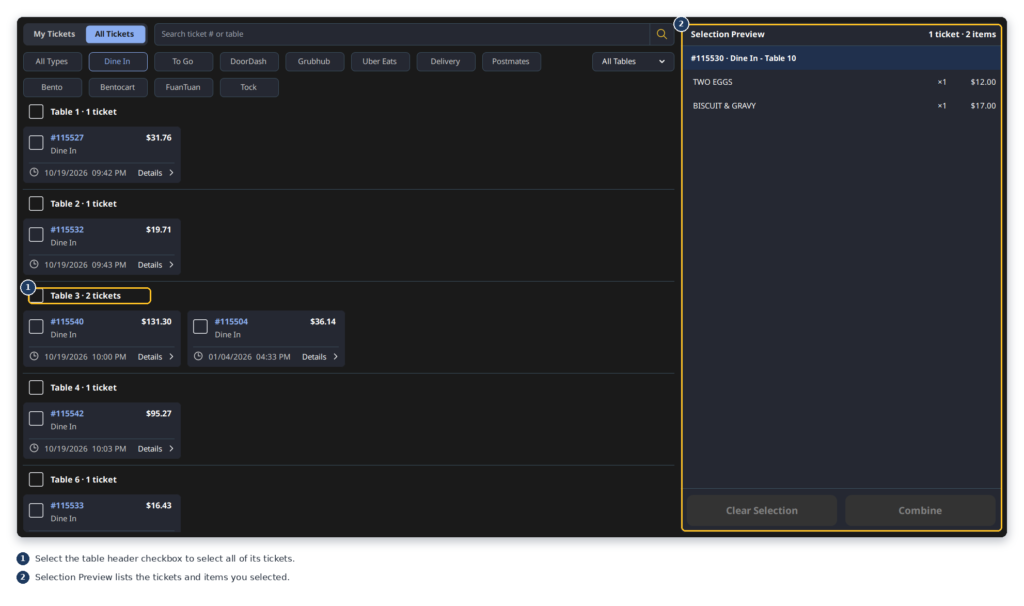
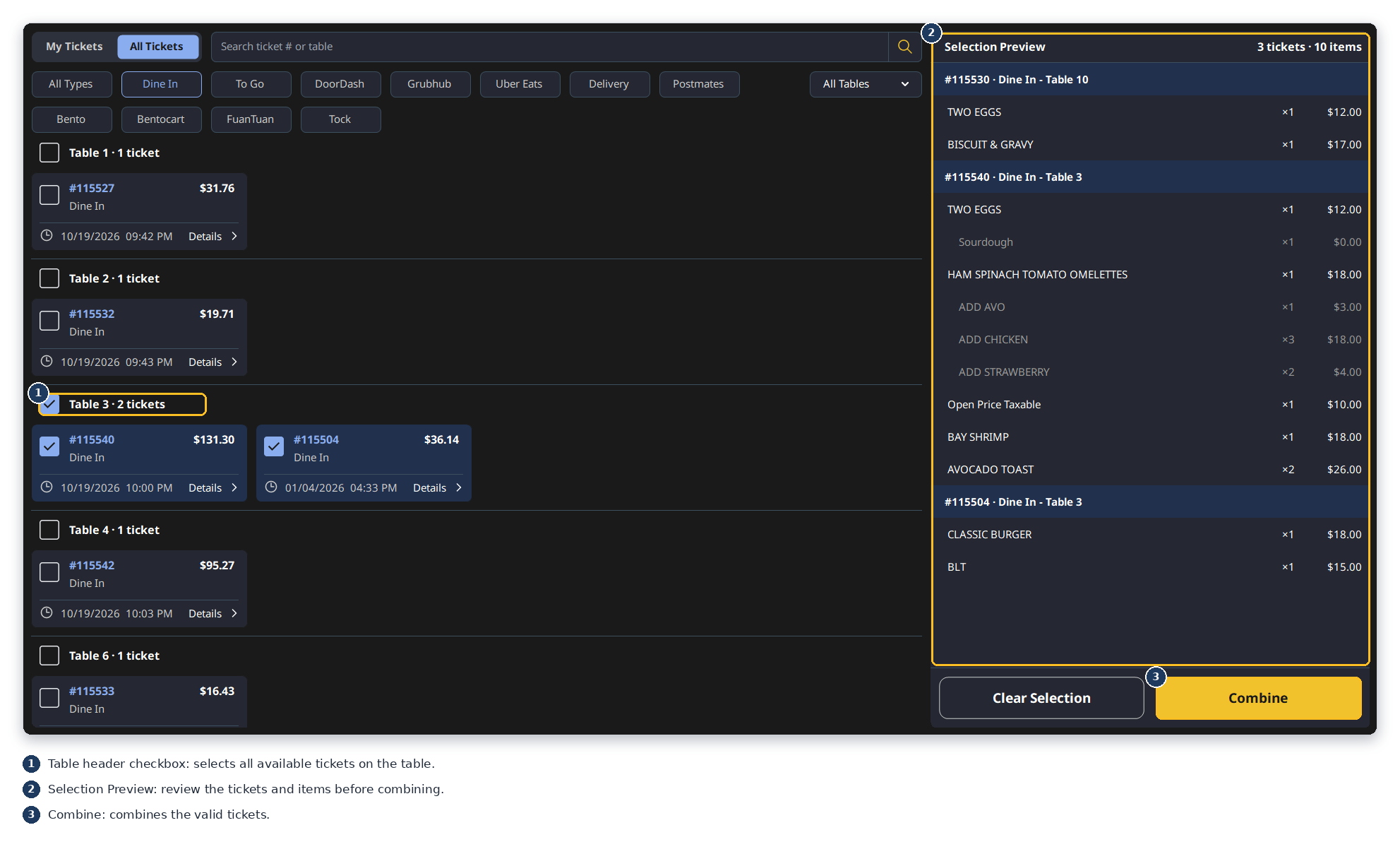
- Find the table header, for example Table 5 · 3 tickets.
- Select the checkbox on the header. All available tickets for that table are selected.
- Select the checkbox again to clear the selection.
If only some tickets on the table are selected, the header checkbox shows a partial mark.
ℹ️ Note: Groups are sorted by table name, A to Z. If two tables have the same name, each one has its own group.
Select and Combine Tickets
Use search to find a ticket by its ticket number or table name. Search filters only the tickets you can see in the current view.
Step 1: Select the tickets to combine
- Select the tickets you want to combine. Select a single ticket, or use the table header checkbox.
- Check the Selection Preview panel. It shows the number of tickets and items you selected.
Step 2: Check ticket details (optional)
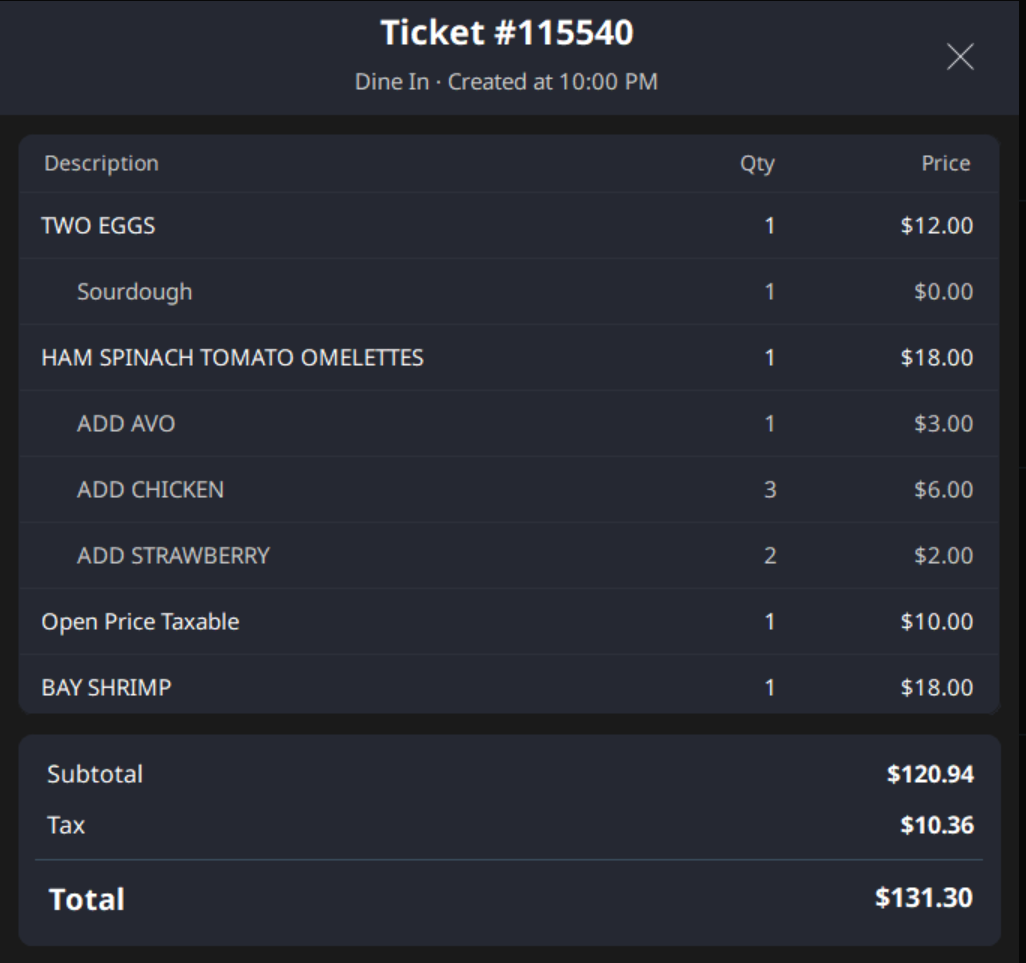
- Select Details on a ticket card.
- Review the items, subtotal, tax, discount, and total in the Ticket Details window.
- Close the window to return to the list.
Step 3: Combine the tickets
- Select Combine.
- Read any warning that appears. Valid tickets are combined. Tickets that fail are listed in the message.
⚠️ Warning: POS checks each ticket again when you select it and when you select Combine. If a ticket was locked or voided after you selected it, that ticket is not combined.
Warning Messages
A ticket that is locked by another station or voided cannot be selected or combined. POS removes that ticket from your selection and shows a warning. The warning tells you which ticket was affected and why.
| When it appears | Warning title | Example |
|---|---|---|
| One ticket cannot be selected | Warning | Ticket #1058 can’t be selected. It is locked by station POS-02. |
| Several tickets cannot be selected | N of M tickets couldn’t be selected | 5 of 8 tickets couldn’t be selected |
| Some tickets fail when you combine | N of M tickets couldn’t be combined | 7 of 11 tickets couldn’t be combined |
| All selected tickets fail when you combine | None of M tickets could be combined | None of 4 tickets could be combined |
When several tickets are listed, each card shows the ticket number and the reason, either Locked by station with the station name, or Voided. The list scrolls when there are more cards than fit on the screen.
ℹ️ Note: If some tickets fail when you combine, the valid tickets are still combined. Only the failed tickets appear in the list.
Where to Confirm the Result
After you select Combine, check the POS screen to see the combined ticket. Combining works the same way as it did before this update. Only the way you select and group tickets has changed.
If the warning shows that some tickets could not be combined, check those tickets before you try again. Each ticket in the warning list shows its reason.
FAQ
1. Why can’t I see the All Tables option? The option appears only for Dine In sales, and only when at least one table has open tickets. Table filtering is not available for other sale types. If you expect to see it, contact Support to confirm your store is on a supported version.
2. Does grouping by table work on KDS or QOrder? No. Grouping by table is available only in POS.
3. Can I select all tickets for one table at once? Yes. Select the checkbox on the table header. All available tickets for that table are selected. Select the checkbox again to clear them.
4. Does this change how tickets are combined? No. The combining process is the same as before. This update changes how tickets are grouped, filtered, and shown.
5. What happens if a ticket is locked or voided while I am selecting? POS removes that ticket from your selection and shows a warning. The other valid tickets are still combined when you select Combine.