Set item limits for guests who order on their own in QR Code Dine-in and Online Order. You can limit the whole menu, a category, or single items.
Version Support
| Product / Module | Supported Version |
|---|---|
| POS Server | 2026.10.23 |
Note: If you do not see this option, please contact Support to confirm your store is on a supported version.
Table of Contents
Add an Item Limit
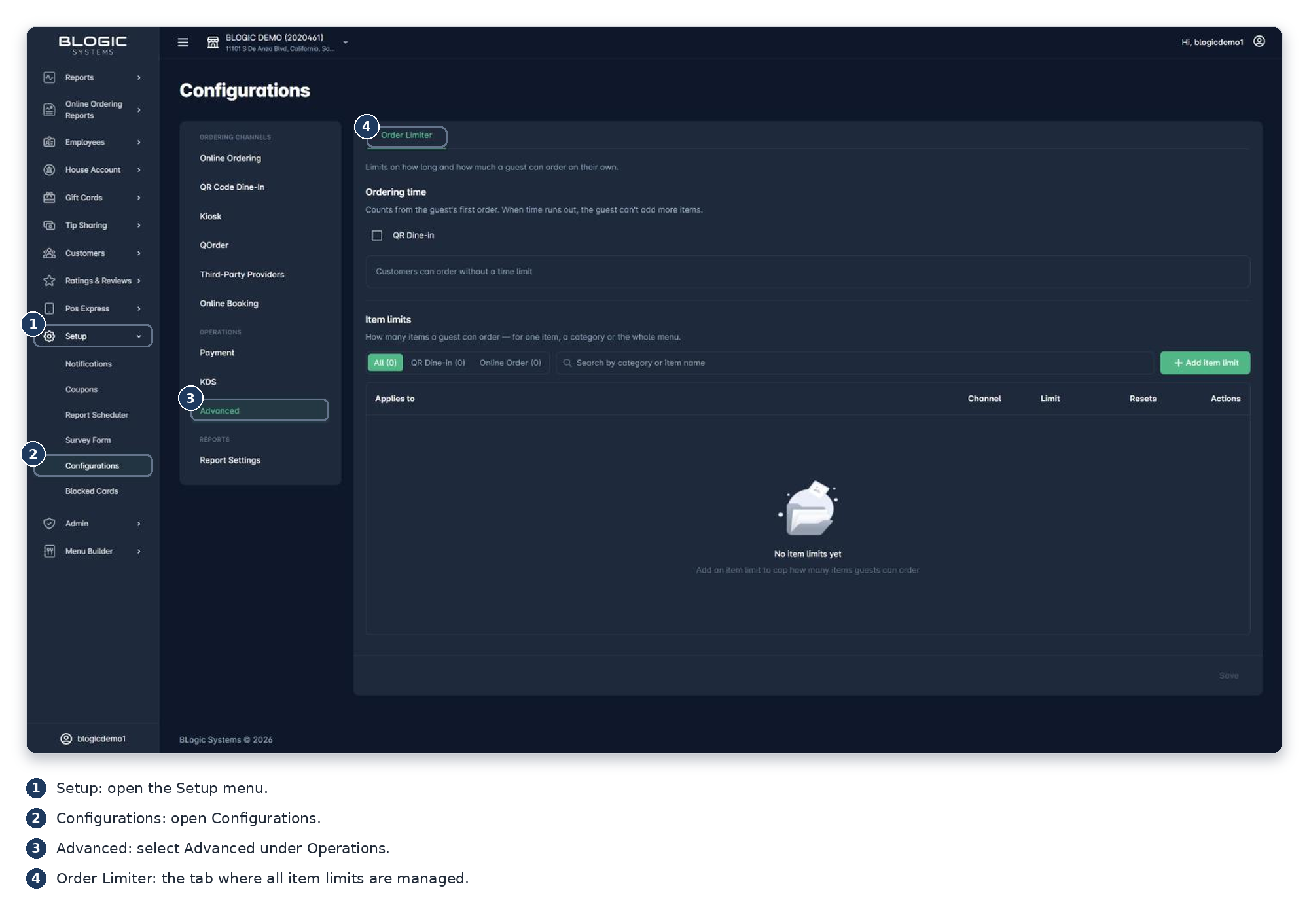
Go to BLogic View > Setup > Configurations > Advanced > Order Limiter, then select Add item limit.
Step 1: Choose what to limit
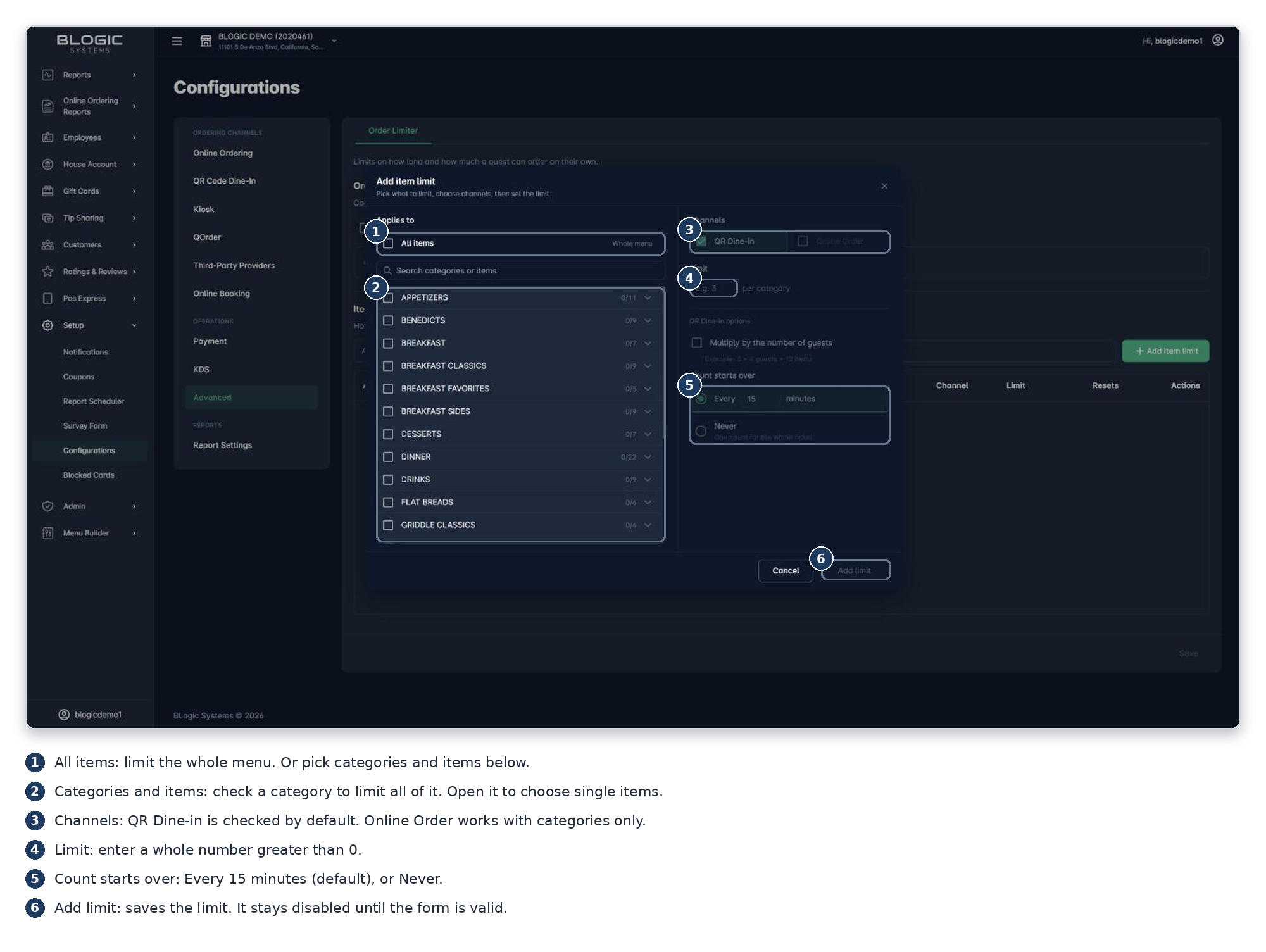
- Select All items, or check a category or item.
- To choose single items, open a category with the arrow.
Step 2: Choose channels
- Check QR Dine-in, Online Order, or both.
- Online Order works only with categories.
Step 3: Set the limit
- Enter a limit greater than 0.
- For QR Dine-in, choose Every 15 minutes (default) or Never.
- Optional: check Multiply by the number of guests.
Step 4: Save the limit
- Select Add limit. With both channels, select Add 2 limits.
- Wait for the message Item limit saved.
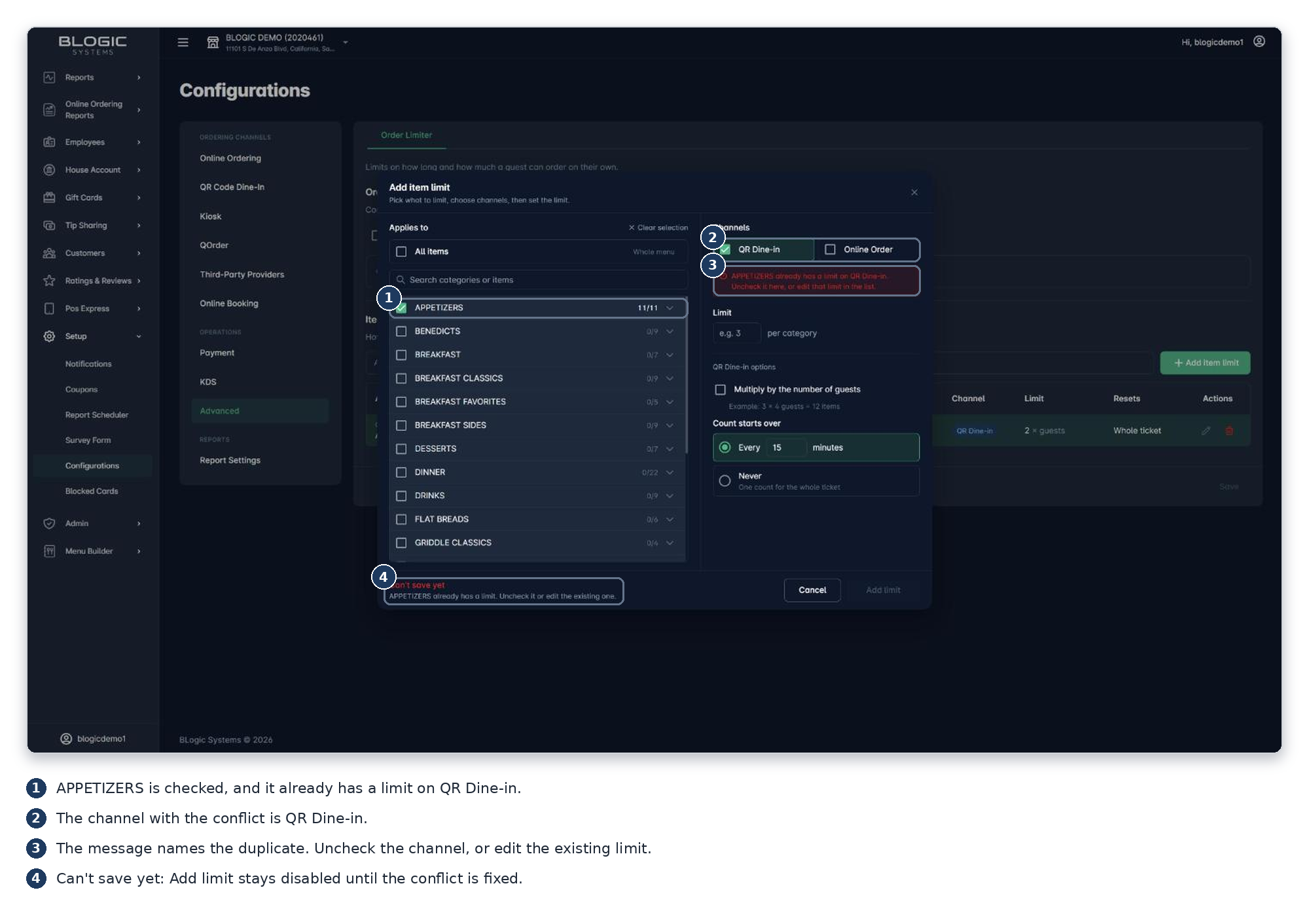
⚠️ Warning: A category or item can have only one limit per channel. If you see an error, uncheck that channel or edit the existing limit.
Edit, Delete, and Combined Limits
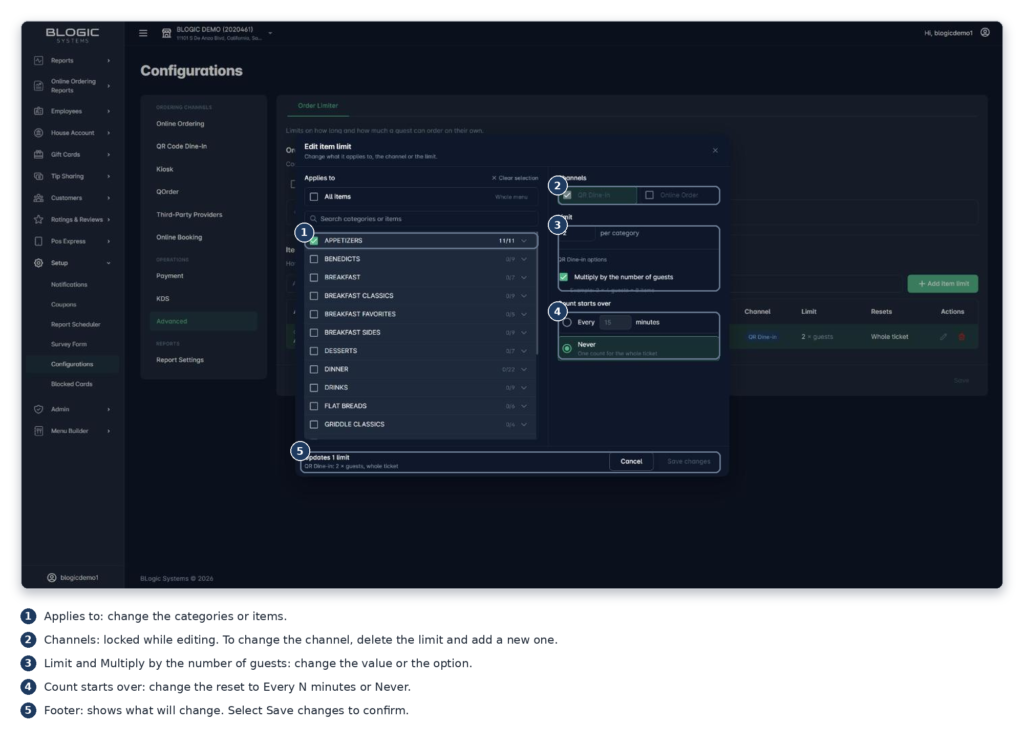
Edit: Select the pencil icon in the Item limits table, change any field, and save.
Delete: Select the trash icon on the row, then select Delete in the confirmation window. This can’t be undone.
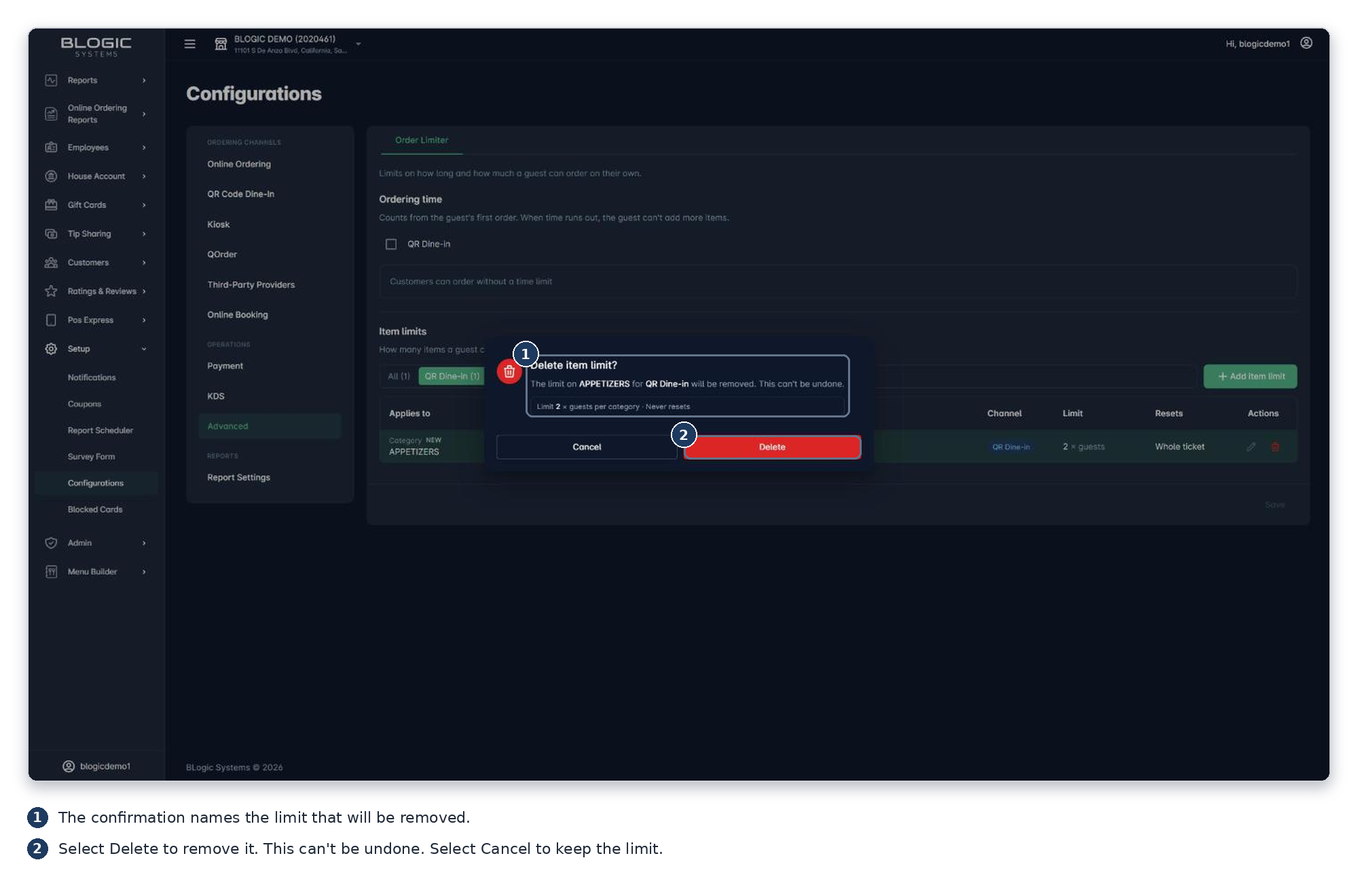
⚠️ Warning: Changes apply right away, including to open tickets.
Removed menu items: They are removed from each limit that contains them. A limit with no items left is deleted.
Several limits: Each limit counts on its own. The first limit reached blocks the guest.
Several categories: Each category gets the full limit. A limit of 40 on two categories allows 40 in each.
Fewer guests: The limit drops with the guest count. Items already sent to the kitchen are not cancelled.
Where to Confirm the Result
Check the Item limits table. Filter by All, QR Dine-in, or Online Order.
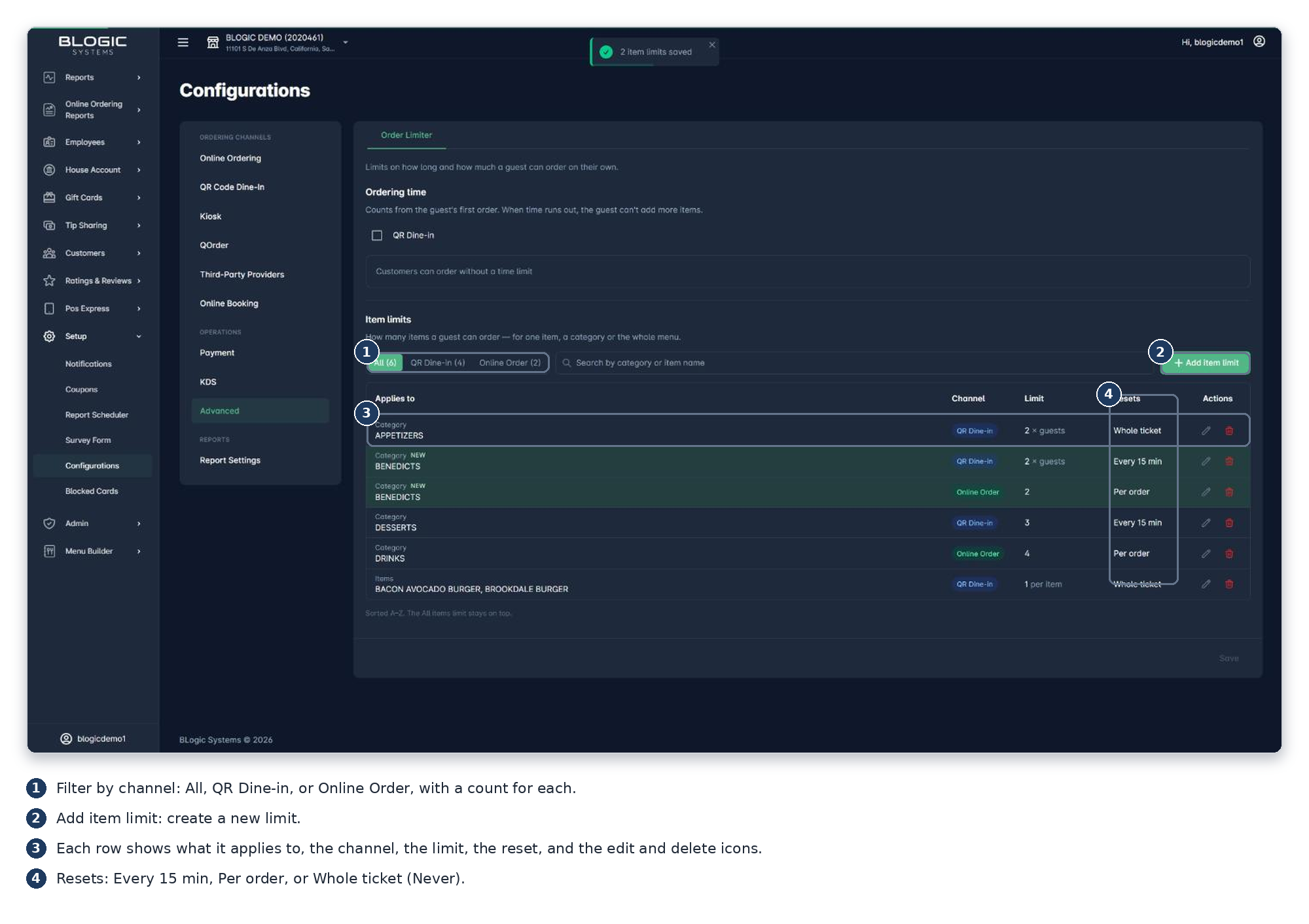
The Ordering time section is a separate setting. It does not change item limits.
When a guest reaches a limit, the message names that limit and when ordering resumes.
FAQ
1. Where did my category limits go? They moved to the Order Limiter page. Each old limit became one limit per channel.
2. Why can’t I choose Online Order for a single item? Online Order works with categories only.
3. Can I add a second limit for the same item? No. Edit the existing limit instead.
4. Do changes apply to open tickets? Yes, right away.
5. A limit doesn’t work as expected? Check the channel and limit value, then contact Support.