Introduction
This article shows you how to print the discount percentage and discount reason on your sales receipts. You will learn how to turn on the new receipt options, choose a display mode, and check the result on POS, QOrder, Kiosk, Online Ordering, and BLogic View.
With this feature, your customers can see exactly which discount was applied and how much it was, for example Employee Discount (15%), instead of a single “Discount” line.
Version Support
| Product / Module | Supported Version |
|---|---|
| POS | v2026.10.29 or later |
Note: If you do not see this option, please contact Support to confirm your store is on a supported version.
Table of Contents
- Configure the Discount Receipt Settings
- Choose a Discount Display Mode
- Understand How Discounts Appear on the Receipt
- Where to View or Confirm the Result
- FAQ
Configure the Discount Receipt Settings
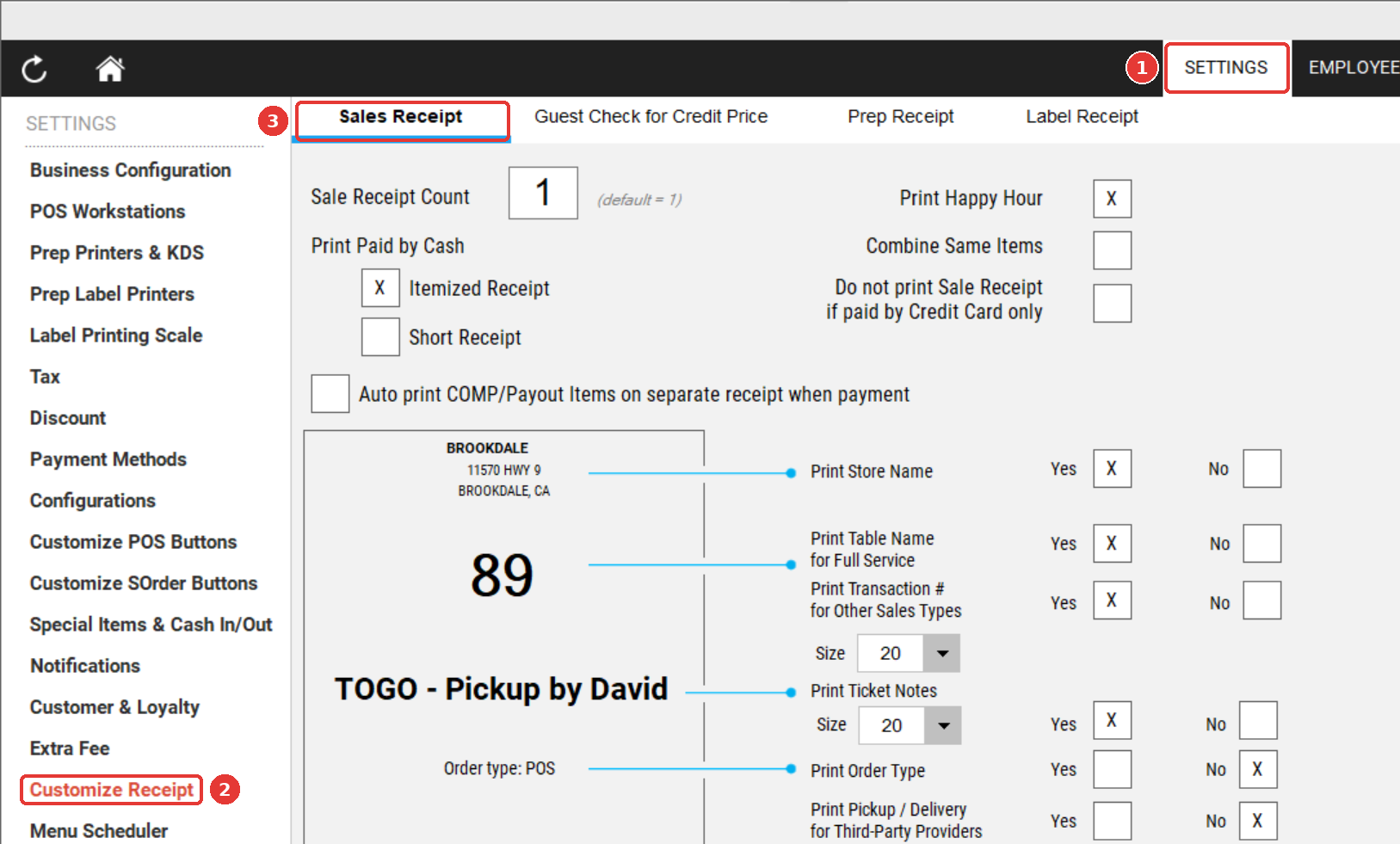
Step 1: Open the Sales Receipt settings
- Log in to your POS Dashboard (Back Office).
- Go to Setting > Customize Receipt.
- Open the Sales Receipt settings.
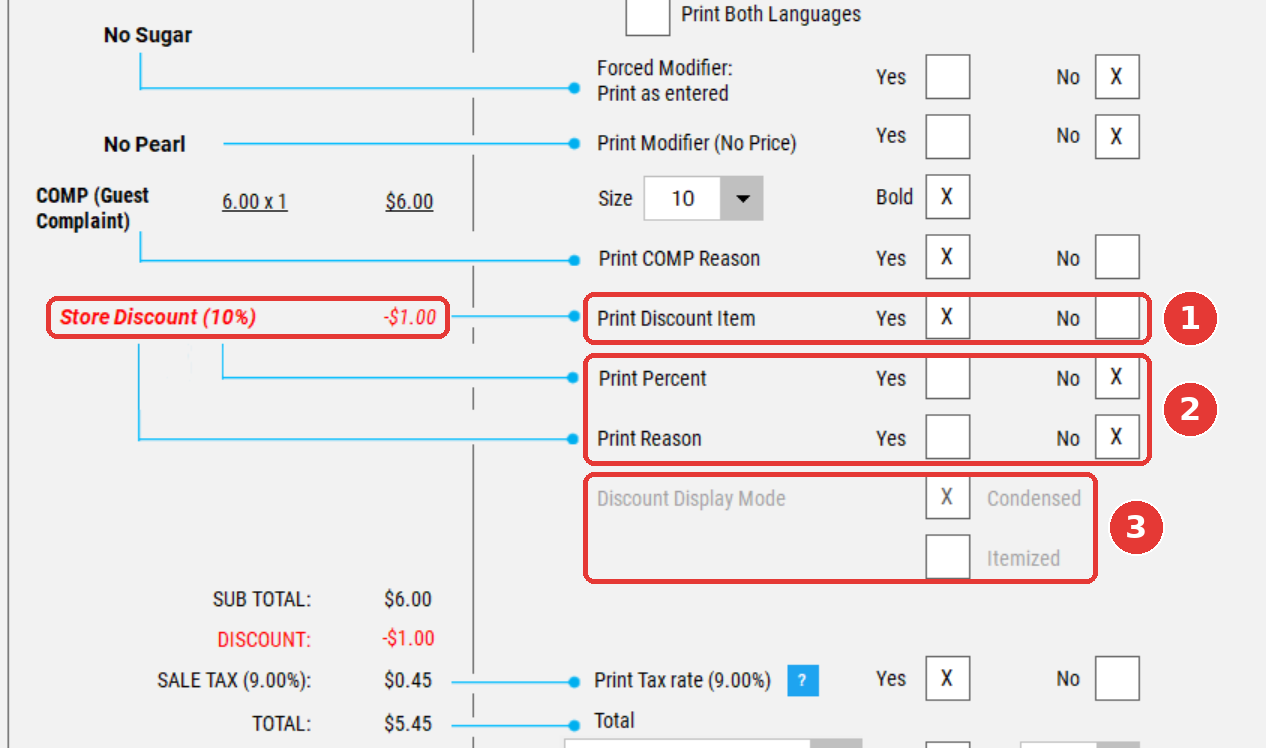
Step 2: Turn on Print Discount Item
- Find Print Discount Item.
- Make sure it is turned ON.
ℹ️ Note: The new discount options appear directly below Print Discount Item. They are disabled when Print Discount Item is OFF.
Step 3: Turn on Print Percent and/or Print Reason
- Turn on Print Percent to show the discount percentage (for example, 15%).
- Turn on Print Reason to show the discount reason (for example, Employee).
- Save your changes.
Both options are OFF by default. You can turn on one or both.
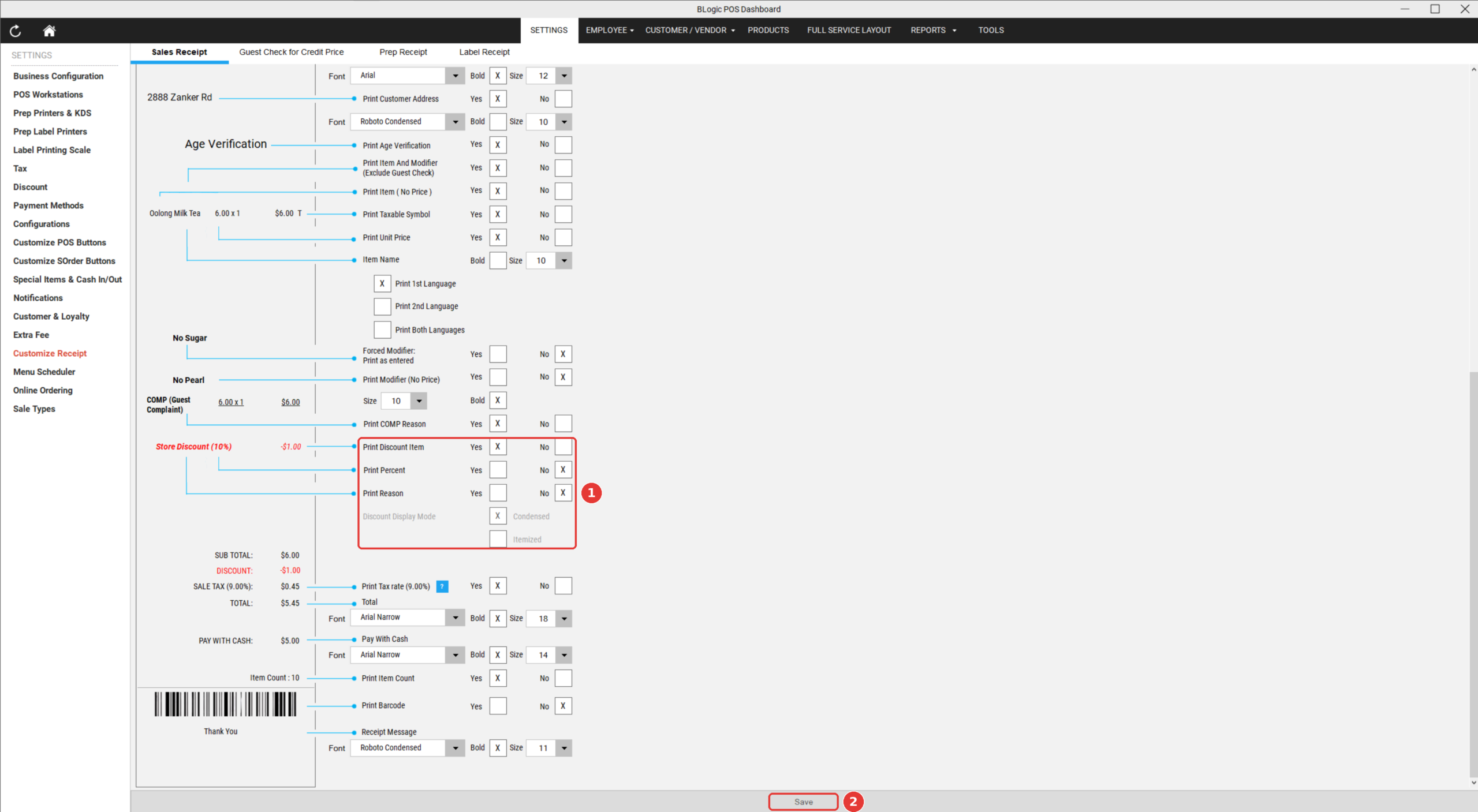
⚠️ Warning: If both Print Percent and Print Reason are OFF, the receipt keeps the previous layout (one combined discount line). In this case, the Discount Display Mode setting has no effect.
Choose a Discount Display Mode
Step 1: Select the display mode
- In the same section, find Discount Display Mode.
- Select one of the following:
| Mode | How it works | Best for |
|---|---|---|
| Condensed (default) | Item and Category discounts print directly under the item (or under its last modifier). Other discounts (Store, Ticket, Customer, Price Level) print once at the bottom of the order list. | A shorter, cleaner receipt |
| Itemized | Every discount prints directly under each item or modifier it applies to. The same discount may appear more than once. | Showing exactly which item received which discount |
- Save your changes.
Discount Display Mode options
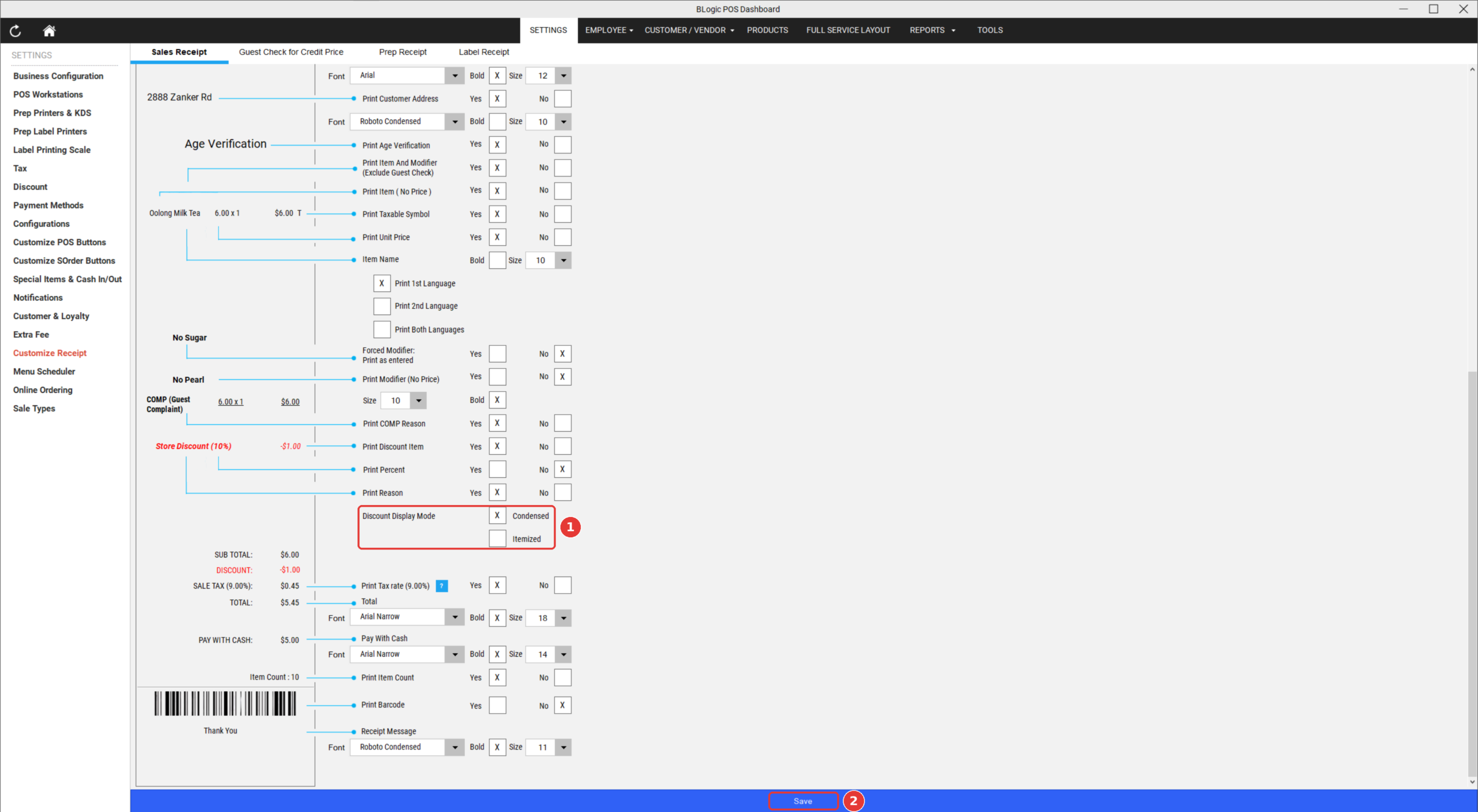
Sample receipt in Condensed mode vs. Itemized mode
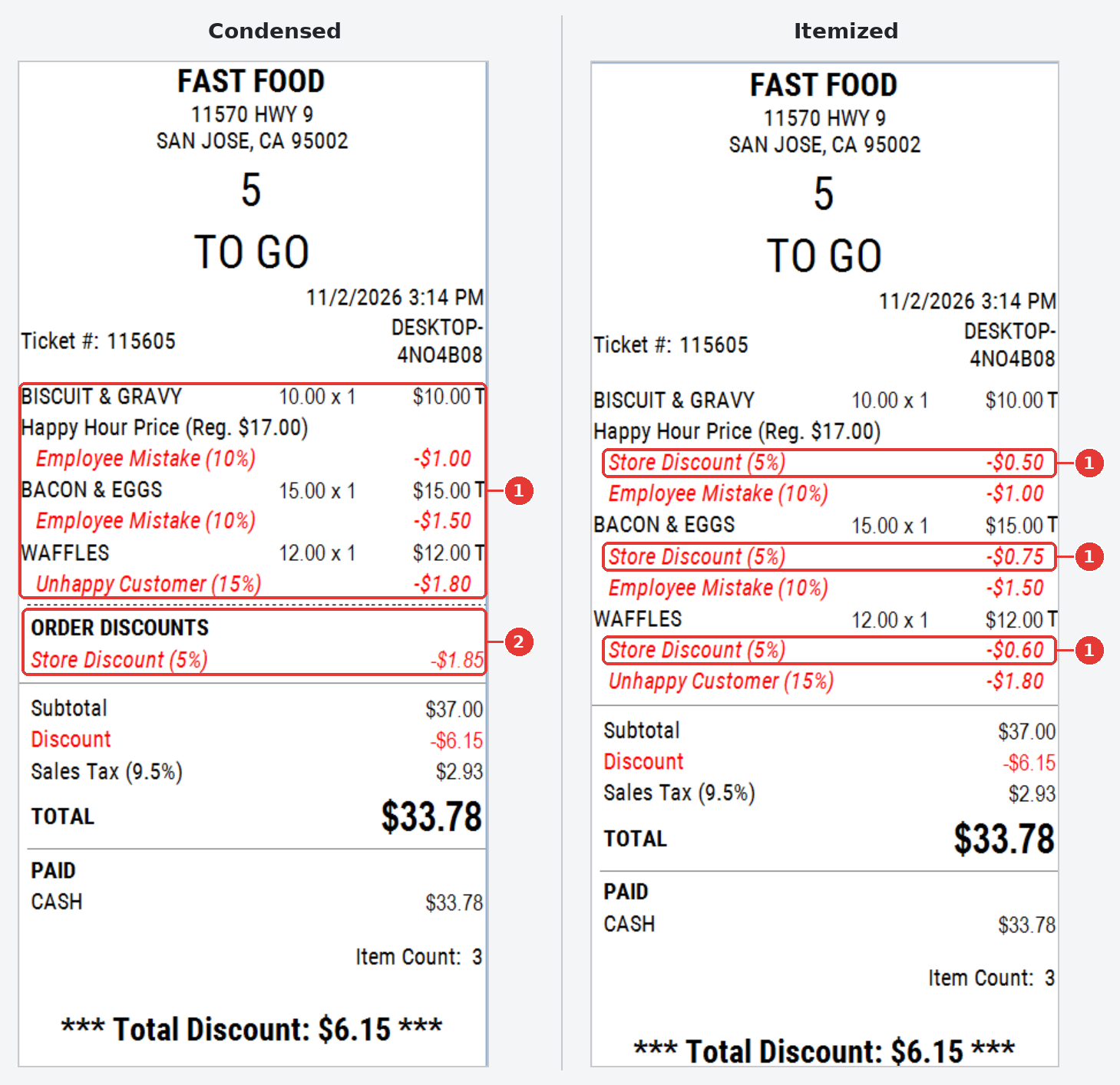
✅ Tip: Print a test receipt after changing the mode to see which layout works best for your store.
Understand How Discounts Appear on the Receipt
Discount line format
The discount line uses the same font size as the item line. The text depends on which options are ON:
| Print Reason | Print Percent | Example on receipt |
|---|---|---|
| ON | ON | Employee Discount (15%) |
| ON | OFF | Employee Discount |
| OFF | ON | Discount (15%) |
| OFF | OFF | Previous layout (combined discount line) |
- If the reason already contains the word “Discount”, the system does not add it again. For example, the reason Happy Hour Discount prints as Happy Hour Discount (10%).
- The percentage is skipped for amount-based discounts (for example, $5.00 off).
Where the reason comes from
The receipt shows the reason that staff selected when applying the discount on POS or QOrder. For discount types that do not have a reason step, the system prints a default name:
| Discount Type | Reason printed |
|---|---|
| Store Discount | Store Discount |
| Category Discount | Category Discount |
| Customer Discount | Customer Discount |
| Price Level Discount | Price Level Discount |
| Ticket / Item Discount | The reason selected by staff |
⚠️ Warning: Internal reasons such as Customer Complaint, Kitchen Error, or Customer Dislike also print on the customer’s receipt. Review your discount reason list to make sure each reason is suitable for customers to see.
Items that cannot be discounted
If an item is set to Not Allow Discount and the ticket has another discount (Category, Ticket, Customer, or Price Level):
- An asterisk (*) appears after the item name.
- A short note appears below the Total Discounts line to explain the asterisk.
If the ticket has no discount, the asterisk and note do not appear.
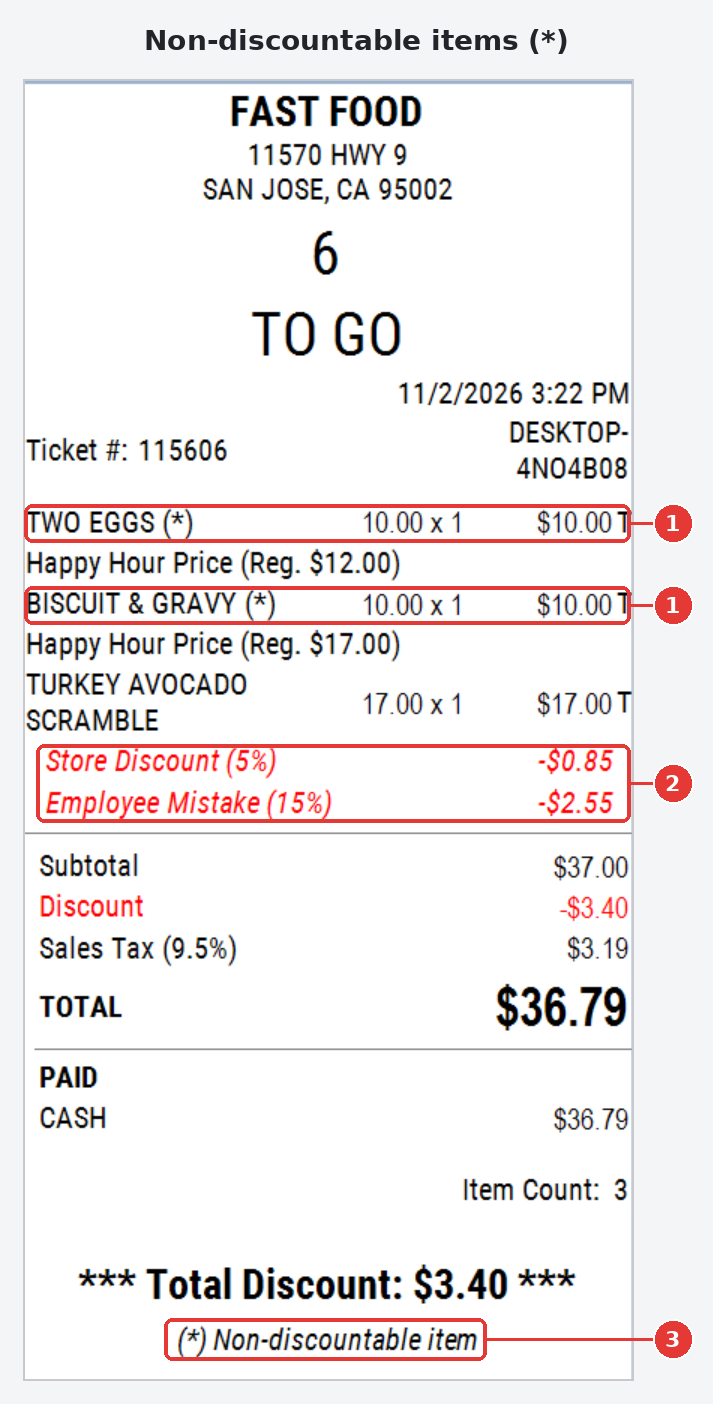
Other display rules
- Entire Ticket discount only: If the only discount on the ticket is an Entire Ticket discount by percentage, the percentage also appears in the receipt summary.
- Same item, different reasons: If the same item is added twice with different discount reasons, each discount prints separately. Discounts with the same reason are combined.
- Settings changed during an order: If the Not Allow Discount setting of an item changes while a ticket is still open, the ticket uses the latest setting. Tickets that were already paid are not affected.
Where to View or Confirm the Result
After saving the settings, apply a discount to a test ticket and check the receipt in the following places:
| Where | What to check |
|---|---|
| POS — Print Check / Sales Receipt | Discount lines follow your settings and display mode |
| POS Dashboard — Reports > Credit Card Transaction History (reprint) | The reprinted receipt uses the new layout |
| QOrder — Sales Receipt | Same discount reason and layout as POS |
| Kiosk — Receipt | Discount reason prints on the receipt |
| Online Ordering / QR Code Dine-in — Receipt | Discount reason prints on the receipt, including coupon discounts |
| BLogic View — Online Sale Receipt | Discount details appear under each item, following the same POS Dashboard settings |
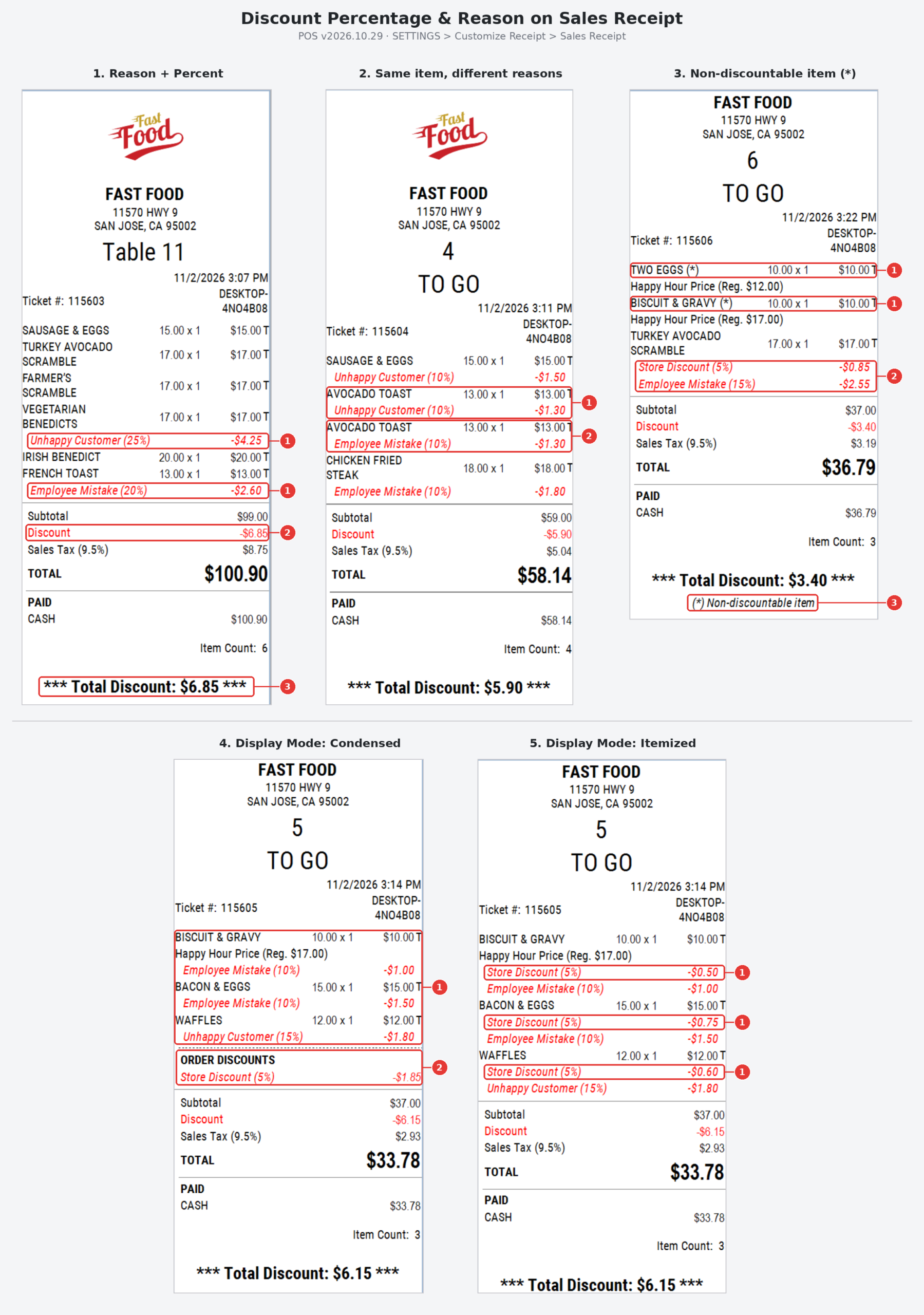
ℹ️ Note (BLogic View): When a ticket-level discount is a fixed amount, BLogic View splits it across items based on each item’s share of the order. The last item takes the remaining amount so the total always matches. For example, a $5.00 ticket discount on items priced $10, $5, and $10 shows $2.00, $1.00, and $2.00.
FAQ
1. Why can’t I see the Print Percent and Print Reason options? Make sure Print Discount Item is turned ON, because the new options are disabled when it is OFF. Also confirm your store is on POS v2026.10.29 or later. Please contact Support if the options are still not visible.
2. I changed the Discount Display Mode, but the receipt did not change. Why? Display Mode only works when Print Percent or Print Reason is ON. If both are OFF, the receipt keeps the previous combined discount layout.
3. Why does the receipt show “Store Discount” instead of a specific reason? Store, Category, Customer, and Price Level discounts do not have a reason selection step, so the system prints a default name for these discount types.
4. Does this setting affect receipts on other products? Yes. The settings in POS Dashboard apply to receipts printed from POS, QOrder, Kiosk, Online Ordering, QR Code Dine-in, and the online Sale Receipt in BLogic View.
5. Why does an item show an asterisk (*) on the receipt? The asterisk means the item is set to Not Allow Discount, so it did not receive the ticket-level discount. The note below Total Discounts explains this to the customer.
Closing
If you still need help, please contact Support for further assistance.