Introduction
This article shows you how to add more blank space at the bottom of your printed Time Clock reports. You will learn how to open the new Report Designer on the Time Clock Detail Report tab and set the Bottom Spacing.
Managers often use this space to write handwritten notes for employees before handing out the printout.
Version Support
| Product / Module | Supported Version |
|---|---|
| POS Dashboard | v7.2026.11.05 |
| POS | v7.2026.11.05 |
Note: If you do not see this option, please contact Support to confirm your store is on a supported version.
Table of Contents
Set the Bottom Spacing
Step 1: Open Report Designer
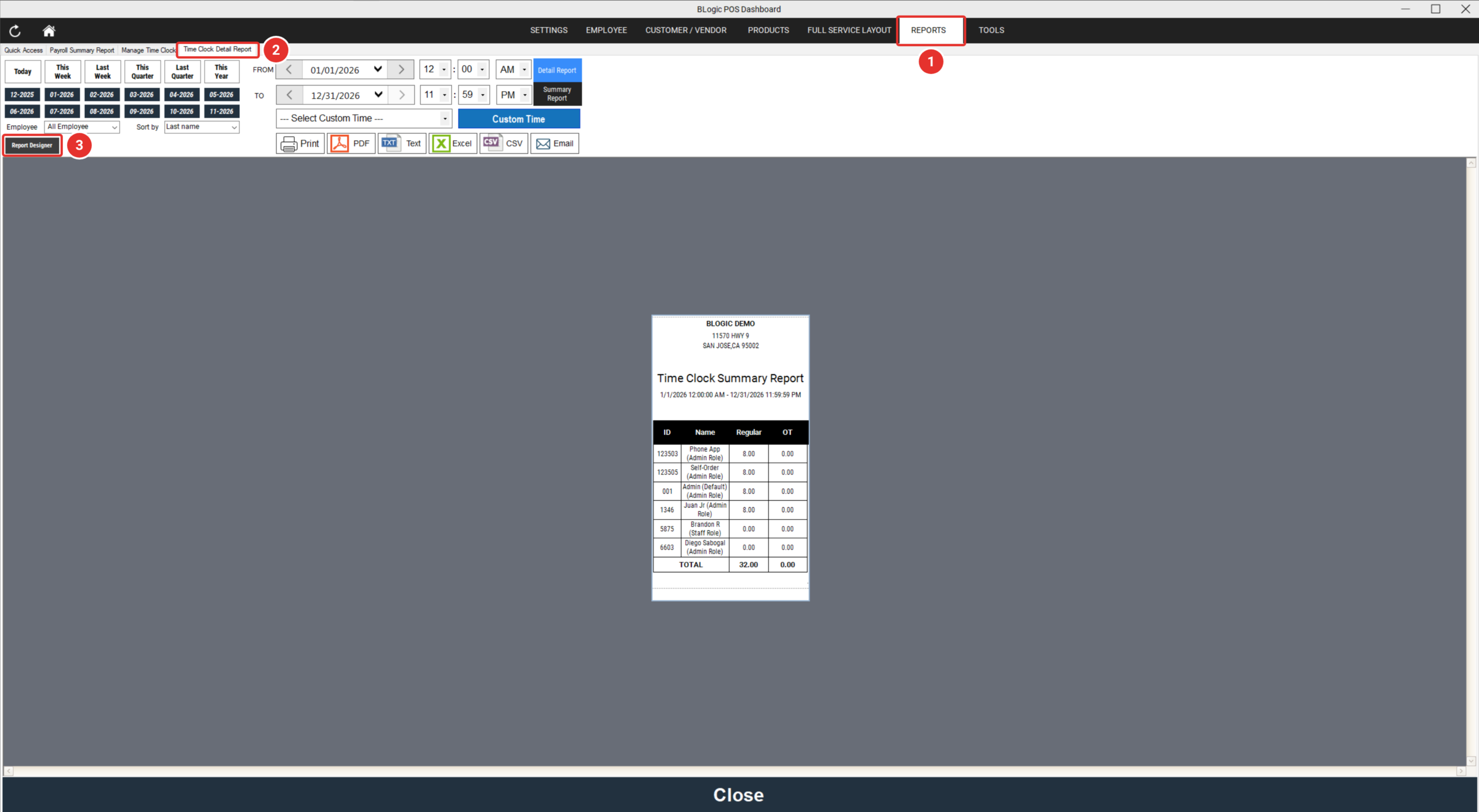
- Log in to BLogic POS Dashboard.
- Click the REPORTS tab at the top of the screen (1).
- Select the Time Clock Detail Report tab (2).
- Click Report Designer, below Employee and Sort by (3).
Step 2: Enter the spacing and save
- In Bottom Spacing, enter the blank space you want in millimeters, for example 15 (1).
- Click Save (2). The Save button turns blue after you change the value.
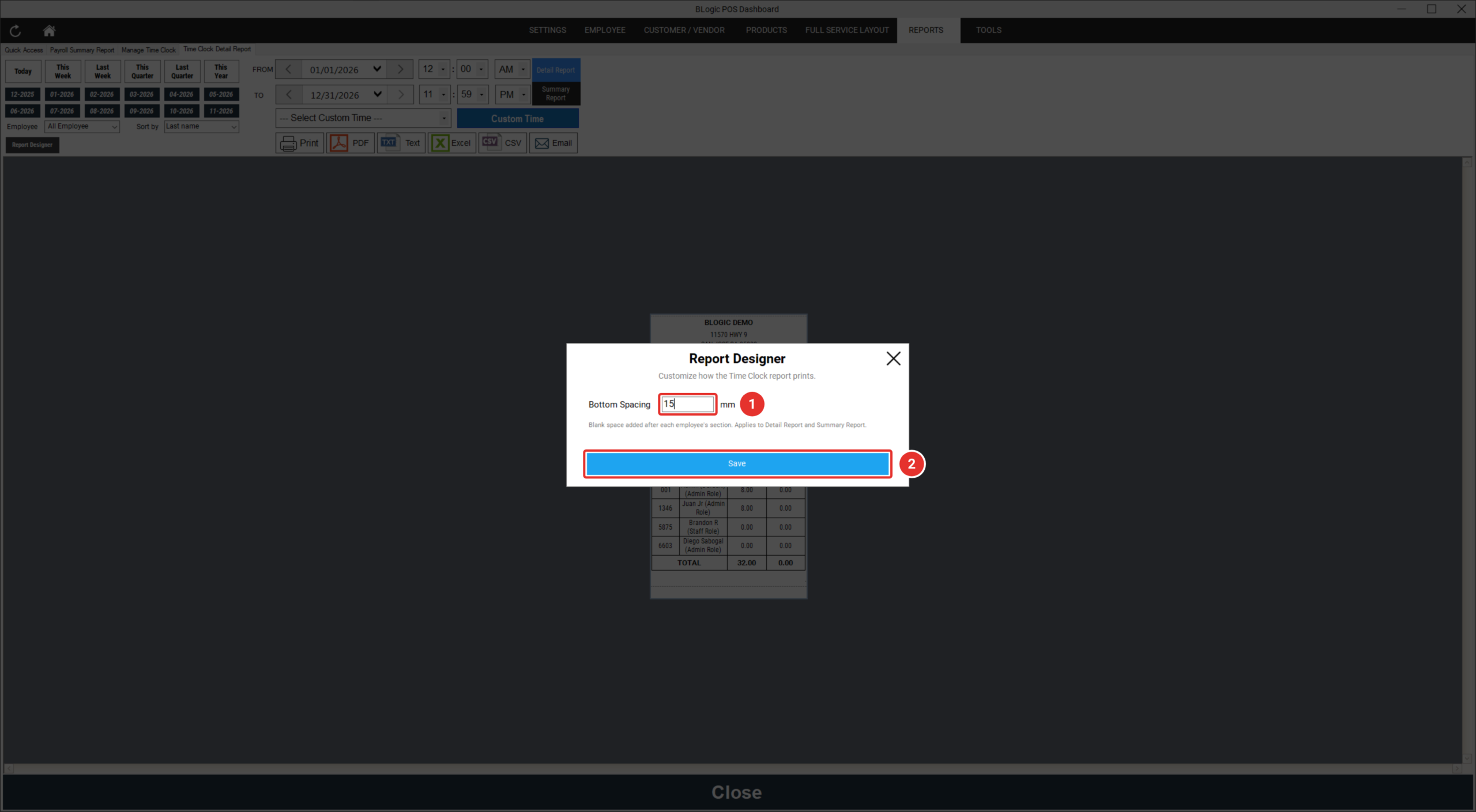
ℹ️ Note: Bottom Spacing accepts whole numbers from 5 to 200 mm. The default is 5 mm. If you leave the field empty or enter a value outside this range, you see: Please enter a value between 5 and 200 mm.
ℹ️ Note: One value applies to both Detail Report and Summary Report, on every workstation in your store.
✅ Tip: Click X to close the window without saving your changes.
Print the Time Clock Report
After you save, the new spacing is used the next time you print. You do not need to restart POS or POS Dashboard.
- On the Time Clock Detail Report tab, choose the date range and employee.
- Select Detail Report or Summary Report.
- Click Print, PDF, or Email.
The blank space is added:
- Detail Report: after the Signature / Date line of each employee.
- Summary Report: at the bottom of the report.
ℹ️ Note: The spacing also applies when you print the Time Clock Report from the POS main screen. Excel, CSV, and Text exports do not change.
Where to View or Confirm the Result
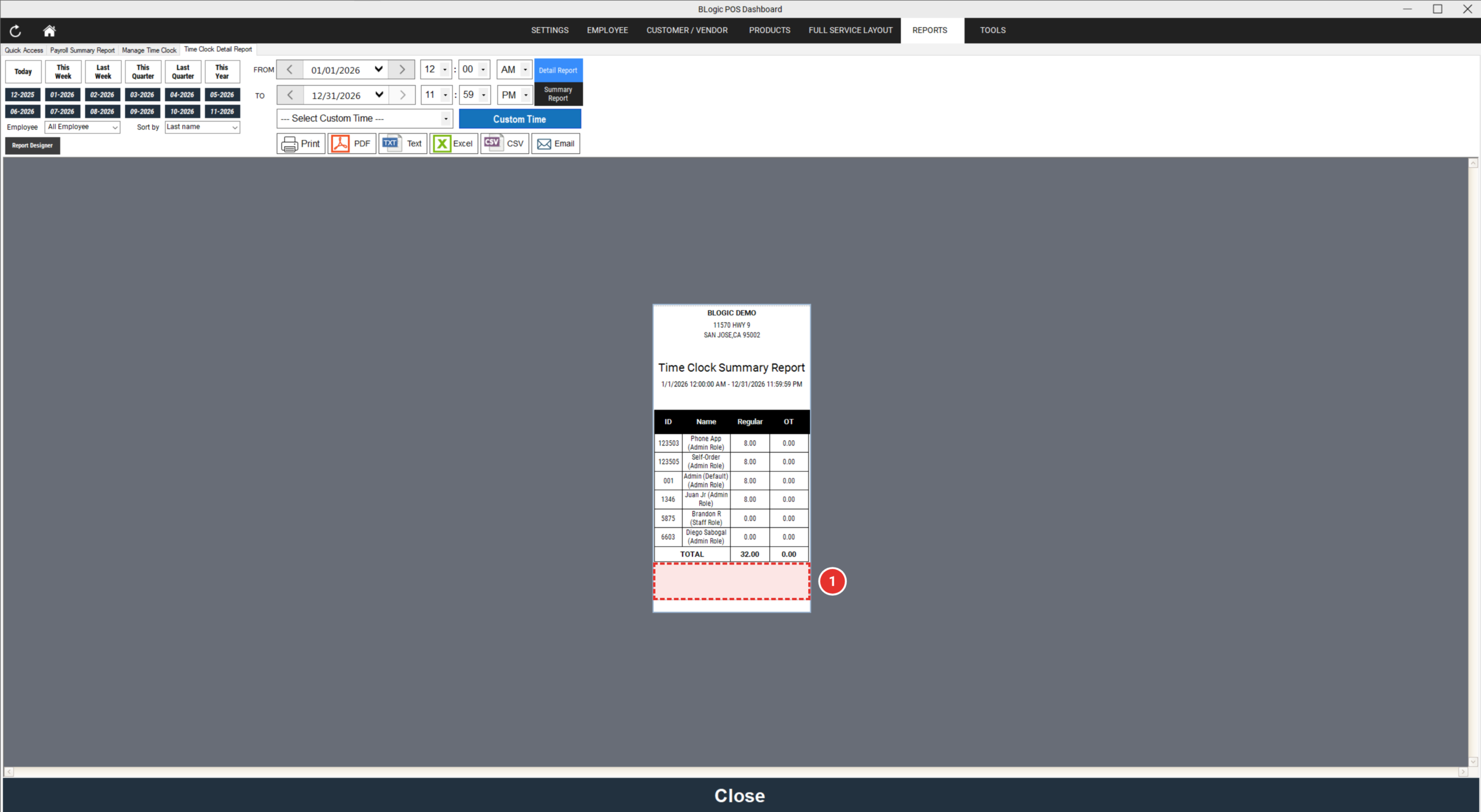
Check the report preview on the Time Clock Detail Report tab, or print a test copy. The blank area at the bottom becomes larger (1).
FAQ
1. Why can’t I see the Report Designer button? Your store may not be on a supported version, or your user role may not have permission to view the Time Clock report. Please contact Support if the button is not visible.
2. Who can change the Bottom Spacing? Any user who can open the Time Clock Detail Report can open Report Designer and change this setting.
3. Support already increased the spacing for my store. Will I lose it? No. Report Designer shows your current value, and your printouts stay the same.
4. Can I set a different spacing for the Detail Report and the Summary Report? No. One value applies to both reports.
5. What should I do if the printout does not change? Make sure you clicked Save, then print again. If the spacing still does not change, contact Support for further assistance.
Closing
If you still need help, please contact Support for further assistance.