This article explains how to turn the daily ticket reset on or off in KDS Settings, set the time open tickets are hidden, and choose how many days of open tickets the KDS shows when the reset is off. You will also learn how to check the result on the KDS screen. The feature helps keep the kitchen screen clear without deleting any order data.
Version Support
| Product / Module | Supported Version |
|---|---|
| KDS | v2.1.5 |
| POS | v7.2026.11.05 |
Note: If you do not see this option, please contact Support to confirm your store is on a supported version.
Table of Contents
- Turn the Daily Ticket Reset On or Off
- Set the Hide At Time
- Set the Number of Days to Show
- Confirm the Result on KDS
- FAQ
Turn the Daily Ticket Reset On or Off
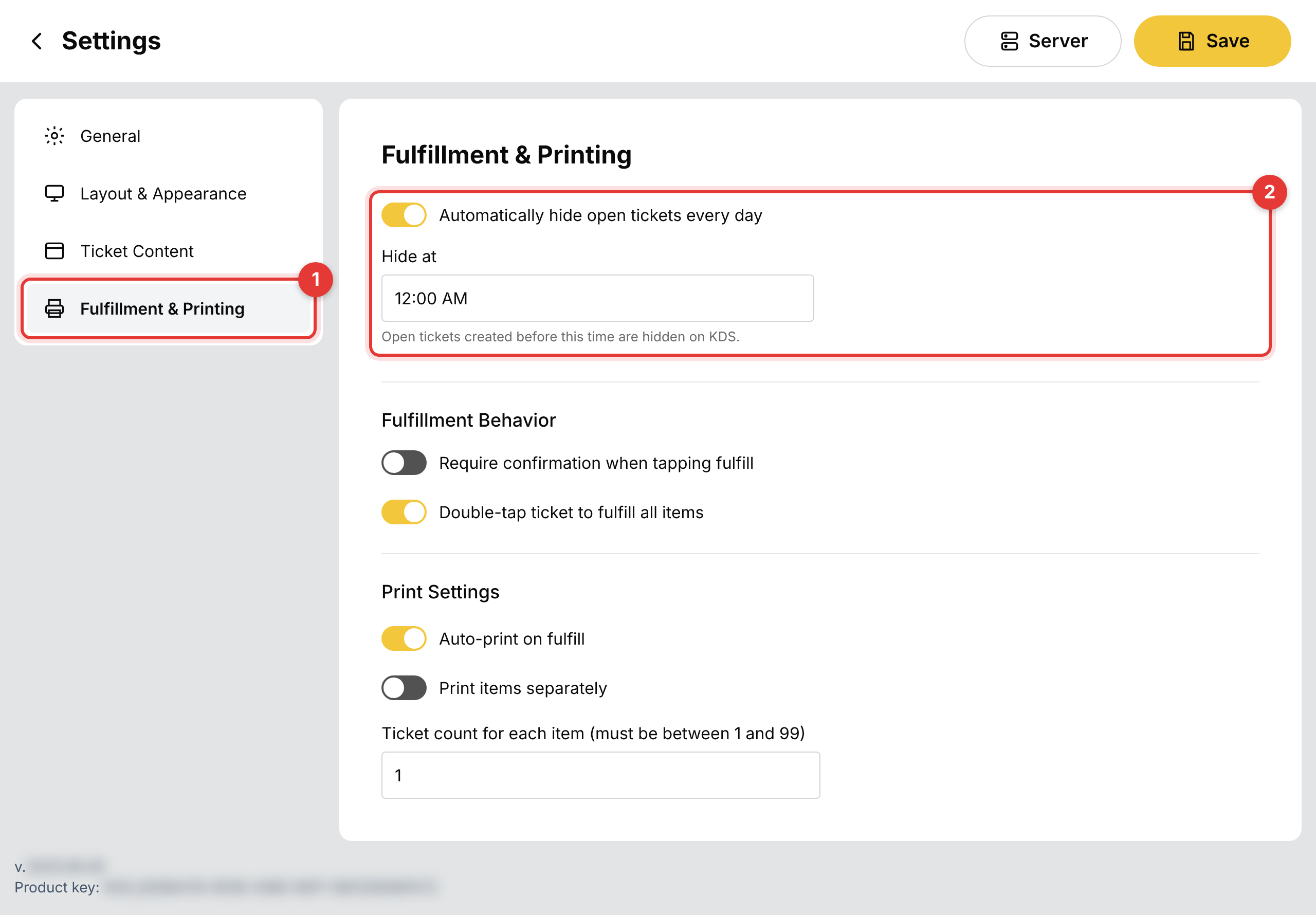
Step 1: Open the KDS settings
- Go to KDS Settings.
- Select Fulfillment & Printing.
- Find the Daily ticket reset section.
Step 2: Turn the toggle on or off
- Find Automatically hide open tickets every day.
- Turn it On to hide open tickets at a set time, or Off to show only recent open tickets.
- Select Save.
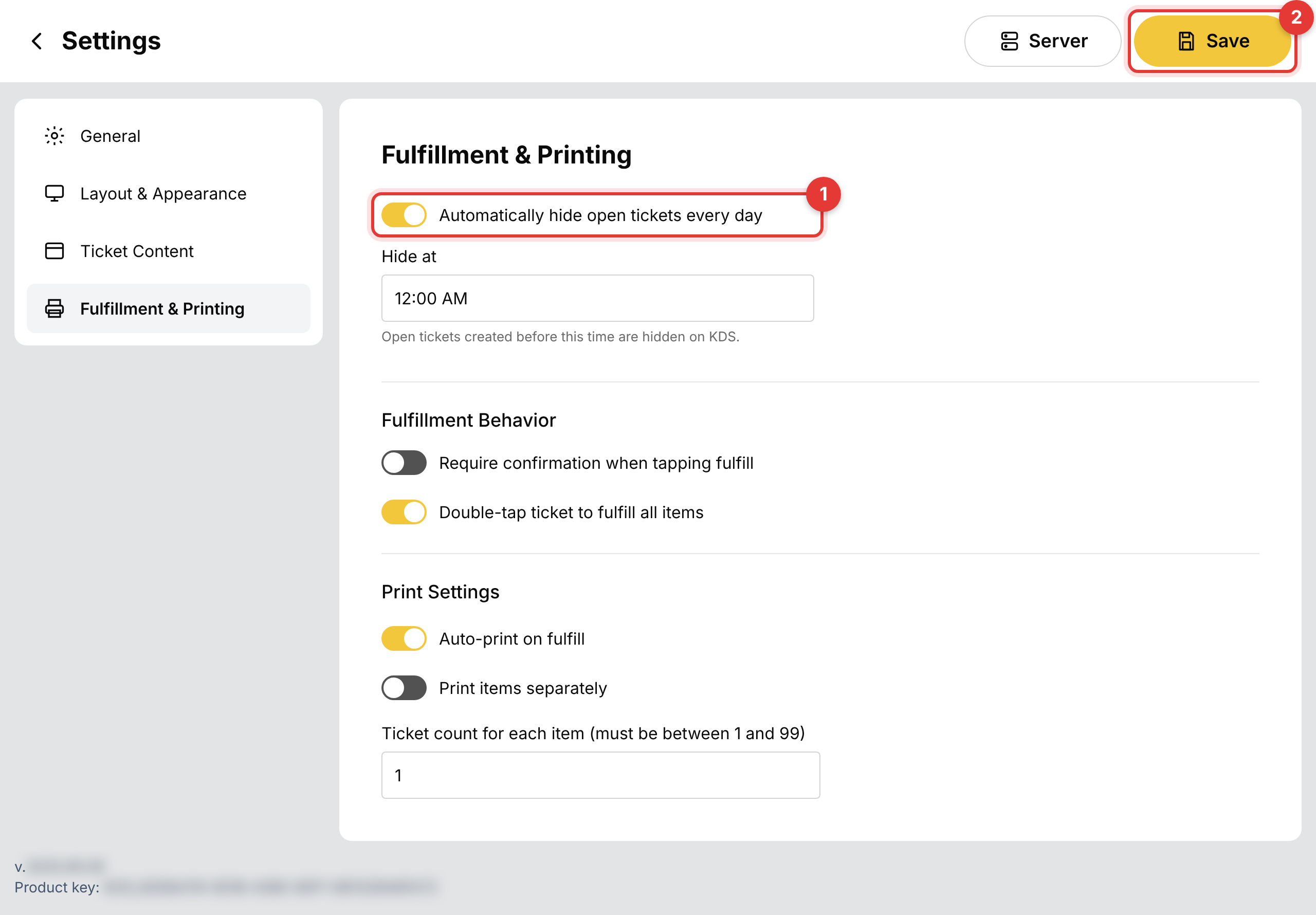
ℹ️ Note: The toggle is On by default. Existing stores keep it On, so nothing changes for them unless they update the setting.
Set the Hide At Time
Use this section when the toggle is On.
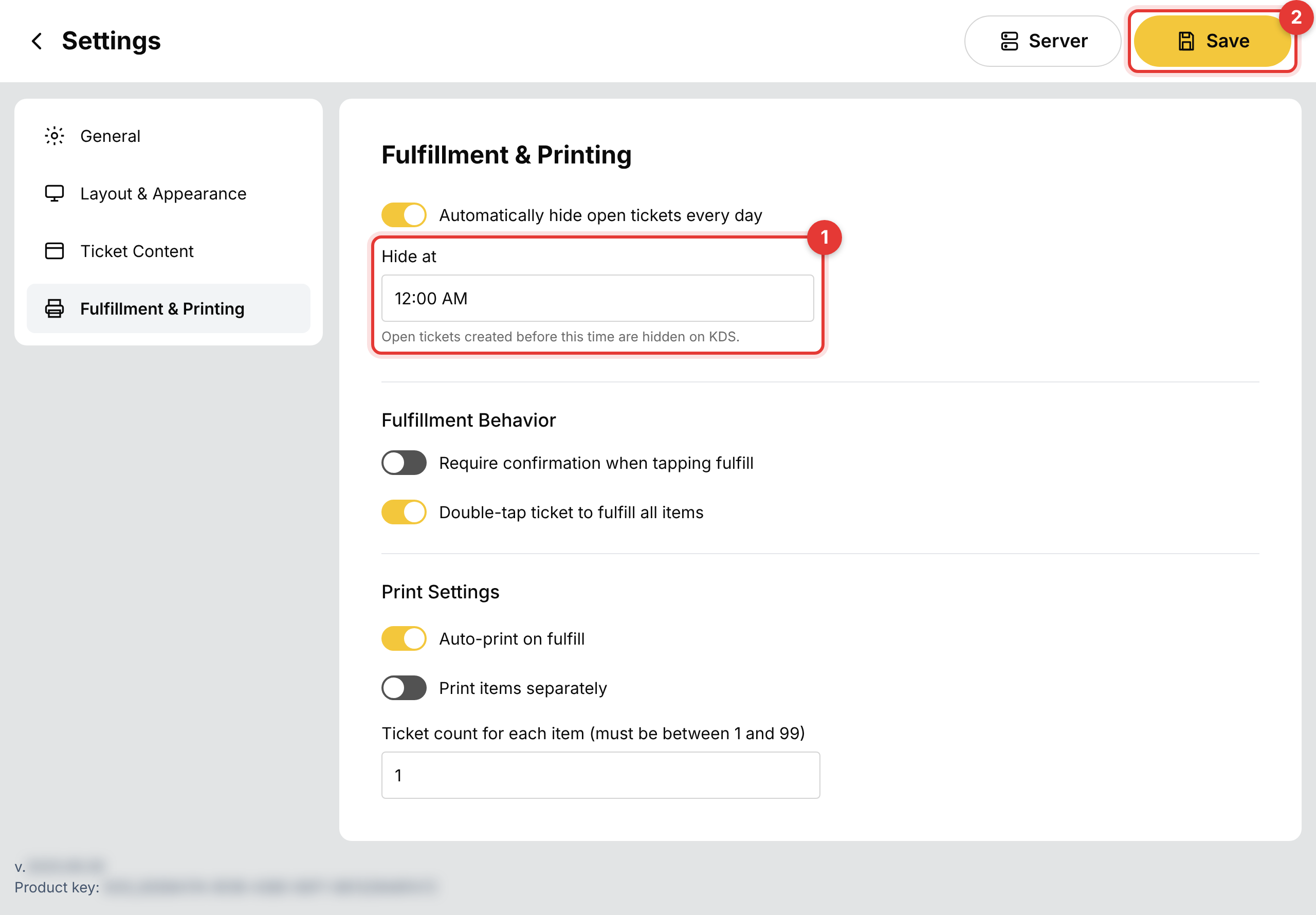
Step 1: Find the Hide at field
- With the toggle On, the Hide at field appears below the toggle.
- Select the field and enter the time when open tickets should be hidden on KDS, for example 4:30 AM.
Step 2: Save the time
- Select Save.
When the set time is reached, open tickets created before that time are hidden on the KDS screen. Tickets created after that time stay visible. Hidden tickets are not deleted, and they remain on POS.
⚠️ Warning: If the time overlaps your store business hours, a warning appears below the Hide at field. You can still save the setting, but check the time to avoid hiding tickets your kitchen is still working on.
Set the Number of Days to Show
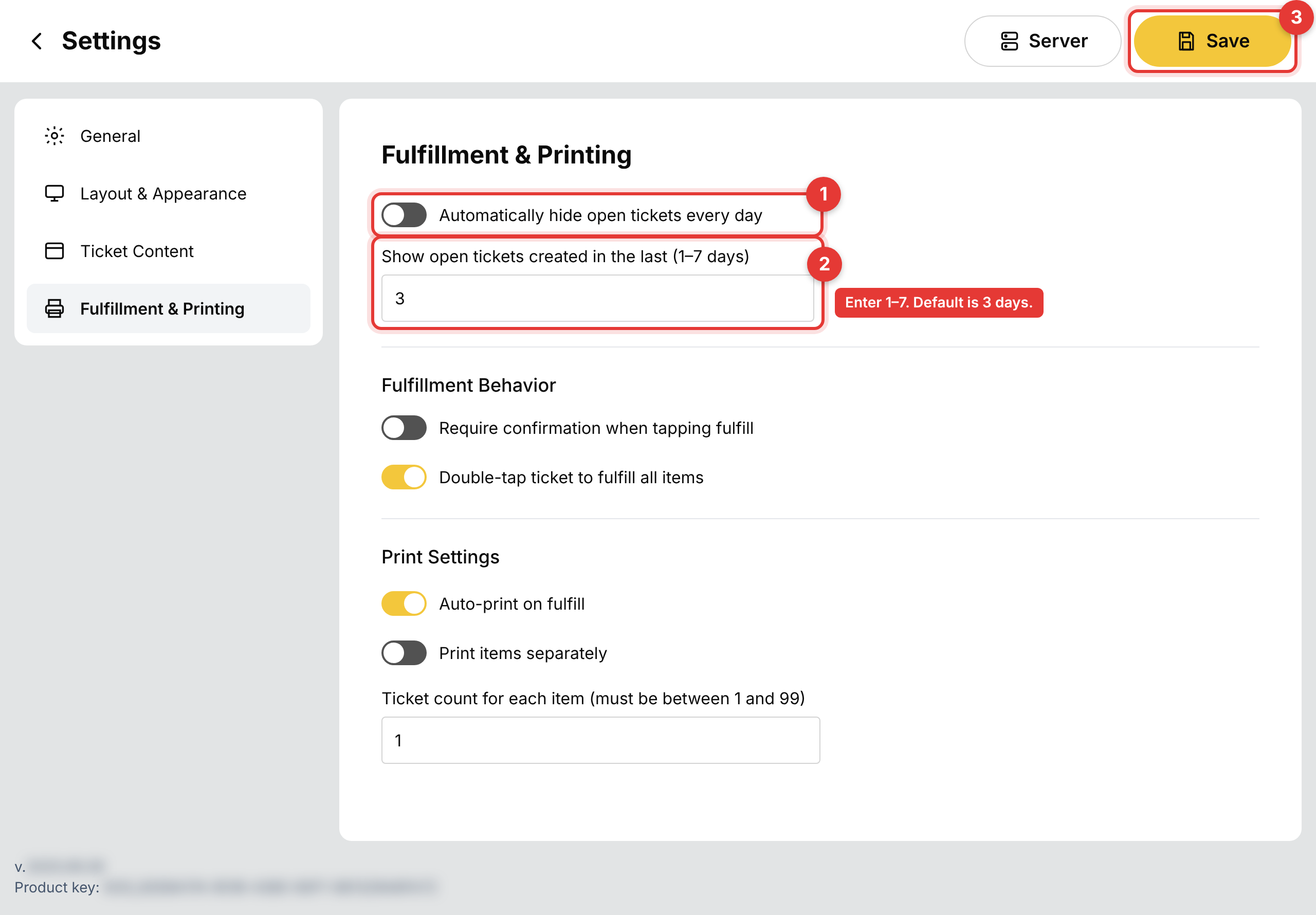
Use this section when the toggle is Off. The Hide at field is hidden, and a days field appears.
Step 1: Open the days field
- Turn the toggle Off.
- Find the field Show open tickets created in the last (1–7 days).
Step 2: Enter the number of days
- Enter a number from 1 to 7. The default is 3.
- Select Save.
With the toggle Off, the KDS shows open tickets created from 00:00 of store time on the first day in the range. Today counts as day 1. For example, with the value set to 3, on 4 November at 9:00 AM the KDS shows open tickets created from 00:00 on 2 November. Tickets created on 1 November are not shown on KDS.
✅ Tip: Choose the smallest number of days that covers how long your kitchen usually keeps tickets open. This keeps the KDS screen clear.
⚠️ Warning: Values outside 1 to 7 cannot be saved. Tickets hidden earlier may appear again when you turn the toggle Off, if they are still within the number of days you set.
Confirm the Result on KDS
Step 1: Check the KDS screen
- Open the KDS and review the open ticket list.
- Confirm that tickets older than the time or range you set are no longer shown.
Step 2: Check the order in POS
- Open the order history on POS.
- Confirm that the hidden ticket still exists and its status is unchanged.
ℹ️ Note: Hiding tickets on KDS does not change order data on POS.
FAQ
1. Why can’t I see the Hide at field?
The Hide at field only appears when the toggle is On. If the toggle is Off, use the days field instead. If you still do not see the option, your store may not be on a supported version. Please contact Support.
2. Does this setting delete any orders or tickets?
No. Tickets are only hidden on the KDS screen. Order data on POS is not deleted or changed.
3. Why did old tickets appear again after I turned the toggle Off?
When the toggle is Off, the KDS shows open tickets created within the number of days you set. Tickets that were hidden earlier can appear again if they are still within that range.
4. Why are some older open tickets not shown on KDS?
The KDS only shows open tickets created within the number of days you set. Older tickets remain open on POS. Close them on POS, or increase the number of days up to 7.
5. Who can change these settings?
Please contact Support to confirm which user roles can access and change the daily ticket reset settings in your store.
Closing
If you still need help, please contact Support for further assistance.