Introduction
This article explains how to transfer multiple tickets to another staff member from the POS Unpaid Tickets screen.
You will learn how to select tickets, choose the receiving employee, and understand which tickets can or cannot be transferred.
Version Support
- Supported Versions: POS v7.2026.05.15 or later
- Modules: POS – Unpaid Tickets
ℹ️ Note:
If you do not see the Transfer Tickets button, please contact Support to confirm that your POS version supports this feature.
Table of Contents
1. Before You Start
2. Open the Unpaid Tickets Screen
3. Select Tickets to Transfer
4. Choose the Receiving Employee
5. Confirm the Transfer
6. What Happens After Transfer
7. Tickets That Cannot Be Transferred
8. FAQ
1. Before You Start
Make sure you have permission to transfer tickets.
If your account does not have permission, the POS will show a permission message. A manager or authorized user may be able to use Override Permission, similar to transferring a single ticket.
ℹ️ Note:
This feature is only available from the Unpaid Tickets screen. It is not supported when opening Unpaid Tickets from the Dine-in table screen for tables with split tickets.
2. Open the Unpaid Tickets Screen
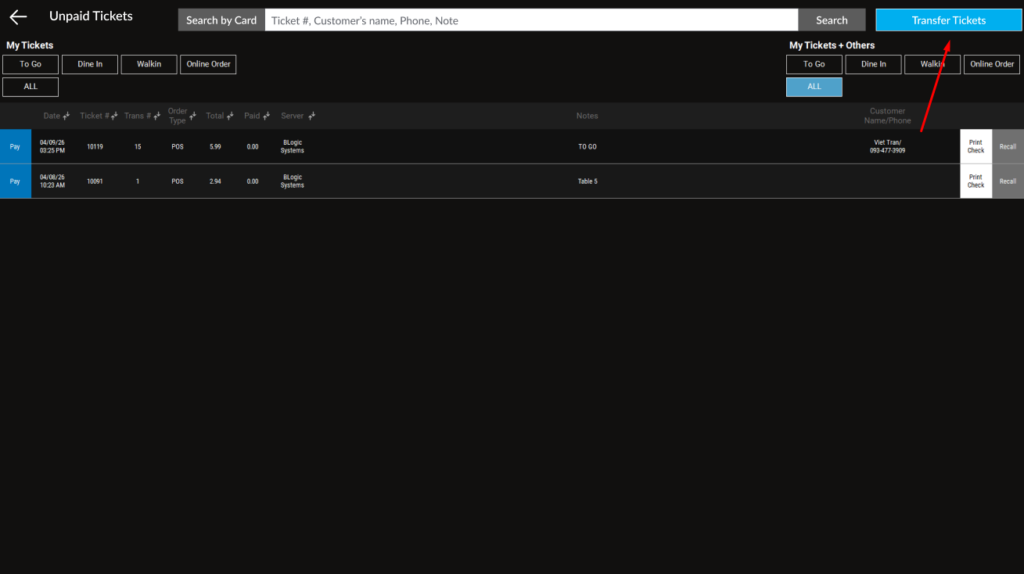
1. On the POS, go to Unpaid Tickets.
2. Review the list of open unpaid tickets.
3. Use the available filters if needed.
- To Go
- Dine In
- Walkin
- Online Order
- All
3. Select Tickets to Transfer
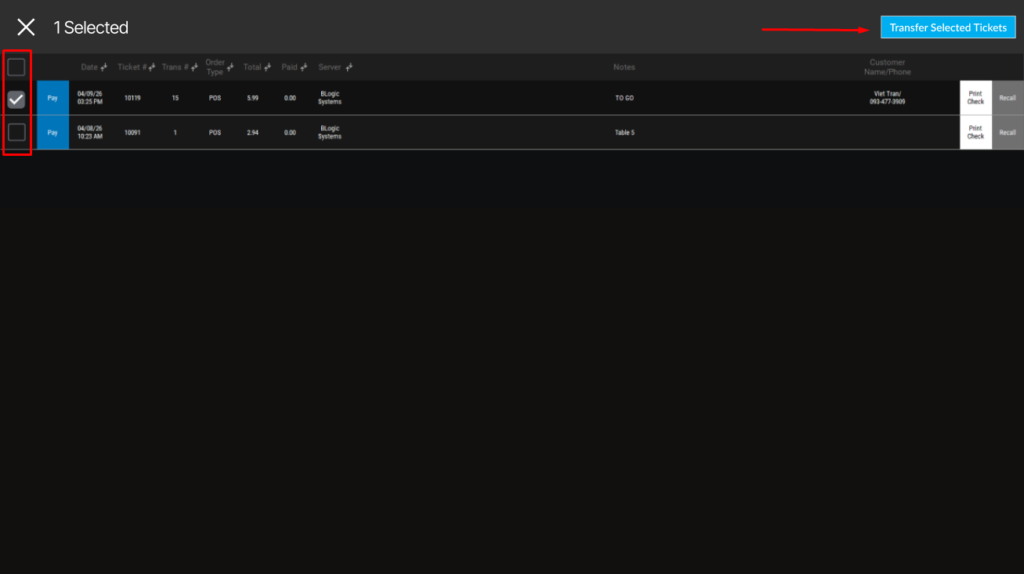
1. Tap the Transfer Tickets button.
2. The screen changes to selection mode.
3. Select the checkbox next to each ticket you want to transfer.
4. Review and click on the button Transfer Selected Tickets
The number of selected tickets appears at the top of the screen.
ℹ️ Tip:
Use the ticket filters before selecting tickets if you only want to transfer tickets from a specific order type.
4. Choose the Receiving Employee
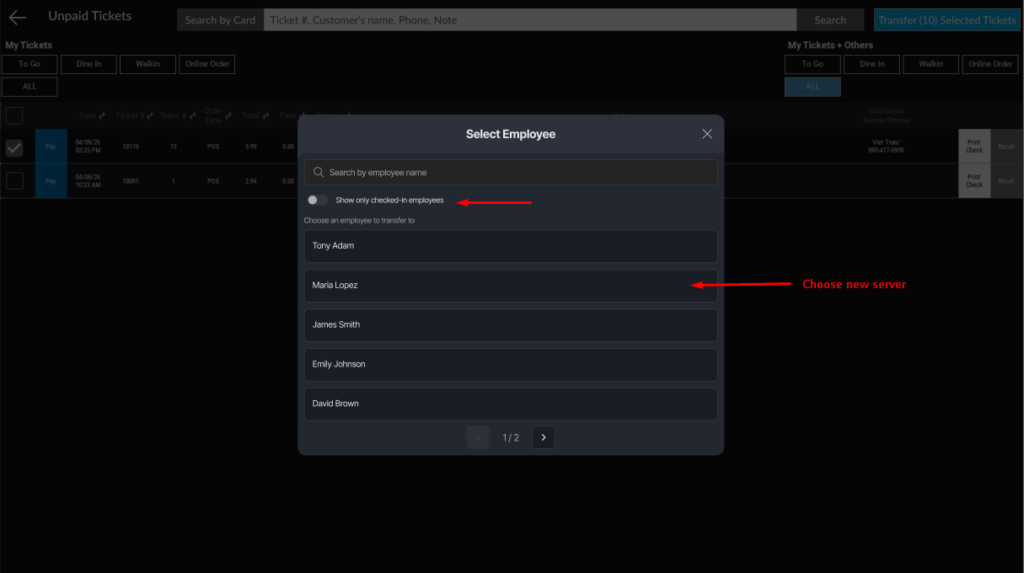
1. In the Select Employee window, search for the employee by name.
2. Select the employee who should receive the tickets.
3. Use Show only checked-in employees if you only want to show employees currently checked in.
5. Confirm the Transfer
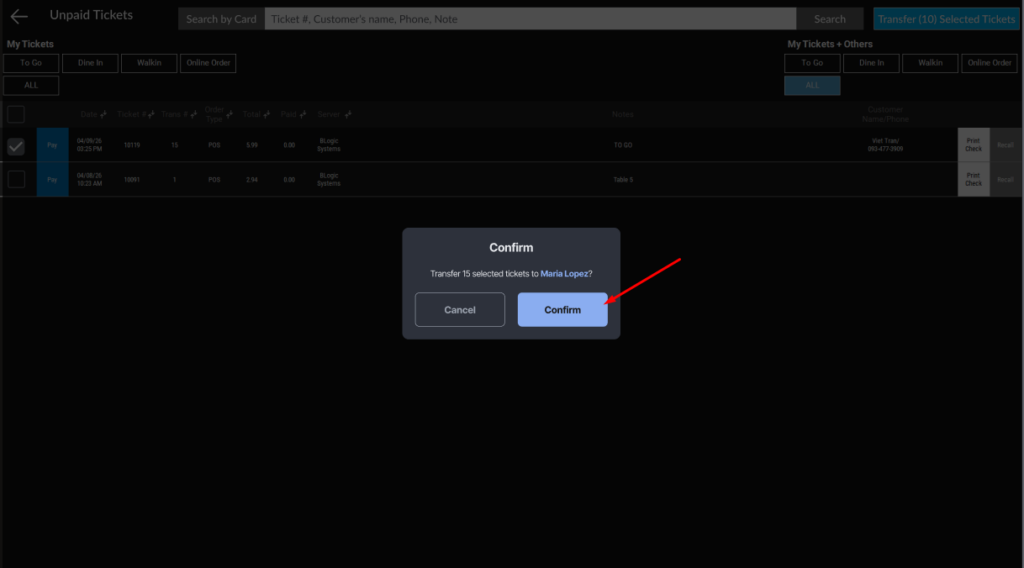
1. Review the confirmation message.
2. Tap the Confirm button.
The POS will begin transferring all valid selected tickets.
6. What Happens After Transfer
After the transfer is completed:
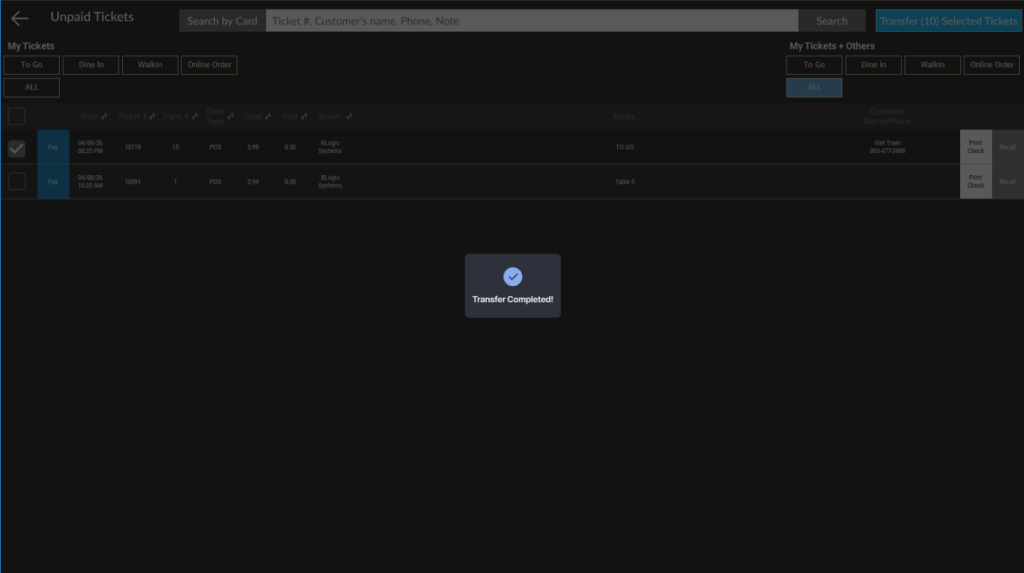
1. The POS shows a success message.
2. The selected tickets are transferred to the new employee.
3. The screen automatically exits selection mode.
7. Tickets That Cannot Be Transferred
Some tickets cannot be selected or transferred.
Tickets created from these sources cannot be selected:
- Kiosk
- Order Online
If a ticket cannot be transferred, the checkbox will not appear for that ticket.
During transfer, the POS also checks whether each selected ticket is still valid. Tickets will not be transferred if they are:
- Locked
- Canceled
- Voided
- Refunded
Valid tickets will still be transferred. Invalid tickets will be skipped, and the POS may show a warning message.
ℹ️ Note:
Split tickets can still be transferred from the supported Unpaid Tickets flow.
8. FAQ
1. Why is the Transfer Selected Tickets button disabled?
The button is disabled when no tickets are selected. Select at least one eligible ticket to enable the button.
2. Why do some tickets not have a checkbox?
Some tickets are not eligible for transfer. Tickets from Kiosk or Order Online do not show a checkbox and cannot be selected.
3. Can I transfer split tickets?
Yes. Split tickets can be transferred from the supported Unpaid Tickets flow.
4. What happens if one selected ticket becomes voided or canceled before I confirm?
The POS will skip that ticket and transfer only the valid tickets. A warning may appear for tickets that could not be transferred.
5. Can I transfer tickets to an employee who is not checked in?
Yes, if that employee appears in the employee list. You can also turn on Show only checked-in employees to narrow the list.
Need More Help?
If you still need help, please contact Support for further assistance.