Introduction
This article explains how to scan an item barcode to add the item to an order in QOrder. You will learn how to enable the feature, scan items from the Order screen, and understand what happens when an item cannot be added.
Barcode scanning helps staff add items faster and reduce manual item searches during ordering.
Version Support
- POS Version 2026.05.21 or later
- QOrder app Version 13.8 or later
ℹ️ Note:
If you do not see the Scan barcode to add to order setting or the scan icon in QOrder, please contact Support to confirm that your version supports this feature.
Table of Contents
1. Before You Start
2. Enable Barcode Scanning in BLogic View
3. Add an Item by Scanning a Barcode
4. Understand Laser and Camera Scanning
5. Handle Scan Errors and Unavailable Items
6. FAQ
1. Before You Start
Before using barcode scanning, make sure the feature is enabled and your items already have barcodes configured. This feature only adds existing menu items to an order.
- You need access to BLogic View to turn the feature on or off.
- Staff can scan from the QOrder Order screen only.
- The scanned barcode must match an existing item in the item database.
- The feature does not create a new item or temporary item when no matching barcode is found.
ℹ️ Note:
If item visibility, inventory, modifiers, or menu schedule rules prevent the item from being sold, the system will not add the item to the order.
2. Enable Barcode Scanning in BLogic View
A store manager can turn this feature on from the QOrder configuration settings.
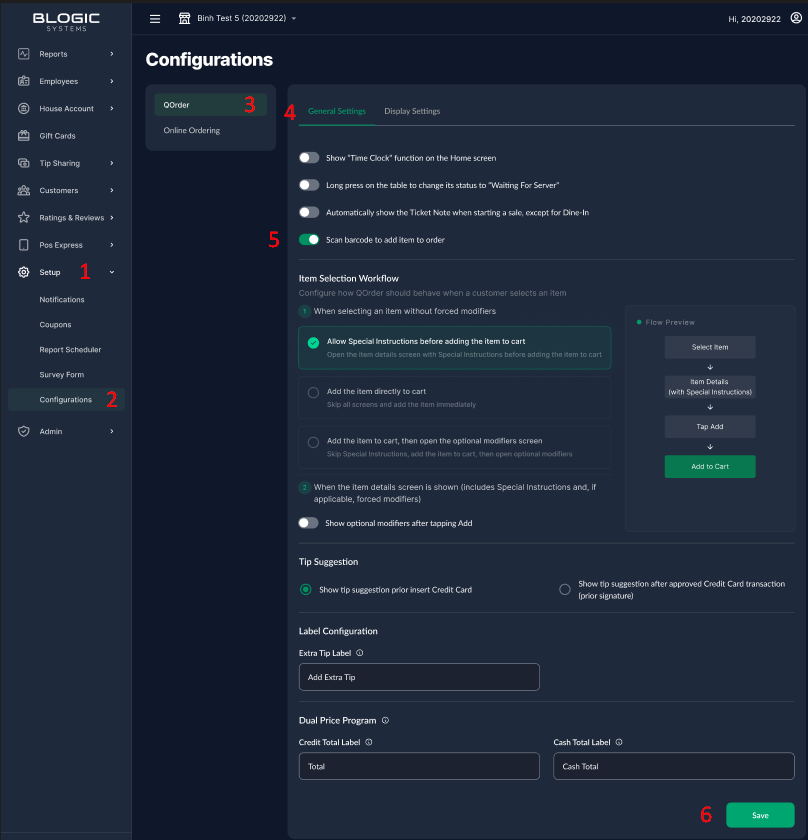
1. Log in to BLogic View.
2. Go to Setup > Configurations > QOrder > General Settings.
3. Find Scan barcode to add to order.
4. Set the value to ON.
5. Save your changes.
When the setting is ON, app shows the scan icon on the Order screen app bar and allows the physical laser scan key to add items to an order.
ℹ️ Note:
Enable this feature only for stores or workflows that use item barcodes regularly. This keeps the app screen simpler for stores that do not need barcode scanning.
3. Add an Item by Scanning a Barcode
After the feature is enabled, staff can scan items directly from the Order screen.
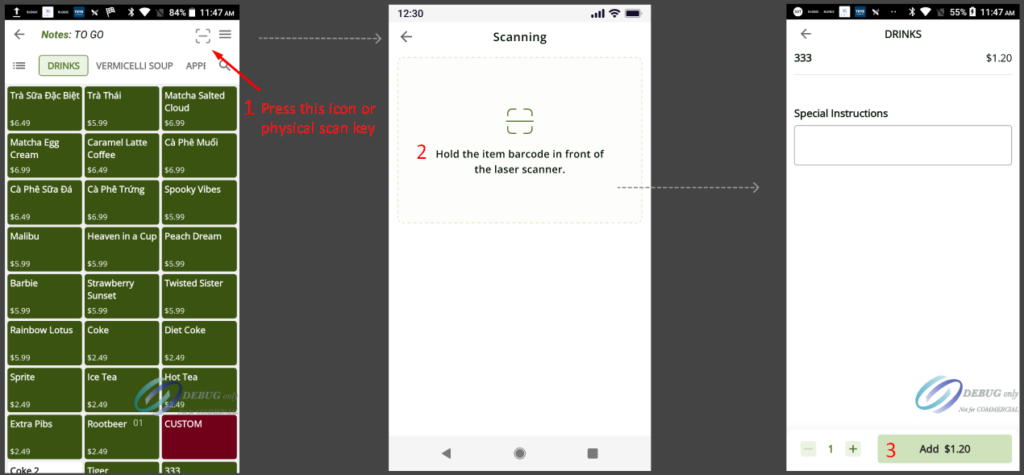
1. From the Order screen, press the physical scan key or tap the scan icon on the app bar.
2. Align the barcode to the scanner.
3. If the system finds a matching item, continue through the normal add-item flow, such as modifier selection or inventory validation.
4. After the item is added, the system returns to the Order screen.
4. Understand Laser and Camera Scanning
The system supports both laser scanning and camera scanning. The system chooses the scanning method automatically.
- If the device supports laser scanning, the system uses the laser scanner first because it is faster and more accurate.
- If the device does not support laser scanning or if the laser scanner has an error, the system automatically uses camera scanning.
- Users cannot manually choose between laser scanning and camera scanning.
5. Handle Scan Errors and Unavailable Items
The system shows an error or information message when the scanned barcode cannot be used to add an item.
| Situation | Message or Behavior | What You Can Do |
| Barcode is not found | QOrder shows the scan error UI and does not add an item. | Check that the item barcode is configured correctly, then scan again or add the item manually. |
| Scan fails or times out | QOrder treats timeout as a scan failure. | Try scanning again. Make sure the barcode is clear and the scanner or camera is working. |
| Item is out of stock | <item name> cannot be sold because it is out of stock. | Choose another item or update inventory if the stock count is incorrect. |
| Item is not visible | <item name> cannot be sold. Please go to the Dashboard and set the item to Visible. | Go to the Dashboard and make the item visible for the correct sale type. |
| Menu or category is not available at the current time | <item name> cannot be sold because the <category> is not visible at this time. | Check the menu or category schedule in the Dashboard. |
ℹ️ Note:
This feature does not add a new item to the database when a barcode is not found. The item must already exist and have a matching barcode.
6. FAQ
1. Why do I not see the scan icon on the Order screen?
The Scan barcode to add to order setting may be OFF, or your QOrder version may not support this feature. Ask a manager to check the configuration in BLogic View.
2. Can I choose whether to use laser scanning or camera scanning?
No. QOrder chooses the scan method automatically. It uses laser scanning first when supported, then falls back to camera scanning if needed.
3. What happens if the barcode does not match any item?
QOrder shows the scan error UI and does not add an item. You can check the barcode setup in the Dashboard or add the item manually.
4. Why was the item found but not added to the order?
The item may be out of stock, hidden, not visible for the sale type, missing required setup, or unavailable because of the current menu schedule.
5. Does pressing Back cancel scanning?
Yes. If laser scanning is active, pressing Back cancels the laser scan immediately.
If you still need help, please contact Support for further assistance.