1. Introduction
This article explains how to enable and use the Allow Undo for Fulfilled Items option on KDS.
When this option is enabled, staff can undo a completed item directly from the active KDS ticket. This helps correct accidental completions without opening the Completed List.
2. Version Support
| Item | Details |
|---|---|
| Version | 2026.05.27 |
| Supported Modules | POS Dashboard, KDS |
| Feature | Allow Undo for Fulfilled Items |
3. Table of Contents
- What This Feature Does
- How to Enable the Option
- How to Undo a Fulfilled Item on KDS
- Confirm Undo Message
- Important Notes
- FAQ
4. What This Feature Does
The Allow Undo for Fulfilled Items option allows staff to undo a completed item that is still visible on an active KDS ticket.
Completed items may appear with a crossed-out style. Staff can select the fulfilled item, choose the quantity to undo, and confirm the action.
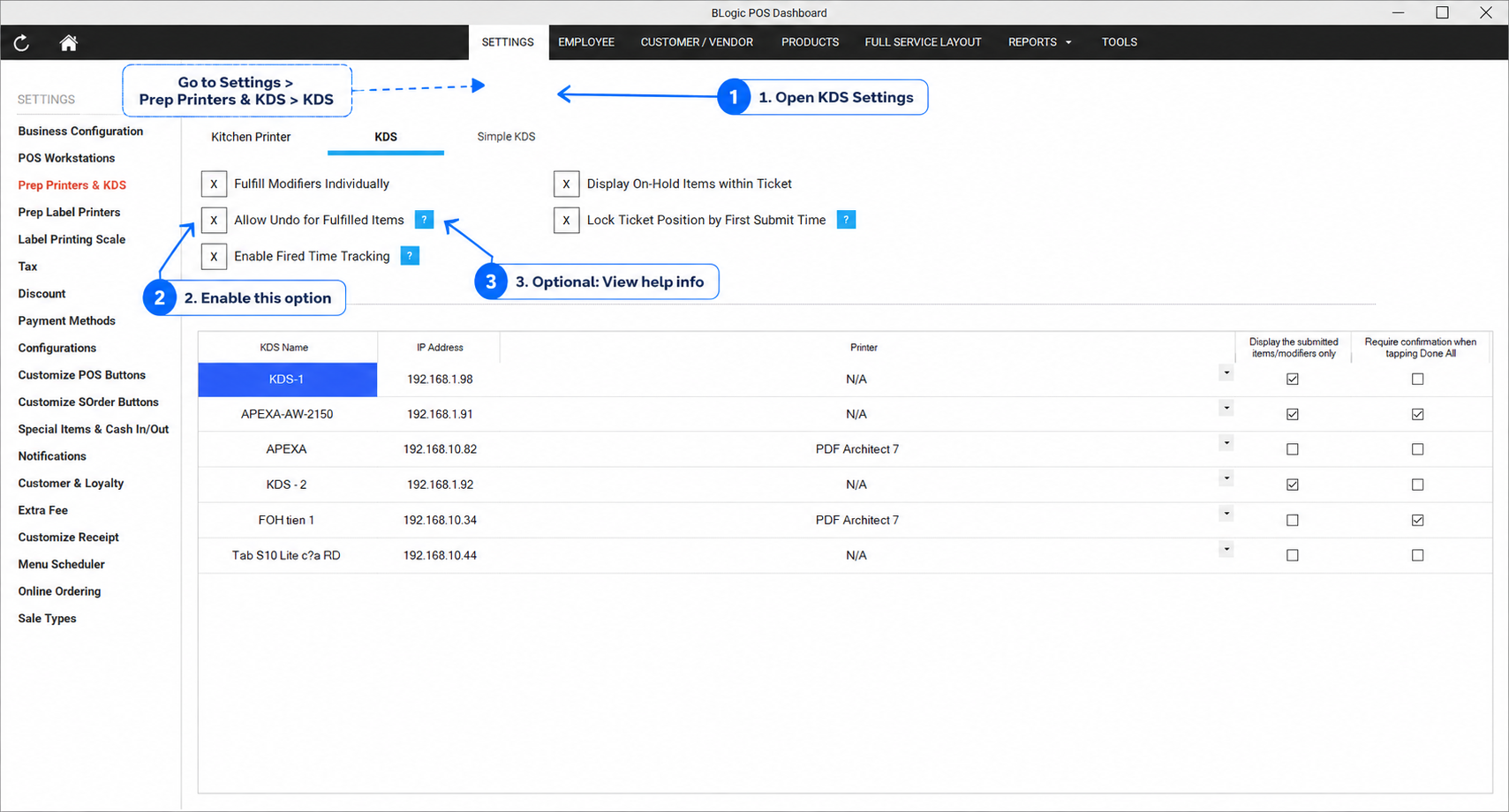
5. How to Enable the Option
- Open POS Dashboard.
- Go to Settings.
- Select Prep Printers & KDS.
- Open the KDS tab.
- Find Allow Undo for Fulfilled Items.
- Check the box to enable it.
- Save the settings.
6. How to Undo a Fulfilled Item on KDS
Case 1: Item quantity is greater than 1
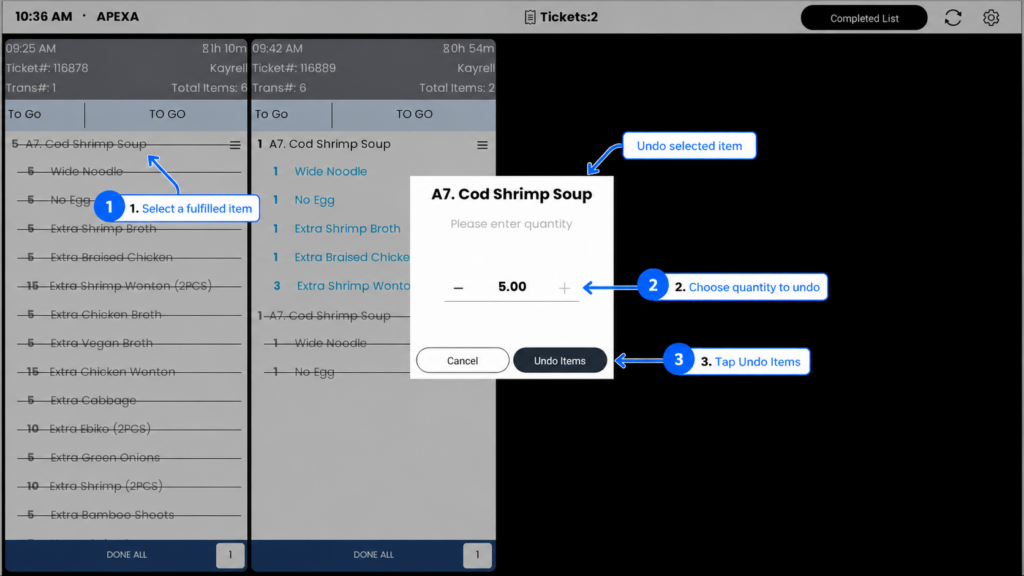
Use this case when the fulfilled item has multiple quantities, for example 5 A7. Cod Shrimp Soup.
- On the active KDS ticket, select the fulfilled item that is crossed out.
- The quantity dialog will appear.
- Choose how many items you want to undo.
- Tap Undo Items.
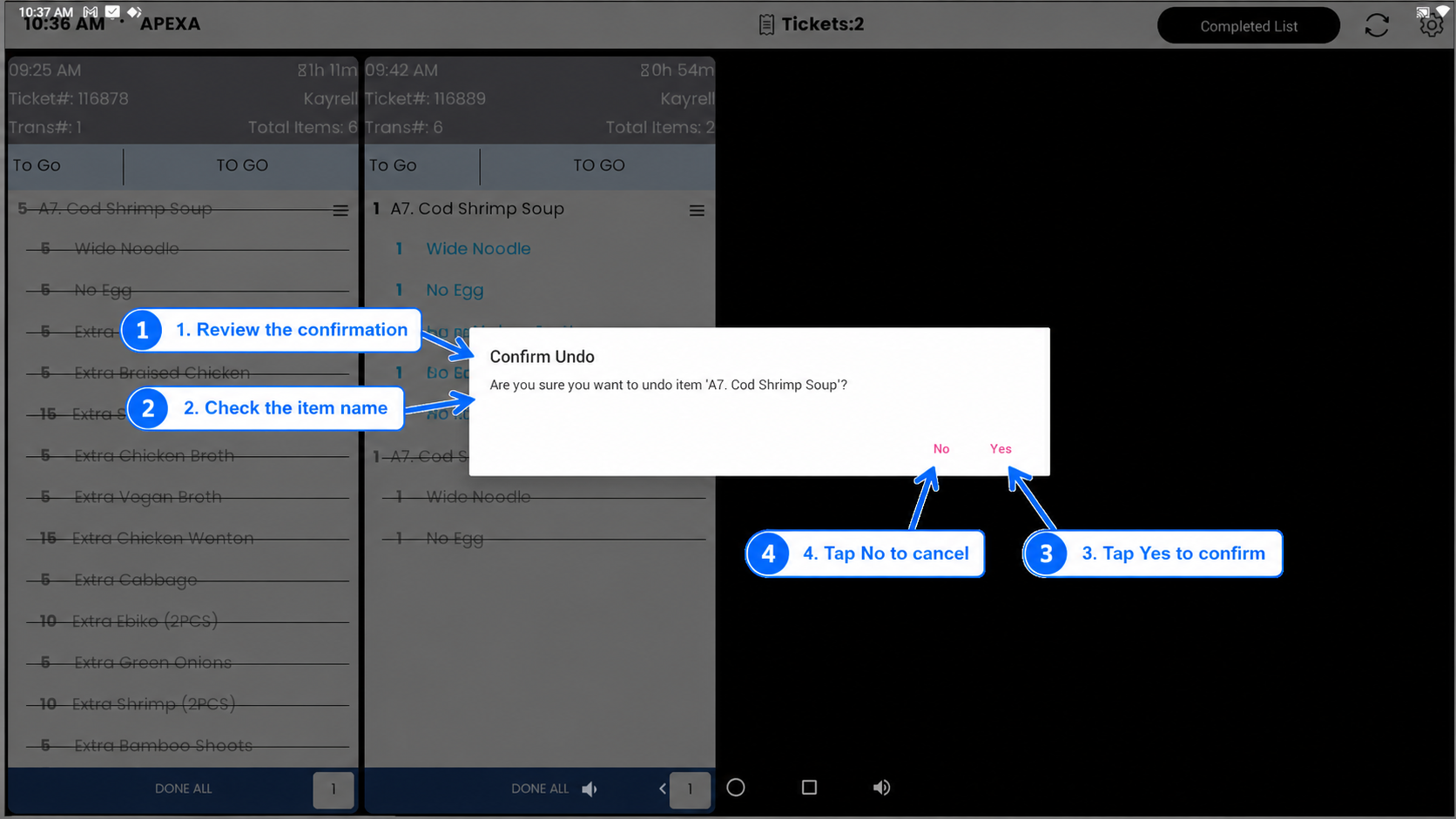
- Review the confirmation message.
- Tap Yes to confirm.
Result:
- The selected quantity returns to active status.
- The remaining quantity stays fulfilled.
Example:
- Fulfilled quantity: 5
- Undo quantity: 2
- Result: 2 items return to active, 3 items remain fulfilled
Case 2: Item quantity is 1
Use this case when the fulfilled item has only one quantity.
- On the active KDS ticket, select the fulfilled item that is crossed out.
- The system shows the Confirm Undo dialog.
- Review the item name.
- Tap Yes to confirm.
Result:
- The item returns to active status.
- If you tap No, no change is made.
7. Confirm Undo Message
Before the item is restored, KDS shows a confirmation dialog.
Example:
Confirm Undo
Are you sure you want to undo item ‘A7. Cod Shrimp Soup’?
Options:
- Yes: The item is restored to active status.
- No: No change is made.
⚠️ Select Yes only when the item was completed by mistake.
8. Important Notes
- This feature supports undo fulfilled items only.
- It does not support undo for modifiers.
- Undo works only for fulfilled items still visible on the active KDS ticket.
- This does not change the normal item completion flow.
- This does not change Done All behavior.
- This does not replace the Completed List workflow.
- If the ticket already moved to the Completed List, use the existing Completed List process.
9. FAQ
1. Does this option depend on Fulfill Modifiers Individually?
No. Allow Undo for Fulfilled Items is a standalone option.
2. What happens when I tap Undo Items?
KDS shows a confirmation message before restoring the item.
3. What happens when I select Yes?
The selected item quantity is restored to active status.
4. What happens when I select No?
No change is made. The item remains fulfilled.
5. Can I undo an item after the ticket moves to Completed List?
No. This option works only on active KDS tickets. Use the existing Completed List workflow for completed tickets.
If you still need help, please contact Support for further assistance.