Introduction
This article explains how to use the Check Inventory feature in handheld.
You will learn how to enable the feature, scan an item barcode, enter a barcode manually, and understand the scan results.
Version Support
POS Dashboard version: 05.28.2026 or later
QOrder app version: 13.9 or later
ℹ️ If you do not see the Check Inventory option, please contact Support or ask your manager to confirm your permission settings.
Table of Contents
- Enable the Check Inventory Permission
- Open Check Inventory from the Home Screen
- Scan an Item Barcode
- Understand Inventory Results
- Enter a Barcode Manually
- Handle Scan Errors
- FAQ
1. Enable the Check Inventory Permission
A manager or admin must enable permission before staff can use this feature.
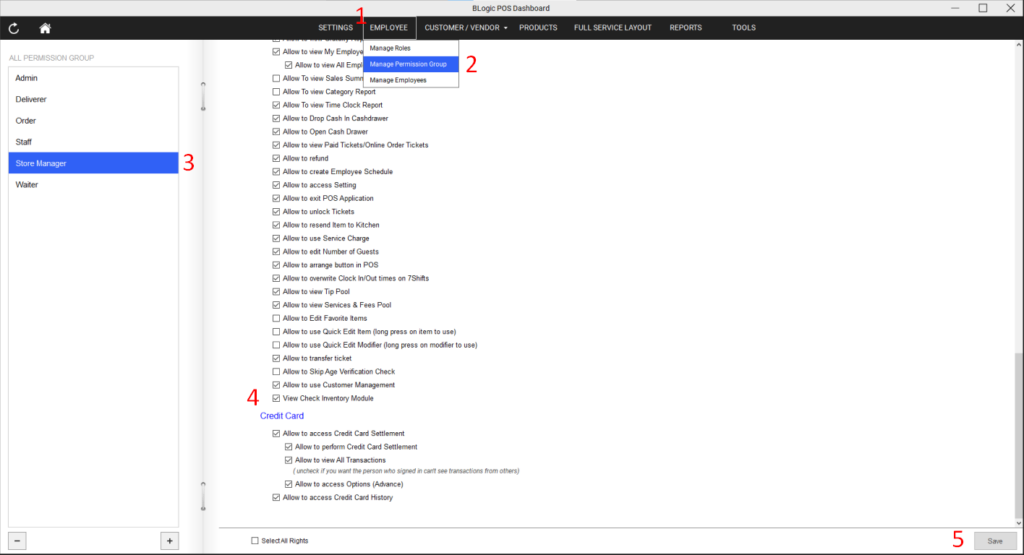
- Go to POS Dashboard.
- Open Employee -> Permission Group.
- Select Permission Group that you allow to use this feature.
- Go to Point of Sale -> Feature scope.
- Find and Check View Check Inventory Module.
Permission behavior:
- ON: The employee can use Check Inventory.
- OFF: The employee cannot use Check Inventory.
Default permission:
- Admin: ON by default
- Other roles: OFF by default
⚠️ If permission is OFF, the employee will see the warning message when opening the feature.
2. Open Check Inventory from the Home Screen
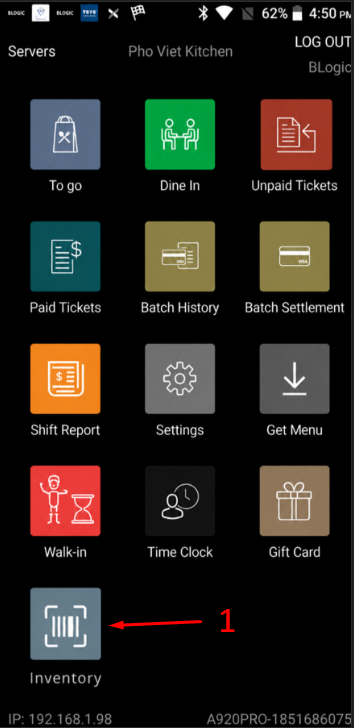
- Open QOrder.
- Go to the Home screen.
- Tap Inventory.
The Inventory screen will open and allow you to scan or enter an item barcode.
3. Scan an Item Barcode
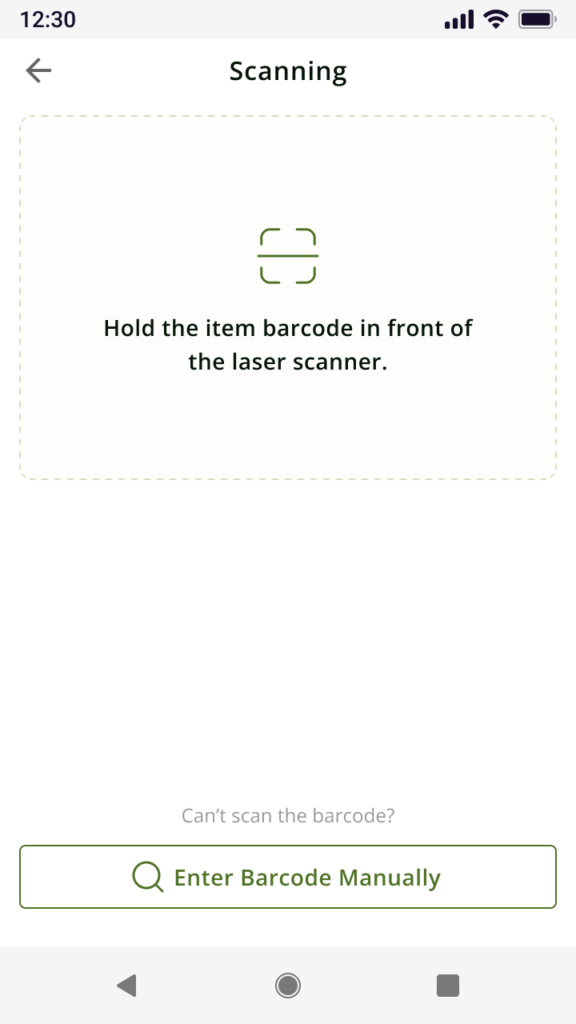
When you open the Inventory, your device is ready to scan. In the next steps you should:
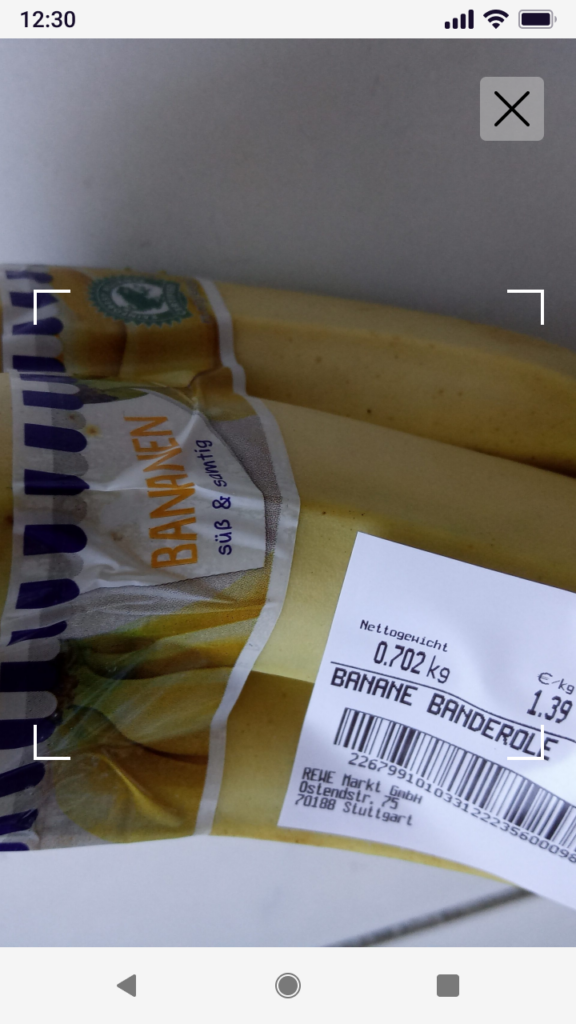
- Hold the item barcode in front of the scanner.
- Wait for the result to appear.
✅ Tip: If your device supports both laser scanning and camera scanning, QOrder will use the laser scanner first because it is faster and more accurate.
ℹ️ You cannot manually choose between laser and camera scanning.
4. Understand Inventory Results
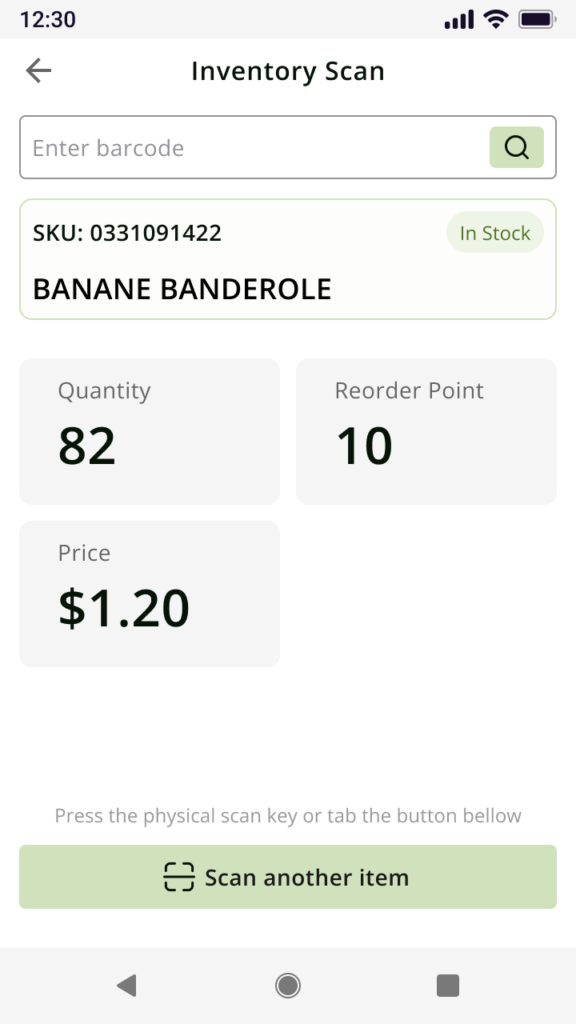
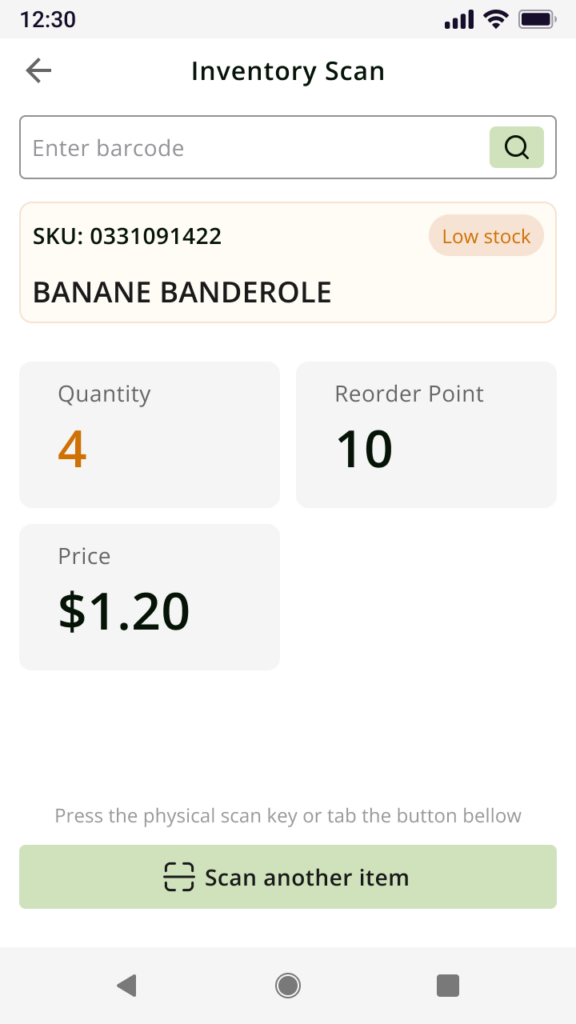
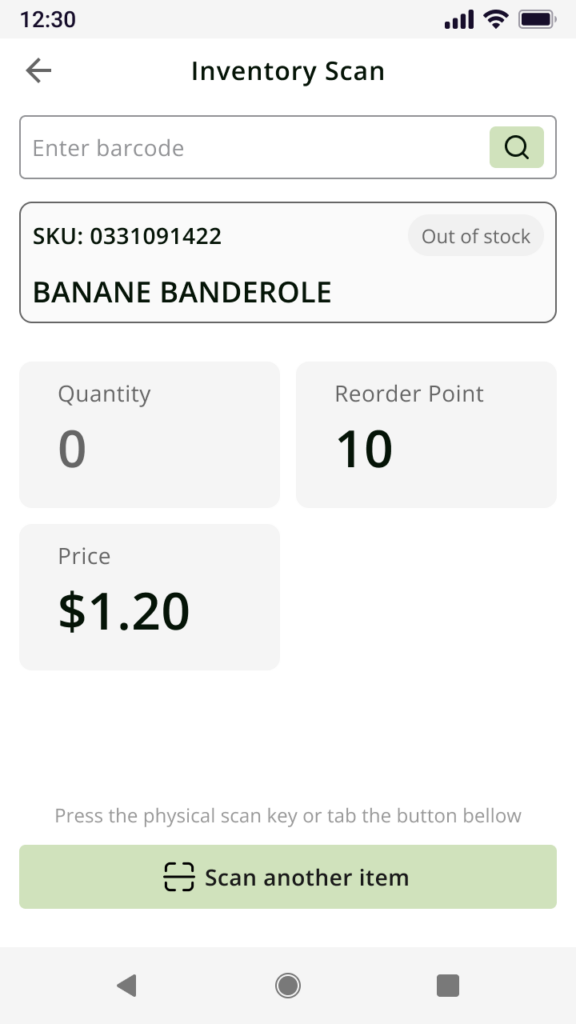
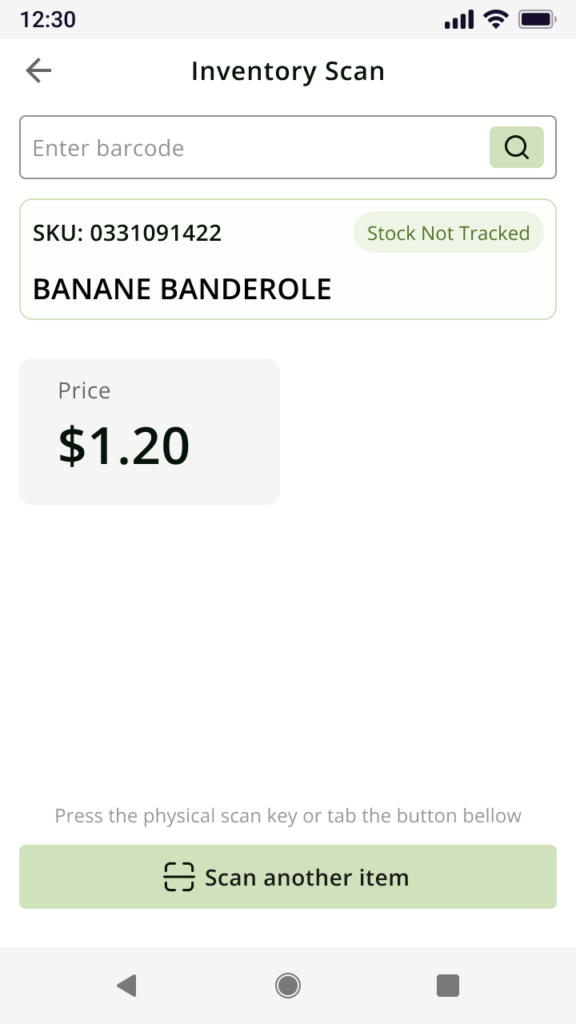
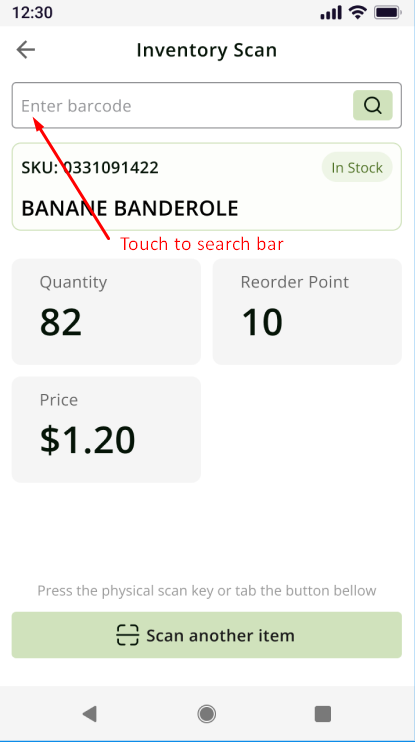
After a successful scan, QOrder shows the item inventory information.
The result may include:
- Item name
- SKU
- Inventory status
- Quantity
- Reorder Point
- Price
Common inventory statuses:
- In Stock: The item quantity is above the reorder point.
- Low Stock: The item quantity is at or below the reorder point.
- Stock Not Tracked: The item does not track inventory quantity.
ℹ️ If an item does not track inventory, QOrder will still show the item information, but quantity will not be displayed.
5. Enter a Barcode Manually
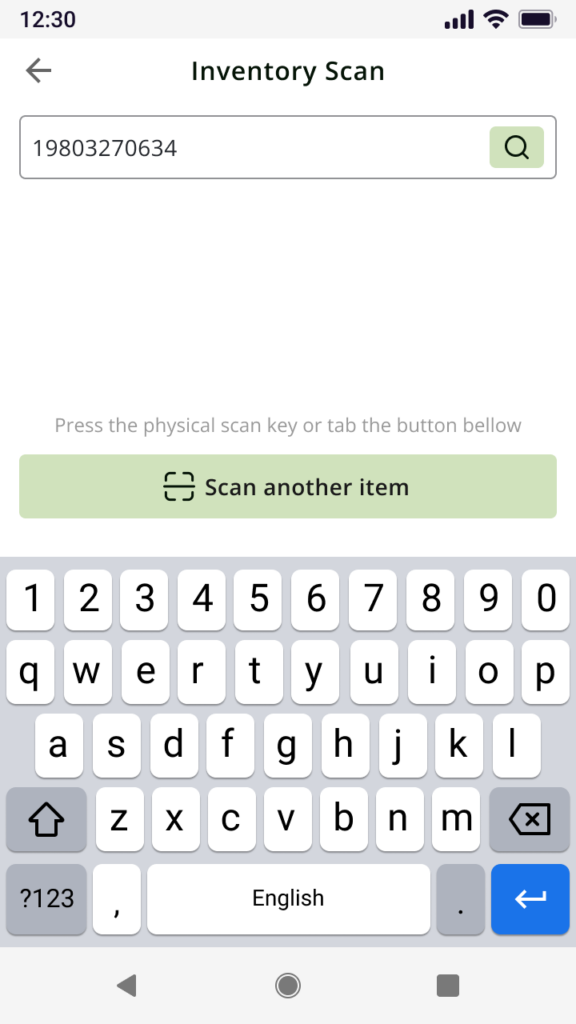
You can also type the barcode manually if scanning is not available.
- Tap the Enter barcode field.
- Type the barcode or SKU.
- Tap Done on the keyboard or button Search in search bar.
The system will automatically search after you tap Done.
✅ Tip: Manual entry is useful when the barcode is damaged or the scanner cannot read it.
6. Handle Scan Errors
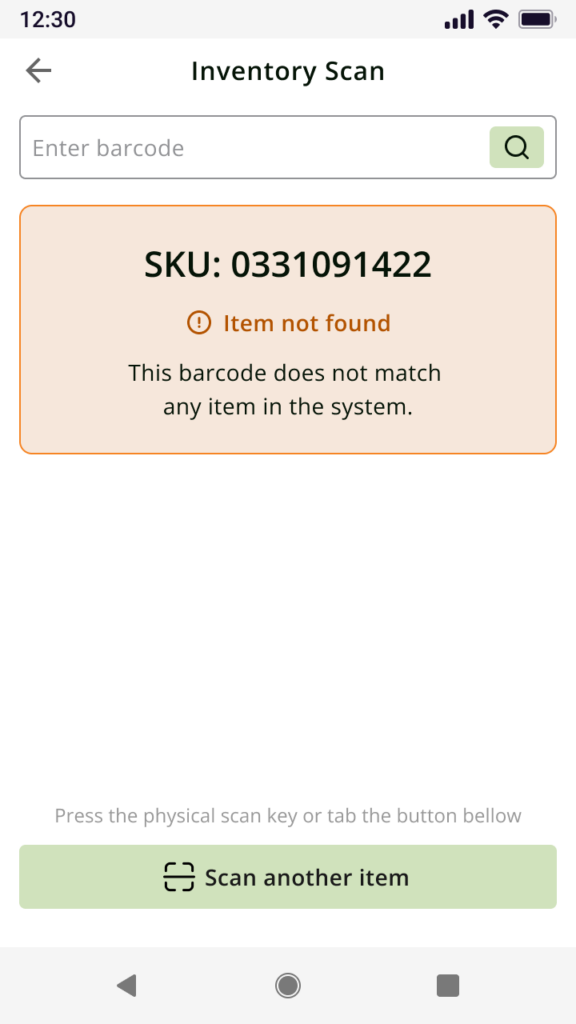
Item Not Found
This message appears when the scanned barcode does not match any item in the system.
You can:
- Check that you scanned the correct item barcode.
- Try scanning again.
- Enter the barcode manually if needed.
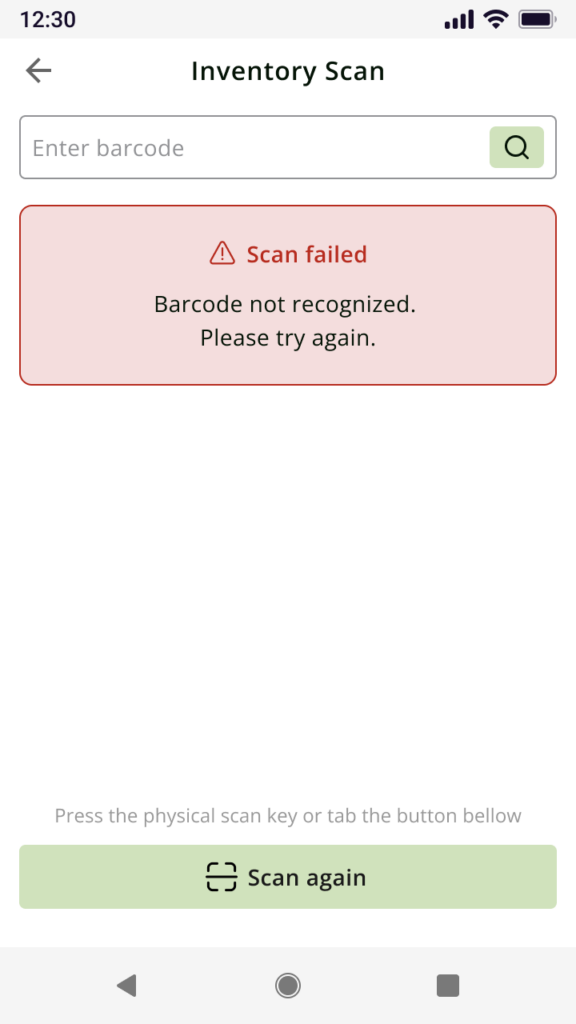
Scan Failed
This message appears when the barcode cannot be recognized or the scan times out.
You can:
- Make sure the barcode is clear and visible.
- Try scanning again.
- Move the barcode closer to the scanner.
- Use manual entry if scanning still fails.
ℹ️ If the scan times out, QOrder handles it the same as a failed scan.
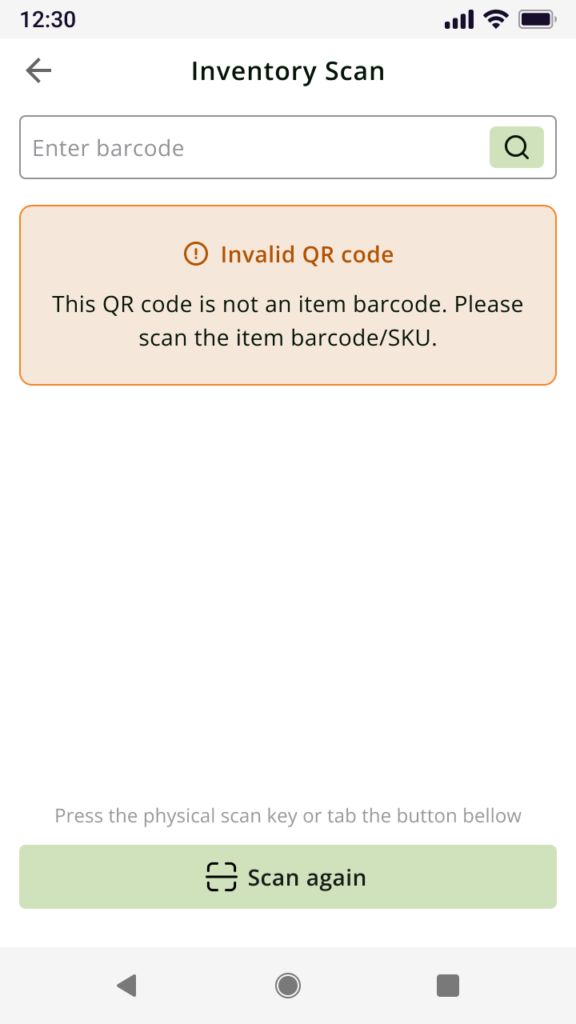
Invalid QR Code
This message appears when the scanned QR code is not an item barcode or SKU.
You can:
- Scan the item barcode instead of the QR code.
- Enter the item SKU manually.
⚠️ QR codes with unsupported formats, such as website links, cannot be used to check inventory.
7. FAQ
1. Why can’t I see the Inventory option on QOrder?
Your role may not have permission to use this feature. Ask your manager to enable View Check Inventory Module in POS Dashboard.
2. Can I use this feature on POS?
No. This feature is supported on QOrder only.
3. Can I choose between laser scanning and camera scanning?
No. If the device supports laser scanning, QOrder will use laser first. This keeps the scan flow simple and accurate.
4. What happens if I press Back while scanning?
The scan will be cancelled immediately.
5. Why does the result say “Stock Not Tracked”?
This means the item exists in the system, but inventory tracking is not enabled for that item. You can still view the item information, but QOrder will not show stock quantity.
If you still need help, please contact Support for further assistance.