Introduction
This article explains how to assign services to employees in BLogic View and how the setting works on the POS.
You will learn how to choose which services each employee can perform, when to use Can perform all services, and how POS validates employees during Sales and Booking.
Version Support
| Item | Supported Version |
|---|---|
| BLogic View | |
| POS | |
| Applicable Modules | BLogic View, POS Sales |
ℹ️ Note: If you do not see the Employee Management or Manage Assigned Services option, please contact Support to confirm your store is on a supported version.
Table of Contents
- What Employee Assigned Services Does
- How to Configure Assigned Services in BLogic View
- Option 1: Can Perform All Services
- Option 2: Select Specific Services
- How the Setting Works on POS
- Quick Sales: Select Service First
- Employee First: Select Employee First
- Important Notes
- FAQ
1. What Employee Assigned Services Does
Employee Assigned Services allows you to control which services each employee can perform on the POS.
For example, if one employee can only perform Manicure and Gel Polish, POS will only allow that employee to be assigned to those services.
✅ This helps prevent assigning the wrong employee to a service during Sales or Booking.
2. How to Configure Assigned Services in BLogic View
- Log in to BLogic View.
- Go to Employees > Management.
- Find the employee you want to update.
- Click the Manage Assigned Services icon on the employee row.
- Review the employee information.
- Configure the employee’s service permission.
- Click Save.
BLogic View Employee Management screen
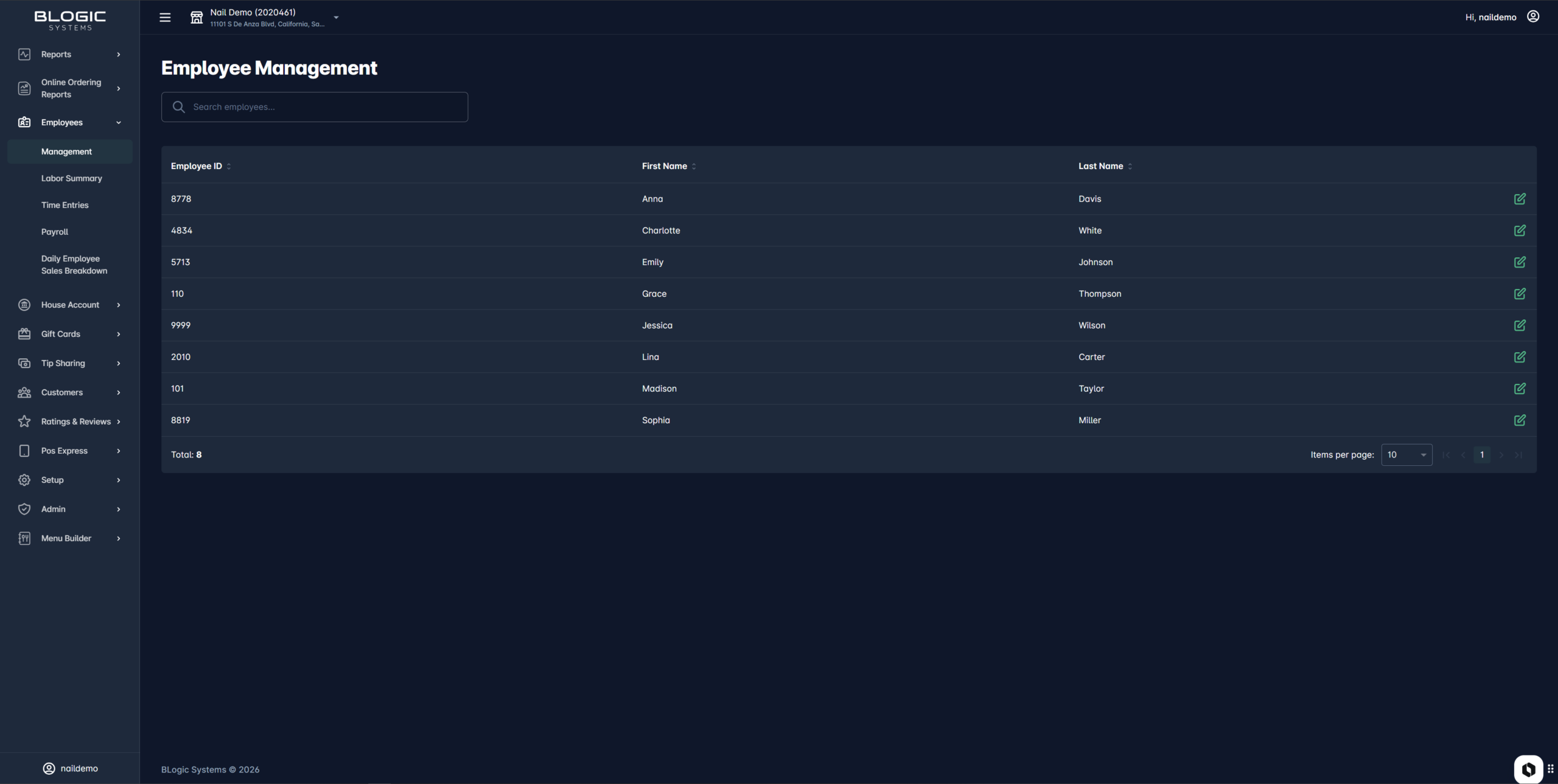
ℹ️ Note: Only active employees from POS are shown in BLogic View.
3. Option 1: Can Perform All Services
Use this option when the employee is allowed to perform every active service.
- Open Manage Assigned Services.
- Turn ON Can perform all services.
- Click Save.
When this option is enabled, the employee can be selected for all active services on POS.
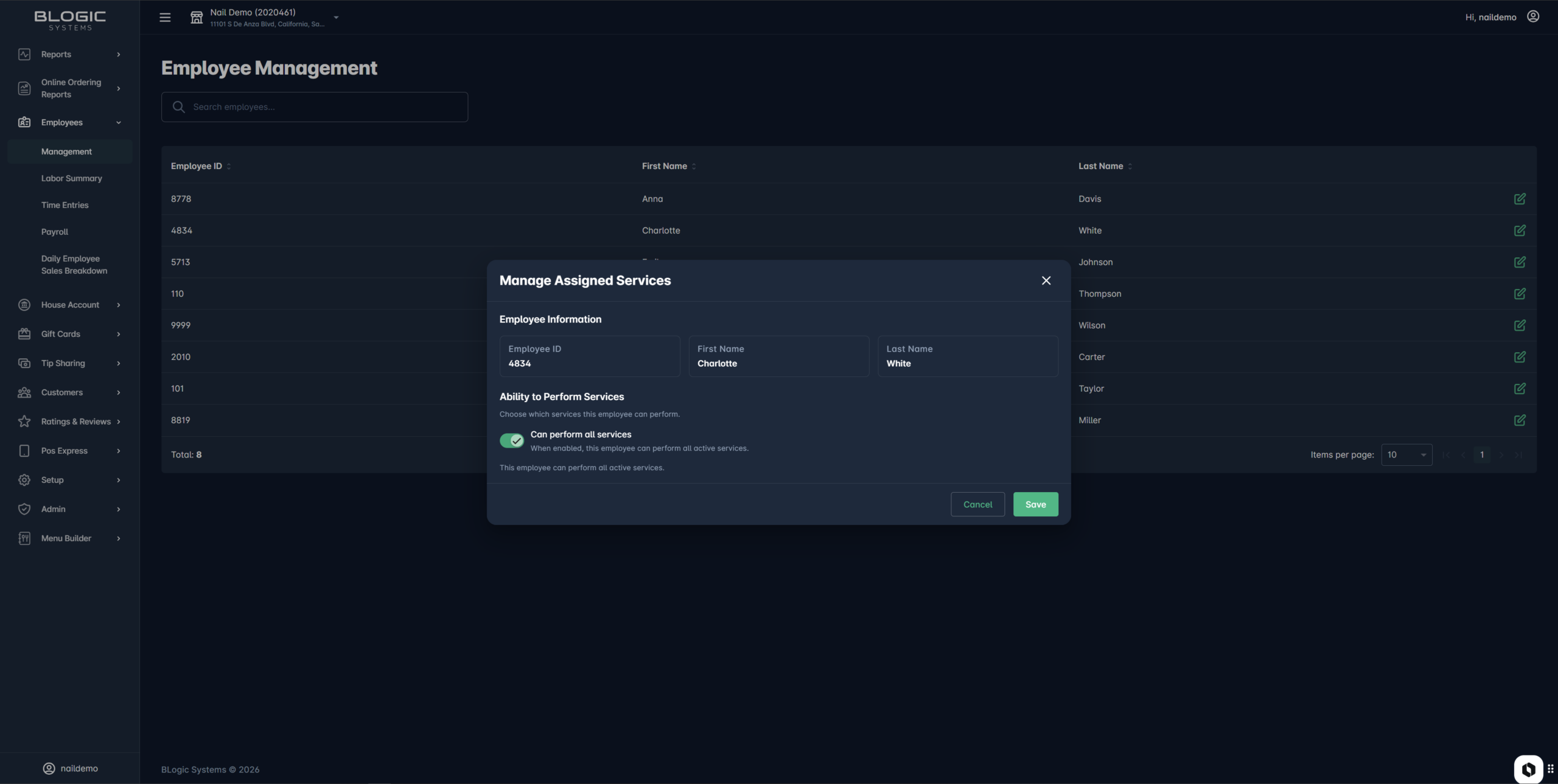
✅ Best practice: Keep this ON for employees who can perform most or all services.
4. Option 2: Select Specific Services
Use this option when the employee can only perform selected services.
- Open Manage Assigned Services.
- Turn OFF Can perform all services.
- Search or browse service categories.
- Select the services this employee can perform.
- Click Save.
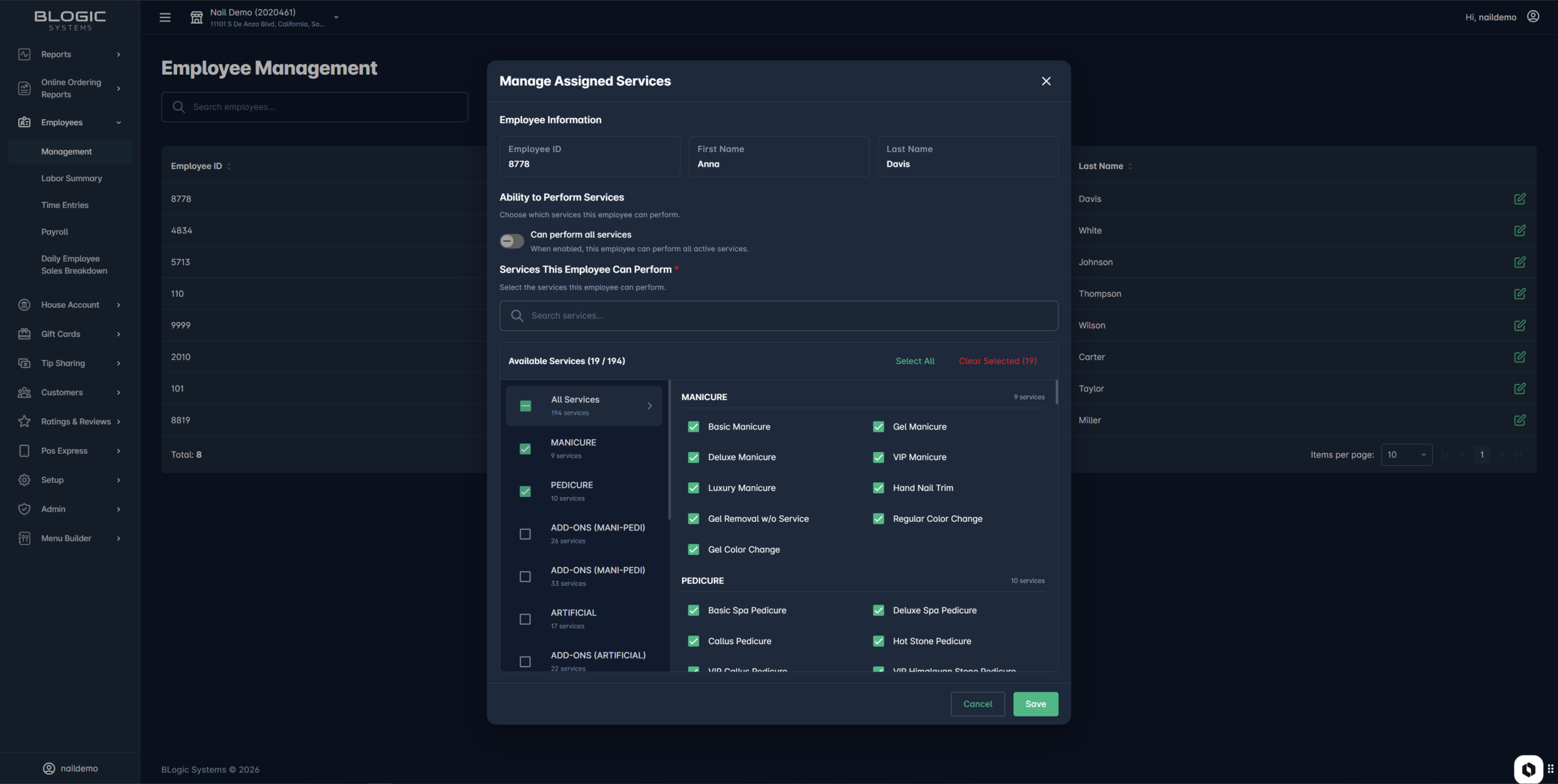
⚠️ Warning: If Can perform all services is OFF, you must select at least one service before saving.
5. How the Setting Works on POS
After saving the setting in BLogic View, the POS must refresh the latest configuration.
The store needs to do one of the following:
- Restart POS
- Or use Get Menu
ℹ️ The new configuration does not apply to past sales or past booking records.
5.1 Quick Sales: Select Service First
In this flow, the cashier selects a service first.
- Open Quick Sales.
- Select a service.
- POS checks which employees can perform that service.
- POS shows only eligible employees.
- Select the correct employee.
- Continue the sale.
✅ If an employee has Can perform all services enabled, they will be eligible for all active services.
5.2 Employee First: Select Employee First
In this flow, the cashier selects an employee first.
- Open the employee list on POS.
- Select an employee.
- Select a service.
- POS checks if the selected employee can perform that service.
If the employee can perform the service, POS assigns that service to the selected employee.
If the employee cannot perform the service, POS shows a dialog asking you to select another eligible employee.
⚠️ The replacement employee only applies to that selected service. The next services will still use the original employee by default.
6. Important Notes
- Existing employees are set to Can perform all services = ON by default.
- Only active employees are displayed.
- Only active services are available for assignment.
- New settings apply after Restart POS or Get Menu.
- Past sales and past bookings are not updated by this setting.
- This feature uses the existing parent permission for the Employees menu in BLogic View.
- This release does not add a separate permission for the Management module.
7. FAQ
1. Why do I not see an employee in BLogic View?
The employee may be inactive in POS. Only active employees are displayed in BLogic View.
2. Why does POS still show the old employee list?
The POS may not have refreshed the latest configuration. Please Restart POS or use Get Menu.
3. What happens if “Can perform all services” is ON?
The employee can be assigned to any active service on POS.
4. What happens if “Can perform all services” is OFF?
You must select specific services for that employee. POS will only allow the employee to be assigned to those selected services.
5. Will this change affect old sales or bookings?
No. The setting only applies to new Sales or Booking activity after POS receives the updated configuration.
If you still need help, please contact Support for further assistance.