Introduction
This article explains how to use the Customize Label Template Fields feature to configure font, font size, bold, and italic styles for each field printed on your prep labels. Instead of creating a new label template just to change a small style detail, you can now adjust these settings in one place and apply them across all label templates at once.
Version Support
| Product / Module | Supported Version |
|---|---|
| POS Dashboard | 2026.06.11 or later |
| POS | 2026.06.11 or later |
Note: If you do not see this option, please contact Support to confirm your store is on a supported version.
Table of Contents
- Access Label Settings
- Configure Style for Each Field
- Enable Override for All Templates
- Save and Apply
- Where to Confirm the Result
- FAQ
Access Label Settings
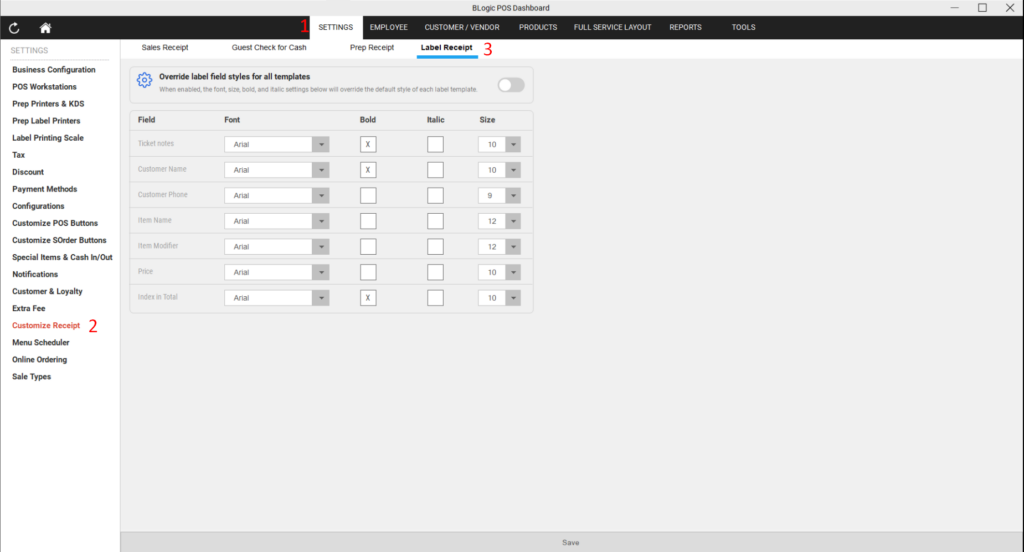
- Log in to your POS Dashboard.
- Go to Settings in the top navigation bar.
- In the left sidebar, select Customize Receipt.
- Click the Label Receipt tab at the top of the page.
Configure Style for Each Field
The Label Receipt tab displays a table listing all supported fields. For each field, you can configure:
- Font — Select from the app’s standard font set: Roboto Condensed, Arial, or Inter.
- Size — Select from: 12, 14, 16, 18, 20, 22.
- Bold — Check the checkbox to make the field bold.
- Italic — Check the checkbox to make the field italic.
ℹ️ Note: Bold and Italic are independent options. You can enable one, both, or neither for each field.
Step 1: Set Font and Size
- Locate the field you want to configure in the table.
- Click the Font dropdown and select your preferred font.
- Click the Size dropdown and select your preferred font size.
Step 2: Set Bold and Italic
- To make a field bold, check the checkbox in the Bold column.
- To make a field italic, check the checkbox in the Italic column.
- You can enable both Bold and Italic on the same field at the same time.
Enable Override for All Templates
By default, these style settings are not applied to your label templates. You must enable the override toggle to activate them.
- At the top of the Label tab, locate the Override label field styles for all templates option.
- Toggle the setting to On.
⚠️ Warning: Once enabled, the styles configured in this tab will override the individual field styles defined in all of your existing label templates. This applies globally and cannot be limited to a specific template.
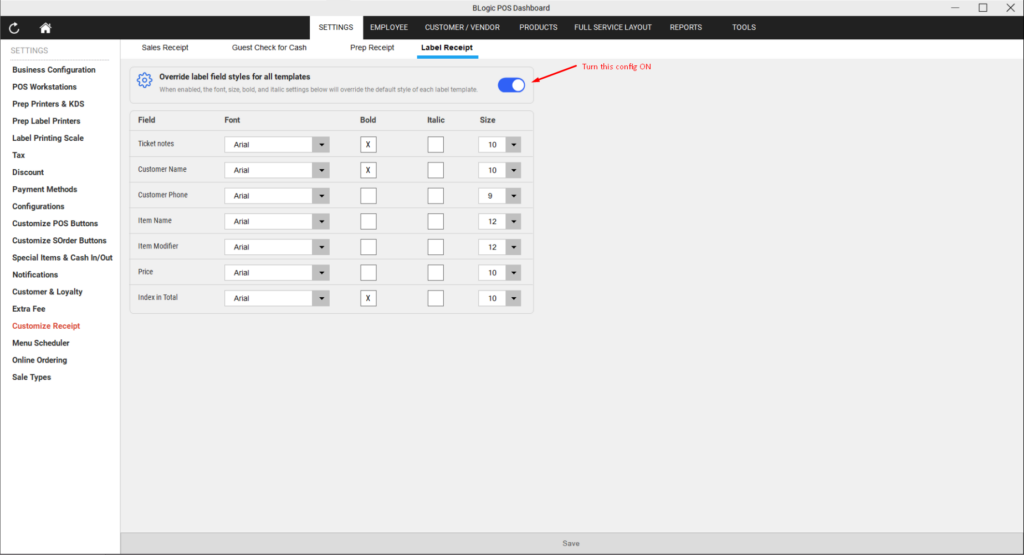
When the toggle is Off (default):
- The Label settings are ignored.
- Each template continues using its own defined styles.
When the toggle is On:
- The styles from the Label tab are applied to all label templates.
- Individual template styles for the same fields will be overridden.
Save and Apply
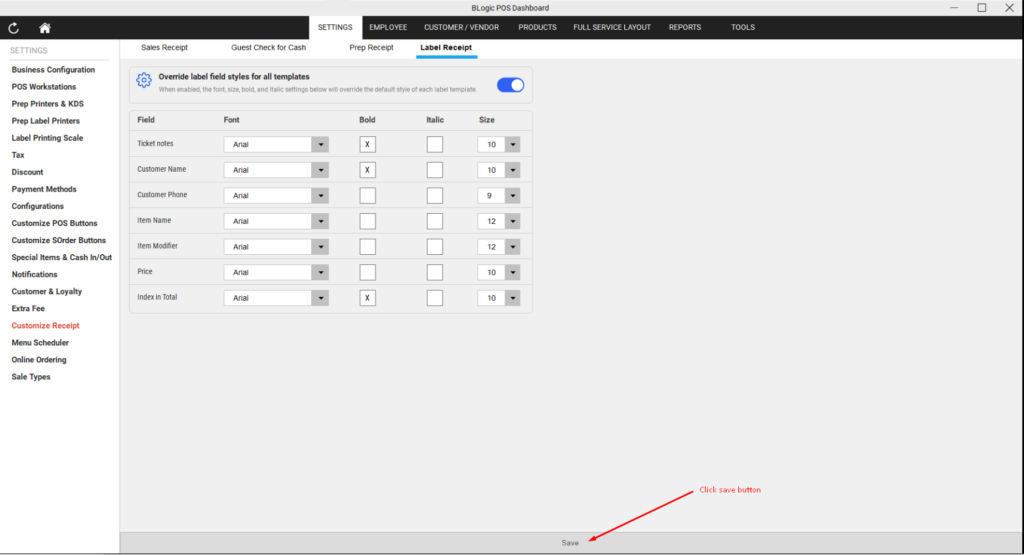
- After configuring all fields, click Save at the bottom of the page.
- The new styles will be applied to all new label print jobs going forward.
ℹ️ Note: Labels that have already been printed are not affected. The new styles apply only to labels printed after saving.
Where to Confirm the Result
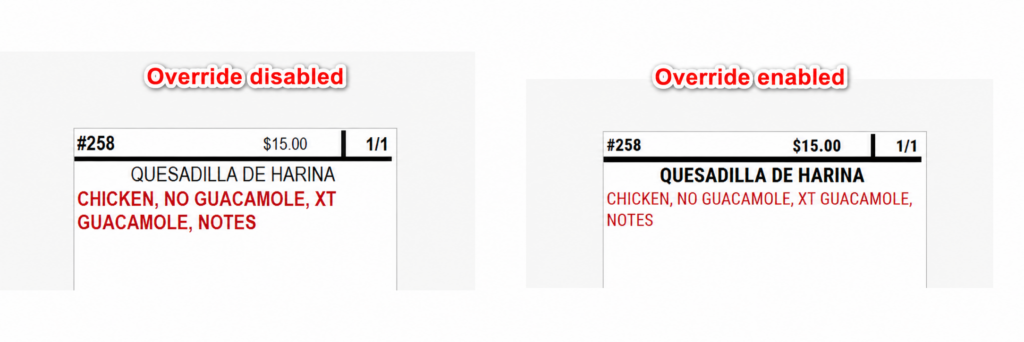
After saving, you can confirm the changes by printing a test label from the POS:
- Go to the POS terminal.
- Place a test order and trigger a label print.
- Check that the label reflects the font, size, bold, and italic settings you configured.
FAQ
1. Why can’t I see the Label tab under Customize Receipt? You may not have the required permission level (Manager or above), or your store may not be on a supported version. Please contact Support to confirm.
2. Does enabling the override affect all my label templates? Yes. When the override toggle is turned on, the styles from the Label tab apply to all label templates globally. There is no option to apply them to a specific template only.
3. Can I preview how the label will look before saving? No. Label preview is not available in this setting screen. To verify the result, print a test label from the POS after saving.
4. What happens to my existing template styles if I turn on the override? The styles defined in the Label tab will override the field styles in all existing templates while the toggle is on. Turning the toggle back off will restore each template to its own original styles.
5. What should I do if the label style does not change after saving? Make sure the override toggle is turned On before saving. If the issue persists, confirm your store is on a supported version and contact Support for assistance.
Closing
If you still need help, please contact Support for further assistance.