Introduction
This article explains how to set up a Loyalty Program in your POS Dashboard, including how customers earn reward points and how they redeem those points for rewards.
You will also learn how to manually adjust a customer’s reward points. This feature helps you build repeat business by rewarding customers for purchases and visits.
Table of Contents
- Set Up the Loyalty Program
- Set Up Earn and Redeem Points on Products
- Use the Loyalty Program on the POS
- Manually Add or Remove Loyalty Points
- Where to View or Confirm the Result
- FAQ
Set Up the Loyalty Program
Step 1: Open the Loyalty Settings
- Log in to your POS Dashboard.
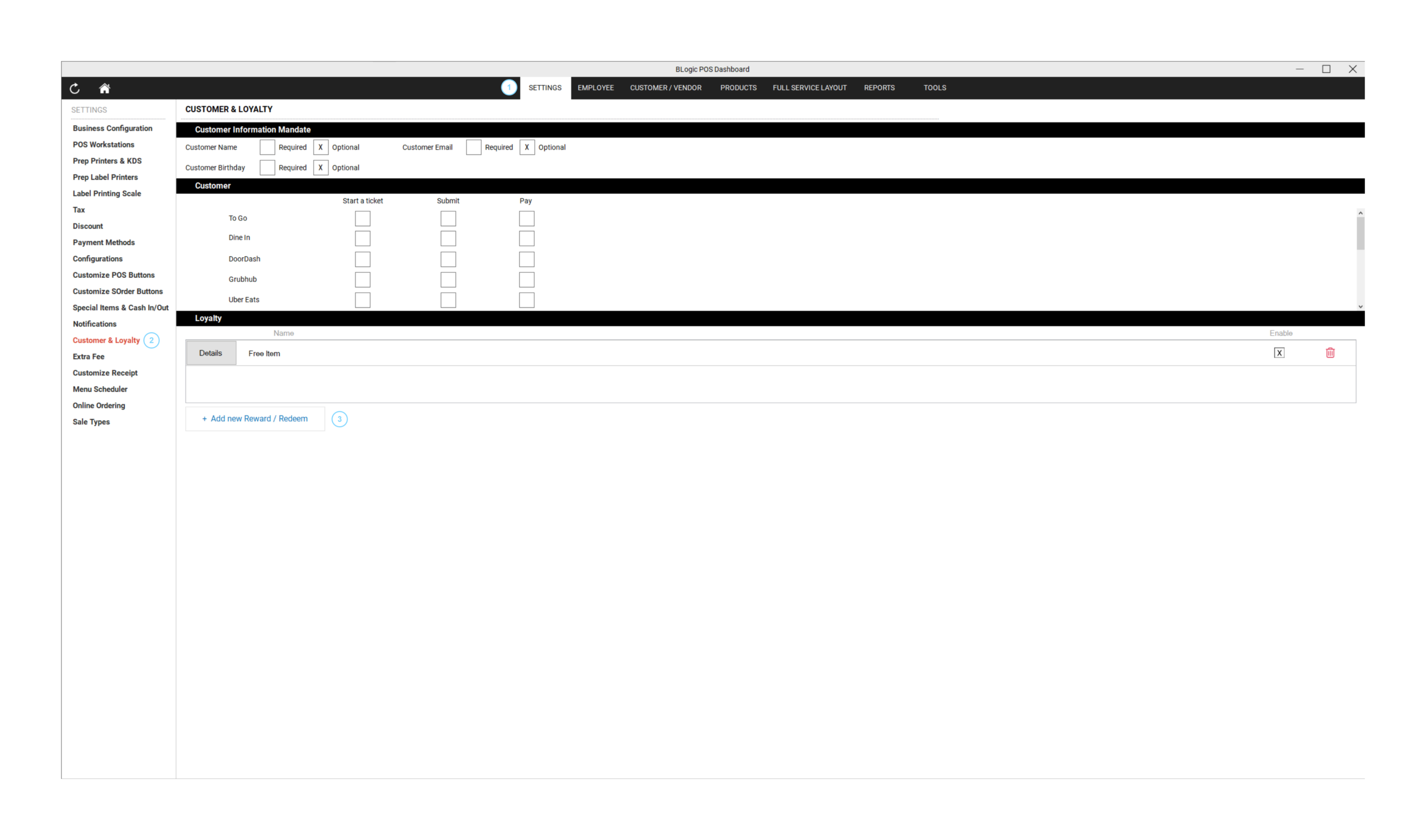
- Go to Settings > Customer & Loyalty.
- In the Loyalty section, click Details (or + Add new Reward / Redeem to create a new program).
Step 2: Choose How Customers Earn Reward Points
Enter a Name for your loyalty program, then under How Customer Earn Reward Points, choose one of the following from the Customer earns points dropdown:
- Per Item — Customers earn points for purchasing specific items. Earn points for each item are configured separately in Products / Items.
- Per Amount Spent — Customers earn a set number of points for every dollar amount spent (for example, 10 points for every $1.00 spent). You can also choose to round up to the nearest dollar.
- Per Visit — Customers earn points when they are assigned to a ticket and the ticket meets a required minimum purchase amount.
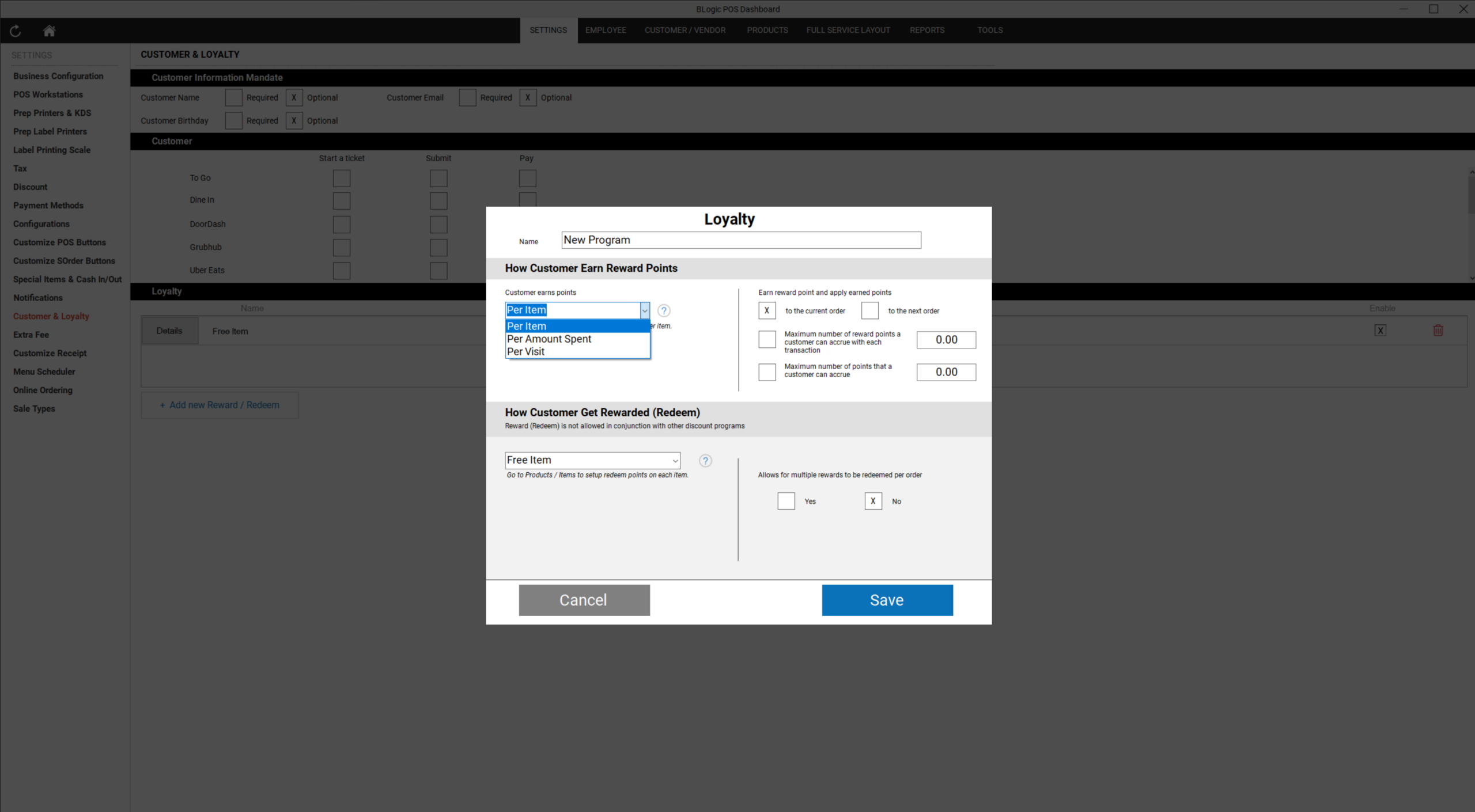
ℹ️ Note: Under Earn reward point and apply earned points, you can choose whether points apply to the current order or to the next order. You can also set a maximum number of points a customer can earn per transaction, and a maximum total number of points a customer can accrue.
Step 3: Choose How Customers Get Rewarded (Redeem)
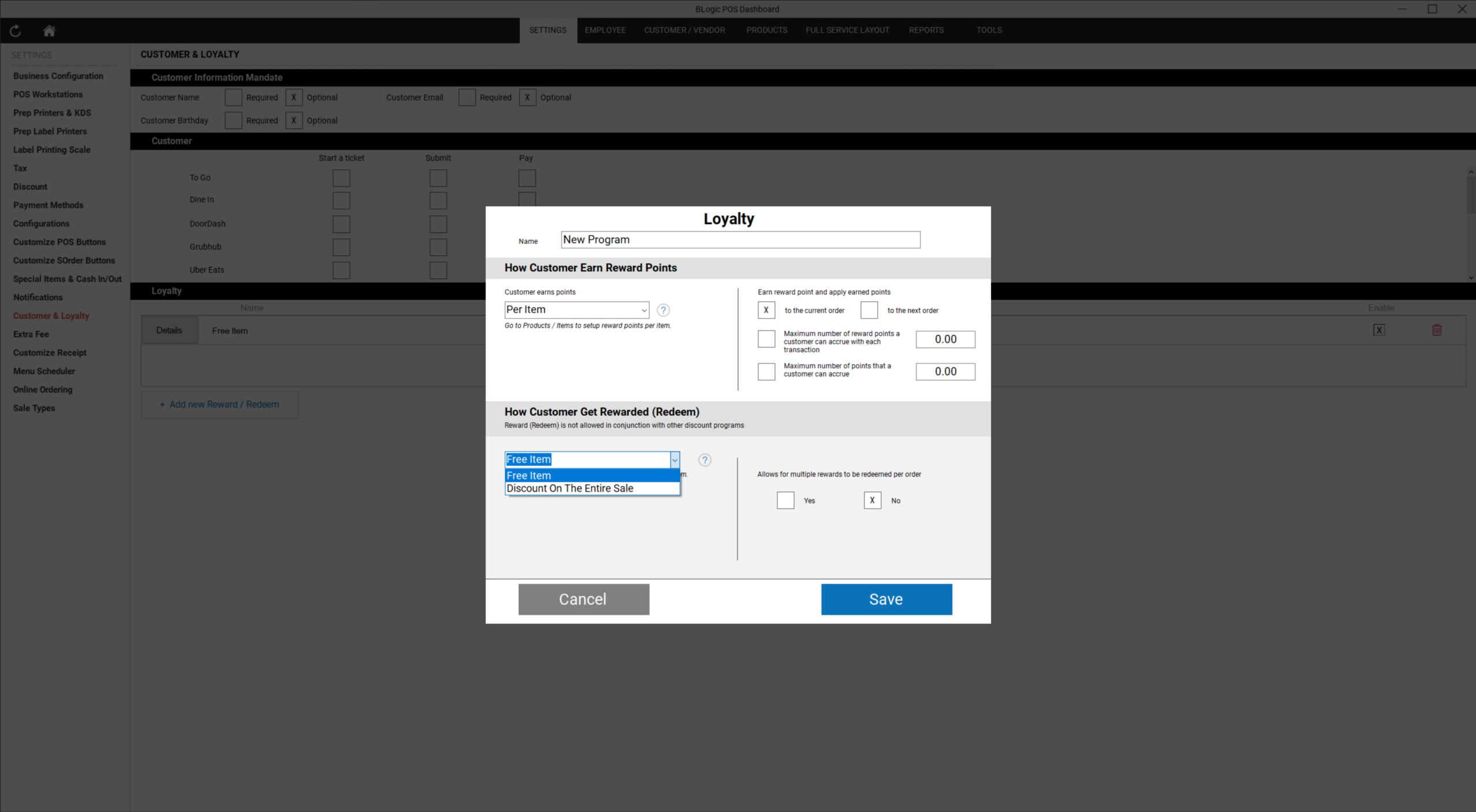
Under How Customer Get Rewarded (Redeem), choose one of the following:
- Free Item — Customers redeem points for a specific free item. Redeem points for each item are configured separately in Products / Items.
- Discount On The Entire Sale — Customers redeem points for a discount (fixed amount or percentage) applied to the entire order. Enter the discount amount/percentage and the number of points required. Only one redemption is allowed per order.
You can also choose whether to Allow multiple rewards to be redeemed per order (Yes/No).
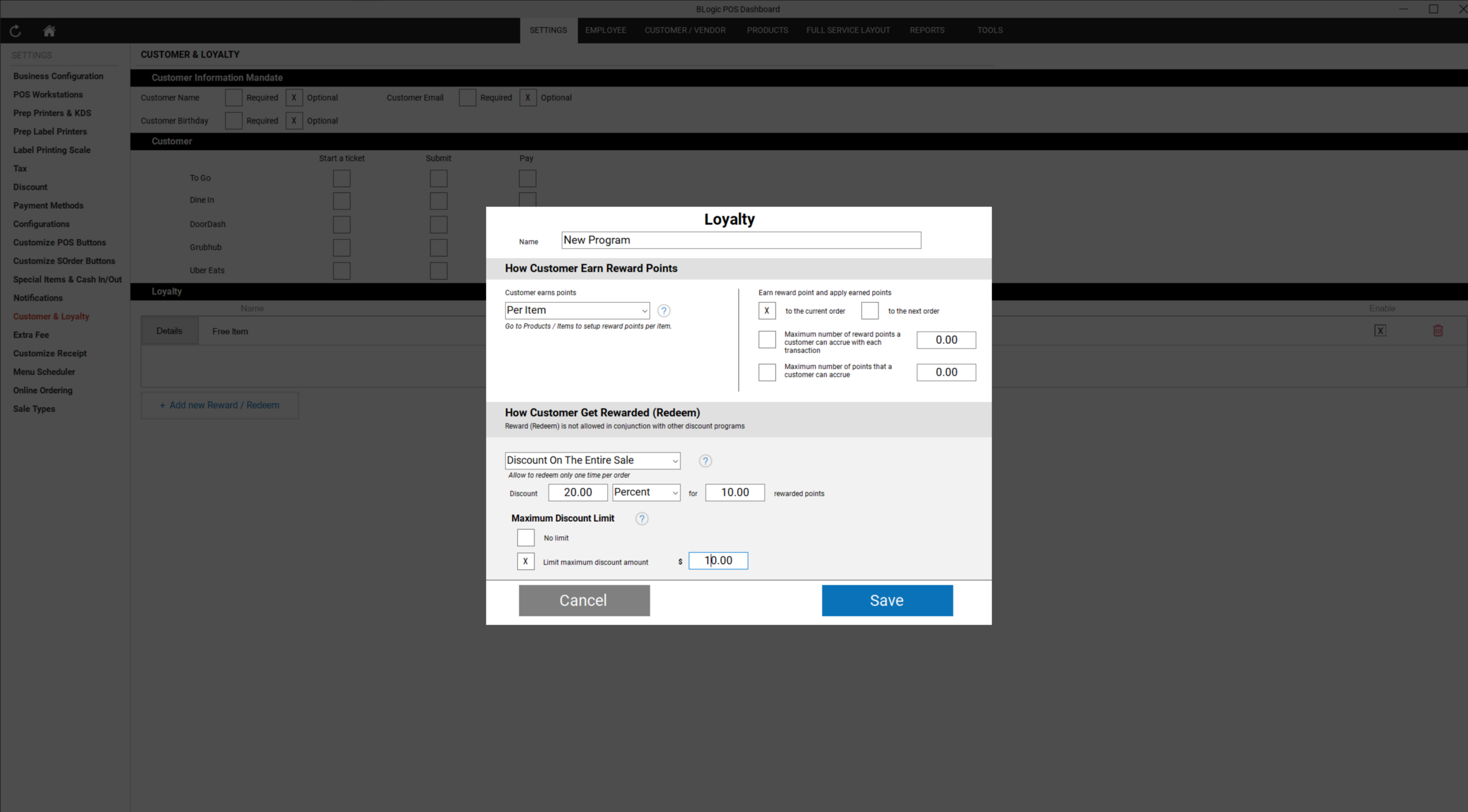
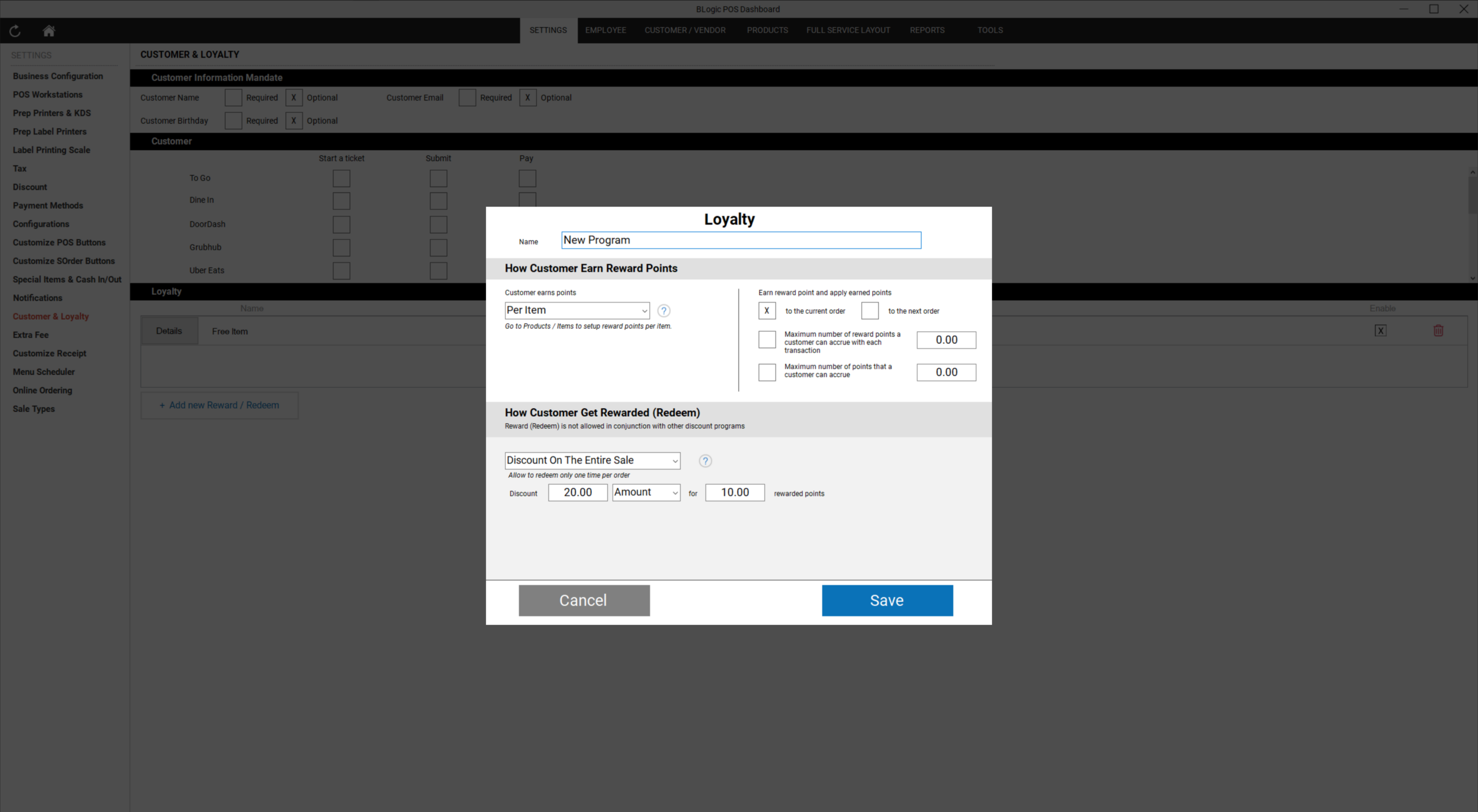
⚠️ Warning: Reward (Redeem) cannot be used together with other discount programs, such as Store Discount or Category Discount, on the same order.
Step 4: Save Your Settings
- Review your selections.
- Click Save.
Set Up Earn and Redeem Points on Products
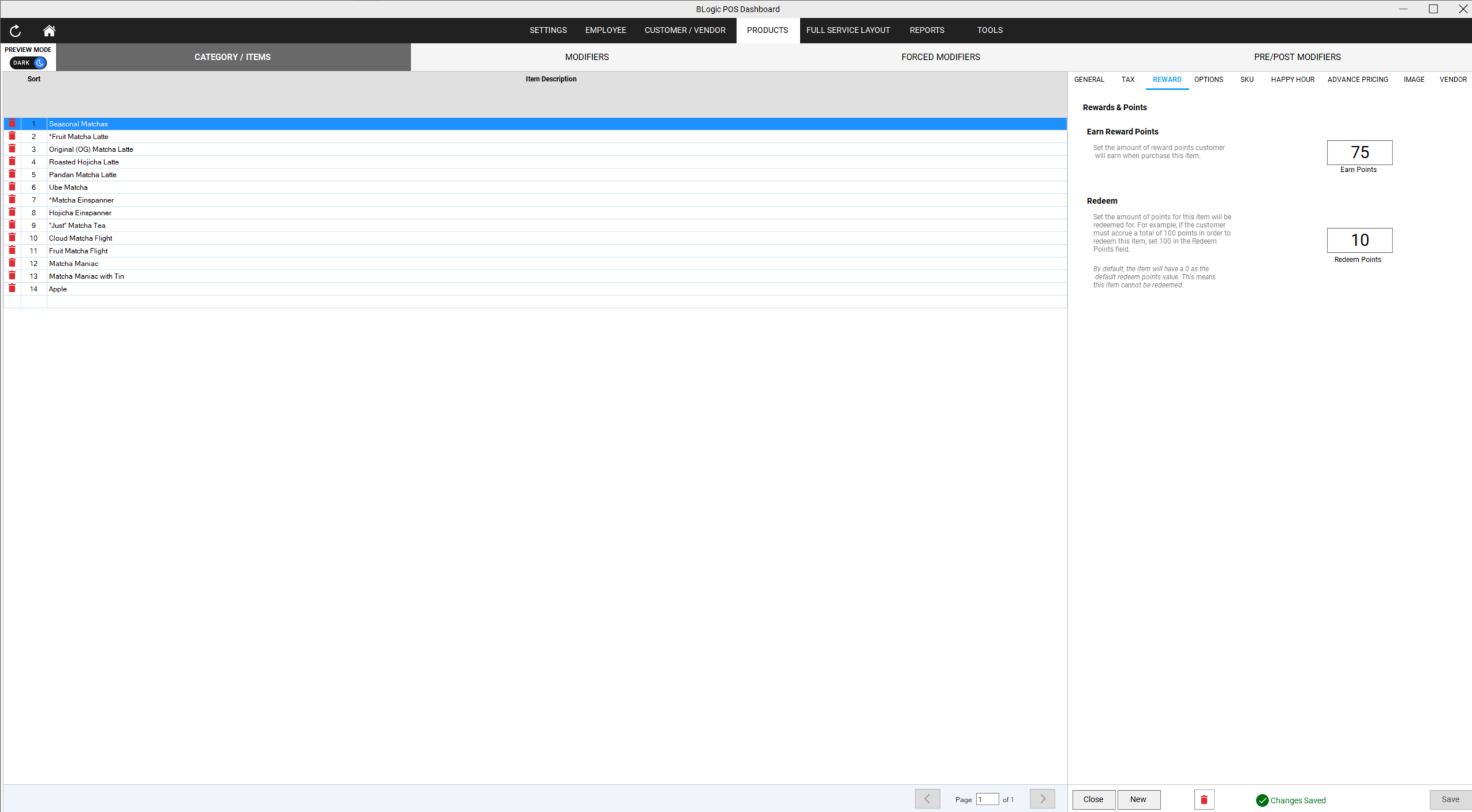
If you selected Per Item for earning points, or Free Item for redeeming, you must configure points on each item individually.
Step 1: Open the Item’s Reward Settings
- Go to Products > Category / Items.
- Select the item you want to configure.
- Click the Reward tab.
Step 2: Set Earn and Redeem Points
- Under Earn Reward Points, enter the number of points a customer earns when purchasing this item.
- Under Redeem, enter the number of points required for a customer to redeem this item for free.
ℹ️ Note: By default, an item has 0 in the Redeem Points field, which means it cannot be redeemed until you set a value.
- Click Save.
Use the Loyalty Program on the POS
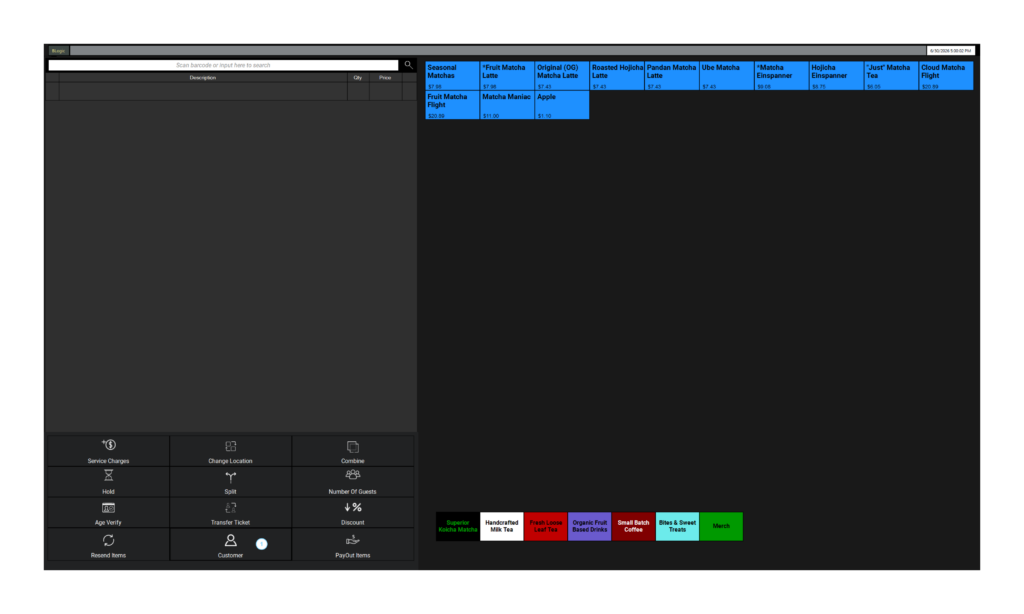
Step 1: Assign a Customer to the Ticket
- Start a new ticket on the POS.
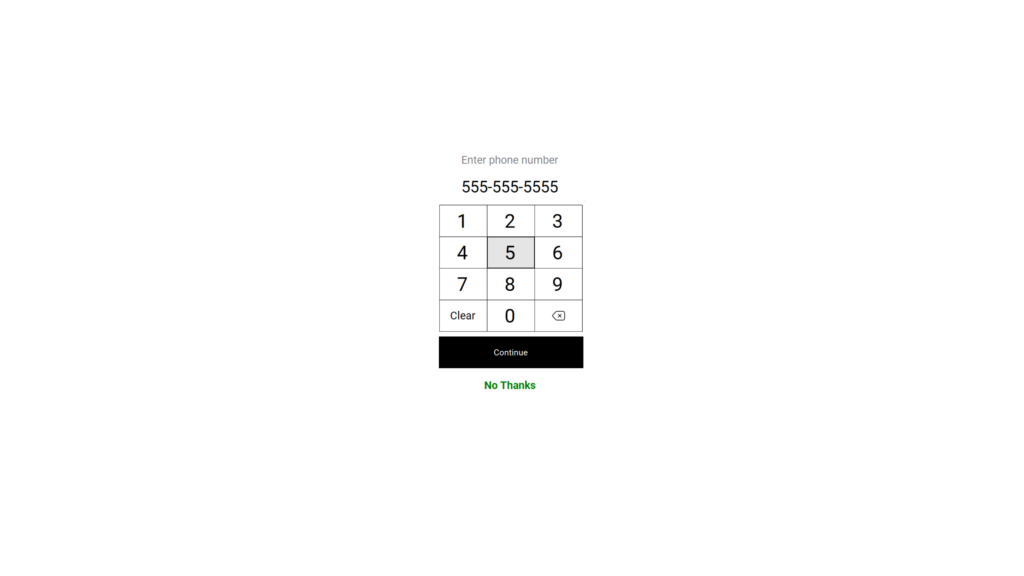
- Enter the customer’s phone number when prompted on the Customer Display, or assign the customer through the POS.
Step 2: Earn Points
Add items to the order that have earn points enabled. When the order is completed, the assigned customer automatically earns the configured points.
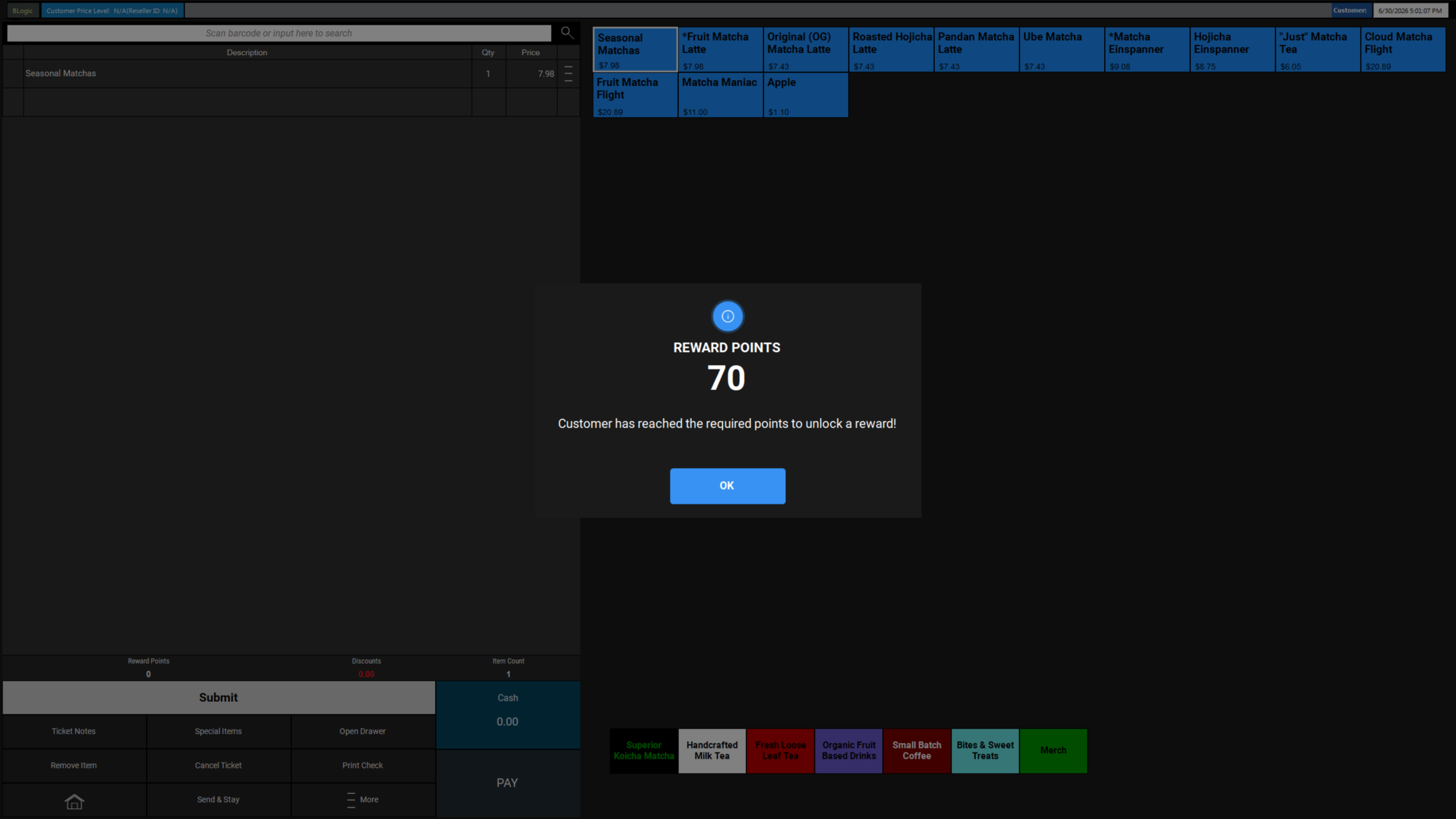
ℹ️ Note: If the customer reaches the required points to unlock a reward, a system notification will display: “Customer has reached the required points to unlock a reward!”
Step 3: Redeem Points
- Add the redeemable item to the order.
- With the customer assigned to the ticket, the system checks if the customer has enough points.
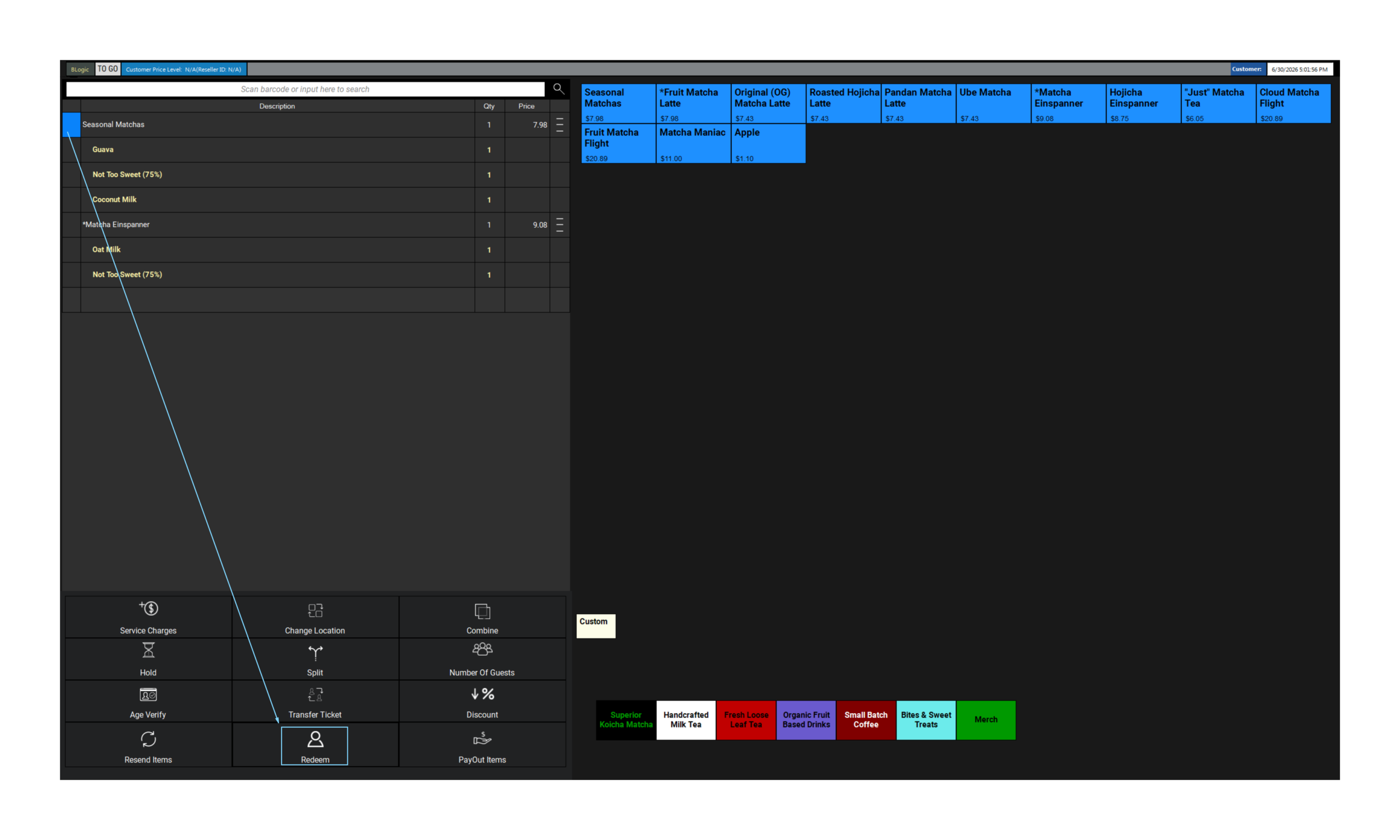
- If eligible, a Redeem button will be displayed either in the More button group or directly in the main action button list, depending on the configured button layout. Tap it to redeem the item.
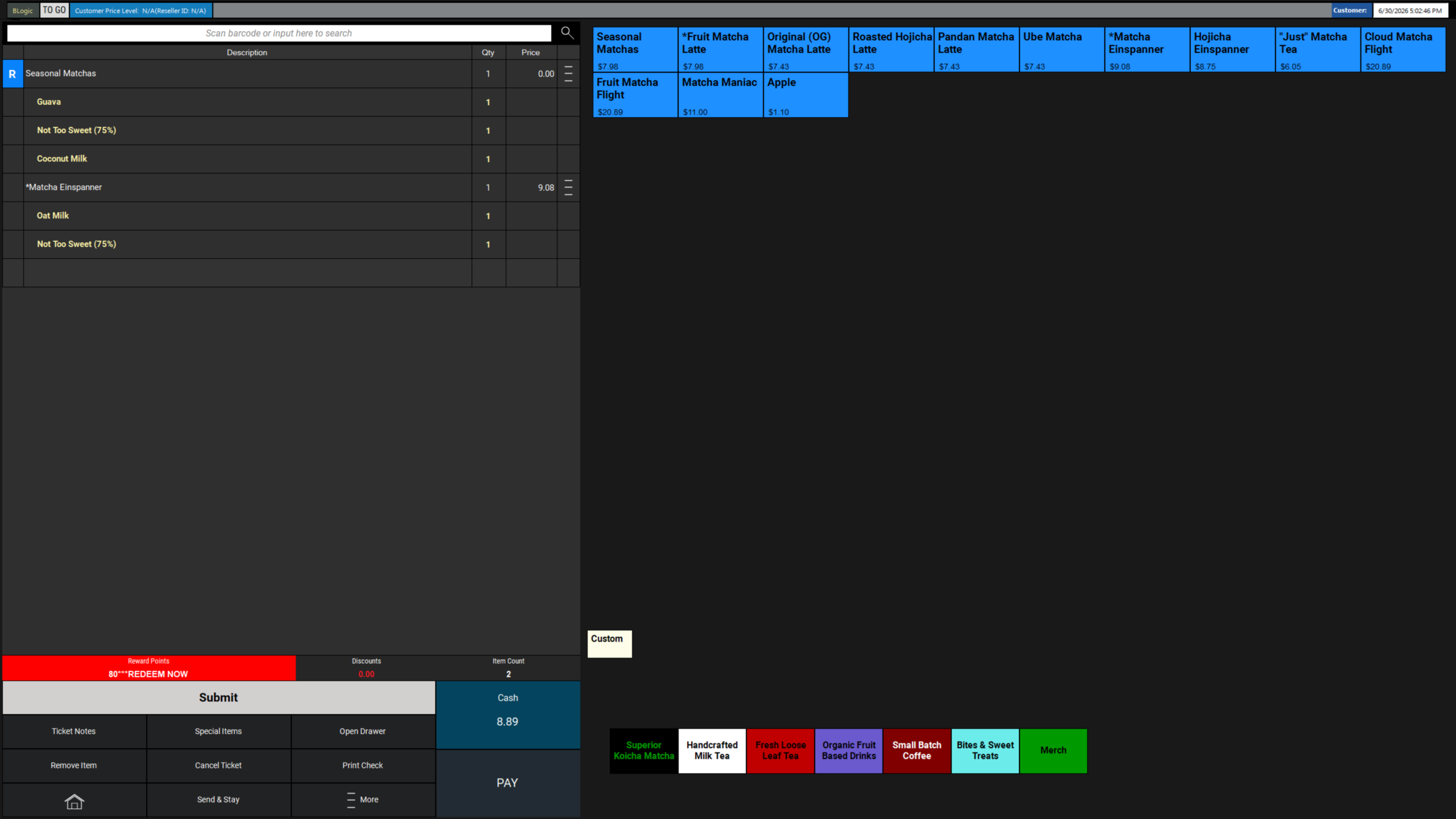
- The redeemed item is marked with a red “R” and its price changes to $0.00.
Step 4: Complete the Payment
- Tap Pay to complete the transaction.
Manually Add or Remove Loyalty Points
Step 1: Open the Customer Profile
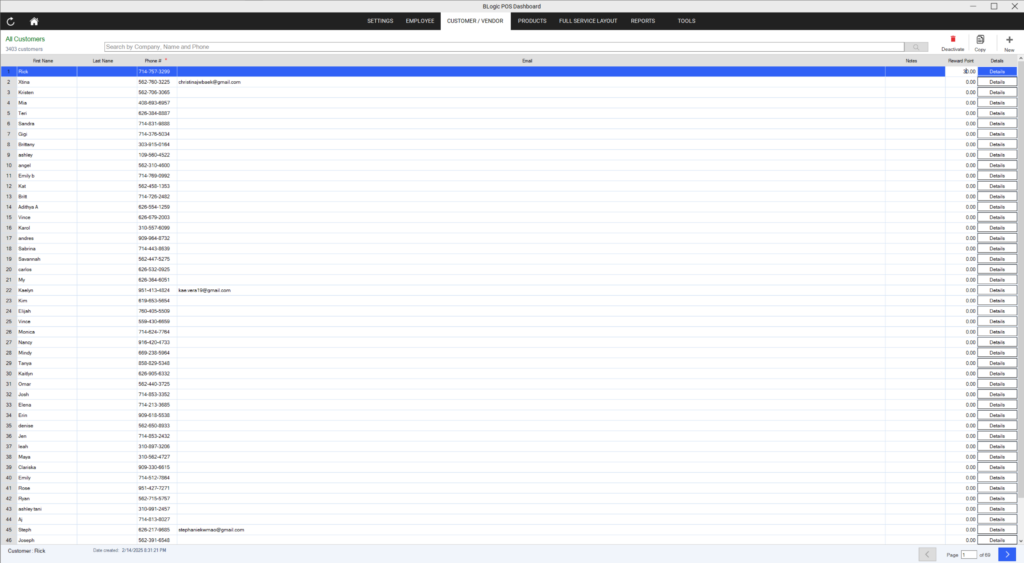
- Go to POS Dashboard > Customer / Vendor.
- Find the customer’s profile and click on their Reward Points number.
Step 2: Adjust the Points
- Enter the new point amount you want the customer to have.
- Press Enter on your keyboard to save the change.
ℹ️ Note: This action sets the customer’s point balance to the exact amount you enter; it does not add to or subtract from the current balance.
Where to View or Confirm the Result
You can confirm Loyalty Program activity in the following places:
- POS screen — The Reward Points banner shows the customer’s current points and a “REDEEM NOW” prompt when enough points are available.
- Order summary — Redeemed items appear with a $0.00 price and an “R” marker.
- Customer / Vendor profile — Shows the customer’s current total reward points, which can be edited manually.
- Products / Items > Reward tab — Confirms the Earn Points and Redeem Points configured for each item.
FAQ
1. Why can’t I see this option? You may not be on a supported version, or your user role may not have permission to access this setting. Please contact Support if the option is not visible.
2. Does this setting affect existing data? Changing the loyalty configuration (such as the earn/redeem method) does not appear to delete previously accrued points, but this behavior may depend on your store setup. Please contact Support to confirm before making major changes to an active program.
3. Can staff use this feature without manager permission? This was not specified in the provided source. Please contact Support to confirm role/permission requirements for redeeming rewards.
4. Can I combine Loyalty rewards with other discounts? No. Loyalty rewards cannot be applied together with Store Discount or Category Discount on the same order.
5. What should I do if the feature does not work as expected? Check that the loyalty program is enabled, confirm the item has earn/redeem points configured, confirm your store is on a supported version, and contact Support for further assistance.
Closing
If you still need help, please contact Support for further assistance.