Introduction
This article explains how to use the Print By Sale Type setting in your Prep-Printer configuration. With this setting, you can control which types of orders (Sale Types) each kitchen printer will receive prep tickets for — so each station only prints what it needs.
For example, you can set one printer to only print tickets for To Go and delivery orders, while keeping another printer quiet for dine-in orders only.
Version Support
| Product / Module | Supported Version |
|---|---|
| POS Dashboard — Kitchen Printer | Build 06.30.2026 or later |
Note: If you do not see the Print By Sale Type option, please contact Support to confirm your store is on a supported version.
Table of Contents
- Overview of Print By Sale Type
- Configure Print By Sale Type
- Understanding the Sale Type Options
- Example Setup: Multiple Printers
- Where to Confirm the Result
- FAQ
Overview of Print By Sale Type
The Print By Sale Type setting lets you filter which prep tickets each kitchen printer receives, based on the Sale Type of the order. By default, every printer is set to All, which means it prints prep tickets for every order — the same behavior as before this feature was introduced.
When you select specific Sale Types, the printer will only print a prep ticket when an order matches one of your chosen types. All other orders will be ignored by that printer.
ℹ️ Note: This setting only controls prep ticket printing. It does not affect sales receipt printing in any way.
Configure Print By Sale Type
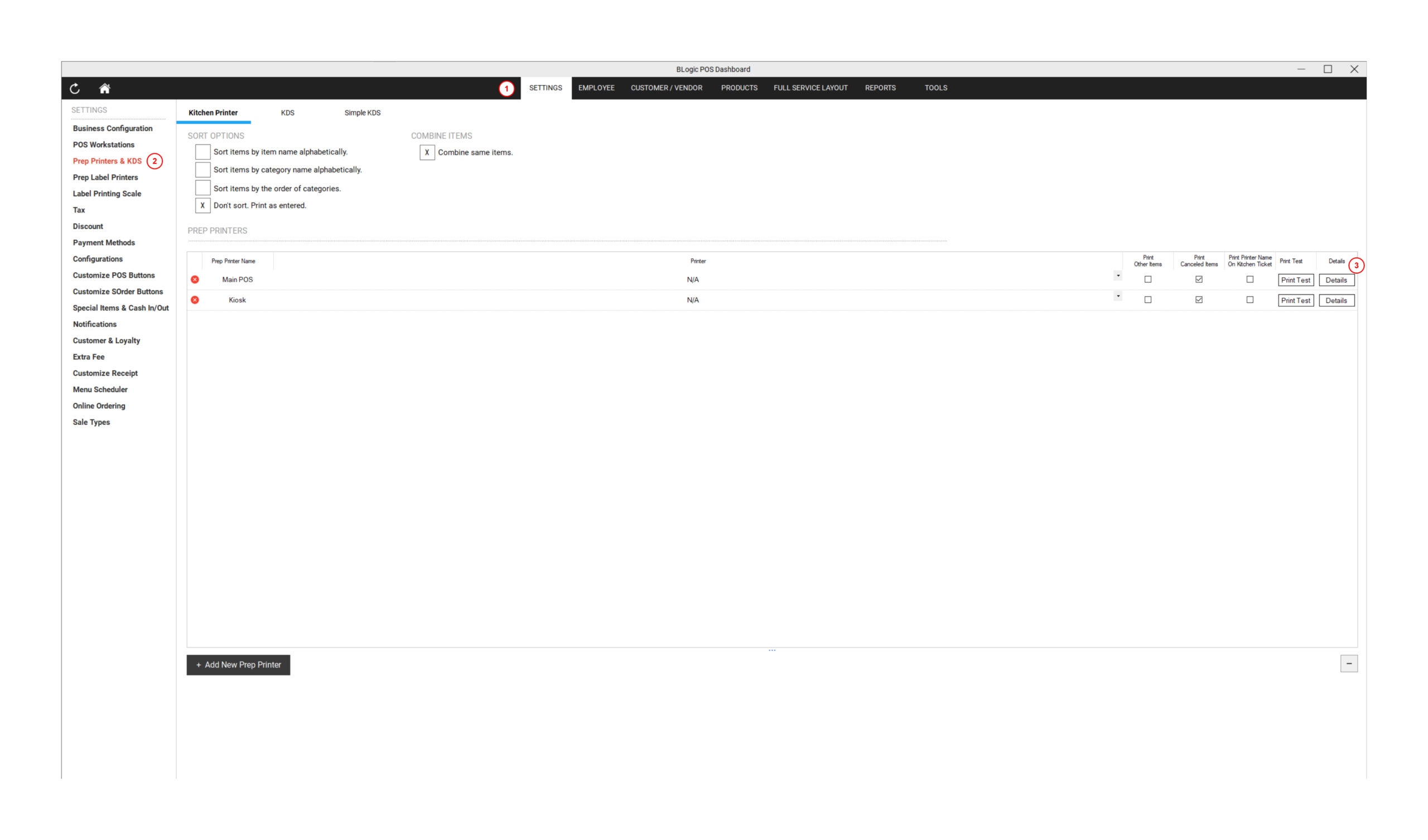
Step 1: Open Prep-Printer Settings
- Log in to your POS Dashboard.
- Go to Settings > Prep Printers & KDS.
- Make sure you are on the Kitchen Printer tab.
- Locate the printer you want to configure in the Prep Printers list.
- Click Details next to that printer.
Step 2: Find the Print By Sale Type Field
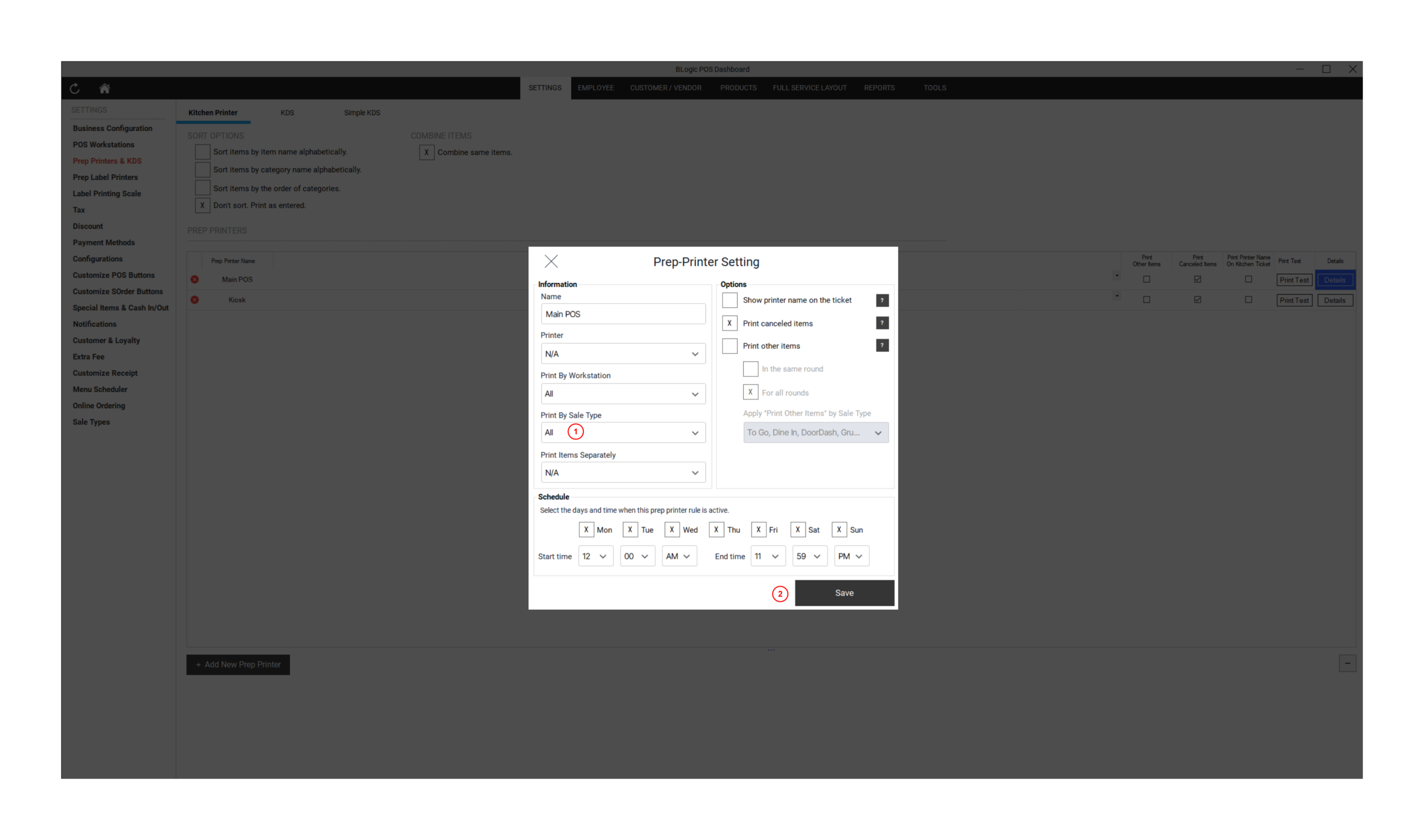
- In the Prep-Printer Setting dialog, locate the Information section on the left side.
- You will see the Print By Sale Type dropdown below Print By Workstation.
- By default, it is set to All.
Step 3: Select Your Sale Types
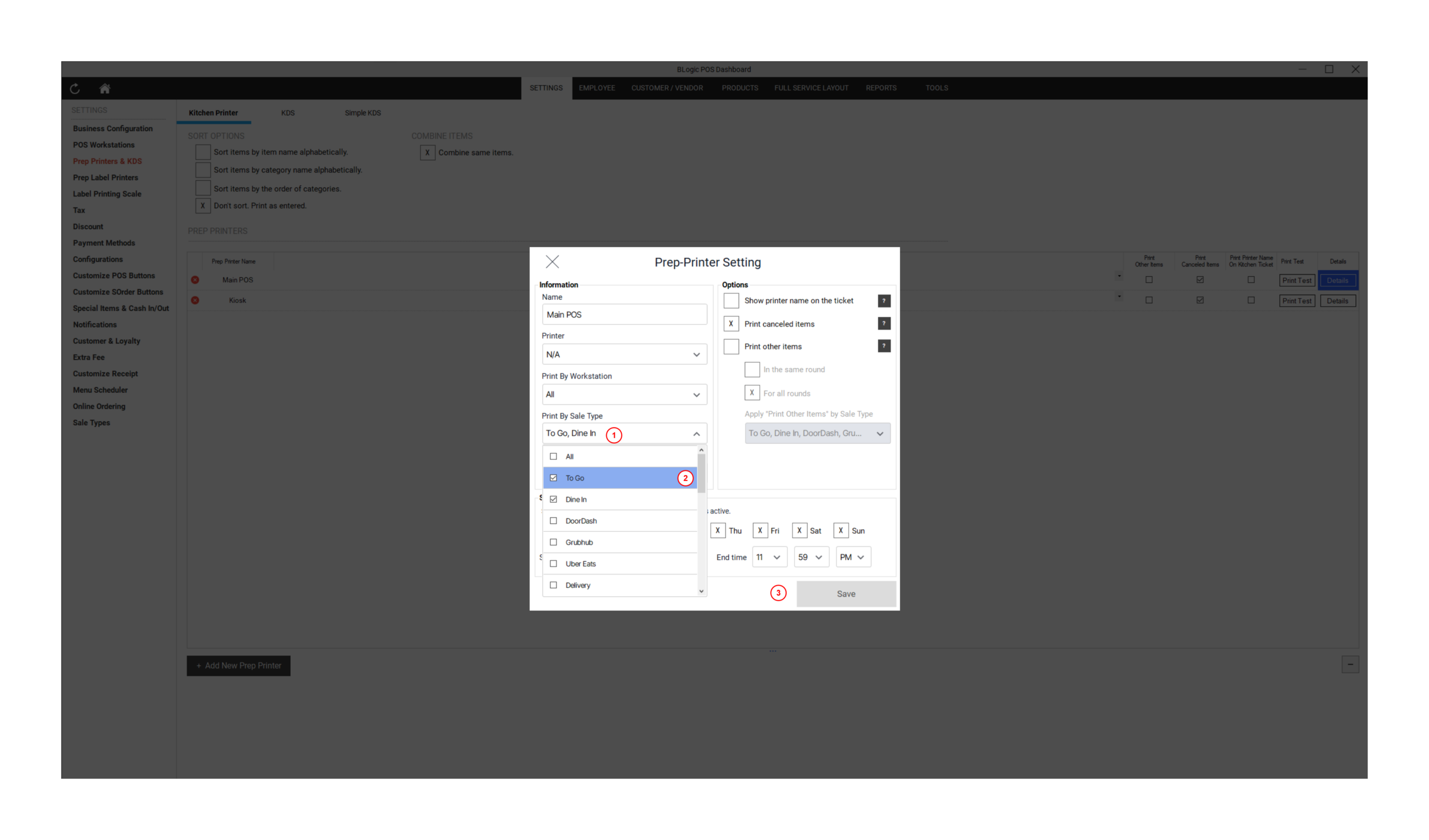
- Click the Print By Sale Type dropdown to open it.
- You will see a list of available options:
- All — prints for every order type
- Active Sale Types configured in your store (e.g., To Go, Dine In, DoorDash, Grubhub, Uber Eats, Delivery)
- Third-Party Providers — covers all third-party delivery orders as a group
- N/A — covers orders with no Sale Type assigned (always selected, cannot be removed)
- Check the Sale Types this printer should print for.
- Uncheck any Sale Types this printer should not print for.
- To select all types, check All.
Step 4: Save Your Changes
- After selecting the desired Sale Types, the dropdown will show a summary (e.g., “To Go, Dine In”).
- Click Save to apply the configuration.
Understanding the Sale Type Options
| Option | Description |
|---|---|
| All | Printer receives prep tickets for every Sale Type. This is the default setting. |
| Active Sale Types (e.g., To Go, Dine In) | Loaded dynamically from your store’s Sale Type configuration. Only active Sale Types appear. |
| Third-Party Providers | A fixed group option that covers all third-party delivery orders (DoorDash, Grubhub, Uber Eats, etc.), including any new providers added in the future. |
| N/A | Covers orders that have no Sale Type, a blank Sale Type, or an unrecognized Sale Type. This option is always checked and cannot be removed. |
✅ Tip: Use Third-Party Providers instead of selecting each delivery app individually. It will automatically include any new providers added to your system in the future.
ℹ️ Note: If a ticket matches both a specific provider Sale Type (e.g., DoorDash) and the Third-Party Providers option, the printer will only print one prep ticket — not two.
Example Setup: Multiple Printers
Here is a common setup for a store with two kitchen printers:
| Printer | Recommended Print By Sale Type | Result |
|---|---|---|
| BL-270 (kitchen prep station) | To Go + Third-Party Providers + N/A | Prints prep tickets for To Go orders, all delivery app orders, and orders with no Sale Type |
| S-11 (receipt printer only) | Do not configure as a prep printer | Remove from prep printer list; use as receipt printer only |
ℹ️ Note: If a printer should only print sales receipts and not prep tickets, do not configure it as a Kitchen Printer in Prep Printers & KDS.
How This Works With Other Printer Rules
Print By Sale Type works together with your existing printer rules — all rules must pass before a prep ticket is printed:
| Rule | Behavior |
|---|---|
| Print By Sale Type | The ticket’s Sale Type must match a selected option |
| Print By Workstation | The ticket’s workstation must match the printer’s workstation setting |
| Schedule | The current time must be within the printer’s active schedule |
All three conditions must be met. If any one of them does not match, the printer will skip that prep ticket.
✅ Tip: This setting does not affect Print Other Items or Apply “Print Other Items” by Sale Type — those settings continue to work exactly as before.
Where to Confirm the Result
After saving, you can confirm your configuration by:
- Going back to Settings > Prep Printers & KDS > Kitchen Printer.
- Clicking Details on the printer you just configured.
- Checking that the Print By Sale Type field shows the Sale Types you selected.
- Optionally, clicking Print Test to send a test ticket to the printer.
FAQ
1. Why can’t I see the Print By Sale Type option? This setting is available from Build 06.30.2026 onward. If you do not see it, your store may not be on the required version. Please contact Support to confirm.
2. Will changing this setting affect my existing printers? Existing printers are automatically defaulted to All after the update, so their behavior stays the same as before. You only need to change the setting if you want to filter by specific Sale Types.
3. Can I remove the N/A option from the dropdown? No. N/A is a required option that is always selected. It ensures that orders without a Sale Type (such as orders from older tickets or unmapped types) are still covered by the printer.
4. If I select Third-Party Providers and also select DoorDash separately, will I get duplicate tickets? No. The system will print only one prep ticket even if the order matches both options.
5. Does this setting affect sales receipt printing? No. Print By Sale Type only controls prep ticket printing. Sales receipts are not affected.
Closing
If you have any questions about setting up Print By Sale Type for your store, please contact Support for further assistance.