Introduction
This article shows you how to set up and use the new Open Cash Drawer reason feature. You will learn how to require staff to select a reason each time they open the cash drawer manually, how to manage the list of reasons, and where to review this activity in a report. This helps you track cash movements in and out of the drawer without affecting your Sales or Shift reports.
Version Support
| Product / Module | Supported Version |
|---|---|
| POS | 07.24.2026 or later |
Note: If you do not see these options, please contact Support to confirm your store is on a supported version.
Table of Contents
- Turn On config “Ask Reason When Open Cash Drawer”
- Select a Reason on the POS
- View the Open Cash Drawer Activity Report
- Manage Your Cash Drawer Reasons
- FAQ
1. Turn On config “Ask Reason When Open Cash Drawer”
This setting controls whether staff must choose a reason each time they open the drawer manually.
Step 1: Open the Advance configuration
- In the POS Dashboard, go to Settings > Configurations > Advance.
- Find Ask reason when open cash drawer.
Step 2: Enable the setting
- Check the box for Ask reason when open cash drawer.
- Click Save.
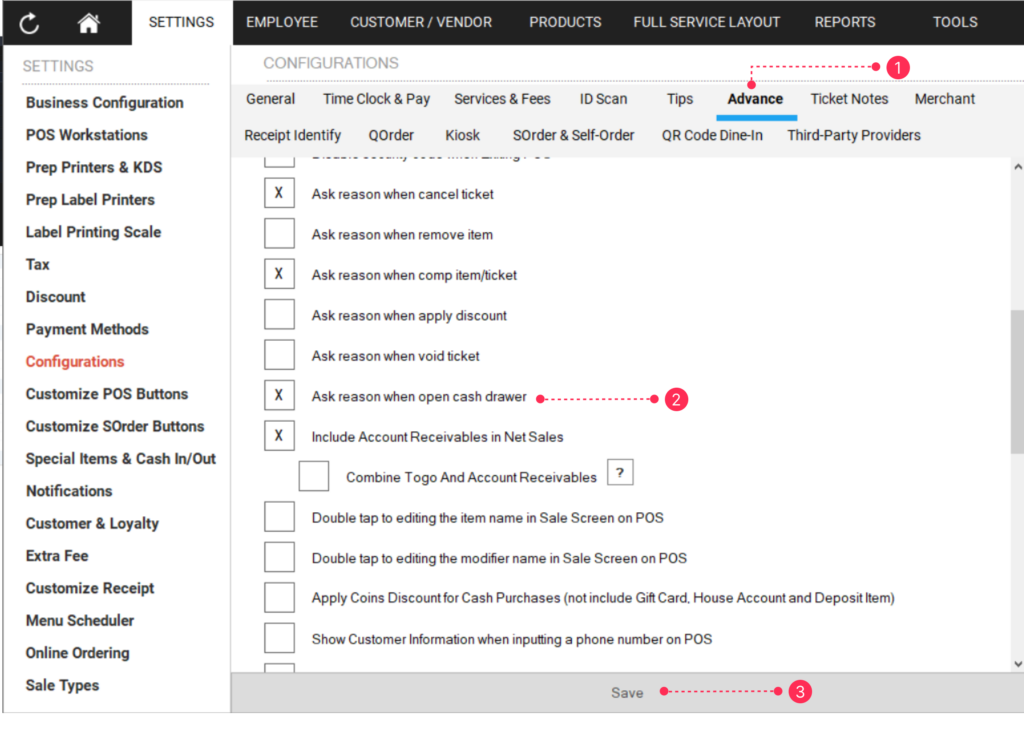
ℹ️ Note: This setting is OFF by default. Even when it is off, the system still records each manual drawer open using the default reason “Open Cash Drawer,” so you can still review the activity in the report.
2. Select a Reason on the POS
Once the setting is on, staff are asked to pick a reason whenever they open the cash drawer manually.
Step 1: Choose a reason
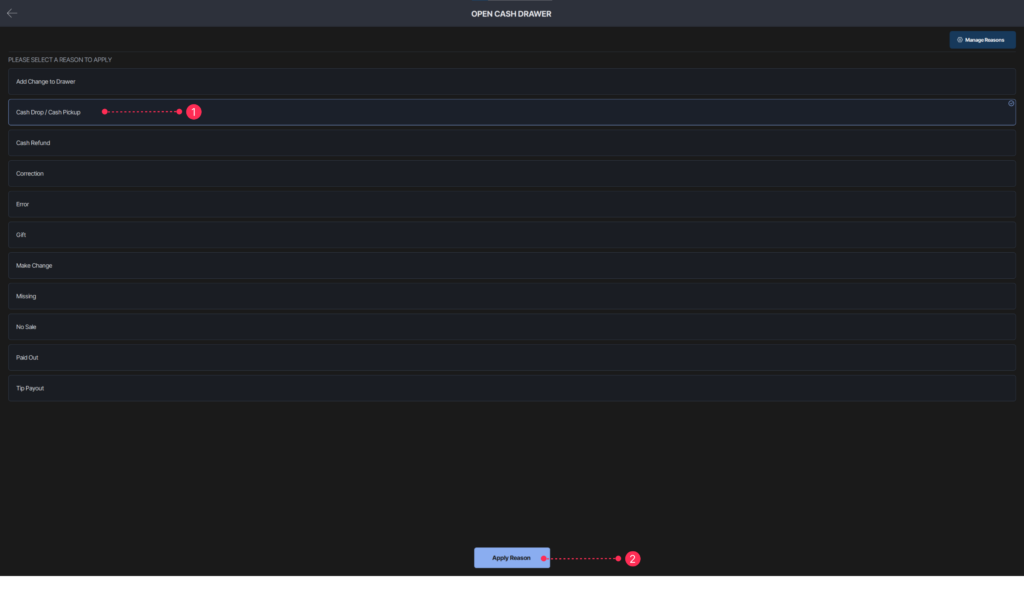
- Open the cash drawer manually on the POS.
- On the reason screen, select the reason that matches the action.
- Tap Apply Reason to open the drawer.
3. View the Open Cash Drawer Activity Report
You can review the full history of manual cash drawer openings in BLogic View.
Step 1: Open the report
- Log in to BLogic View.
- Go to Reports > Open Cash Drawer Activity.
Step 2: Filter the results
- Use the filters to narrow the results by Server, Approver, or Workstation.
- Review each activity, including the Time, Server, Approver, Workstation, and Reason.
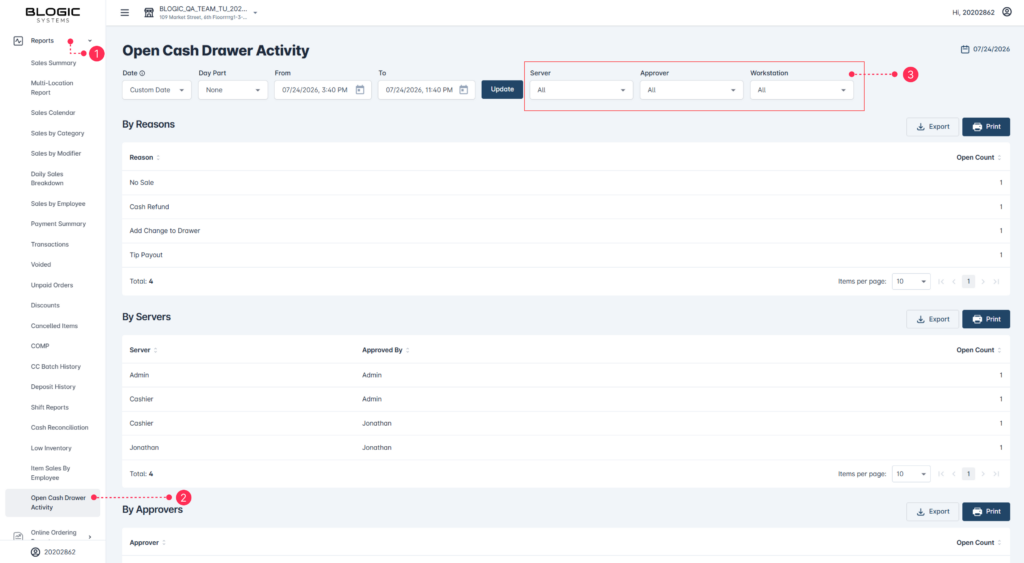
ℹ️ Note: This report is available on the web version of BLogic View. It is not currently shown on mobile.
4. Manage Your Cash Drawer Reasons
The system comes with a default list of reasons, and you can add, edit, or remove reasons to match how your store operates.
Default reasons included:
- No Sale
- Make Change
- Cash Drop / Cash Pickup
- Cash Refund
- Add Change to Drawer
- Tip Payout
- Paid Out
- Correction
Step 1: Open the reason management screen
- Log in to your POS Dashboard (Back Office).
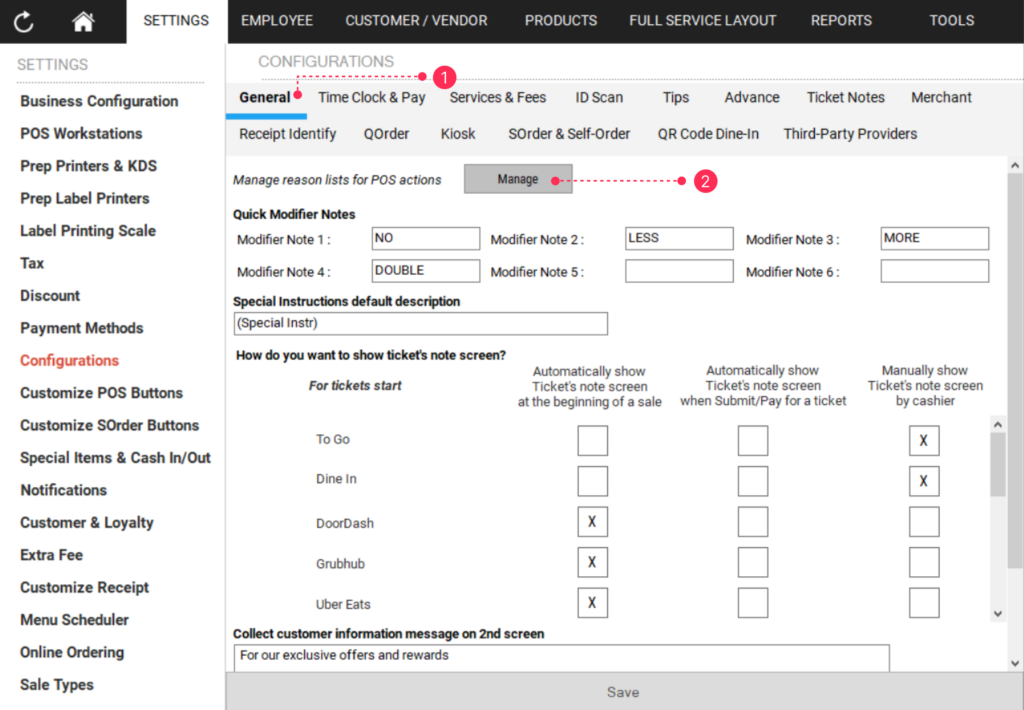
- Go to Settings > Configurations > General.
- Next to “Manage reasons lists for POS actions” click Manage.
Step 2: Add or edit an Open Cash Drawer reason
- Select the Open Cash Drawer reason type.
- Click Add New Reason to create a new reason, or use the edit (pencil) and delete (trash) icons to change existing ones.
- Save your changes.
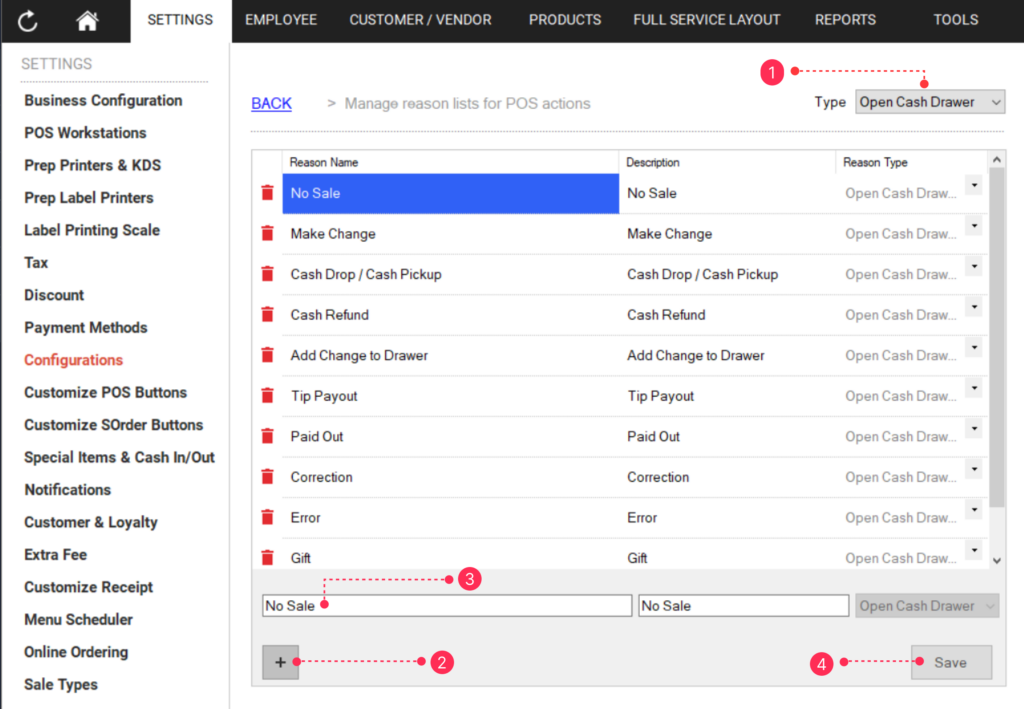
ℹ️ Note: You can also manage these reasons directly from the reason selection screen on the POS.
✅ Tip: Keep the list short and clear so cashiers can pick the right reason quickly.
5. FAQ
1. Why can’t I see this option? You may not be on a supported version, or your user role may not have permission to manage reasons. Managing reasons uses the same permission as “Allow to manage reason lists for POS actions.” Please contact Support if the option is not visible.
2. Does this feature affect my Sales or Shift reports? No. Manual cash drawer openings are tracked separately in the Open Cash Drawer Activity report and do not affect your Sales or Shift reports.
3. What happens if I leave the “Ask reason” setting off? The drawer still opens, and the action is still recorded using the default reason “Open Cash Drawer.” Staff simply are not asked to choose a reason. You can still review the activity in the report.
4. What should I do if the feature does not work as expected? Check that the setting is enabled, confirm your store is on a supported version, and contact Support for further assistance.
Closing
If you still need help, please contact Support for further assistance.