Introduction
The Shift Report can now show a Tips by Employee section that breaks down the tips each employee earned during the shift, by payment type. This article shows you how to add the section to the printed Shift Report and to the Shift Report you check during a shift.
Version Support
| Product / Module | Supported Version |
|---|---|
| POS | Build 11.20.2026 or later |
| POS Dashboard | Build 11.20.2026 or later |
Note: If you do not see this option, please contact Support to confirm your store is on a supported version.
Table of Contents
Turn on Tips by Employee
You choose which Shift Report shows the section in Report Designer. The two reports are set separately.
Step 1: Open Report Designer
- On POS Dashboard, click REPORTS.
- Click Shift Reports.
- Click Report Designer.
Step 2: Choose the report and turn on the section
- Open the tab for the report you want to change:
- Shift Report: the report printed at End Shift.
- Shift Report Details: the report shown when you tap the Shift Report button during a shift.
- Check Tips by Employee.
- Repeat on the other tab if you want the section on both reports.
- Click Save.
Tip: To show the section at End Shift and during the shift, check Tips by Employee on both tabs before you click Save.
Read the Tips by Employee section
After you save, the next Shift Report includes Tips by Employee after the item sections and before Tips by Payment Type.
- Section total: all tips for the shift, shown next to the Tips by Employee title.
- Employee name and total: the tips each employee earned.
- Payment type lines: how each employee’s tips were paid, for example Cash or Promotion.
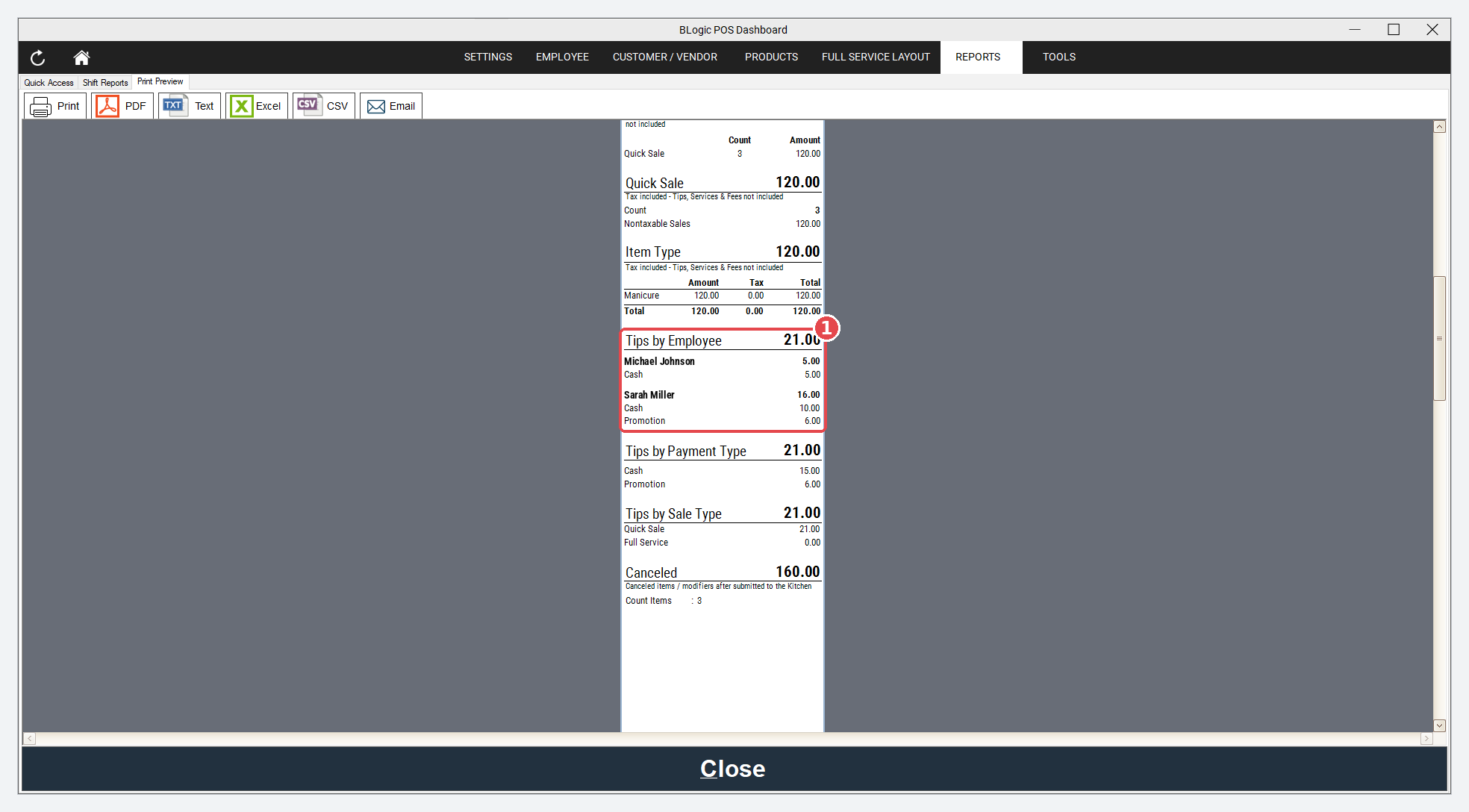
Note: The section total matches the totals in Tips by Payment Type and Tips by Sale Type on the same report.
FAQ
1. I checked Tips by Employee, but it does not appear on the report. Why? Check that you checked it on the right tab. Shift Report controls the End Shift printout, and Shift Report Details controls the Shift Report button during a shift. Make sure you clicked Save.
2. Can I show the section on only one of the two reports? Yes. Each tab has its own setting. Check Tips by Employee only on the tab for the report you want.
3. Why does one employee have several lines? Each line under an employee is a payment type. The employee total is the sum of those lines.
Closing
If you still need help, please contact Support for further assistance.