Introduction
This article explains how to set up and use the Online Pickup Chargeback Prevention flow across License Dashboard, BLogic View, Online Ordering Web, and Point of Sales (POS).
You will learn how to enable the required settings, how the customer flow works after payment, and how store staff confirm pickup by scanning the customer’s QR code or using the manual fallback when needed.
Version Support
| Item | Details |
|---|---|
| Supported Modules | License Dashboard, BLogic View, Online Ordering Web, POS |
| Supported Feature Scope | Online Pickup only |
| Not Included | Online Delivery does not use the pickup QR flow |
| POS Version | 2026.05.20 |
Table of Contents
- Overview of the feature
- Before you start
- Default SMS Template Update in License Dashboard
- Check Required Online Ordering Fields
- Enable OTP before payment in BLogic View
- Understand the customer flow on Online Ordering Web
- Use the pickup QR flow in POS
- Use the manual fallback in POS
- Best practices
- FAQ
1. Overview of the Feature
This feature adds extra verification steps to help reduce dispute / chargeback risk for Online Pickup orders.
The main flow is:
- The store enables OTP before payment
- The customer enters an OTP code before continuing to payment
- After payment success, the system sends an SMS pickup link
- The customer opens the link and sees the pickup QR code
- The cashier scans the QR code in POS and marks the order as Picked Up
If the barcode scanner is not working, the cashier can search the Ticket # and update the pickup status manually.
2. Before You Start
Before you begin, make sure:
- You have access to BLogic View to enable store-level Online Ordering settings
- Your store is using Online Pickup
⚠️ This feature applies to Online Pickup only.
ℹ️ Online Delivery keeps its existing flow and does not use the pickup QR confirmation flow.
3. Default SMS Template Update in License Dashboard
When the new build with the Chargeback Prevention update is applied, the default SMS template will be updated automatically to include the Pickup QR link for Online Pickup orders.
How it works
- For stores using the updated build, the default SMS template will include the new pickup link content
- For new stores created after this update, the system will use the new default template automatically
- If a store is already using its own custom SMS template, the exact overwrite behavior should follow the system’s current template rules
Updated Default SMS Template
Hi {Customer Name}, thanks for ordering from {Store Name}. Your order will be ready at {Pickup Time}. Open this pickup link when you arrive to show your pickup QR code: {Pickup Url}. Please view your receipt at {Receipt Url}. Thank you!ℹ️ This update applies to the default template for Online Pickup.
4. Check Required Online Ordering Fields
To use this feature correctly, please make sure these checkout fields on Online Pickup Web are enabled:
- Phone Number
Why this matters
- Phone Number is needed for OTP verification and the SMS pickup link
Recommendation
We recommend keeping field enabled for Online Pickup orders.
If you are not sure whether these fields are enabled, please contact IT Support / Support Team for assistance.
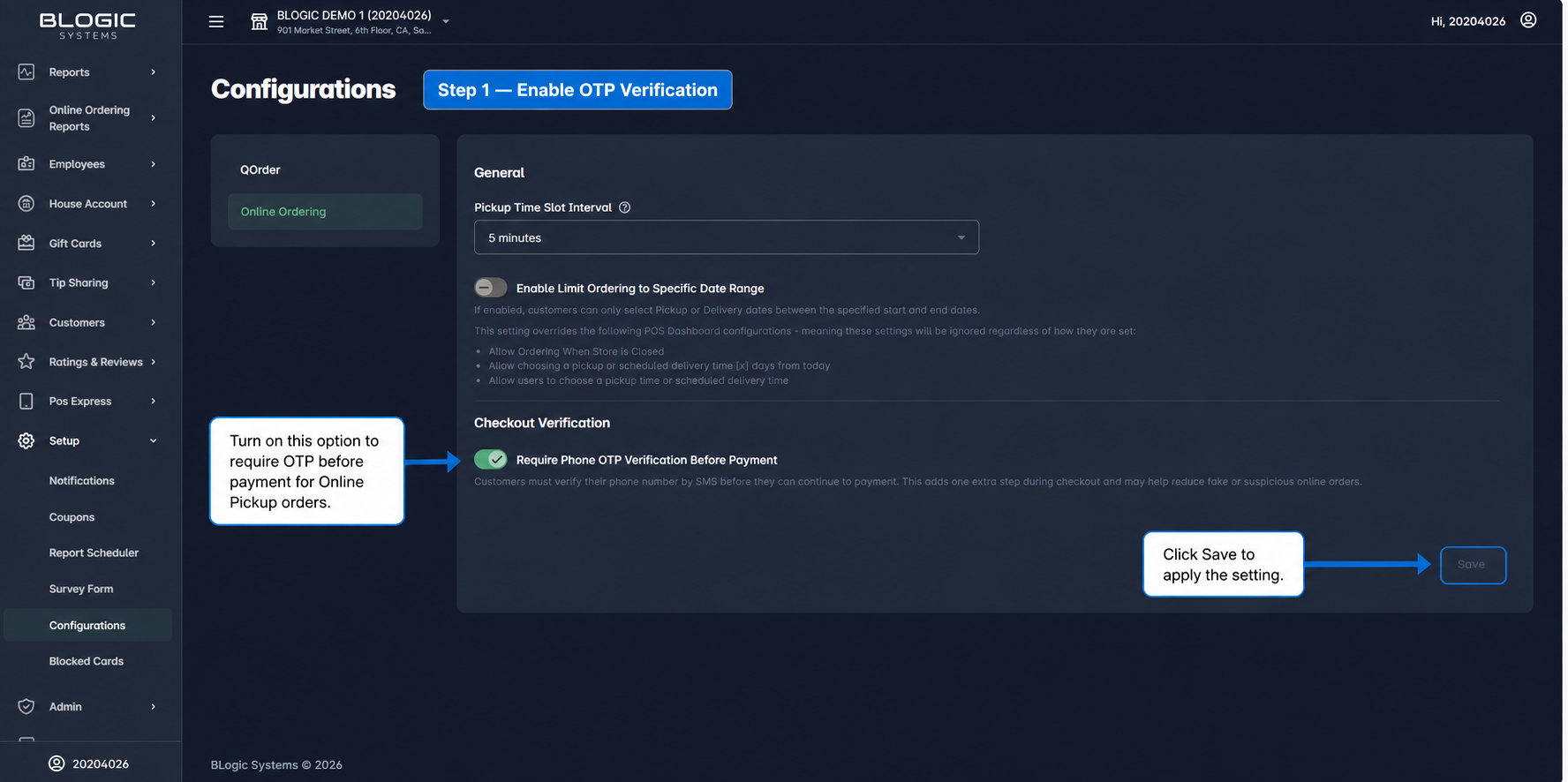
5. Enable OTP Before Payment in BLogic View
Use this step to require the customer to enter an OTP code before payment.
Steps
- Open BLogic View
- Go to Setup
- Open Configuration
- Go to Online Ordering
- Find the setting:
- Require Phone OTP Verification Before Payment
- Turn this option On
- Save the configuration
What happens after this is enabled
- Customers must enter an OTP code before continuing to payment
- The OTP code is sent to the phone number entered during checkout
✅ This helps add an extra verification step before payment.
6. Understand the Customer Flow on Online Ordering Web
After the setup is complete, the customer flow works like this.
Step 1: Customer checks out
The customer:
- Adds items to the cart
- Enters contact information
- Selects a payment method
Step 2: Customer enters OTP
If OTP is enabled:
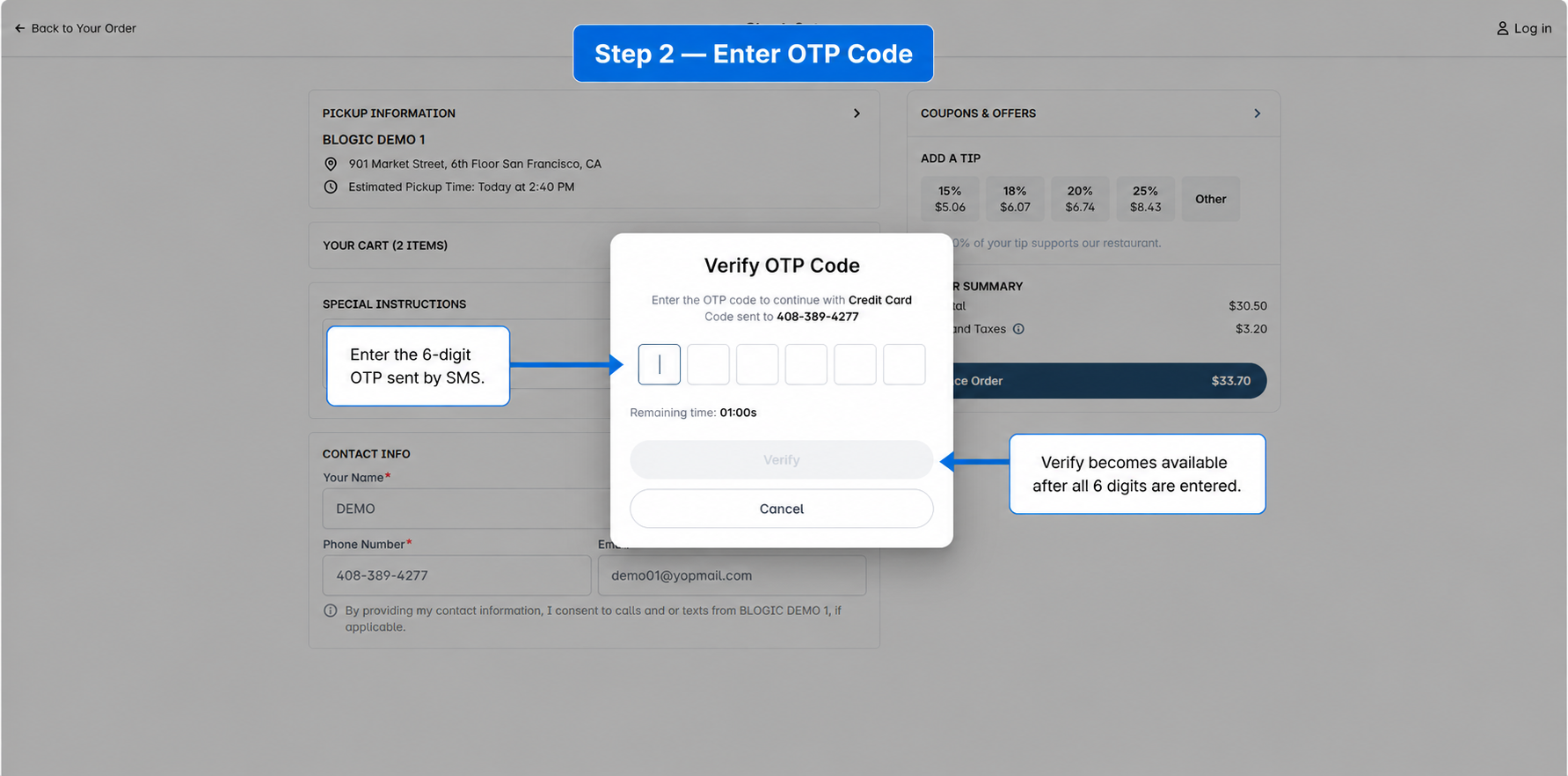
- The system sends an OTP code to the customer’s phone number
- The customer enters the OTP code
- The customer continues to payment
Step 3: Payment succeeds
After payment success:
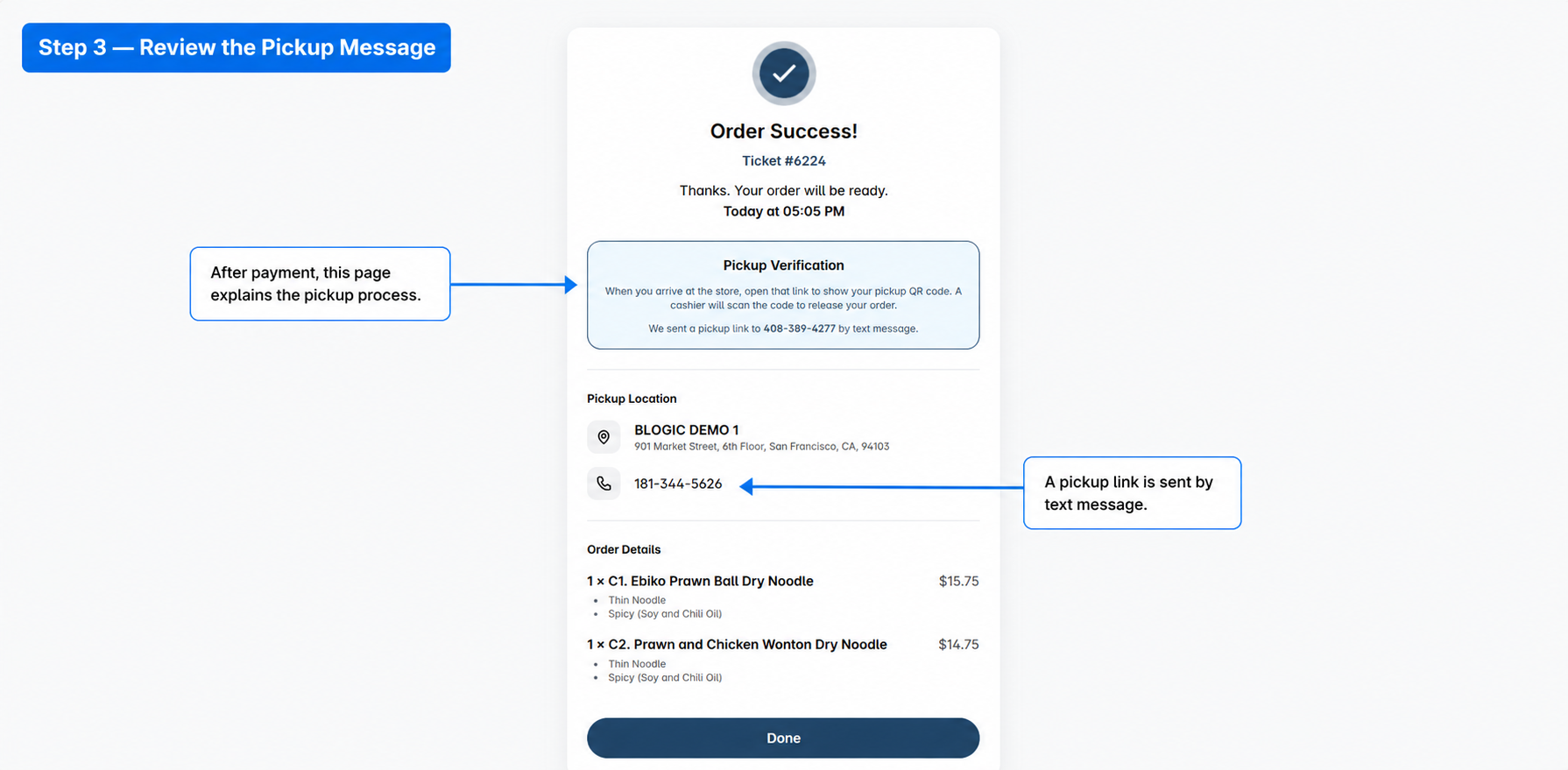
- The order is created
- The customer sees the Order Success page
- The system sends an SMS pickup link
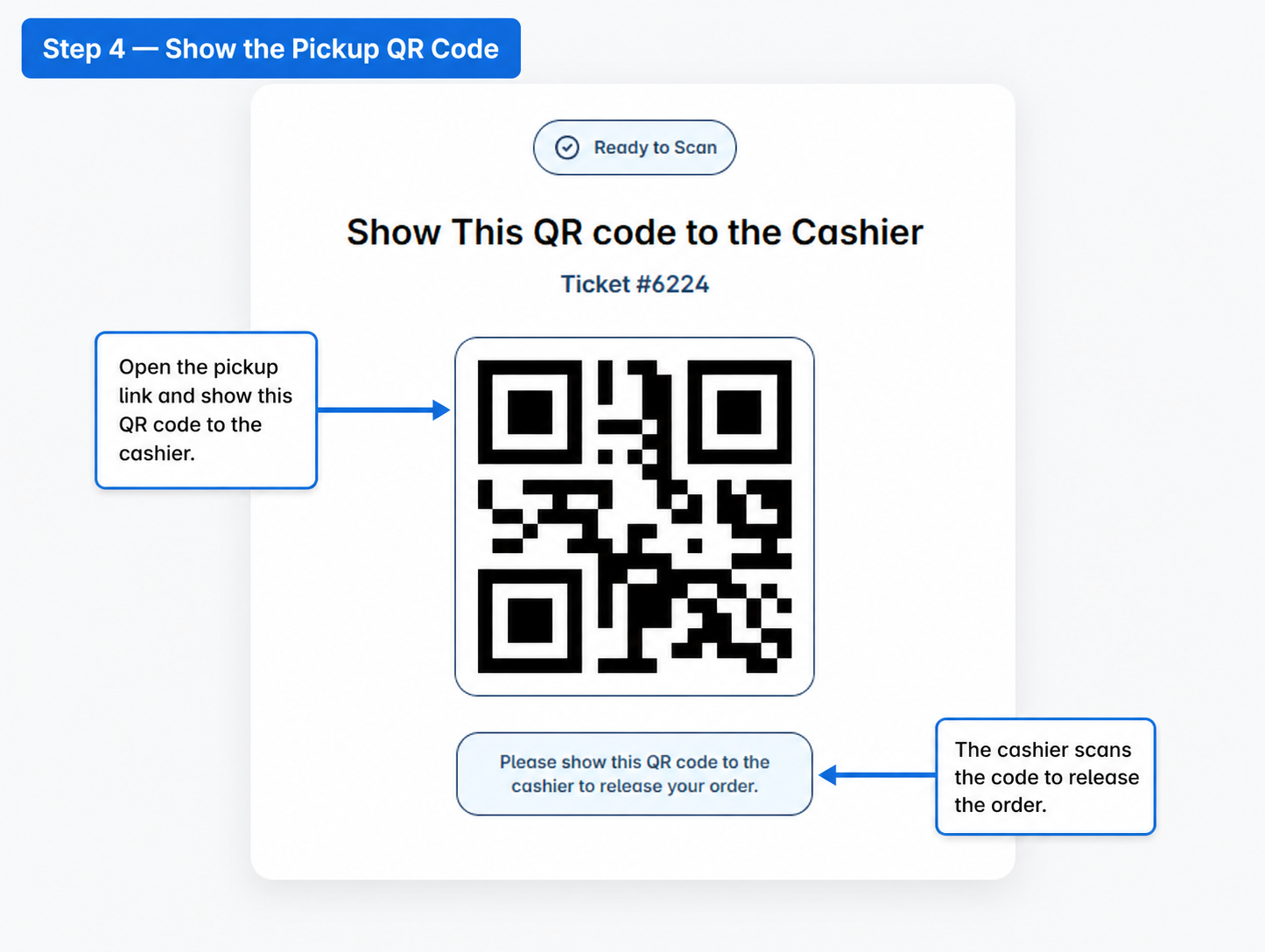
Step 4: Customer opens the pickup link
When the customer arrives at the store:
- The customer opens the pickup link from the SMS
- The QR code is shown directly
- The customer shows the QR code to the cashier
7. Use the Pickup QR Flow in POS
Use this step when the customer arrives at the store and shows the pickup QR code.
Steps
- Open POS
- Go to Delivery / Pickup Tickets
- Open the Online Pickup tab
- Click Scan Pickup
- Wait for the scan dialog to appear
- Use the barcode scanner to scan the customer’s pickup QR code
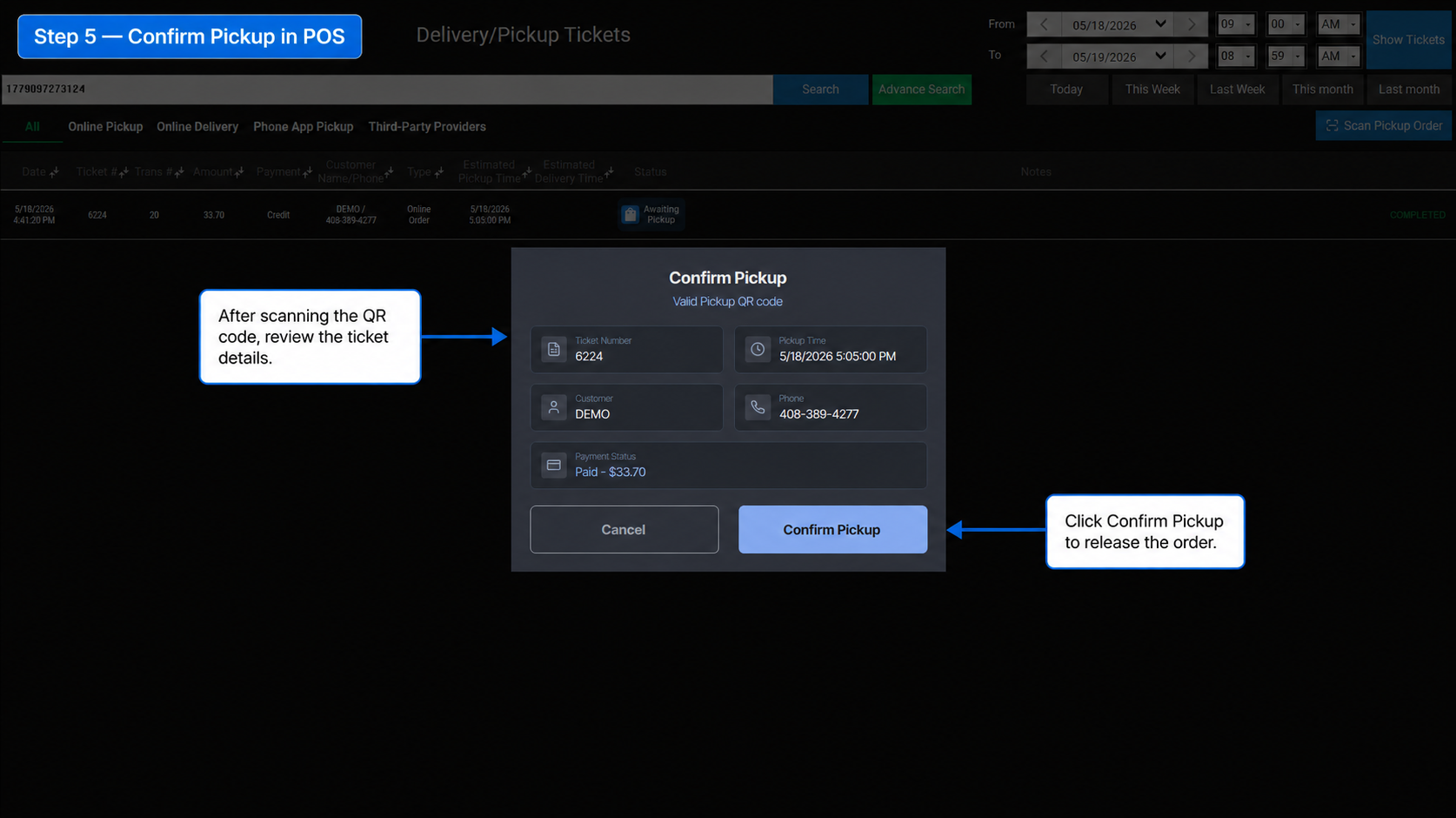
What happens after a valid scan
- POS shows the order information
- The cashier reviews the ticket
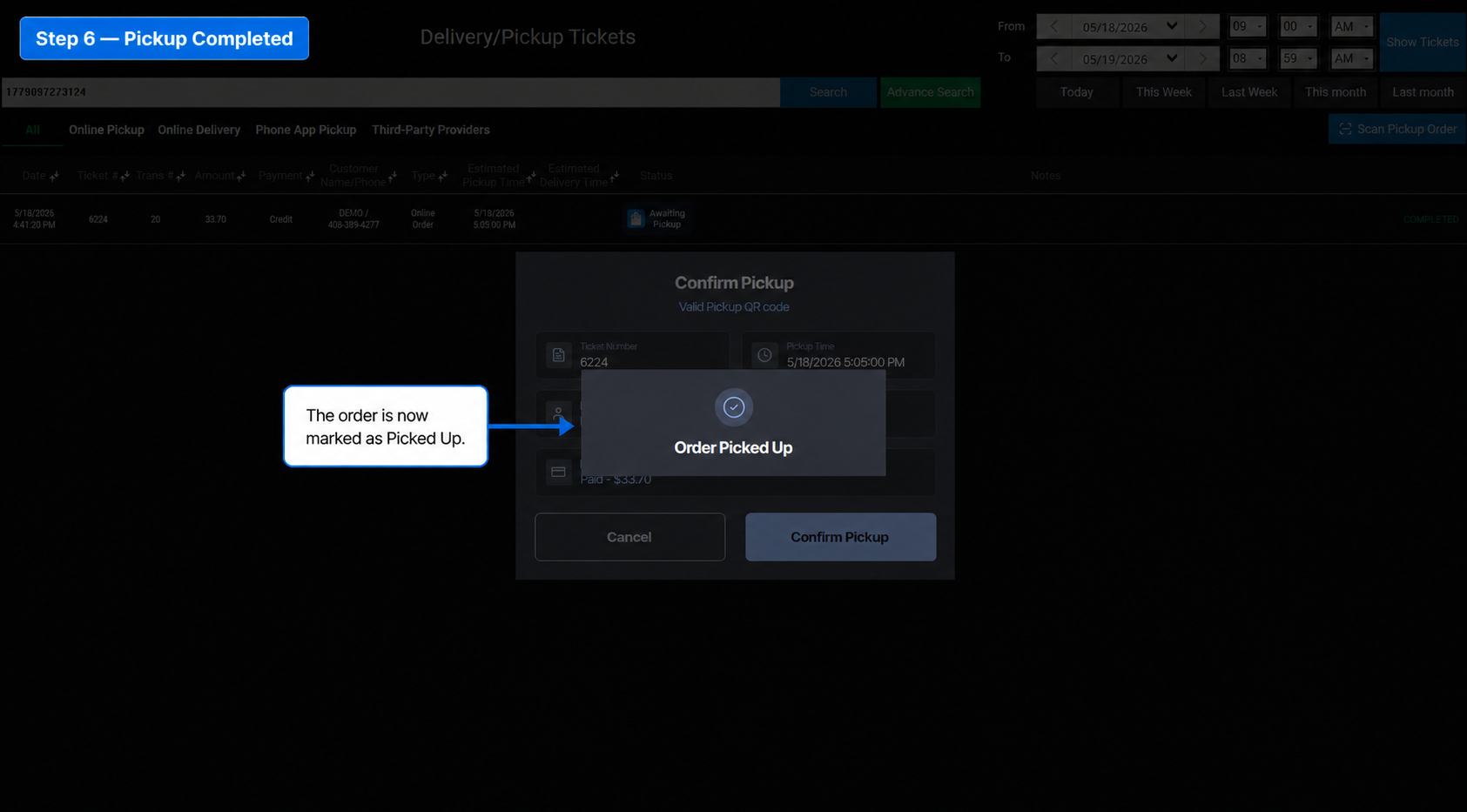
- The cashier confirms pickup
- The ticket status changes to Picked Up
8. Use the Manual Fallback in POS
Use this only if the barcode scanner is not working.
Steps
- Stay in POS
- Go back to the Online Pickup ticket list
- Search using the Ticket #
- Find the correct ticket row
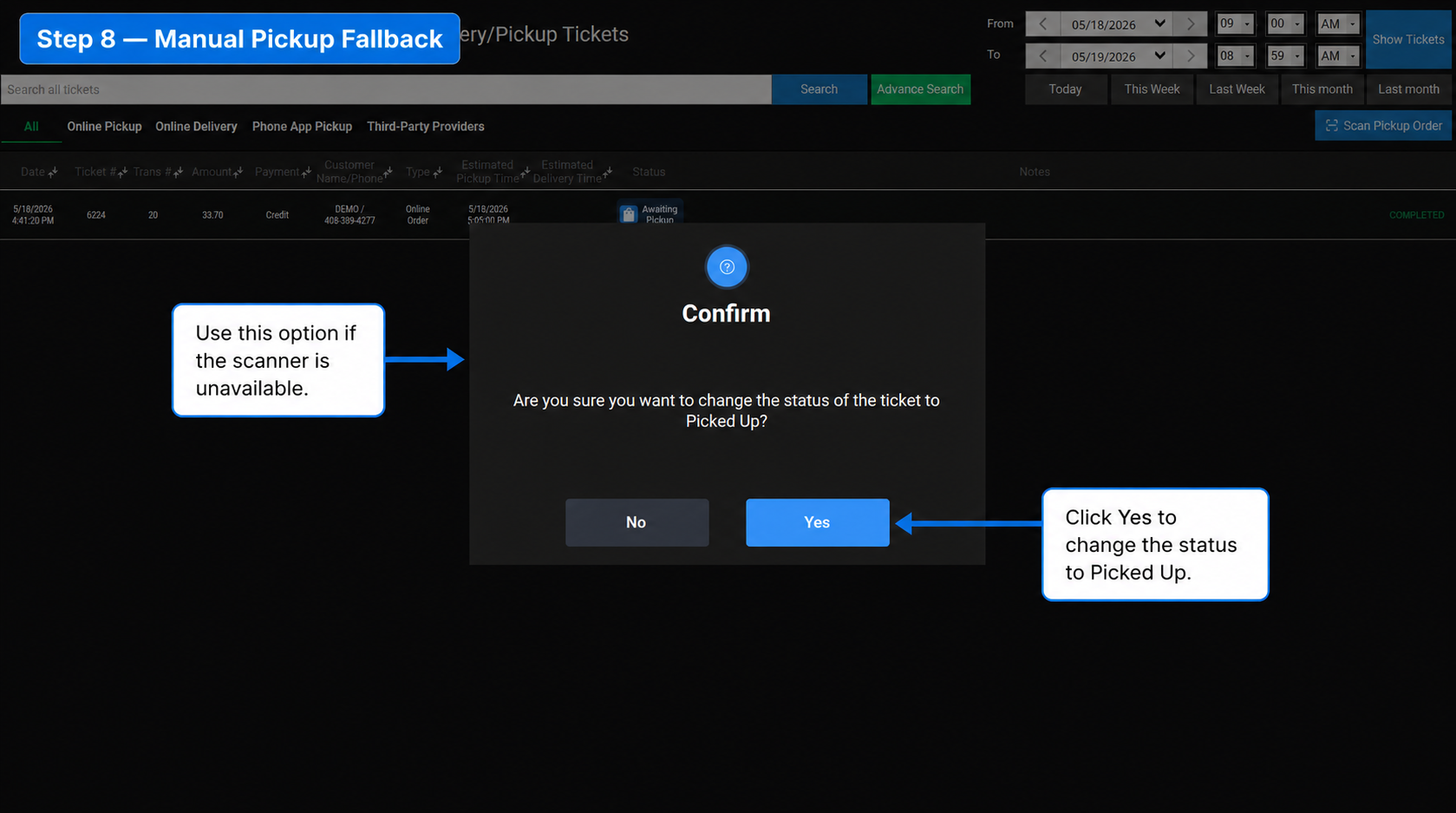
- Update the status manually from:
- Awaiting Pickup → Picked Up
- Confirm the change if a confirmation dialog appears
Important note
The manual path is only a fallback. The normal process should still use Scan Pickup when the scanner is working.
9. Best Practices
- Keep OTP before payment enabled for stores that want stronger pickup verification
- Make sure the Phone Number field is enabled in Online Ordering
- Use the pickup QR scan flow as the primary process
- Use manual status update only when the scanner has an issue
- Train cashiers to look for the final status Picked Up
10. FAQ
1. Does this feature apply to Online Delivery?
No. This pickup QR flow is for Online Pickup only. Online Delivery keeps its current flow.
2. Does the customer still need to click Confirm Pickup on the SMS page?
No. In the updated flow, opening the pickup link shows the QR code directly.
3. What should the cashier do if the barcode scanner does not work?
The cashier should search the Ticket # in the Online Pickup list and update the status manually to Picked Up.
4. What final status should the store use in POS?
The final status should be Picked Up.
5. What should the default SMS template include?
The template should include:
- pickup ready time
- pickup link
- receipt link
Recommended template:
Hi {Customer Name}, thanks for ordering from {Store Name}. Your order will be ready at {Pickup Time}. Open this pickup link when you arrive to show your pickup QR code: {Pickup Url}. Please view your receipt at {Receipt Url}. Thank you!